KitGuru KitGuru.net – Tech News | Hardware News | Hardware Reviews | IOS | Mobile | Gaming | Graphics Cards


NETGEAR kicked off the spate of mesh networking systems we have seen over the last couple of years with the Orbi RBK50. Since then, many more alternatives have passed through our test benches, many of which we covered in our Ultimate Mesh WiFi Router Shootout. Whilst the RBK50 remains the gold standard for performance, it also remains pricey, and the units are bulky. So NETGEAR has introduced a smaller, more modestly priced option, available as a two-unit (RBK20) and three-unit (RBK23) bundle.
Whereas the original RBK50 was AC3000 rated, the RBK20/23 only offers AC2200. However, unlike ASUS's Lyra Trio, this isn't because of a drop to a dual-band radio configuration. The RBK20/23 units are still tri-band. However, whilst the 2.4GHz radio still offers 400Mbits/sec of bandwidth, now both 5GHz radios use 866Mbit/sec, whereas the RBK50's backhaul 5GHz radio operates at 1,733Mbits/sec.
There are also two fewer antennas – four instead of six. So whilst the RBK50's backhaul uses 4×4 antennas, the RBK20/23 has to make do with 2×2. But this is still a dedicated backhaul, with separate 2×2 antennas serving the 2.4GHz and 5GHz radios for client devices.
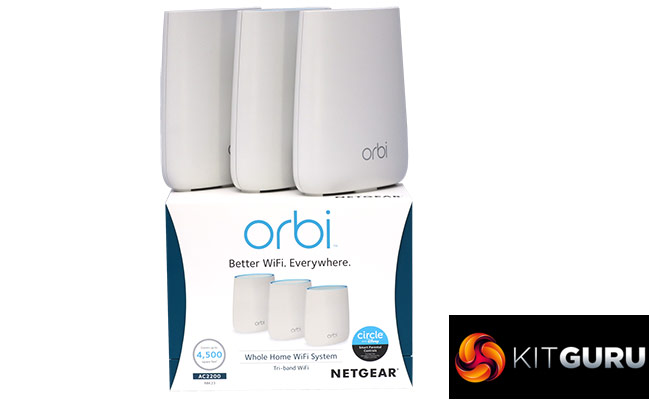
Since the units are smaller physically as well, each one only has space for two Gigabit Ethernet ports. On the router unit, one of these will be used to connect to your broadband. But the satellites can support two Ethernet devices apiece. You also lose the USB port on the original RBK50, although this wasn't operational when we first reviewed it.
The upside of the reduced specification is that you can pick up the two-unit RBK20 for under £200, and the three-unit RBK23 we were sent is £280, just £30 more than the two-unit RBK50, and £120 less than the three-unit version of the latter, the RBK53. So if you need excellent home WiFi coverage at a keener price, the RBK23 could be the NETGEAR Orbi for you. We put it through its paces to find out.
Price: £280
Specification:
Wireless protocols: MU-MIMO with 802.11b/g/n 2.4GHz, 802.11a/n/ac 5GHz
Performance: AC2200 (866 + 866 + 400 Mbits/sec)
Antenna Configuration: 2×2 internal antennas for 2.4 and 5GHz (4 total)
Ports: Router: 1 x Gigabit Ethernet WAN, 1 x Gigabit Ethernet; Satellites: 2 x Gigabit Ethernet
Modem Support: VDSL/ADSL 2+ or cable
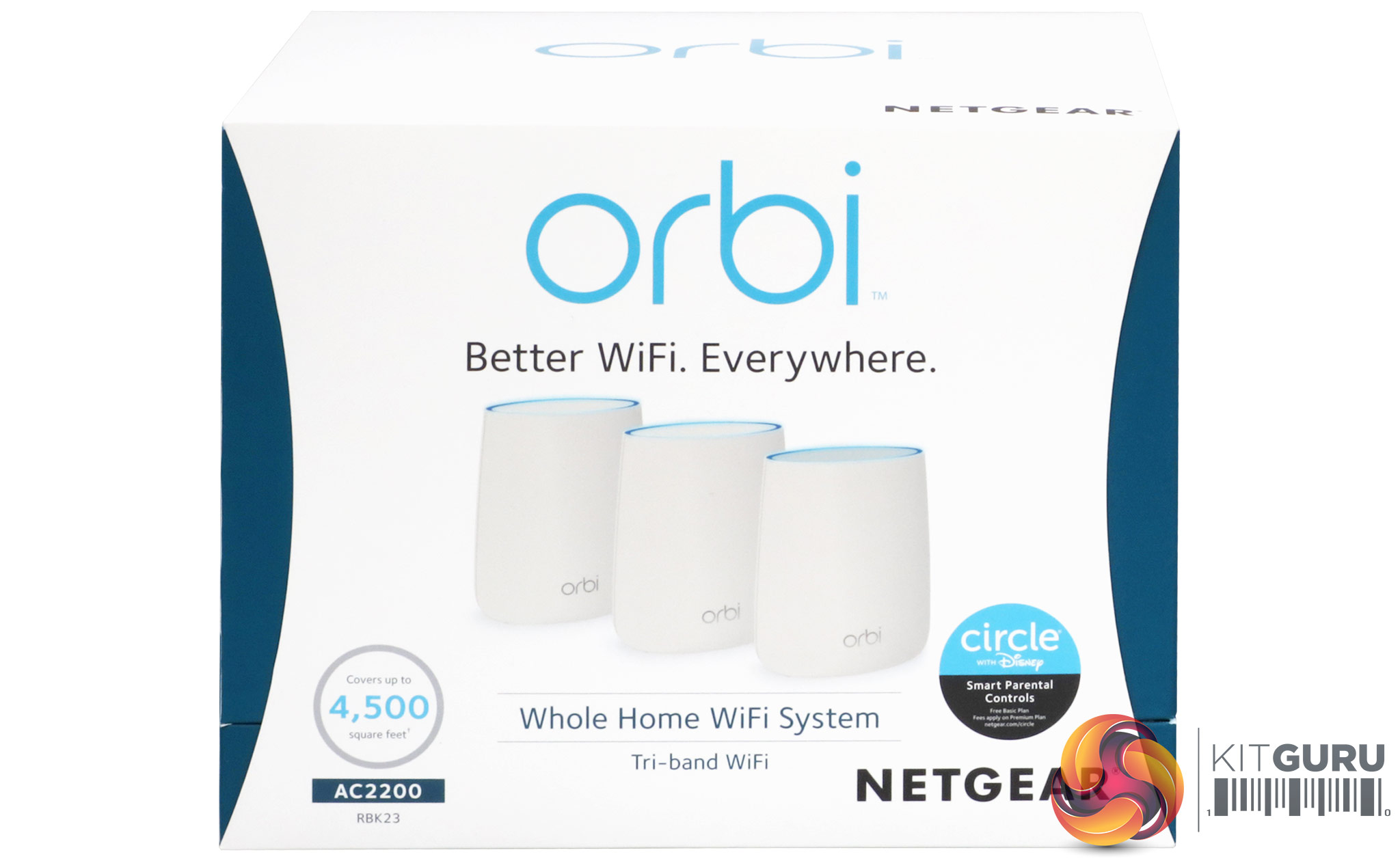
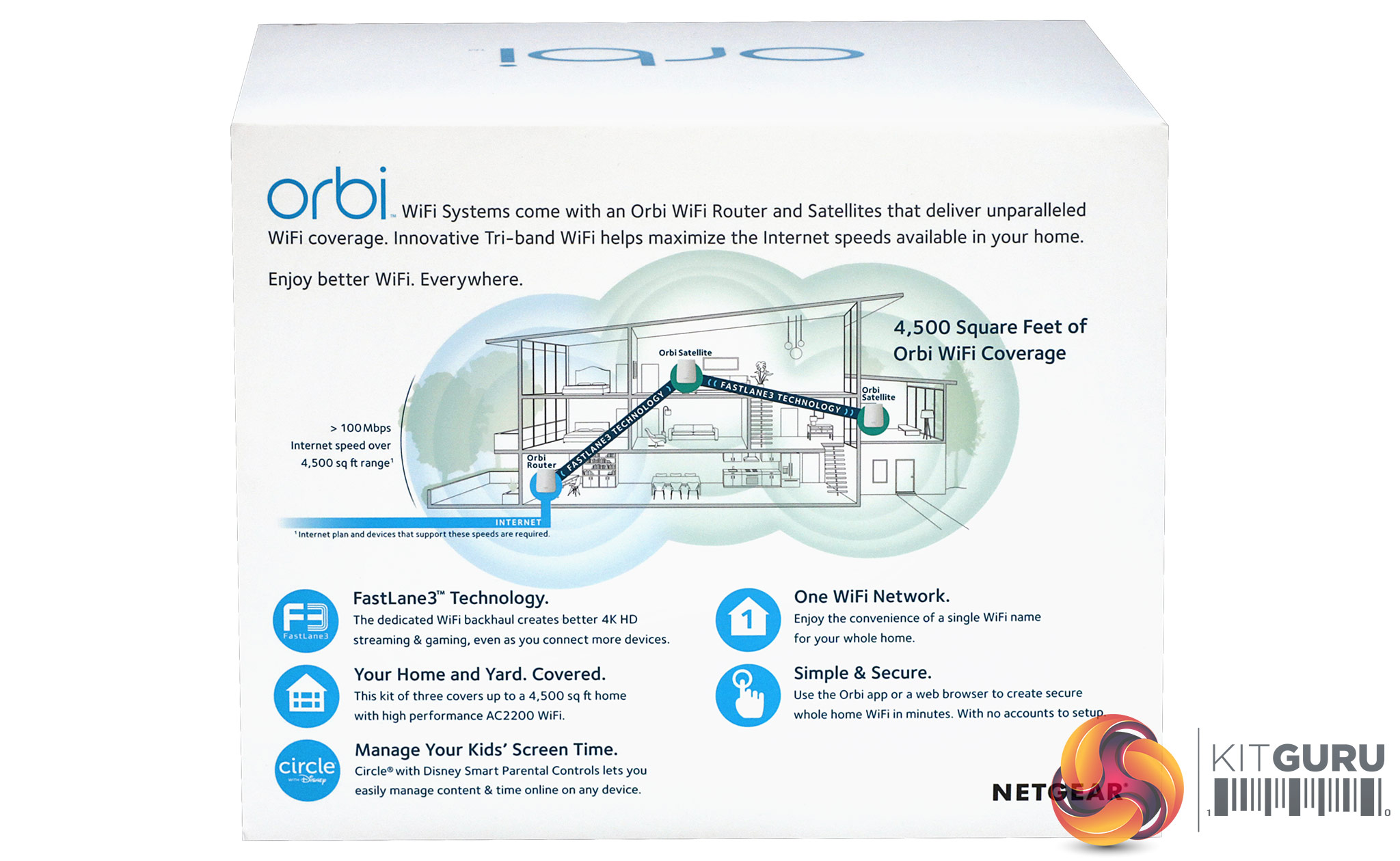
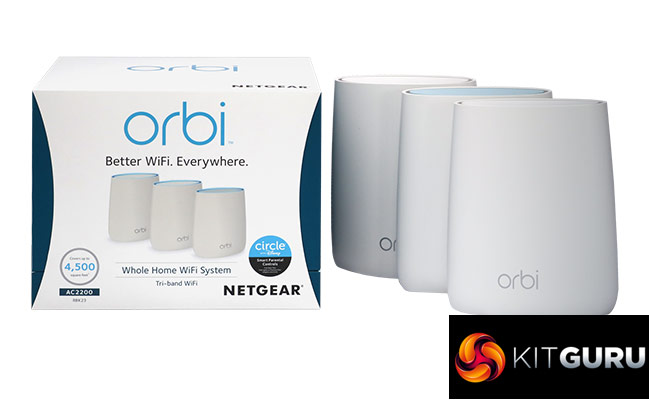
NETGEAR keeps the branding and box design we have become familiar with for the Orbi over the last couple of years.
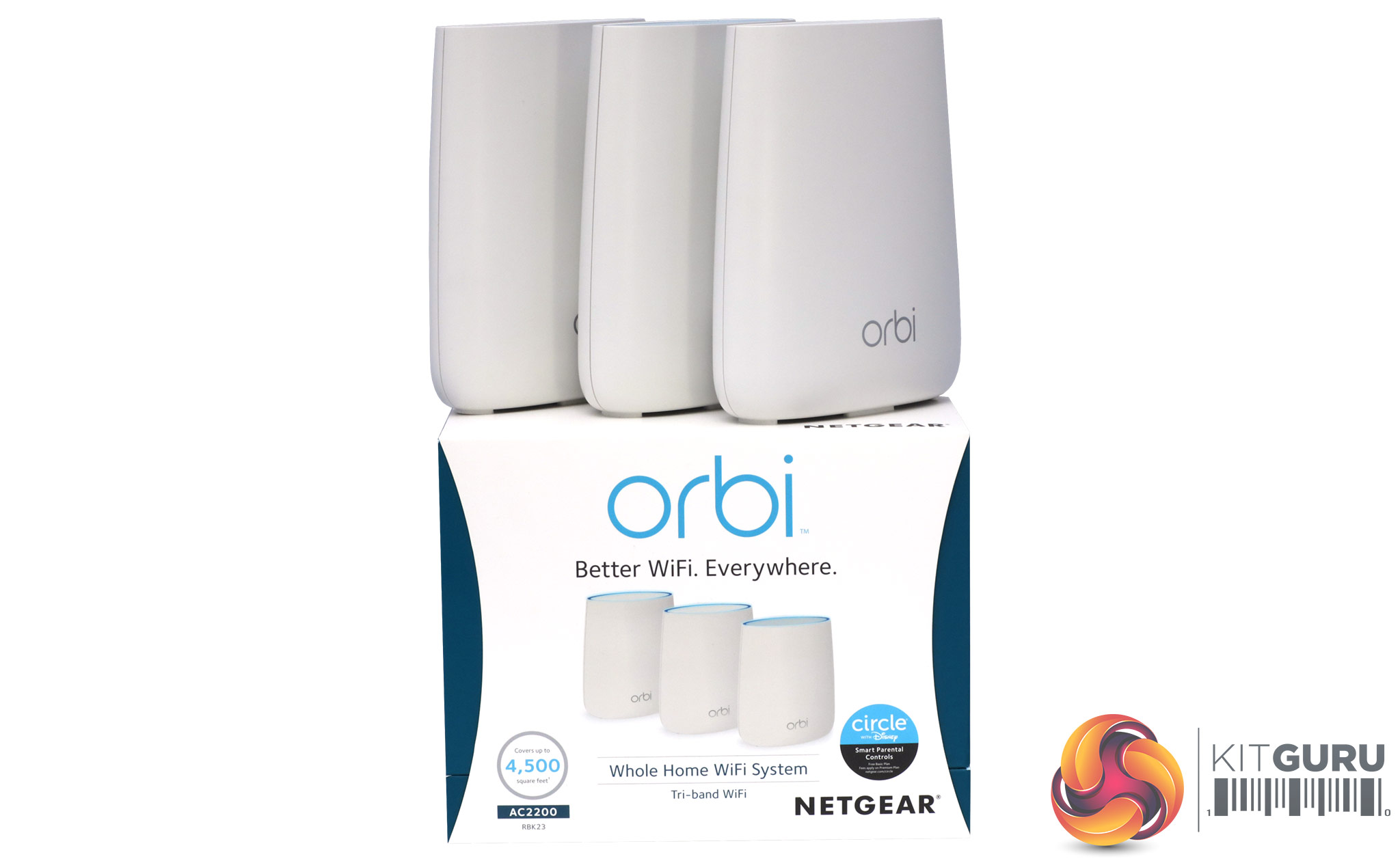
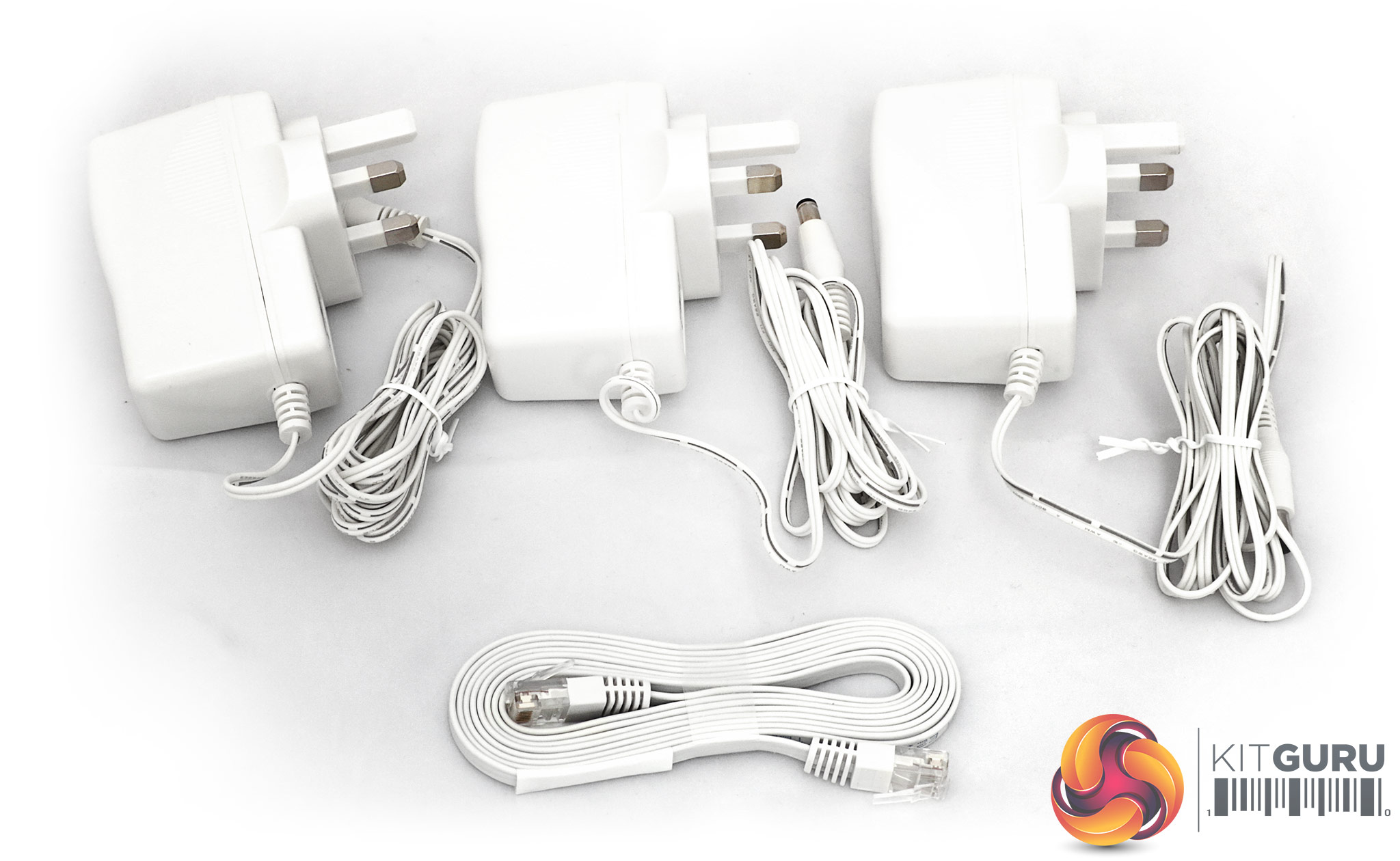
Apart from the units themselves, you get their respective power supplies, which are UK-only, and a single ribbon Ethernet cable for connecting to your broadband router.
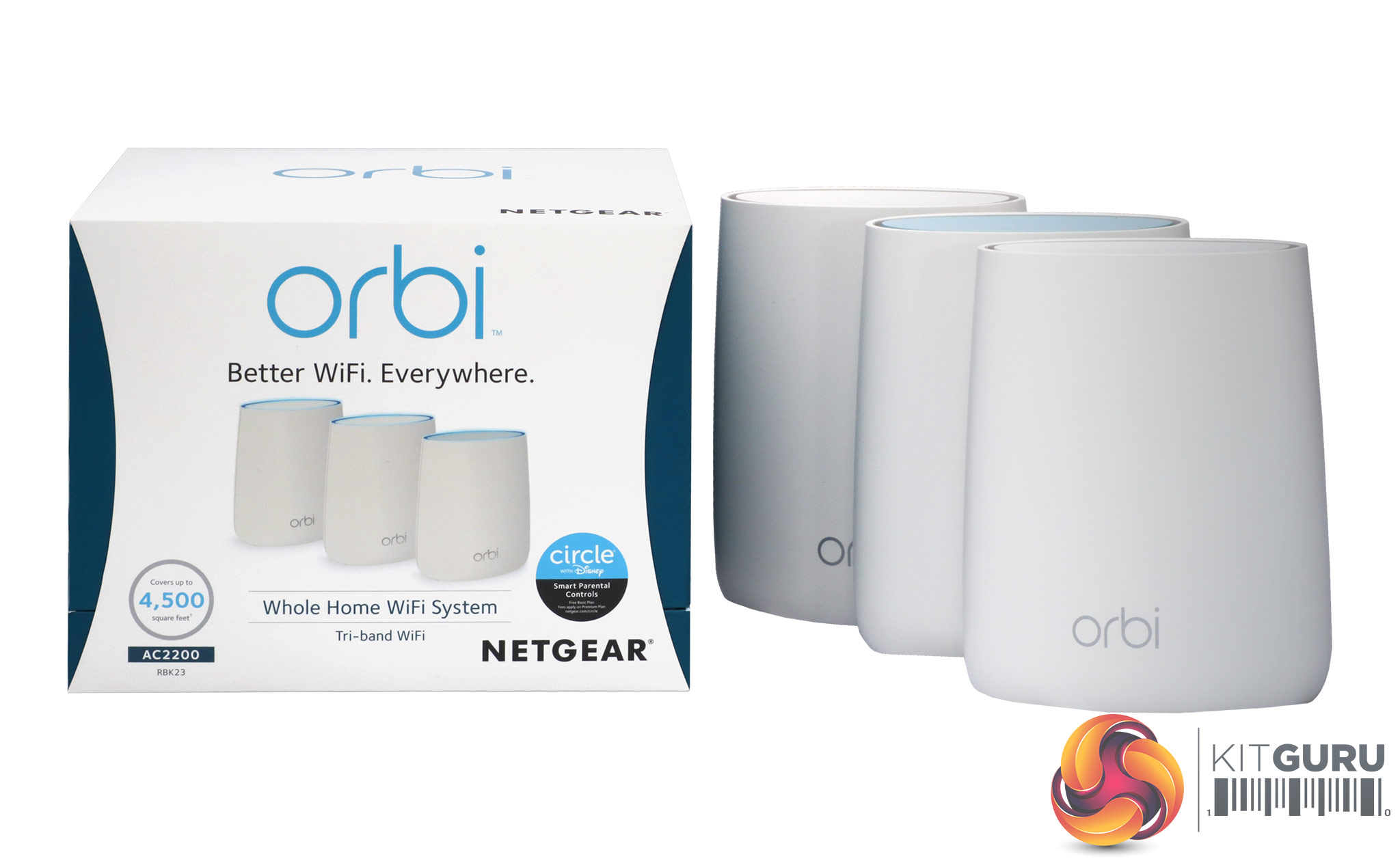
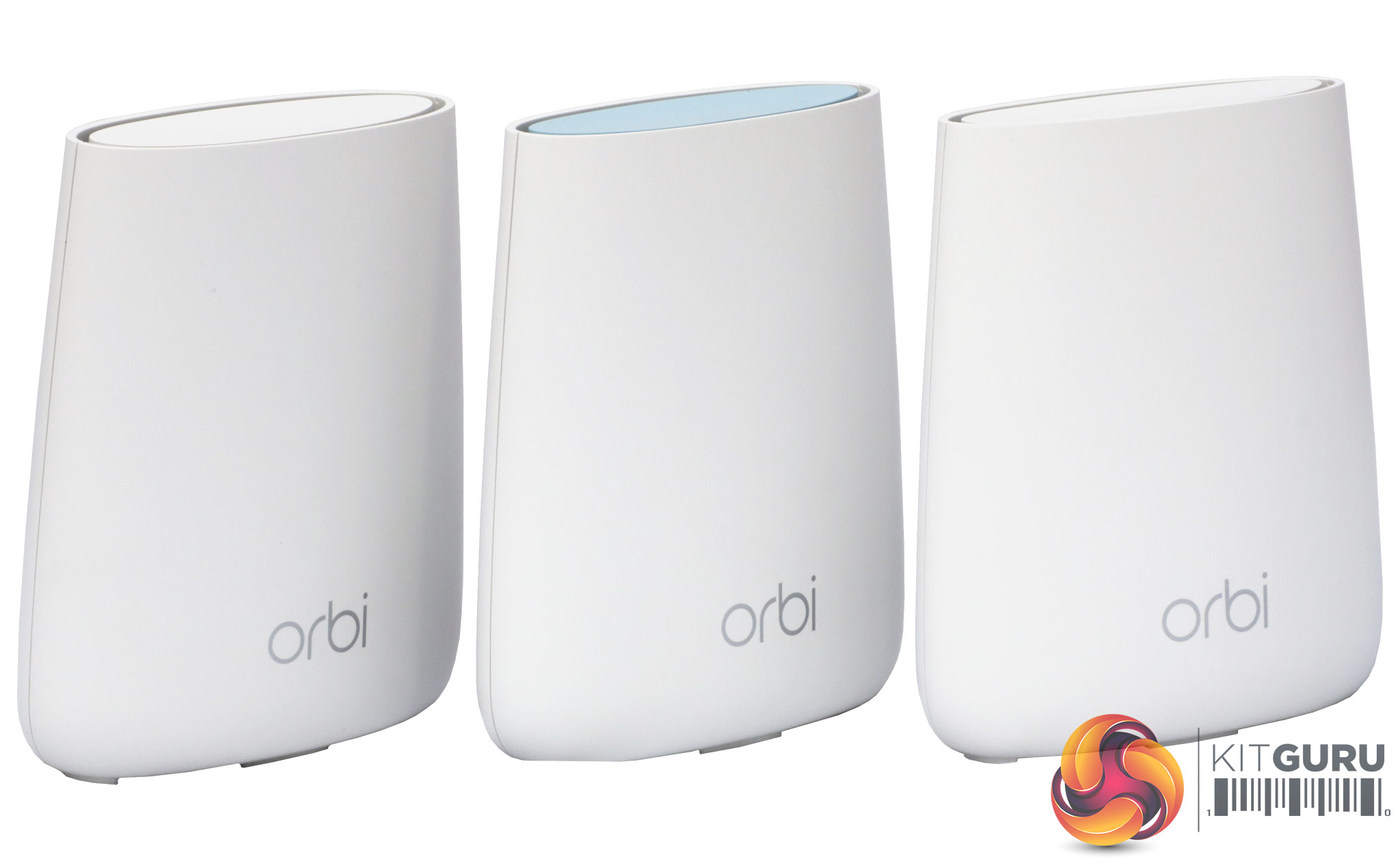
Not only does the box maintain the Orbi branding, the units themselves look the same as the original Orbi RBK50 – only smaller.
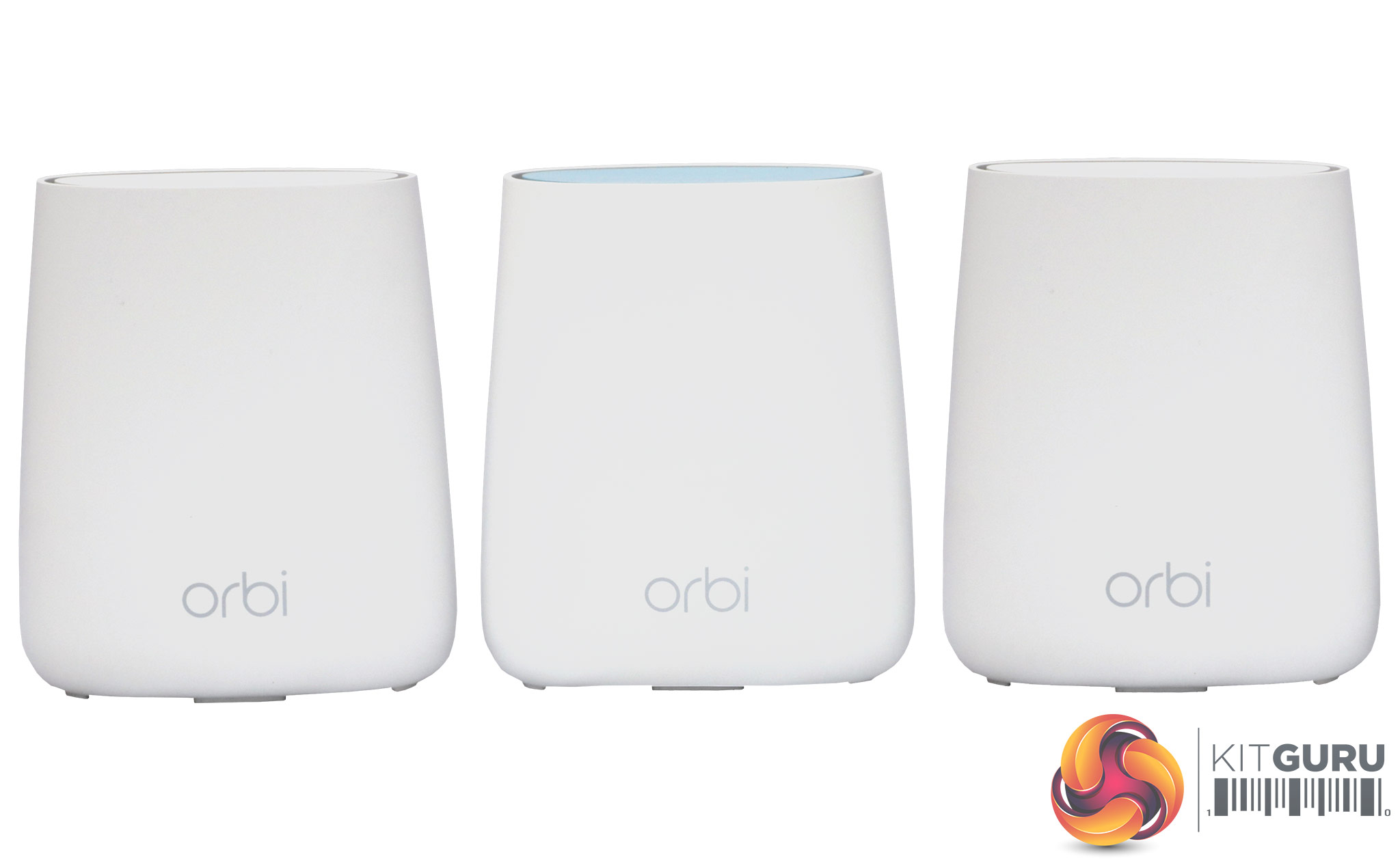
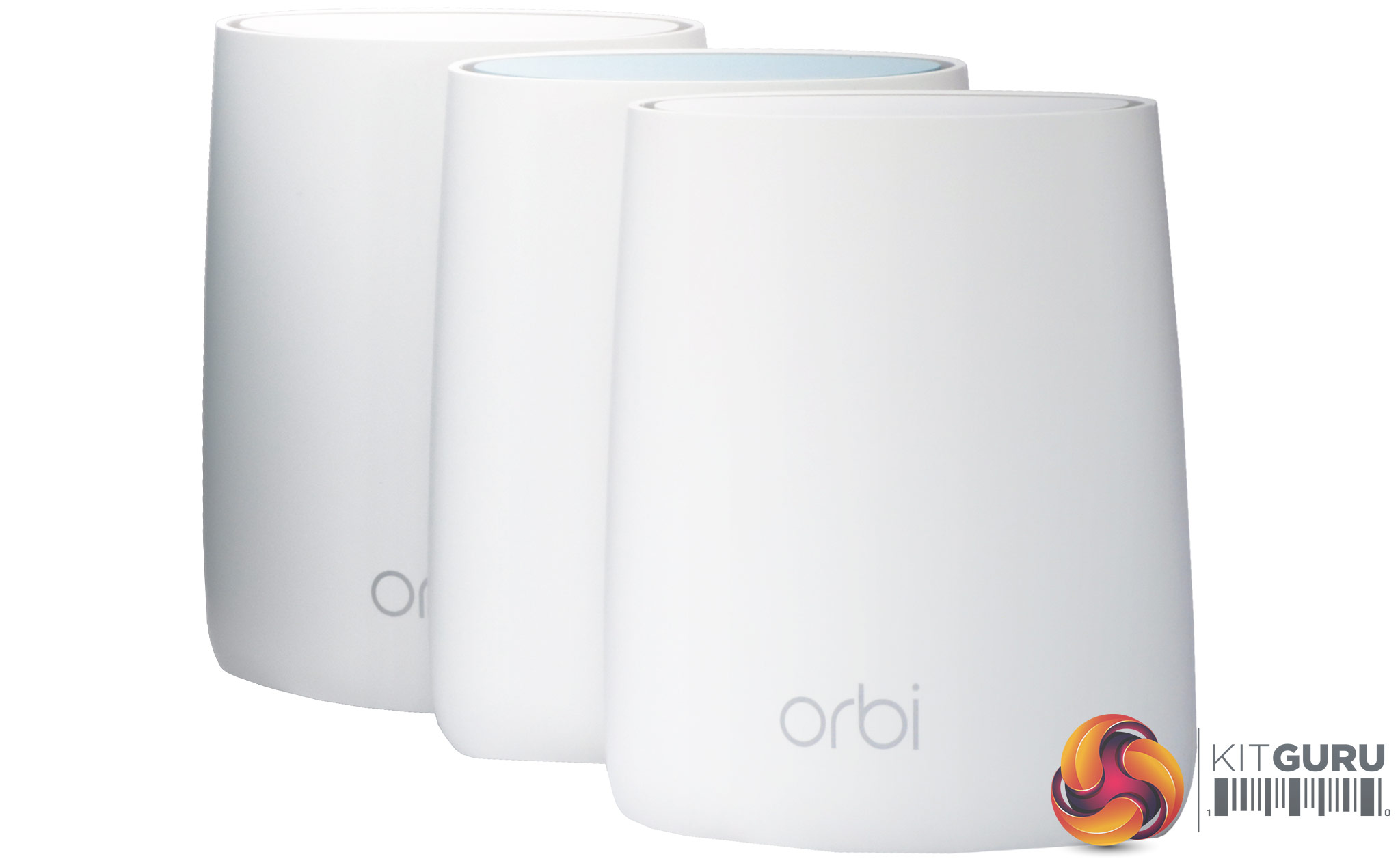
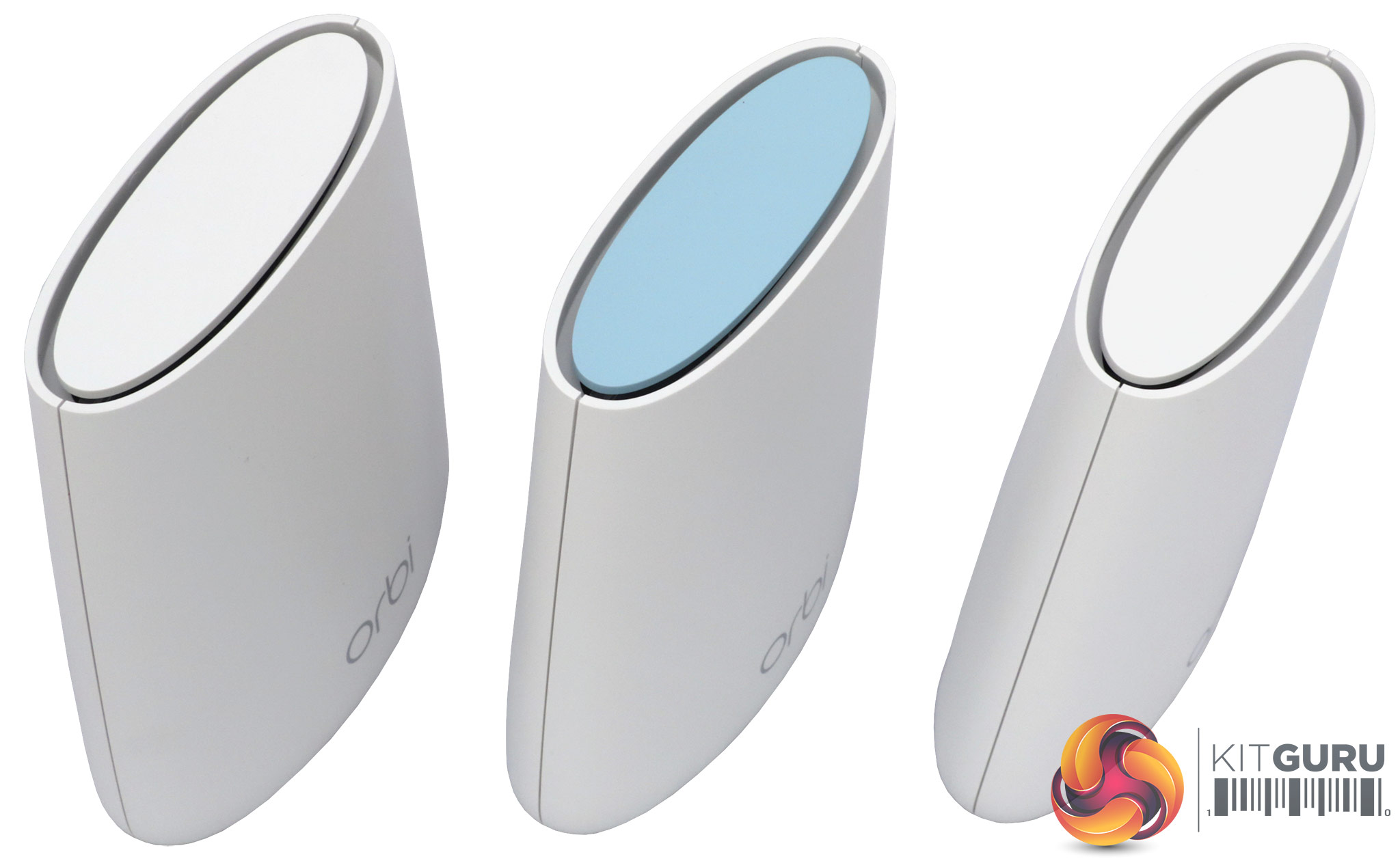
All three units look almost identical. However, as with previous Orbis, the router unit has a blue top and the satellites white tops. It also comes with a sticker detailing the default WiFi SSID and password, which all three units have been pre-configured to use.
Unlike most other mesh systems, the Orbi is asymmetrical, and only the router unit can act as a router. But this means you can essentially plug them in and go, because you won't need to pair the satellites to the router during setup.
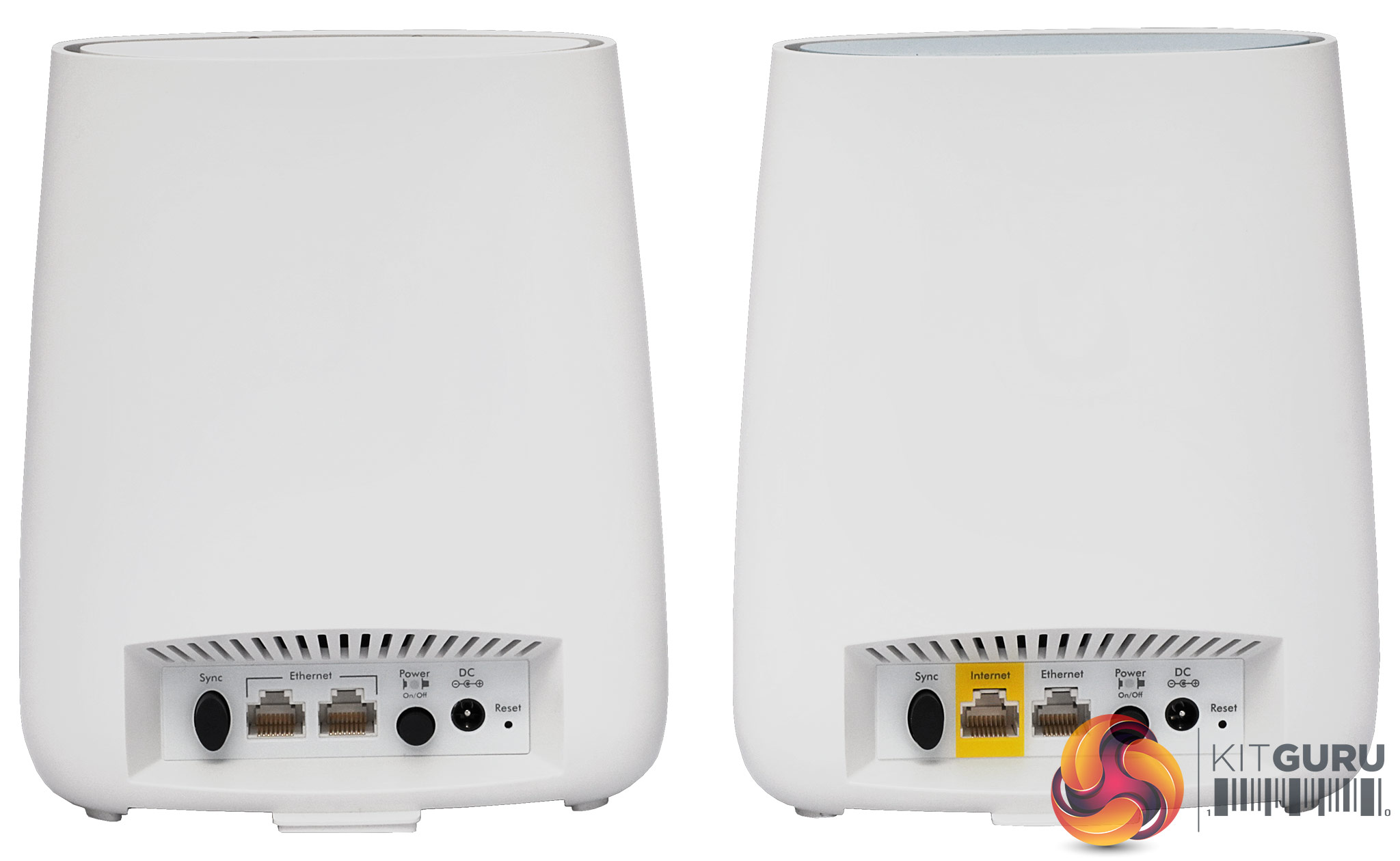
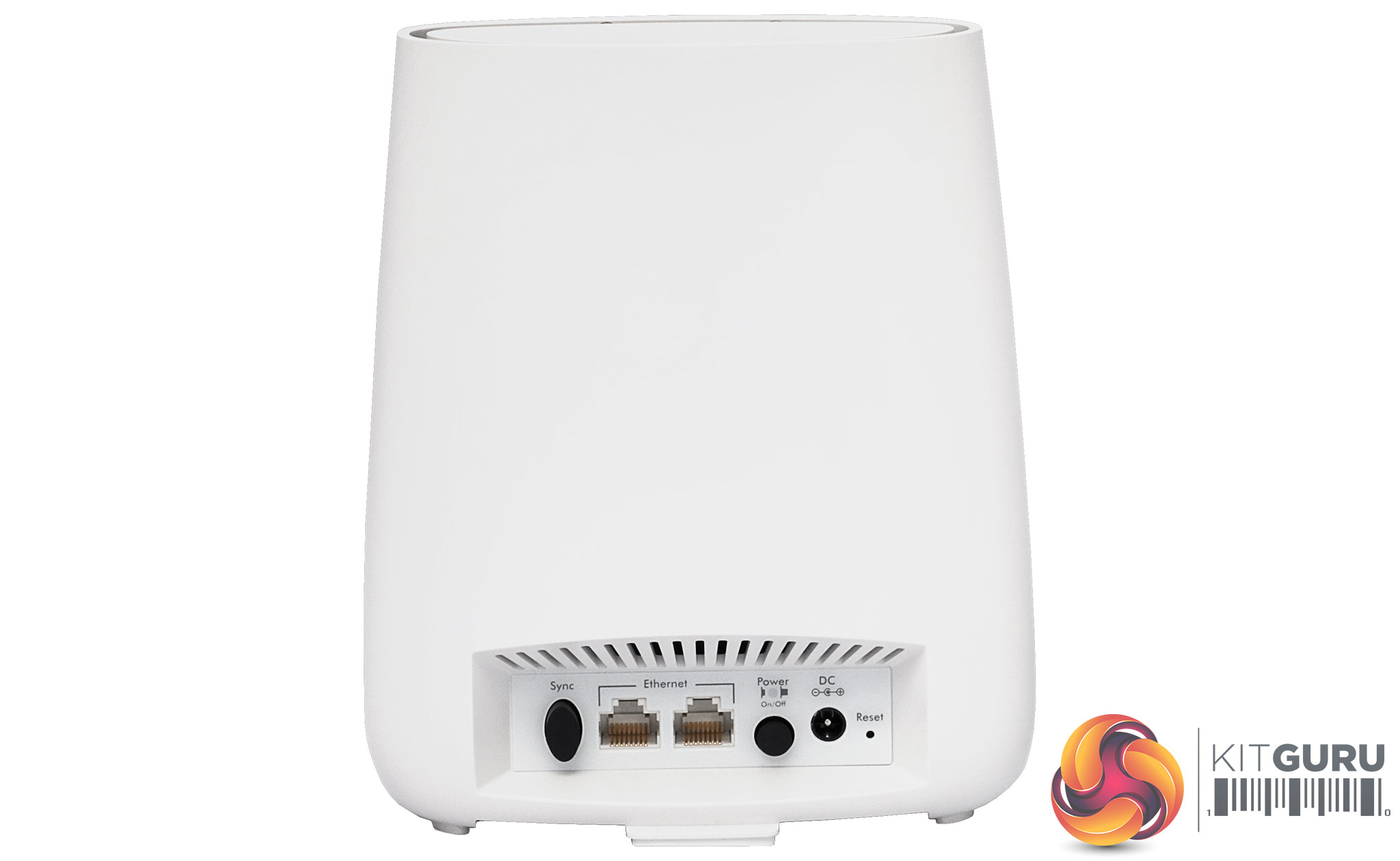
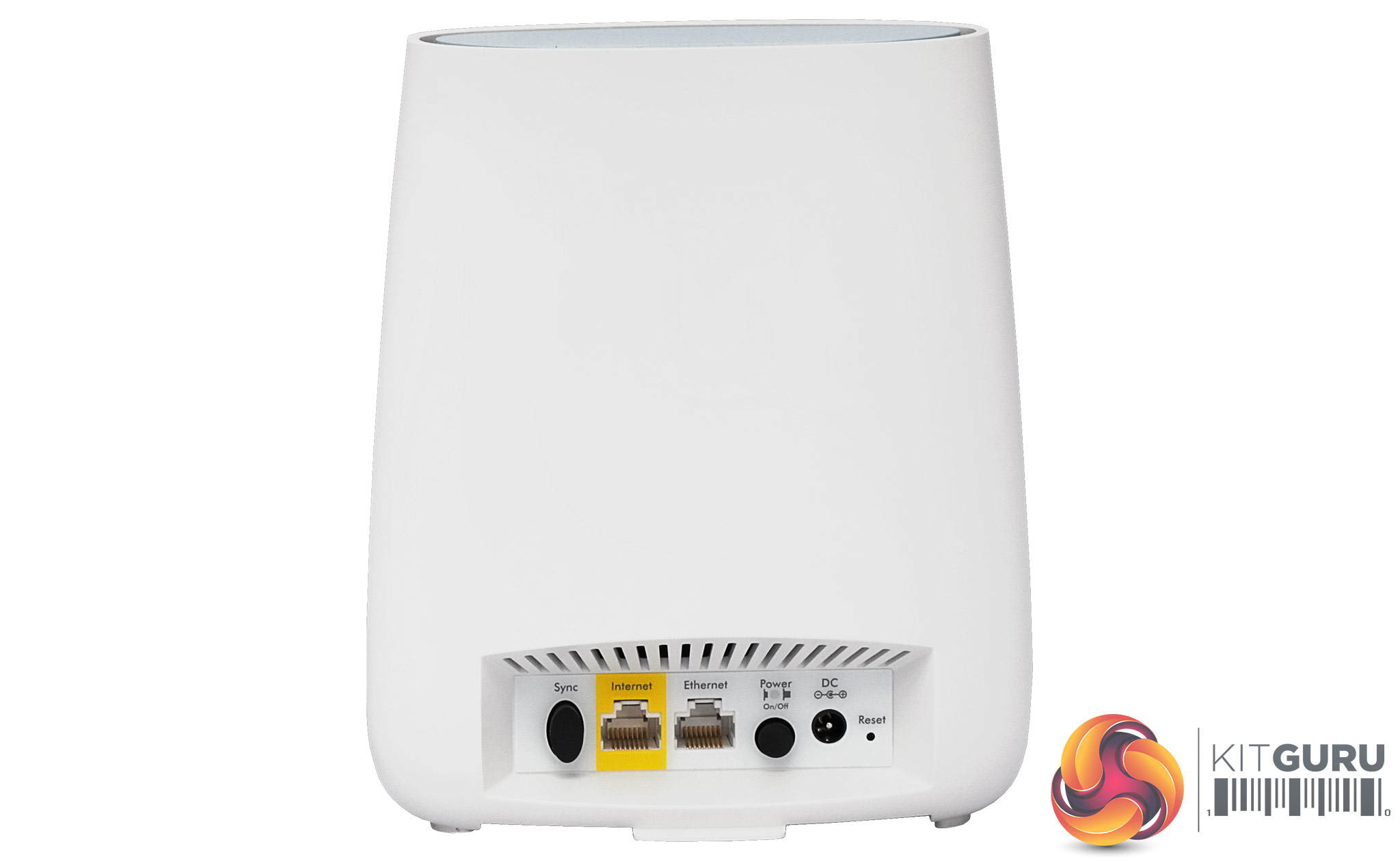
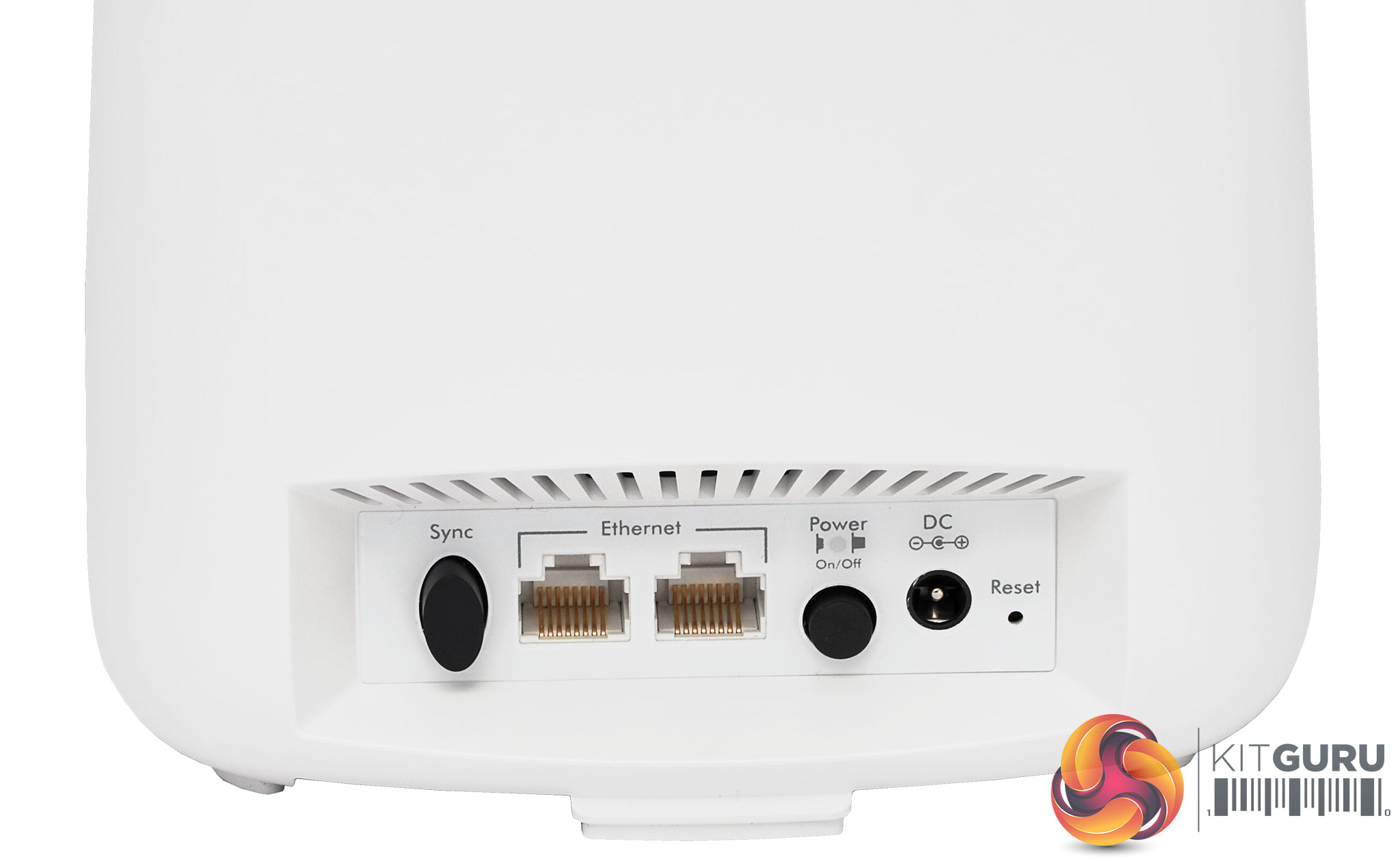
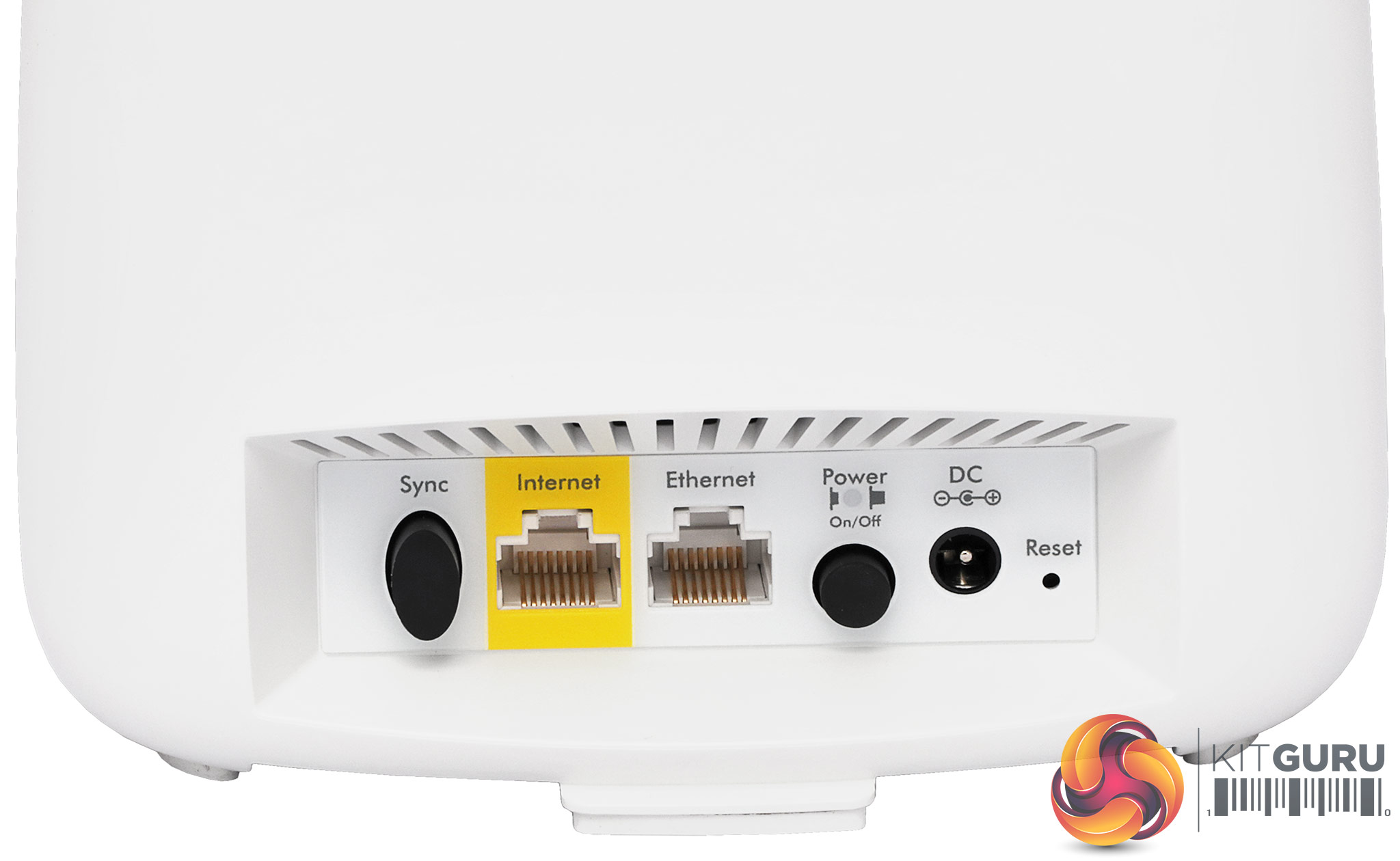
The ports on the router and satellite are almost identical, too. In between the sync switch on the left and power switch on the right (when viewed from behind) can be found two Gigabit Ethernet ports. However, on the router, one is coloured yellow and this is the one that must be used for attachment to your broadband modem, or for hooking up to the main network in access point-only mode.
This is one noticeable difference from the RBK50 and RBK40 units, which have four Gigabit Ethernet ports. So when considering the RBK20/RBK23 options you should weigh up whether you need more than two Gigabit Ethernet ports per satellite.
Overall, the Orbi design traces a middle ground between functional and the more funky look of alternatives like the ASUS Lyra Trio. Aside from the reduced internal specification, you are losing a couple of Ethernet ports over the more expensive Orbis, but the smaller unit size might also be favourable if you don't want intrusively large mesh satellites around your home. The next question is, has software functionality been reduced compared to the larger Orbi options?
Since the Orbi units are pre-paired, you can just plug them in and turn them on.
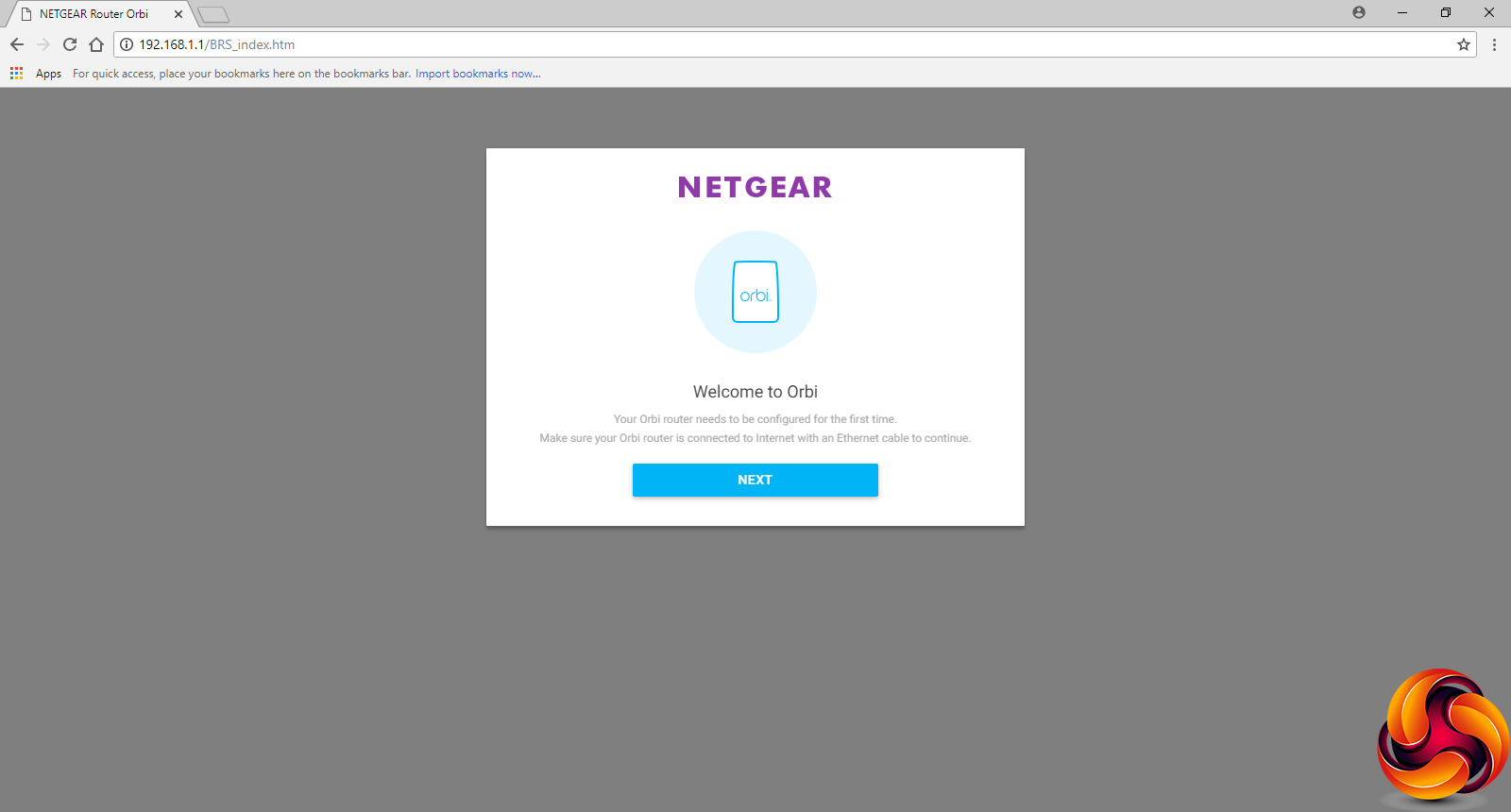
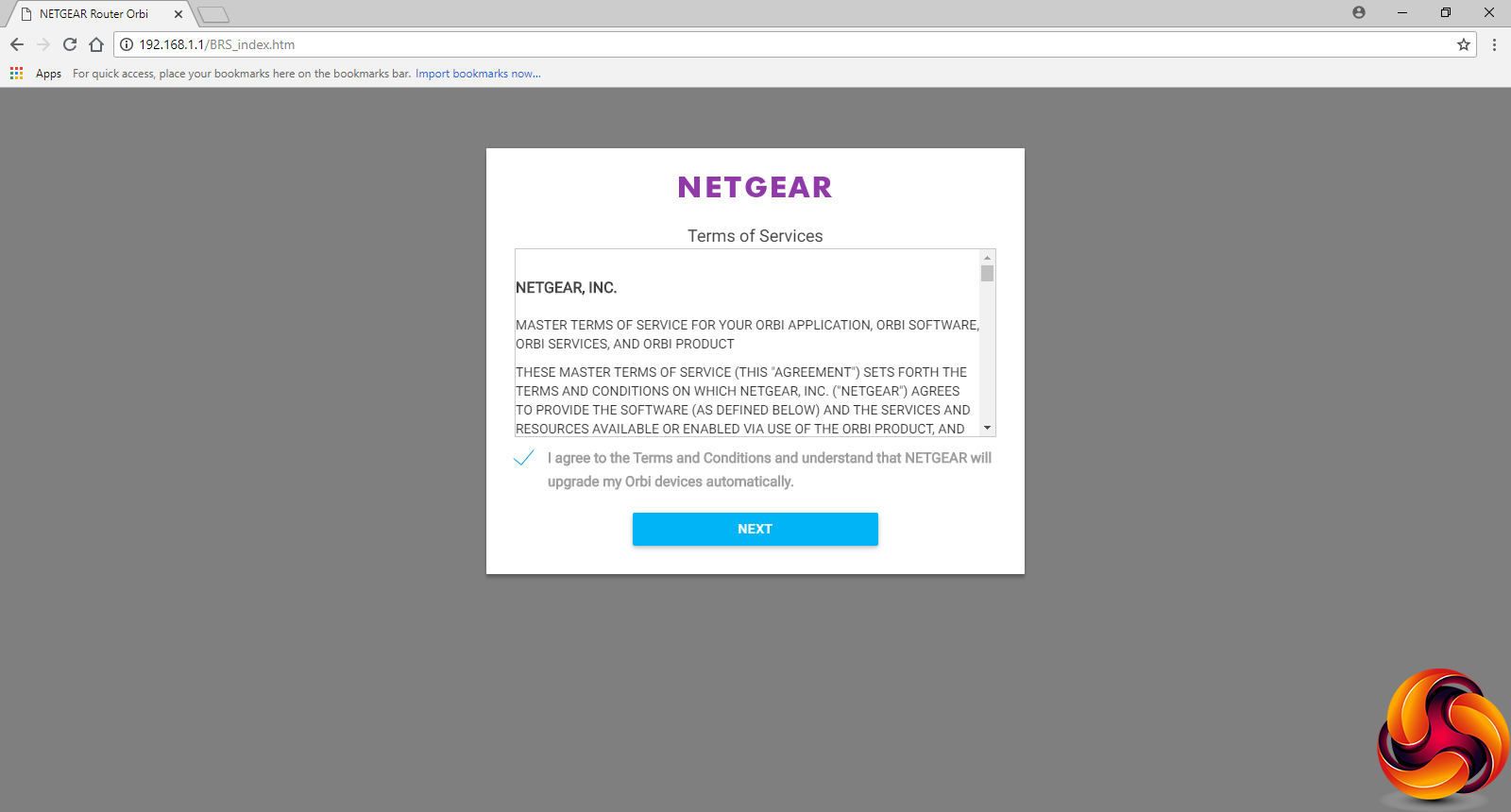
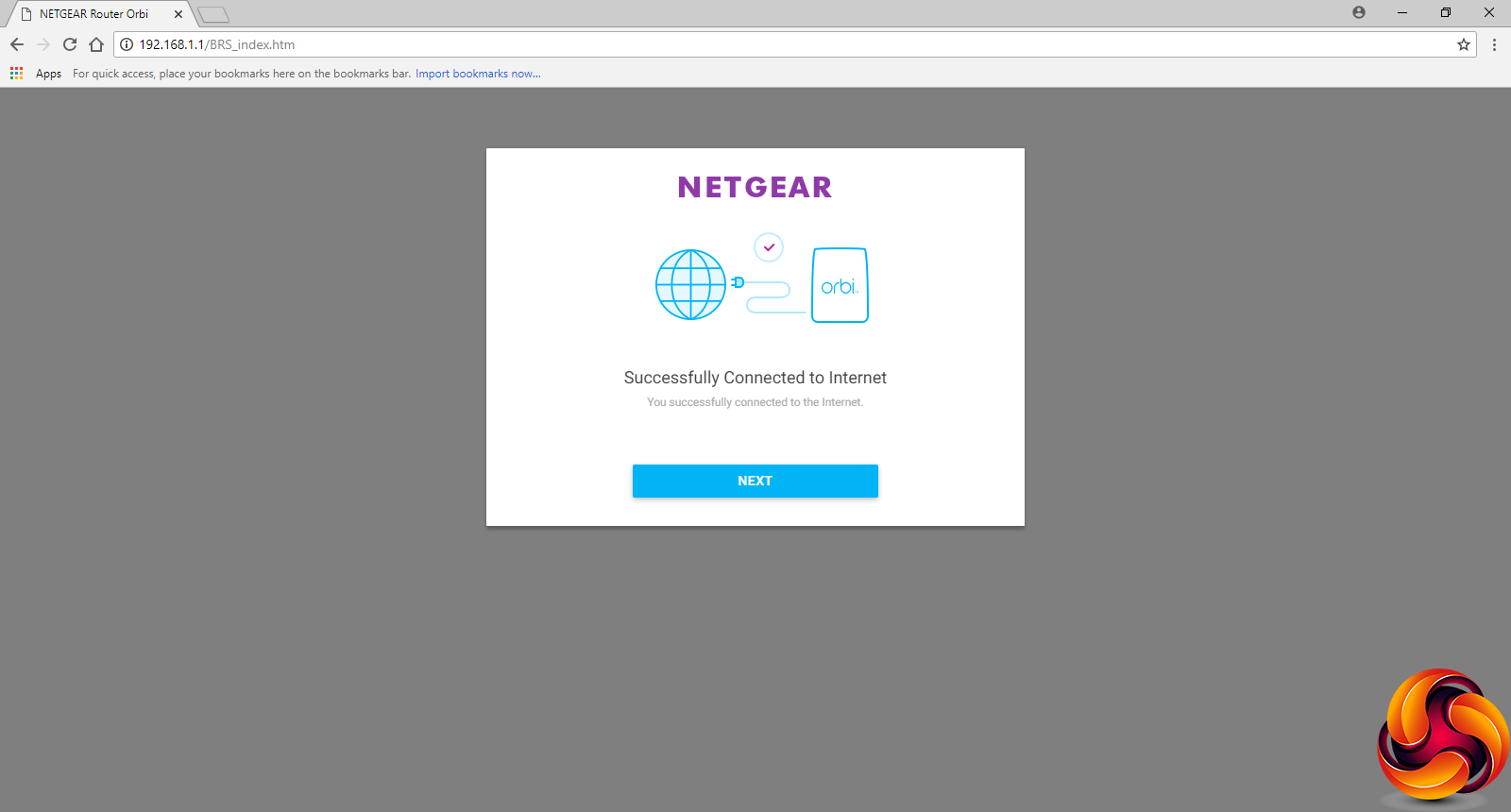
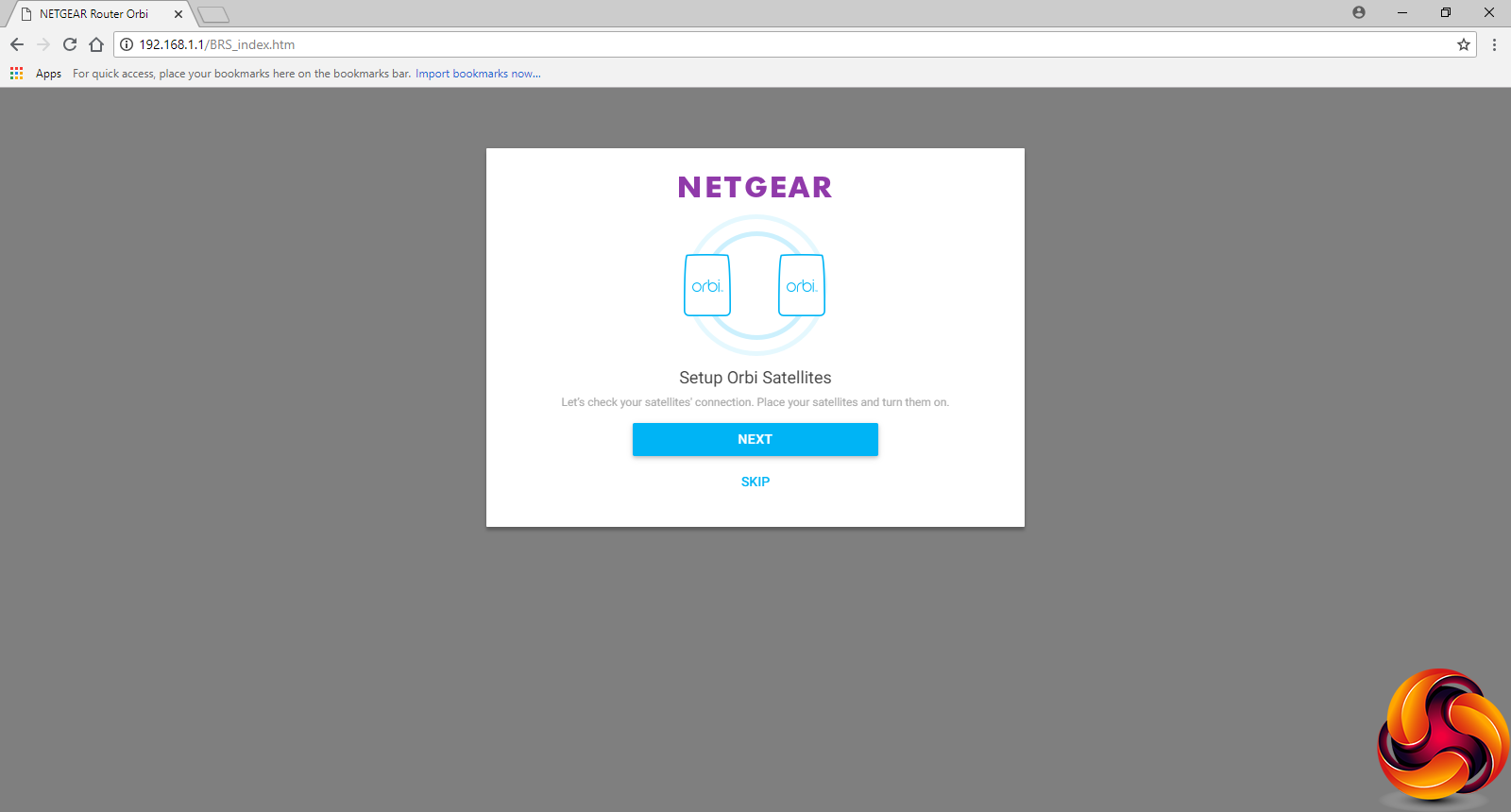
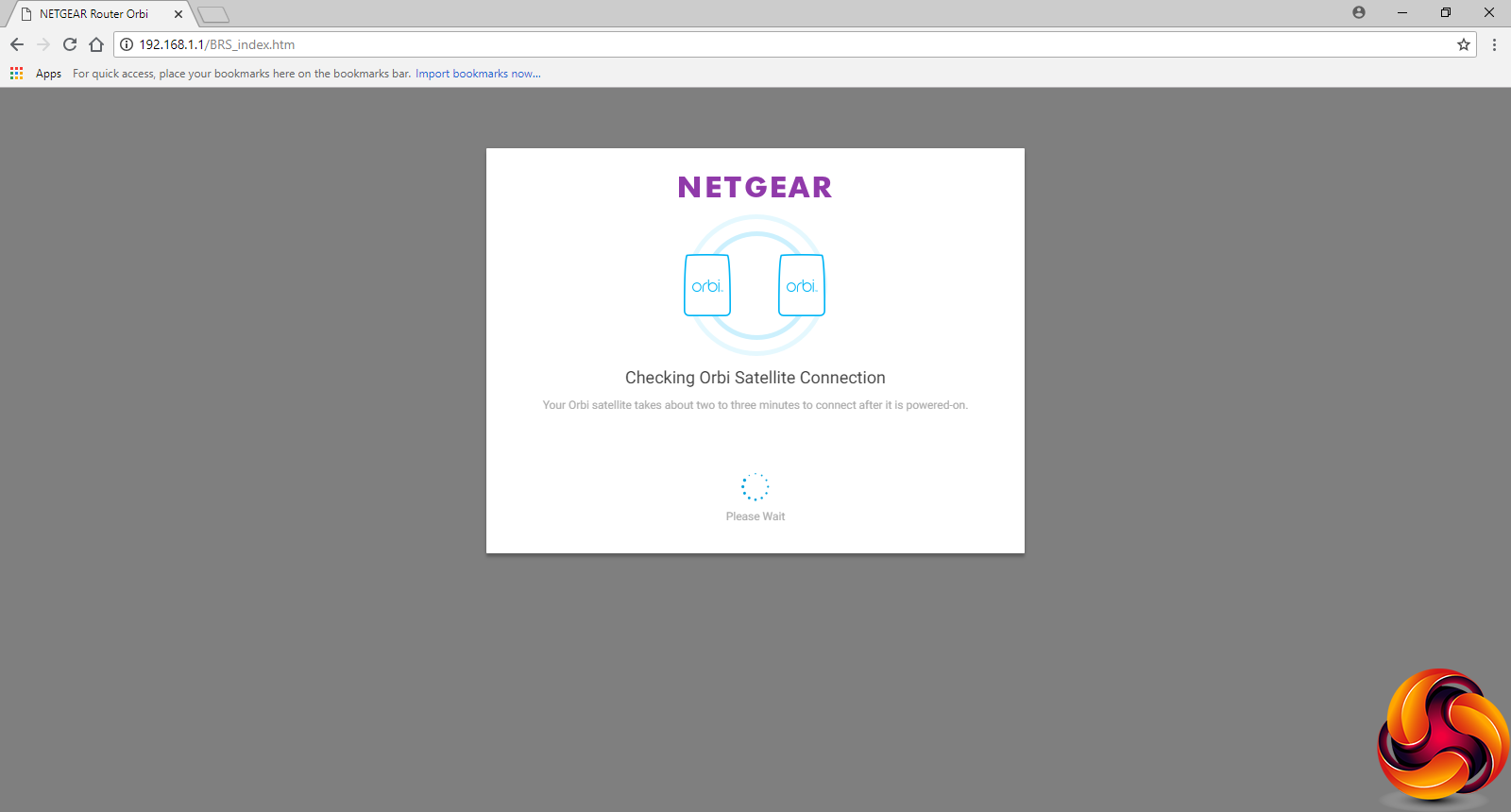
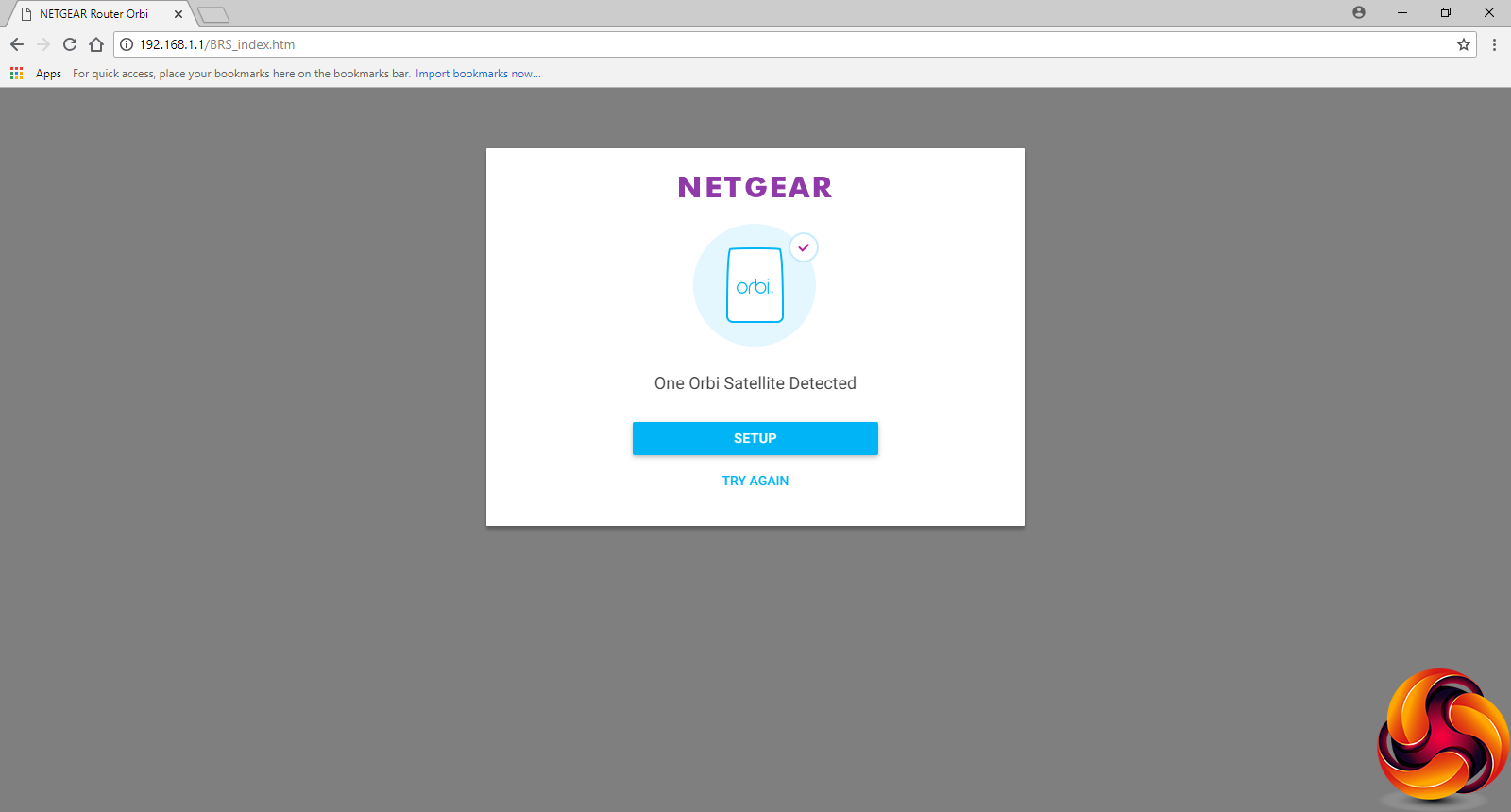
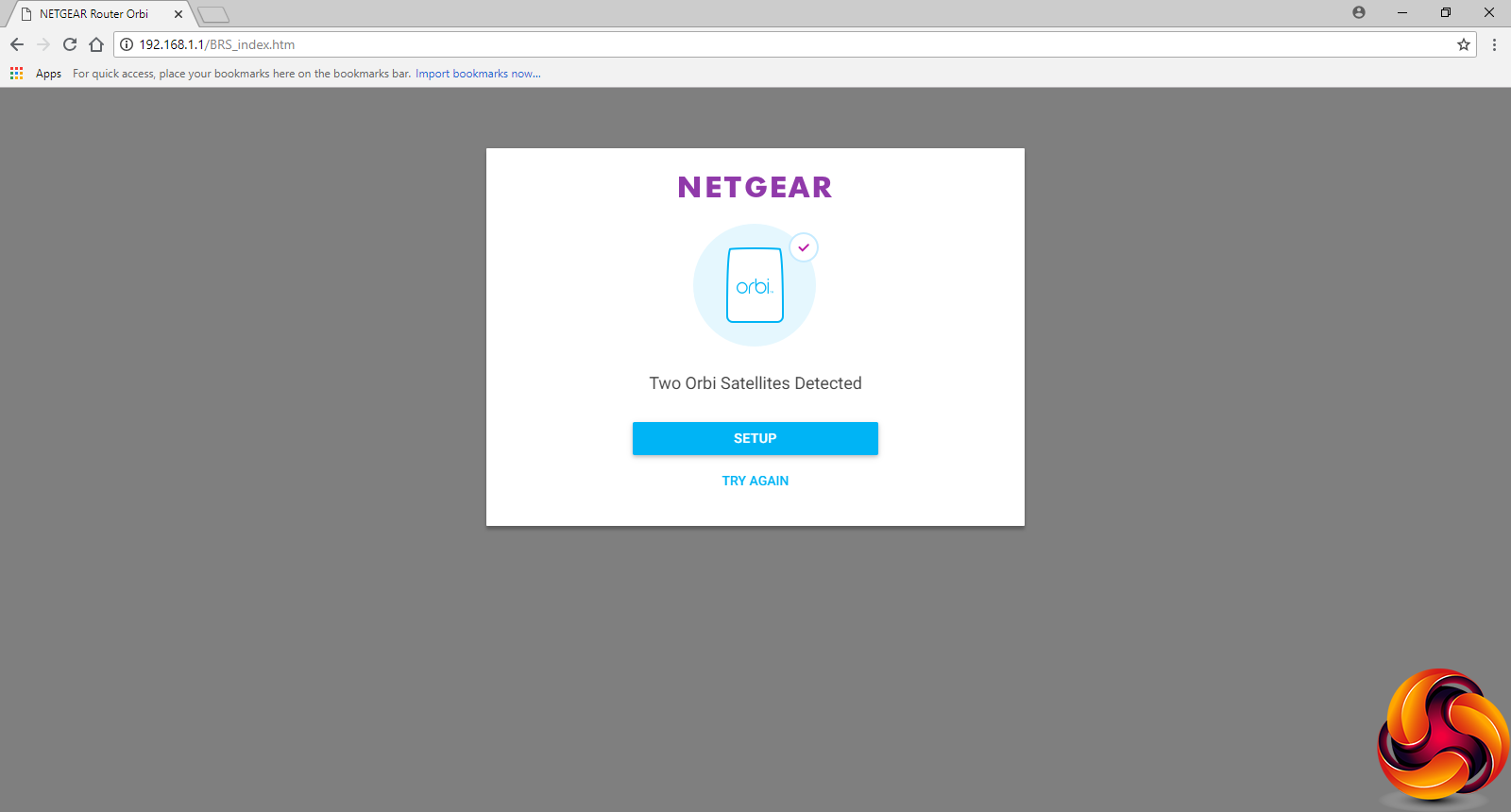
The setup system guides you through a series of checks to ensure the Internet connection is working and the satellites have found the router and hooked themselves up wirelessly. The satellites will need to have been on for two or three minutes before you start this process, however.
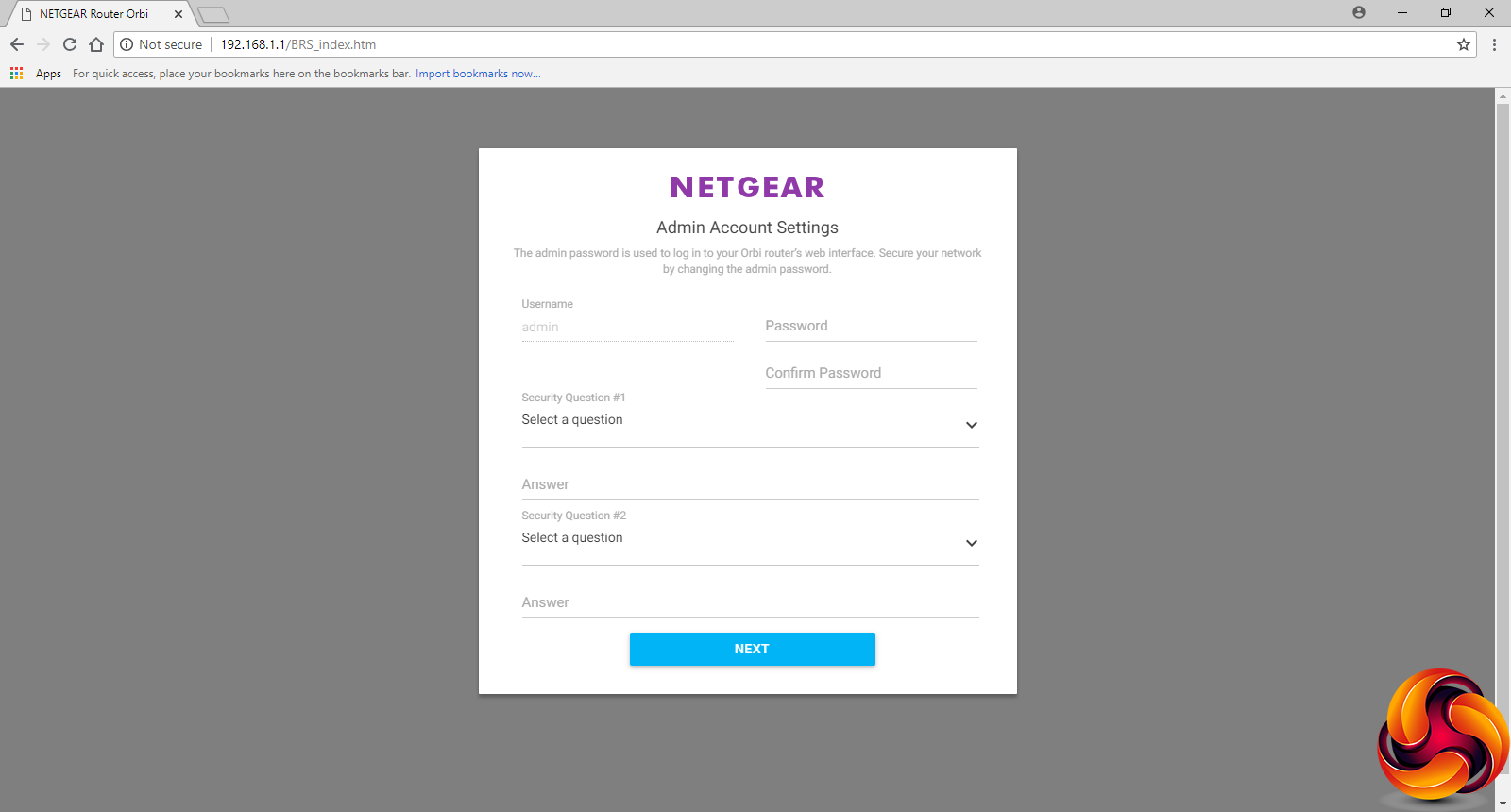
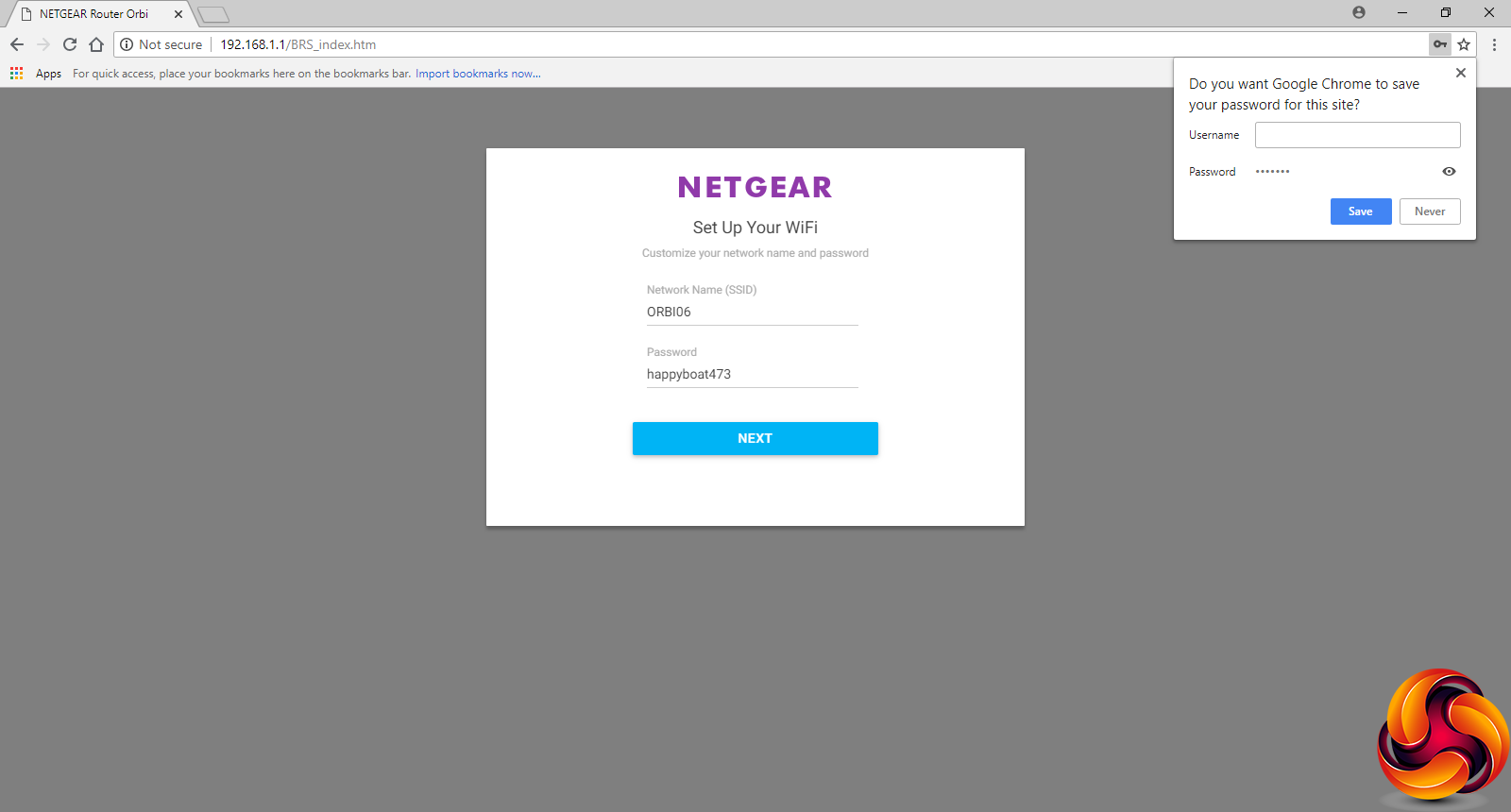
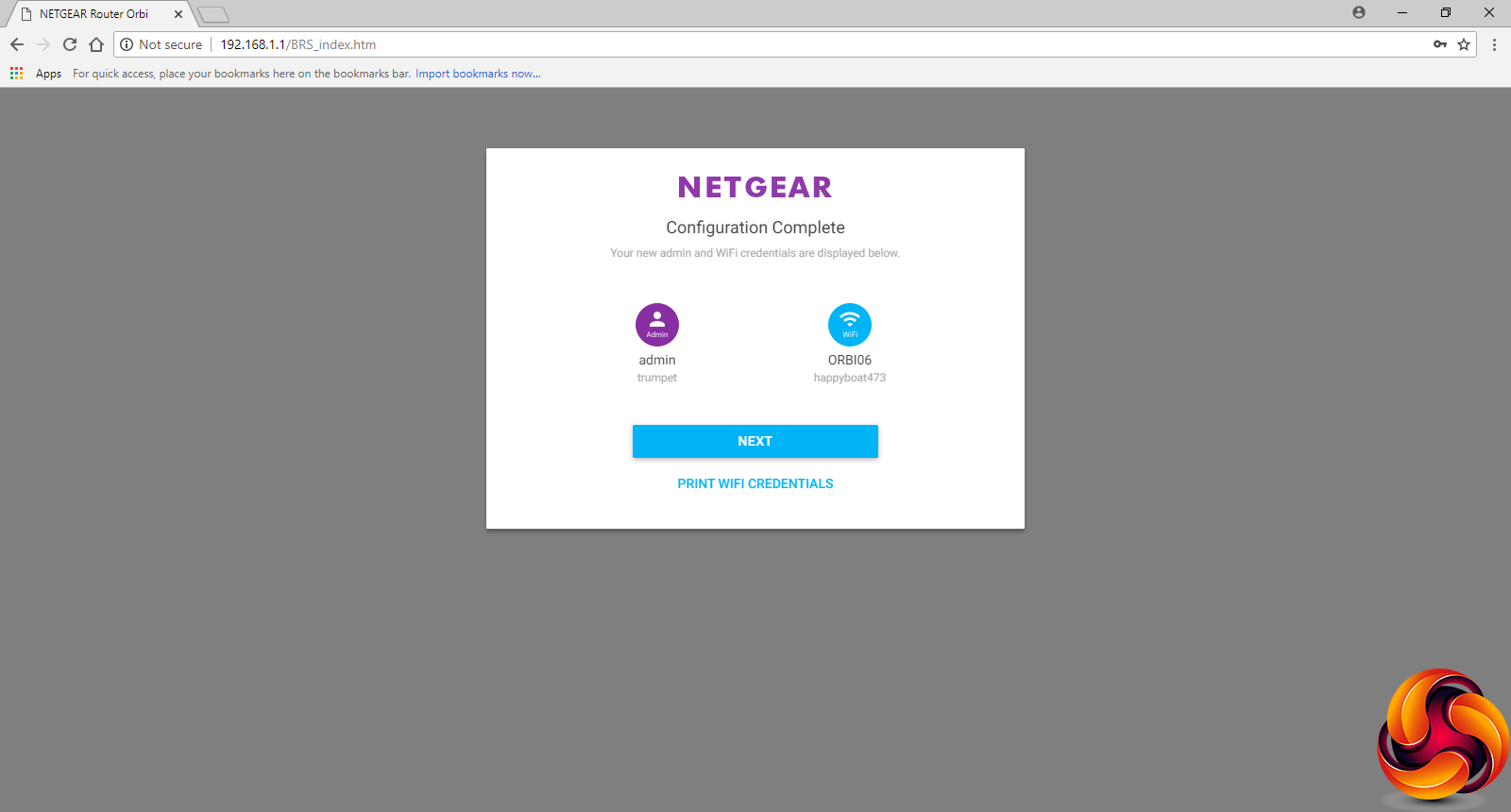
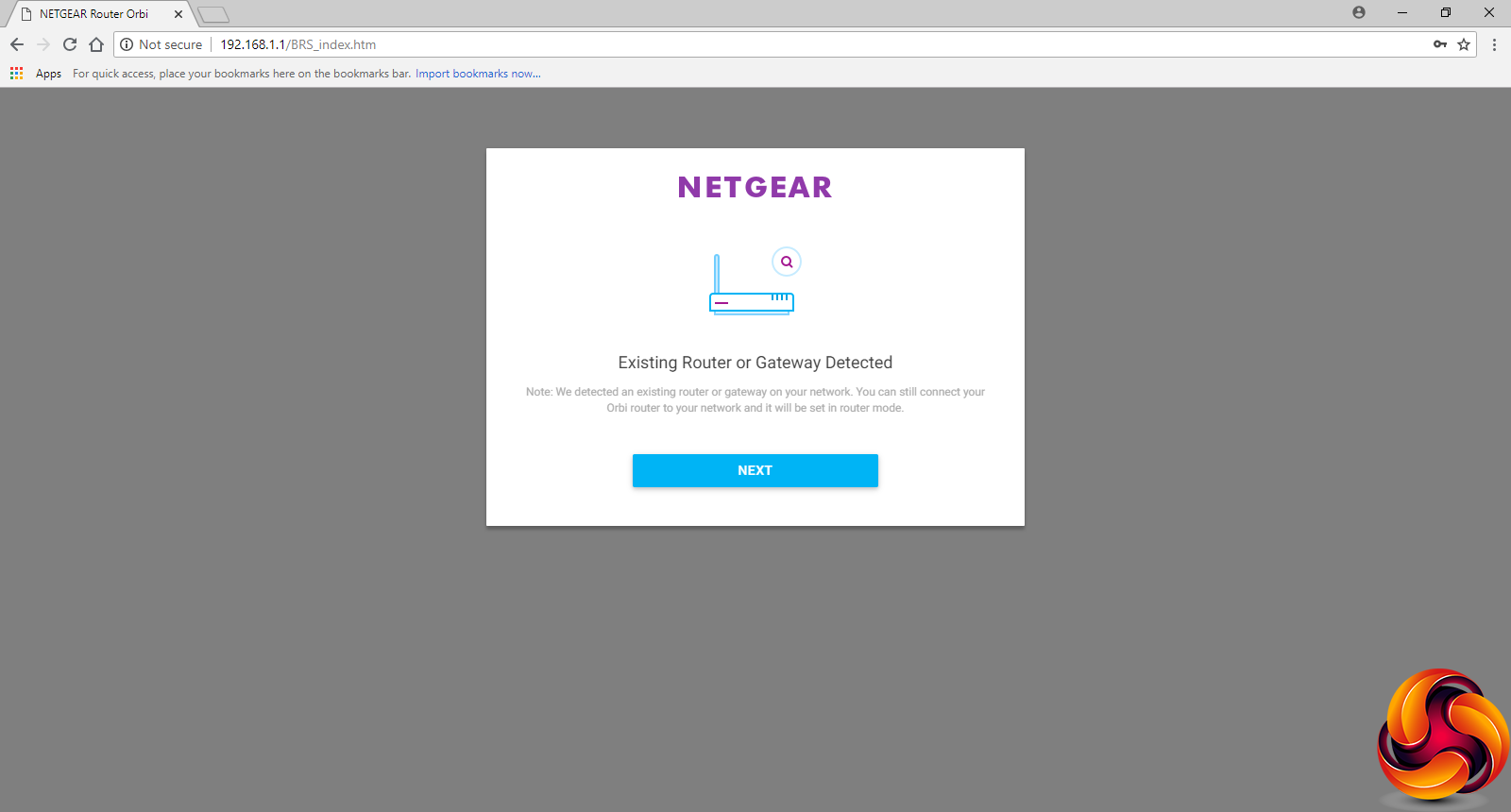
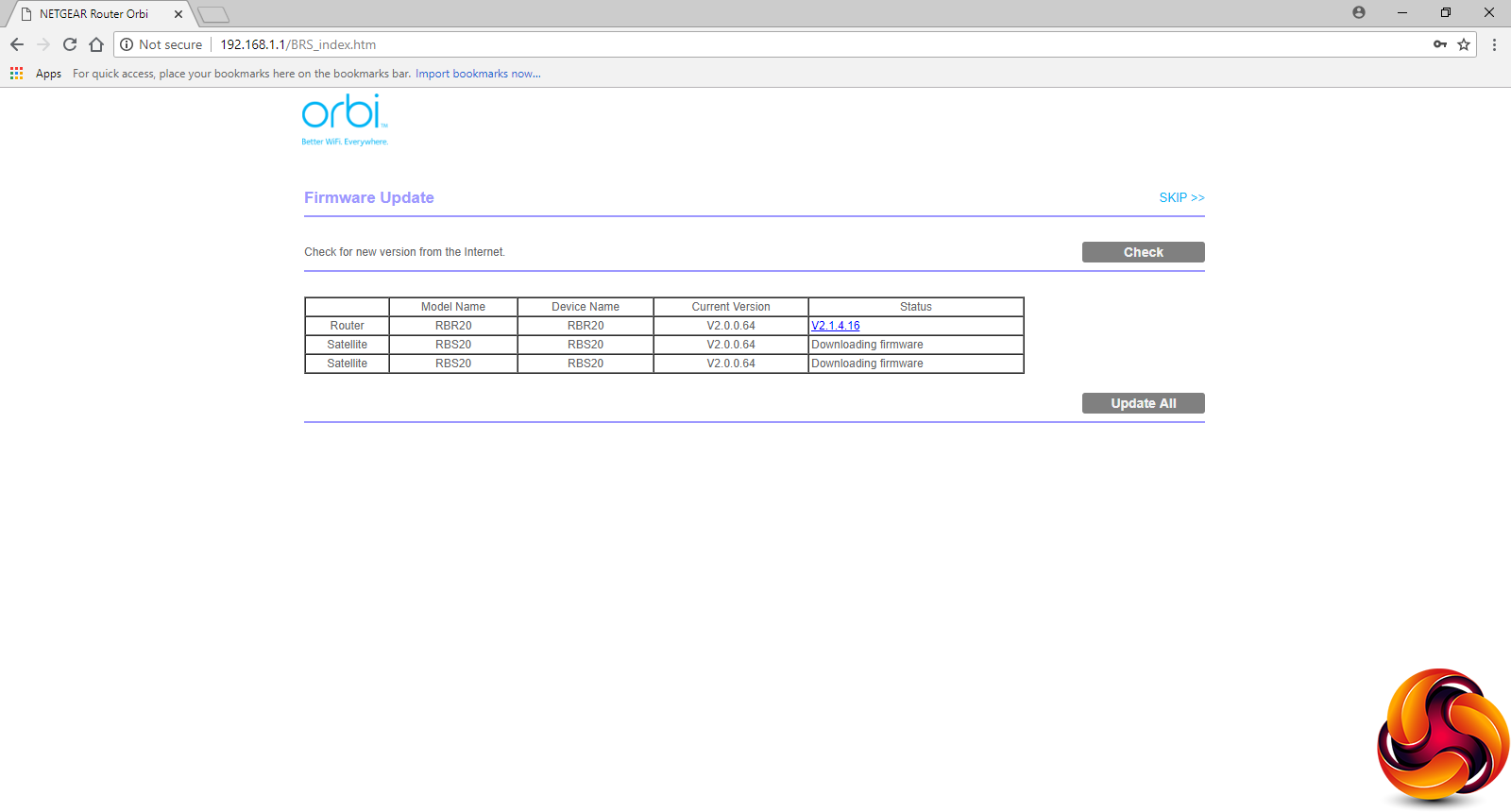
Next, you create an admin password and confirm (or change) the SSID and password for your WiFi. You can then review your settings and print them out if you want a paper record. If you're using the Orbi through an existing router, you will be notified of this. Then the system will check for firmware updates, download them, and give you the opportunity to update the router and all satellites in one go.
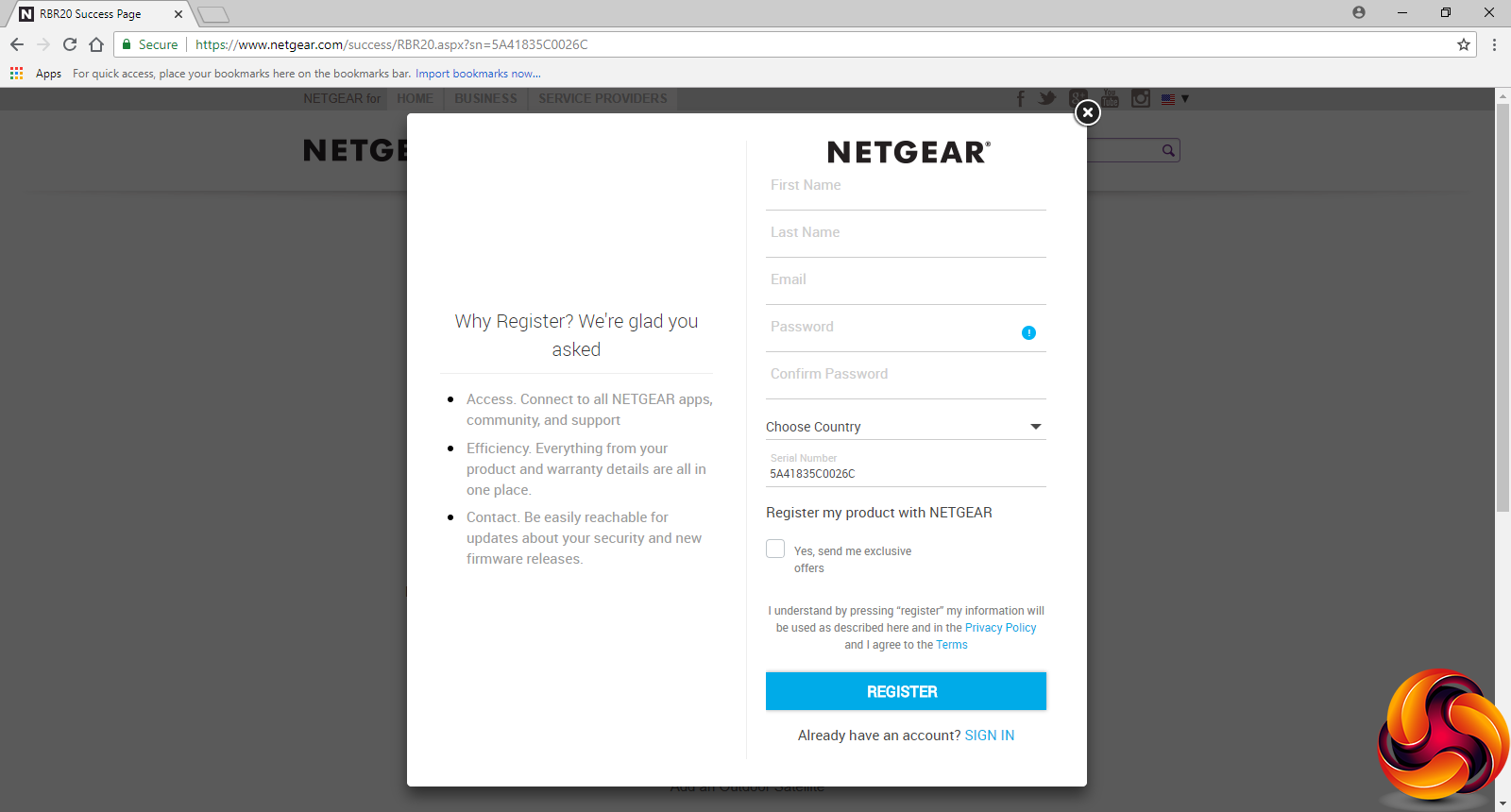
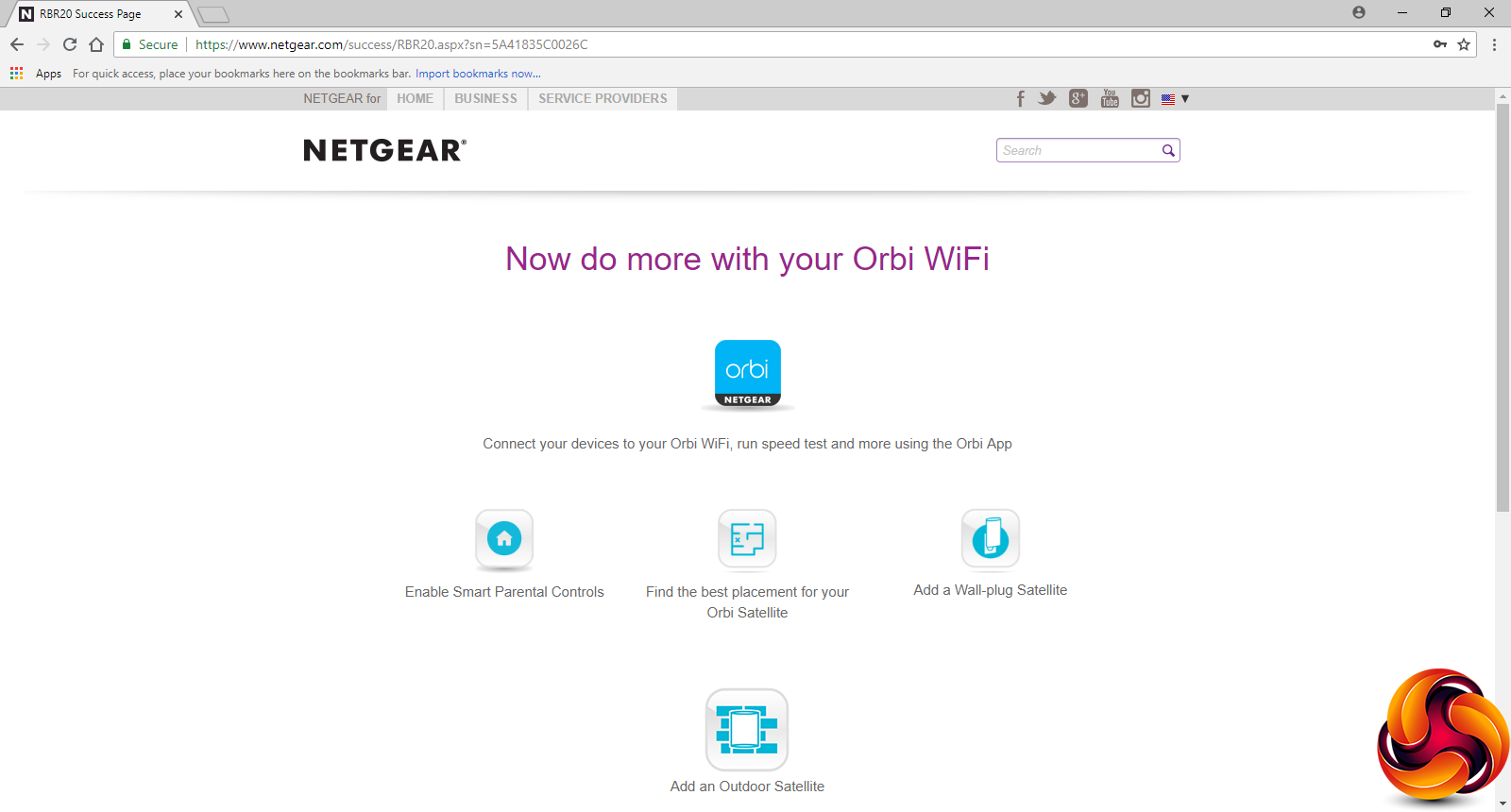
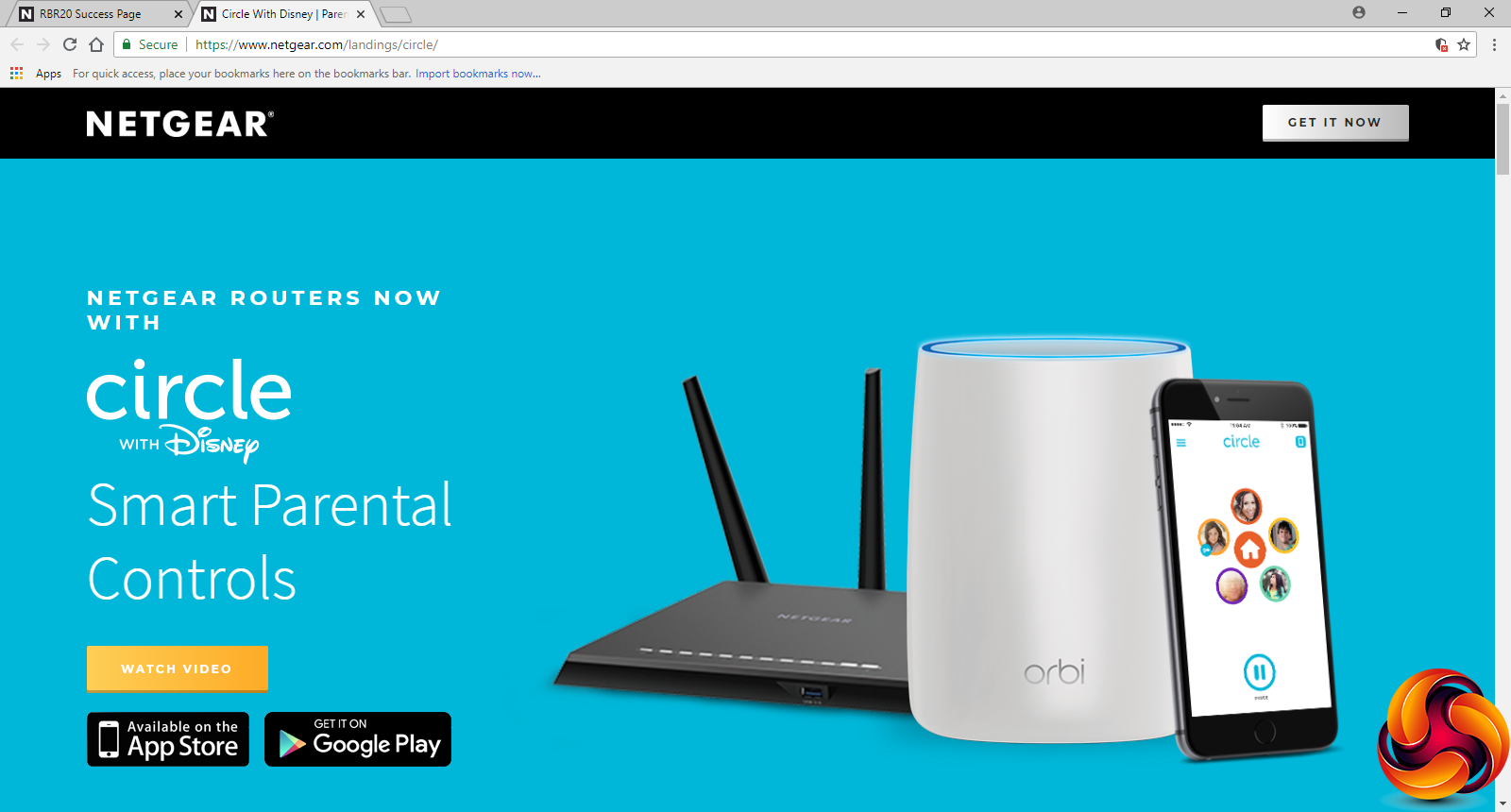
Finally, you're asked to sign up and register your product with NETGEAR, ending up on the NETGEAR website afterwards. This includes adding wall plug and outdoor satellites, some advice on placement, and online tools via the Orbi App. But the most novel aspect is the Parental Controls system provided in partnership with Disney's Circle.
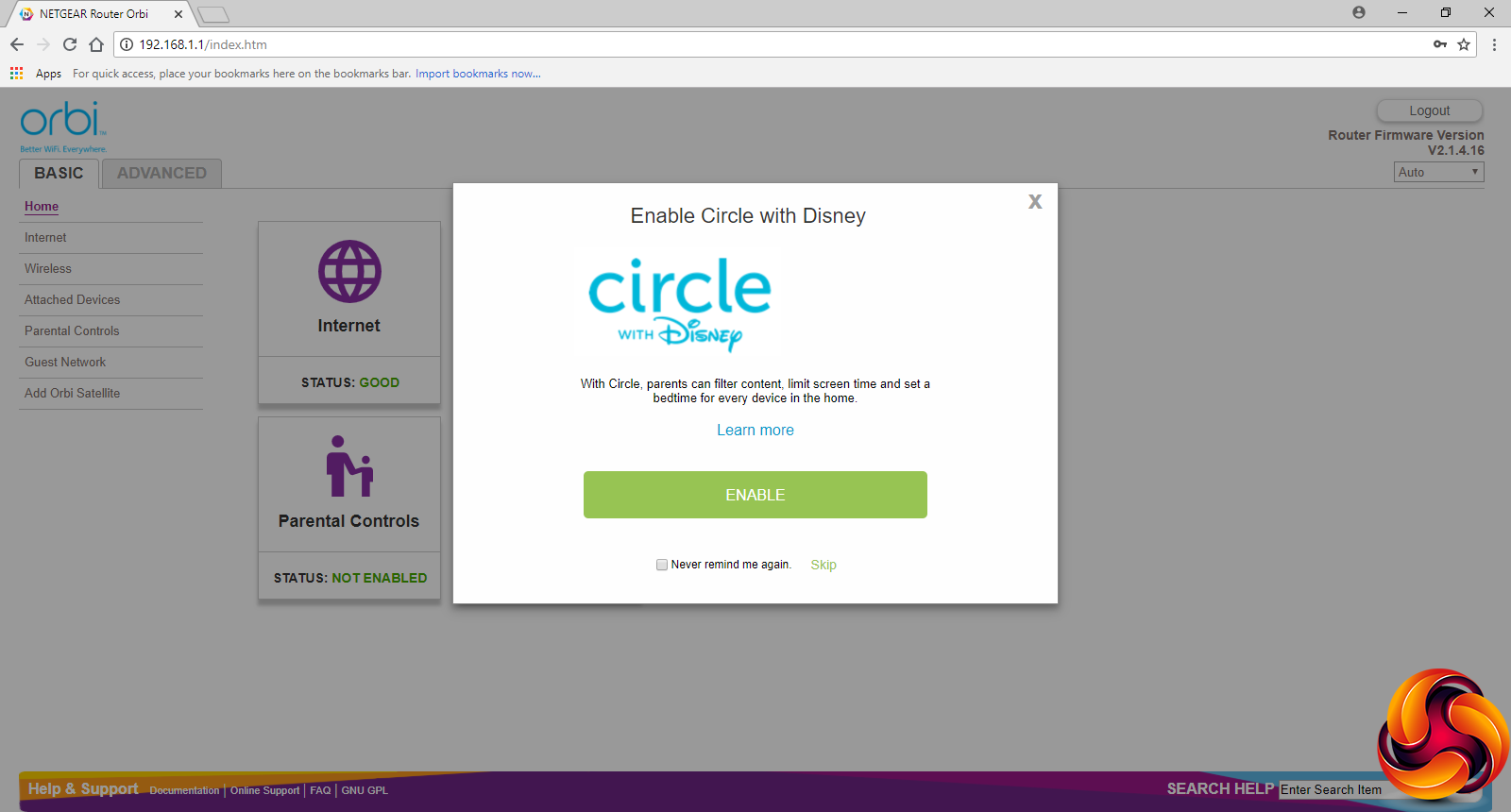
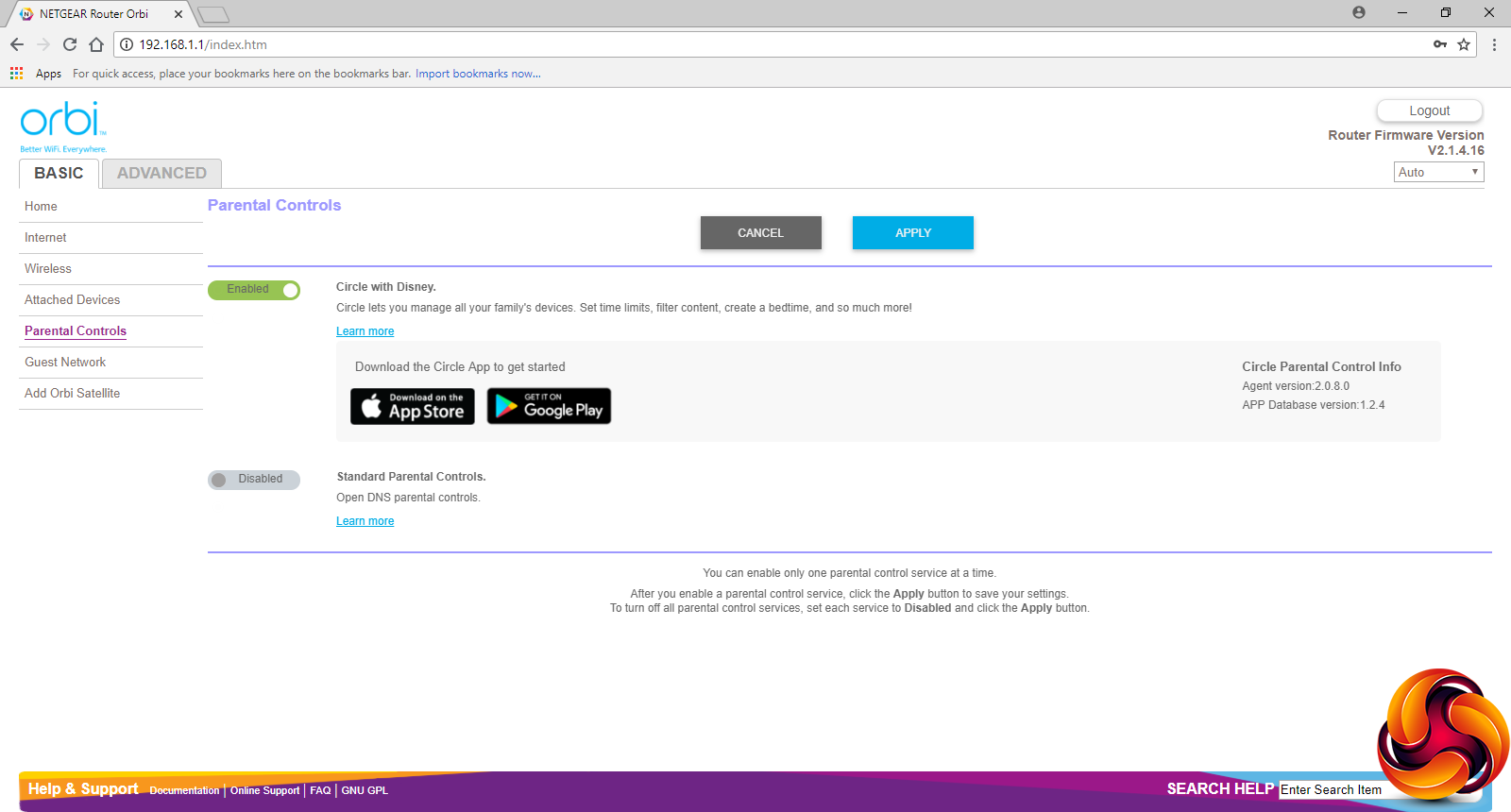
Speaking of Circle, this is now such an important feature for NETGEAR that when you first login to the main Orbi admin insterface, you're prompted to enable the service. You can also enable basic Open DNS parental controls, but only one service can be used at a time. If you enable Open DNS you have to disable Circle.
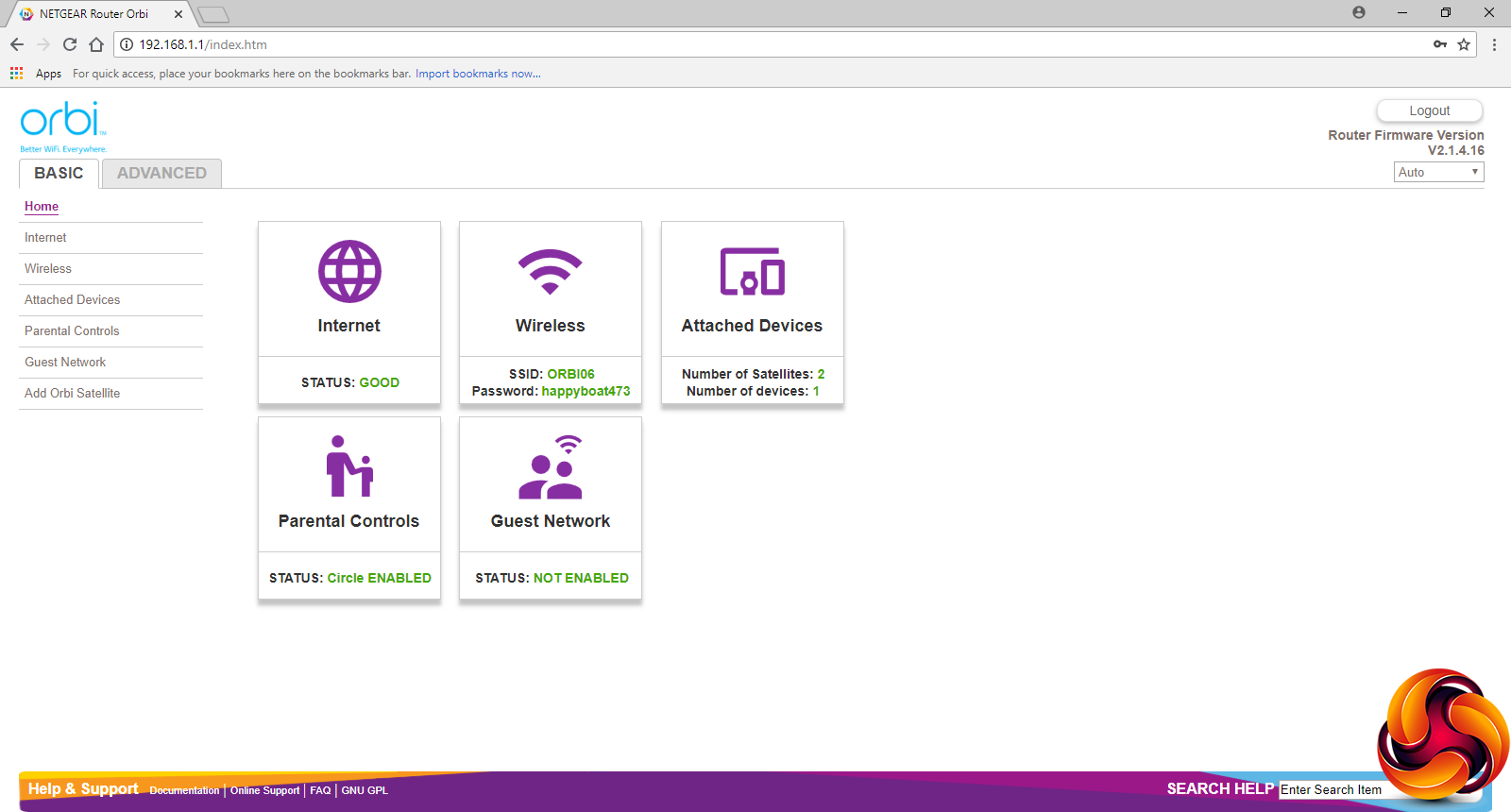
Once you have decided upon whether to use Circle, the main Orbi admin interface appears. This is exactly the same as with other members of the Orbi range, with identical features. The initial screen provides an overview of the status of the router and main services.
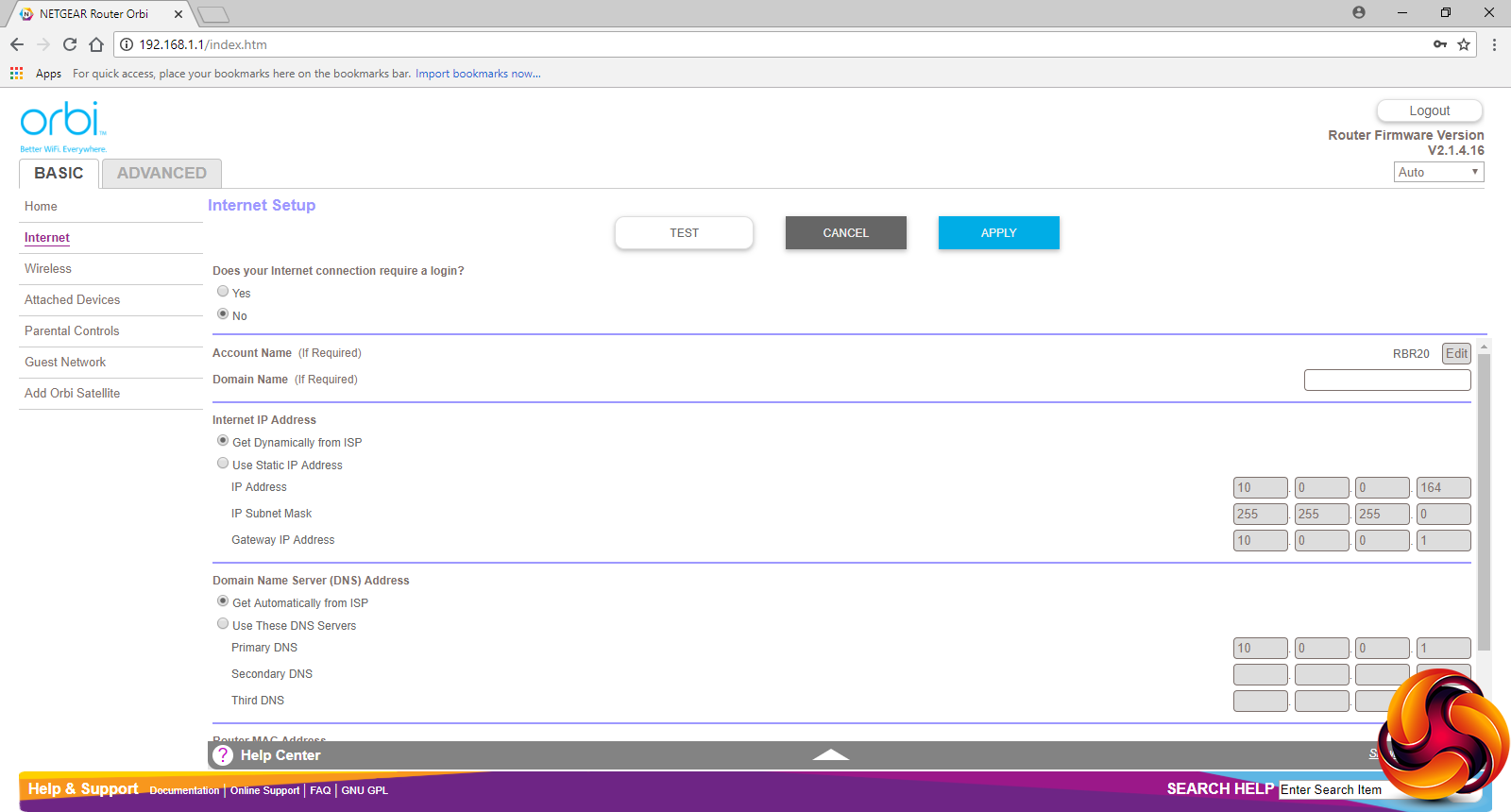
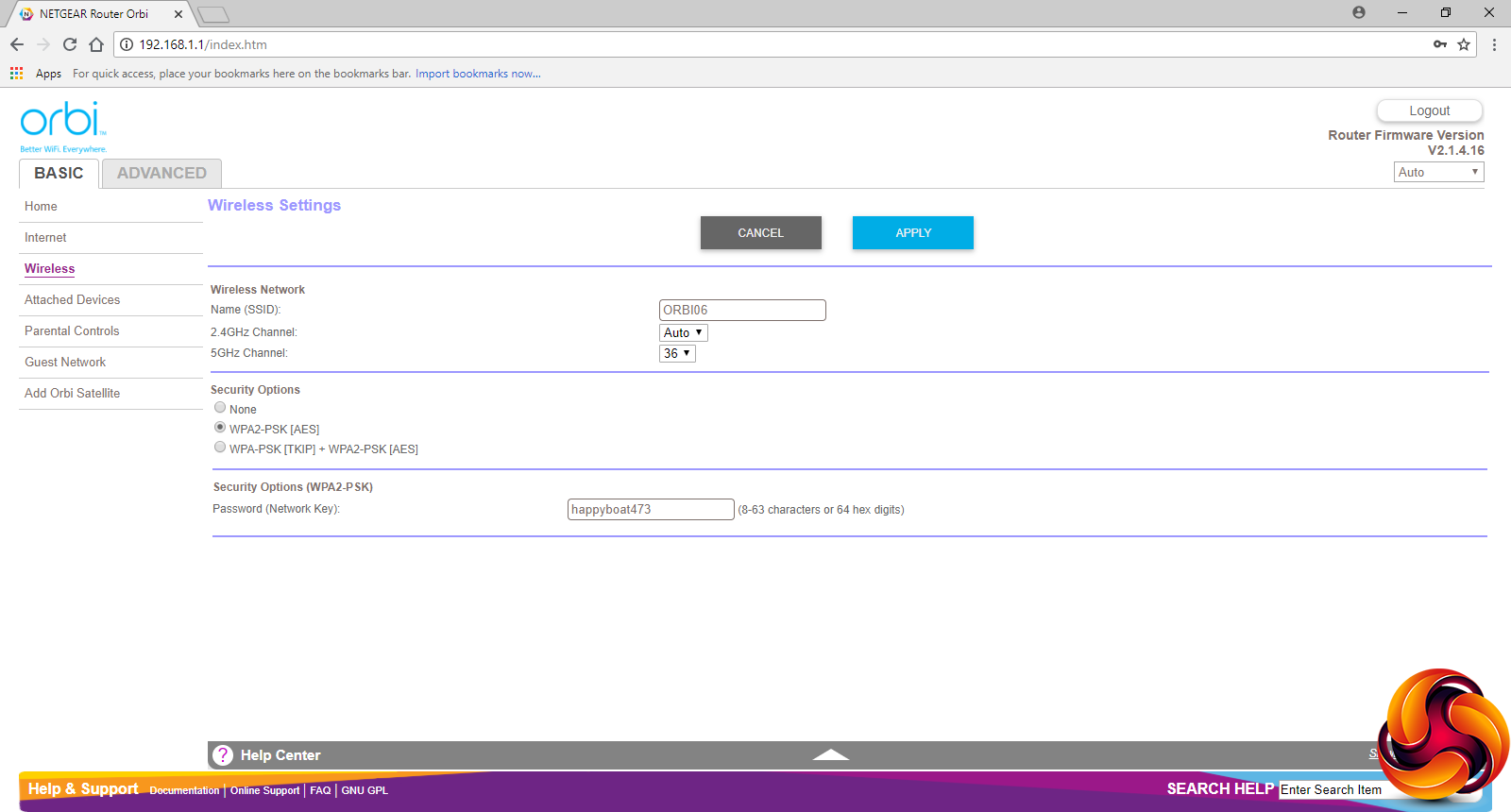
In the Basic section you can manually configure the Internet connection and how the 2.4GHz and 5GHz WiFi channels are set up.
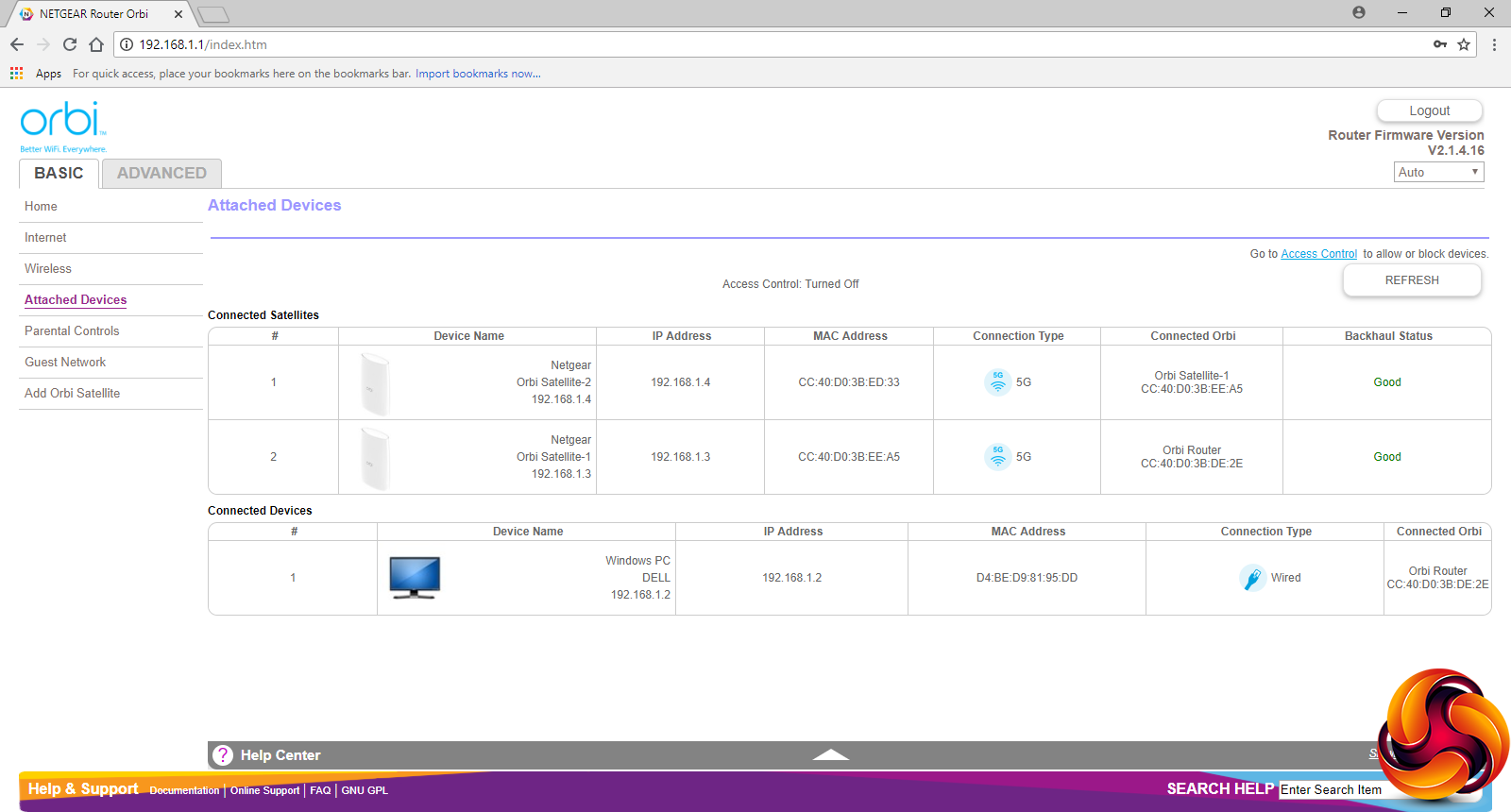
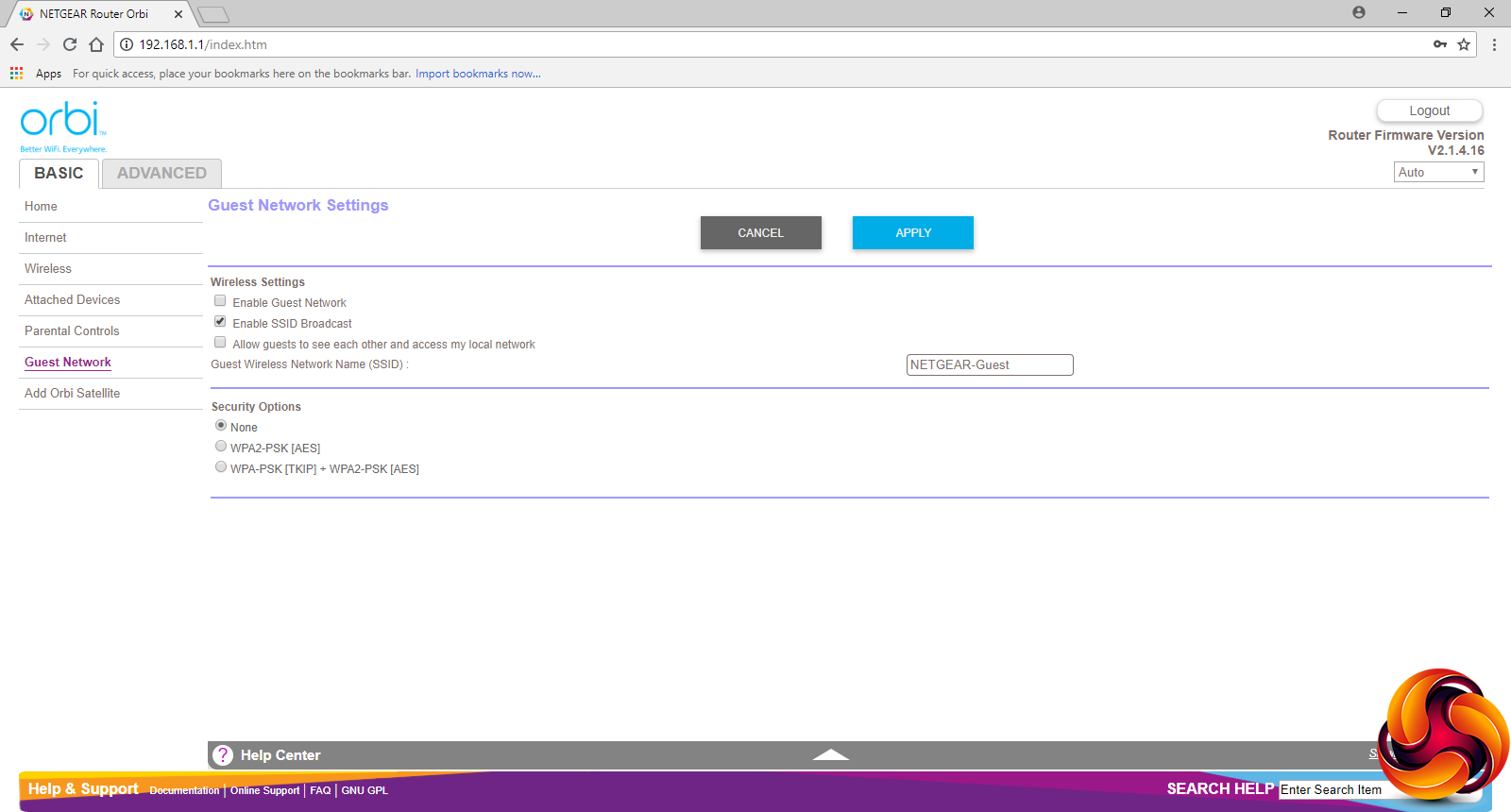
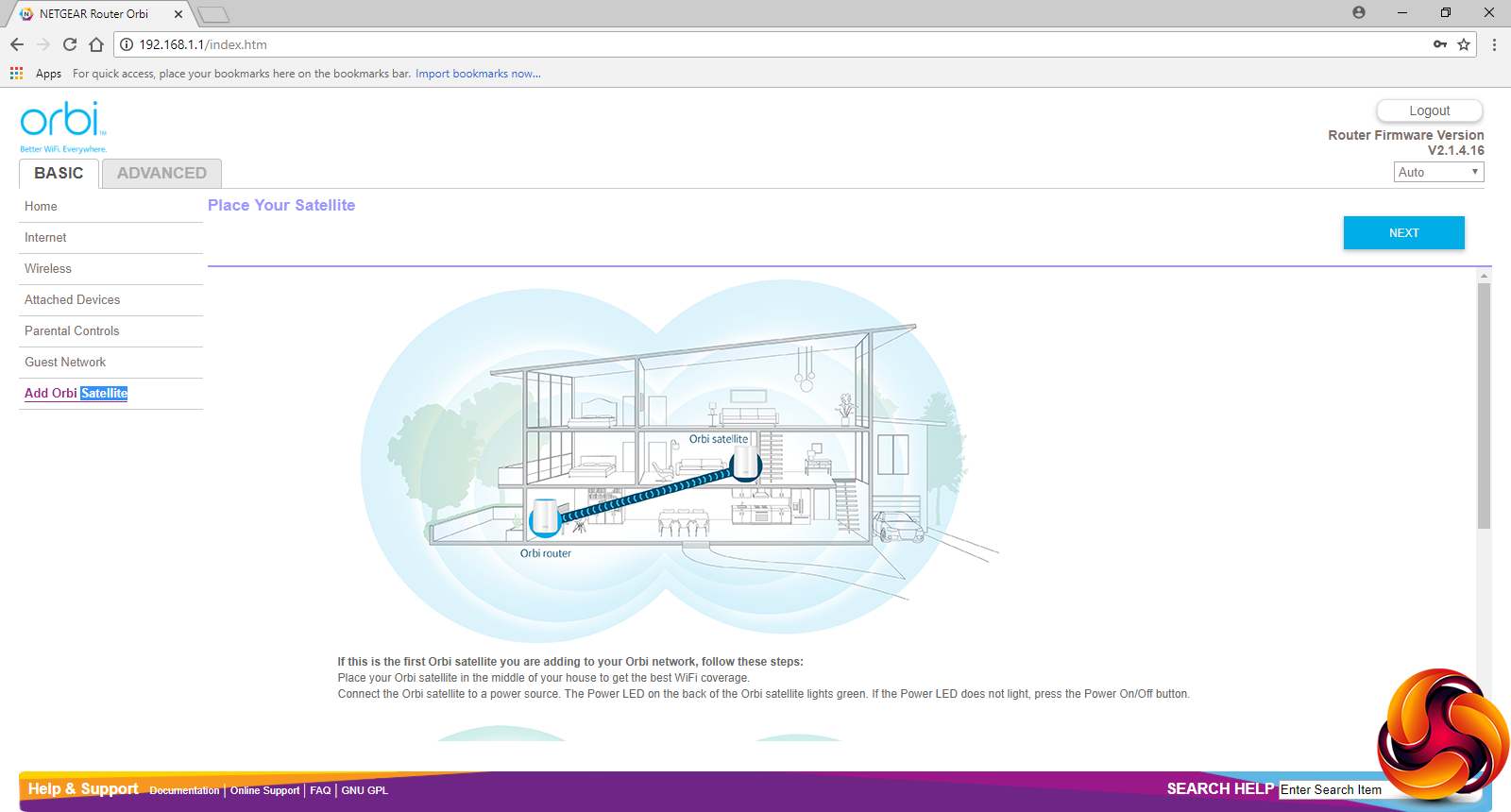
Aside from having another route to the Parental Controls, you can view which devices are attached to the wired and wireless networks, including the satellites, enable and configure a guest network, and add further satellites to your mesh.
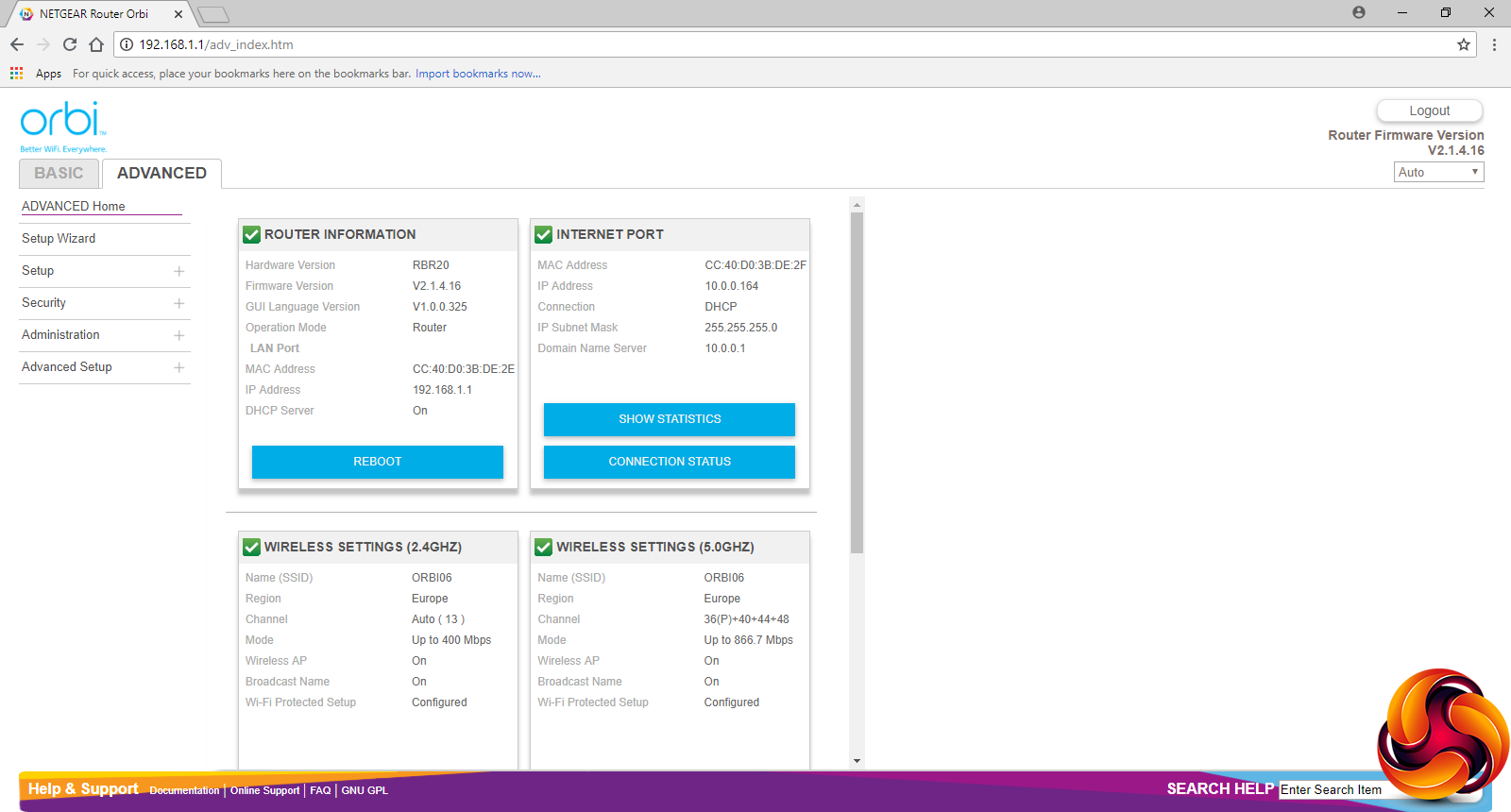
Switching to the Advanced tab, you get another, more detailed overview of how the router, Internet connection and WiFi are currently configured. You can also re-invoke the original setup wizard.
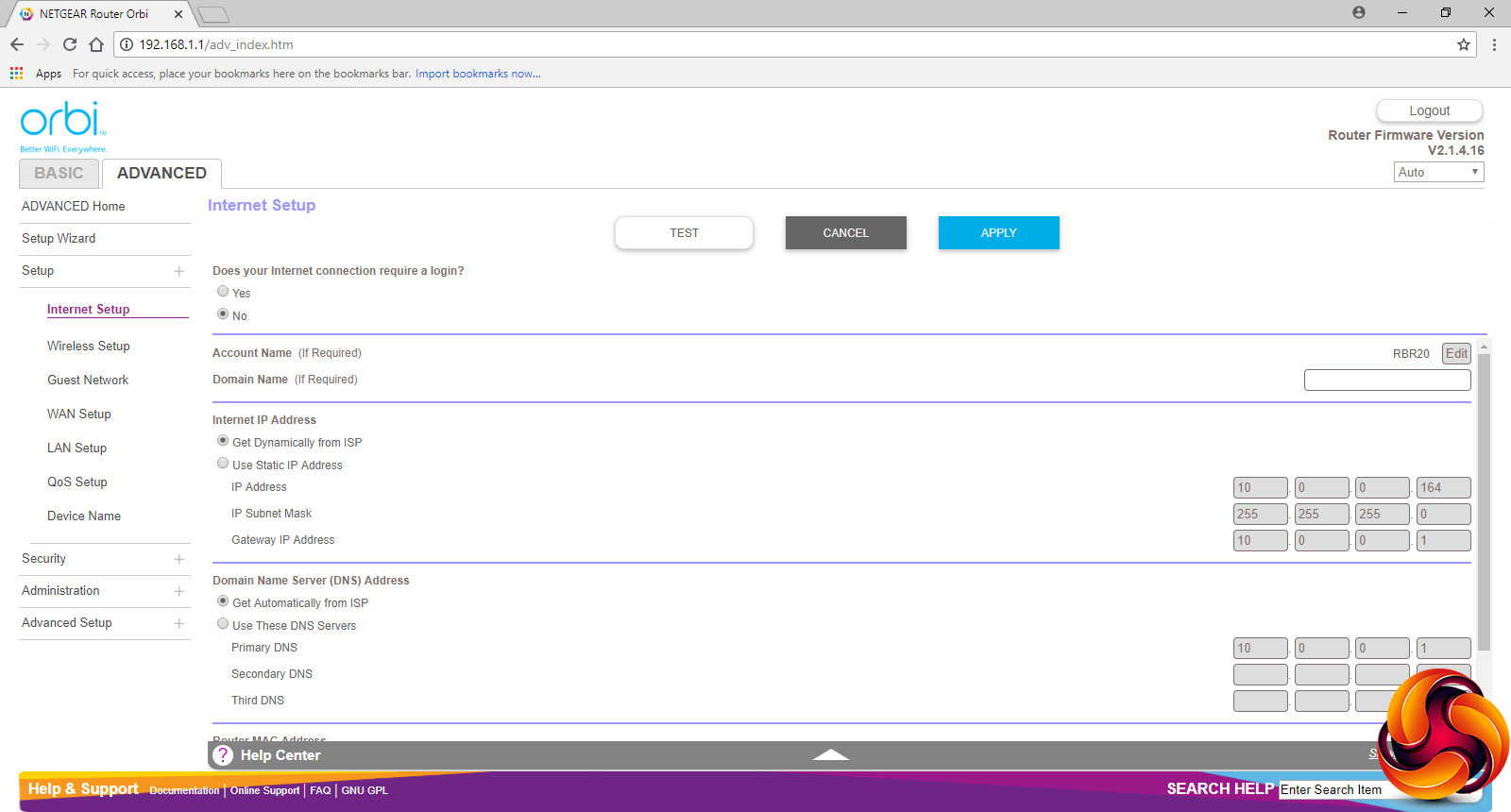
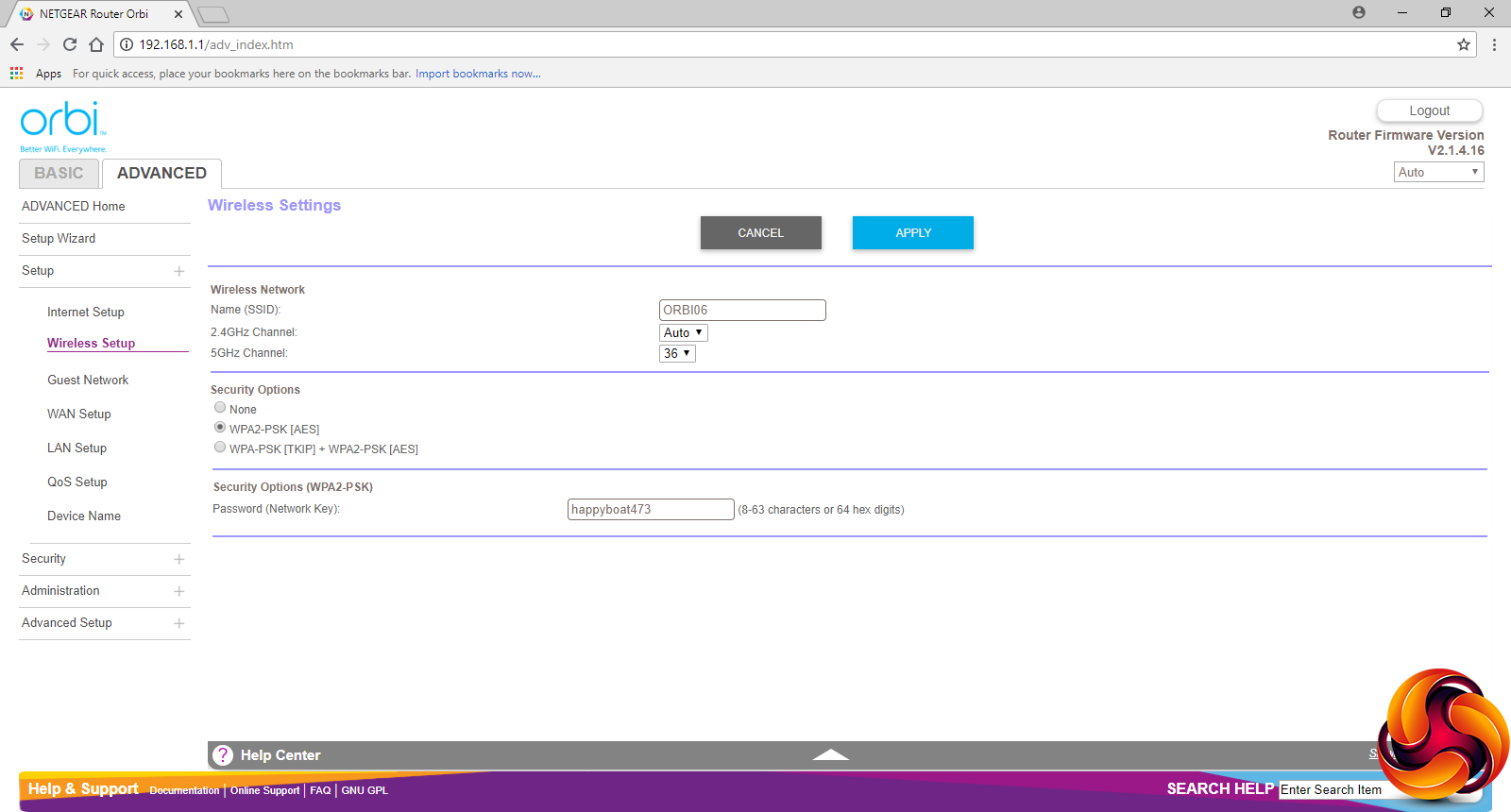
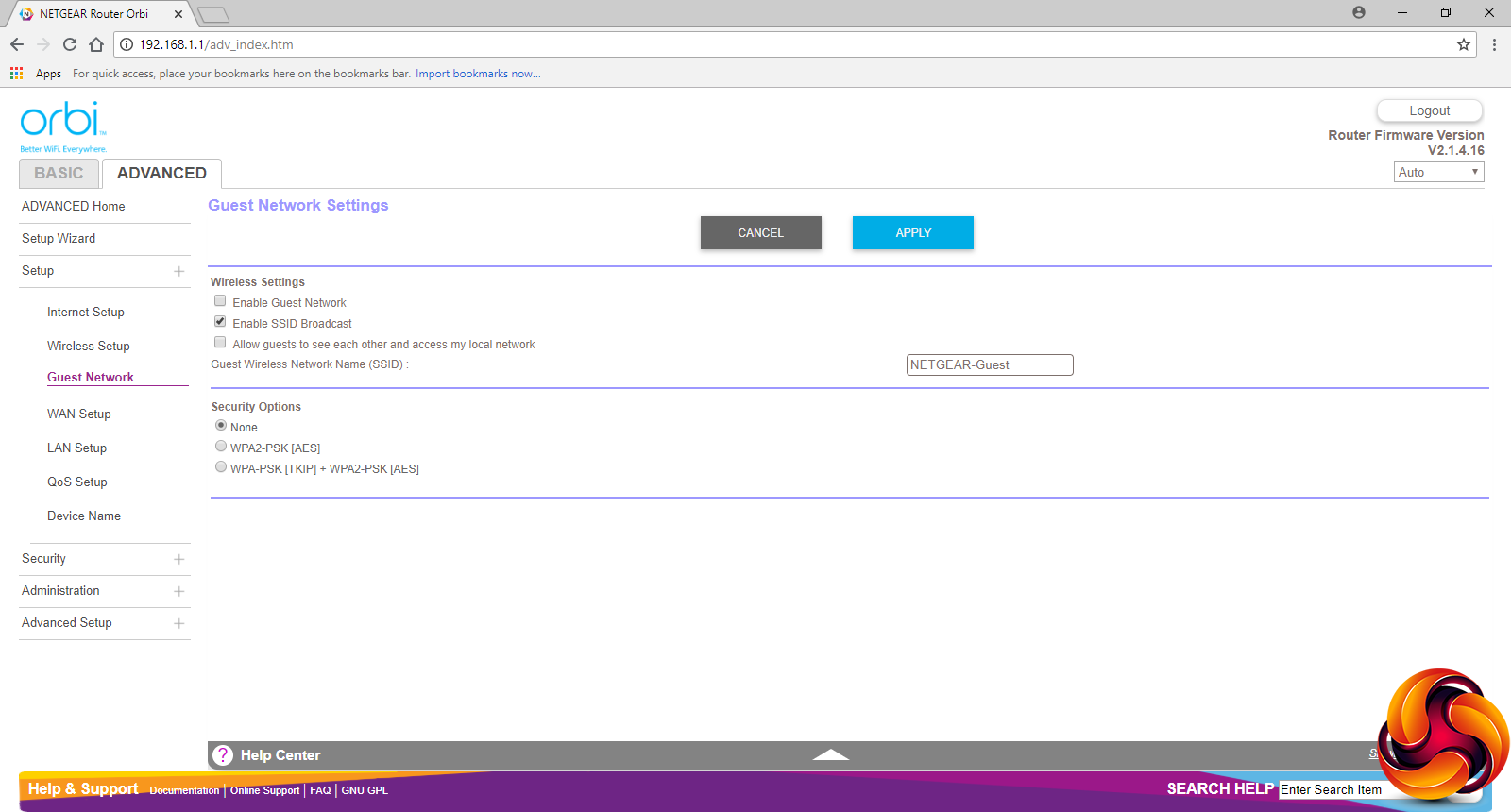
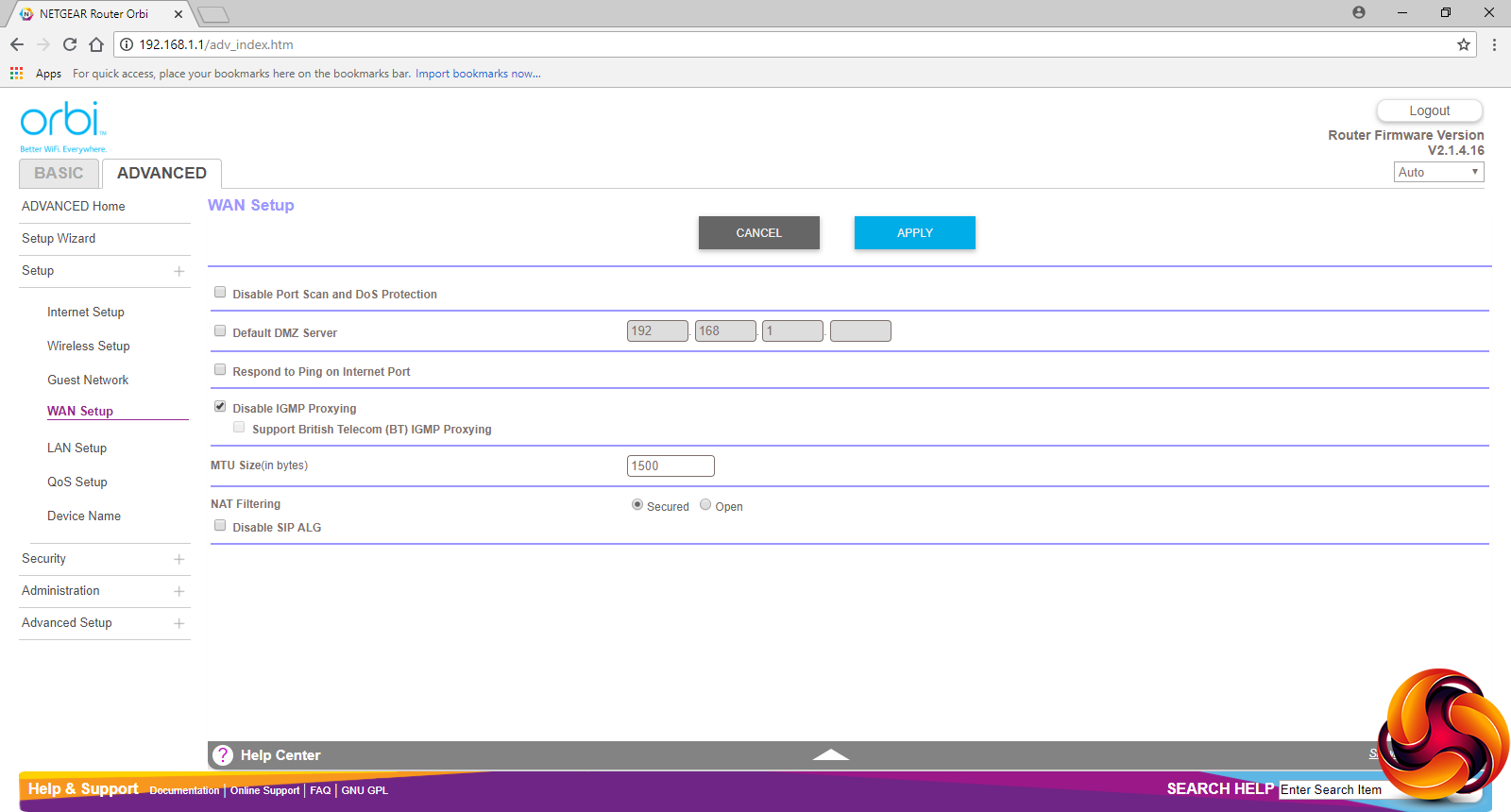
Further down in the Advanced section, you can set up your Internet connection manually. The wireless setup section is essentially the same as with the Basic tab. You can also enable guest WiFi and configure details about how the broadband WAN operates.
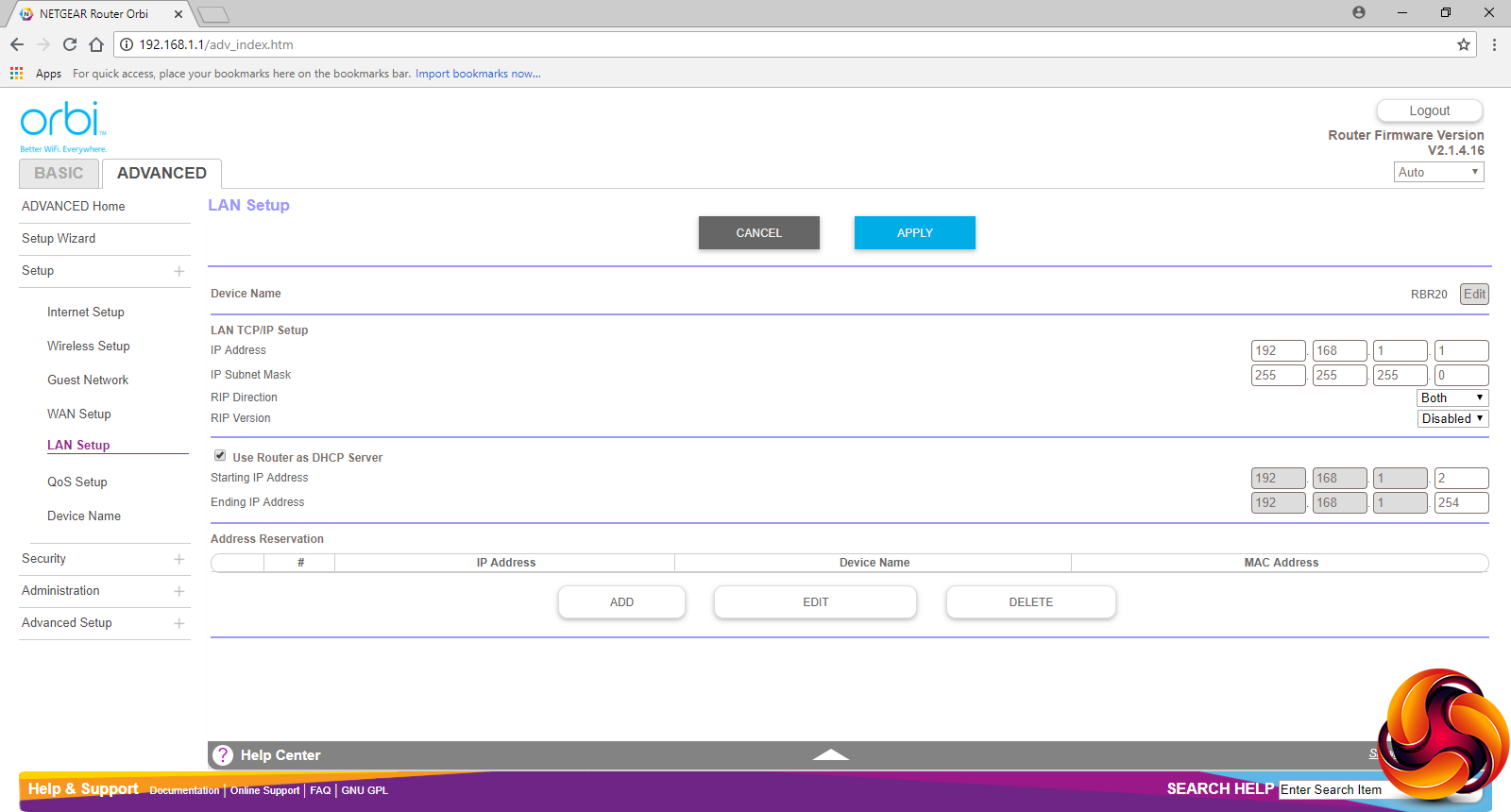
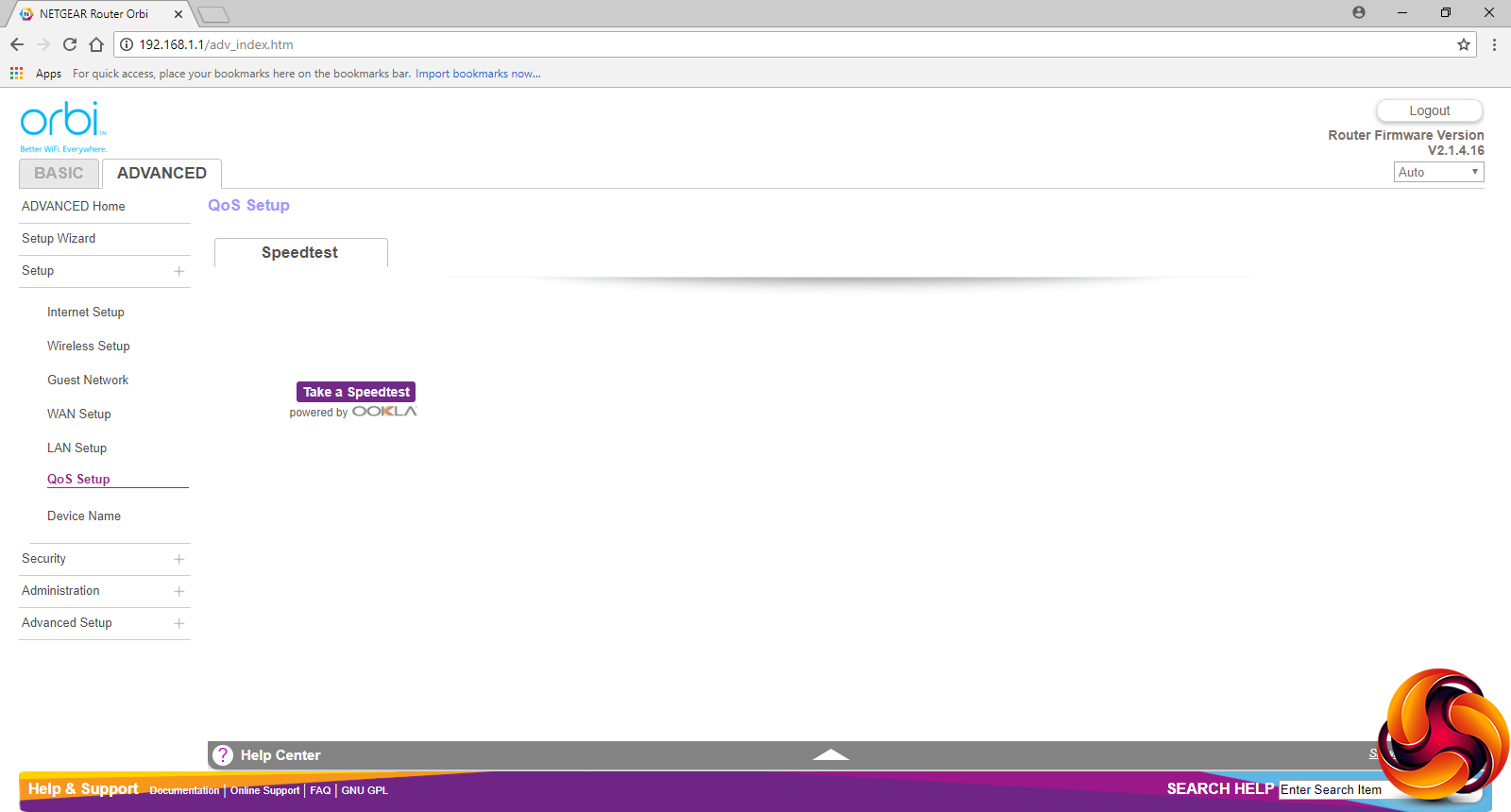
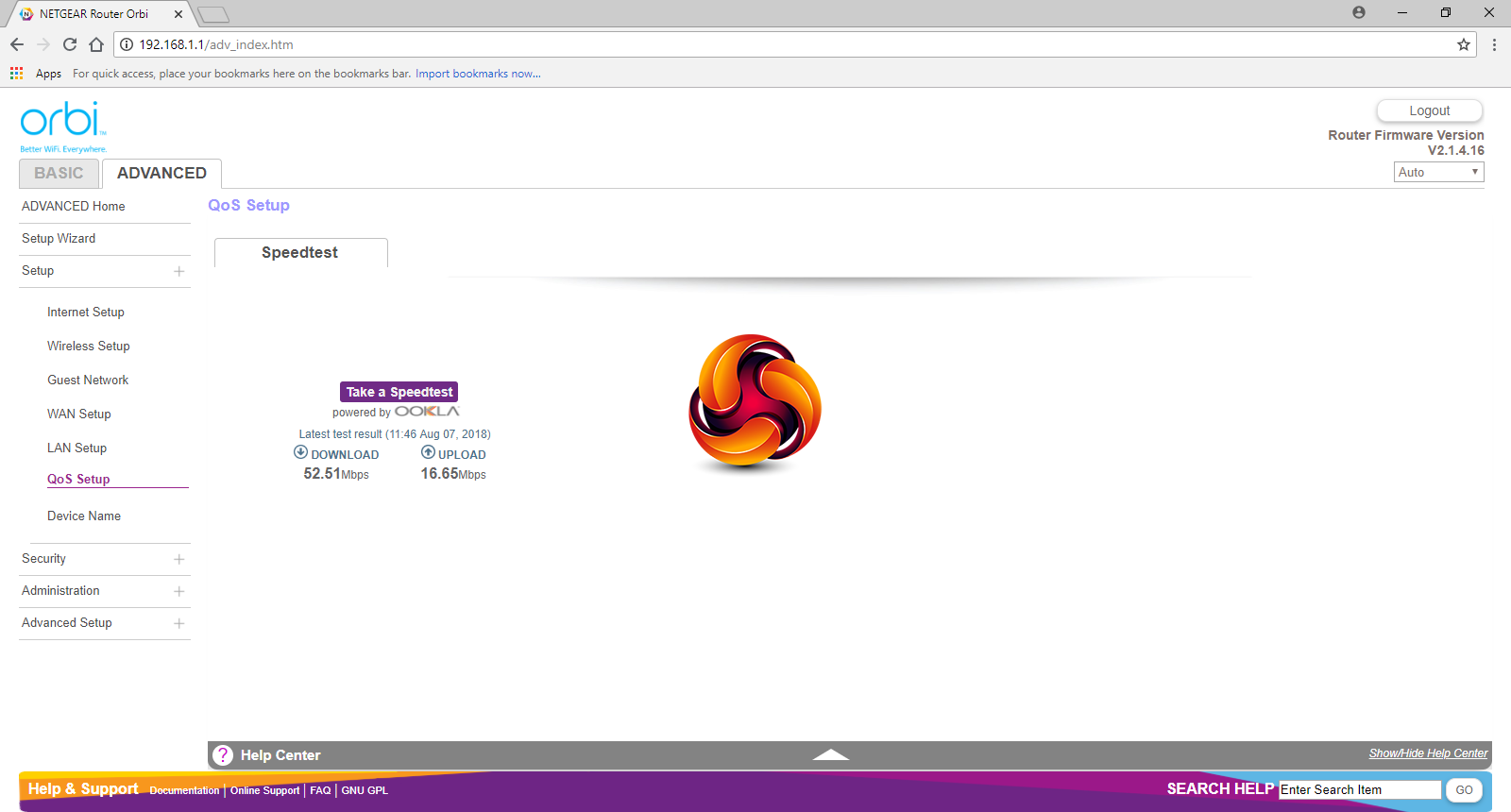
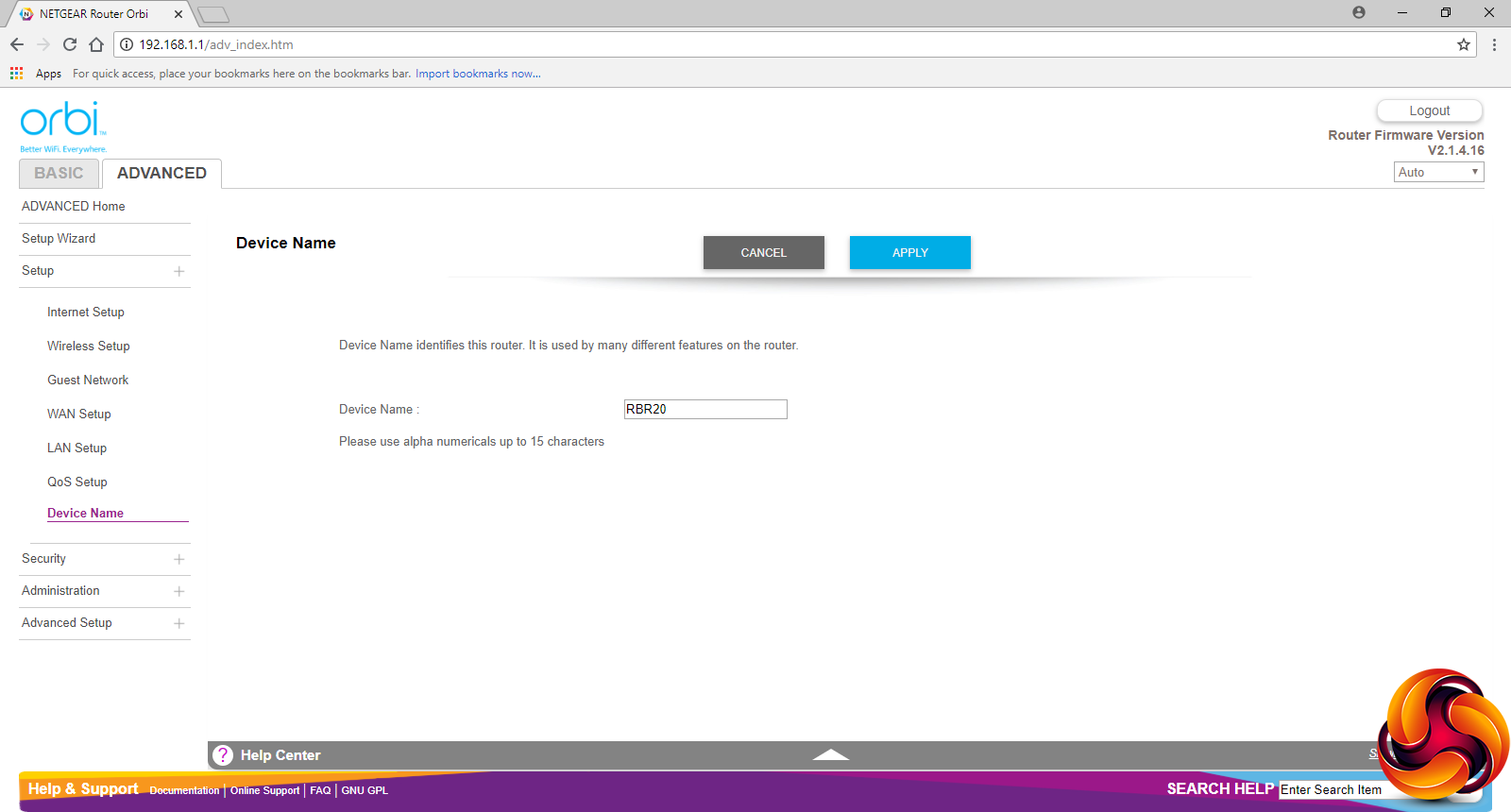
The bottom three options in the Setup section include configuring how the LAN DHCP server operates. The QoS Setup section is a bit of a disappointment, as it only appears to include a broadband speed test. Finally, you can change the router device name.
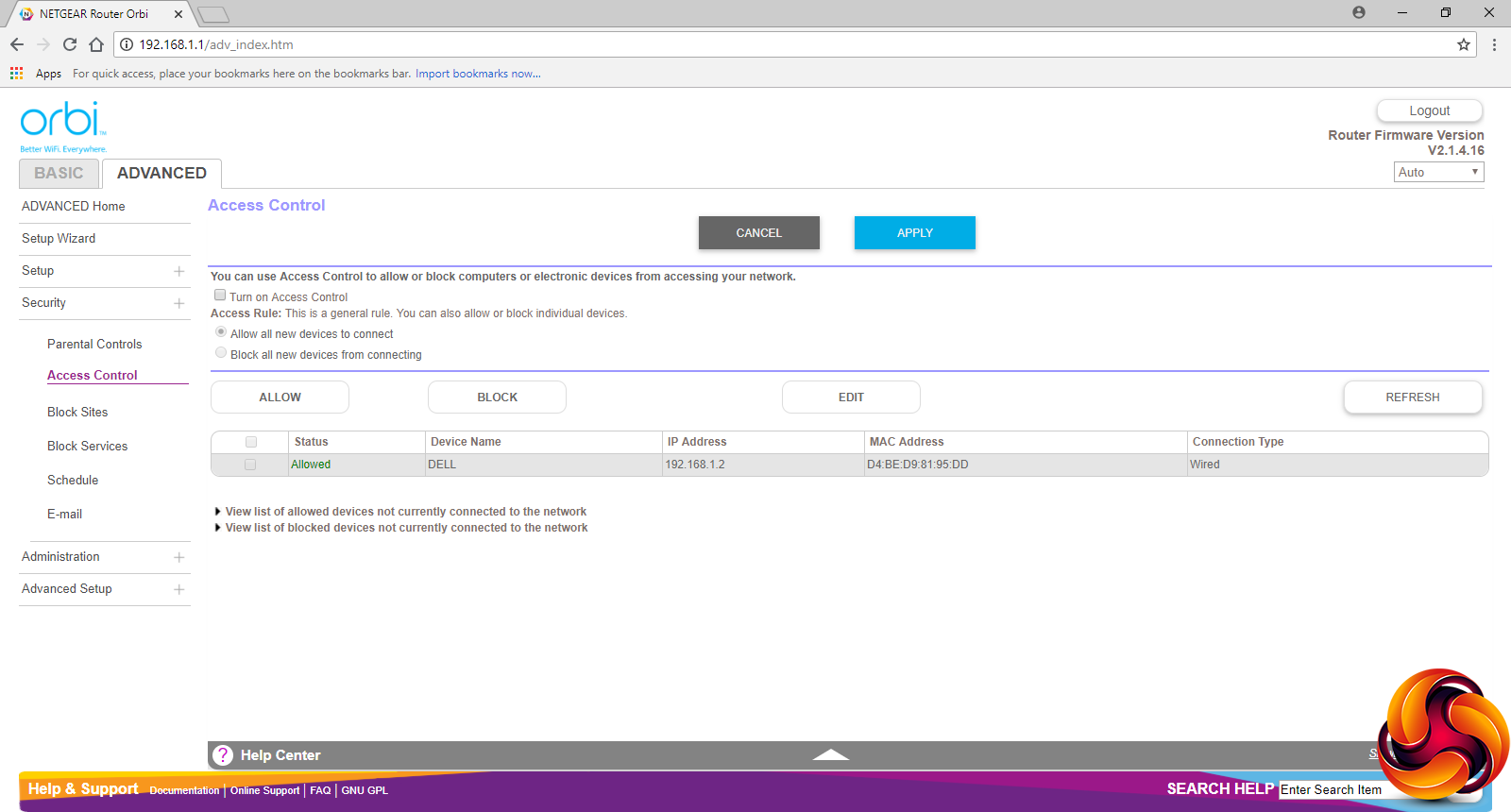
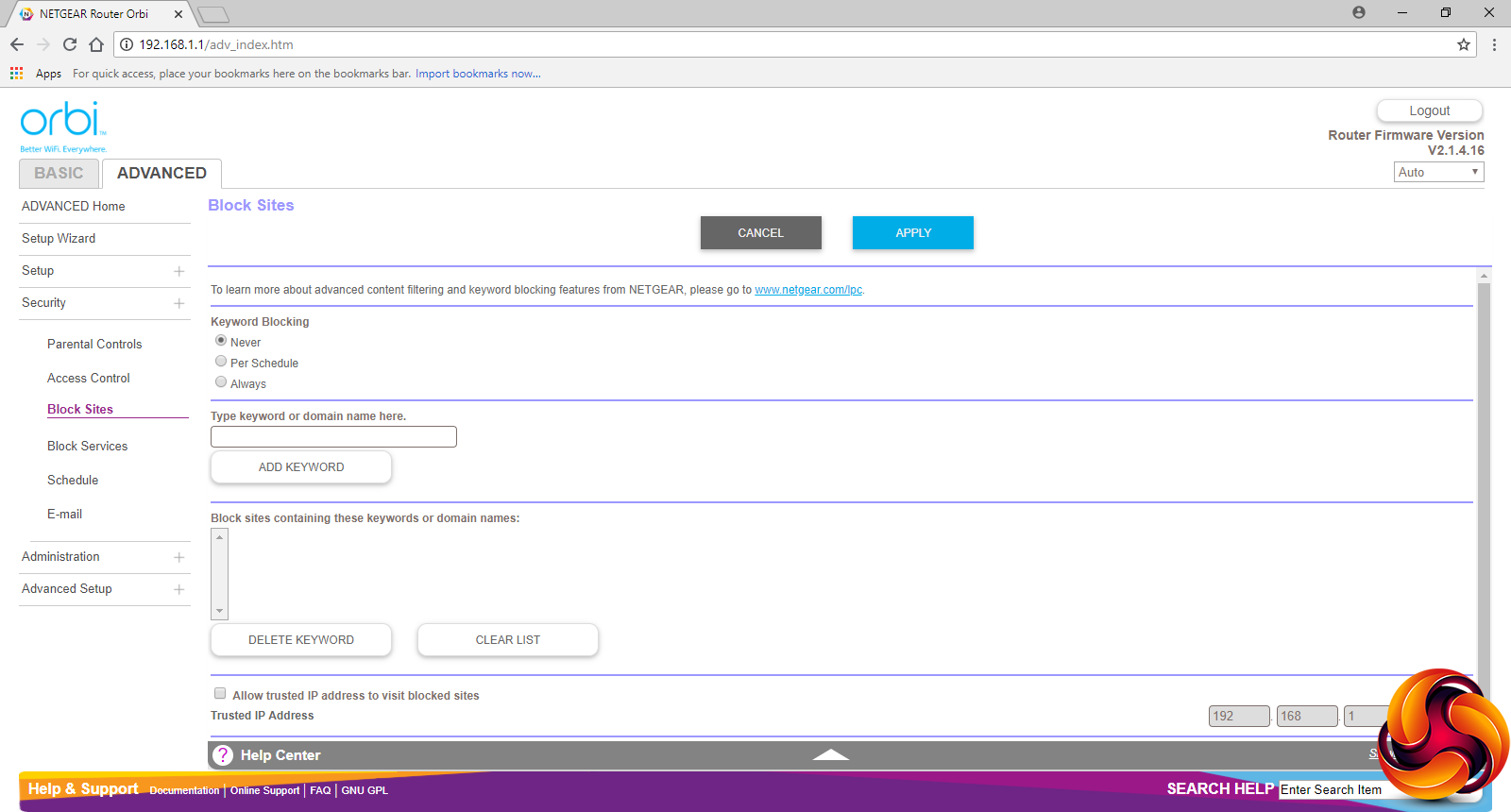
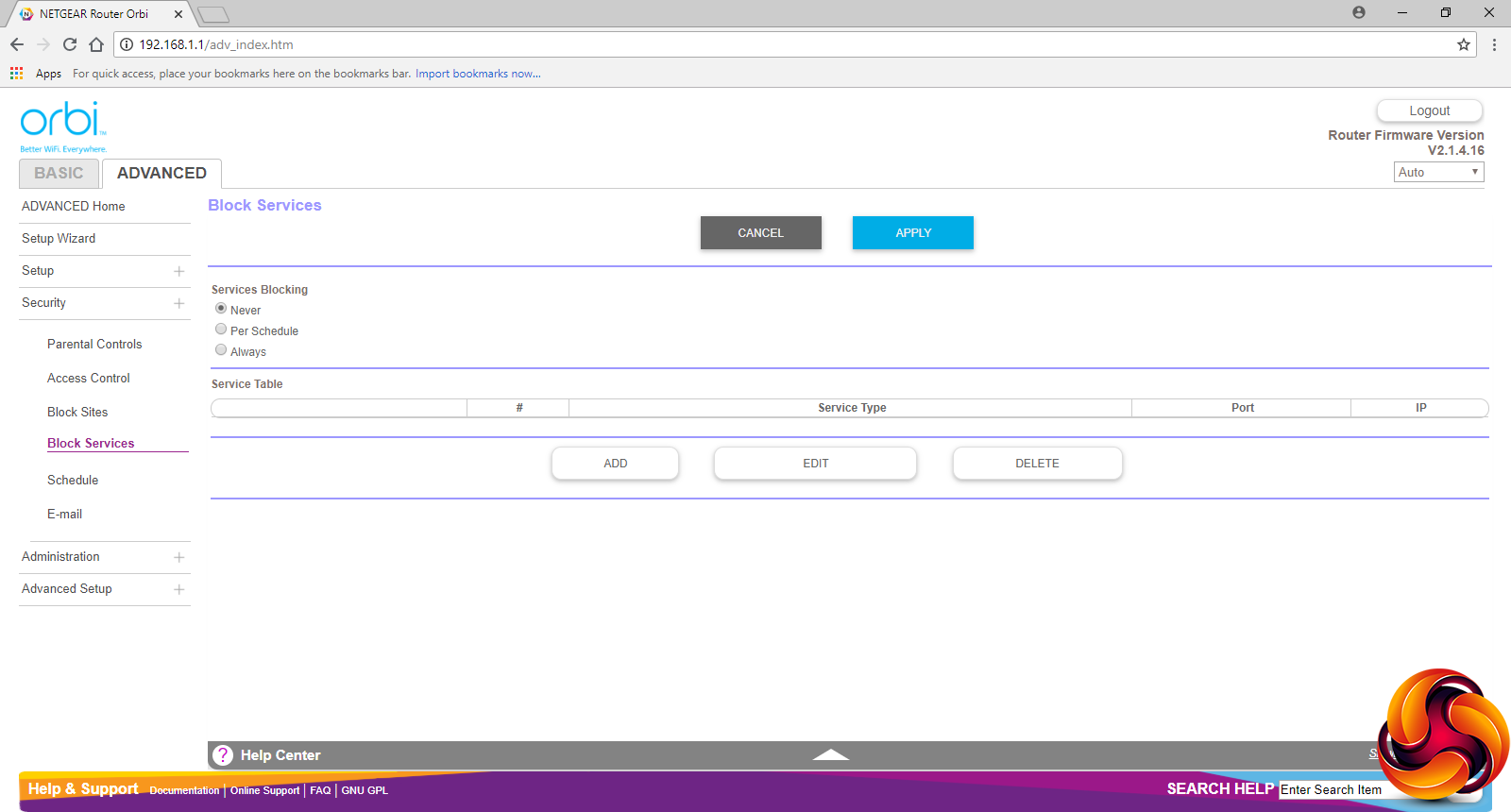
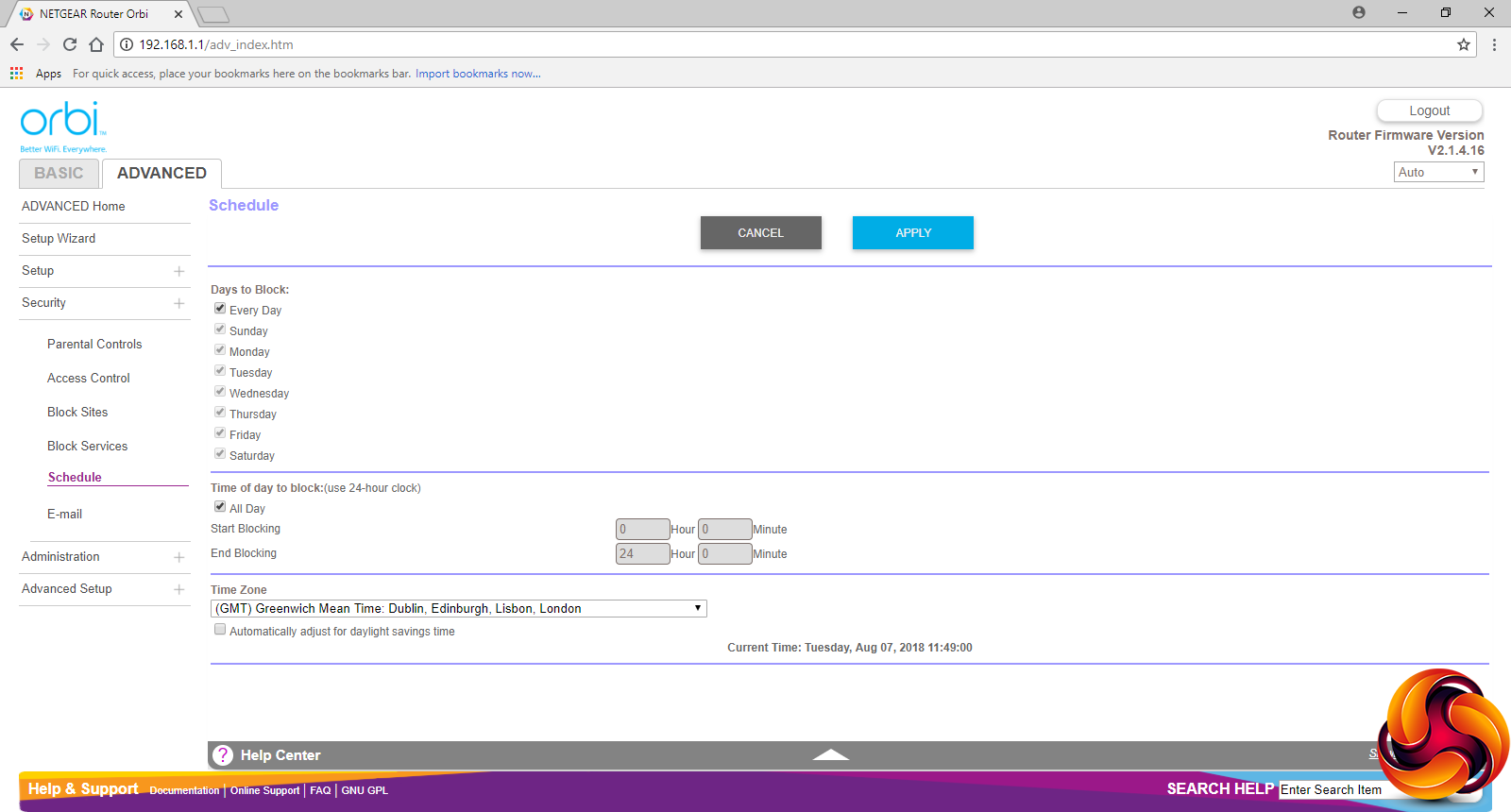
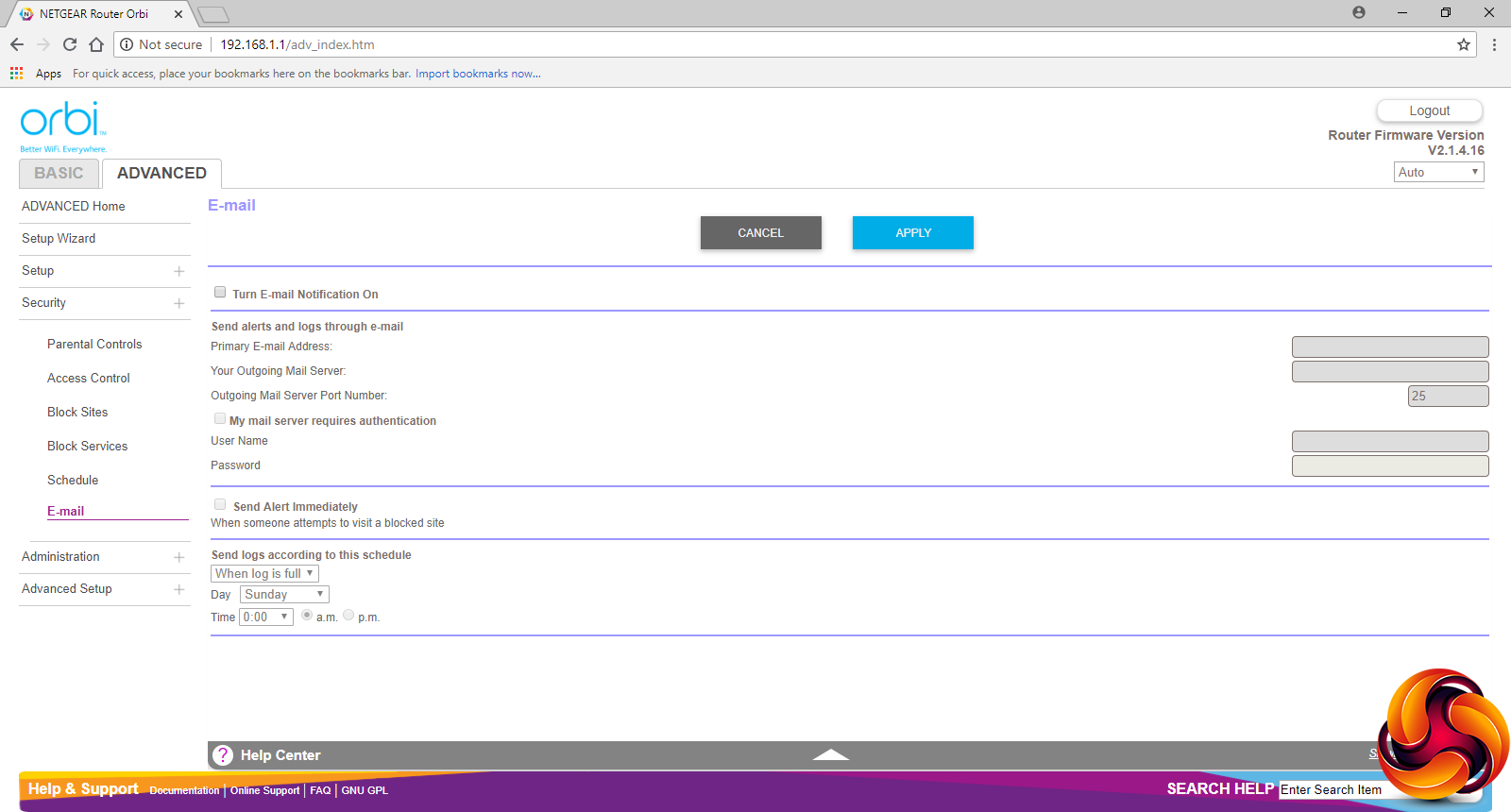
The Security section provides yet another route to Parental Controls. You can also configure access for client devices. You can block sites by keyword or domain name. Alternatively, you can block individual network services.
You can also block Internet access at specific times of day and days of week, although strangely not on a per-device basis, which is a notable omission. Finally, you can configure email notifications.
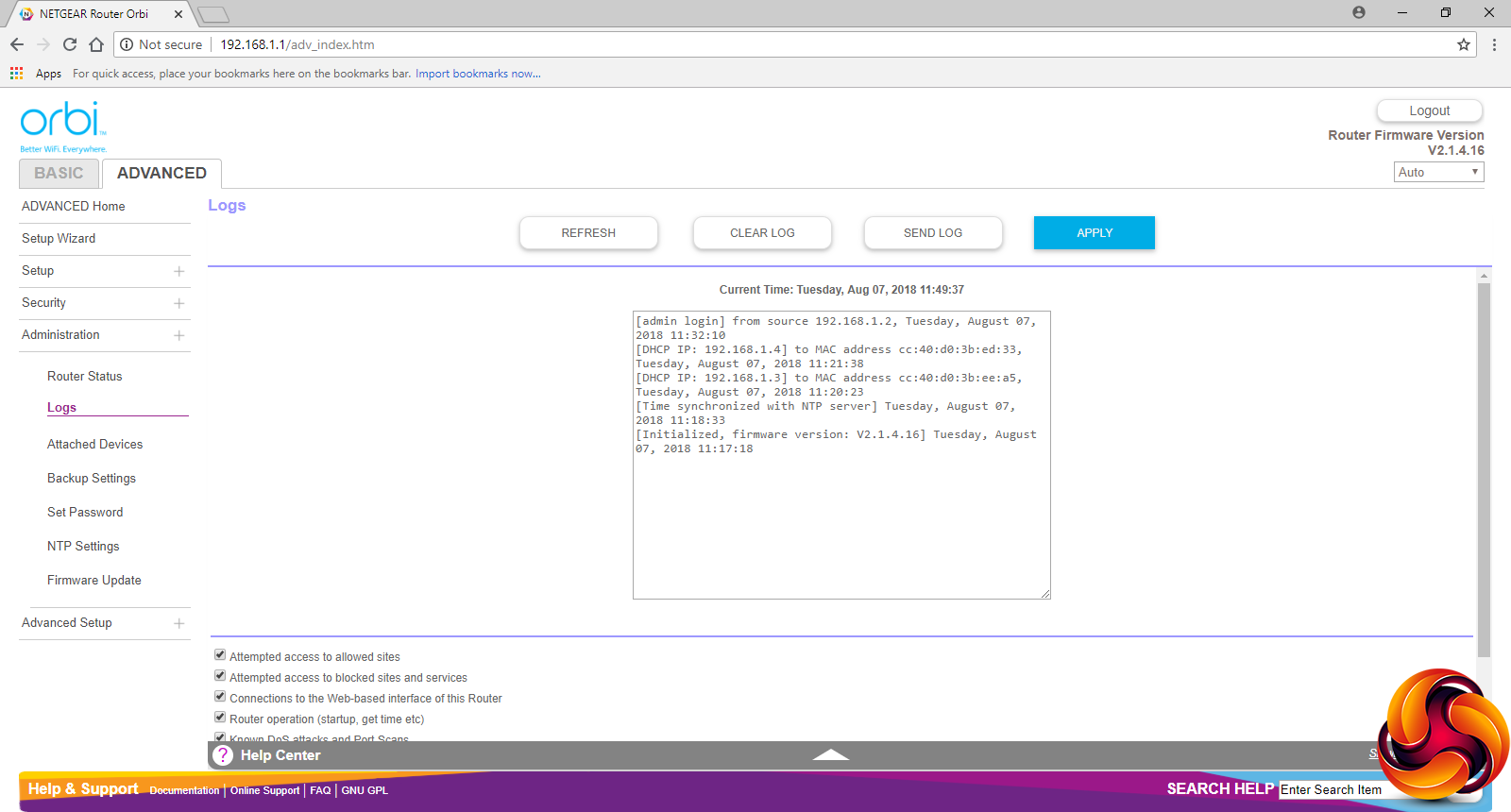
The admin section includes another route to the status screen, a log, another way to view the list of wired and wirelessly-attached devices, and the ability to back up settings.
You can set up the router password, which NTP server to use for automatic time setting, and follow a manual method for updating firmware. However, the system will check regularly and notify you automatically whether new firmware has been released.
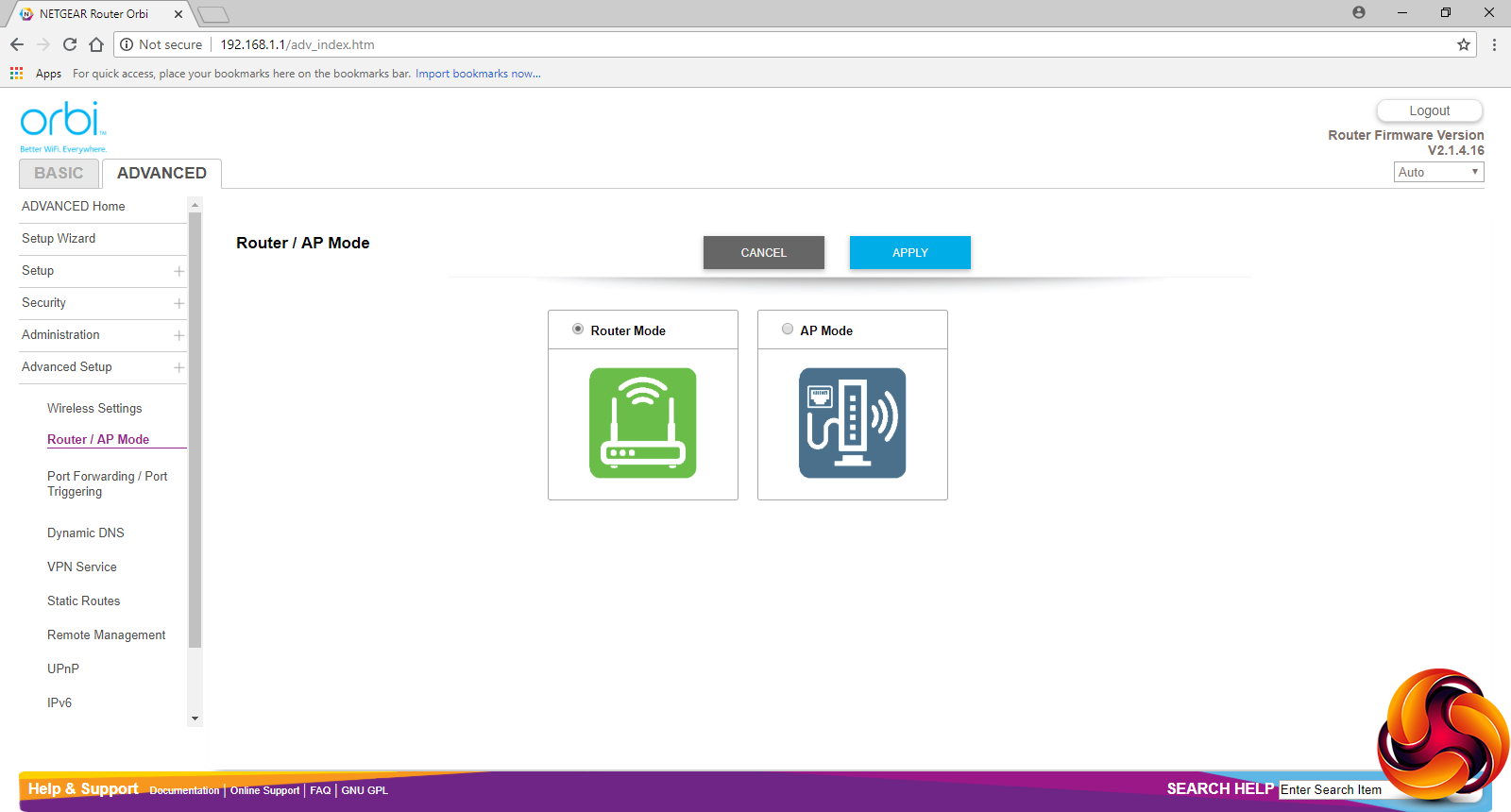
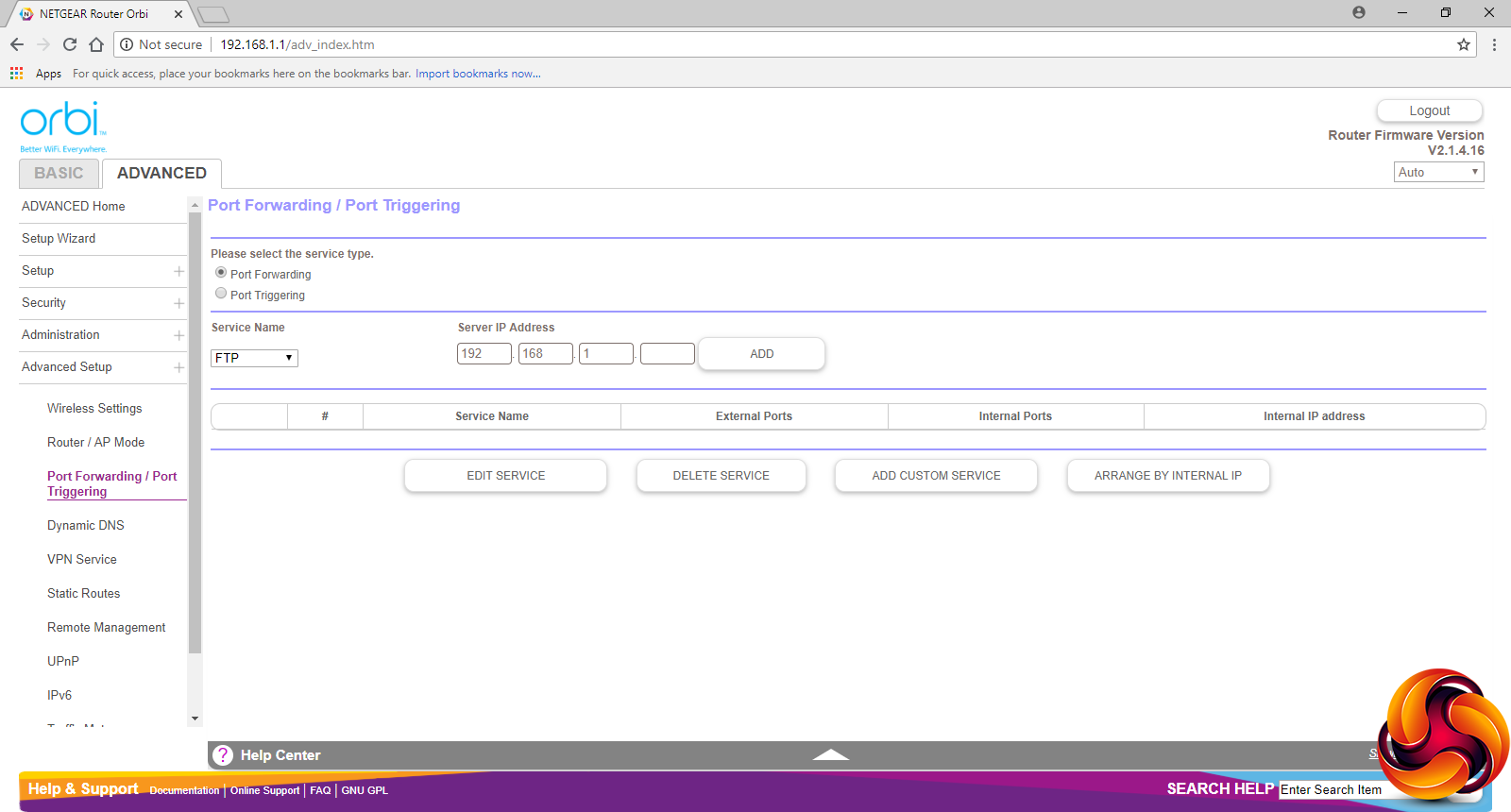
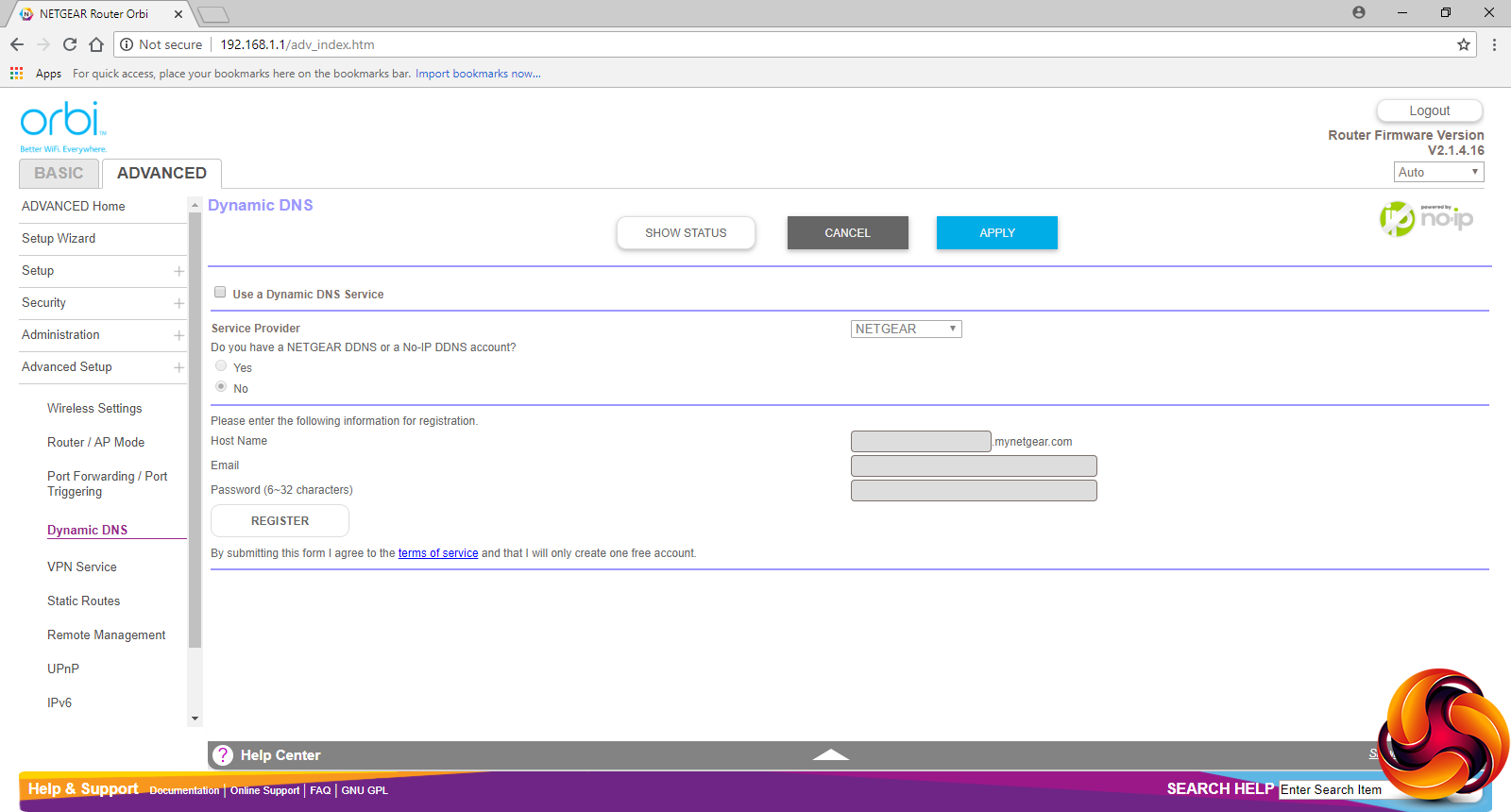
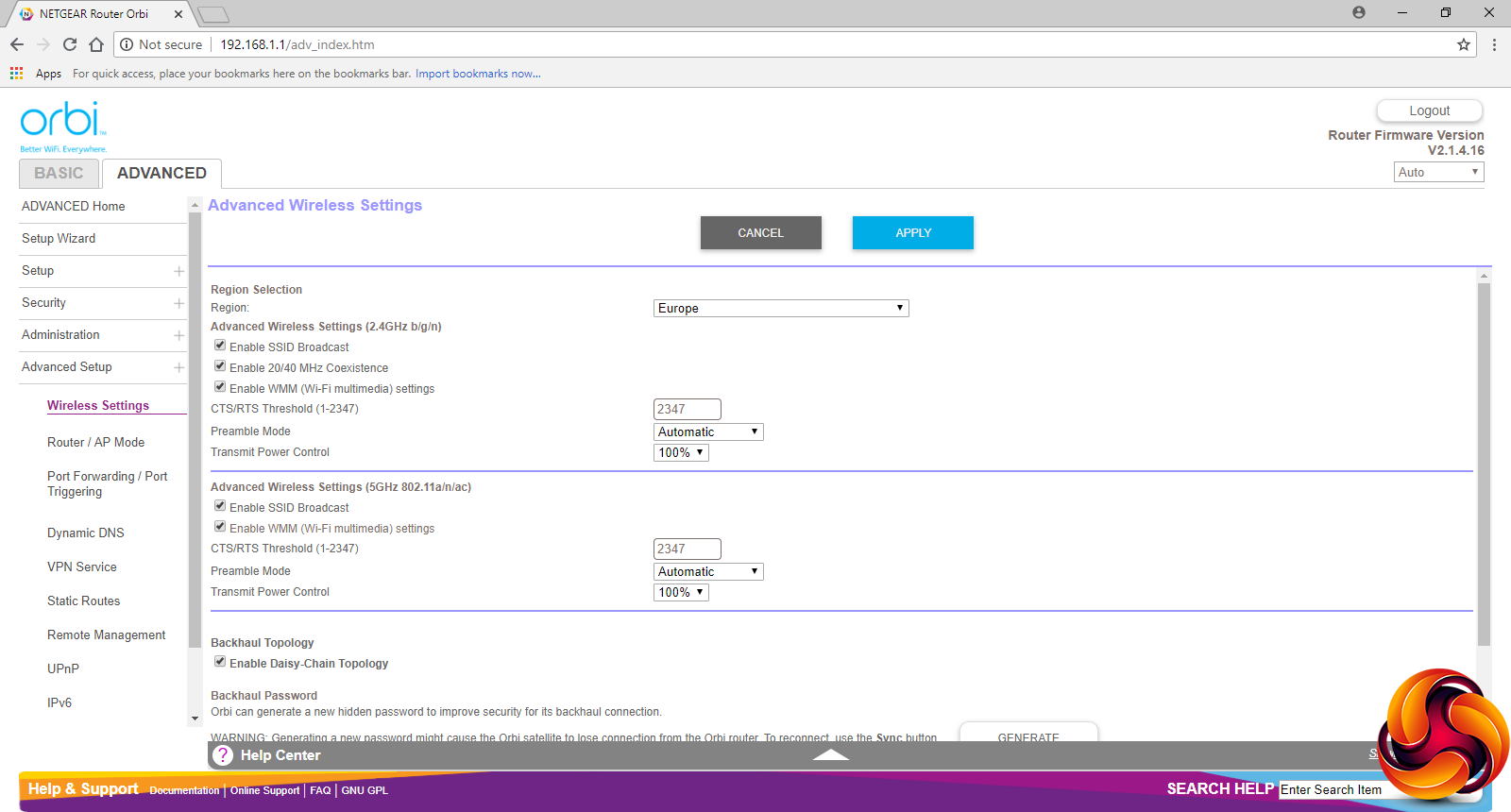
The Advanced Setup section within the Advanced tab includes more details for the WiFi signal. You can switch the router between Router and Access Point modes. The usual Port Forwarding / Port Triggering facilities are available, but the presets are very limited, including Real-Audio and Quake II/III, which are about 20 years out of date.
However, you can set up your own custom services. Dynamic DNS options only include NETGEAR's service, No-IP and Dyn.com. ASUS's Lyra Trio includes a lot more options in this category.
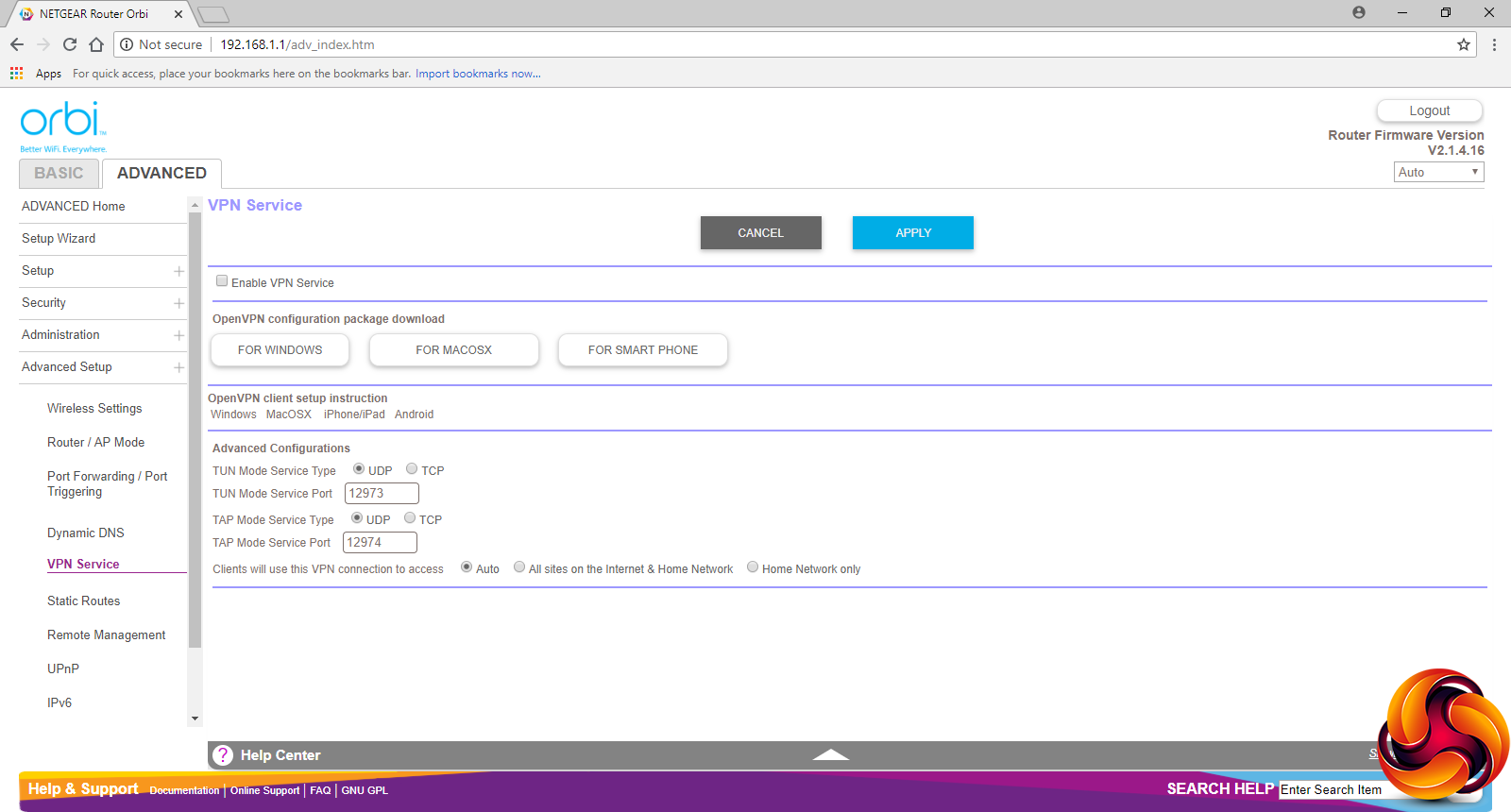
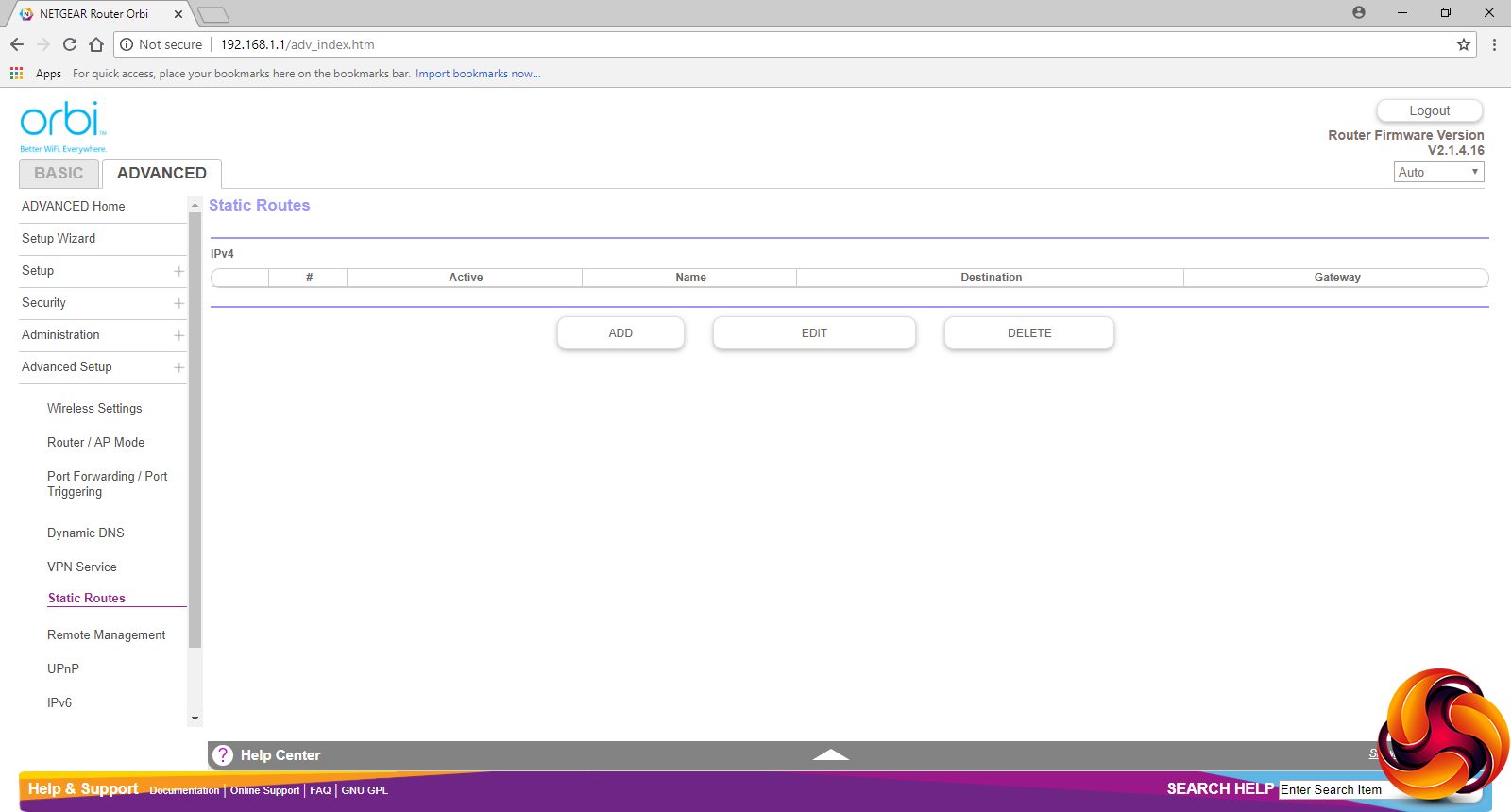
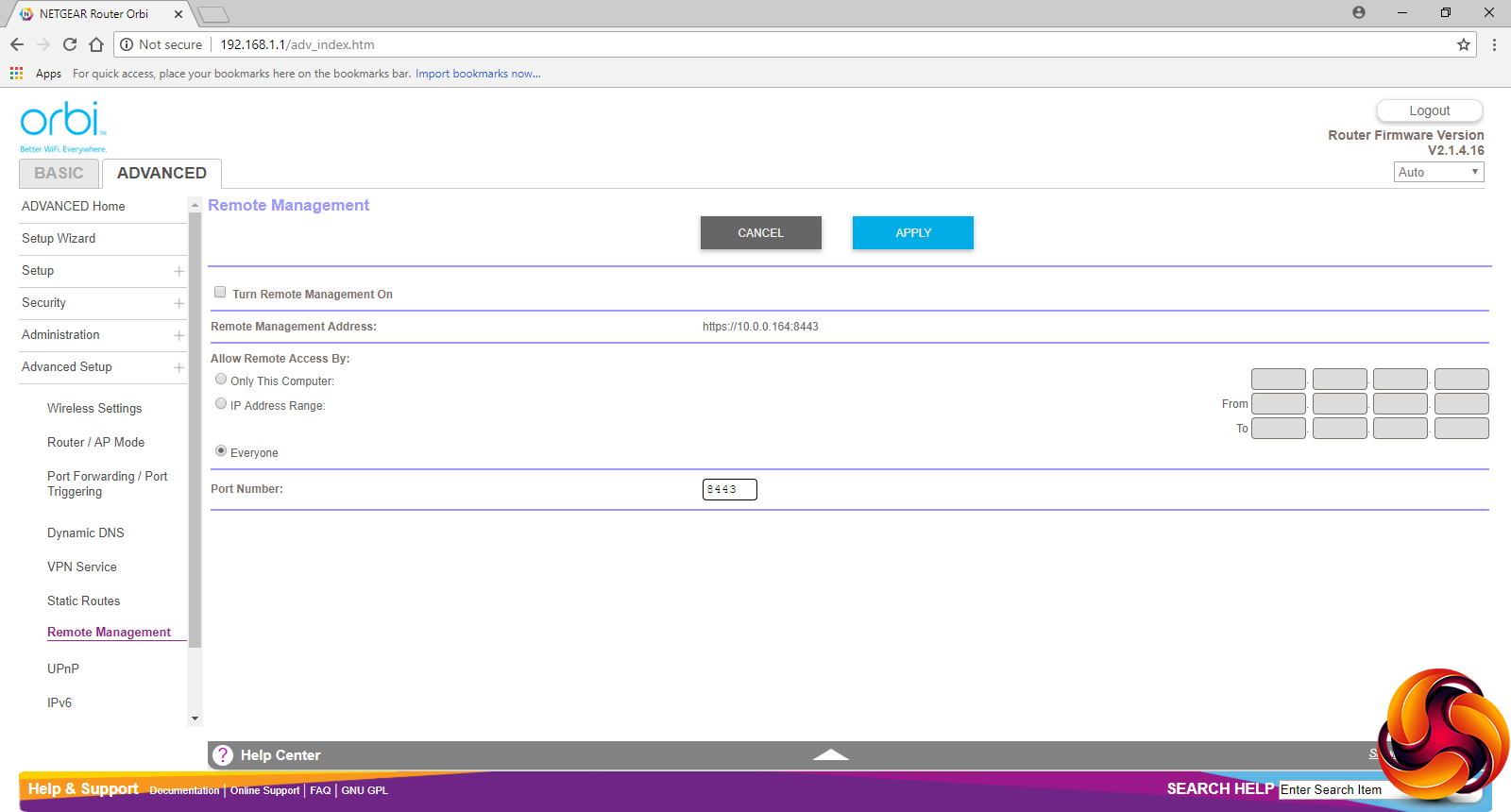
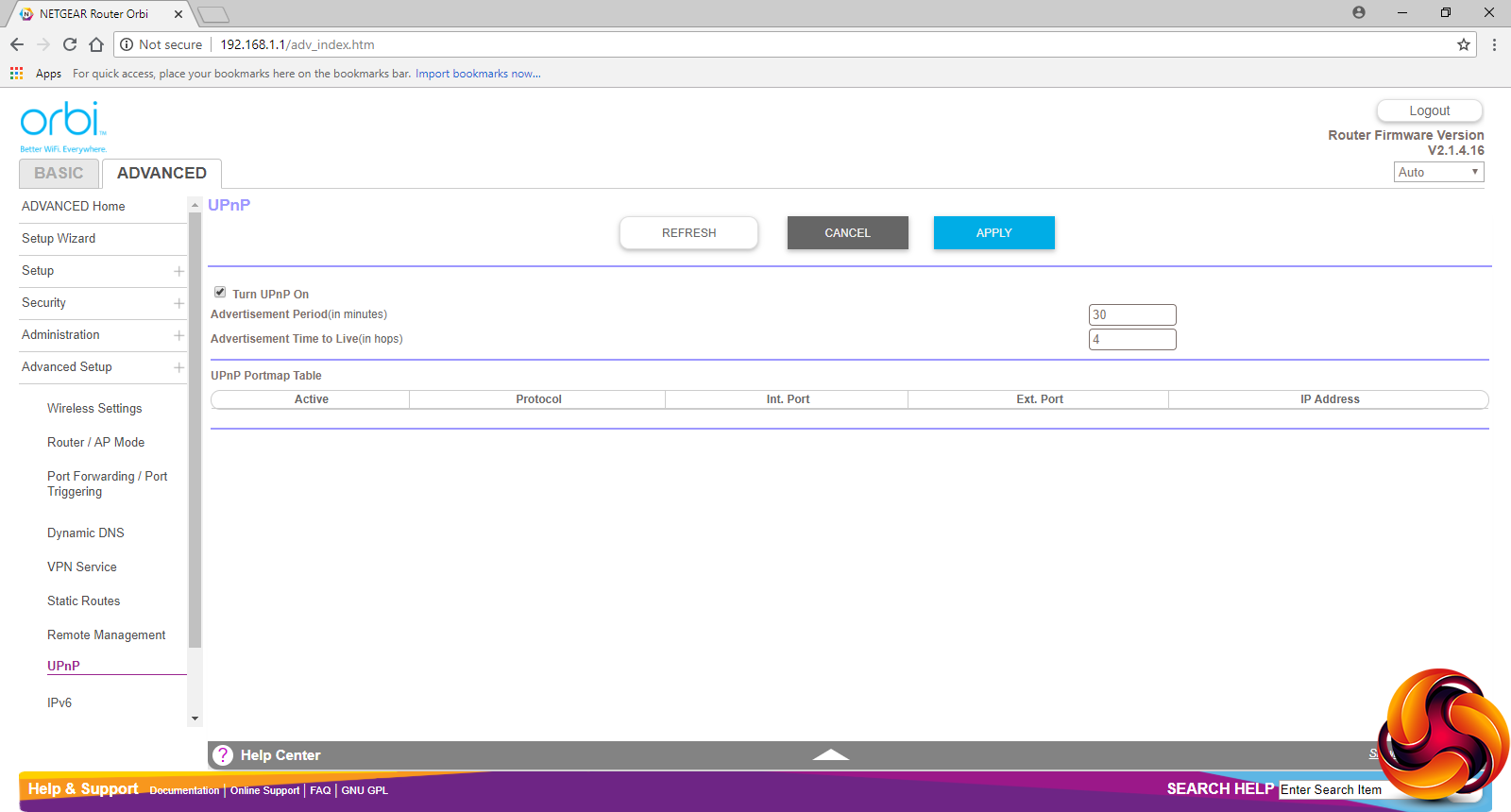
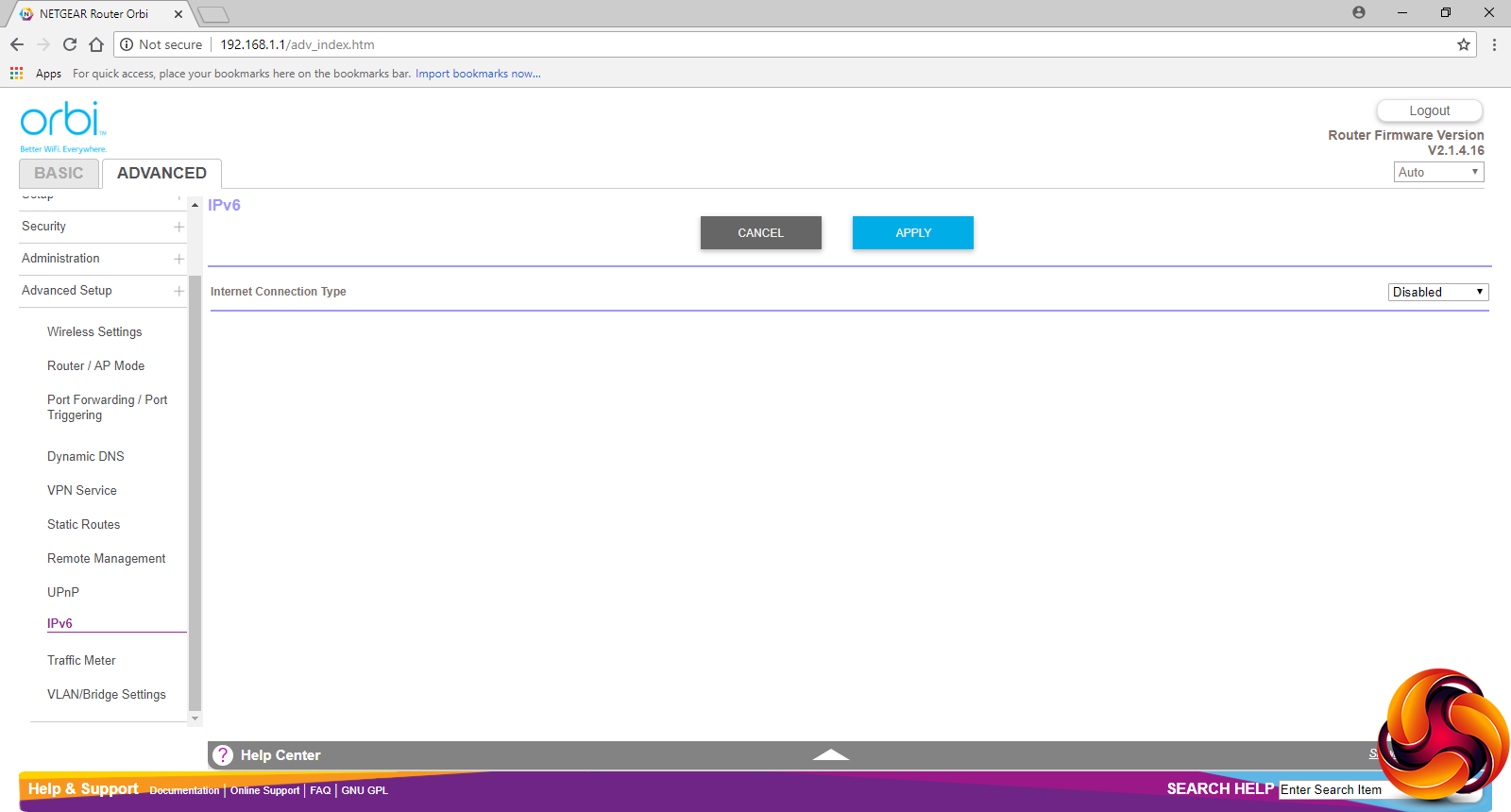
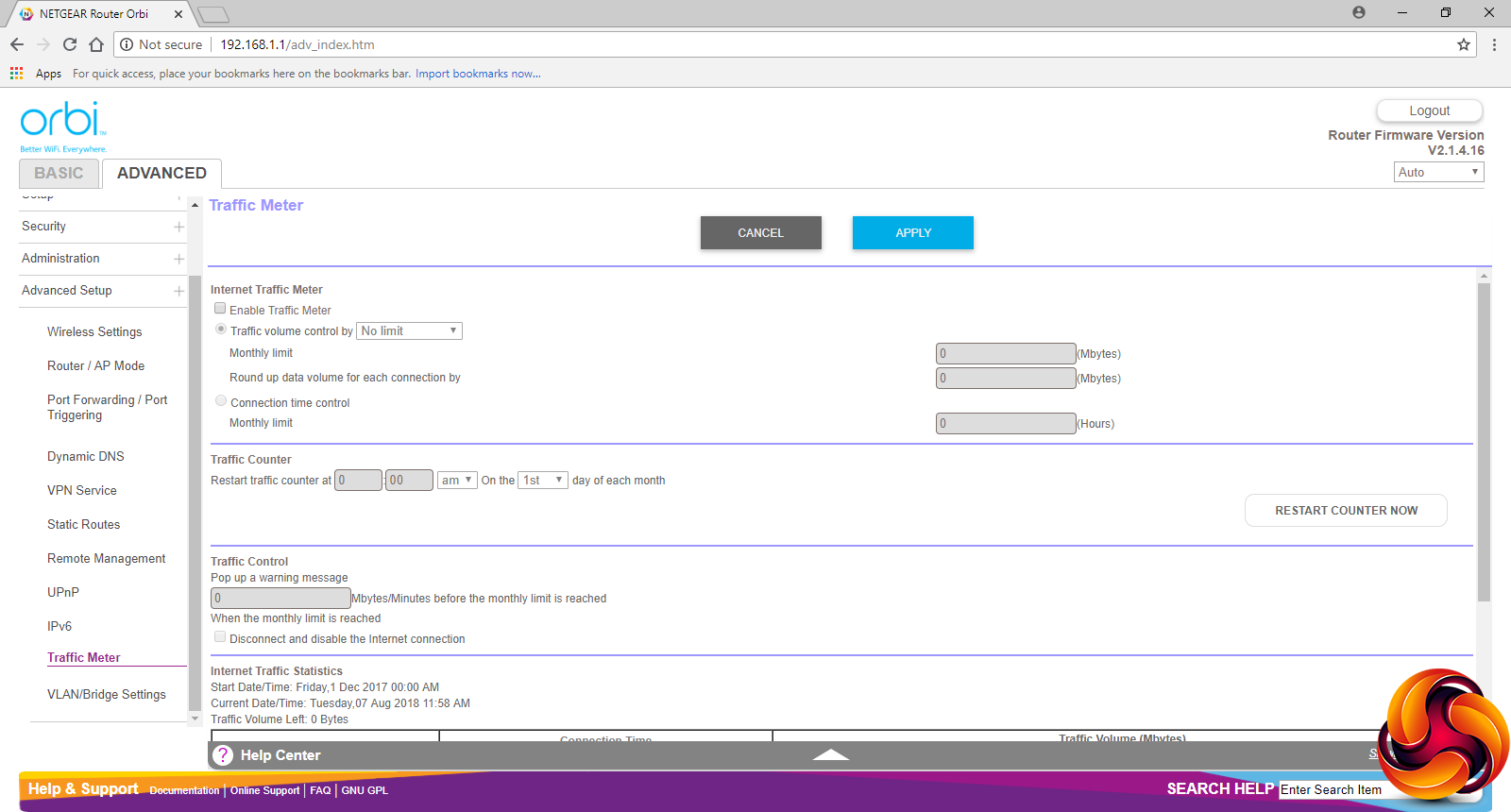
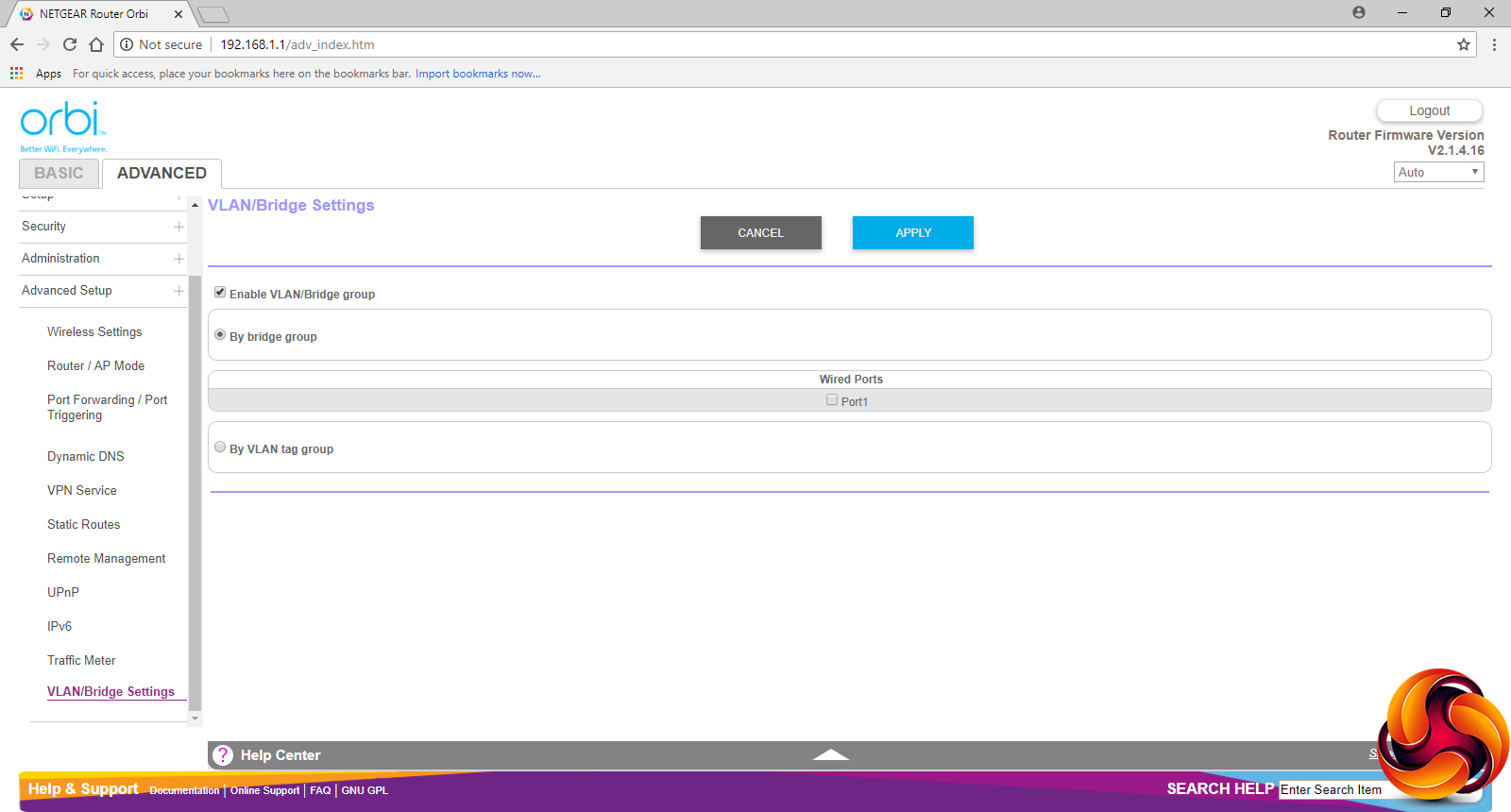
There are lots of other features in the Advanced Setup section. VPN support revolves exclusively around OpenVPN, rather than other protocols, which is behind what ASUS offers with its mesh networking products. You can configure static IP routes, and enable remote router management. The behaviour of UPnP can be customised, and IPv6 support is available.
If you have a capped broadband contract, the Traffic Meter will come in handy to keep usage under control. Finally, you can setup VLAN bridges between routers.
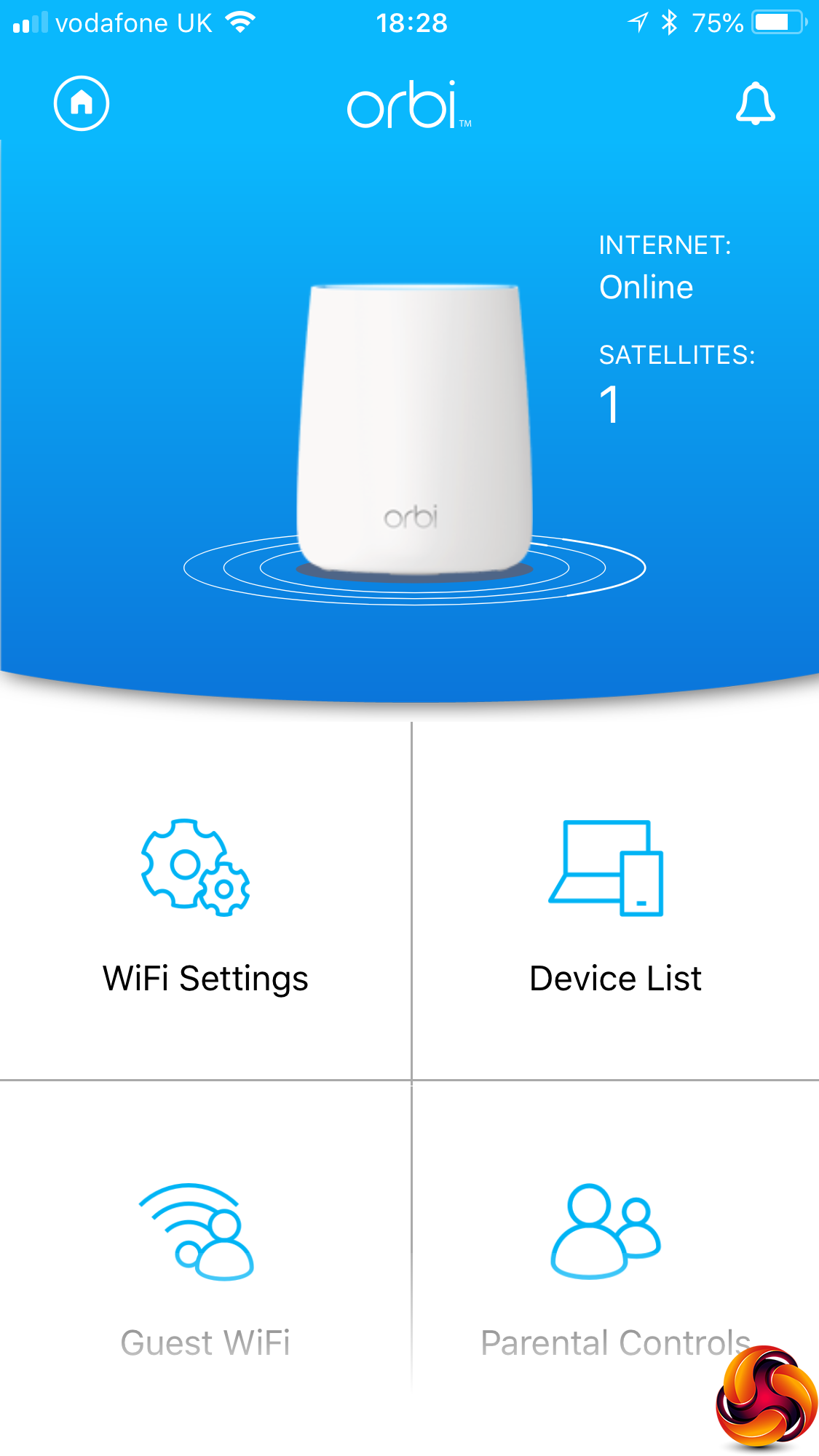
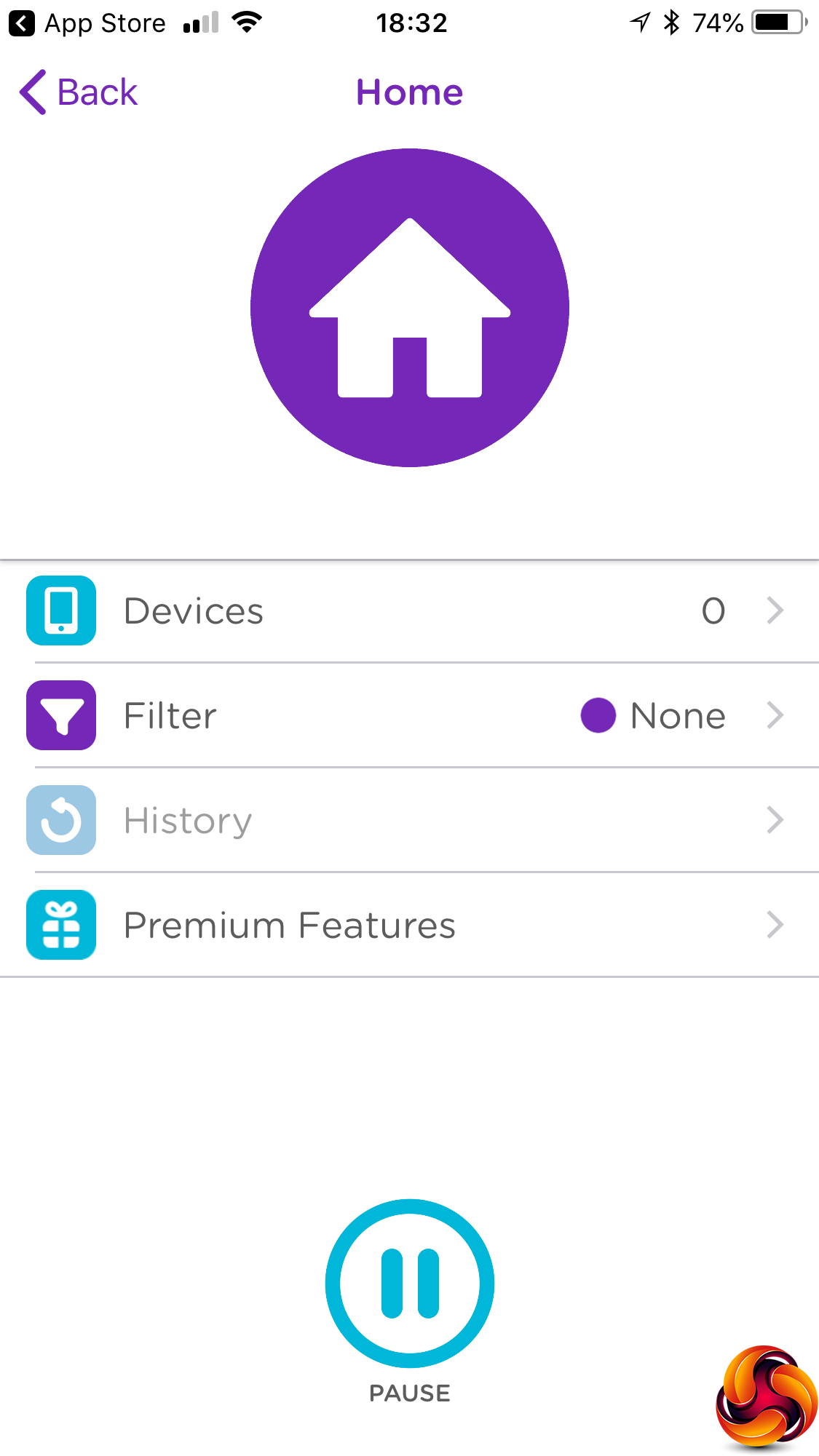
The smartphone app, available for iOS and Android, doesn't provide the same level of detailed control as the Web interface, but most importantly it provides a conduit to the separate Circle app. This has Basic and Premium modes, with the latter costing £4.49 a month and offers a lot more safeguards for your family.
Overall, there is a very good level of control in the NETGEAR web interface. Some of the most advanced features found in ASUS's routers are missing, such as IPsec VPN support, but most users won't miss these. There's more than enough available here, with the one curious omission being time-based per-device access control that is separate from the parental systems. Otherwise, there's plenty here for the average home or small business user.
We replicated the testing from our Ultimate Mesh WiFi Router Shootout as closely as possible with the NETGEAR Orbi RBK23. However, we no longer had the Apple Macbook Pro in our possession, so had to leave this set of tests out.
We repeated the positions from the Ultimate Mesh WiFi Router Shootout, with eight different locations for our test notebooks. The clients used were an HP Spectre 13 X2 notebook with 2×2 802.11ac WiFi, and an older HP Folio 13, which maxes out at 3×3 802.11n WiFi.
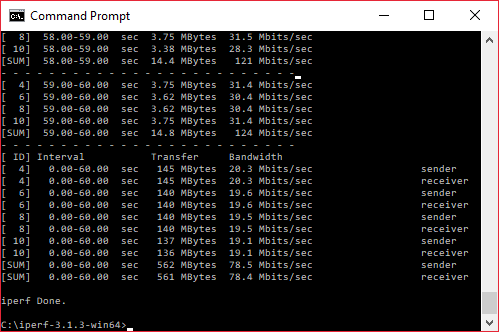
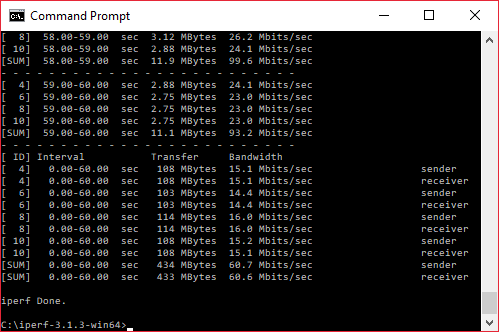
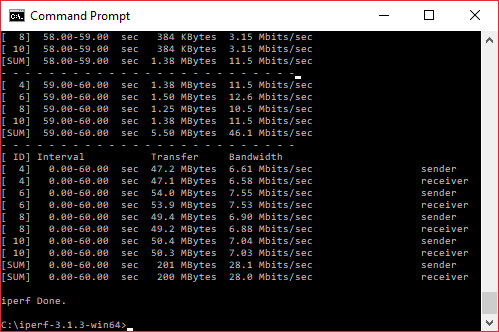
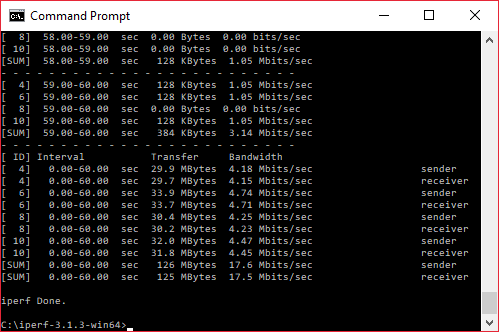
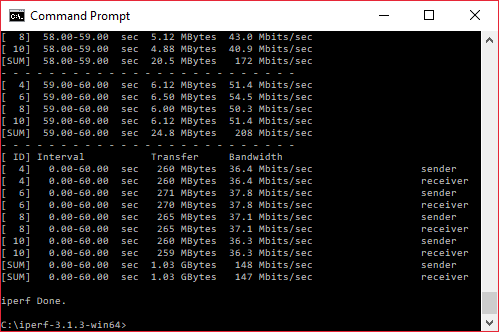
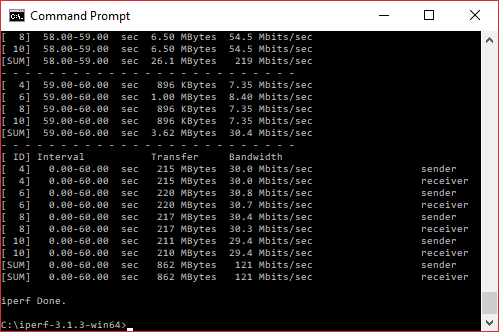
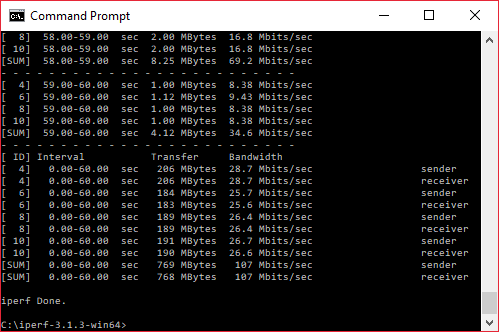
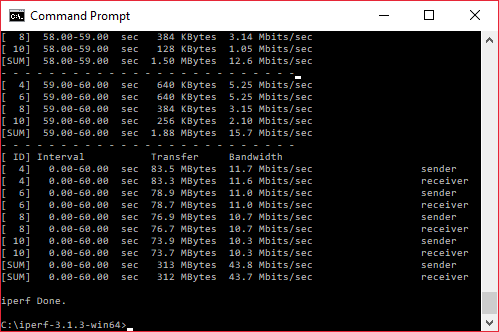
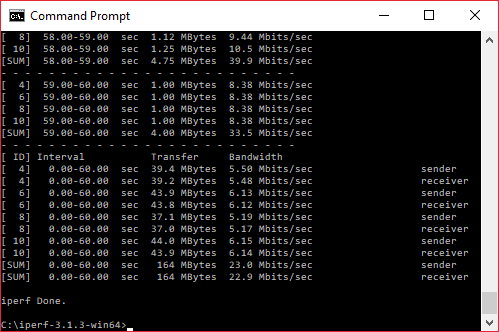
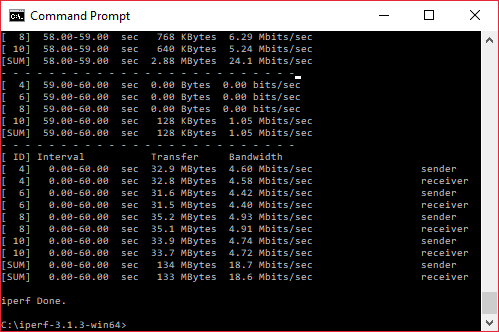
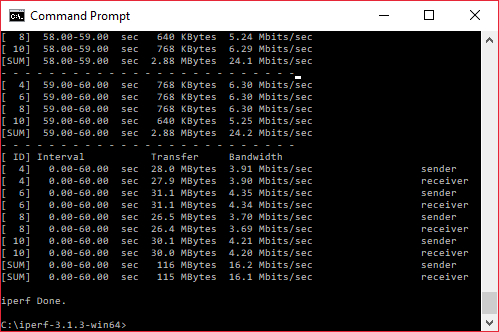
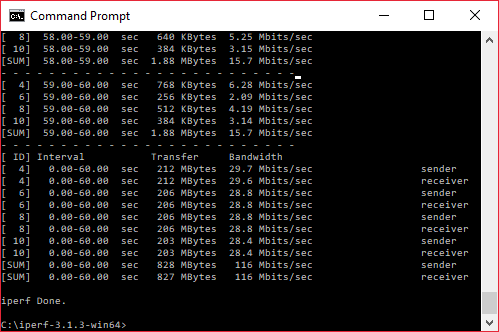
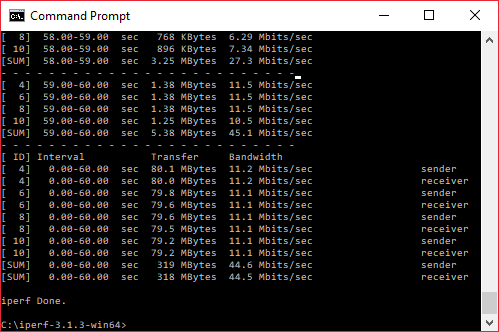
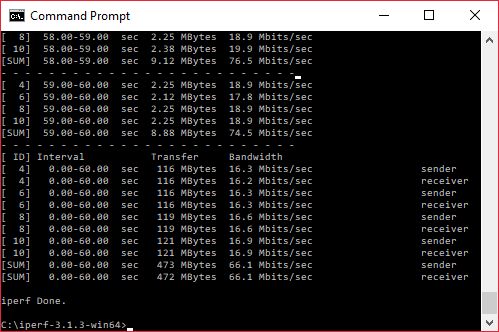
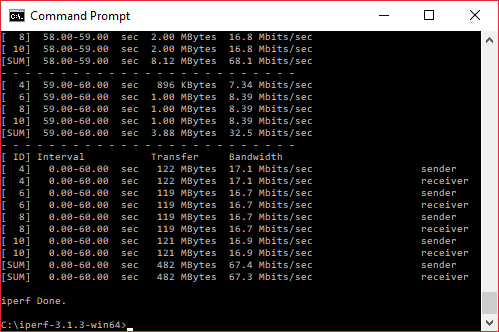
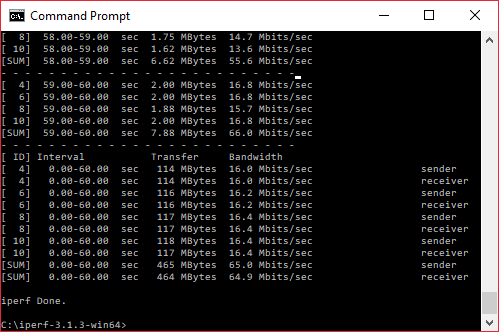
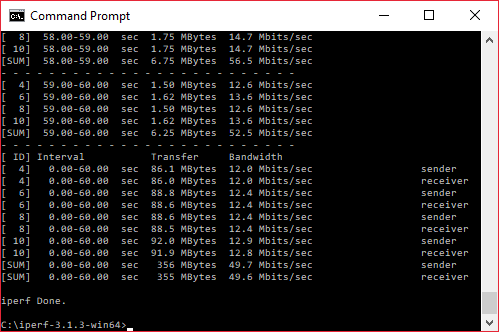
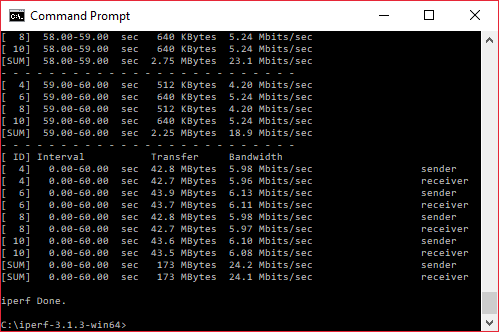
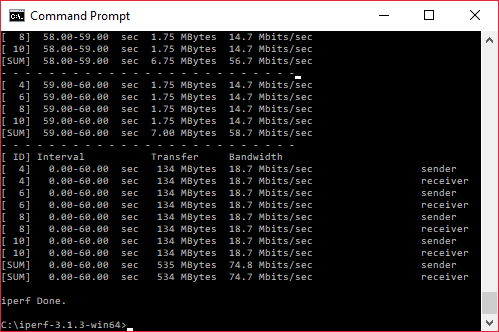
In each case, we used the freely available iPerf 3.1.3 software, which stresses a network by sending packets of random data and measures the throughput. One system acts as a server, and the other as a client, as data is sent between them. In all cases, we used an Armari Windows 10 workstation connected to the primary Lyra unit via Gigabit Ethernet as the server, so that the WiFi was always the slowest connection.
These are the iPerf commands we used:
For the server: iperf3 –s –i 1
For the client: iperf3 –c <IP Address> –P 4 –i 1 –t 60
Note that the client command sends four streams of data simultaneously, simulating a multi-client connection as closely as possible with just one client. It takes 60 throughput readings at one second intervals and then averages the result.
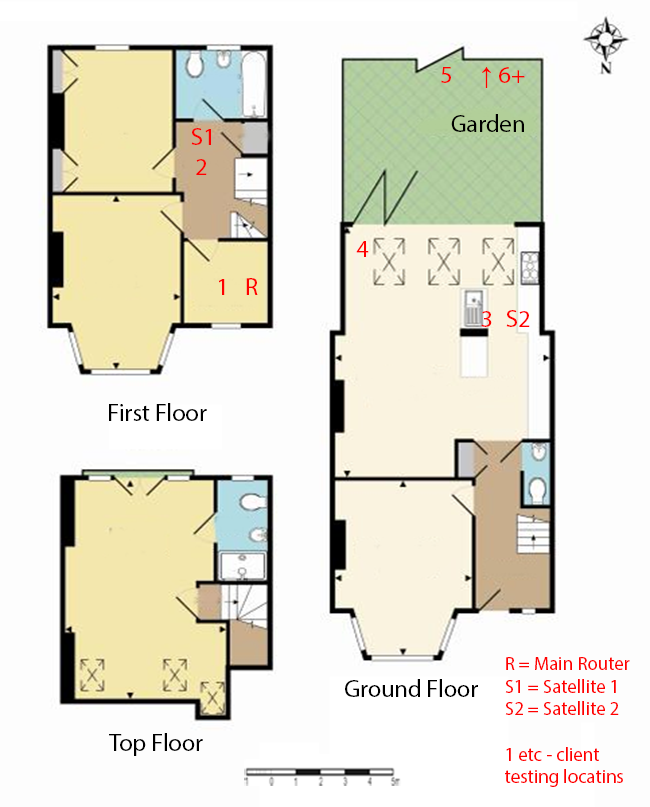
The above diagram shows the layout of the house we used for testing. Note that we didn't test on the top floor of the house because this was directly above the first floor and wouldn't have provided much of a range test. Instead, we used two locations on the same floor as the router (the first floor), then more distant locations on the ground floor extending out the back of the house into the garden.
Each test location, numbered in the diagram above, was approximately 5m away from the last one.
With the mesh networking and standalone router products used for comparison, location 1 was very near to the router, around 1m away. The next location – 2 – was around 5m away, with a wall in the way, but on the same floor. Location 3 was on the floor below, so had walls and a floor in between, but was a further 5m away. Location 4 was the last one actually inside the house. Locations 5 to 7 were then 5m further down the garden. Location 8 was only 2m further down, as this was the end of the garden, but also behind a shed, so posed a significant challenge that only a few mesh WiFi systems can cope with.
We should also say a few words about the location of the satellites. The routers or primary unit were always placed in the same location, in the first floor study next to the broadband. In the case of three-unit mesh systems such as BT Whole Home Wi-Fi and the top Velop option, the second and third satellites were placed at S1 and S2.
With the two-unit Google WiFi, the second unit was placed at S1, due to the recommendation of the setup software. However, in the case of the Orbi RBK50, it was possible to place the second unit at S2, due to the signal strength from these systems.
For the Orbi RBK23 system, we placed the primary unit in location R, with the first satellite at S1, and the second at S2. We then tested as if we had been sent the two-unit RBK20 instead, with the router at R and first satellite at S1.
802.11ac 5GHz
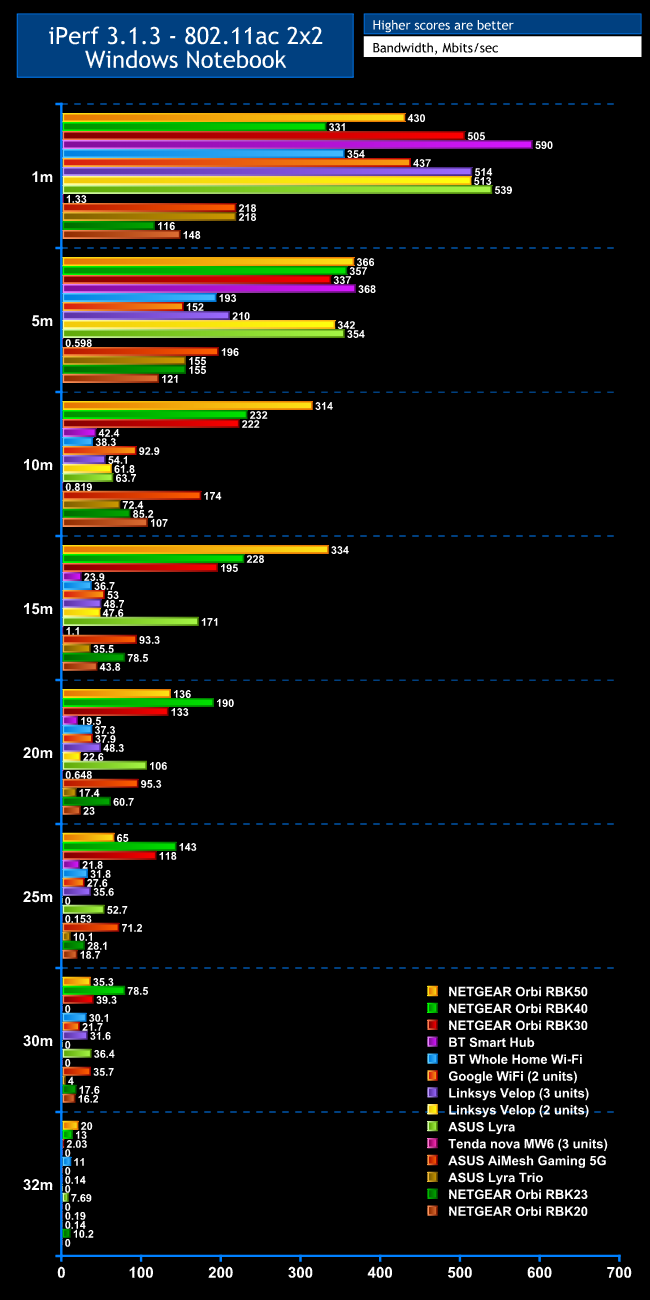
Within 1m, the NETGEAR Orbi RBK23 and RBK20 are clearly having some issues with interference from a neighbour's WiFi or the beam shaping isn't doing its job, with just 116Mbits/sec for the RBK23 and 148Mbits/sec for the RBK20. However, as range increases the relative performance improves commendably.
At 5m, the RBK23 is already faster than it is at closer range, and the RBK20 two-unit setup has only dropped a little, although both exhibit relatively low throughput scores. However, move to 10m, and the RBK20 is already the fifth fastest mesh system we have tested, and the RBK23 is seventh. At 15m,the RBK23 has moved up to sixth with 78.5Mbits/sec, but the RBK20 has dropped into the pack with 43.8Mbits/sec.
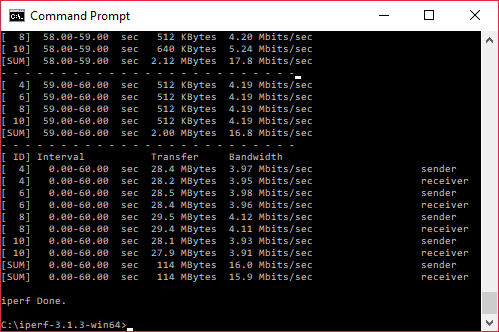
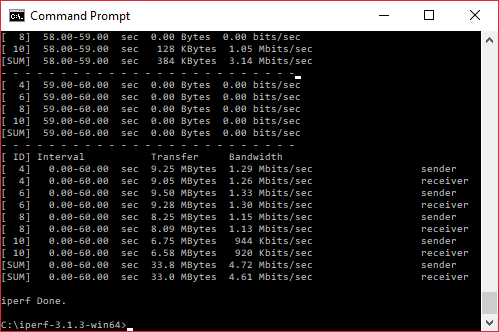
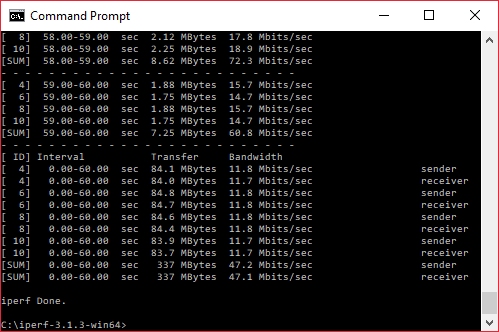
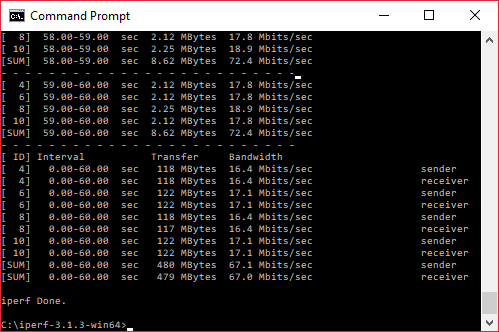
The 20m result shows where the RBK23's three units have their strength. The latter is still managing 60.7Mbits/sec, placing it sixth fastest, but the RBK20 has dropped down to 23Mbits/sec. Moving out to 25m, the RBK23 falls a few places with a still-usable 28.1Mbits/sec. But at 30m you're still getting a very usable 17.6Mbit/sec from the RBK23 and 16.2Mbits/sec from the RBK20. The latter drops off completely at the 32m “behind the shed” distance, but the RBK23 is soldiering on with 10.2Mbit/sec, which will still allow for Web browsing, but the RBK20 has dropped its signal.
Overall, performance with an 802.11ac client is a mixed bag. This is not the fastest mesh system close up, as you would expect for its reduced spec, although the speed in really close proximity is disappointing. However, the range for both two-unit and three-unit configurations is very impressive. The RBK23 can provide similar range to the higher-end Orbis, albeit with a reduced throughput.
802.11n 2.4GHz
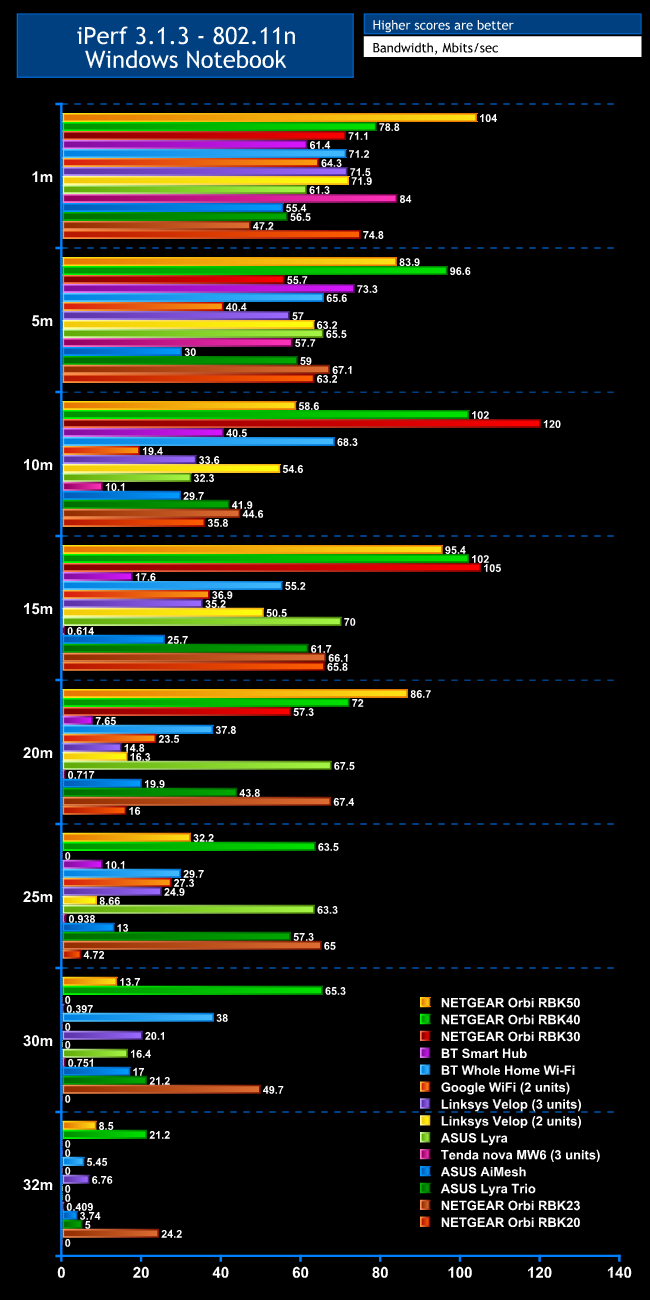
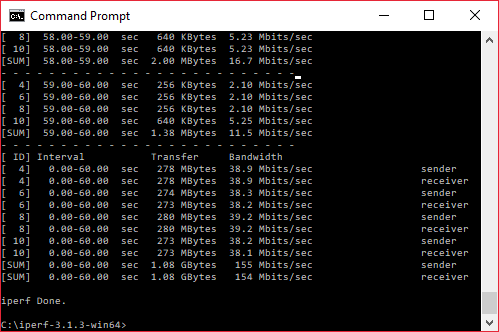
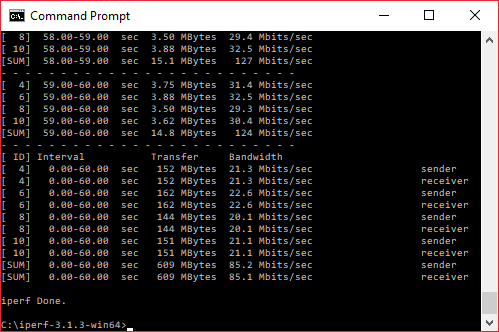
The picture with 2.4GHz 802.11n is clearer than with 5GHz 802.11ac. The RBK23 still seems to suffer in close proximity, but the RBK20 manages a very competitive 74.8Mbits/sec at 1m. But at 5m. both two- and three-unit setups are in the pack with the RBK23 managing 67.1Mbits/sec and the RBK20 a still decent 63.2Mbits/sec.
At 10m, the RBK23 is seventh fastest with 44.6Mbits/sec, and the RBK20 in ninth with 35.8Mbits/sec. Both actually improve at 15m, with almost identical scores of 66.1Mbits/sec for the RBK23 and 65.8Mbits/sec for the RBK20. At 20m, however, whilst the RBK23 is still posting an excellent 67.4Mbits/sec (fourth fastest we've seen with 802.11n at this range), the RBK20 has dropped off considerably to 16Mbit/sec.
At 25m, the RBK23 actually posts the fastest result we've seen of 65Mbit/sec, although the RBK20 has dropped off to just 4.72Mbits/sec, and its range doesn't go any further than this. The RBK23 is still capable of an excellent 49.7Mbits/sec at 30m, and an absolutely stunning 24.2Mbits/sec at 32m.
Whilst the two-unit RBK20 provides a usefully extended 802.11n range, the RBK23 is truly excellent at wide coverage in the 2.4GHz waveband.
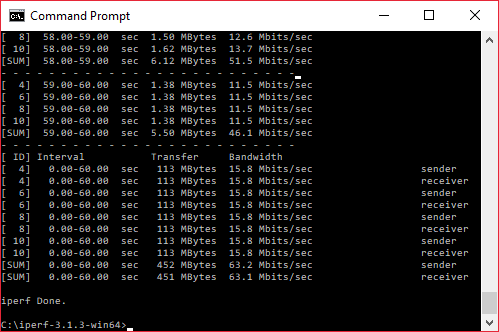
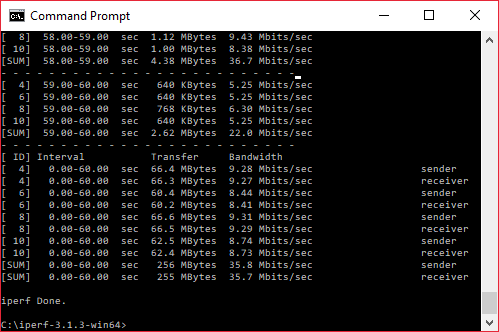
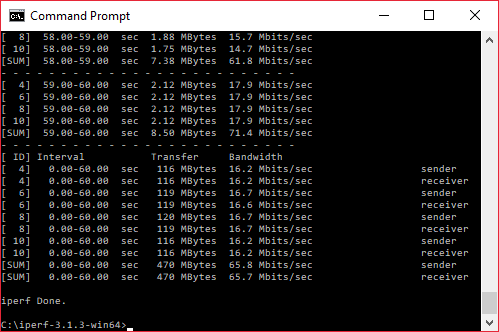
The NETGEAR Orbi RBK23 mostly lives up to its billing. The range with 2.4GHz 802.11n is phenomenal, and very good with 5GHz 802.11ac, albeit slower than the premium options. The Web management interface has plenty of configuration available, although not as much as a dedicated router, particularly from ASUS. The Disney Circle parental controls will be a boon to families.
However, the 802.11ac performance in close proximity is disappointing, and you do lose some features over a standalone router or the higher-end Orbis. There's no USB for printer or storage sharing, and the two Gigabit Ethernet ports per satellite will be a limitation if you want to hook up multiple desktops in a home LAN.
Overall, though, the range just about swings it. If you only want to cover a small house or larger flat, the RBK20 might be enough for your needs and a snip at under £200, whilst the RBK23 is a decent budget option for stretching your WiFi over a larger house. However, in our experience the two-unit RBK50 can provide a similar coverage with better performance and features. With a cheaper current price of £249, this remains our top pick for mesh WiFi.
Discuss on our Facebook page, over HERE.

The NETGEAR Orbi RBK23 is available from Amazon.co.uk for £280.
Pros:
- Great 802.11n coverage.
- Decent 802.11ac coverage.
- Disney Circle parental controls.
- Decent range of features in Web management interface.
- Smartphone configuration app.
- Reasonable price for three-unit setup.
Cons:
- 802.11ac performance disappointing in close proximity.
- Only two Gigabit Ethernet ports.
- No USB ports for printer or storage sharing.
Kitguru Says: The NETGEAR Orbi RBK23 provides excellent 802.11n and good 802.11ac range extension, but it is down on features and performance compared to the premium Orbi options.