 KitGuru KitGuru.net – Tech News | Hardware News | Hardware Reviews | IOS | Mobile | Gaming | Graphics Cards


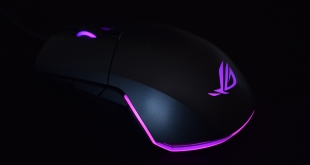
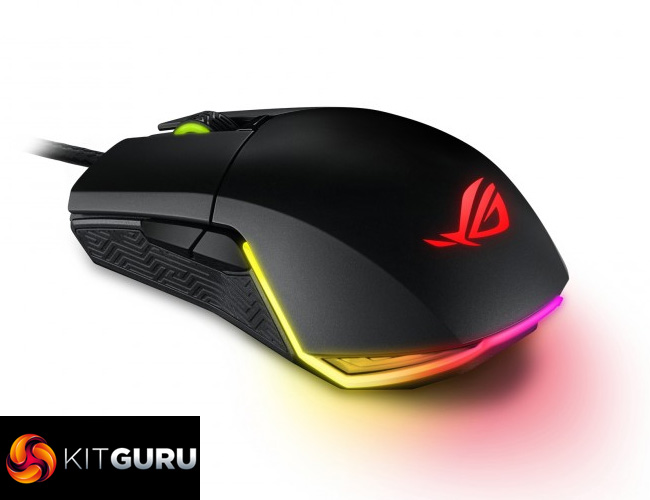
Following on from our look at the new ASUS ROG Strix Evolve mouse – which walked away with our top award – our attention today turns to the Pugio. Unlike the Strix Evolve, the Pugio is a pure ambidextrous mouse that does not allow you to change its shape. However, it does have hot-swappable switches, customisable side buttons and glorious RGB lighting, so let's get to it.
You might have noticed we have done quite a few ASUS ROG peripheral reviews in recent months – this is actually the seventh mouse, keyboard or headset I've seen from the company this year, and it definitely shows the emphasis ROG is putting on the peripheral market.
All 7 of those products have been award winners, too, so there are high hopes for the Pugio, a £69.95 ambidextrous mouse with more than its fair share of killer features.
Specifications
- Connectivity Technology: Wired
- Tracking: Optical
- OS Support: Windows® 10, Windows® 8.1, Windows® 7
- Dimensions: L120 x W68 x H37mm
- Weight: 103 g without cable
- Resolution: 7200dpi
- Interface available: USB
- Contents, 1 x ROG pouch, 1 x ROG accessary case, 2 x Japanese-made Omron switches, 2 x side button covers, 1 x ROG logo sticker
- Compatible switch list for ROG switch socket: Omron D2F Series switches: D2F, D2F-F, D2F-01, D2F-01F. Omron D2FC Series switches: D2FC-3M, D2FC-F-7N, D2FC-F-7N(10M), D2FC-F-7N(20M), D2FC-F-K (50M)

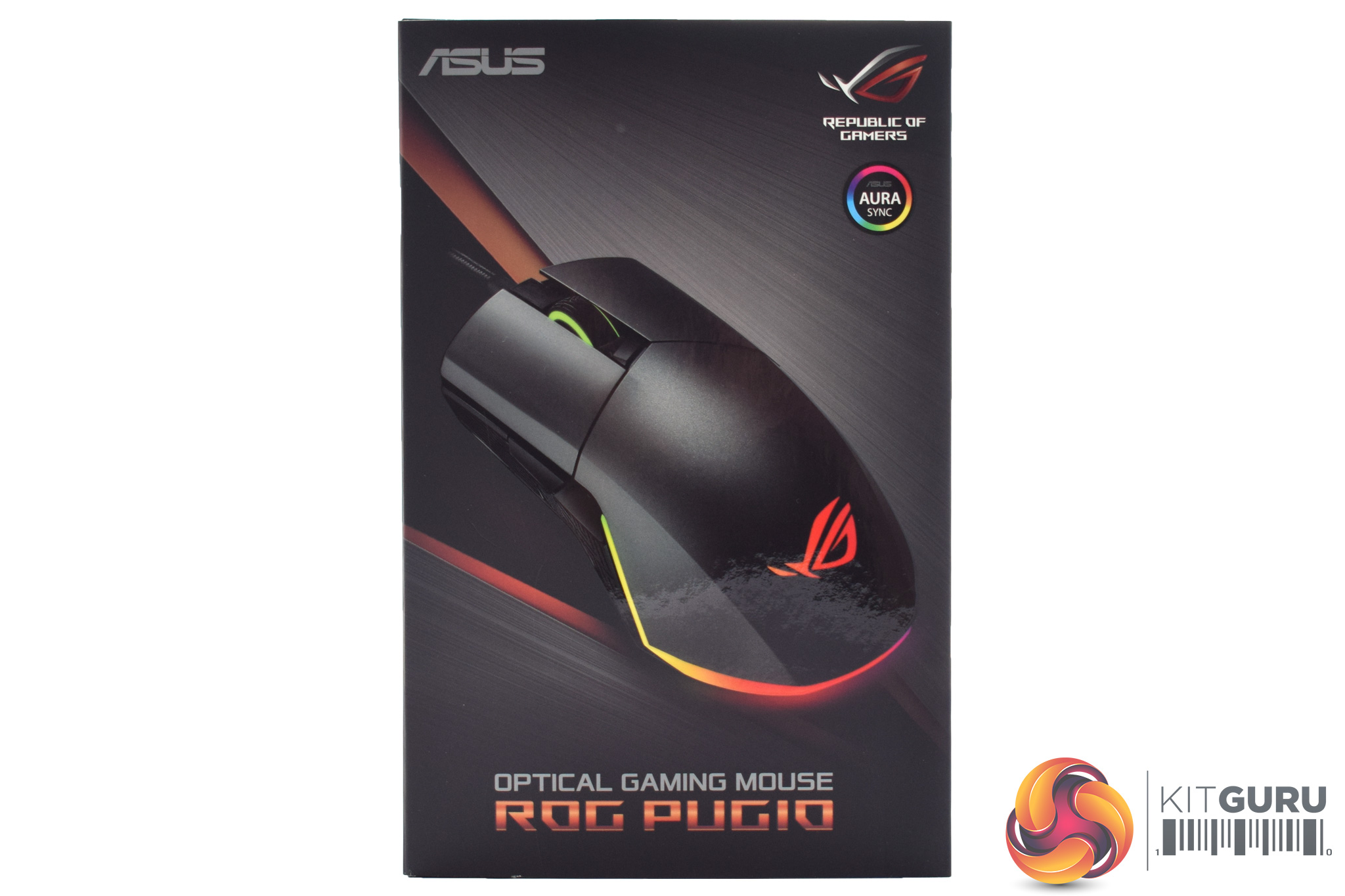
If you have ever bought an ASUS ROG peripheral before, you will be familiar with the look of the box that the Pugio ships in – it is dark grey, with a brushed metal appearance, while a product image is also visible on the front.
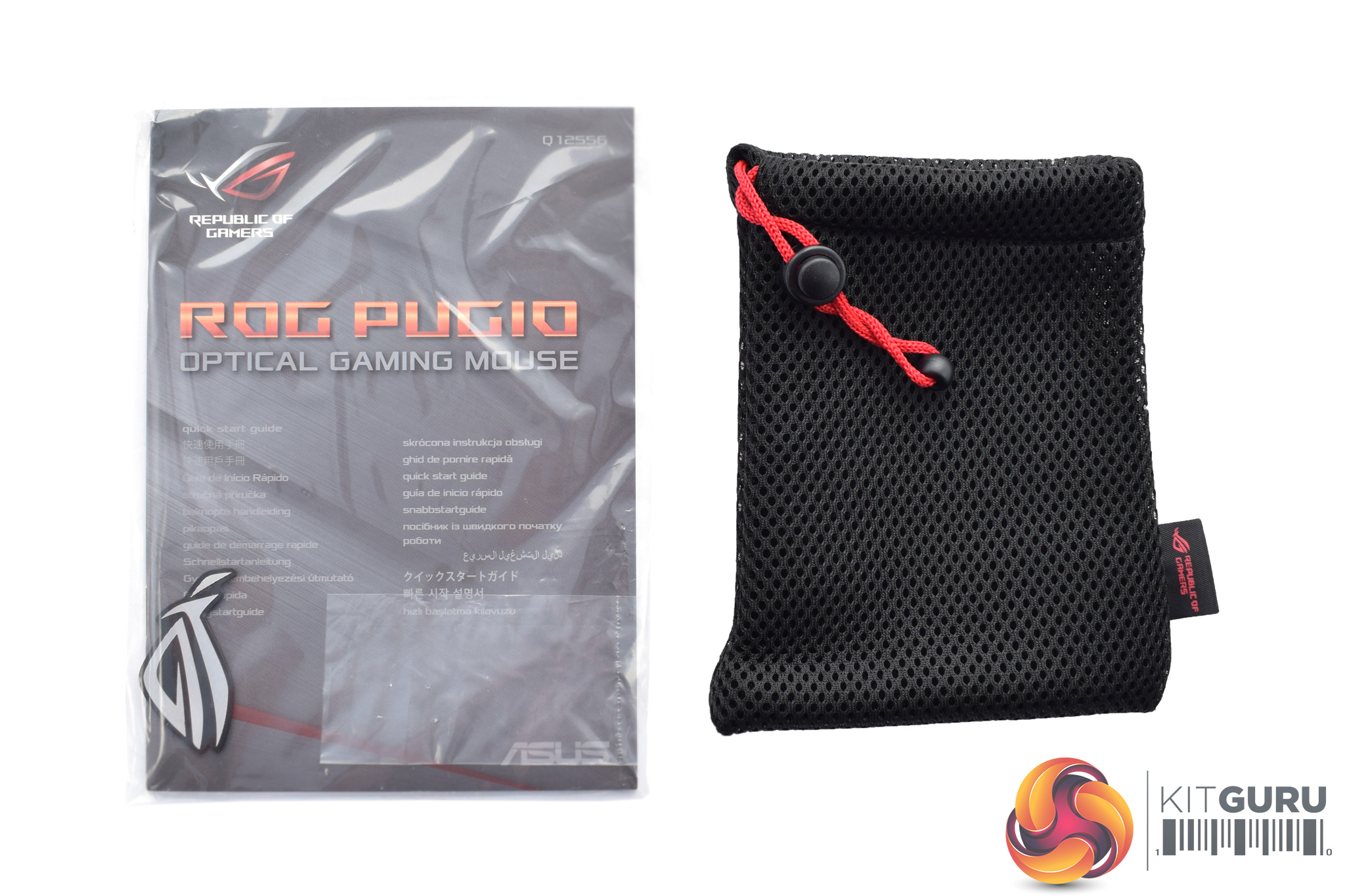
Inside, we are first greeted by a user manual, a ROG sticker and a small carry case – great if you will be taking the Pugio out to LANs on a regular basis.
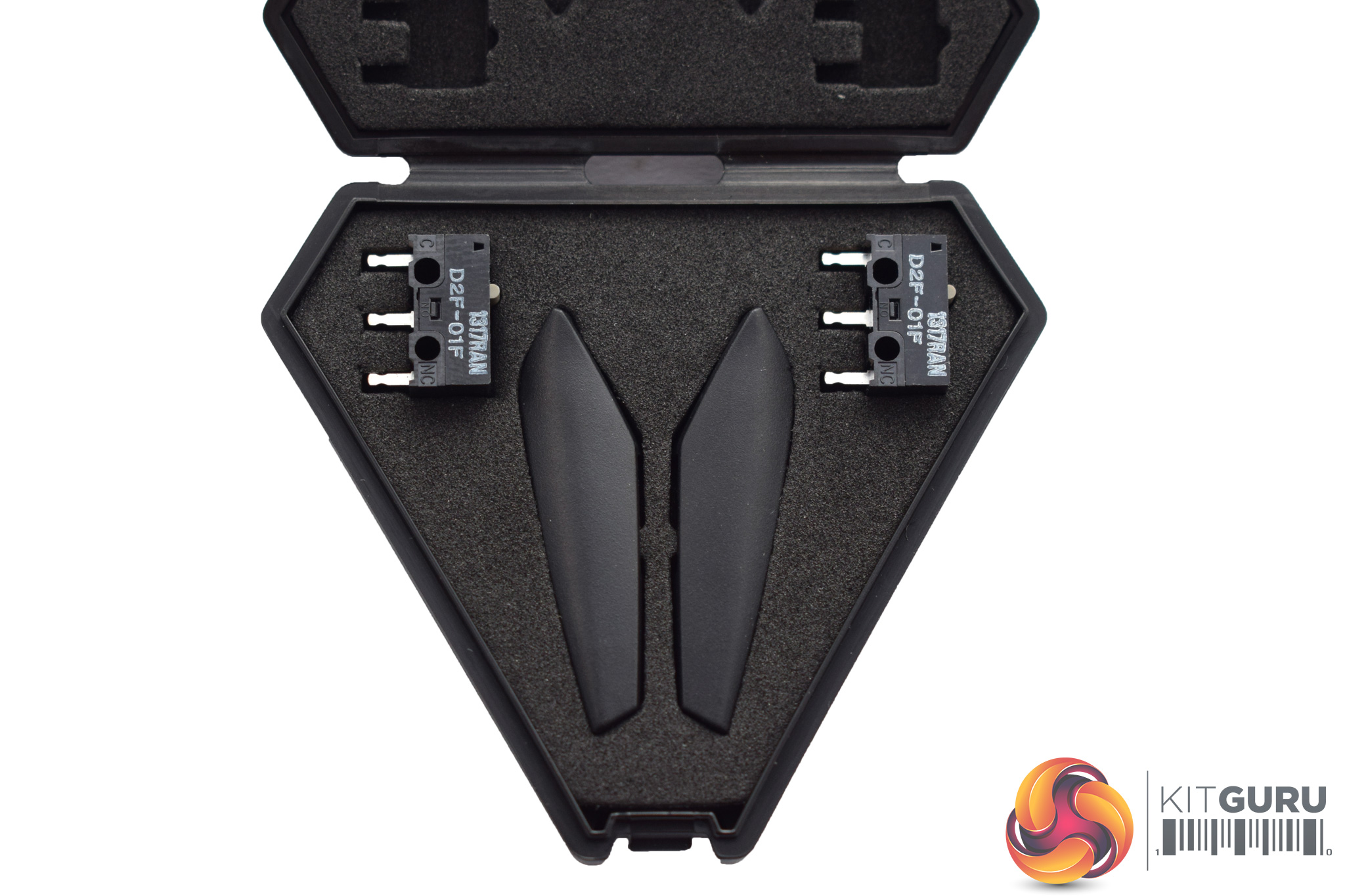
Slightly more interesting, though, is the tiny case which houses two replacement switches for the mouse's primary buttons, as well as two blanking plates for the side buttons. More on both of these features later.
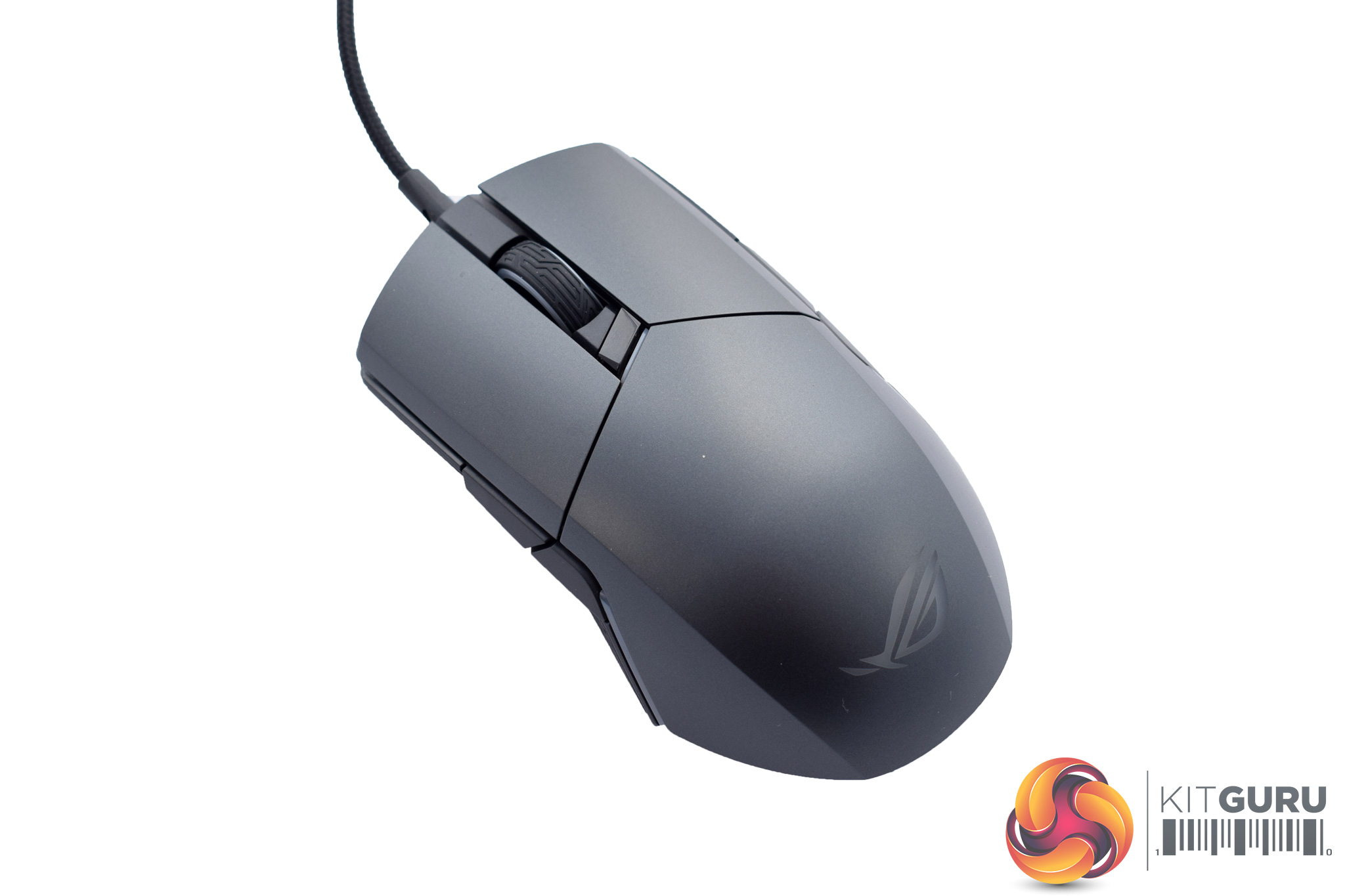
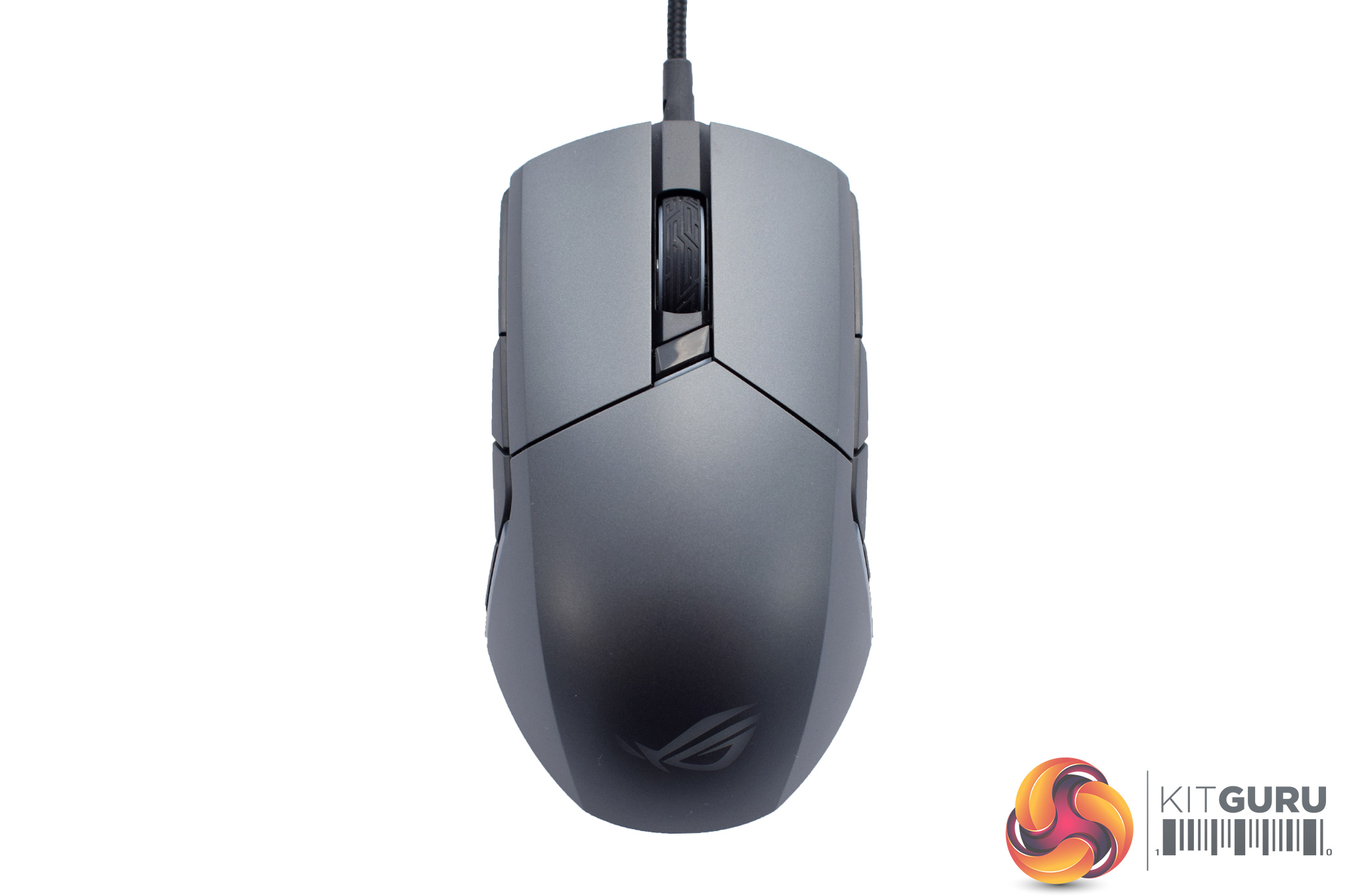
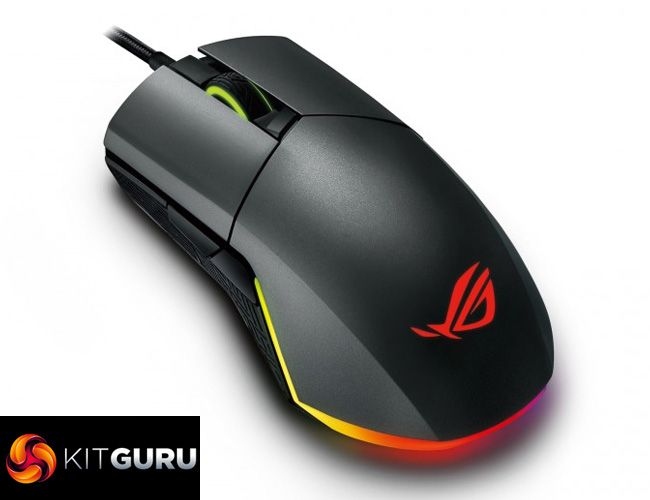
Coming to the mouse itself, there are definite similarities been the Pugio and the Strix Impact we reviewed in April – the overall shape is similar, as both are ambidextrous, but the Pugio is just a bit bigger as it measures L120 x W68 x H37mm. Both have a slightly ‘bulbous' bottom end, too.
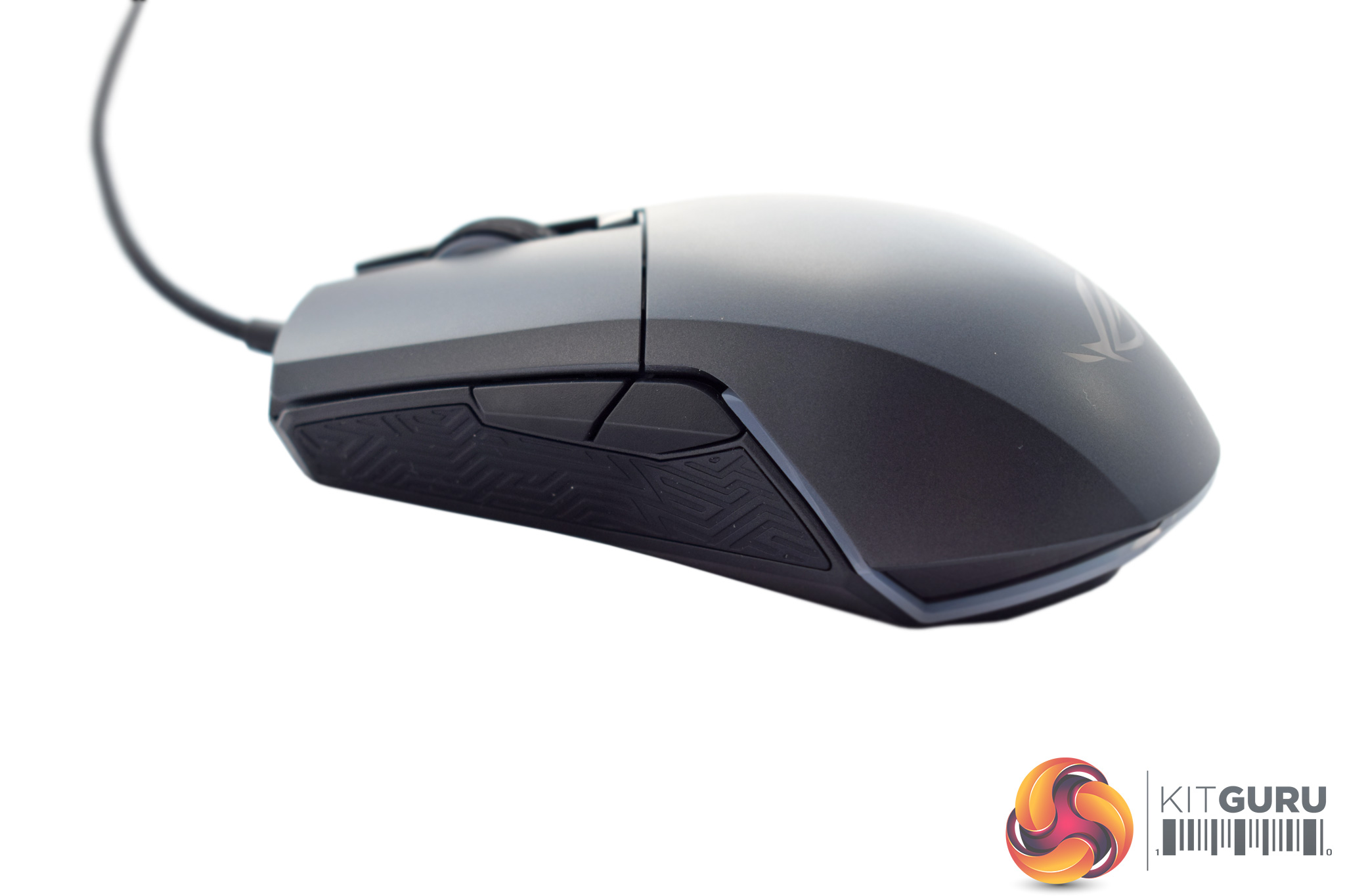
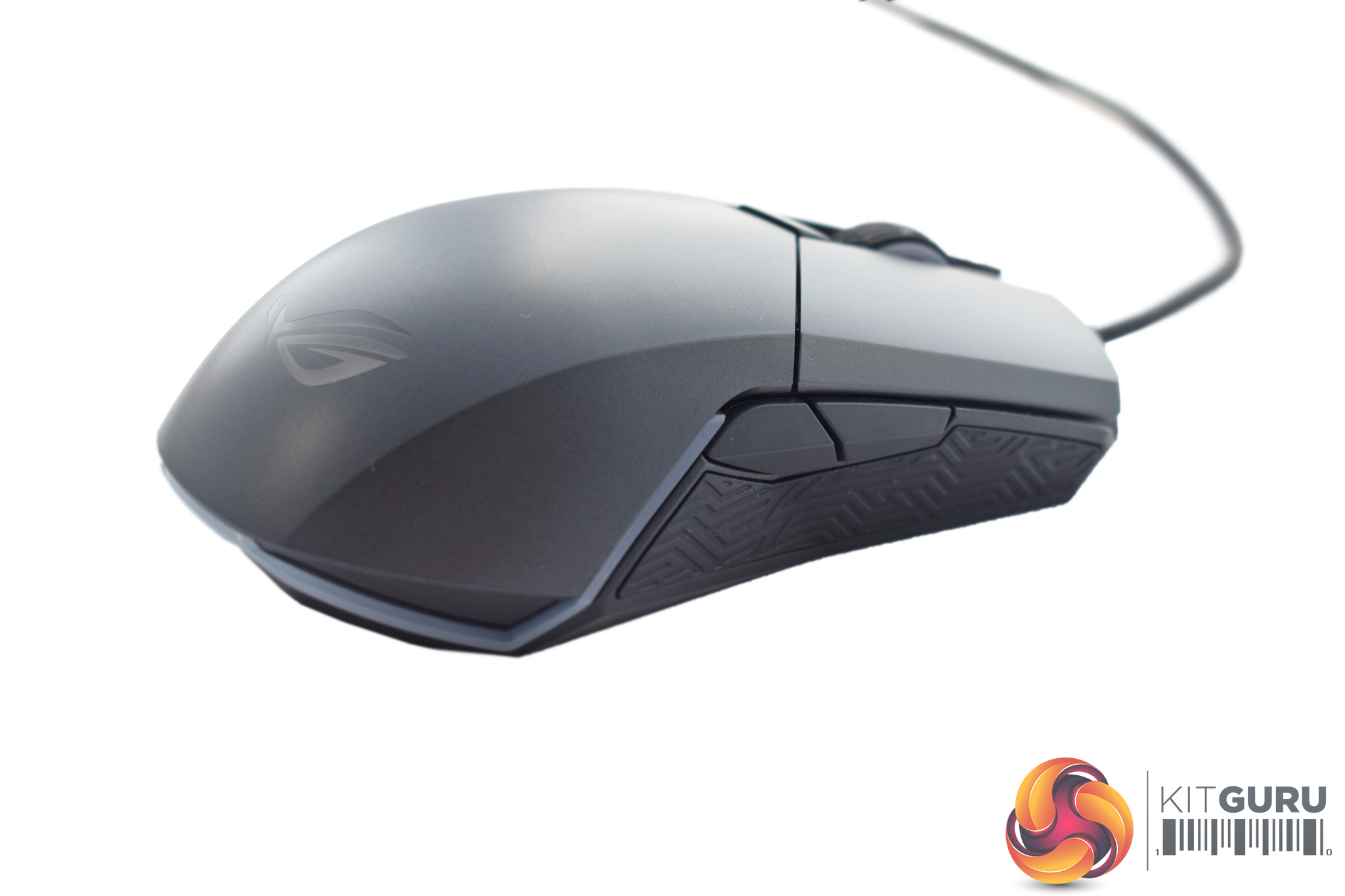
Turning to the sides of the Pugio, both the left and right sides are identical in that both feature two side buttons as well as some textured rubber. Clearly, the idea is that the Pugio will be used by both left and right-handers (as it is ambidextrous) and so to give both sets of people side buttons, there needs to be a pair on either side.
However, this could cause issues for some – if I am right-handed, I don't want to accidentally press the other side buttons with my fourth finger.
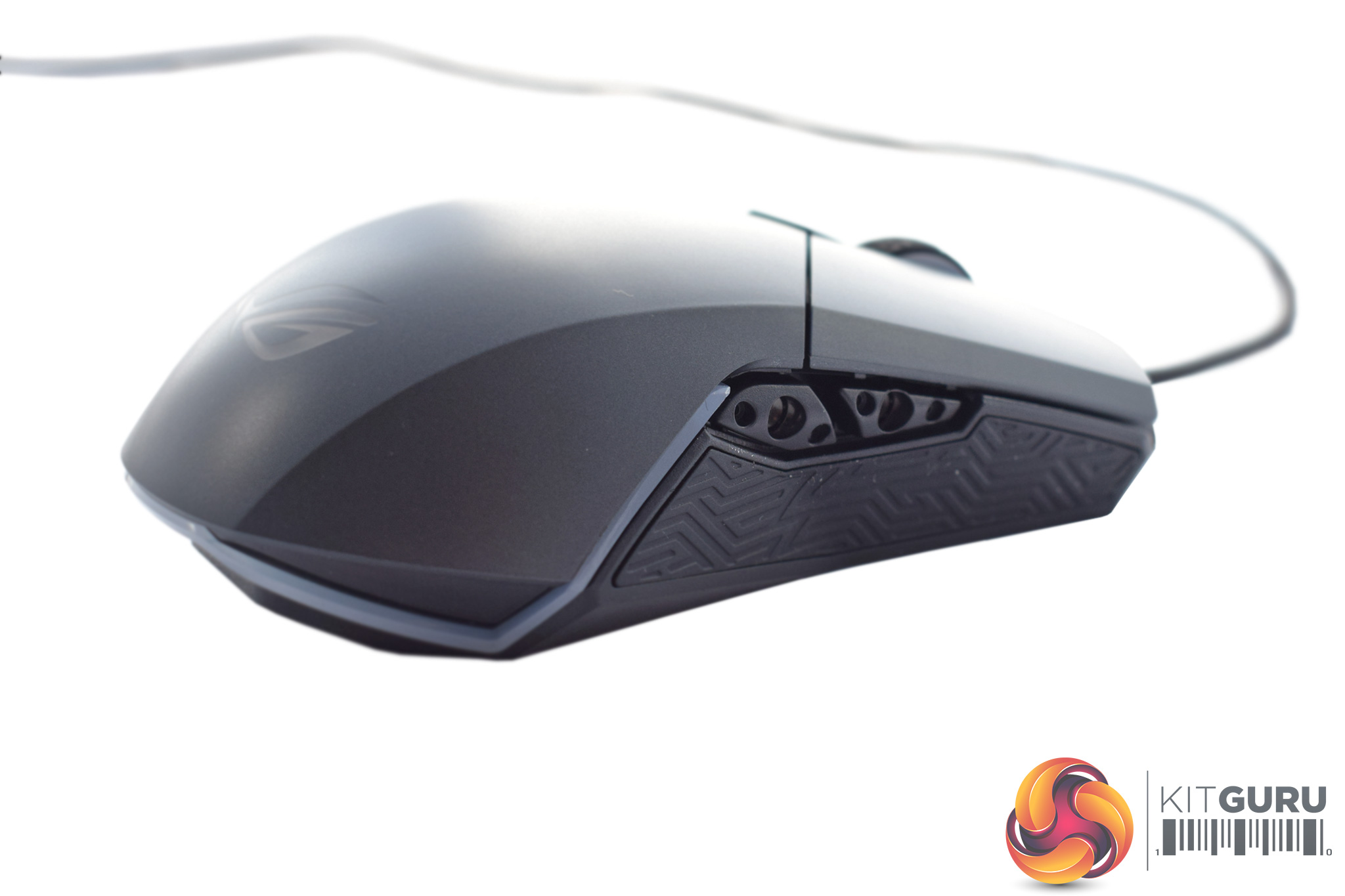
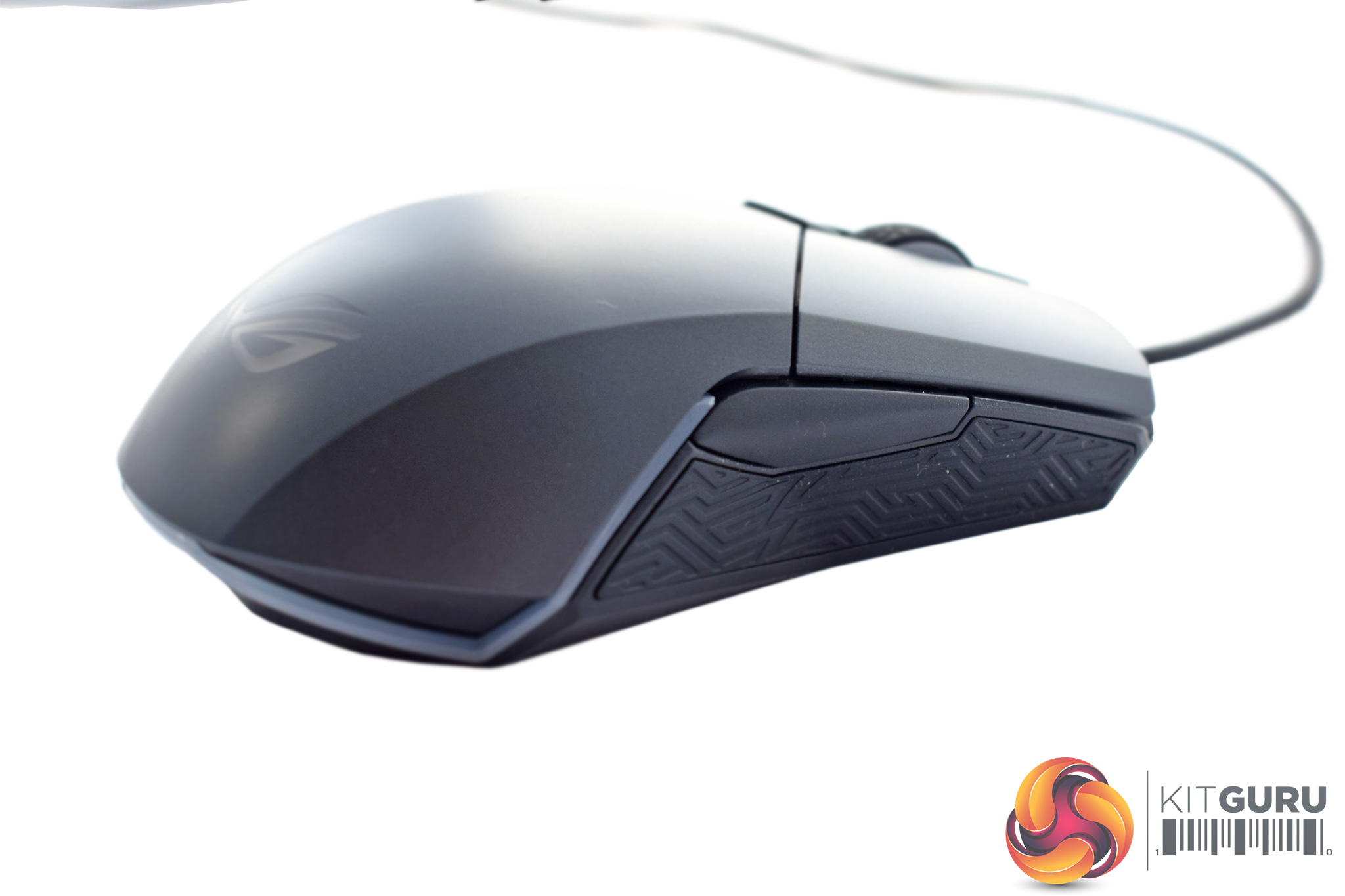
Fortunately, though, ASUS did think of this and came up with a clever solution: both sets of side buttons are actually removable and can be replaced with the blanking plates we saw earlier.
Given the side buttons are held in-place magnetically, you just need to give them a tug and they will pop off, revealing some holes beneath. Snapping on the appropriate blanking plate is similarly easy – the magnets will just lock it down with no force required.
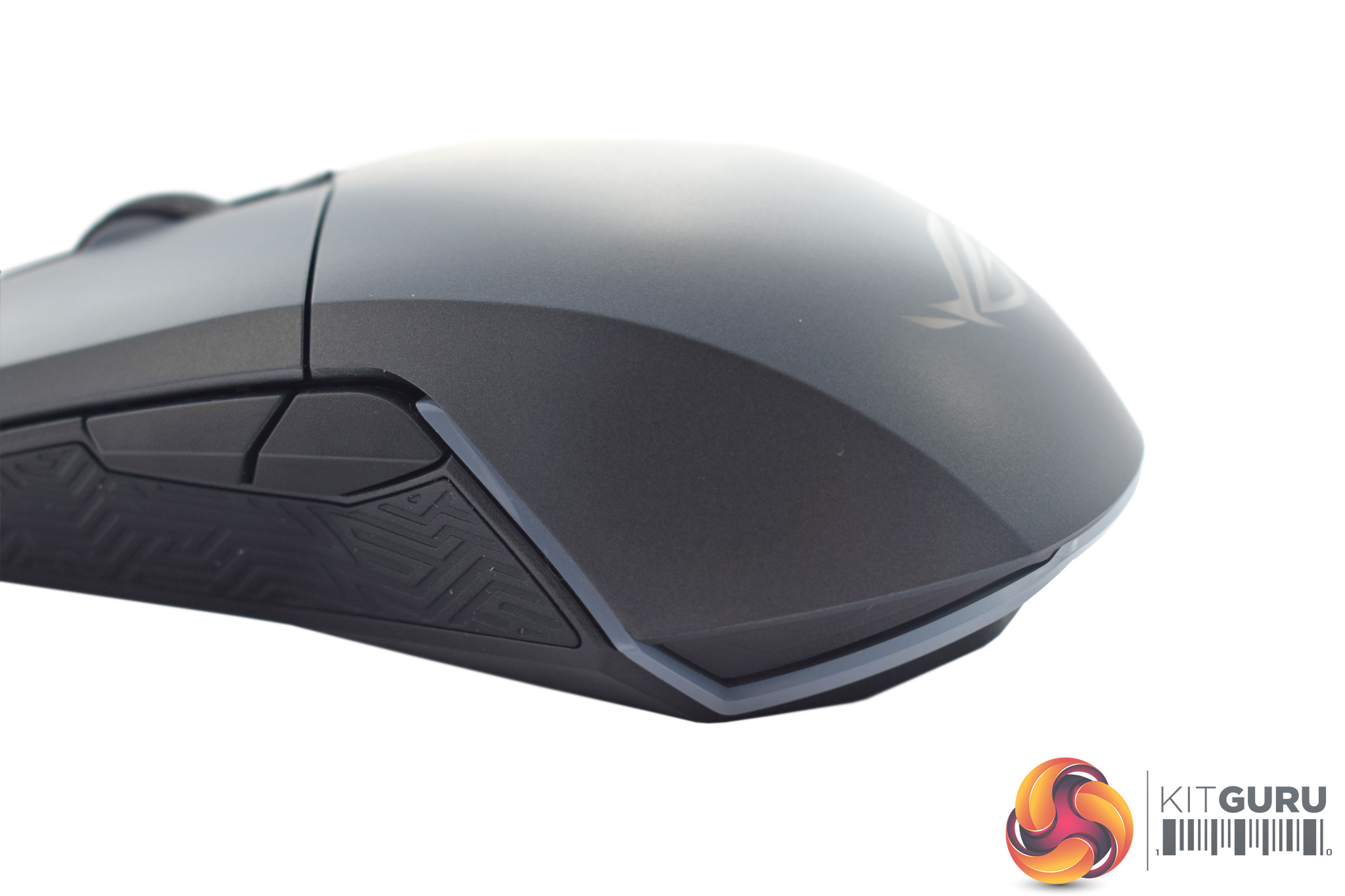
Also at the back of the mouse is a clear plastic strip that runs around the bottom edge of the Pugio. This is actually an LED strip, and we look at the lighting in detail on the next page.
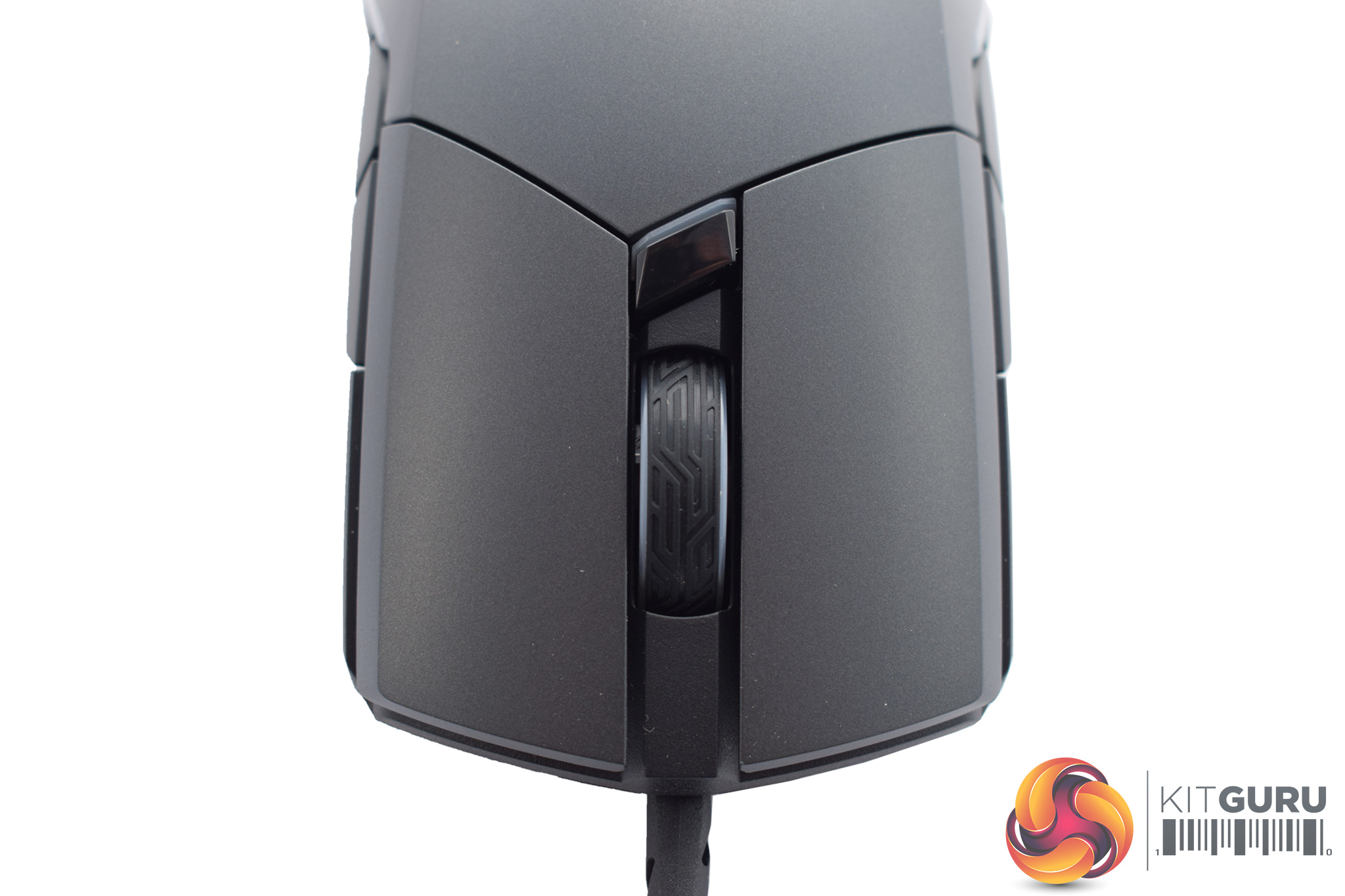
Back at the top of the mouse, we get a look at the textured scroll wheel (another RGB lighting zone) as well as a single DPI switch button.
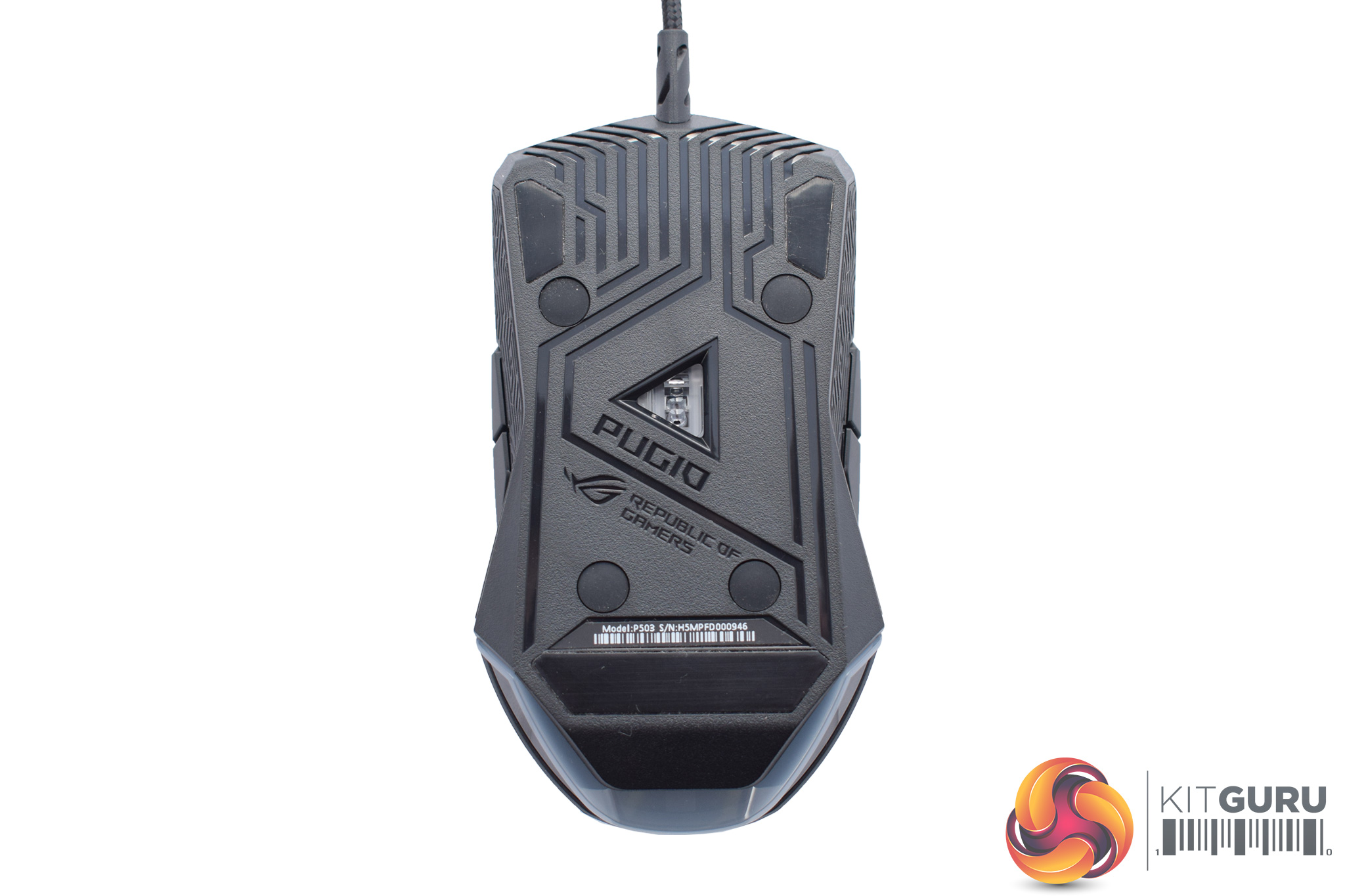
Flipping the Pugio over reveals its snazzily-designed base – ASUS ROG really loves that Mayan-inspired design! There are also three glide pads here, as well as the PixArt PMW 3330 optical sensor.
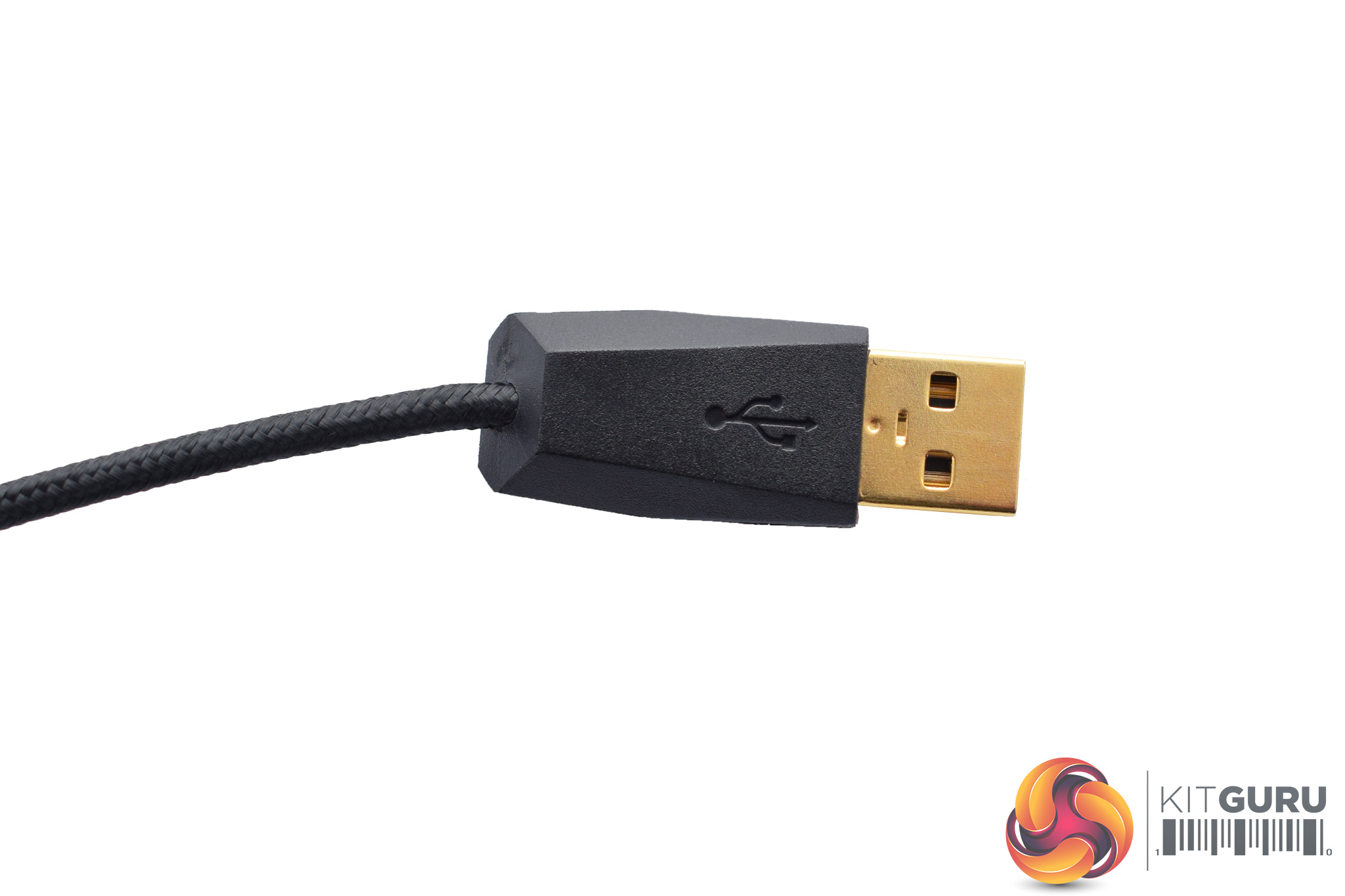
The USB cable is not detachable, but it is 2m long. braided and gold-plated.
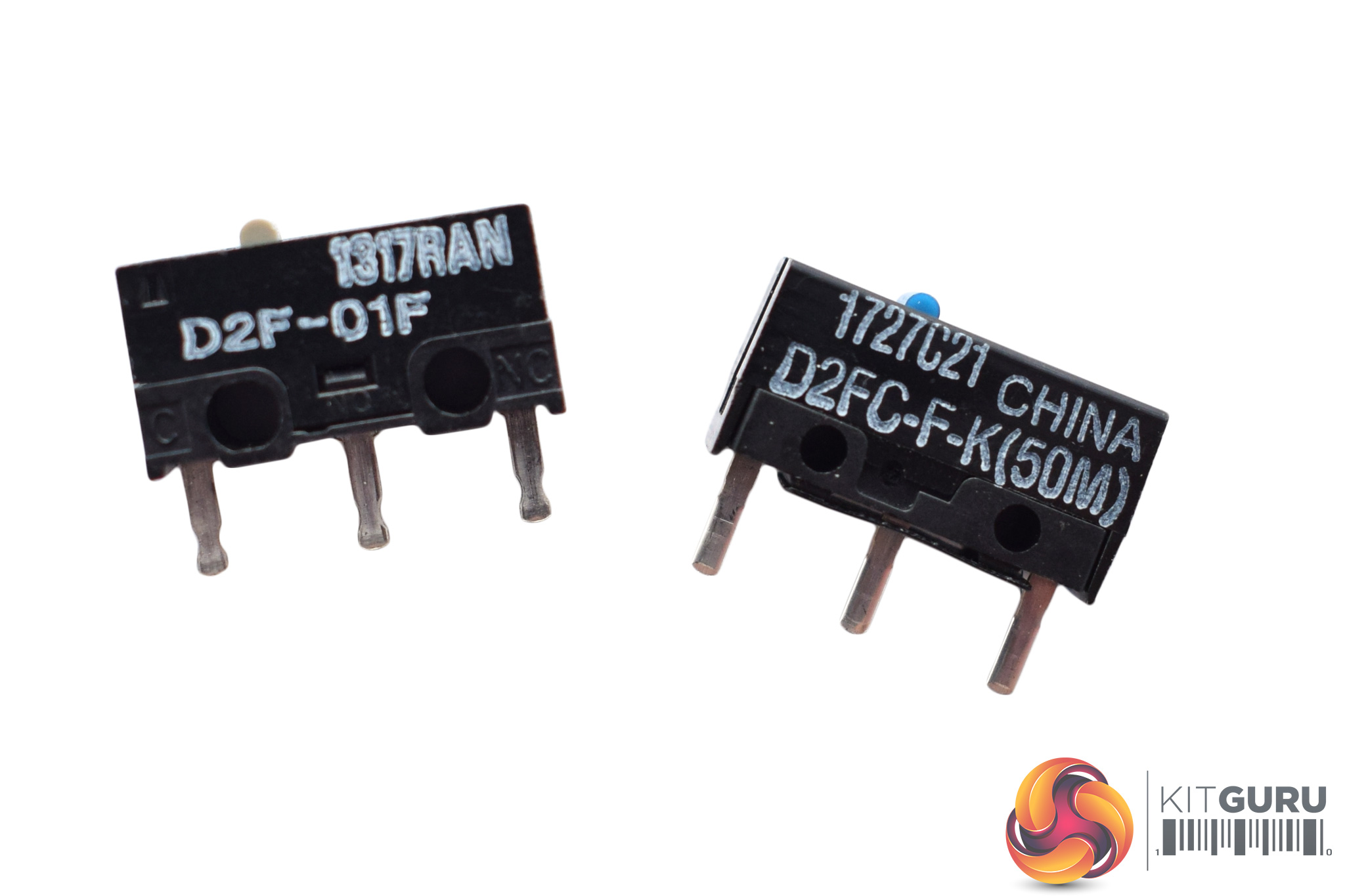
Before moving on, it is worth looking at how you can swap the mouse's switches – after all, this is a pretty big feature.
As with the Gladius II, the pre-installed switches are Omron’s D2FC-F-K(50M) model, while the spares are the D2F-01F model. I talk about how these switches actually feel and perform on the next page.
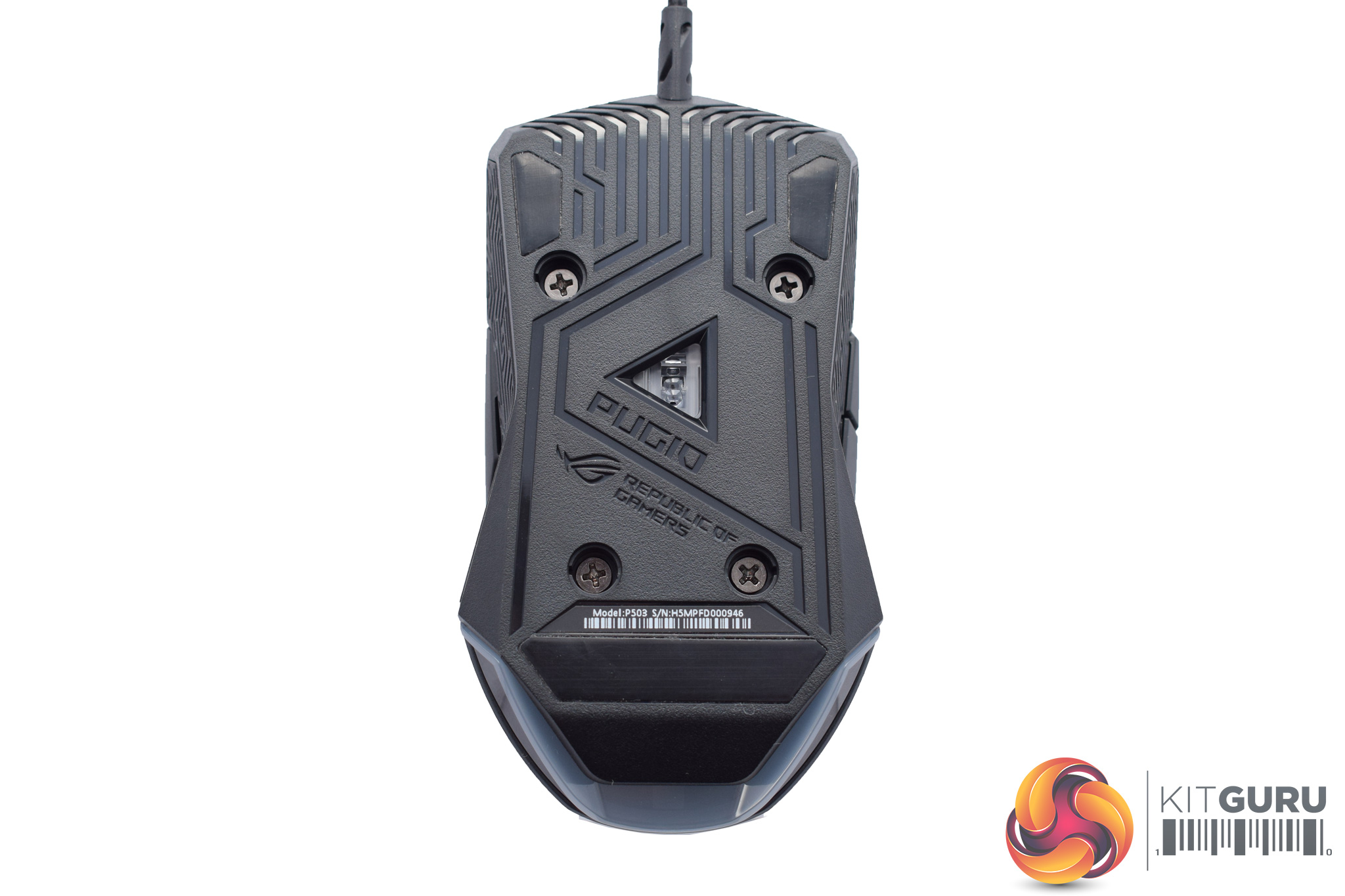
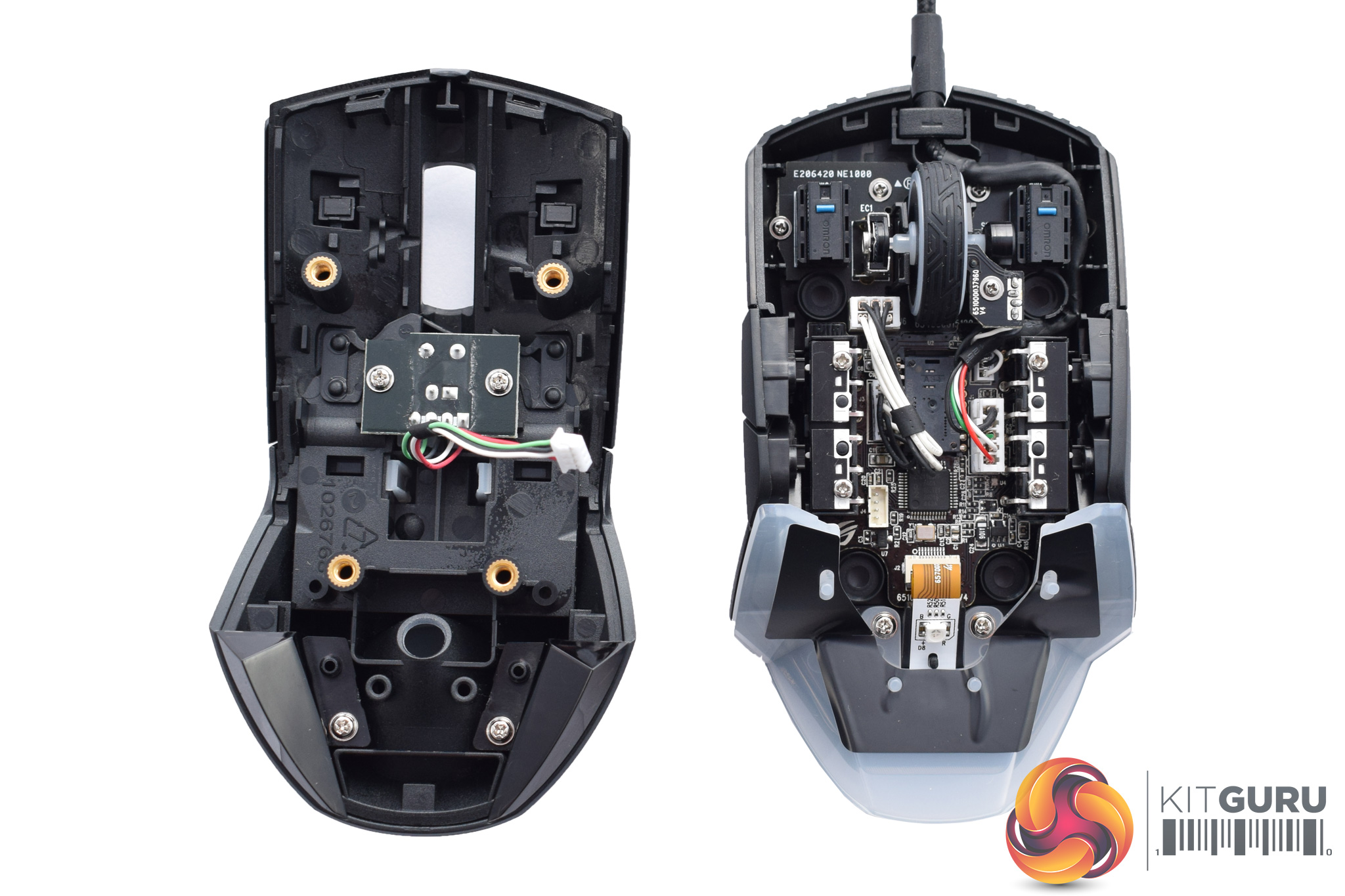
To change the switches, we first need access to the innards of the mouse. Four Phillips-head screws are stealthily hidden under little rubber covers, so pop those out and remove the screws.
After that, a firm tug will separate the top panel from the Pugio's base and PCB. However, do be careful when removing the top panel as it is connected to the bottom half of the mouse by a small LED cable, and you don't want to break that!
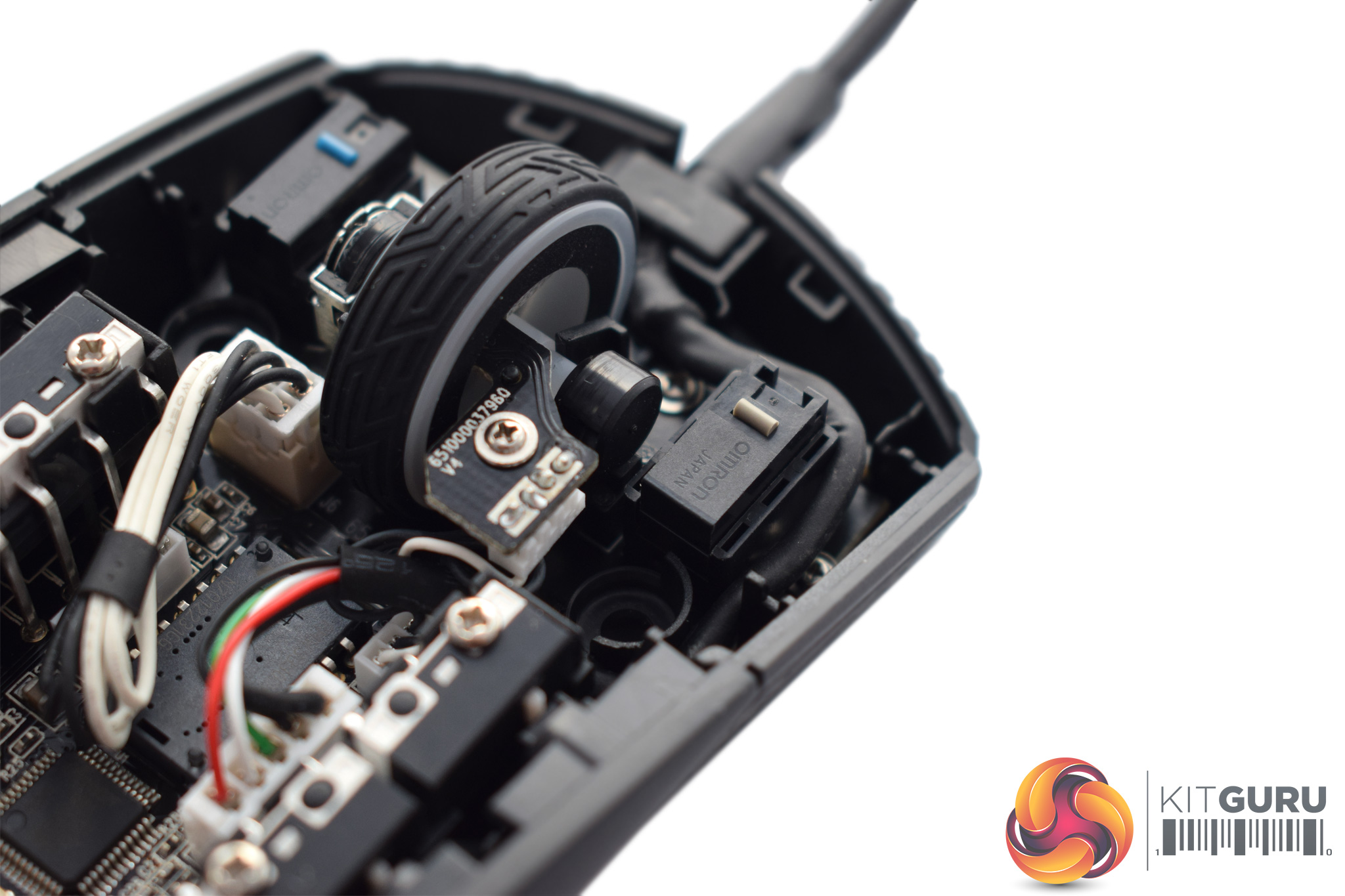
After that, all you need to do is pull out the pre-installed switches (which have a blue top) and install the other switches (which have a beige/grey top). You don't have to stick with the included switches either, as according to ASUS ROG any of the following are compatible: D2F, D2F-F, D2F-01, D2F-01F, D2FC-3M, D2FC-F-7N, D2FC-F-7N(10M), D2FC-F-7N(20M), D2FC-F-K (50M).To test the Pugio, I used it as my daily driver for one week. During this time, I used it while playing games, editing photos and just doing regular browsing and other office tasks.
First, let's take a look at ROG Armoury, the accompanying software suite:
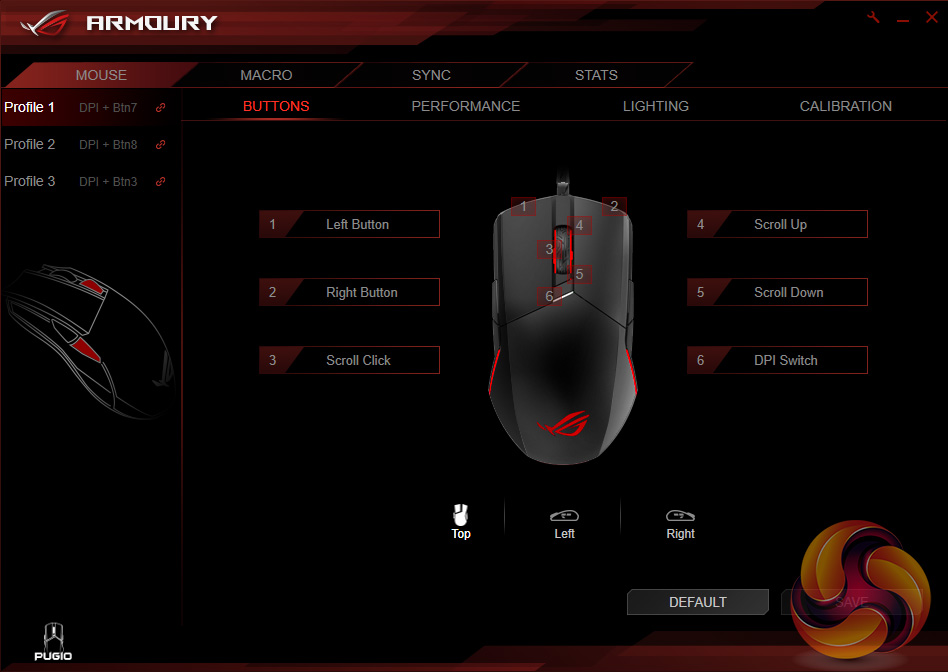
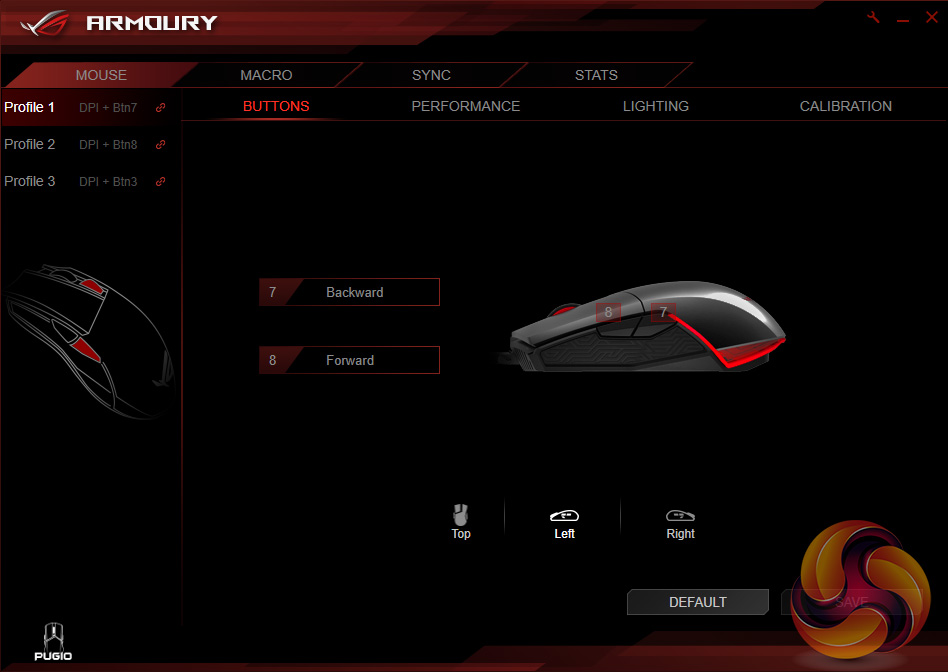
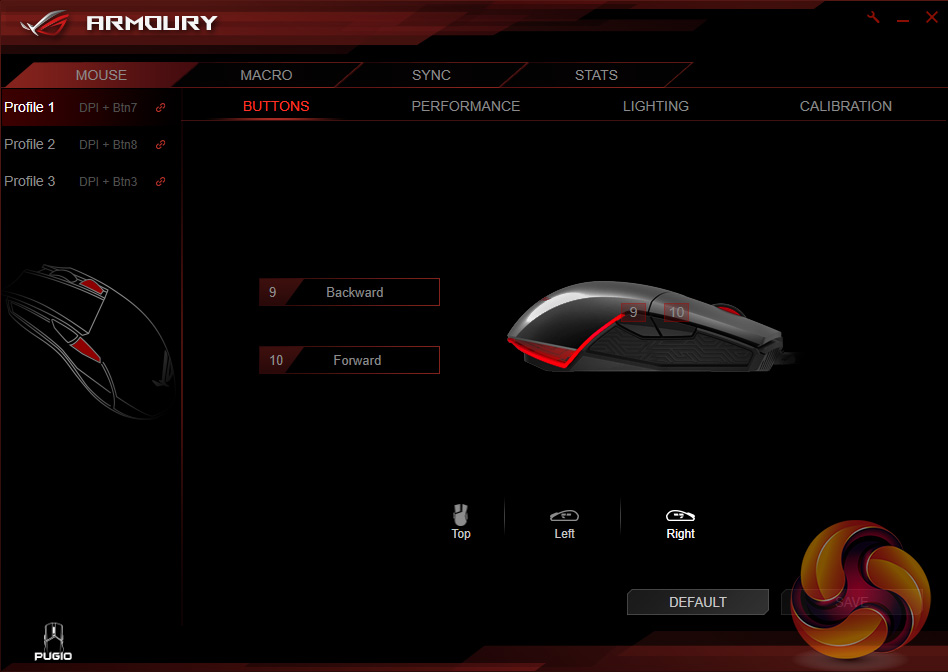
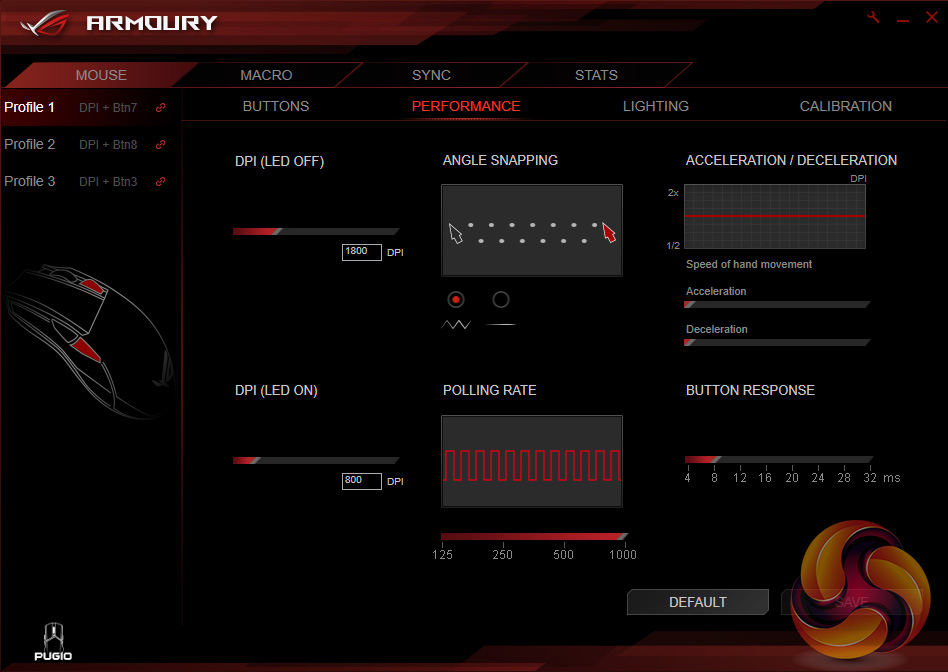
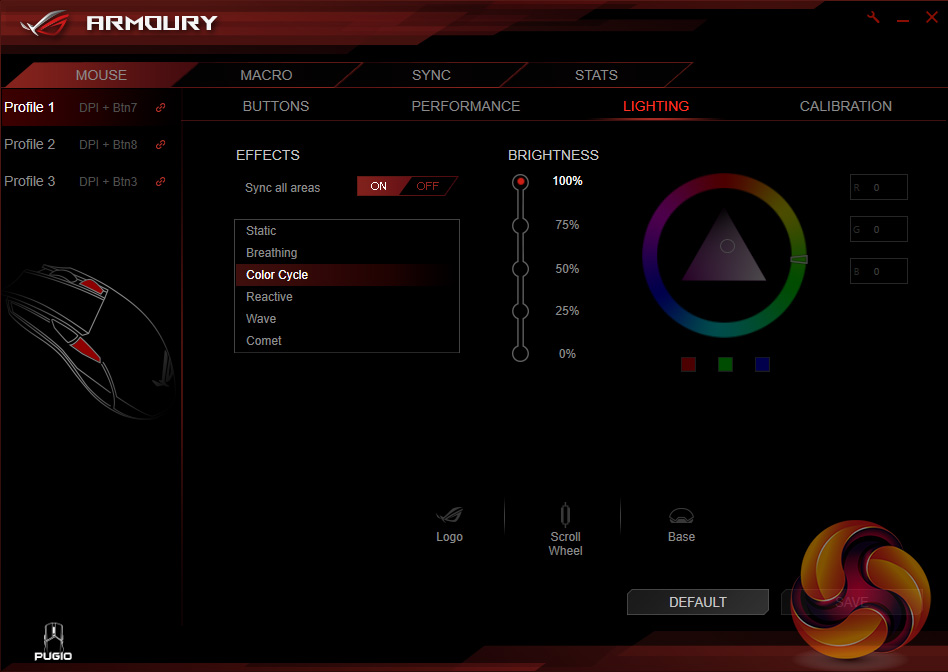
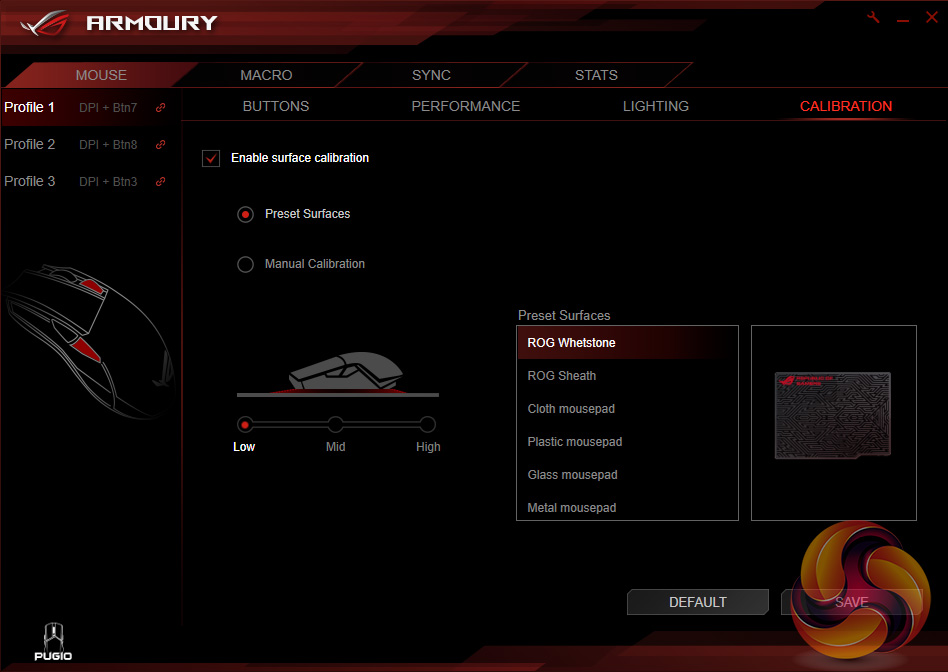
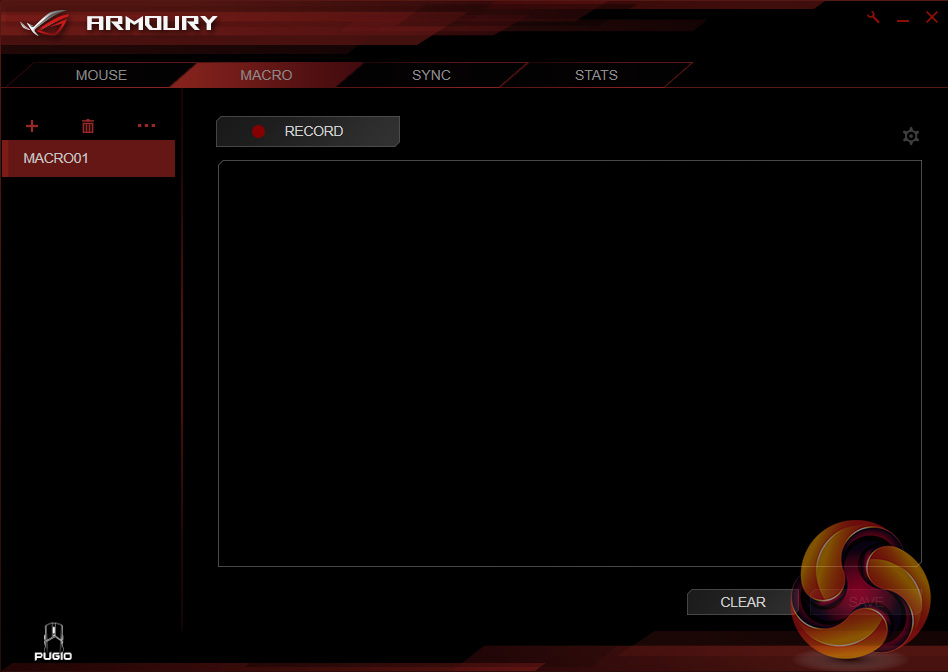
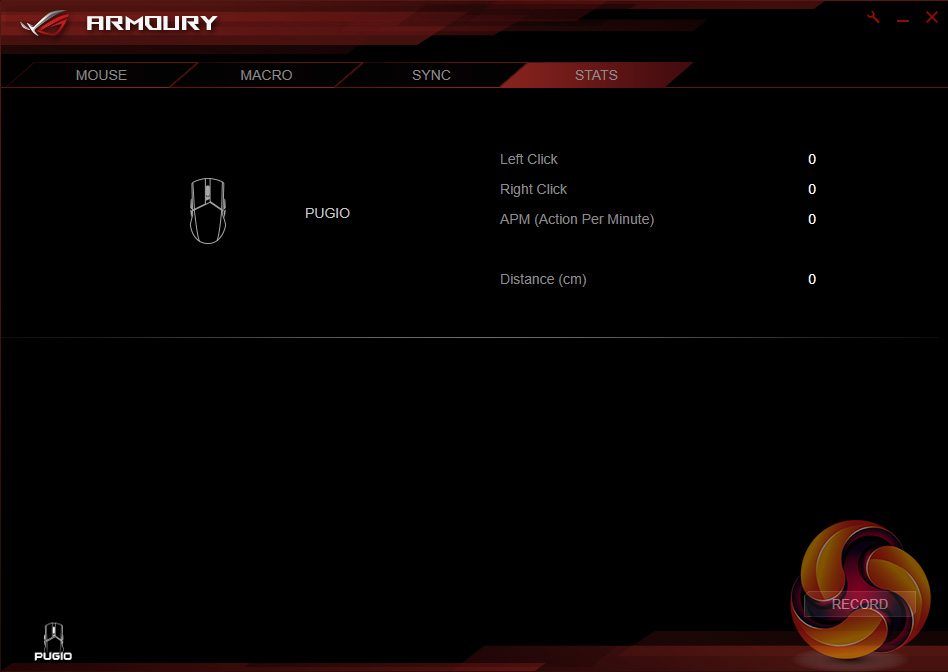
As we have mentioned across our last few ASUS ROG mice reviews, Armoury is now a very polished and easy to use piece of software. My main gripe is that there still isn't support for more than two DPI stages per profile, but that is relatively minor in the scheme of things. Armoury covers all of the main bases, though, and does so in a neat and tidy package.
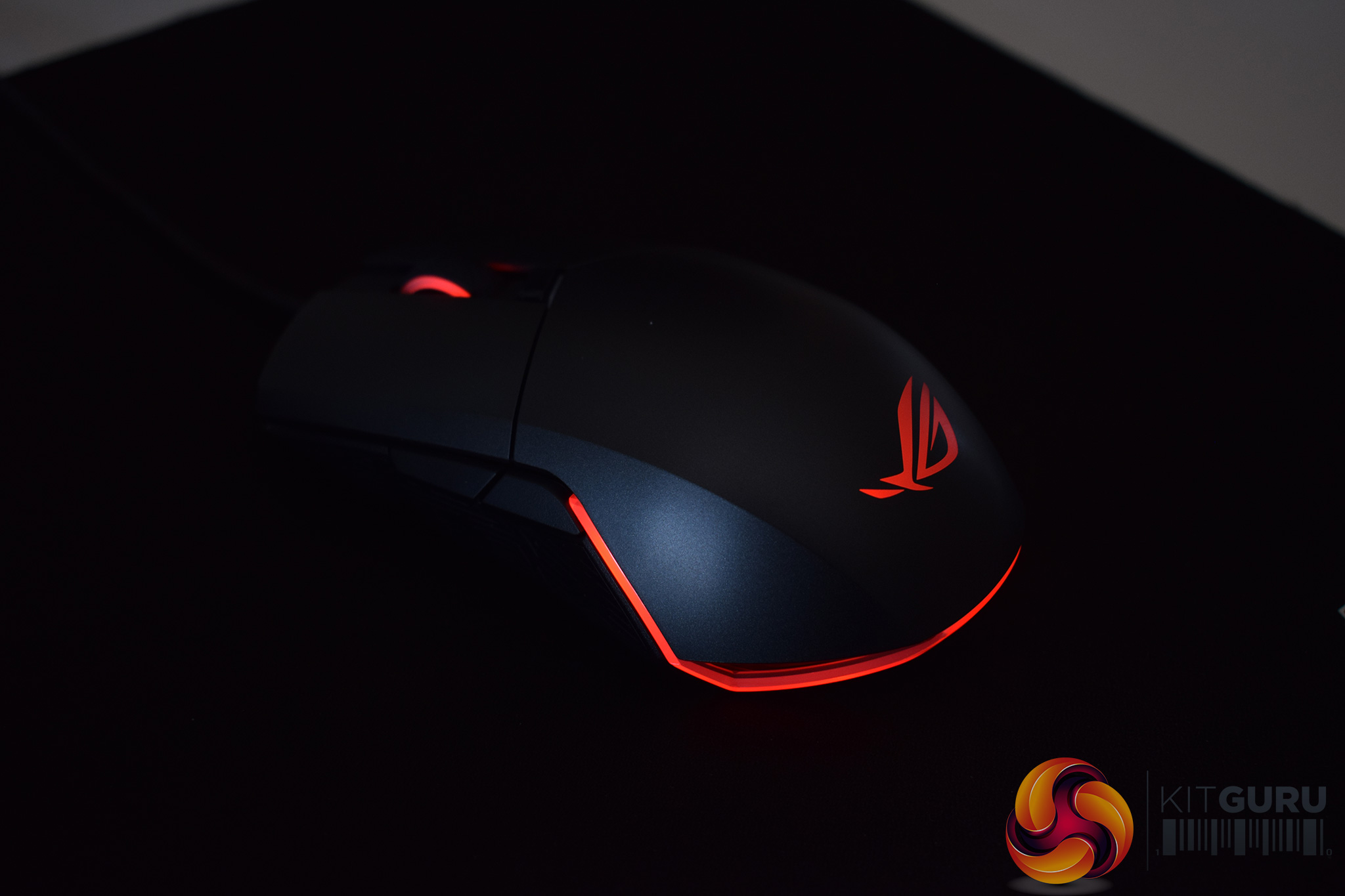
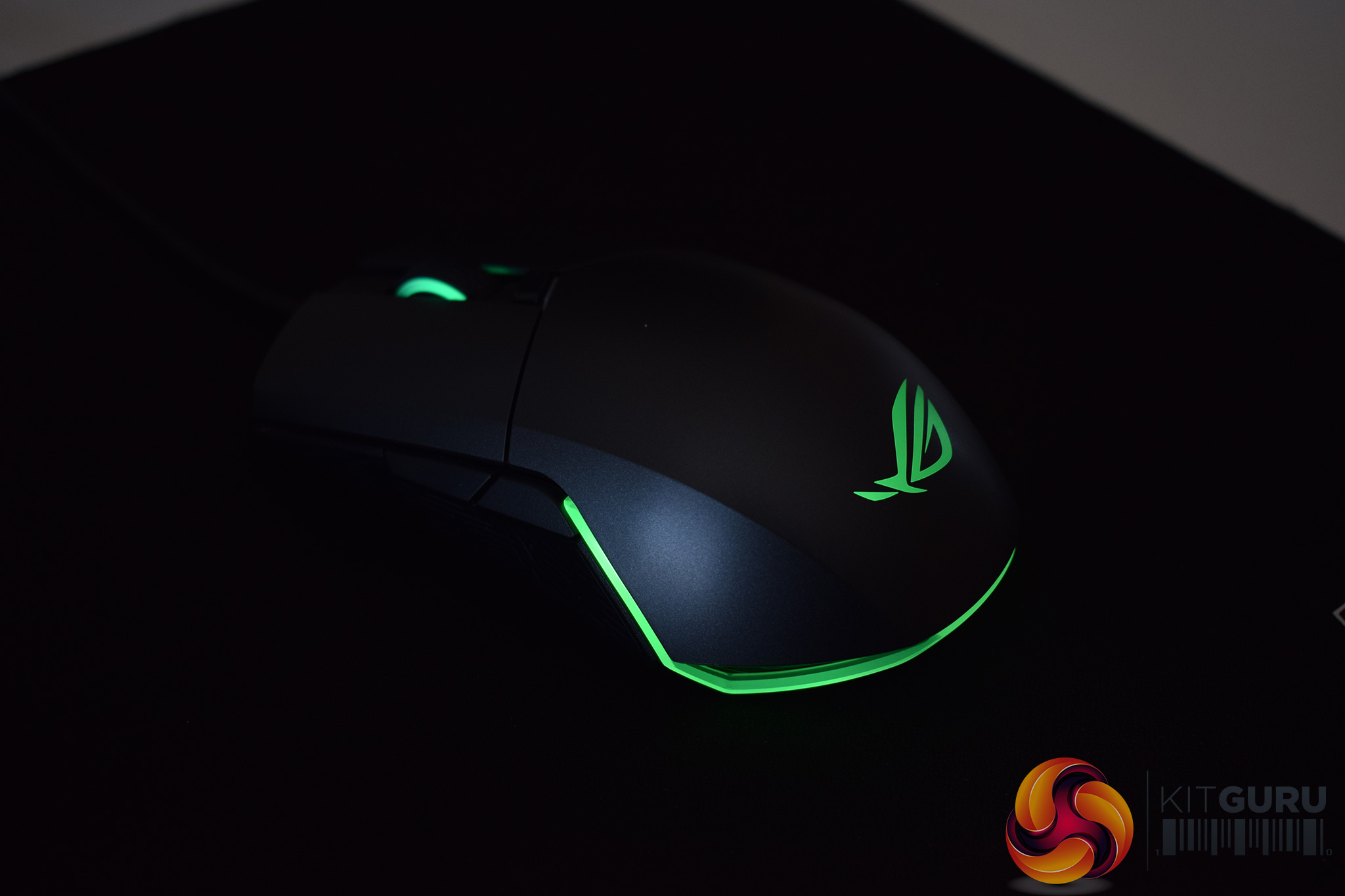
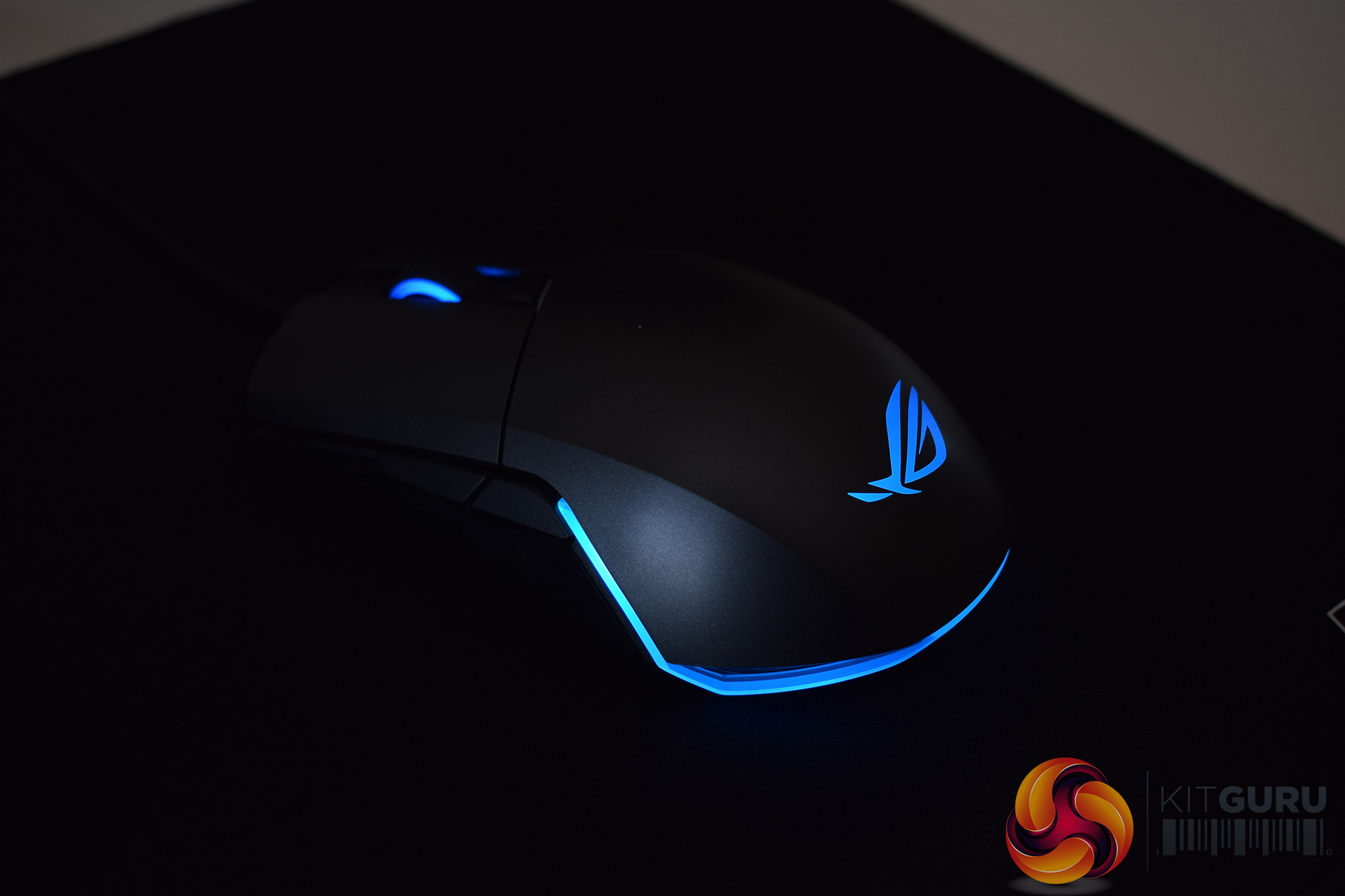
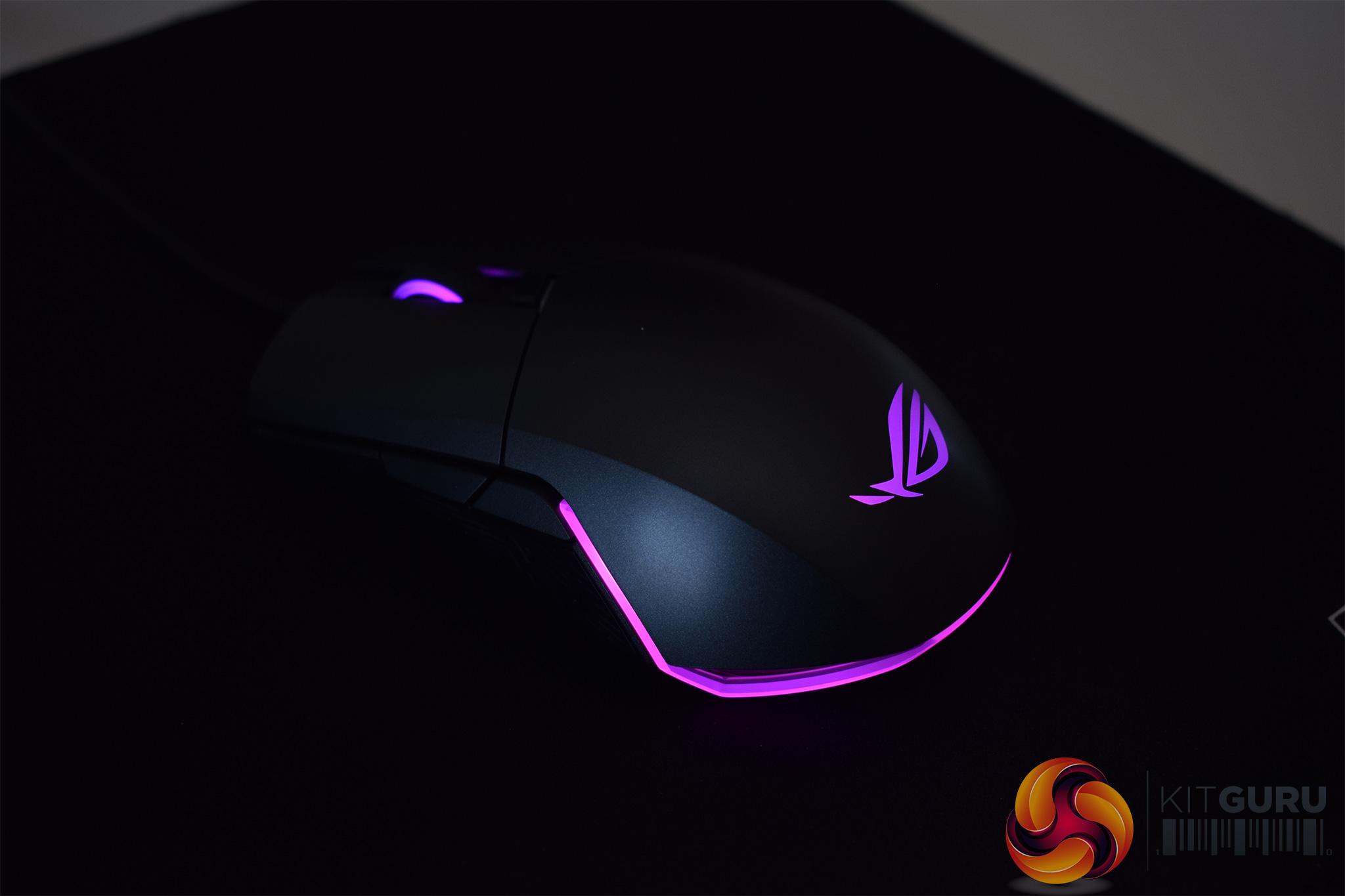
The Pugio's RGB lighting is also very well done. The three lighting zones (ROG logo, scroll wheel and rear LED strip) can be independently controlled or you can sync them all together (as shown above). There are also plenty of effects to play with, including rainbow wave, breathing and spectrum cycling to name just three.
The actual colours look great, too, and the coverage is nice and even across both the ROG logo and the LED strip. It may not be as bombastic as the Gladius II and its awesome underglow, but the overall effect strikes a lovely balance between subtle and in-your-face lighting.
Now, moving on to daily use and physical performance. I'll start with overall comfort and then talk about the Pugio's stand-out features after that.
So, day-to-day, I did not actually get on with the shape of the Pugio. This is obviously just my personal view, but the Pugio is just a bit too flat for my liking – I was never really able to wrap my palm around like I wanted to, and because of that I found I often lost my grip. If you prefer a palm grip, like me, you may want to look at the Gladius II instead. That being said, claw or fingertip users will likely have better luck as those grip styles don't require as much contact between your palm and the mouse, something I found tricky.
Aside from the shape of the Pugio – which is highly subjective – there are some undeniably good features baked-in. For one, having removable side buttons is very handy as I initially found myself unwittingly pressing the two buttons with my fourth-finger. However, simply pulling off those buttons and replacing it with the blanking plate completely solved the issue. Ingenious.
I do like the option to change-out the mouse's switches as well. This is easy to do and the two included pairs do feel noticeably different, to me at least. In my opinion, the pre-installed D2FC-F-K(50M) switches are quite fast and light, while the secondary D2F-01Fs switches are definitely heavier and more tactile. Depending on what games you play, you can choose accordingly – something I love.
Elsewhere, the PixArt PMW 3330 sensor gave me no issues. It may not be as high-end as the PMW 3360, but its max DPI of 7200 is surely more than enough headroom for 99% of people, plus I found its tracking to be pixel-perfect whether I was gaming or editing photos.All-in-all, ASUS ROG has created an excellent ambidextrous mouse in the Pugio.
It is very feature-rich, with excellent RGB lighting, configurable side buttons and hot-swappable Omron switches – all three of which are great inclusions.
Elsewhere, the ROG Armoury software continues to impress, while the performance from the PMW 3330 optical sensor cannot be faulted, even if it is not as well-regarded as the PMW 3360.
Personally speaking, I did not find the shape of the Pugio suited my play style – it is a bit too flat for my liking – but that is just me, so it would be unfair to penalise the mouse when there is a good chance it is the perfect shape for you. Still, if you want something you can wrap your whole palm around, it may be best to look at the Gladius II instead.
Now, pricing. At £69.95, the Pugio is around £25 more than ASUS ROG's more wallet-friendly Strix Impact, but I do reckon that cash is well worth spending considering the extra features on offer. In-fact, I would go as far to say that the Pugio makes the Strix Impact redundant as it is simply better in every area.
So, if you are looking for a quality ambidextrous mouse with plenty of good features, the ASUS ROG Pugio should be top of your list.

You can buy one for £69.95 from Overclockers UK HERE.
Pros
- Removable side buttons.
- Replaceable switches, two pairs included.
- Great RGB lighting.
- Performs immaculately.
- ROG Armoury is as good as ever.
Cons
- May not suit those who like to grip with their palm.
KitGuru says: The ASUS ROG Pugio is a brilliant ambidextrous mouse. It has plenty of great features and definitely justifies its asking price.

Acceleration?
Interpolation?
Tracking accuracy on different surfaces?
Raise height?
Is this really a review? 😀