KitGuru KitGuru.net – Tech News | Hardware News | Hardware Reviews | IOS | Mobile | Gaming | Graphics Cards


In all the excitement over the arrival of 5G, it's easy to forget that 4G has evolved over its lifespan to deliver some pretty stellar performance possibilities. This is particularly beneficial for a mobile hotspot intended to serve multiple client devices on the move. NETGEAR had a capable mobile hotspot in the shape of the Nighthawk M1 MR1100. Now it's taking road warrior performance to a new level with the incrementally named Nighthawk M2 MR2100.
The major news with the M2 is that it doubles the potential download speed from 1Gbit/sec to 2Gbits/sec, although the upload performance still maxes out at 150Mbits/sec. This is because the new mobile router supports 4GX LTE Advanced Category 20, whereas the previous version only supported Category 16. Basically, what this refers to is carrier waveband aggregation. Where LTE Category 16 supports up to 10 simultaneous spatial streams, Category 20 supports 20, so you get double the theoretical bandwidth.
Of course, you also need your mobile data carrier to support 4GX LTE Advanced Category 20. A number of UK carriers now support 4GX LTE Advanced of some sort, but only in some locations, similar to the 5G coverage that is also rolling out. For example, Vodafone supports 4GX LTE Advanced in London, Birmingham, Manchester, Liverpool, Cardiff, Nottingham and Bristol. EE only offers it on select plans and mostly just in London, although it is rolling the upgrade out in Birmingham, Liverpool and Manchester. Three offers 4G+, which is another name for 4GX LTE Advanced, in London, Birmingham, Cardiff, Edinburgh and Glasgow. We couldn't find any details of O2's 4GX LTE Advanced support, nor could we find out what Category any of the carriers were offering.
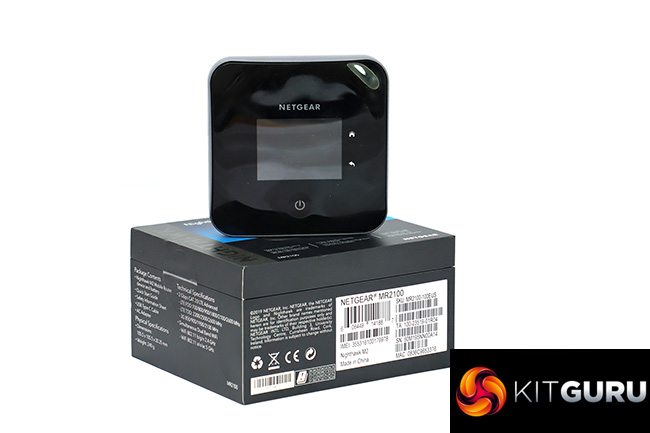
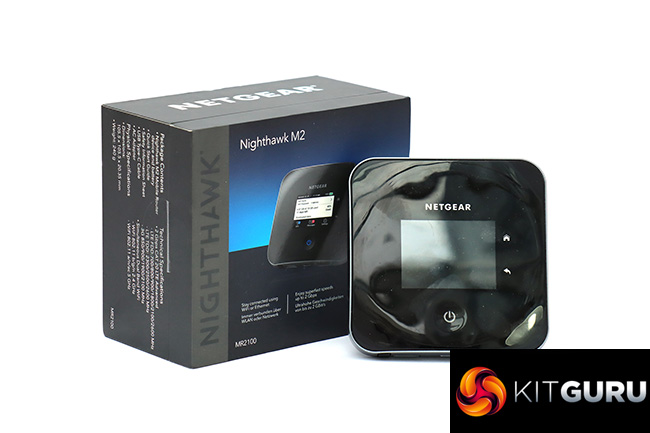
Returning to the M2 device itself, the basic format of the router hasn't changed, with a flat square incorporating a screen on the top plus a few ports on one side, although the design is sleeker and less fussy. There's a big power button, and separate Home and Back touch areas, but the screen itself is touch-enabled, so that's how you're meant to operate it.
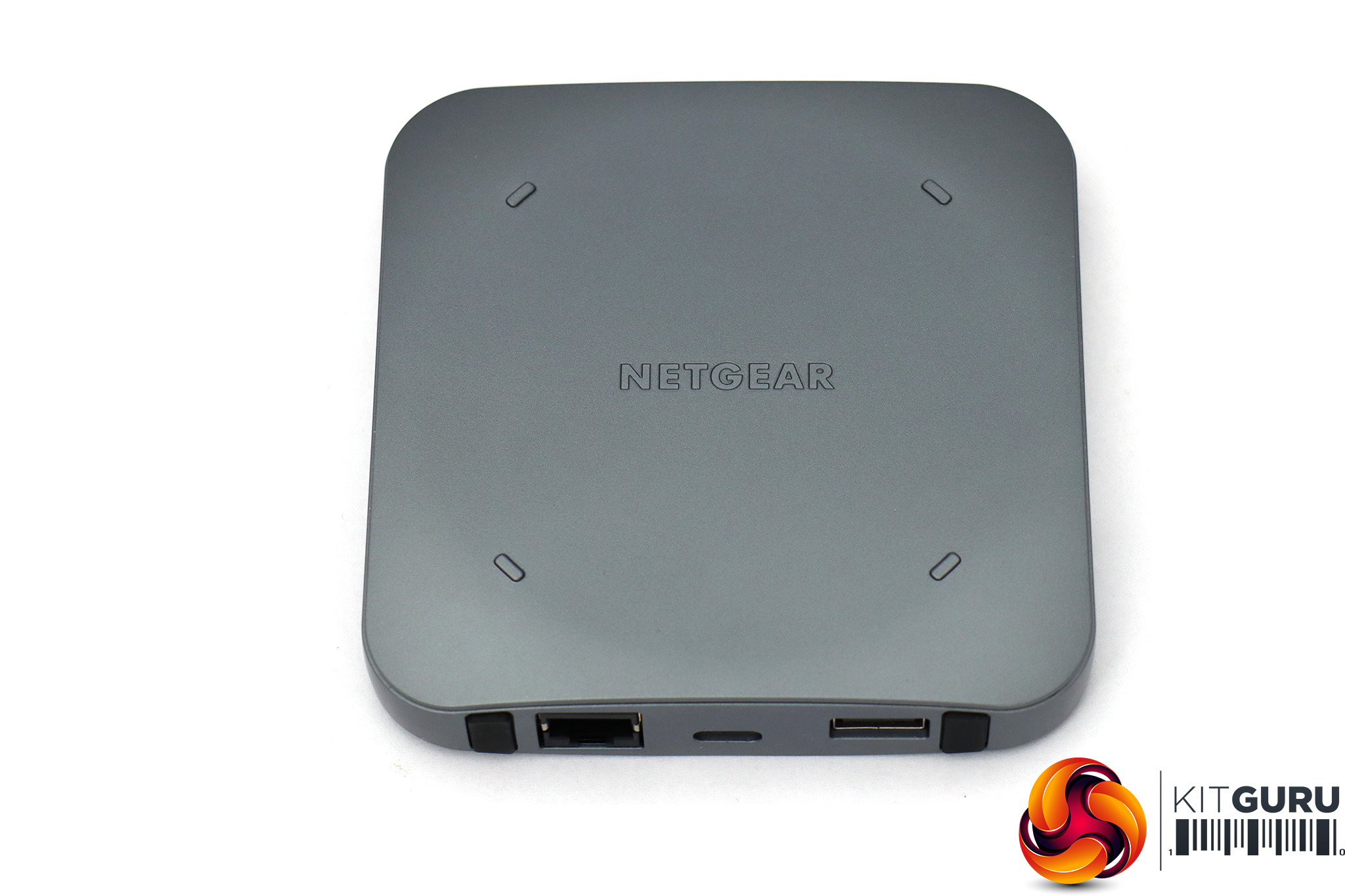
The ports on the side include USB-C (which also doubles for charging), USB Type A, and Gigabit Ethernet. There are also two little rubber plugs that look like feet but actually cover connections for external 3G/4G antennas.
WiFi is really what you're meant to use the M2 for, though, and the radios are dual-band, offering 802.11b/g/n at 2.4GHz and 802.11a/n/ac at 5GHz. However, NETGEAR doesn't say what speed rating these connections operate at, just that that there's support for up to 20 WiFi devices. NETGEAR doesn't say how long the battery will last either, just that it's “all day and night” thanks to the 5,040mAh capacity.
Although the price close to £400 seems steep, if you need more robust mobile hotspot capabilities than you can get from just sharing your phone's 4G, the NETGEAR Nighthawk M2 MR2100 promises a faster and more feature-rich experience. Let's find out if it delivers on that promise.
Price: £379.49
Specification:
- Wireless protocols: MU-MIMO with 802.11b/g/n 2.4GHz, 802.11a/n/ac 5GHz, 4GX LTE Advanced Category 20
- Performance: 2Gbits/sec theoretical downlink, 150Mbits/sec theoretical uplink
- Antenna Configuration: 4×4 Internal Antennas for LTE CAT 20
- Ports: Gigabit Ethernet, USB C, USB Type A, 2x TS-9 for external 3G/4G antennas
- Modem Support: 4GX LTE Advanced Category 20
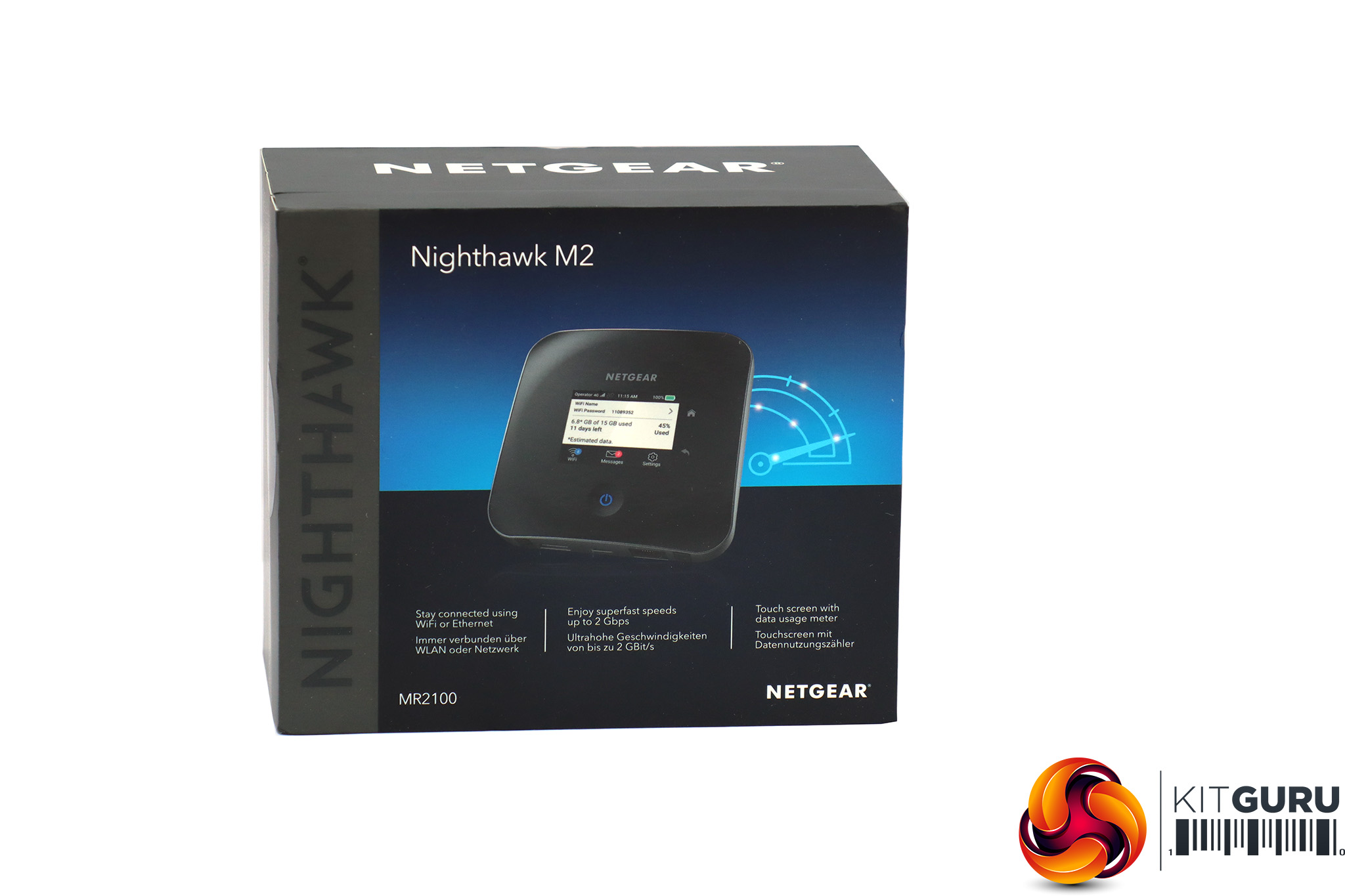
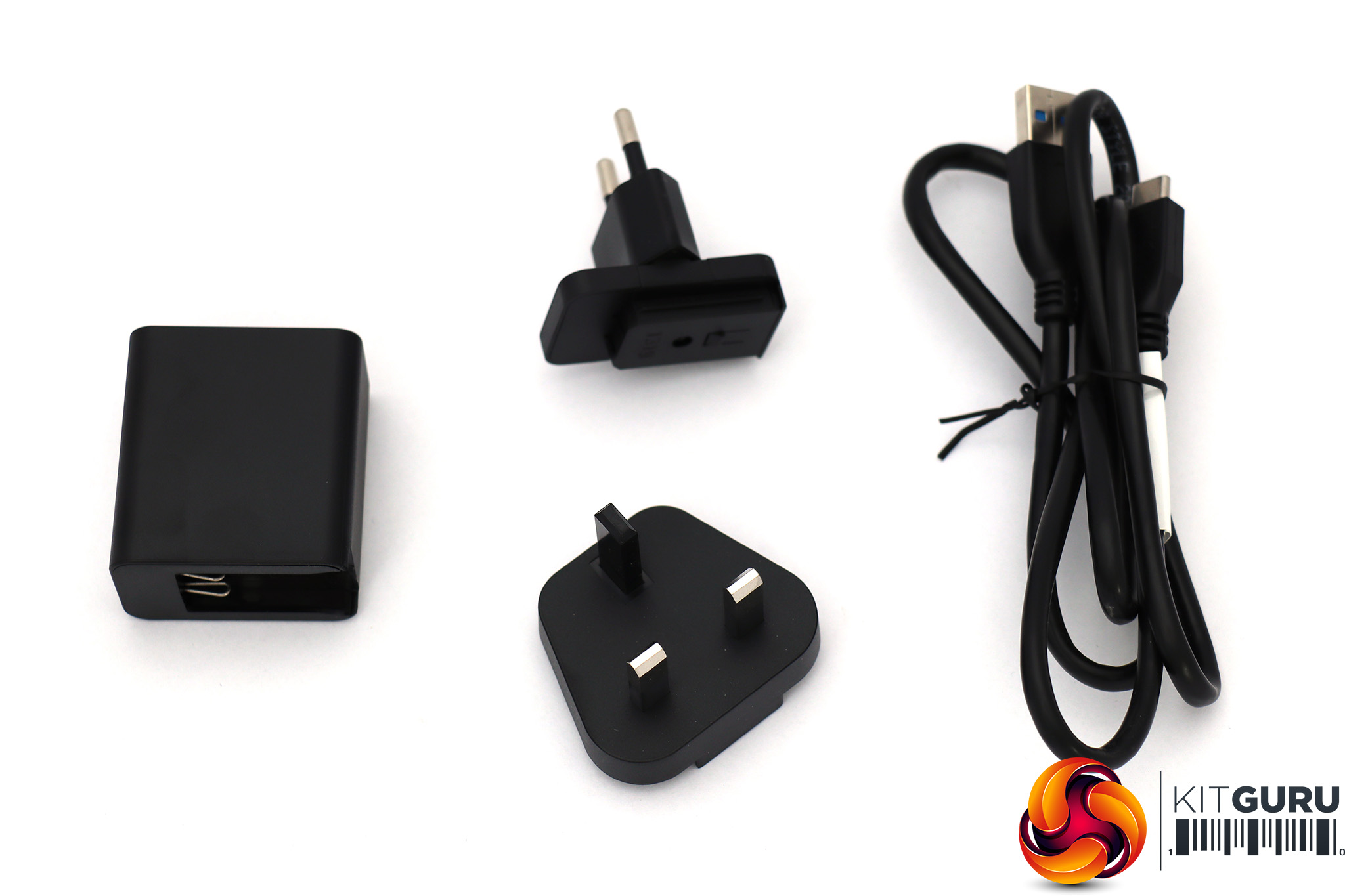
The NETGEAR Nighthawk M2 MR2100 comes in a compact box that doesn't have very much in it. You get a power supply with UK and European plug options, plus a USB Type-C to Type-A cable. There's no Ethernet cable included, but then you don't need to connect to a broadband WAN with the M2 – it's built in.
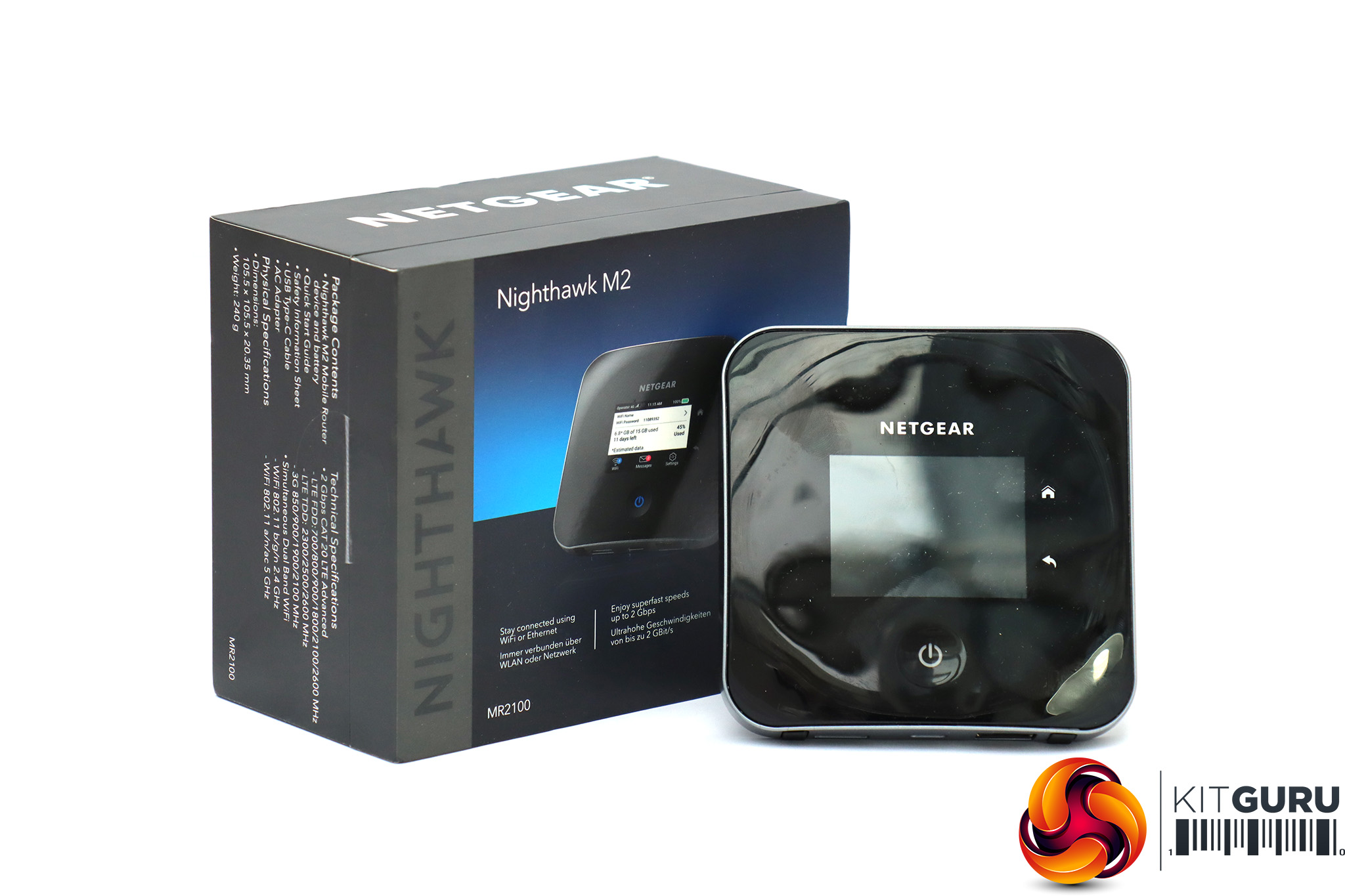
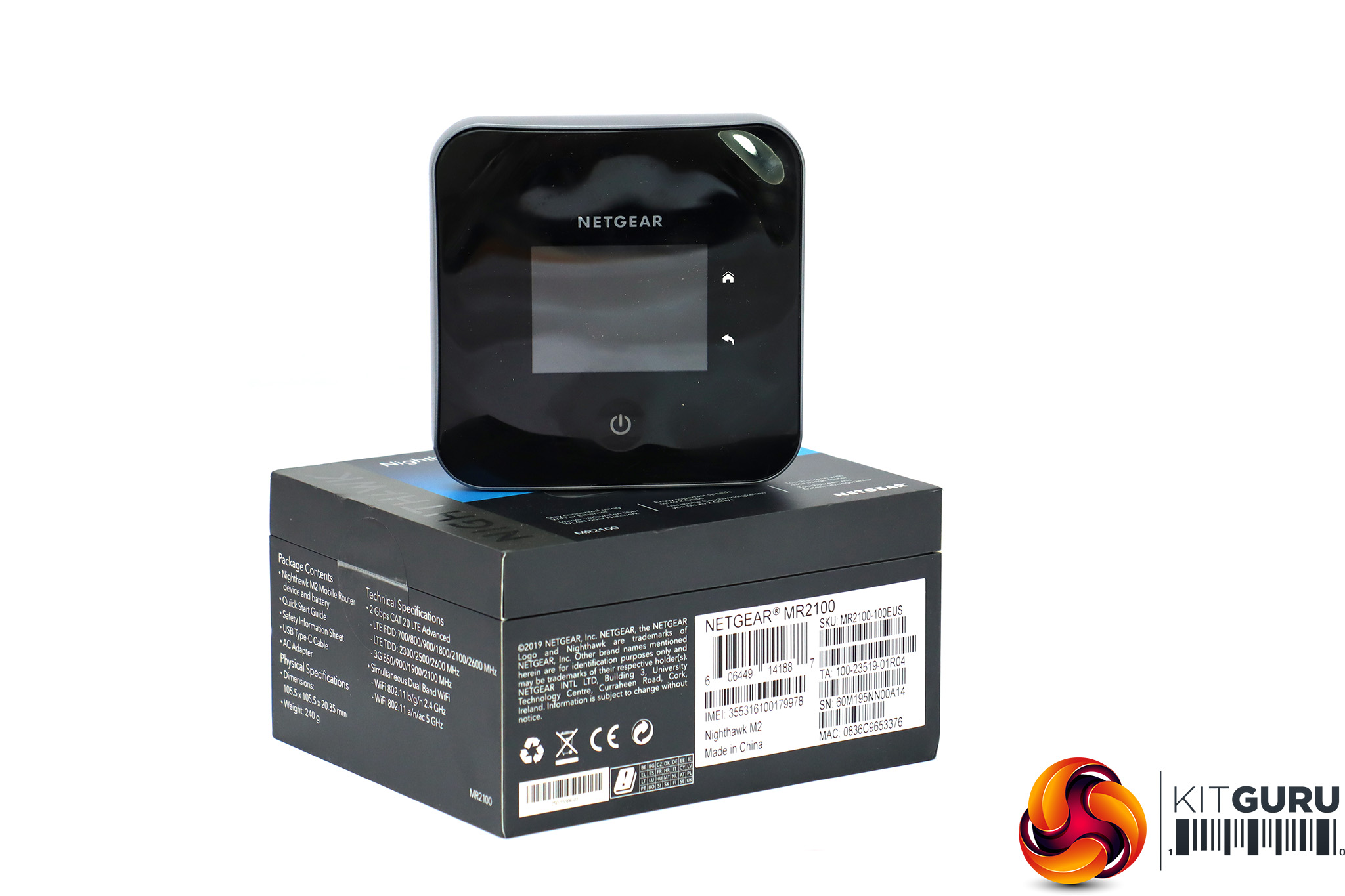
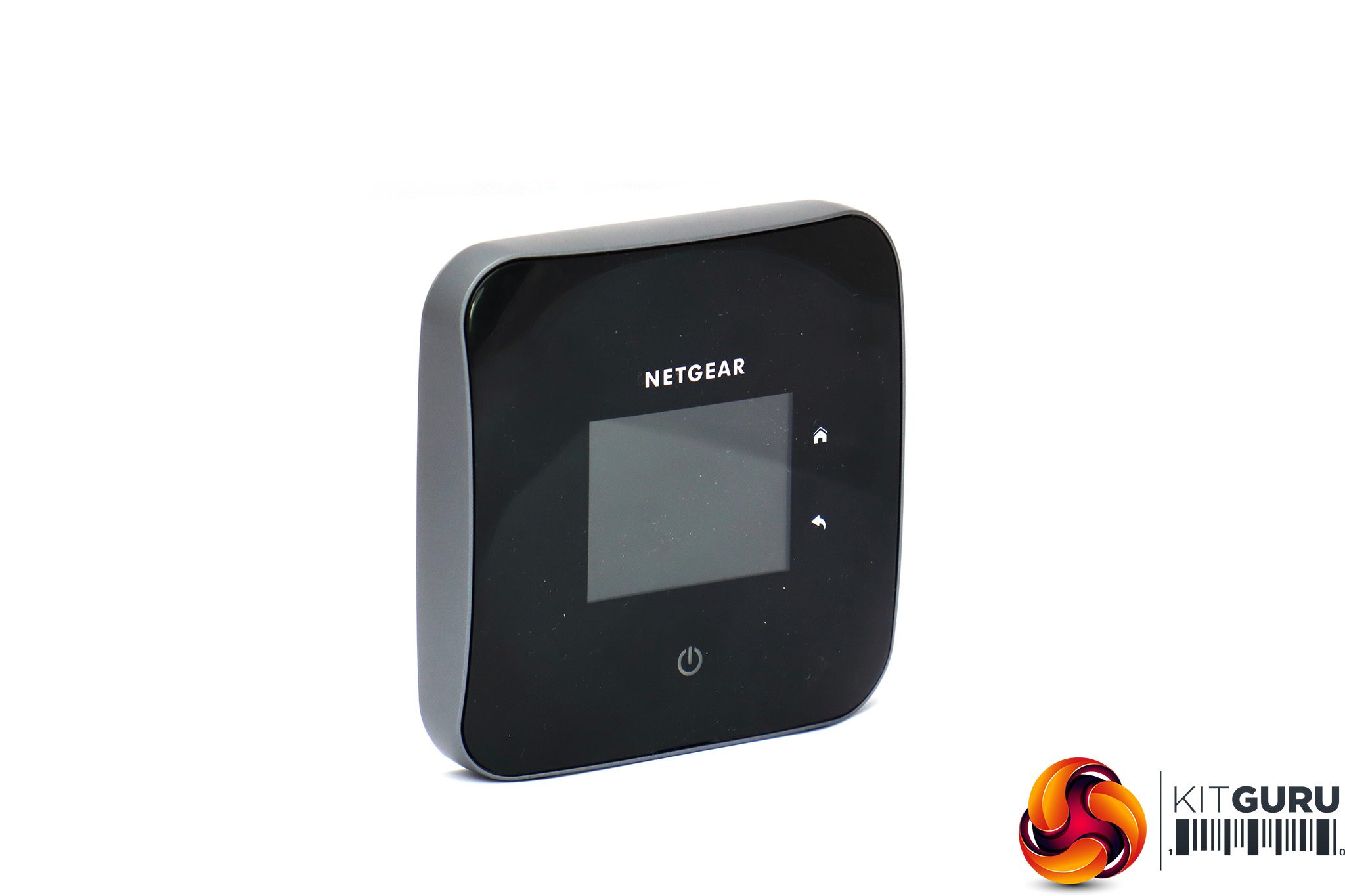
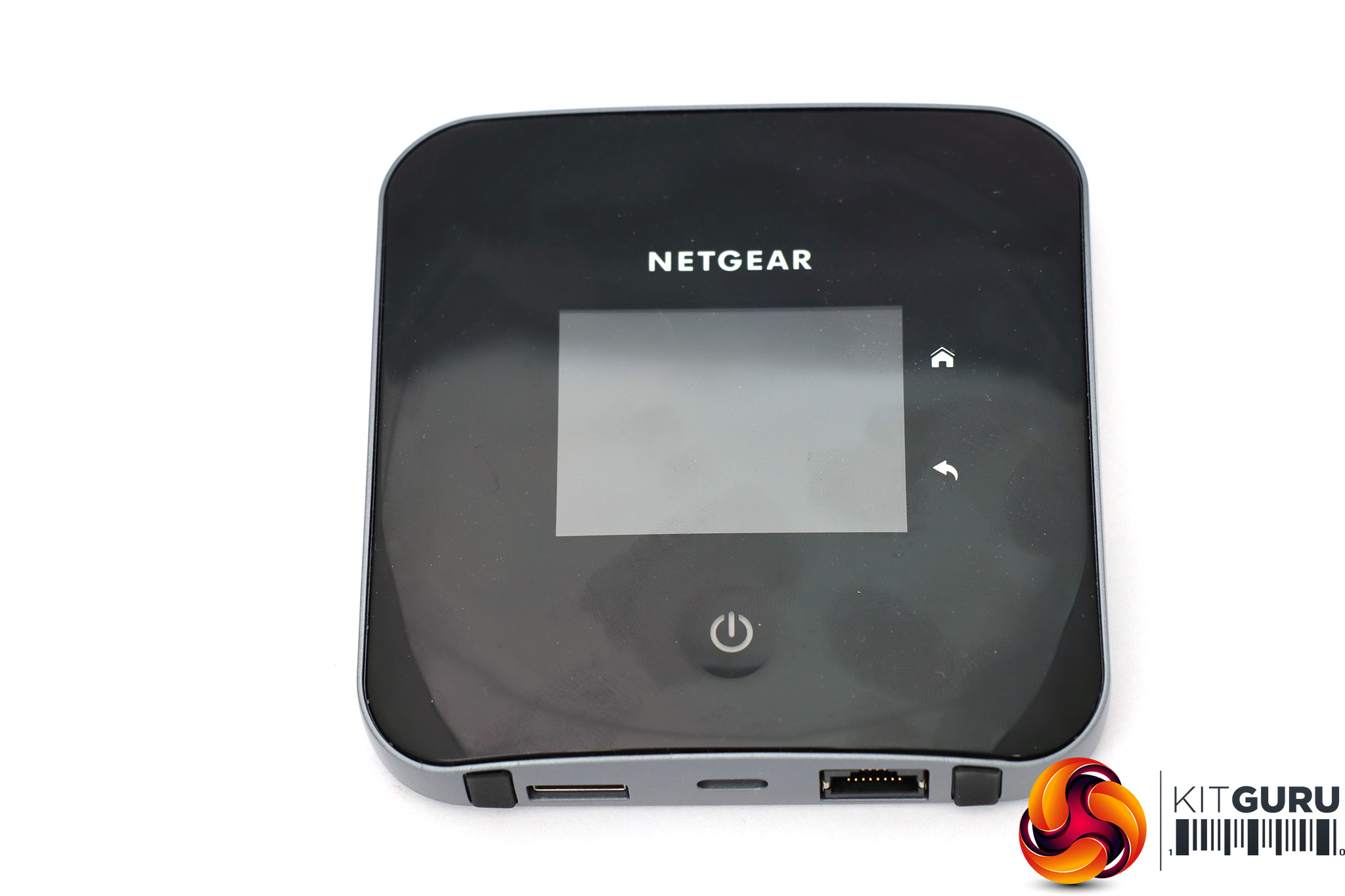
The M2 is a nice-looking unit, with graphite and glossy black appearance. The top is home to a 2.4in touch display, which provides direct control over settings. It's a little fiddly for text entry, but there's a smartphone app and Web interface to help with that.
A big power button sits beneath the screen plus home and back buttons to the right. The unit is small and light enough to fit in a pocket.
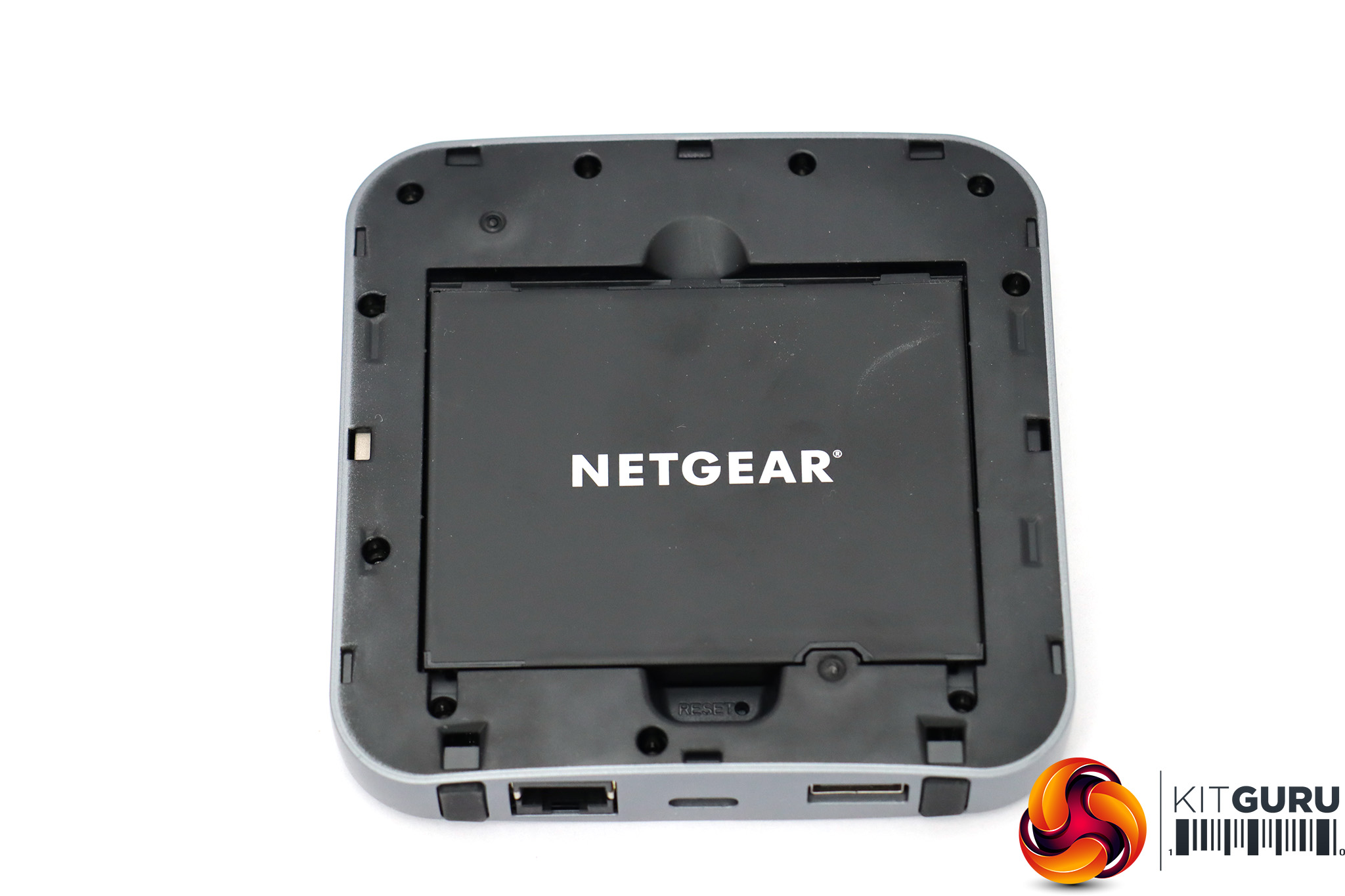
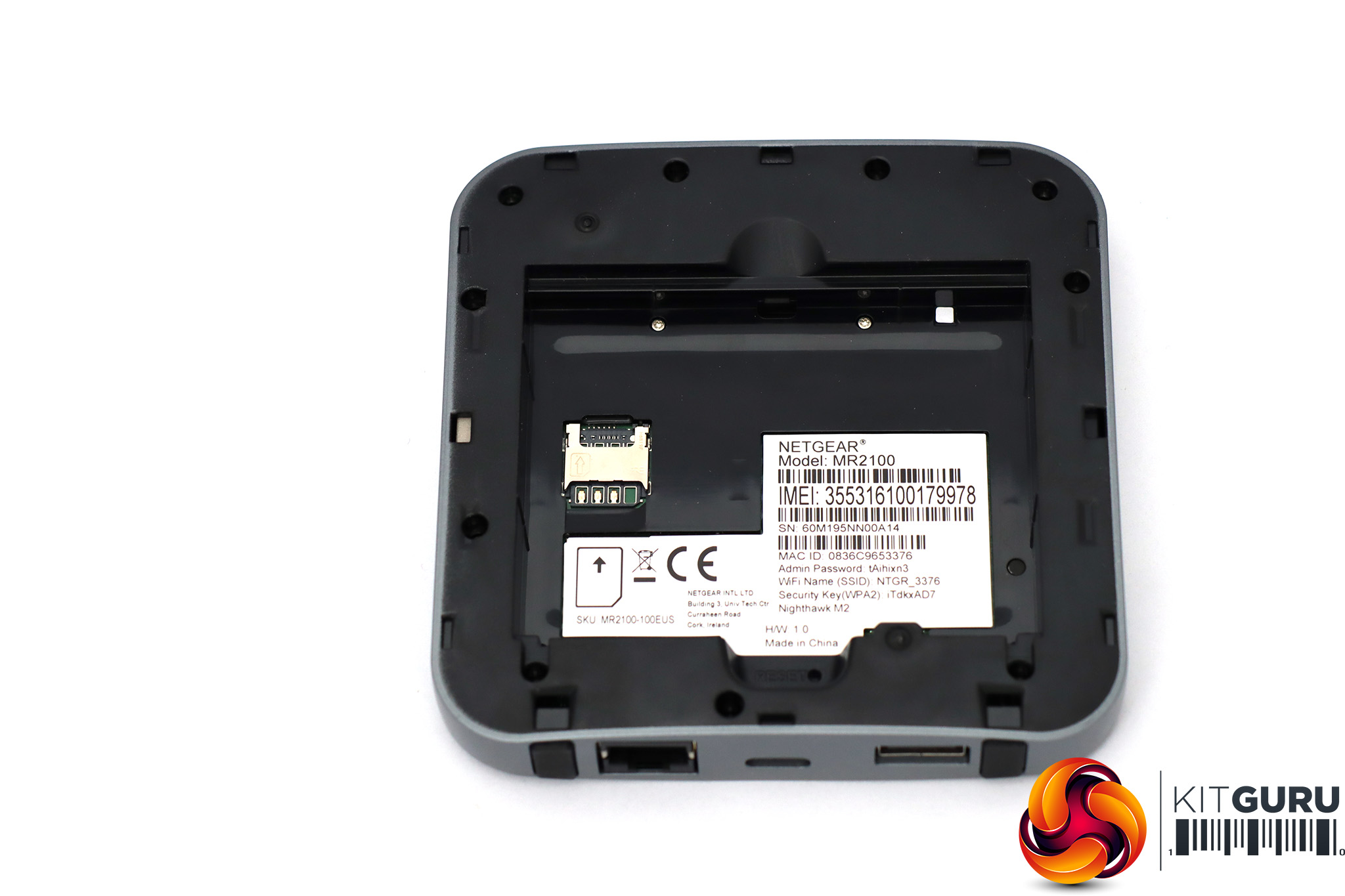
The large 5,040mAh battery goes in the bottom, with the SIM card in a slot beneath that. The M2 uses a Micro SIM, although we found you could use a Nano SIM even without the adapter by very careful placement.
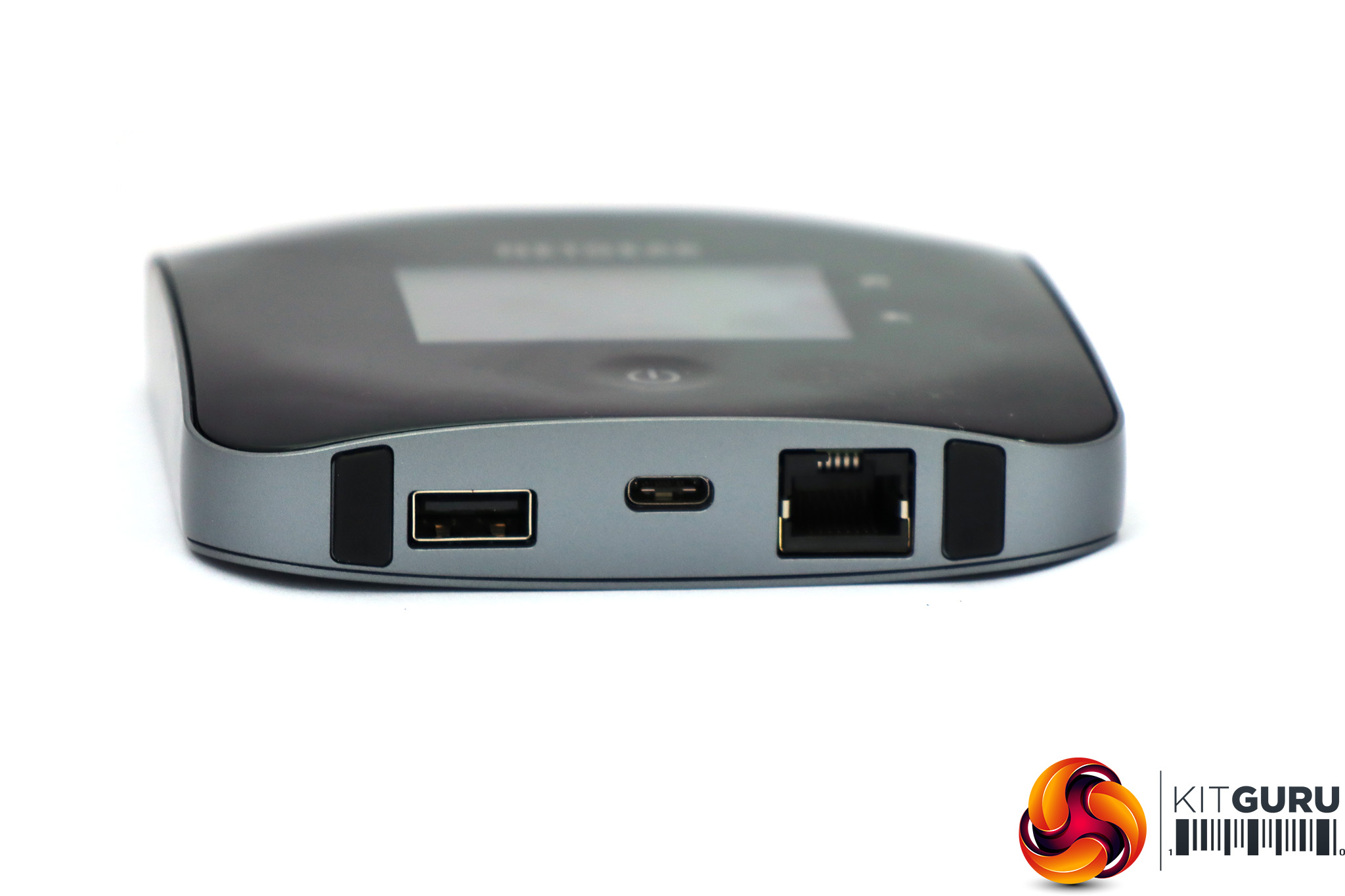
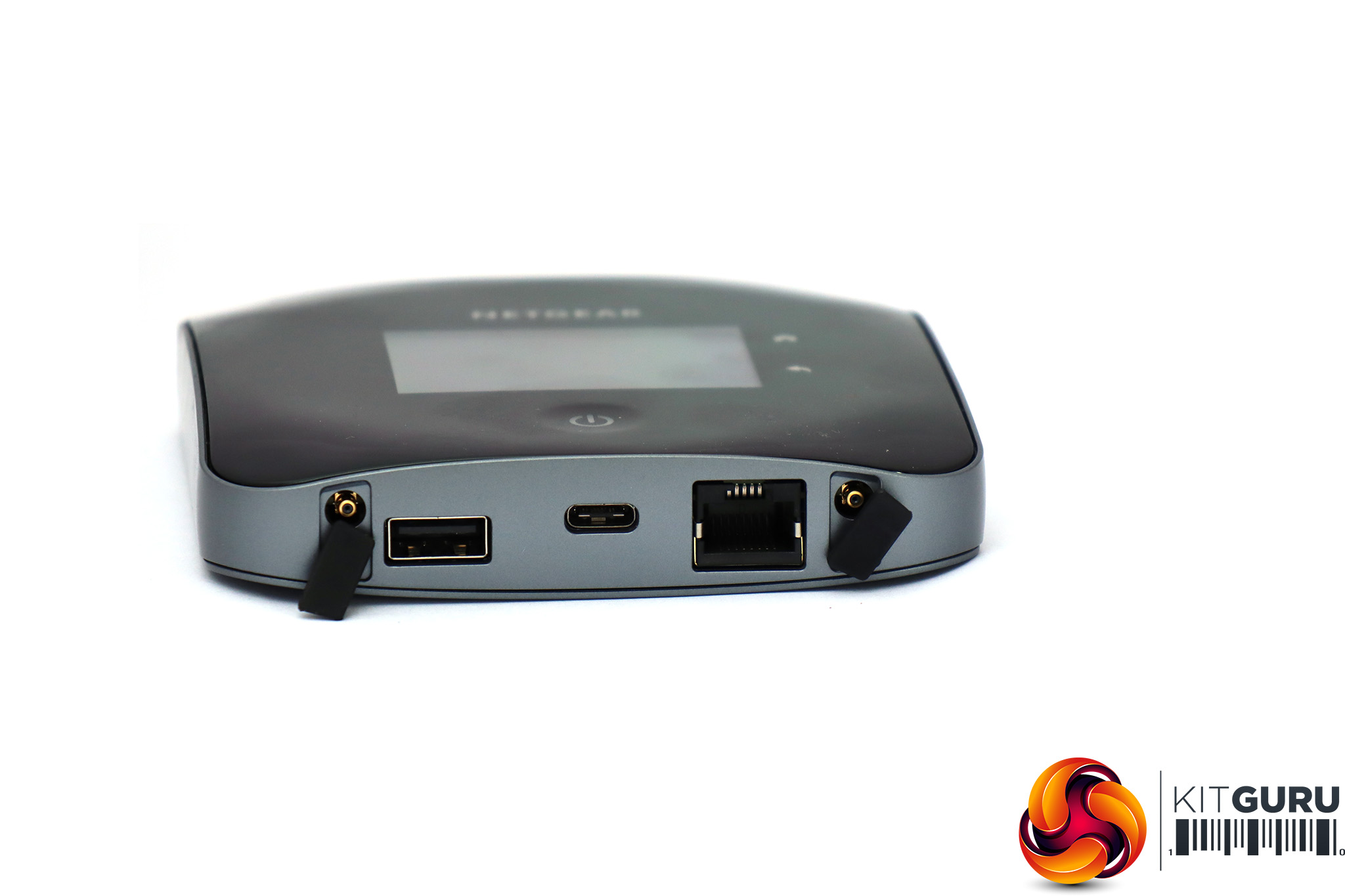
There are only three main physical connections on the M2, although the little rubber feet either side of this trio can be levered off to reveal TS-9 ports for attaching dual external antennas to boost the 3G/4G reception. The USB Type A port can be used for various things, such as adding an external hard drive as network storage or media serving. It can also be used for connecting a mobile phone so the M2 acts as a very expensive power bank, which NETGEAR calls “JumpBoost”.
The USB Type C port can be used for charging the unit either with the supplied mains adapter or a PC USB port. It will then also tether the M2 to the PC as a mobile data modem. The Gigabit Ethernet port has multiple functions too. You can use it to connect a client system via wired LAN. But this can also connect to another router or broadband connection for what NETGEAR calls “data offloading”. Essentially, this turns the M2 into a router or access point, so you're using its WiFi but not its 4GX connection.
Overall, the M2 is a nicely sized bit of kit with some flexible connectivity options for a variety of usage scenarios. However, before you can get to any of these, you need to set it up and configure its features. So let's turn to the built-in, smartphone and web-based management capabilities next.
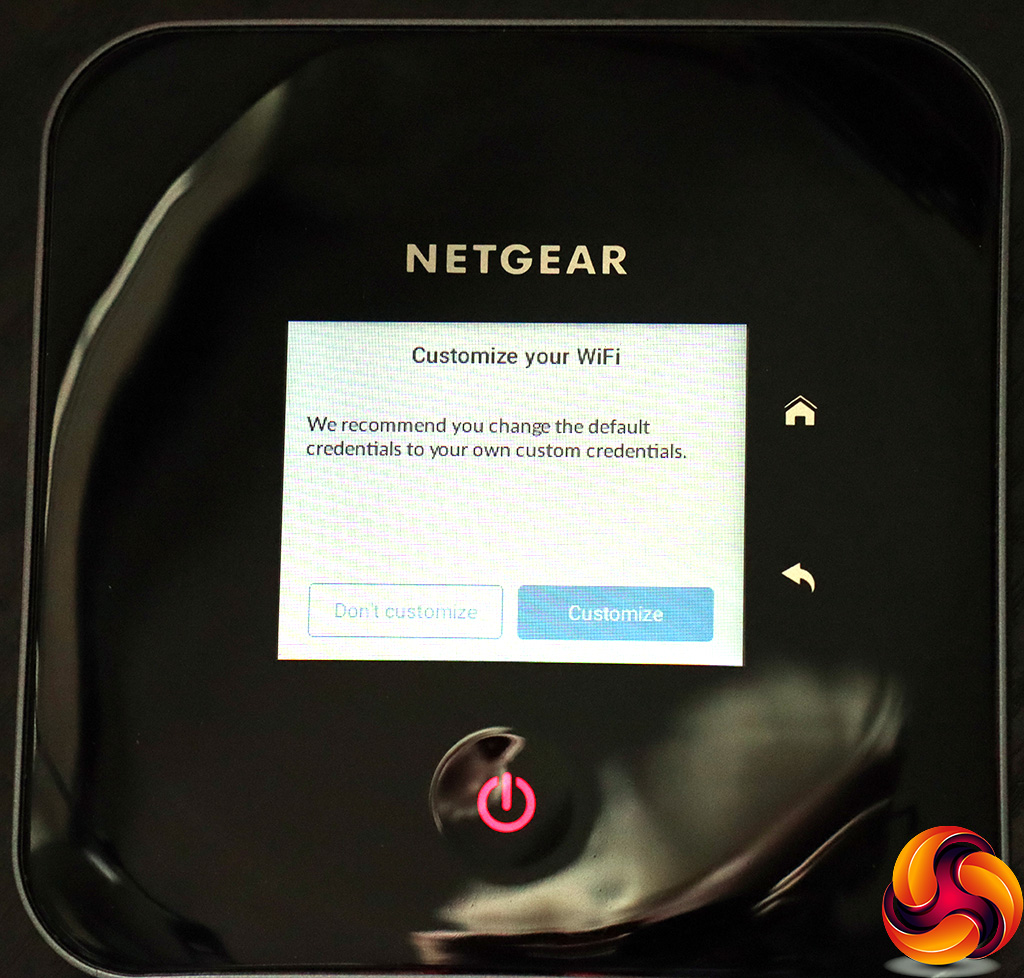
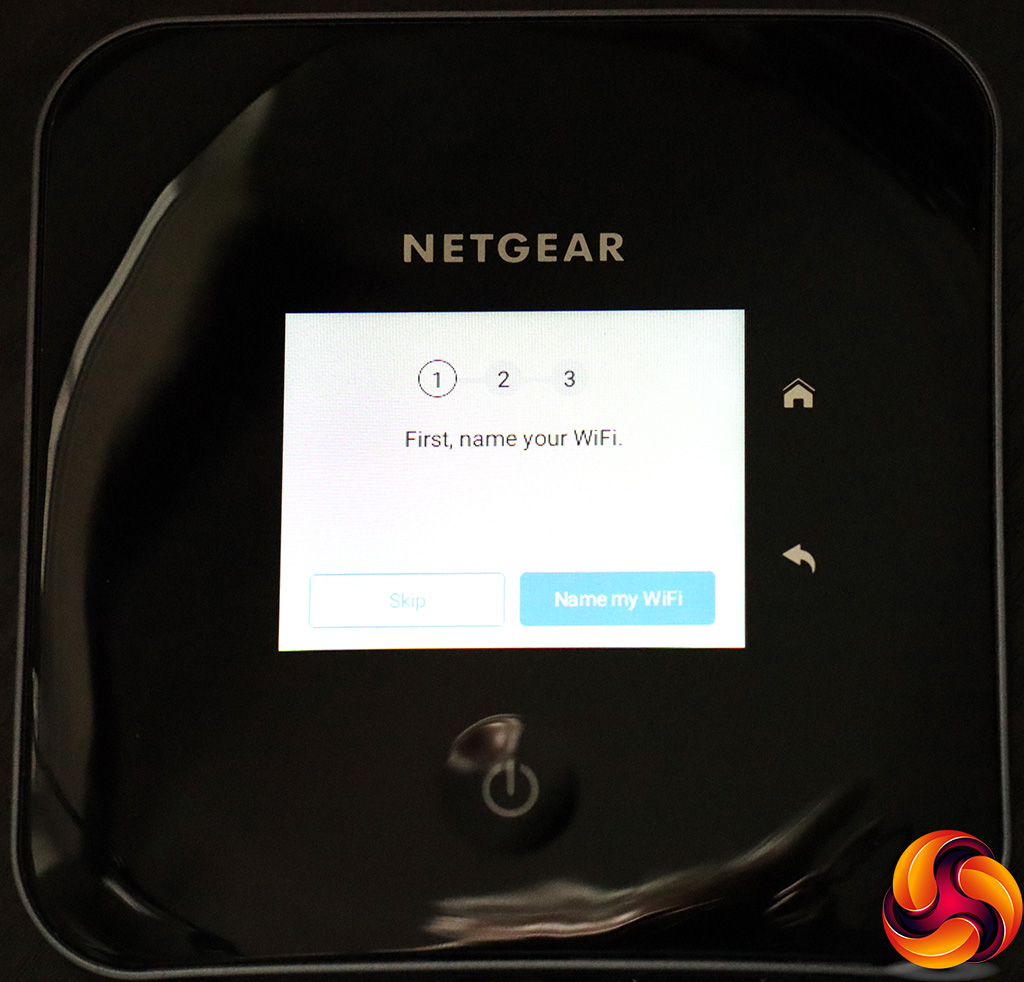
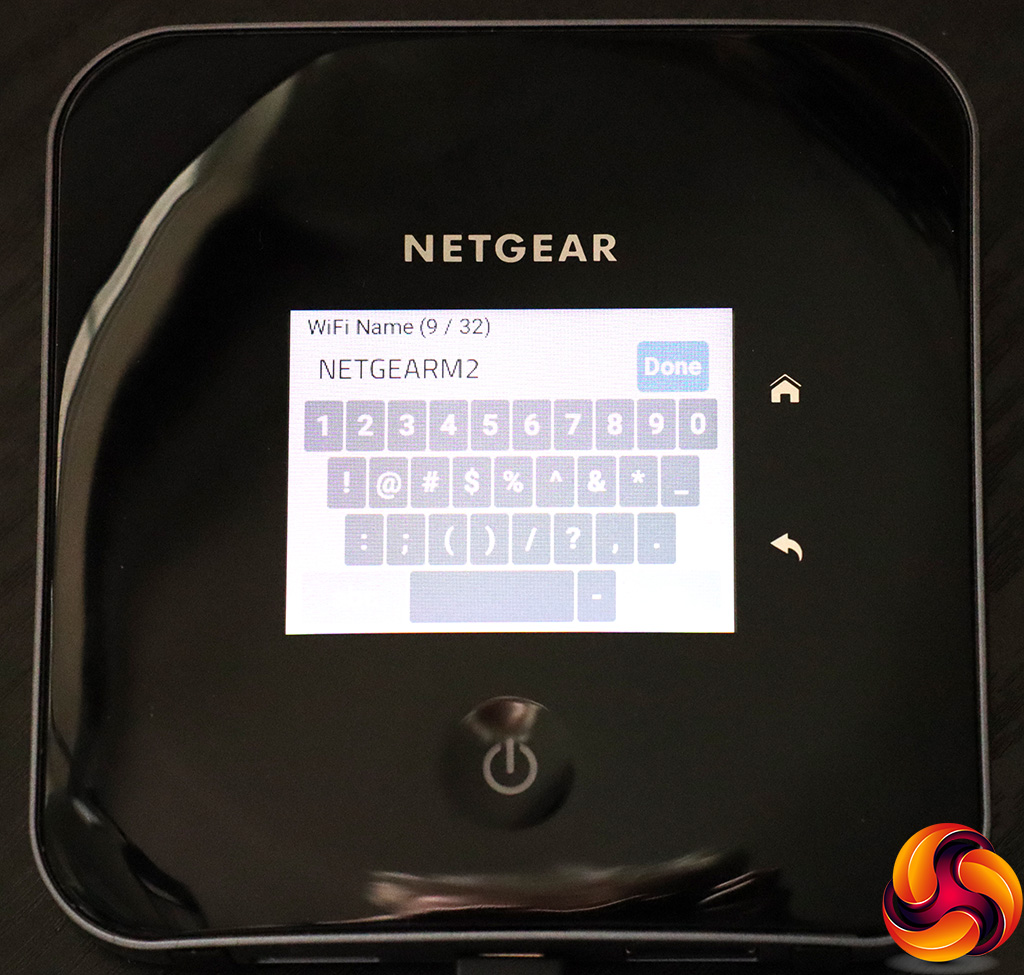
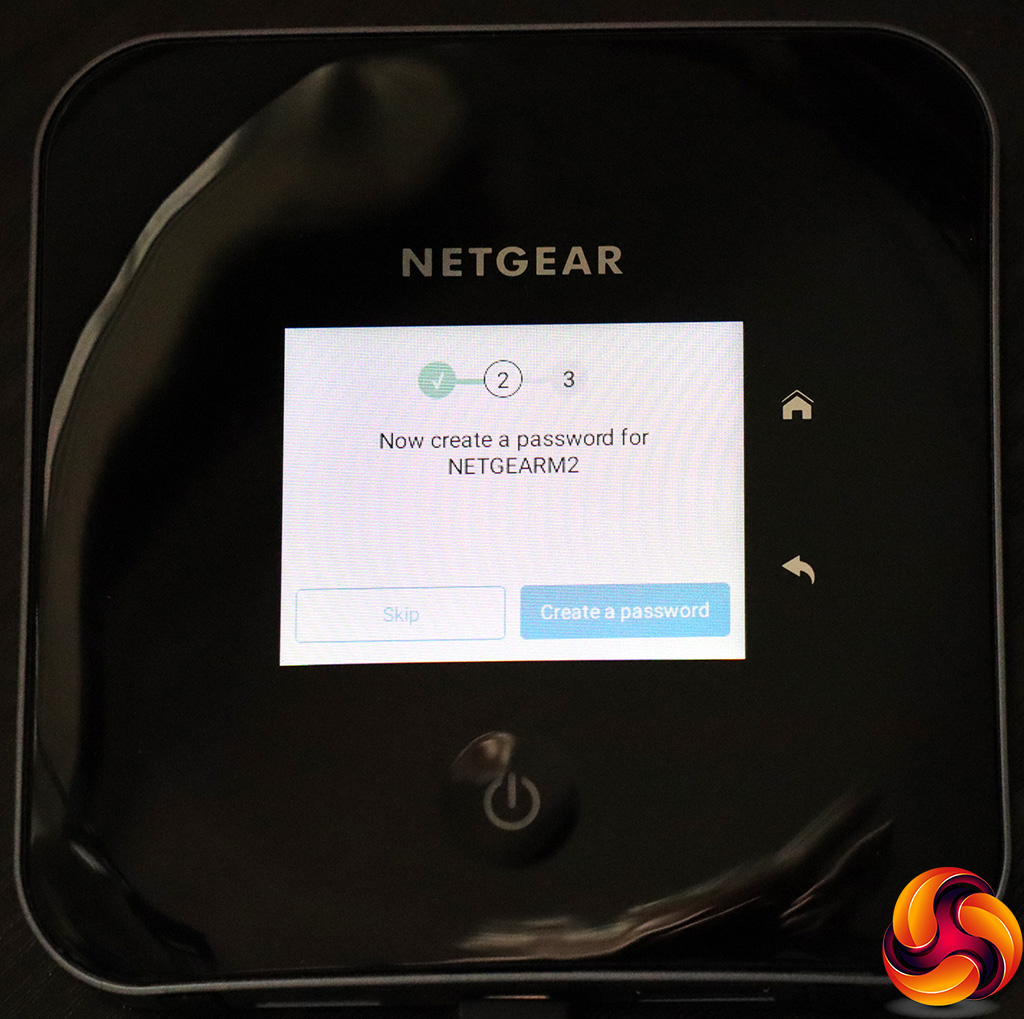
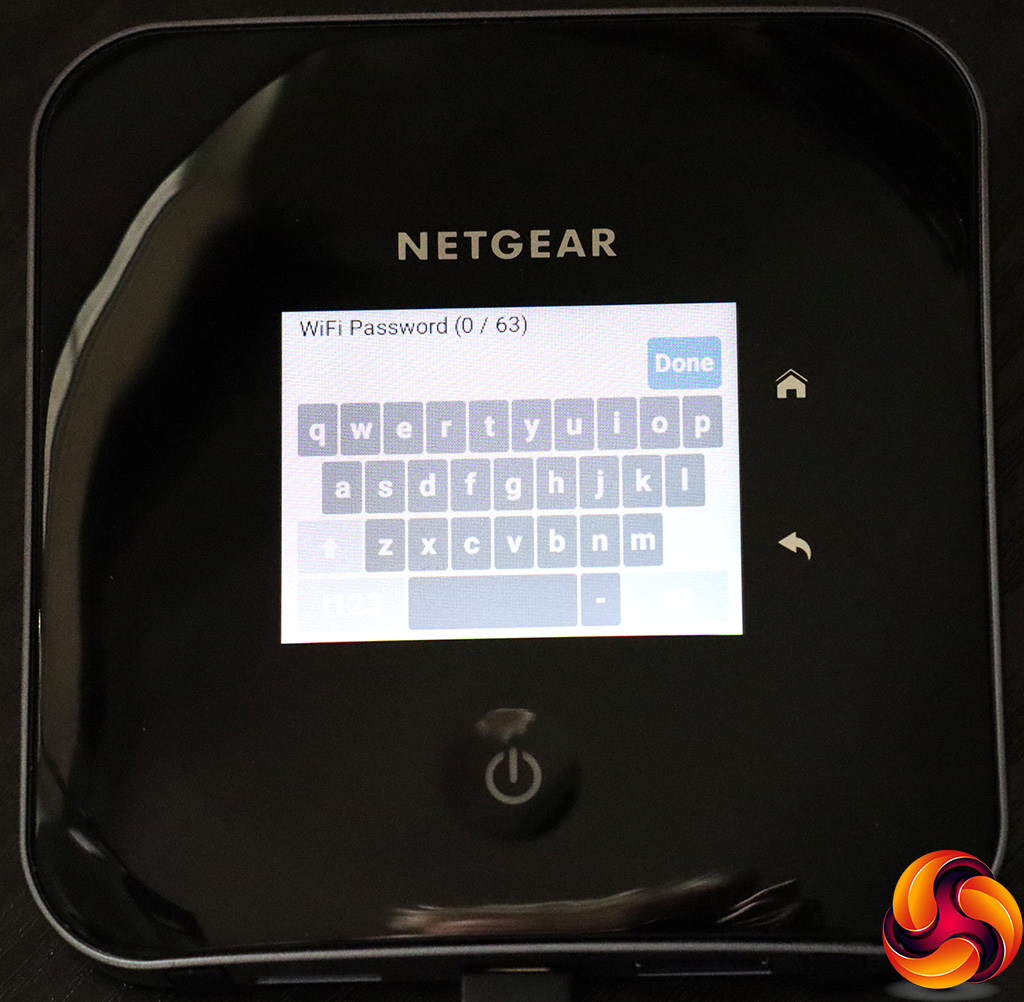
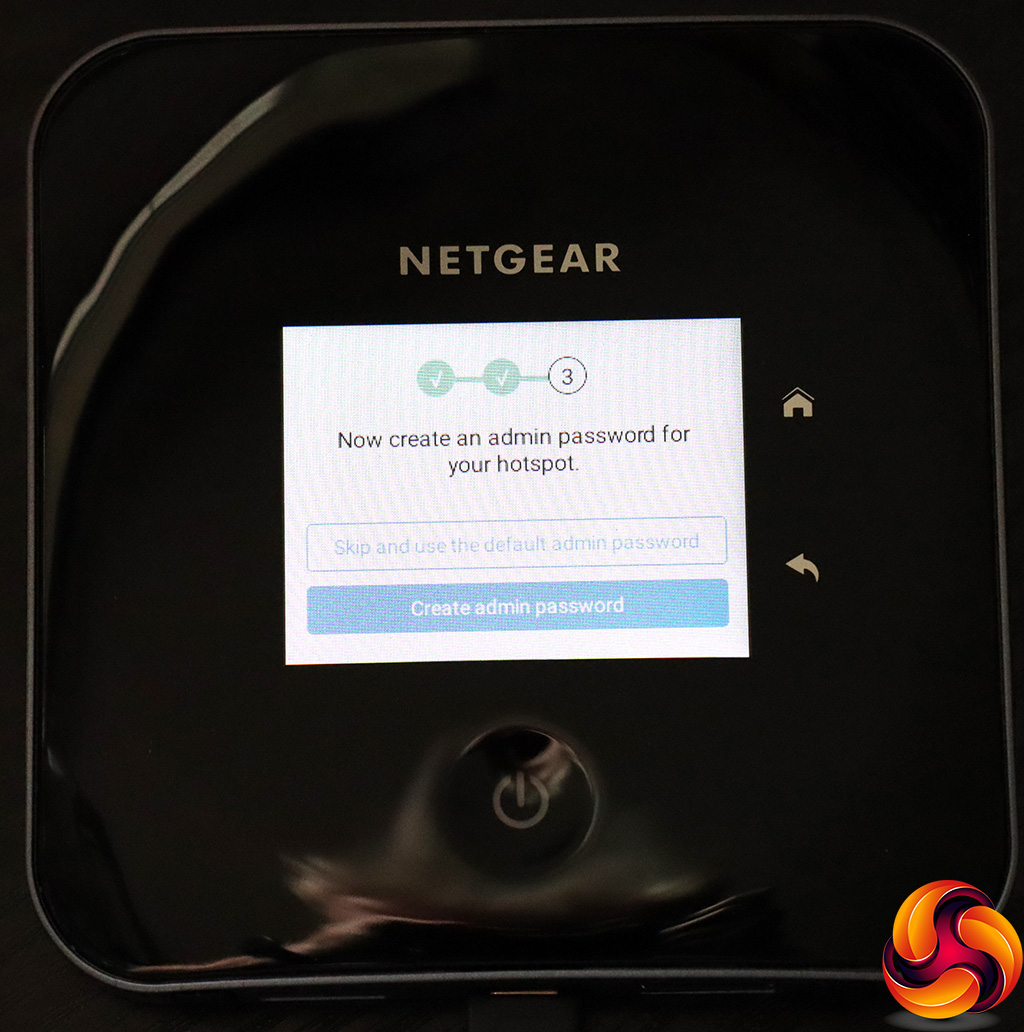
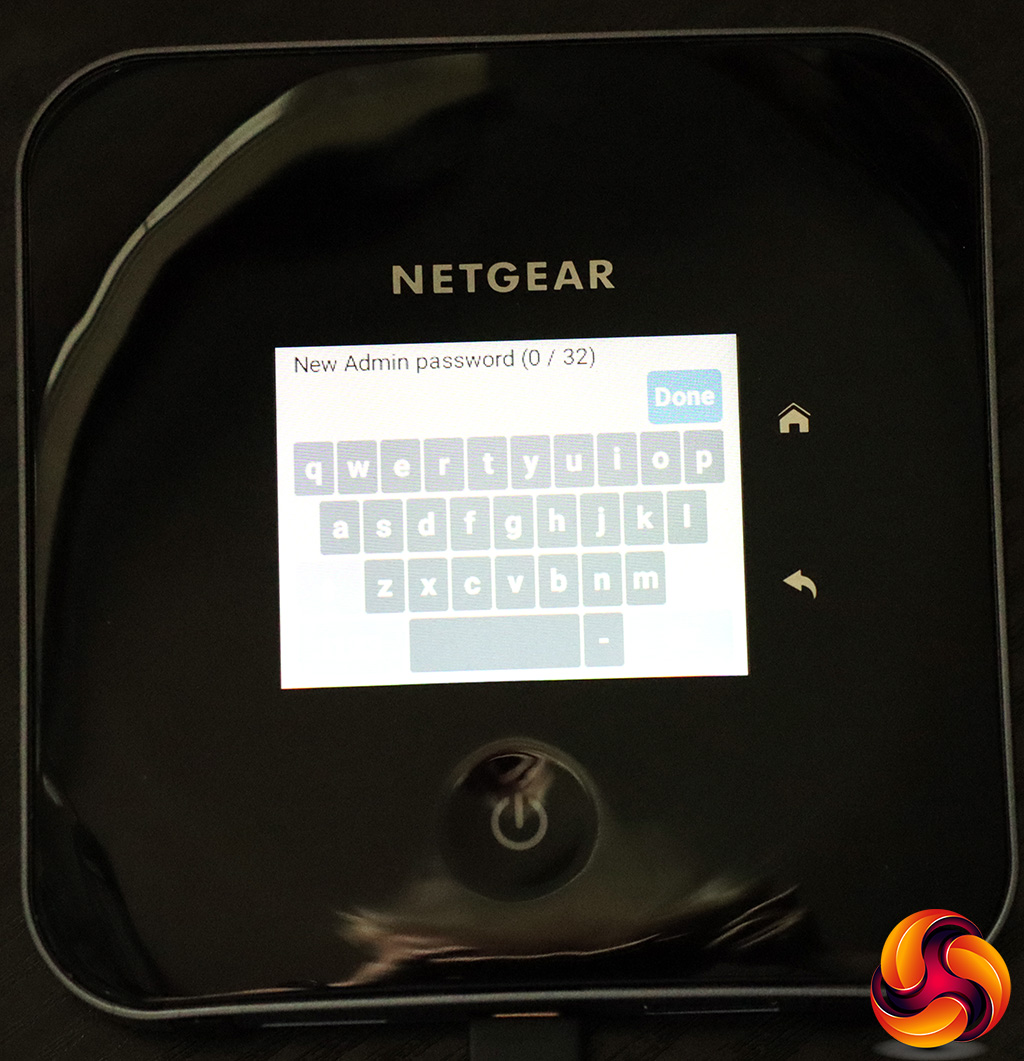
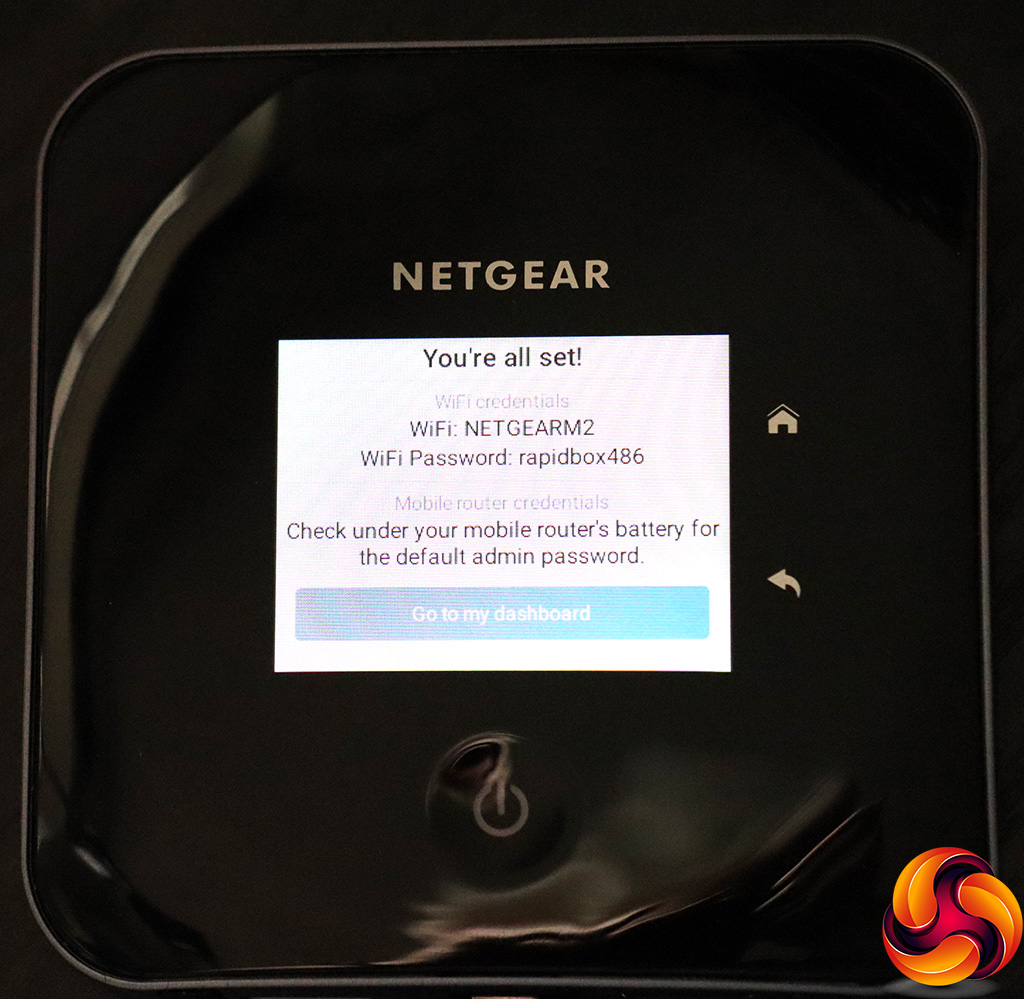
Initial setup can be performed entirely with the built-in LCD panel. On first starting the unit, you're prompted to set up your WiFi SSID and password, and then your admin login and password. However, all of these functions use a touchscreen keypad that is quite fiddly. Your next step is configuring the SIM, but we turned to the Web interface for that.
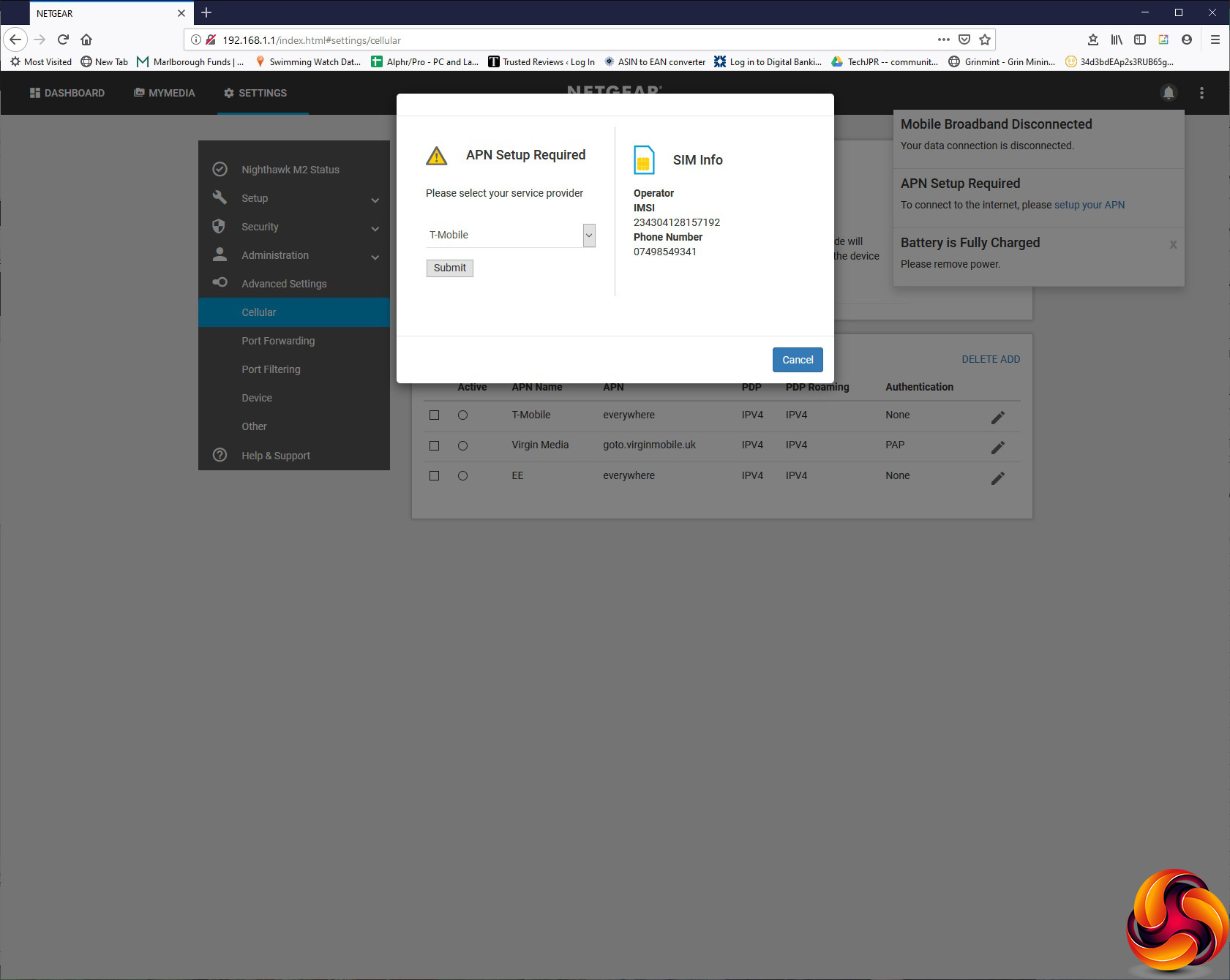
SIM setup looks like it should be pretty simple (and follows the same route if you use the LCD screen). You just confirm your SIM provider and Submit. Here we used an old T-Mobile SIM to get started, although our primary mobile data testing was performed with a Vodafone SIM instead. With the latter, we had to look up the APN settings and type those in manually to get onto the mobile data connection.
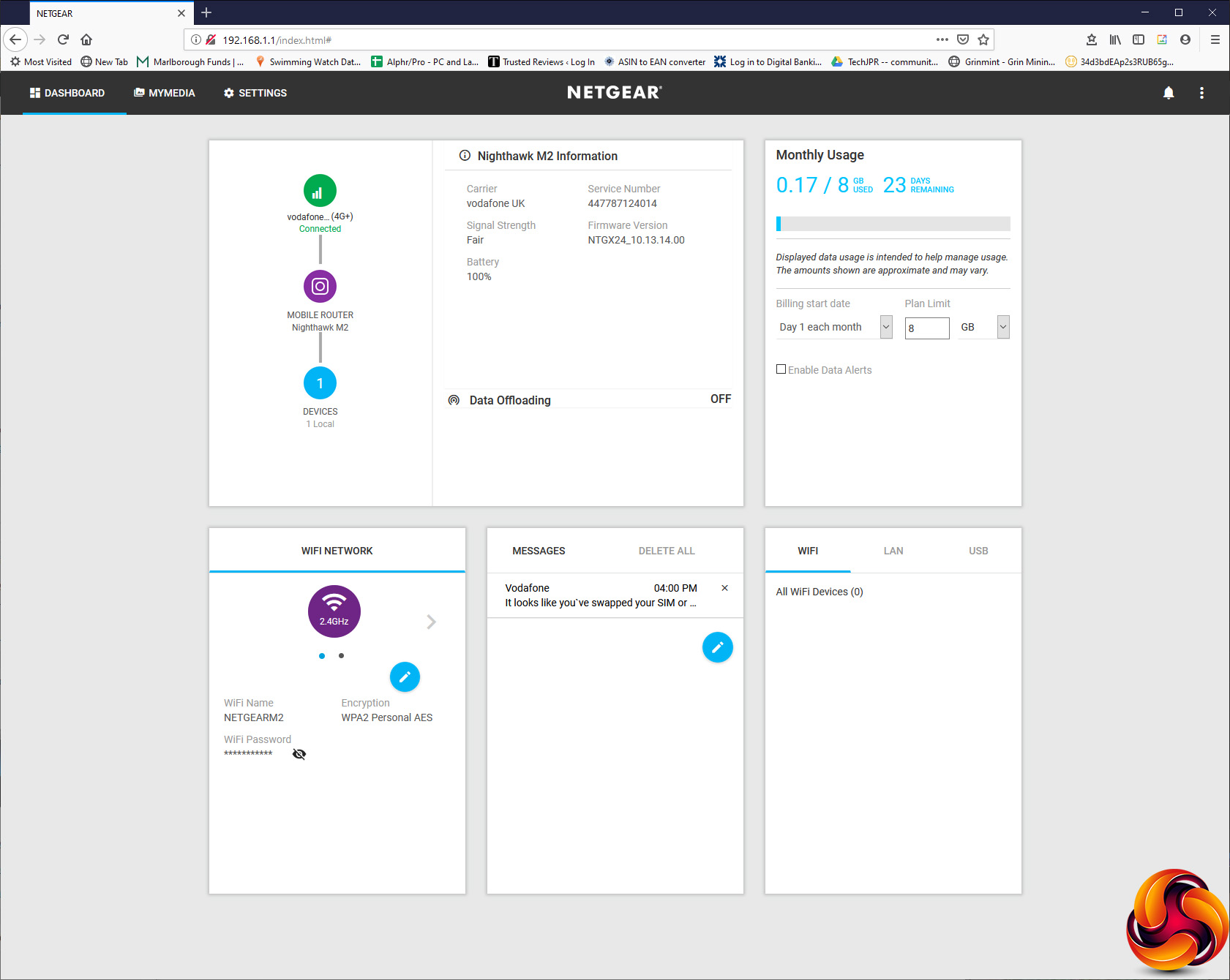
The main Dashboard gives you a readout of current settings and status, such as connected devices, firmware status, and WiFi configuration. You can input your monthly data plan limit and see a readout of how much you have used within that.
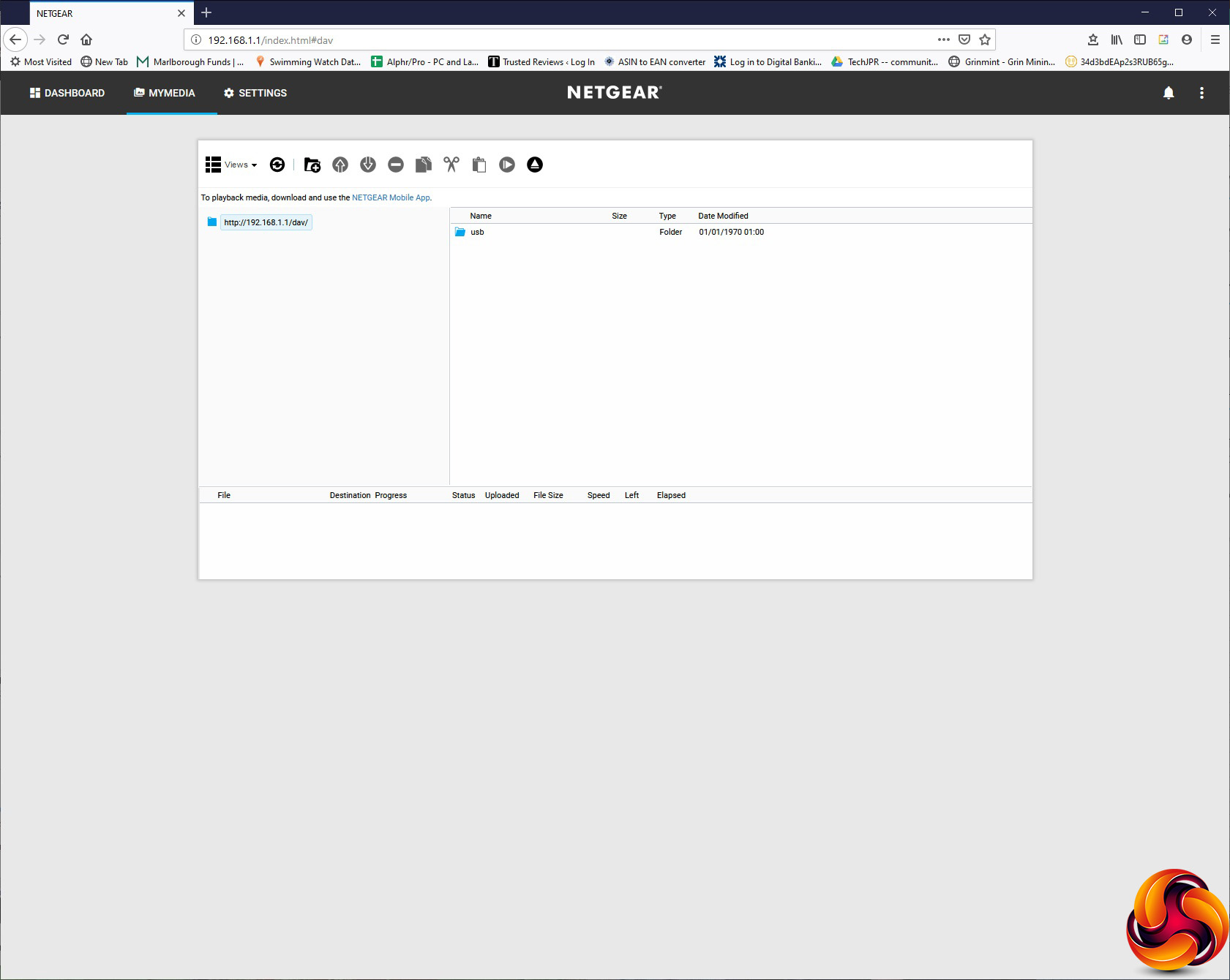
If you have a storage device connected to the USB 3.0 port, the MyMedia section is where you can configure how this behaves and how it is shared across the network. The M2 doesn't include a Samba server, however, so can't directly share files to Windows clients over the workgroup network. You can upload and download files via HTTP using the Web interface, and DLNA support means you can play back media files using a DLNA-compatible client.
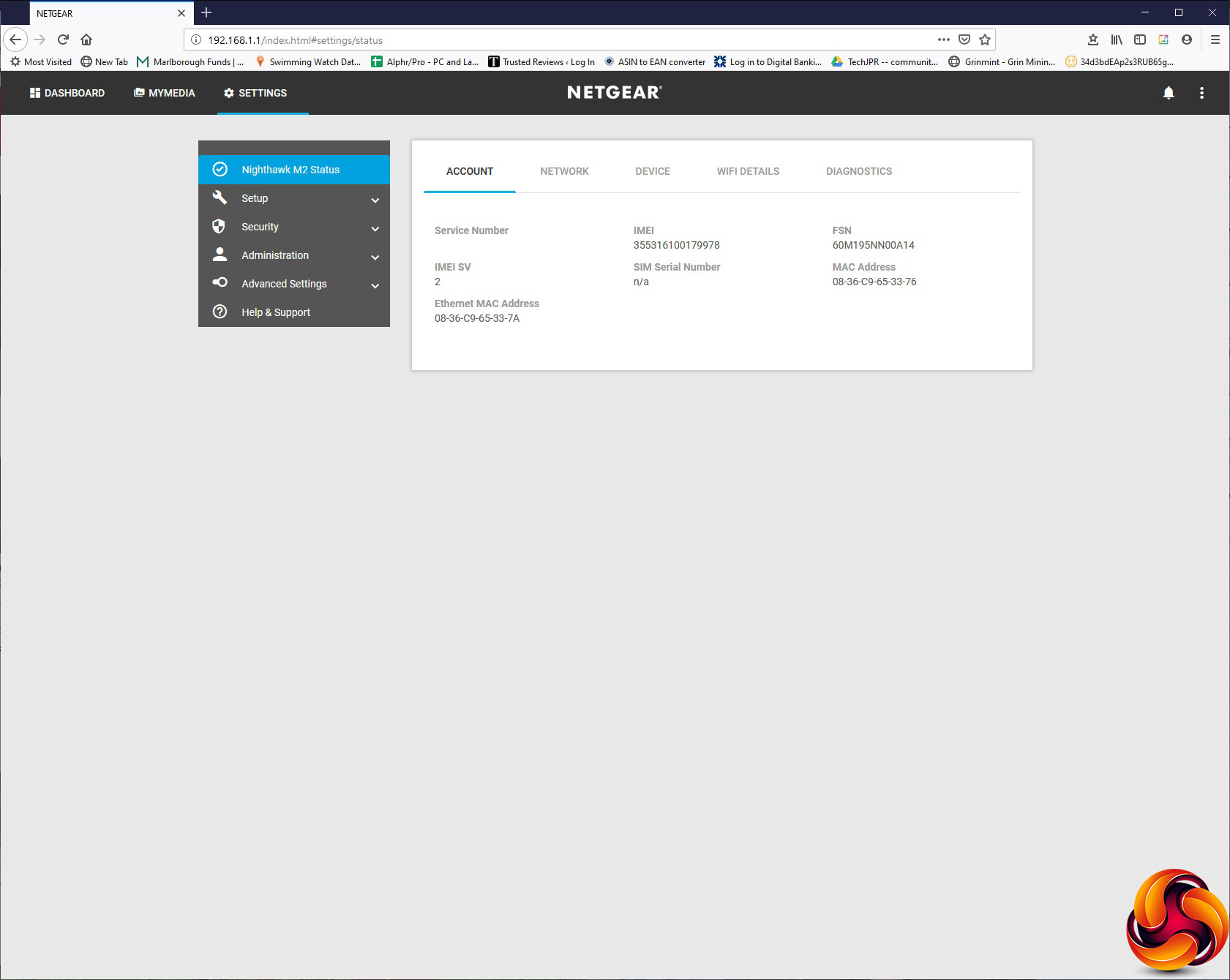
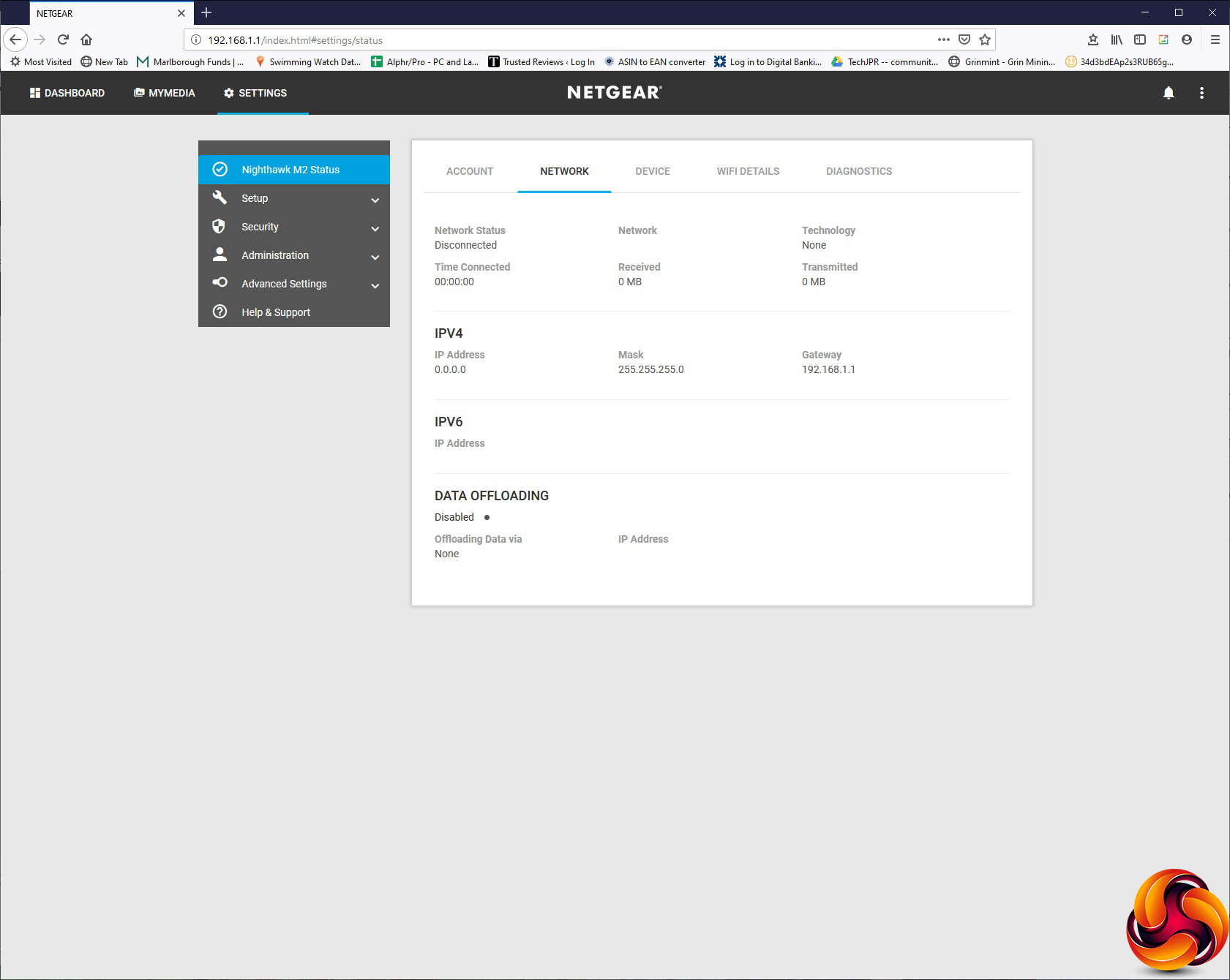
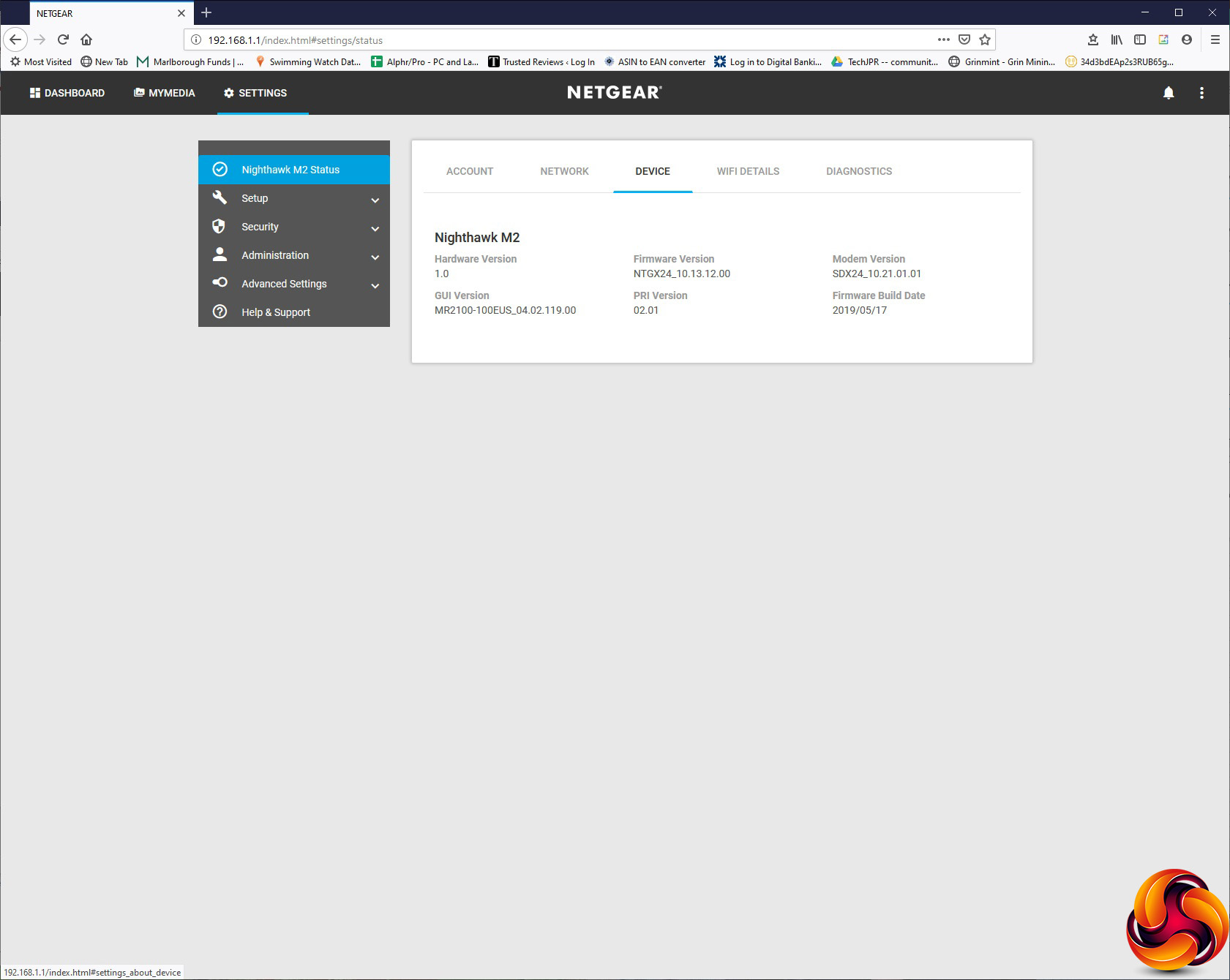
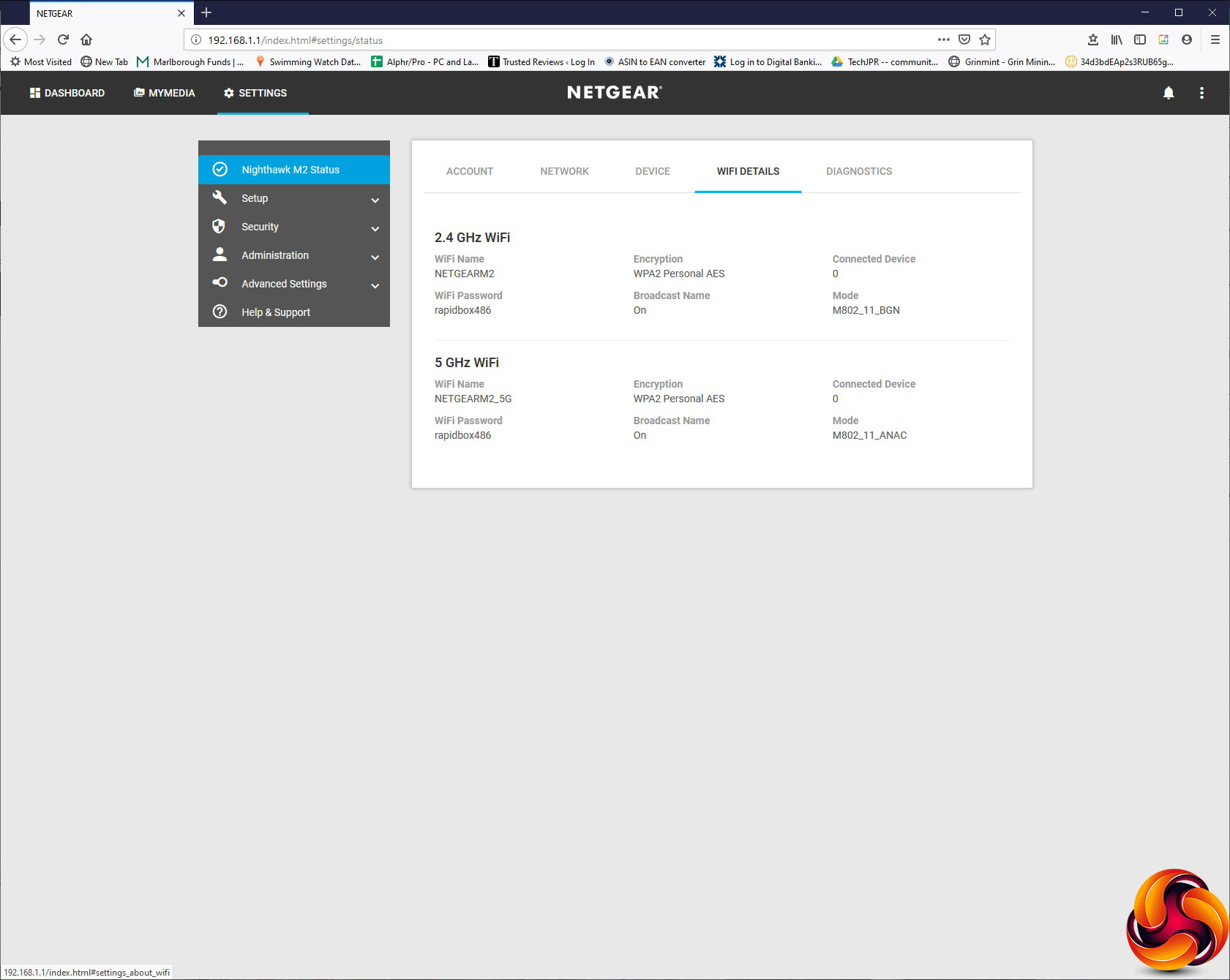
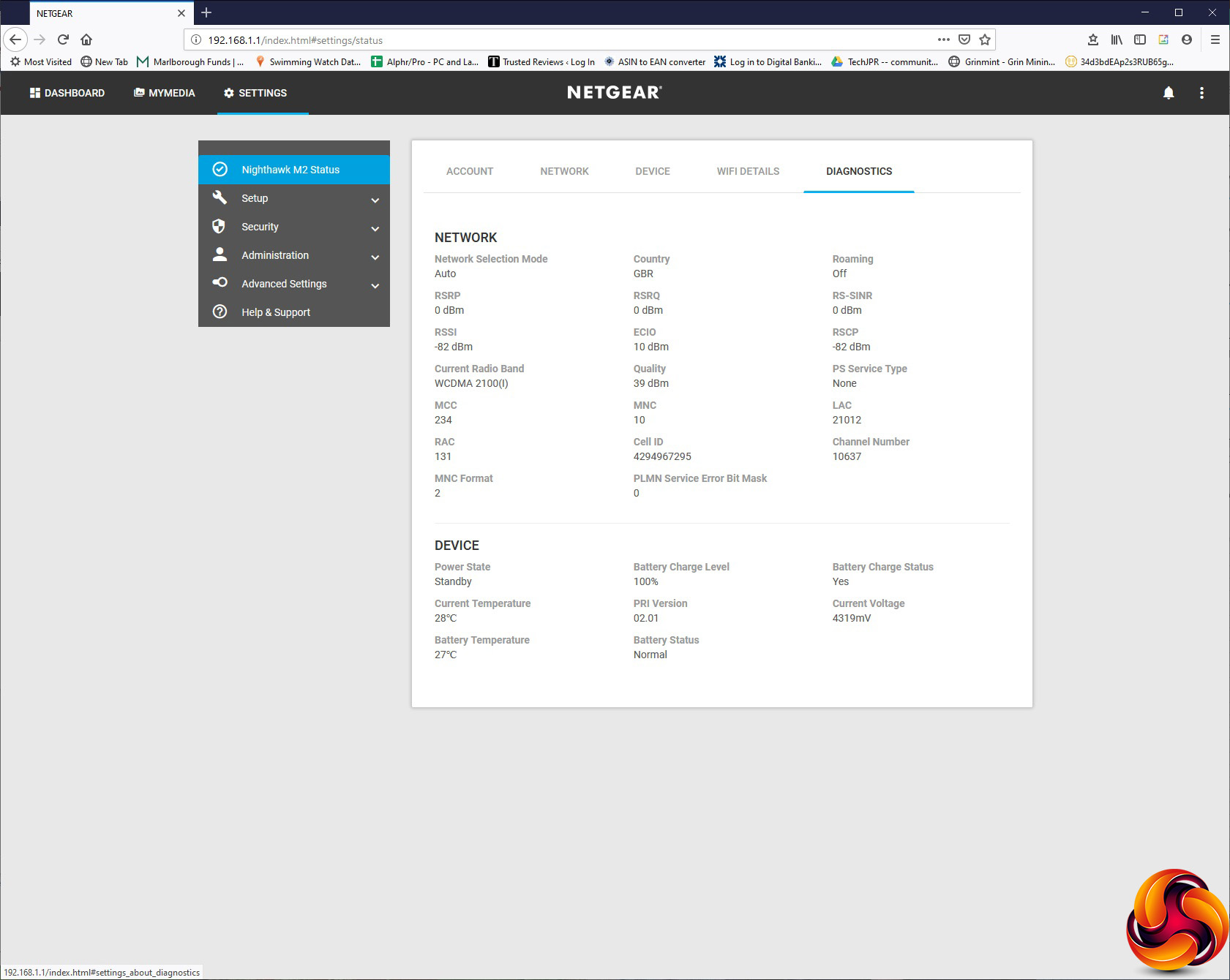
Under Settings, the Nighthawk M2 Status section gives you a subset of five more tabs. The first Account tab merely tells you the current SIM status and MAC addresses of the various adapters. The Network tab is also mostly informational, but adds the option to enable Data Offloading. This allows you to switch data traffic to a WiFi or LAN client to reduce the reliance on your mobile data connection – essentially load balancing with a bias away from mobile data.
The Device section is informational, giving you details about the firmware, GUI and hardware versions. WiFi Details tells you about the wireless network, and Diagnostics provides a plethora of data about signal quality, channel usage, battery charge and even battery temperature.
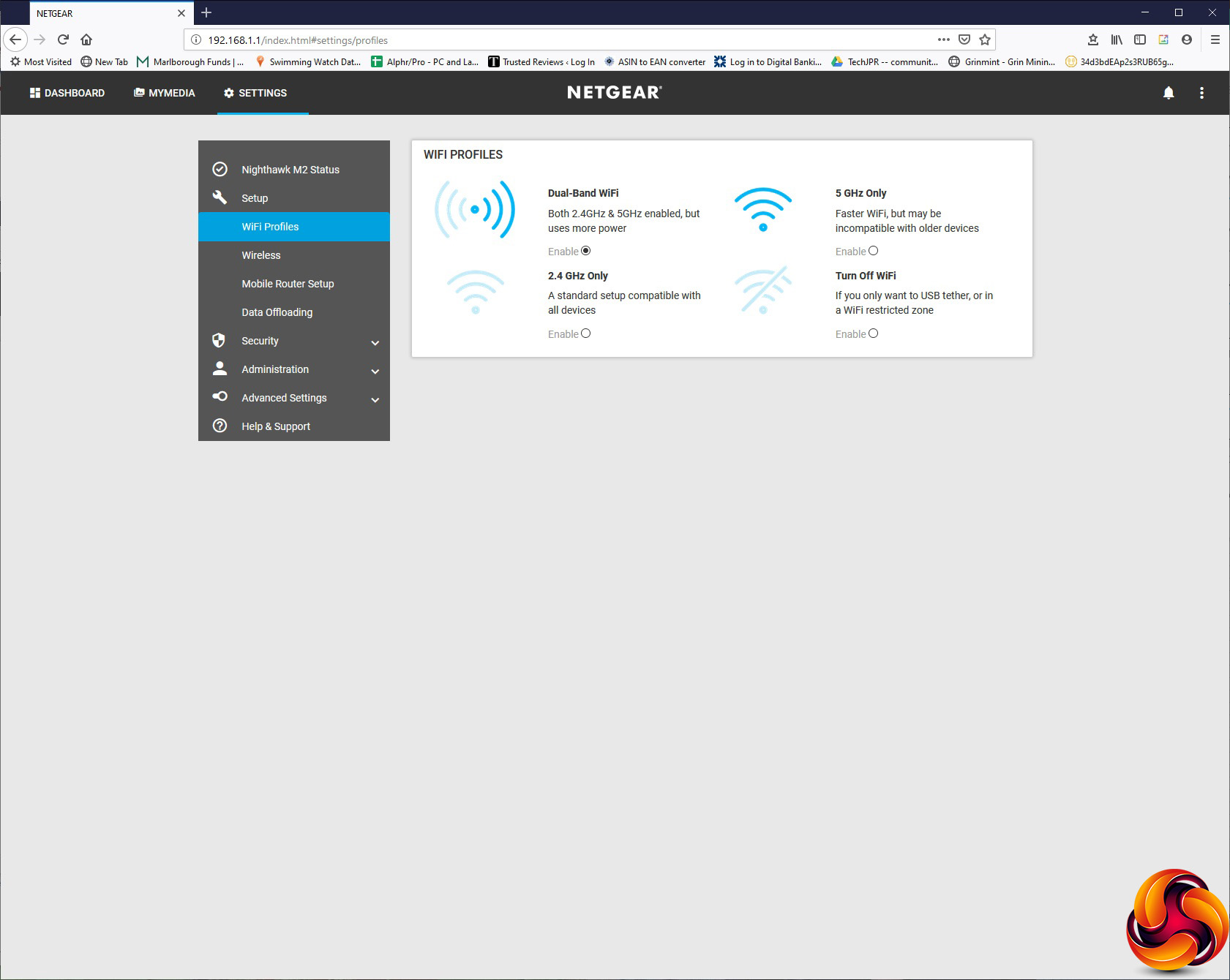
The Setup section, however, doesn't use tabs but more of a drop-down list. Under WiFi Profiles, you can choose whether you use both 2.4GHz and 5GHz radios, just one or other, or turn the WiFi off entirely when operating the M2 as a USB tethered mobile data modem.
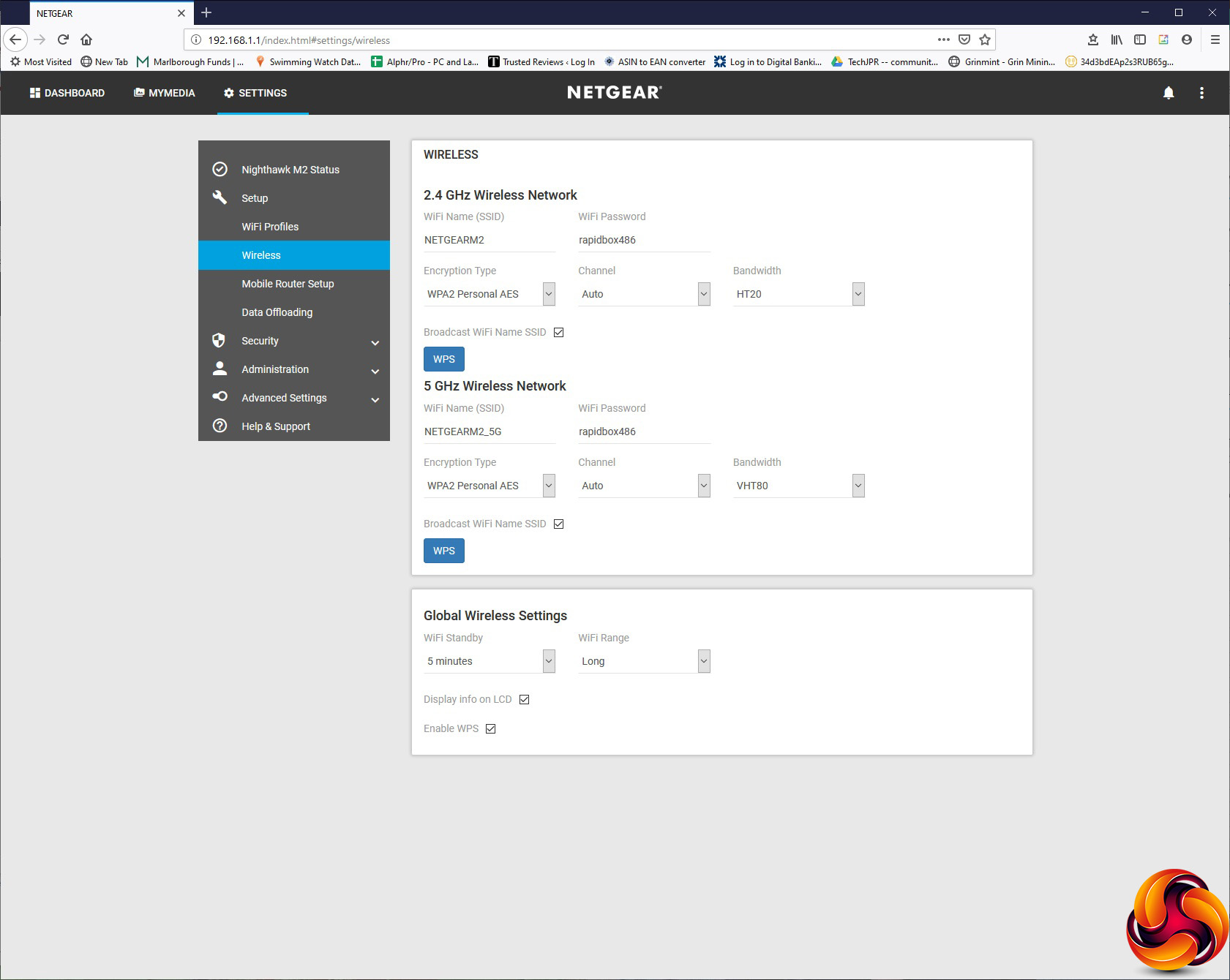
If you head to the Wireless section, you can change the SSID and passwords for the two frequencies, security setup and channel bandwidth configuration. You can also alter global settings for standby timeout and range across both radios.
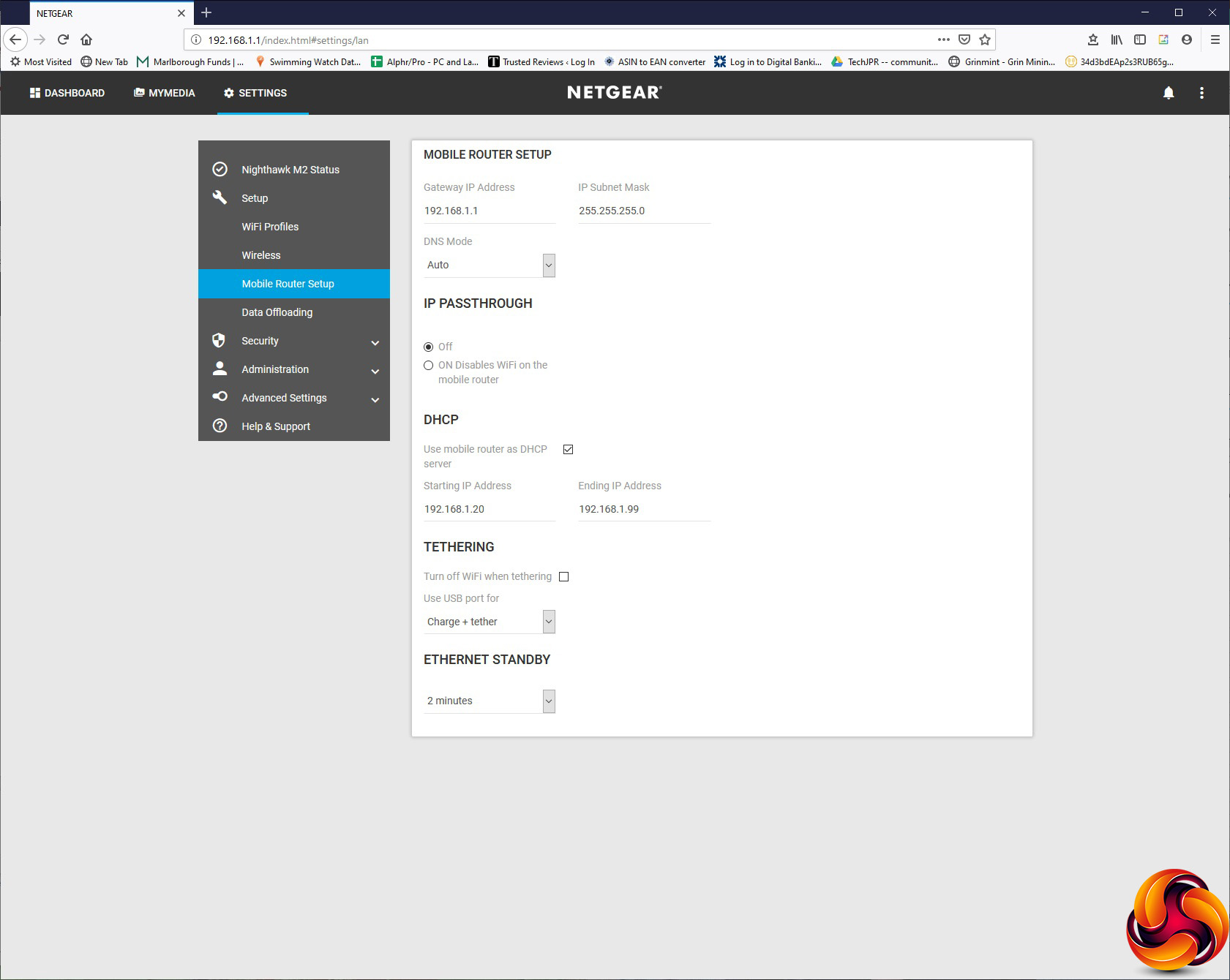
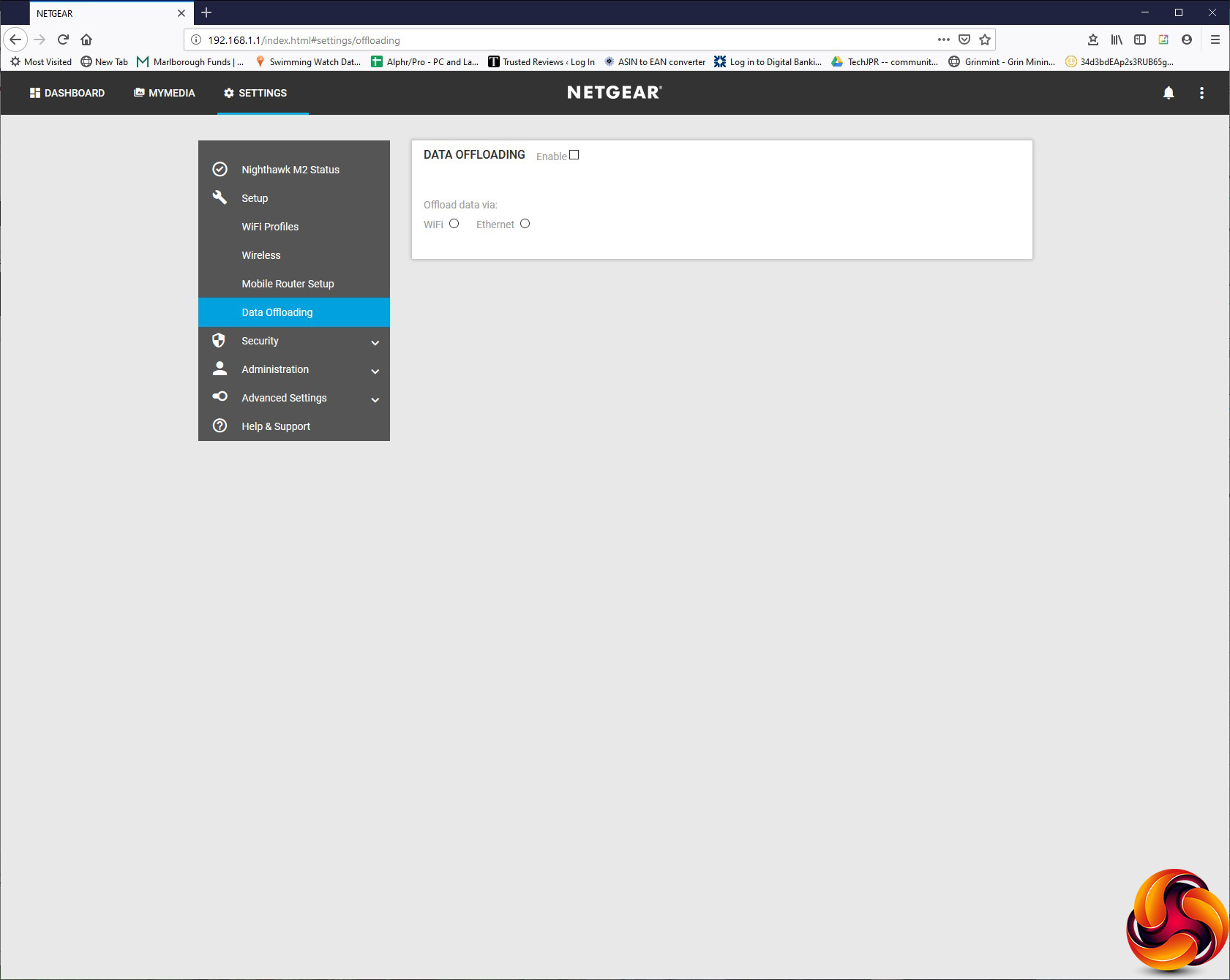
Under Mobile Router Setup, you can change the router IP and DNS mode, the DHCP range, and whether the USB port just charges or also provides data tethering. You can configure a backup WiFi or Ethernet connection under Data Offloading.
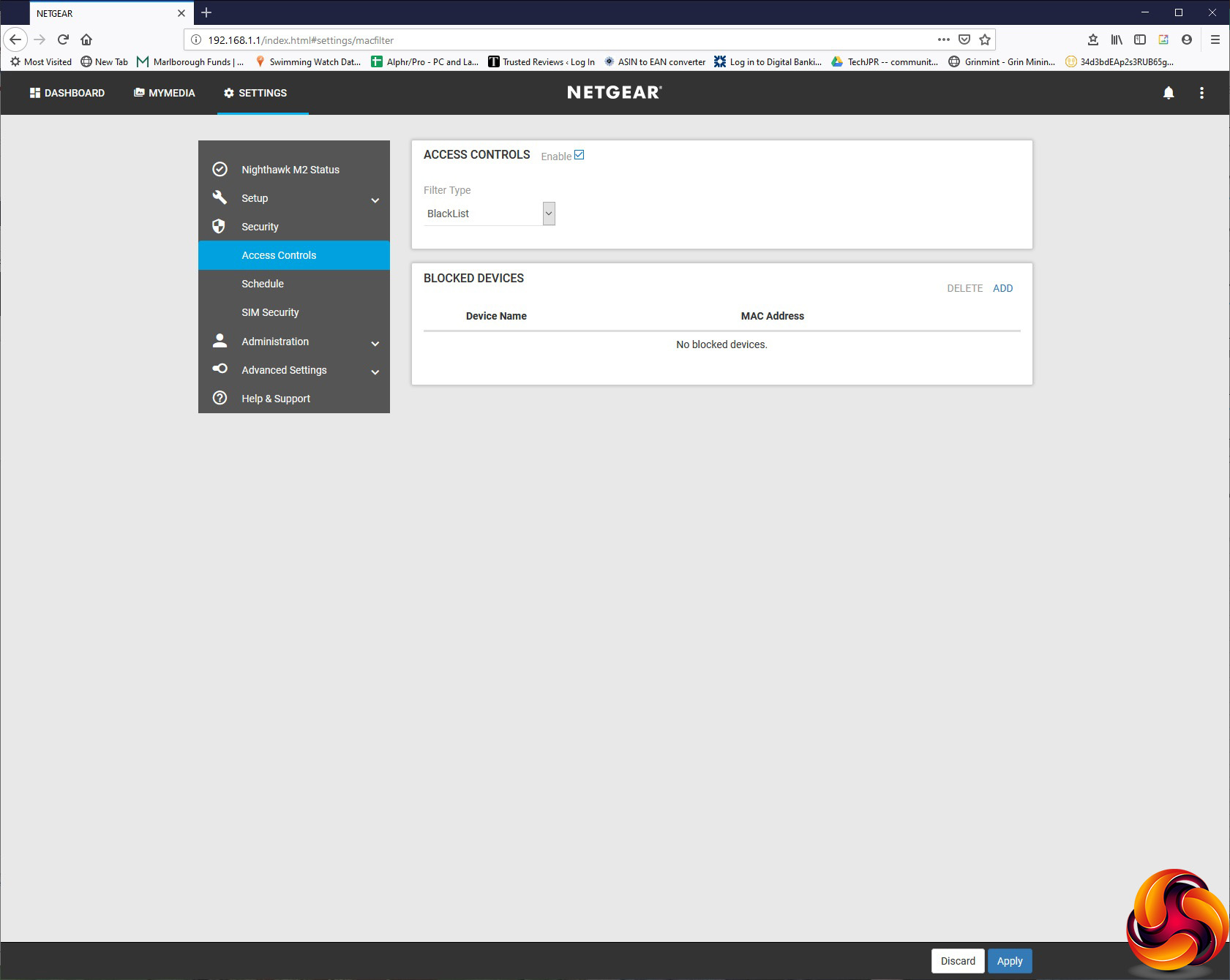
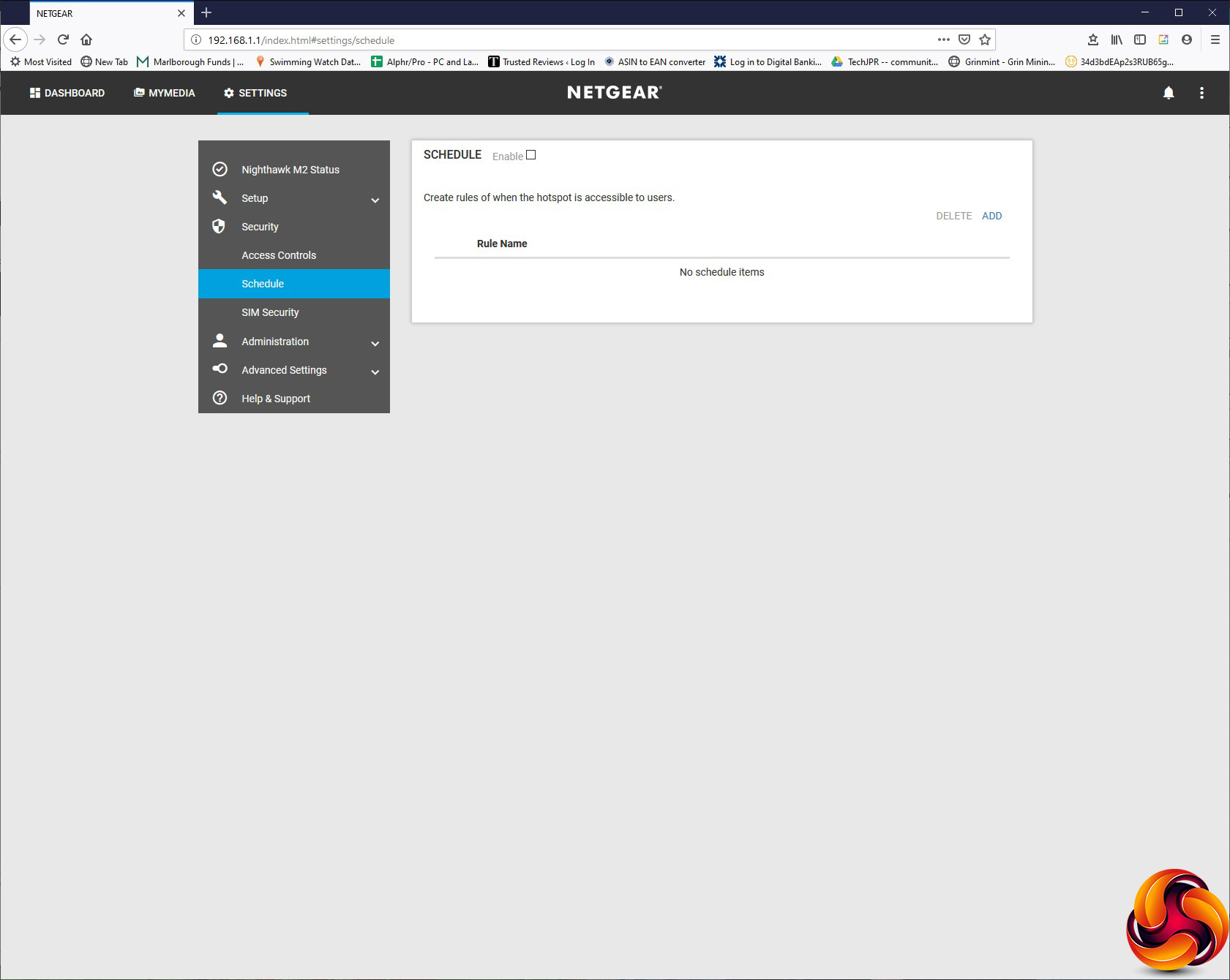
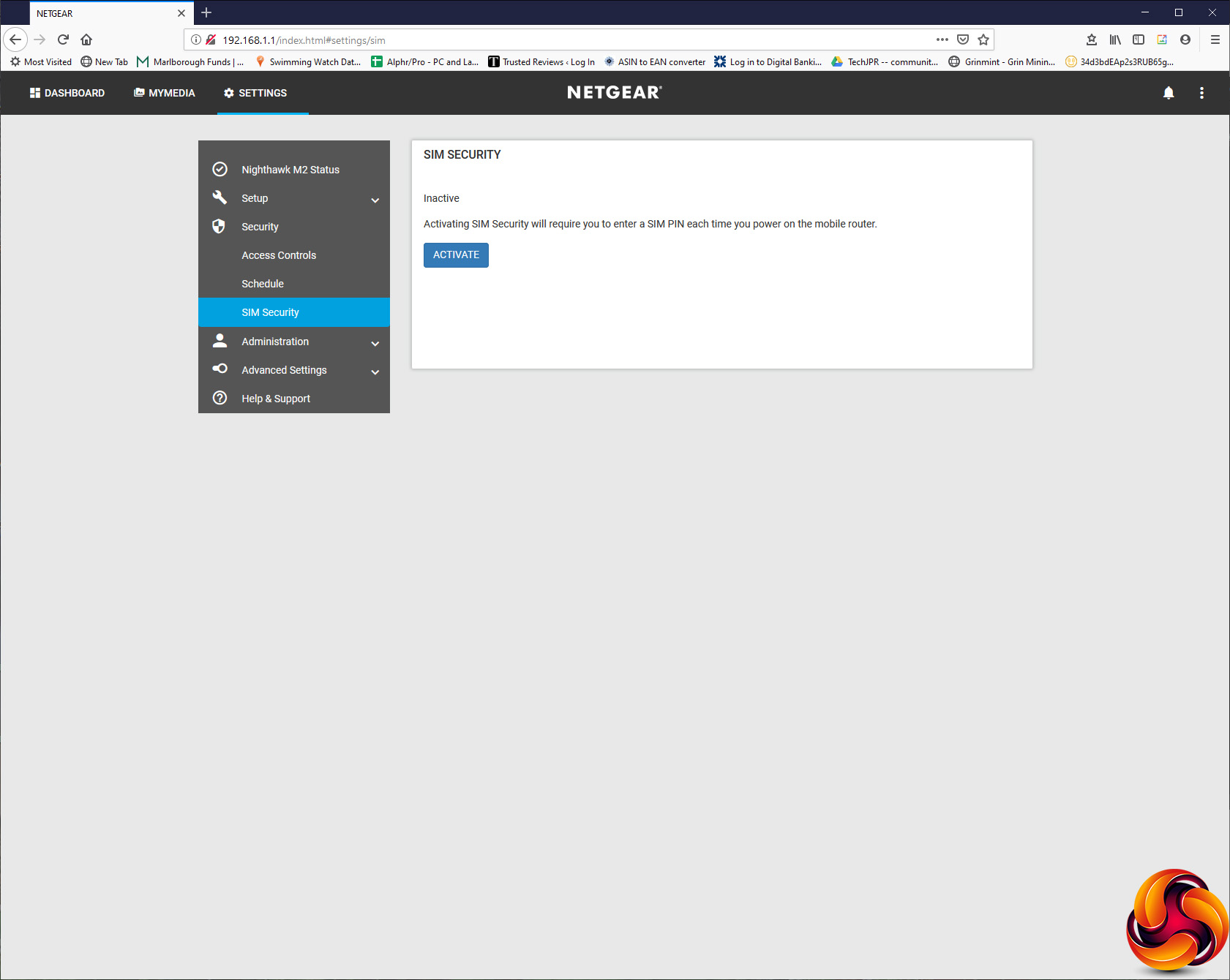
Security includes familiar options such as blacklisting certain devices by MAC address from gaining access. You can also set up a time schedule for when the hot spot is accessible for client devices, and SIM Security lets you add a PIN that must be entered every time you turn the router on before access is possible.
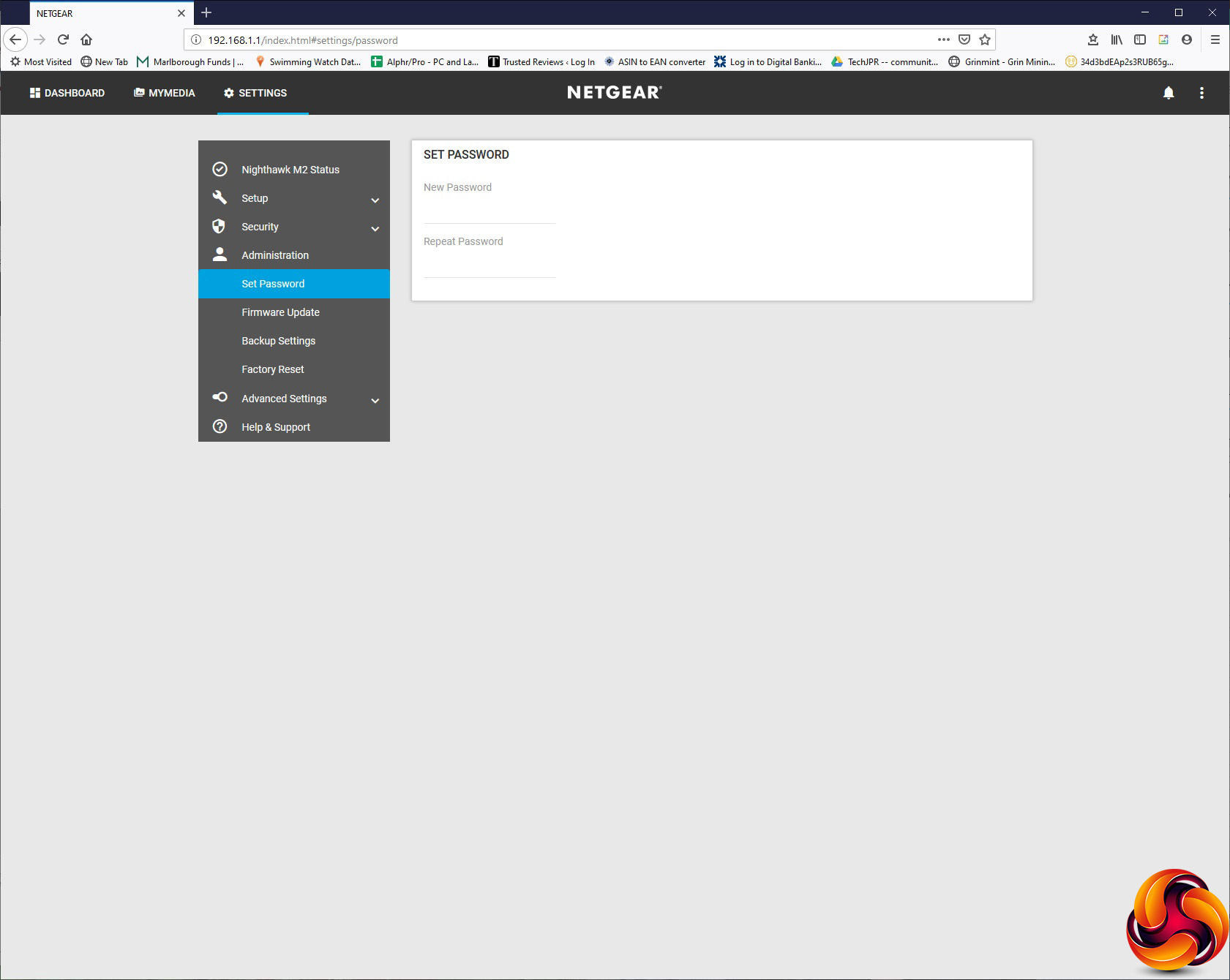
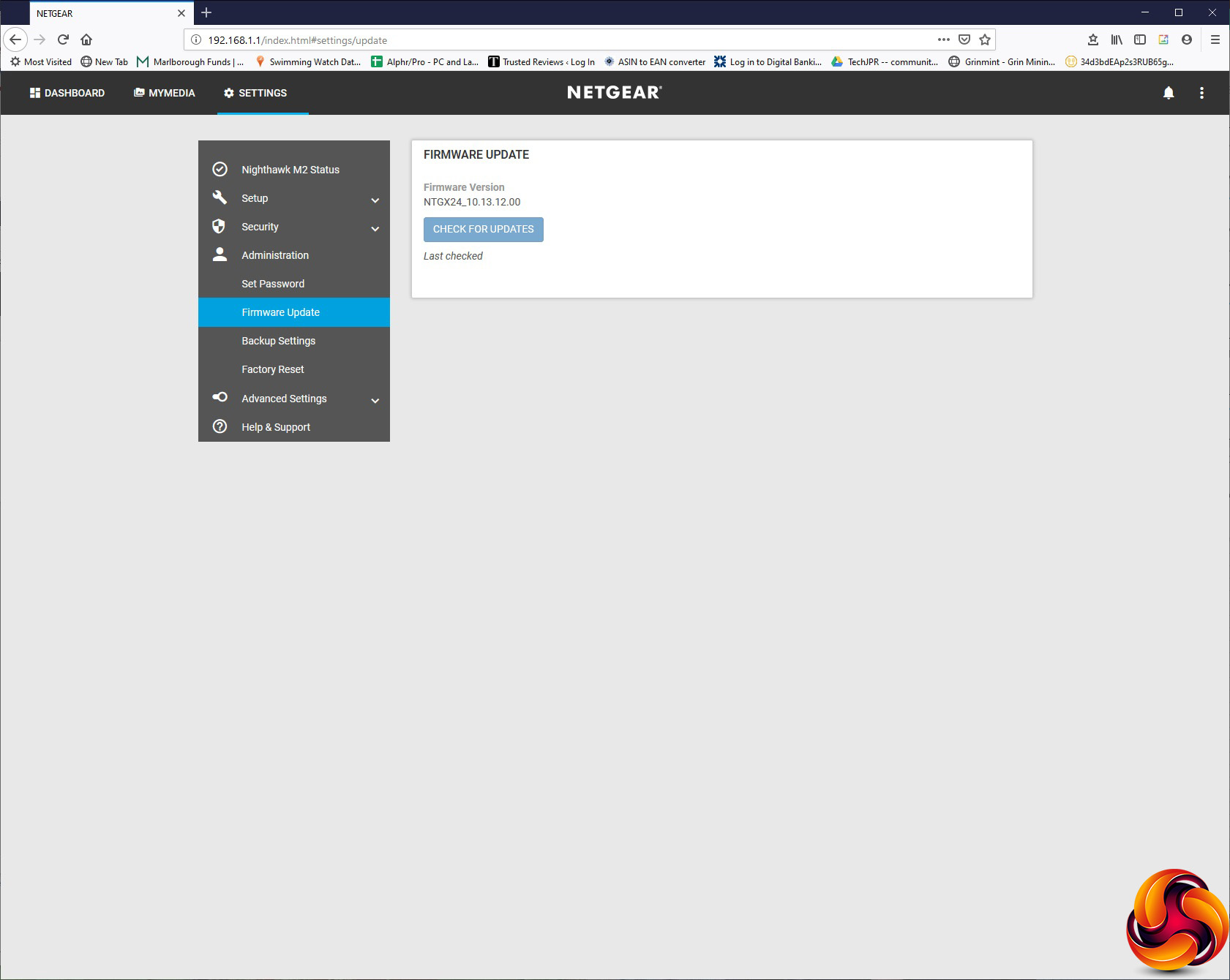
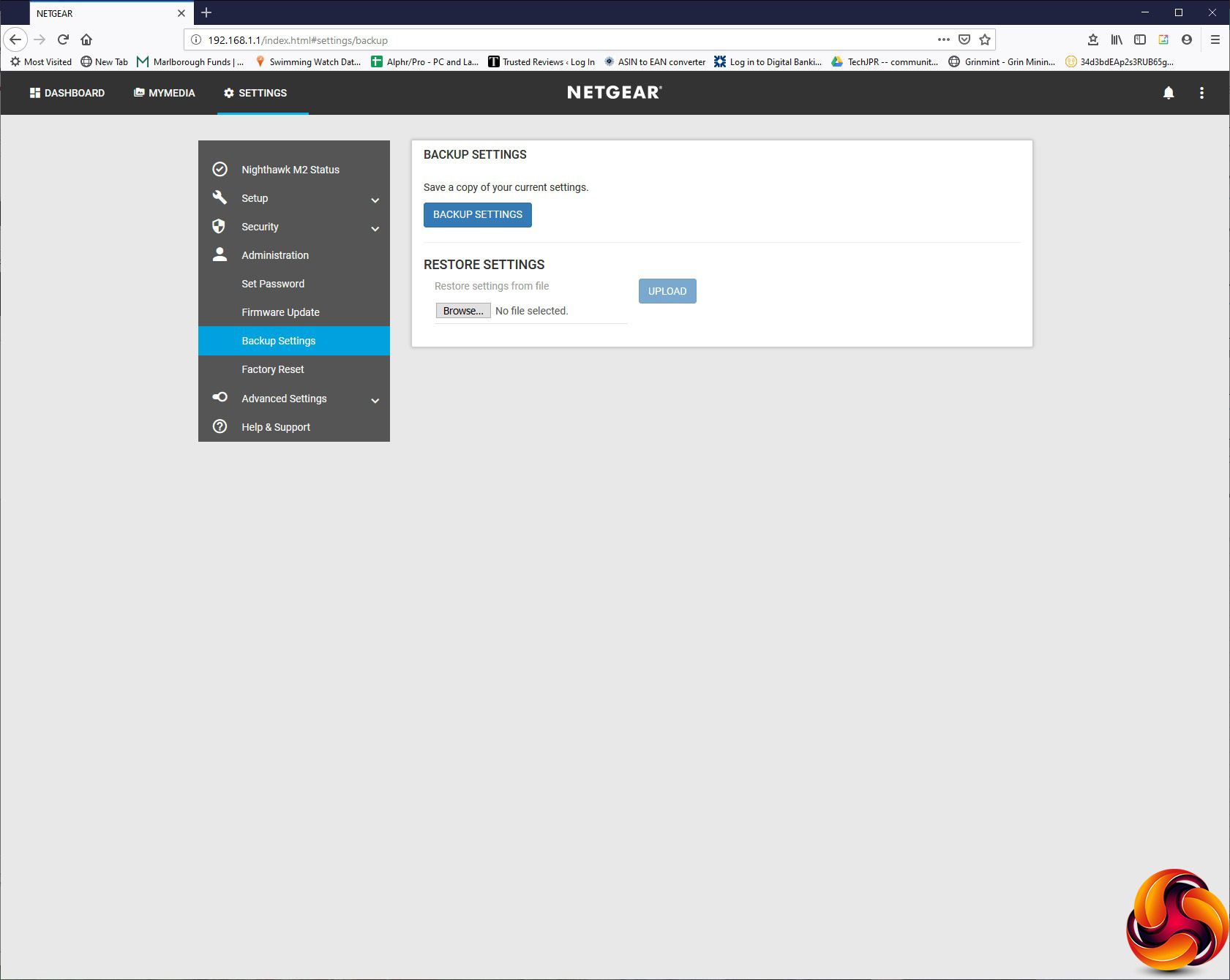
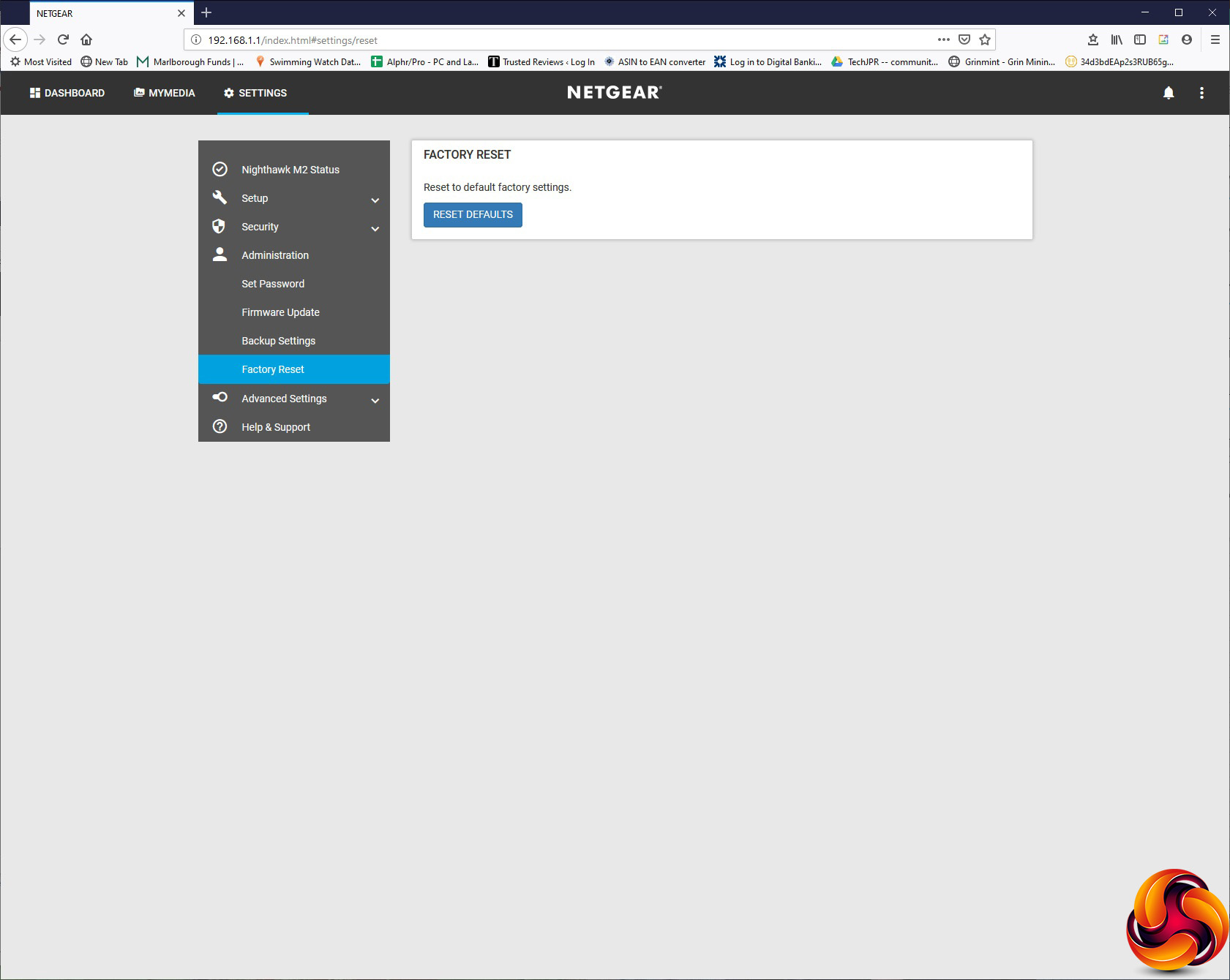
The Administration section has the usual options of changing the admin login password, updating firmware, backing up or restoring settings, and returning to factory defaults.
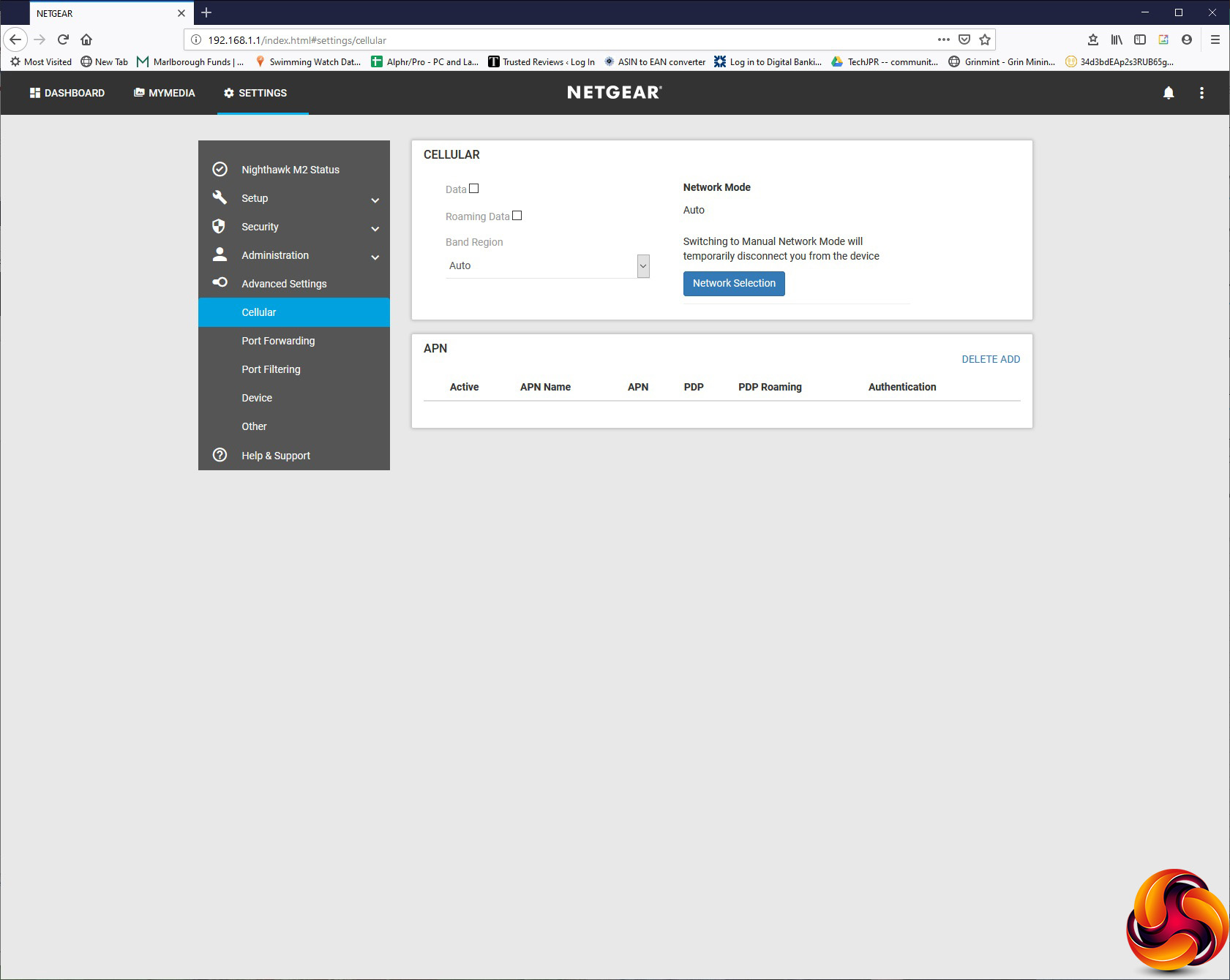
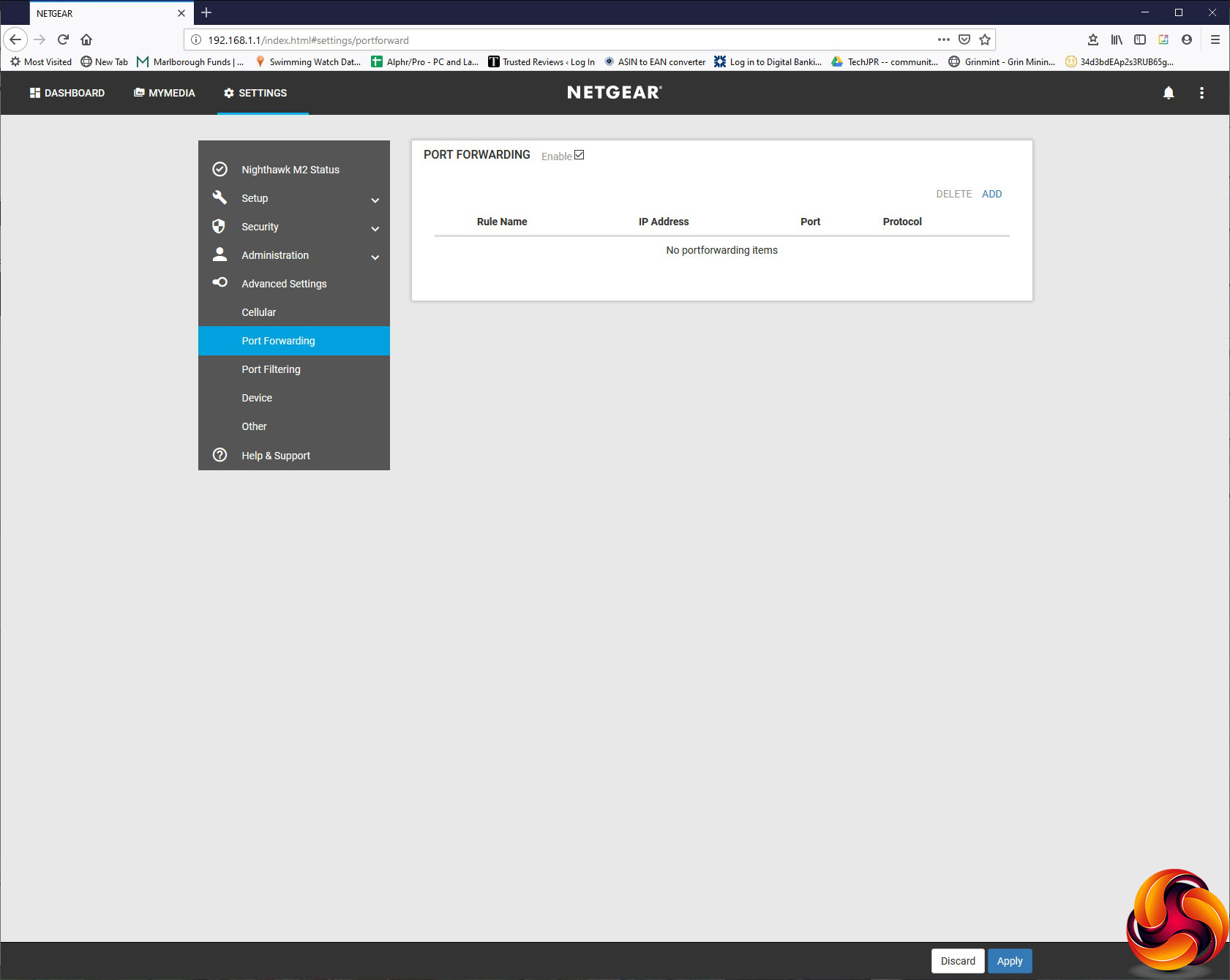
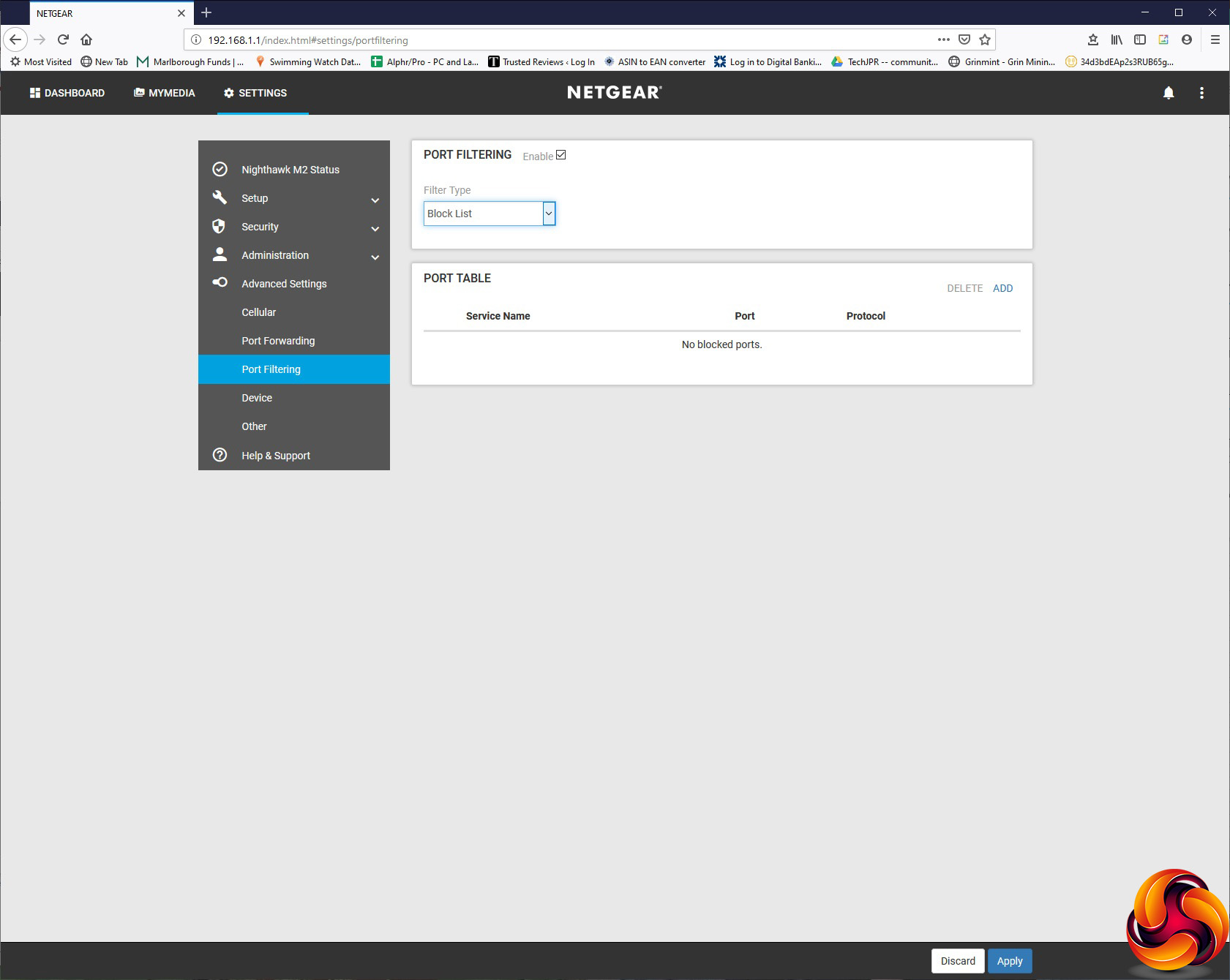
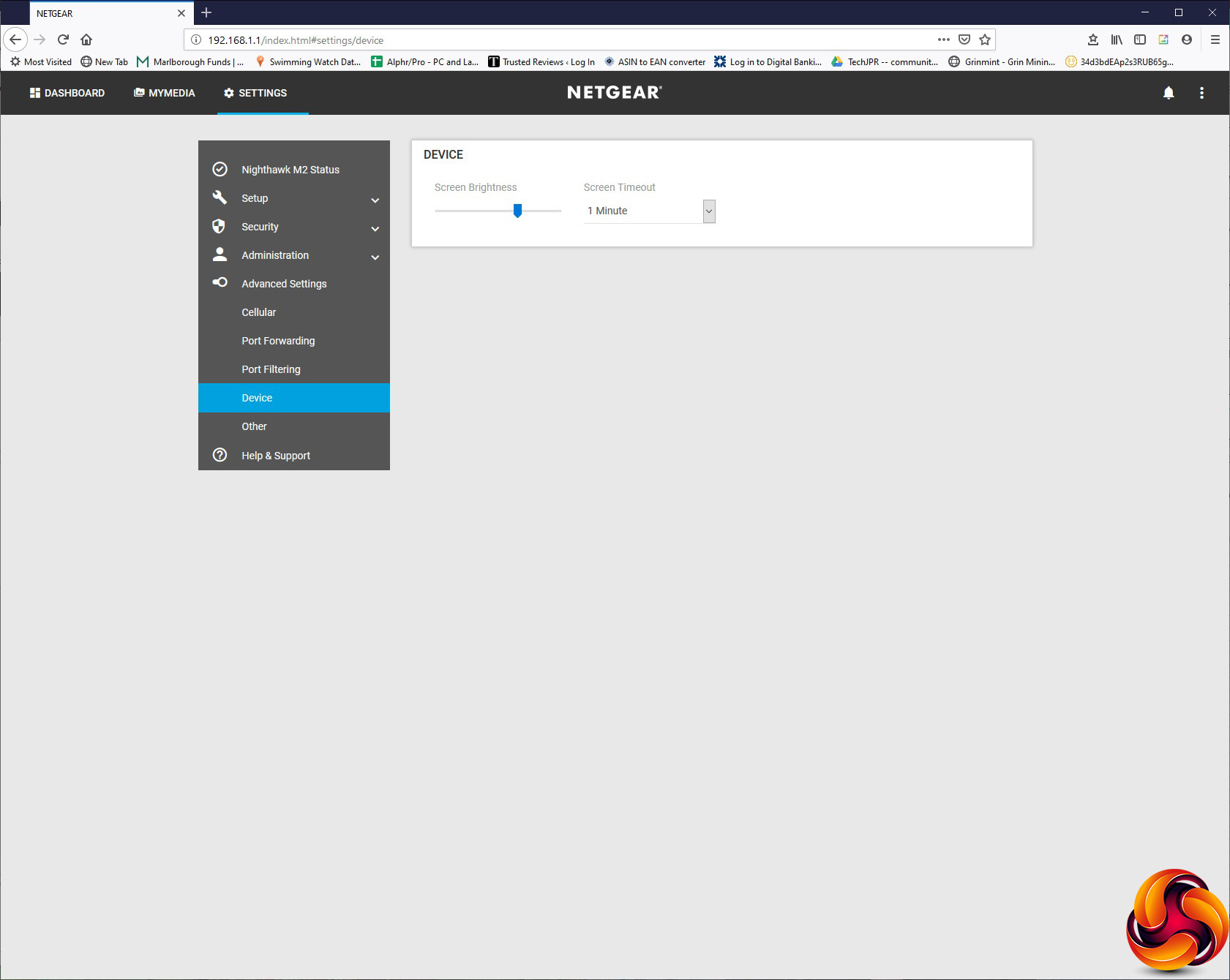
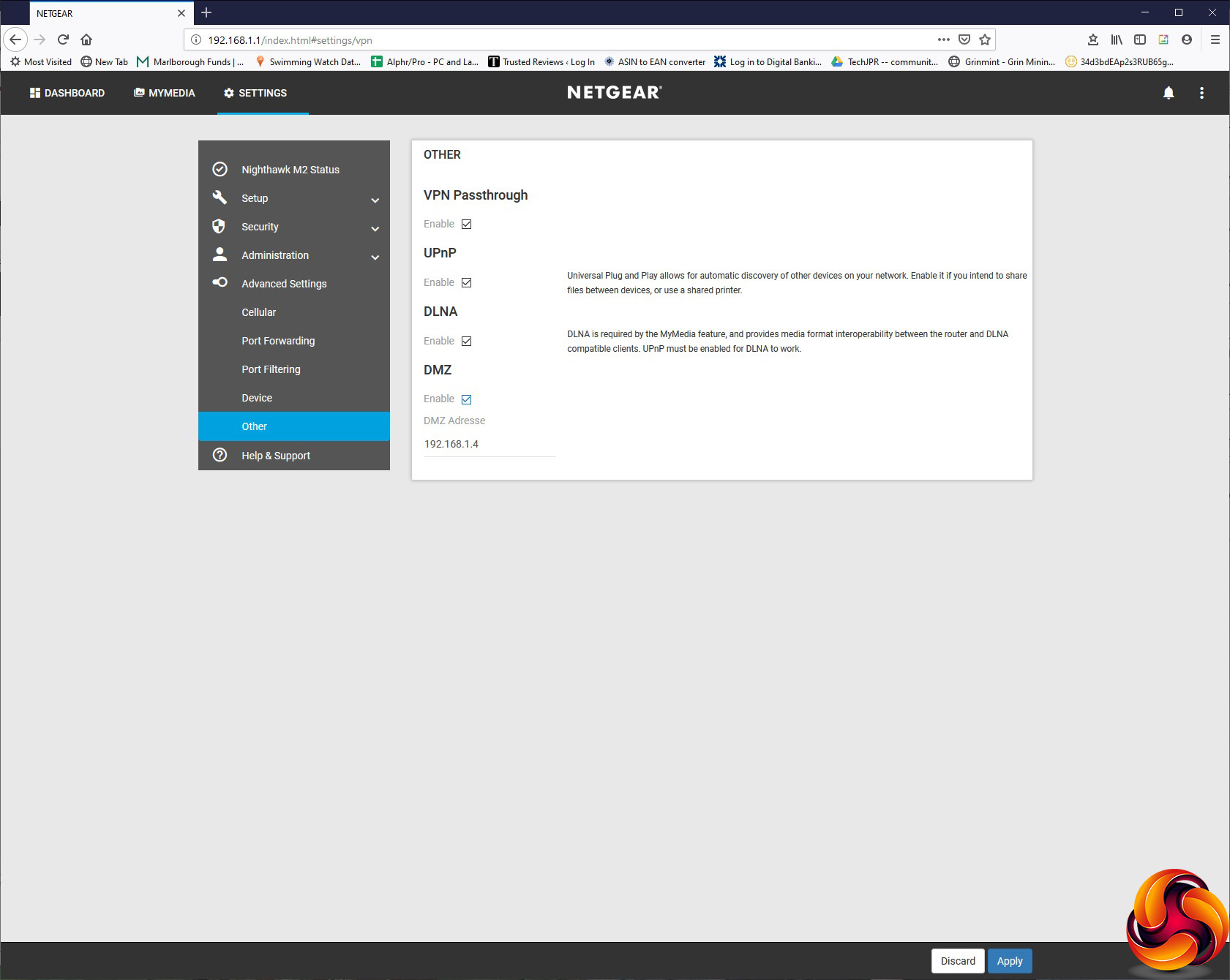
The Advanced Settings let you configure your mobile data connection in more detail via the Cellular section. When we swapped to the Vodafone SIM, we had to use this section to edit the APN settings for our mobile data connection. You can set up Port Forwarding, although there aren't any popular application presets here. You can filter out services by port, and change how the screen brightness and timeout behaves. Finally, you can enable VPN passthrough, UPnP, DLNA support for USB-attached storage, and nominate an IP address as the DMZ.
Finally, there's a section with links to online help and support.
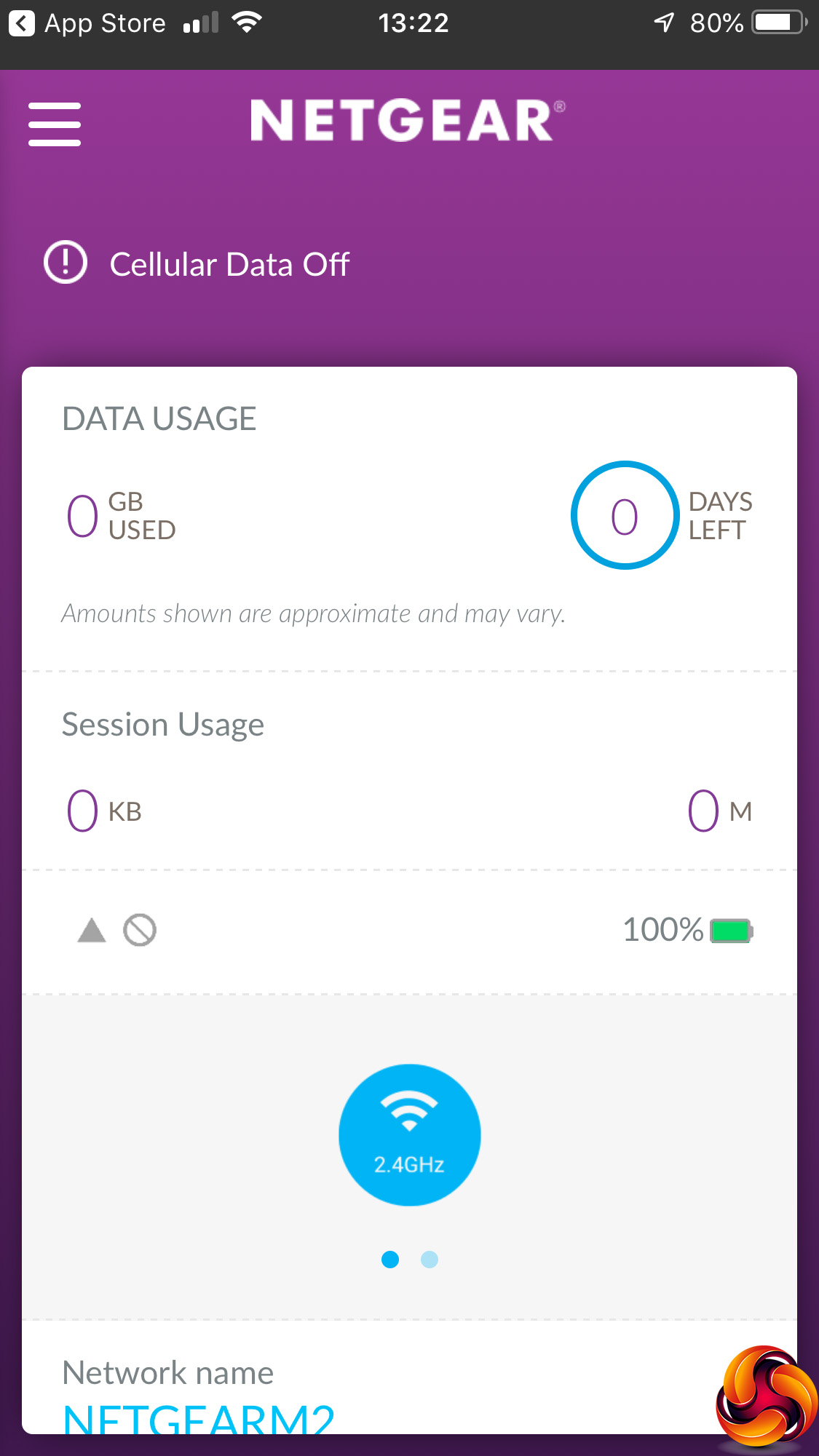
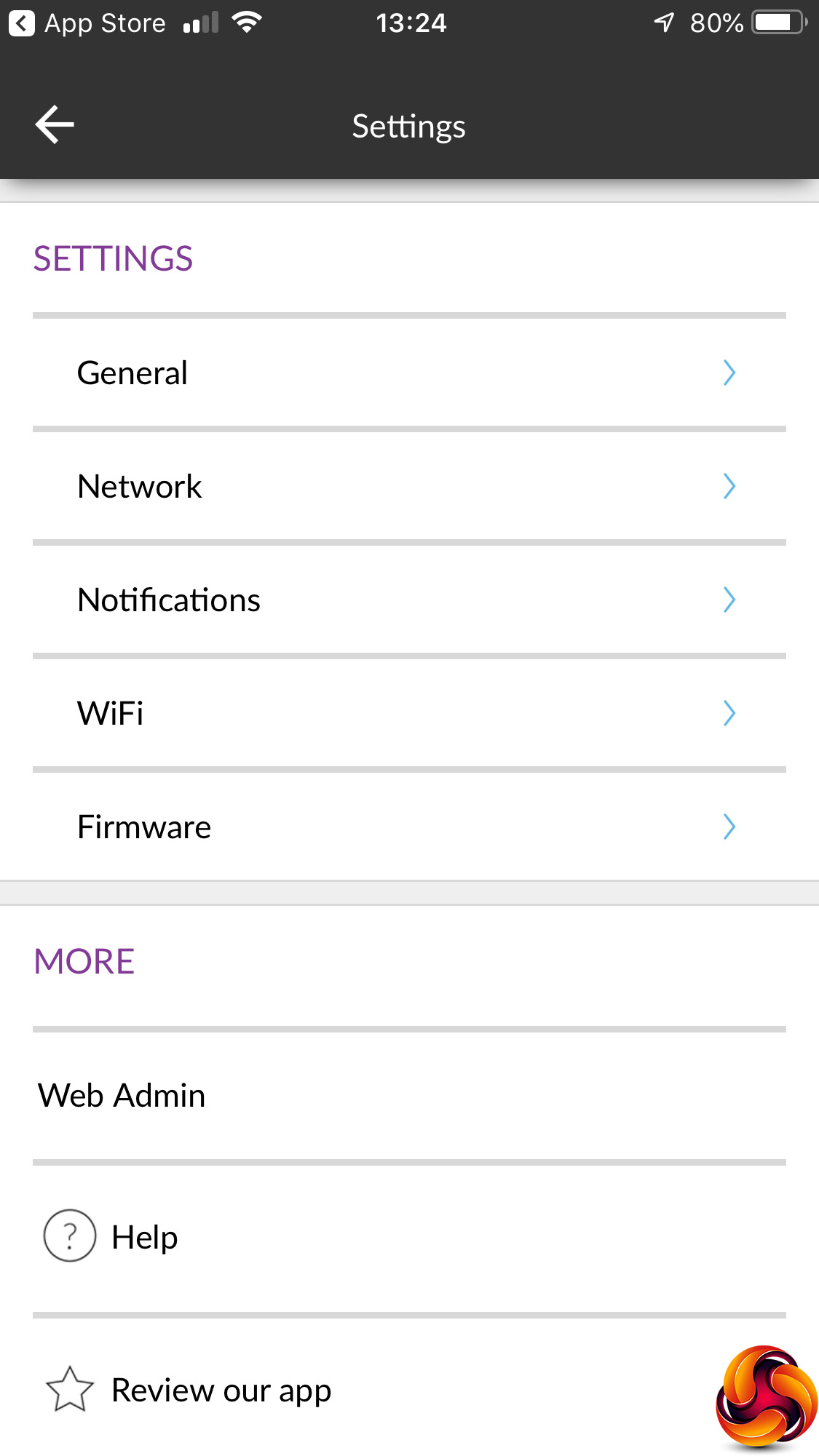
Like any self-respecting contemporary router, there's a smartphone app to configure settings as well. Called NETGEAR Mobile, it's not the same one as the NETGEAR Nighthawk app used by regular desktop routers, which is incompatible with the M2. It offers a status screen and access to a subset of setup options.
Overall, whilst you don't get anywhere near as many configuration features as desktop routers, you do get some useful things to play with. A more sophisticated firewall could have been a bonus, but in reality you're probably not going to use the M2 for much more than providing an Internet connection for Web browsing and media streaming on the move. The ability to connect a USB storage device and share that via DLNA will also be handy for a family wanting to bring media for local streaming.
The next question, therefore, is just how strong is the M2 as a WiFi and mobile broadband router.
Performance is clearly an important factor for the M2, but more for the mobile broadband than WiFi. We tested the performance of NETGEAR Nighthawk M2 MR2100 in two ways. First, we ran Which? magazine's online broadband speed test, comparing the result to the same SIM installed in an iPhone 6 Plus. Next, we wanted to assess the raw throughput across the two main WiFi standards the M2 supports – 802.11ac and 802.11n. However, we couldn't test the speed of the USB 3.0 port via 802.11ac because it was not possible to access storage as a Windows network share.
For the second test we used the open-source iPerf 3.1.3 software. Three Windows systems were used. One was an Armari AMD Threadripper workstation running Windows 10, the next a MSI WS63 7RK (for 802.11ac) and finally an HP Folio 13 (802.11n only).
For all the wireless tests, the workstation was connected to the M2's Gigabit Ethernet port, and the notebooks via WiFi connections. We couldn't perform our usual wired Ethernet control because the M2 only has a single LAN port. The notebooks were then placed in four different locations – within 1m of the router, approximately 5m away with a wall in between, 10m away and on a lower floor (with multiple walls and a floor in between), and then 15m away on a lower floor. We tested all four distances with the two WiFi standards.
With each WiFi standard and distance, we took 60 readings of throughput at one second intervals and calculated the average (iPerf does this automatically). For these tests, we are also comparing the M2’s performance with the ASUS ROG RAPTURE GT-AC2900, NETGEAR Nighthawk XR700, NETGEAR Nighthawk XR500, Linksys WRT 3200 ACM, NETGEAR Nighthawk X10 R9000, and Synology RT2600ac.
Mobile Broadband
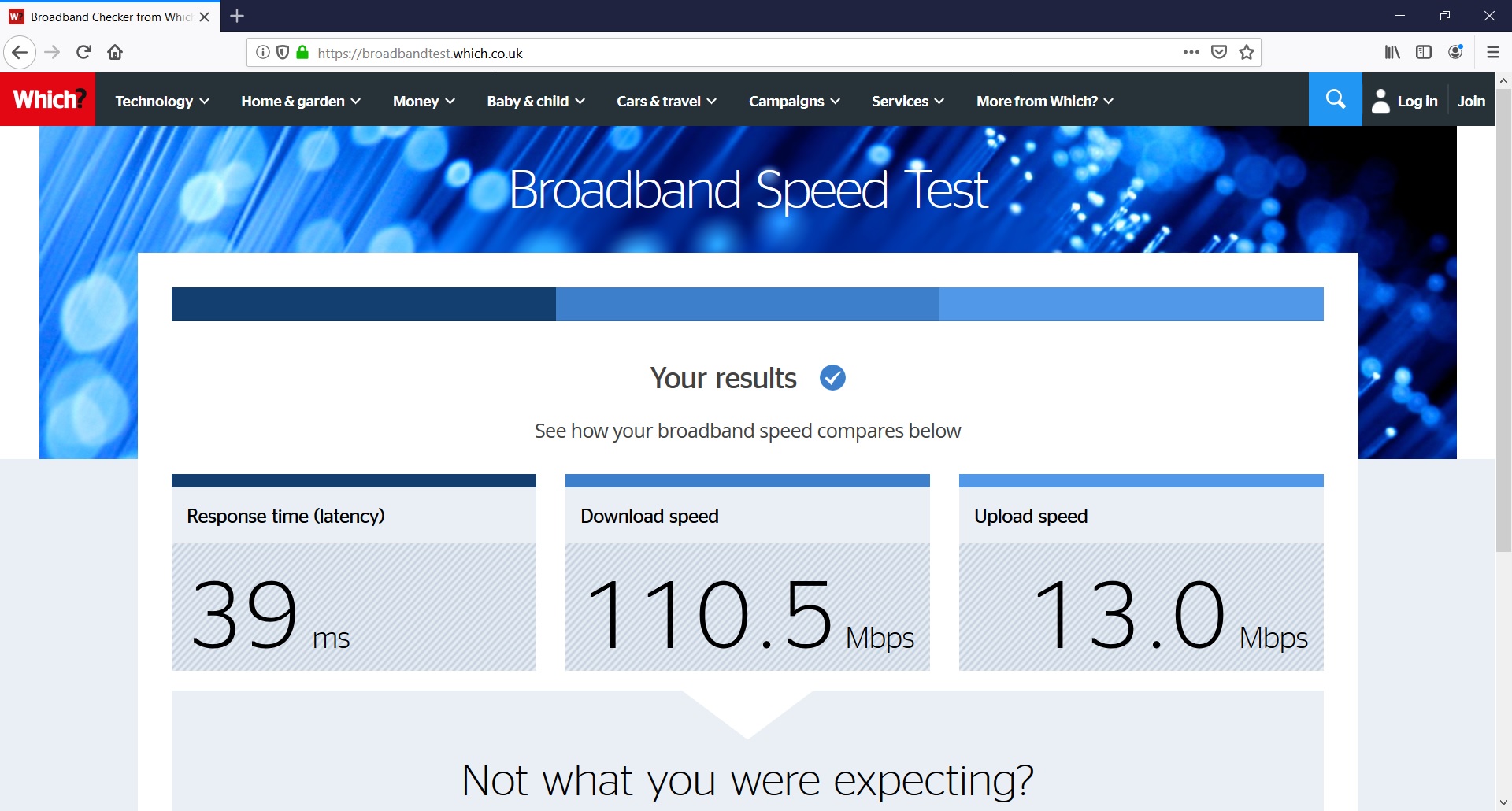
With the Vodafone 4G SIM, the M2 managed a 39ms ping, 110.5Mbits/sec downloads and 13Mbits/sec uploads. These are obviously way off the 2Gbits/sec claim, but we're pretty sure our Vodafone account wasn't giving us the full extent of the M2's mobile data abilities, and as broadband speeds go this is great.
Decent wired broadband will give you a sub-10ms ping, but most services will actually be worse for raw throughput. So the M2 might not be recommended for networking gaming, but for big file downloads or media streaming to multiple clients, it's delivering excellent bandwidth.
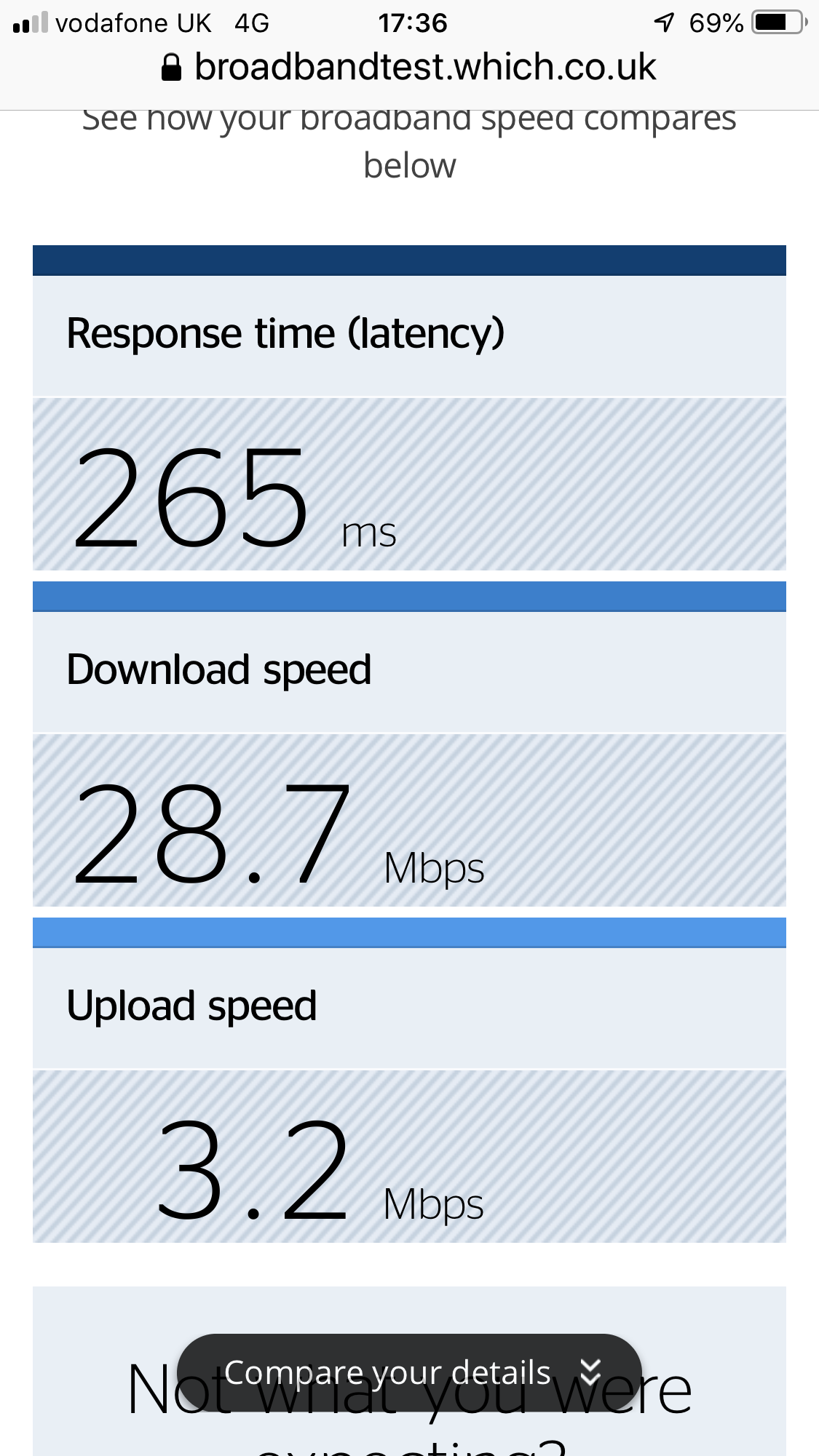
Putting this in further perspective, the same SIM in an (admittedly old) iPhone 6 Plus only provided a far worse 265ms ping, 28.7Mbits/sec downloads and 3.2Mbits/sec uploads.
802.11ac 5GHz
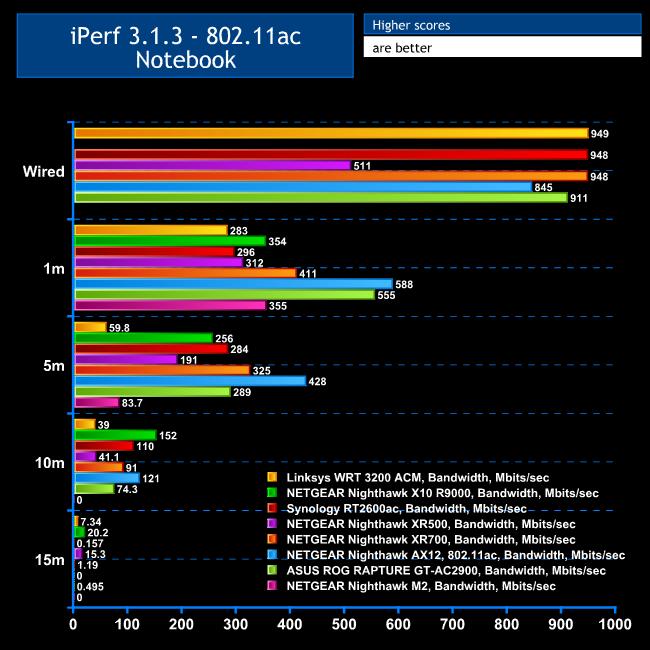
As we mentioned earlier, there is only one LAN port on the M2, so we couldn't do a Wired test to assess raw switch throughput. So we went straight to 802.11ac.
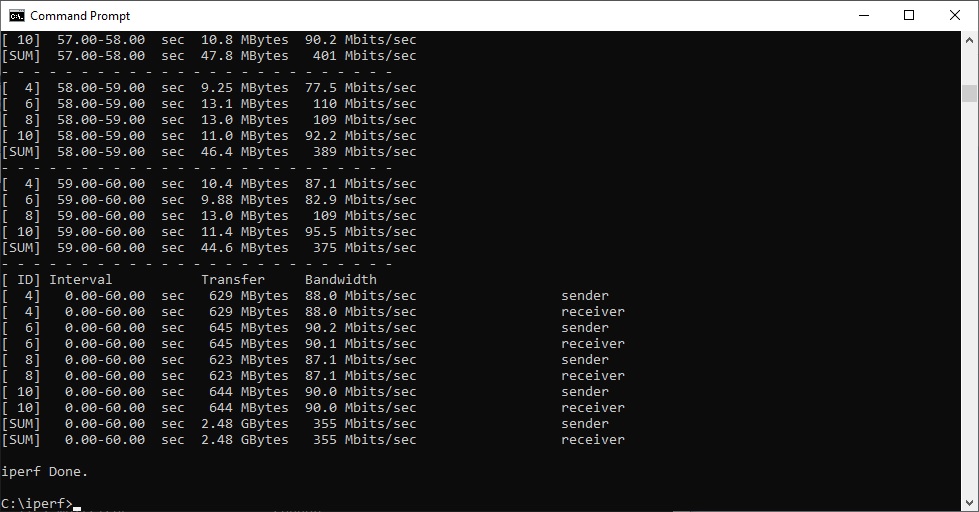
At a close 1m range, the M2's 802.11ac speed of 355Mbits/sec is very respectable, with only NETGEAR's Nighthawk XR700, AX12, and the ASUS ROG Rapture GT-AC2900 ahead.
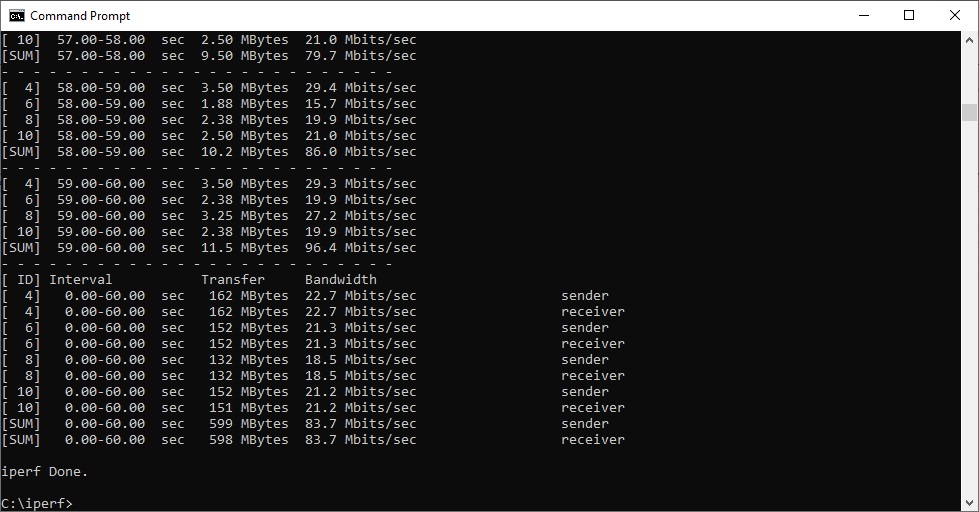
However, at 5m the throughput drops like a stone to 83.7Mbits/sec, and the M2 couldn't get a signal at 10m or beyond. In other words, the 802.11ac WiFi is great for nearby clients, but the 5GHz radio is not powerful for wide coverage.
802.11n 2.4GHz
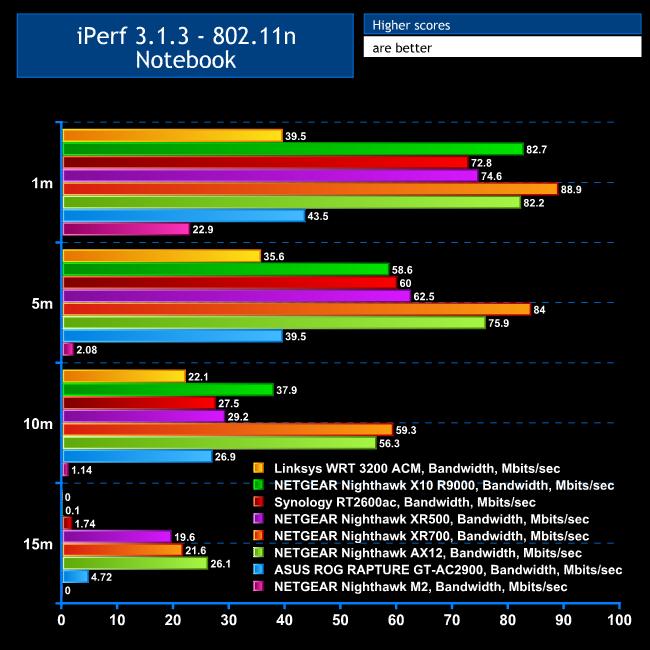
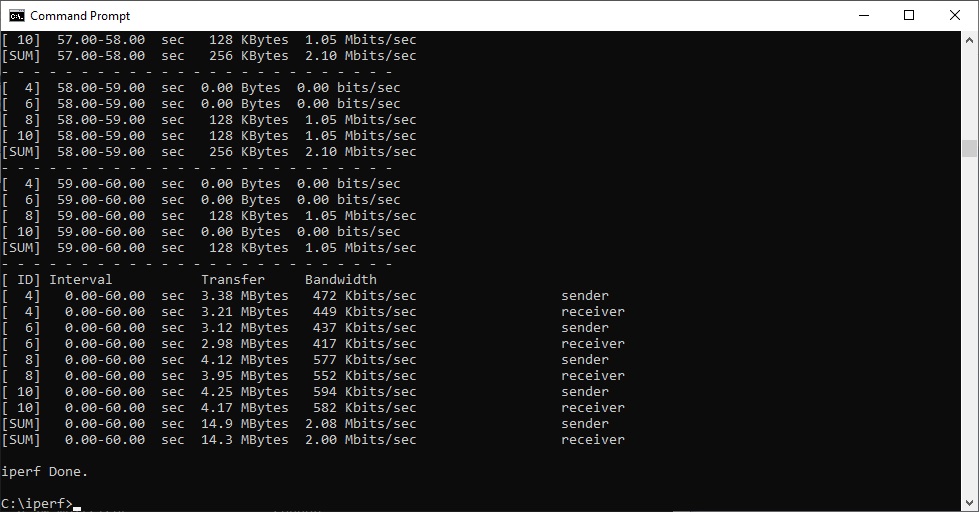
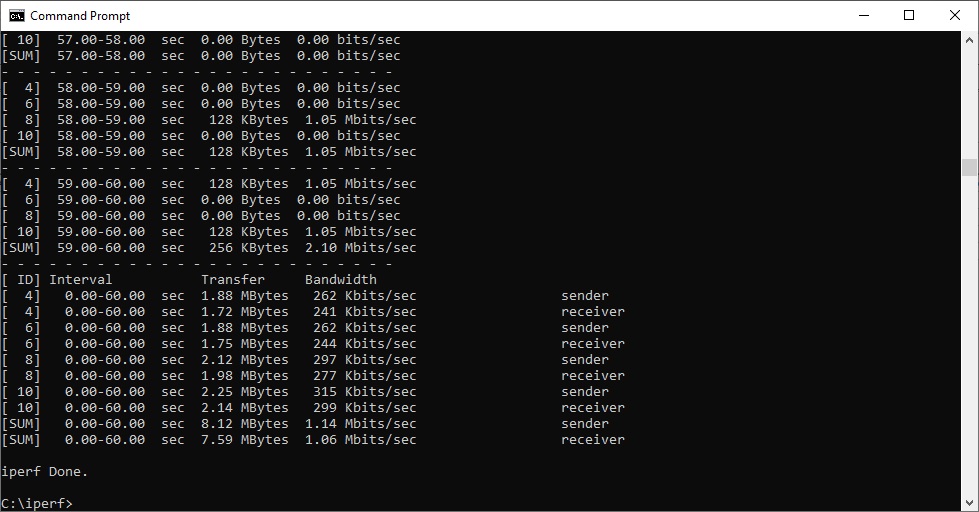
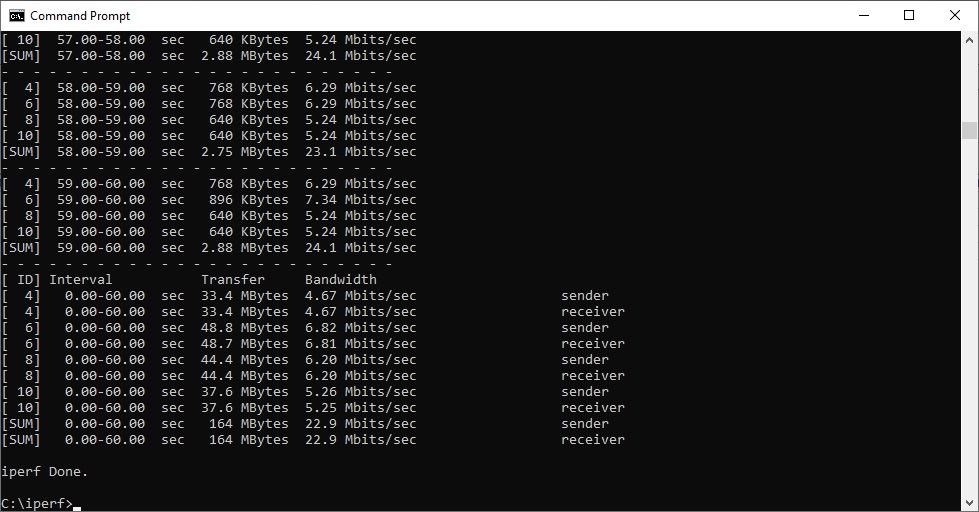
The 802.11n performance isn't that impressive at any range, unfortunately. At a close 1m distance you only get 22.9Mbits/sec. This drops to a measly 2.08Mbits/sec at 5m, then to just 1.14Mbits/sec at 10m, beyond which it drops off completely.
Although the close proximity performance is usable, if you go beyond using clients in the same room, you won't get viable 802.11n WiFi.
Overall, the M2 shows that it is not a direct mobile data replacement for a regular router where performance is concerned. You'd also be best advised avoiding playing games that require a decent ping via its mobile data connection. But if you want to share 802.11ac WiFi inside a meeting or hotel room, or small holiday apartment, its abilities are much more commendable. Assuming you have a decent 4G signal, and 802.11ac clients, you might find your media streaming and file downloads are better than your home broadband.
The NETGEAR Nighthawk M2 may not be a complete mobile data alternative to wired broadband in every respect, but it's definitely a valuable tool for its primary intended purpose. We can't confirm or deny whether it can really achieve 2Gbits/sec downloads, but it can certainly provide mobile broadband throughput that can compete very favourably with most wired broadband services, even if the ping will be much worse.
It beats sharing your phone's 4G hands down, too, as our iPhone 6 Plus comparison shows. Yes, there are faster handsets out there now, but they won't have the features of the M2, and will likely struggle to cope with lots of clients. It's also a bit irritating if you want to use your smartphone when everyone else is piggybacking off its data connection.
There are a few downsides. The poor range for WiFi and relatively slow 802.11n mean 802.11ac clients within the same room are the sweet spot. It's also a shame that the USB 3.0 storage doesn't support Windows network file sharing.
However, being able to data offset via WiFi or Ethernet, stream media from USB 3.0 storage, and the long battery life are welcome bonuses. It's also great that you can use this device to charge your phone if you need to.
There isn't much competition for the NETGEAR Nighthawk M2 MR2100, other than its M1 MR1100 predecessor. But it's a definite improvement over a mobile phone as a personal hotspot. This is quite an expensive option, but if you need to take high-bandwidth mobile data with you and a group of colleagues, friends or family for a meeting or on holiday, the M2 is well worth buying.
You can buy the NETGEAR Nighthawk M2 MR2100 for £379.49.
Pros:
- Great mobile broadband performance.
- Fast 802.11ac bandwidth in close proximity.
- Flexible Ethernet port for wired client or data offloading.
- USB-C port for tethering.
- USB 3.0 port for network file sharing via HTTP and DLNA.
- Can be configured purely via LCD panel – no client required.
- Reasonable range of router features via Web interface.
- Smartphone management app.
- Long battery life.
- Doubles as mobile phone charger.
Cons:
- Limited 802.11ac range.
- Low 802.11n performance.
- No Windows networking file sharing.
KitGuru says: The NETGEAR Nighthawk M2 MR2100 delivers fast mobile broadband to WiFi clients – but is at its best via 802.11ac and when your devices aren't too far away.