KitGuru KitGuru.net – Tech News | Hardware News | Hardware Reviews | IOS | Mobile | Gaming | Graphics Cards


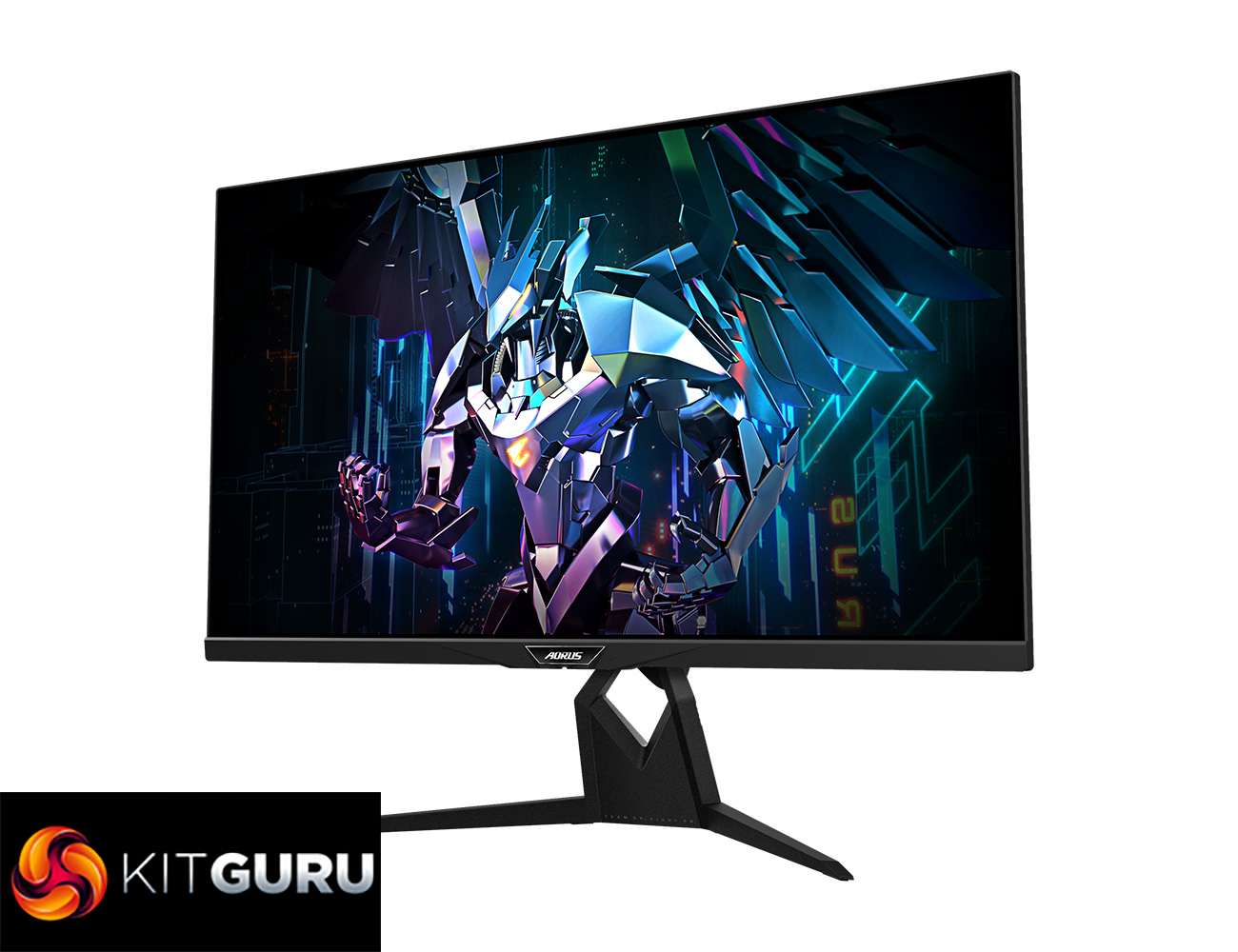
We've seen a number of 240Hz 1440p displays hit the market over the last year, but those have mostly stuck with the tried-and-tested 27in form-factor. What if you want something that's just as fast, but also a bit bigger? That's where the Gigabyte Aorus FI32Q X comes in, offering the same 240Hz refresh rate and 2560×1440 resolution, but over a 32in panel. It also makes use of Quantum Dot technology and includes HDMI 2.1 support, potentially making it a future-proof and versatile option. But is it good enough to justify the £900 asking price? Join us as we find out…
There is no denying the Gigabyte Aorus FI32Q X is a mighty impressive screen on paper. Its combination of size, resolution and refresh rate is one thing, but we also have to factor in DisplayHDR 600 support, a claimed 1ms G2G response time, plus a KVM switch amongst other features. Indeed, the FI32Q X also supports overclocking via a one-click toggle in the OSD, allowing users to enable a 270Hz refresh rate for even smoother gaming.
Before moving onto the main body of the review, it is worth pointing out the FI32Q X is not the same as the FI32Q (non X). The FI32Q came out last year, and while the form-factor and design appears identical, the non-X tops out at a 170Hz refresh rate, doesn't offer HDMI 2.1 and is only certified for DisplayHDR 400 – so do keep an eye out for that if you're shopping for one of these displays.
Specification:
- Panel Size (diagonal): 32″ SS IPS, QD Display
- Display Viewing Area (HxV): 708.48 x 398.52 (mm)
- Panel Backlight/ Type: Edge
- Display Surface(non-glare/ glare): Non-glare
- Color Saturation: 99% AdobeRGB/95% DCI-P3/157% sRGB
- True Resolution: 2560 x 1440 (QHD)
- Pixel Pitch: 0.2767(H) x 0.2767(V)
- Brightness: 400 cd/m2 (TYP)
- Contrast Ratio: 1000:1
- Viewing Angle: 178°(H)/178°(V)
- Display Colors: 8 bits
- Response Time: 1ms GTG
- Refresh Rate: 240 Hz / OC 270 Hz, 120 Hz for Console Game*
- HDR: VESA Display HDR600 /HLG
- Flicker-free: Yes
- HBR3: Yes
- Connectivity:
- 2 x HDMI 2.1
- 1 x Displayport 1.4(DSC)
- 1 x USB Type-C (Alternate Mode; Upstream port; Power Delivery up to 18W)
- 2 x USB 3.0 Downstream ports
- 1 x USB 3.0 Upstream port
- 1 x Earphone Jack (Audio ESS SABRE HiFi)
- 1 x Microphone Jack
- 1 x Line out
- Speaker: N/A
- Power Type: Built-in
- AC Input Max: 160W
- Tilt(angle): -5°~+21°
- Swivel(angle): -20°~+20°
- Pivot(angle/direction): -0°~+90°
- Height Adjustment (mm): 130mm
- VESA Wall Mounting(mm): 100*100mm
- Kensington lock: Yes
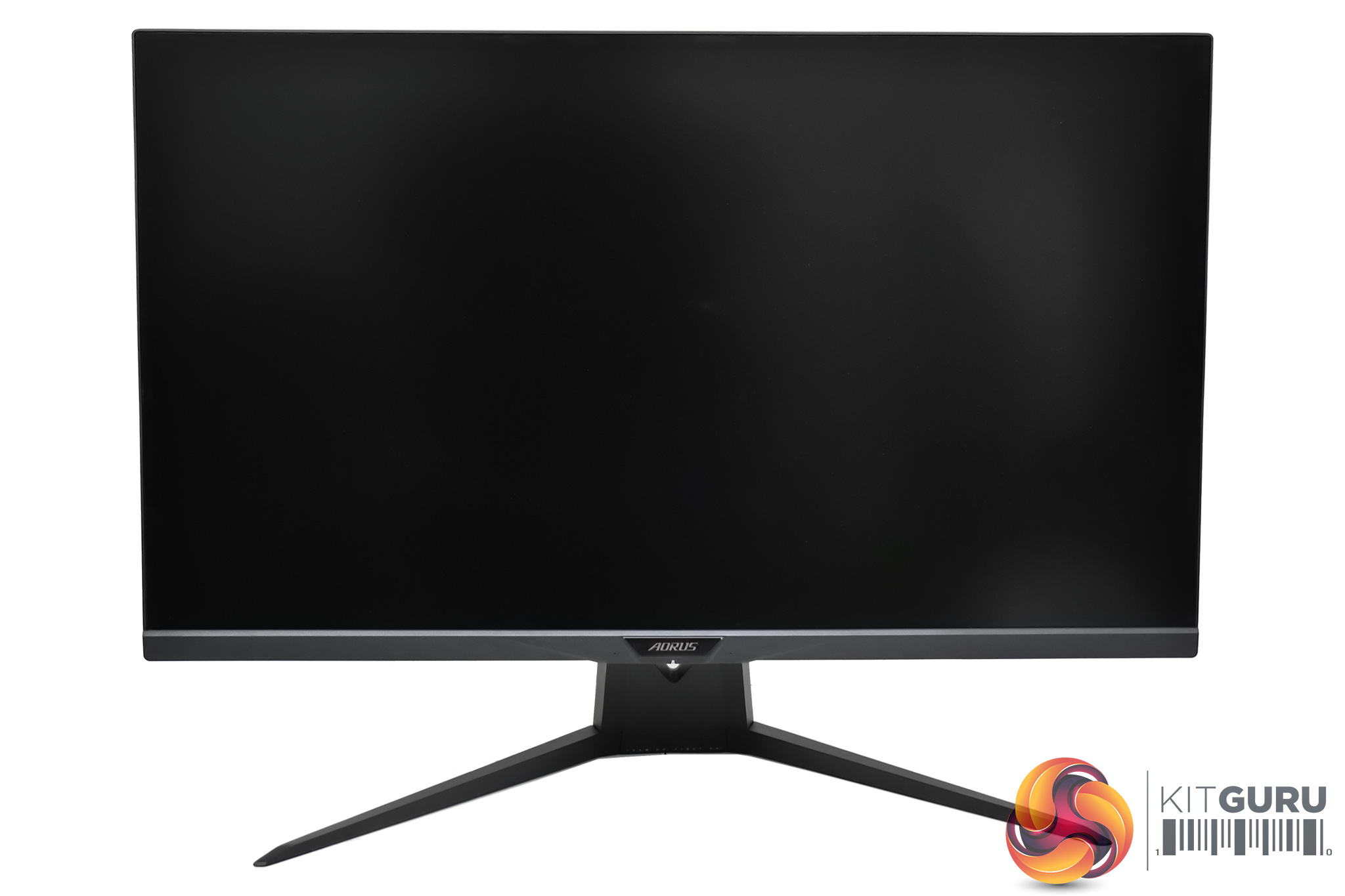
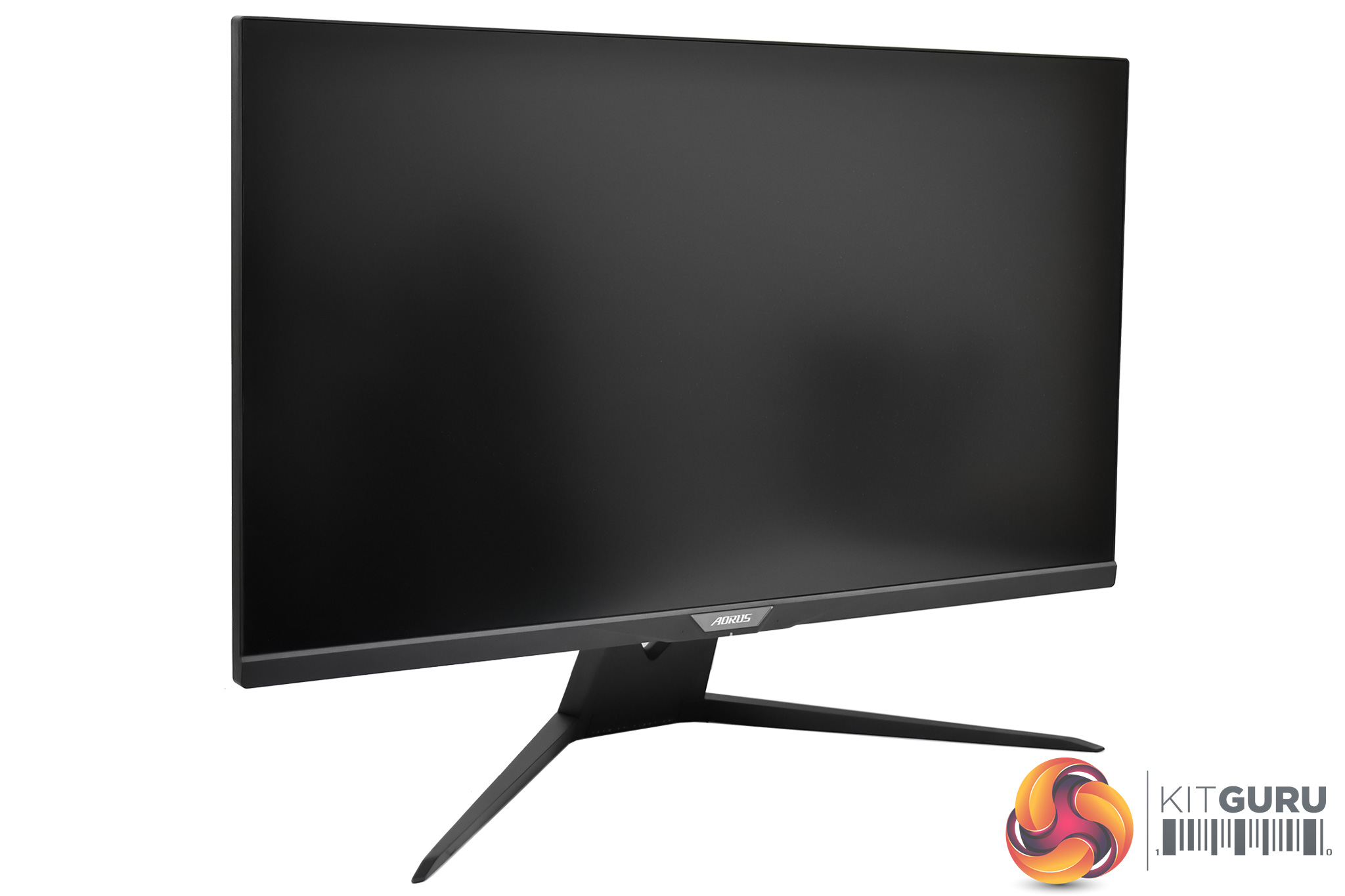
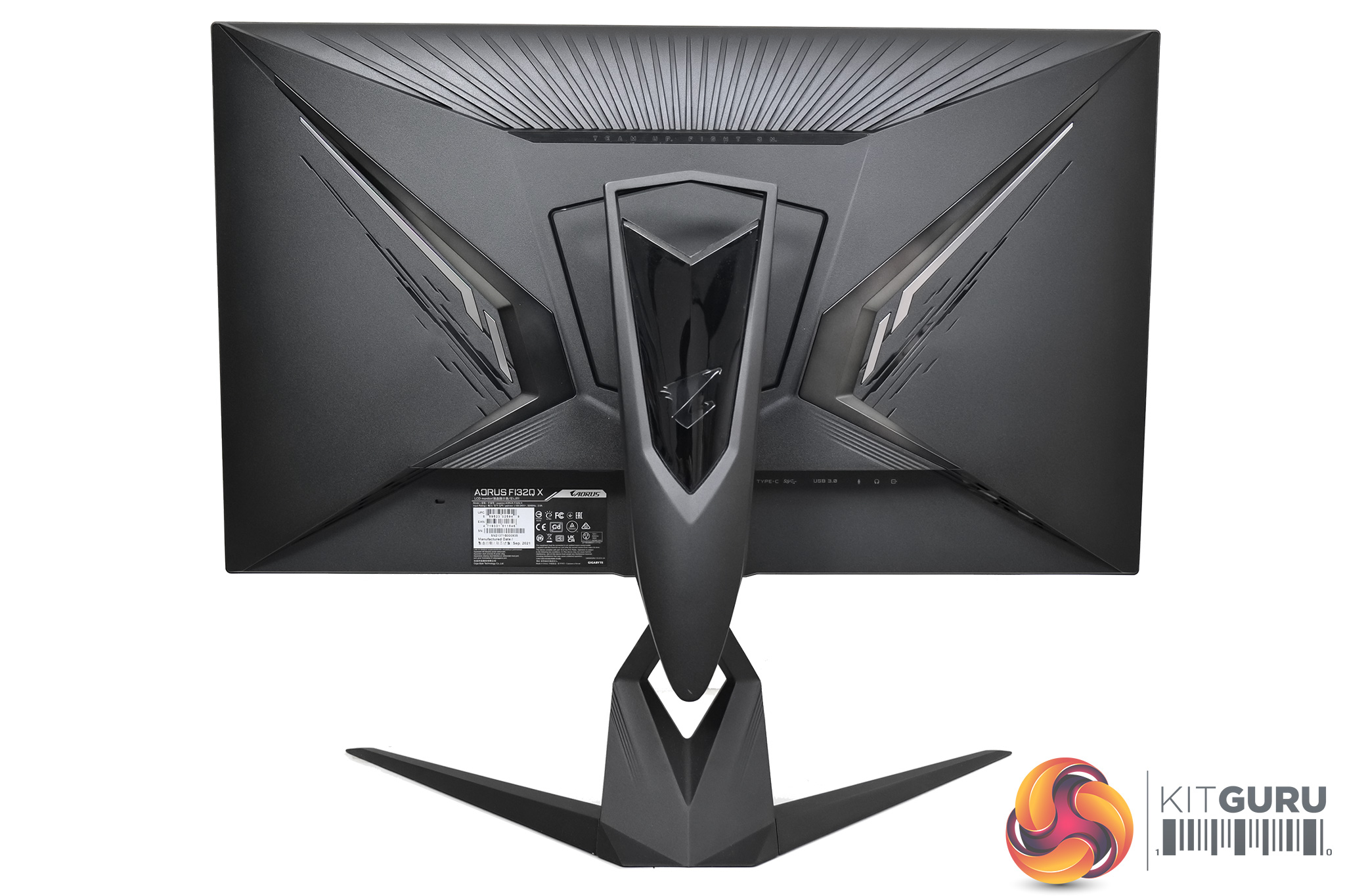
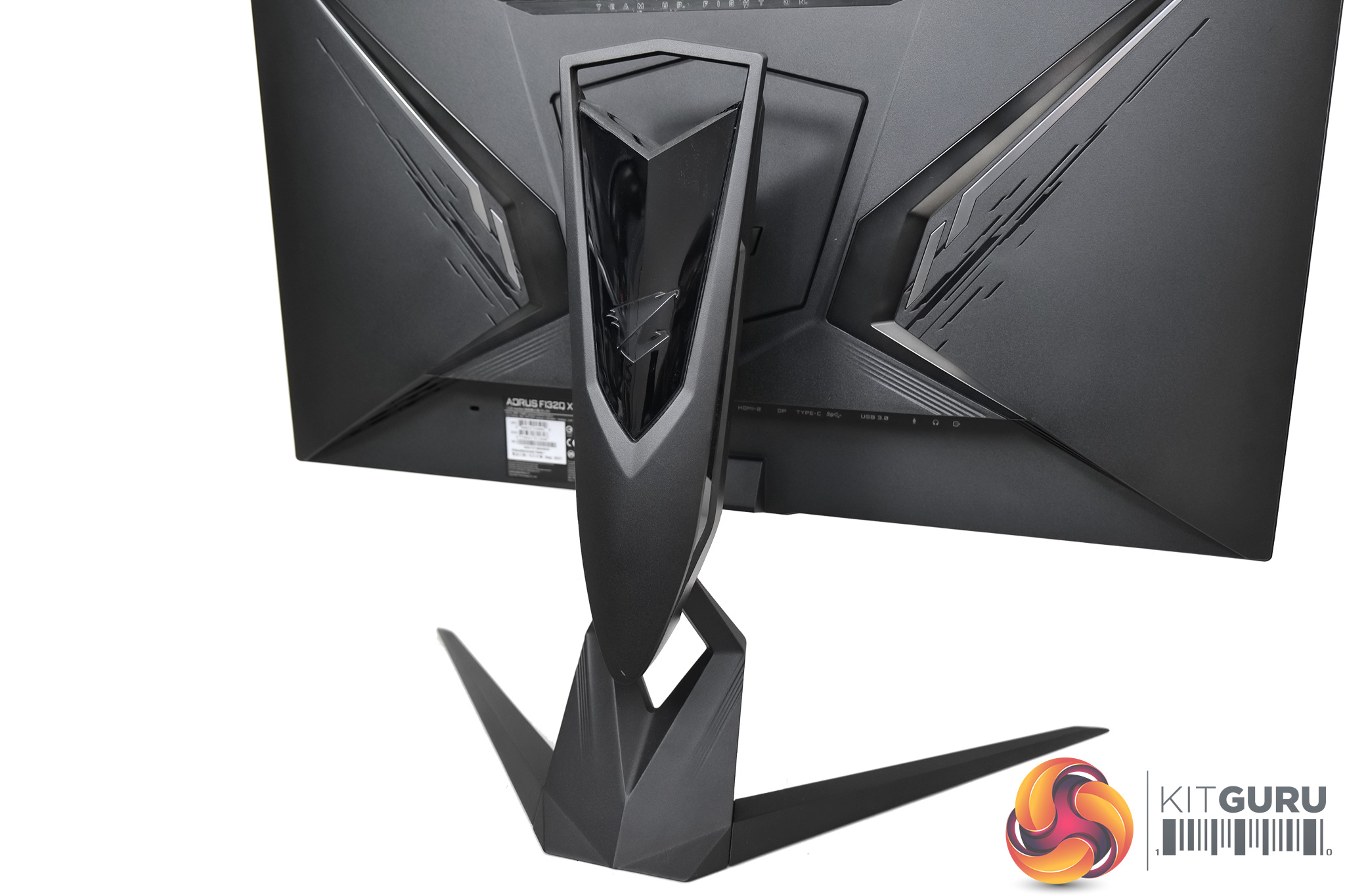
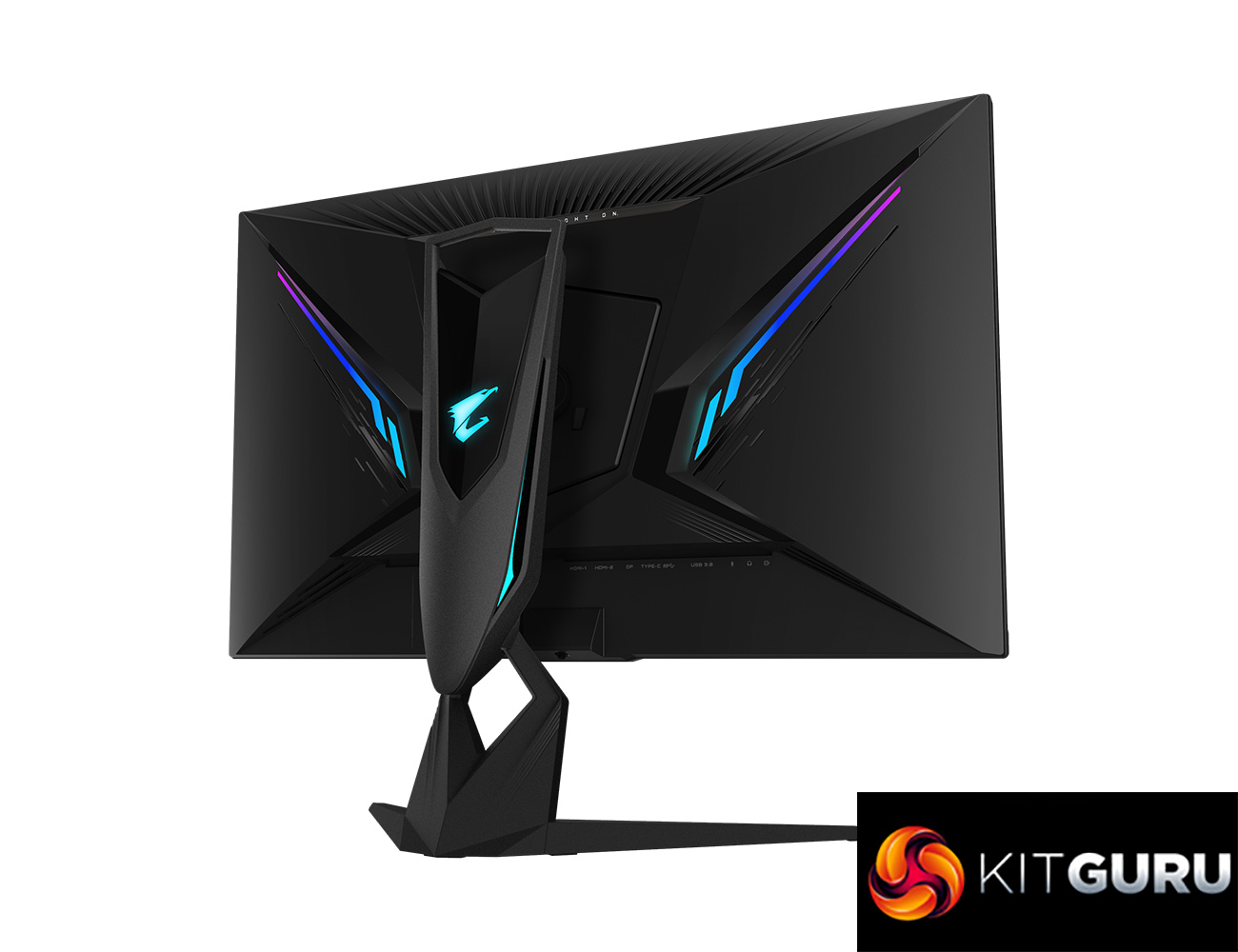
If we start the review with a look at the design of the FI32Q X, it's pretty clear that this is a gaming monitor. It sports a wide, v-shaped stand, while the rear of the panel is full of aggressive angles and sharp edges. This is less obvious from the front, but there is some angulation around the Aorus logo on the bottom bezel, and that logo itself is a bit of a giveaway, too.
Personally I prefer simpler, more minimalistic designs, but like I say, when viewed from the front the design isn't too aggressive, and I didn't bother me during my usage.
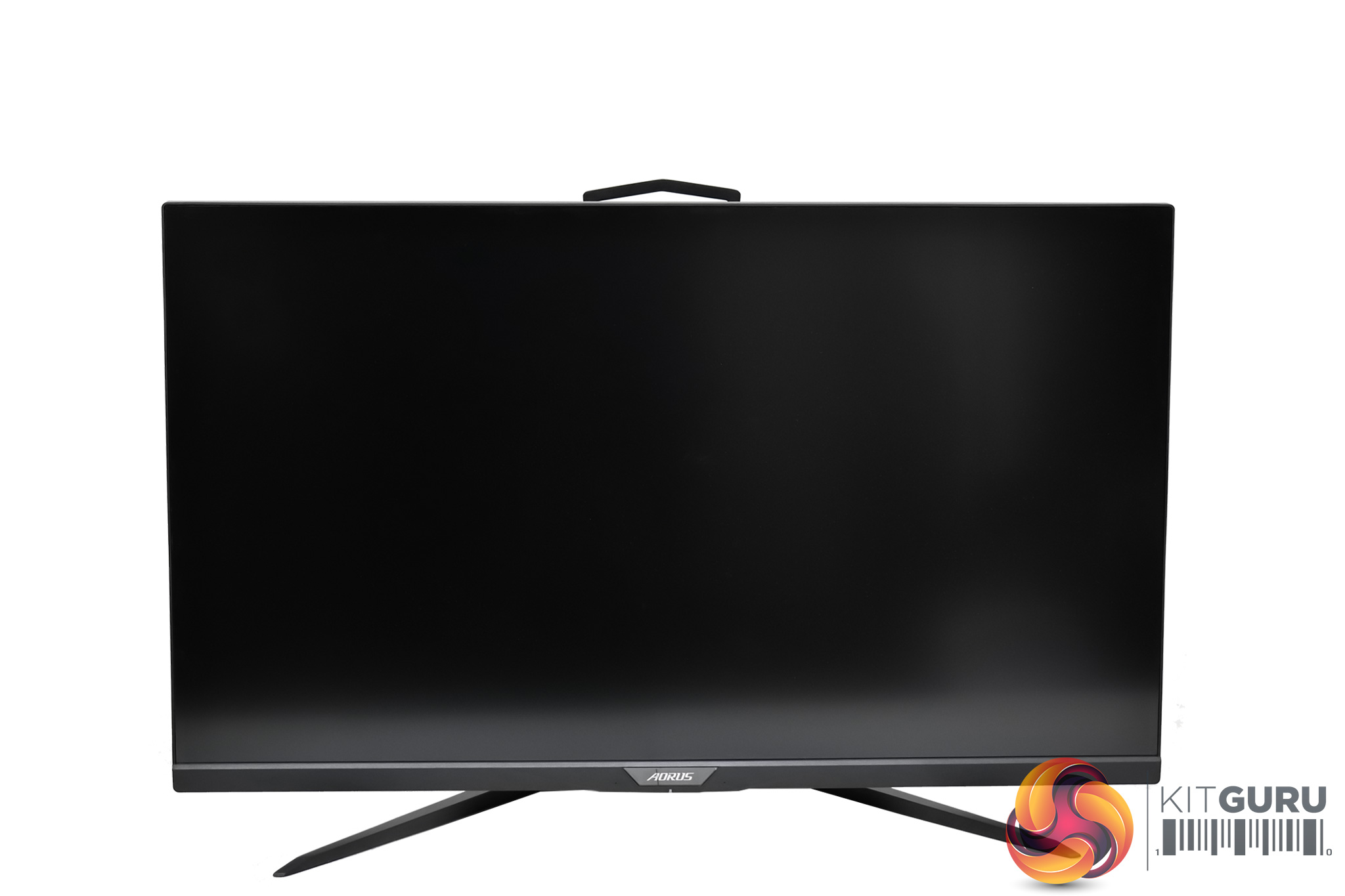
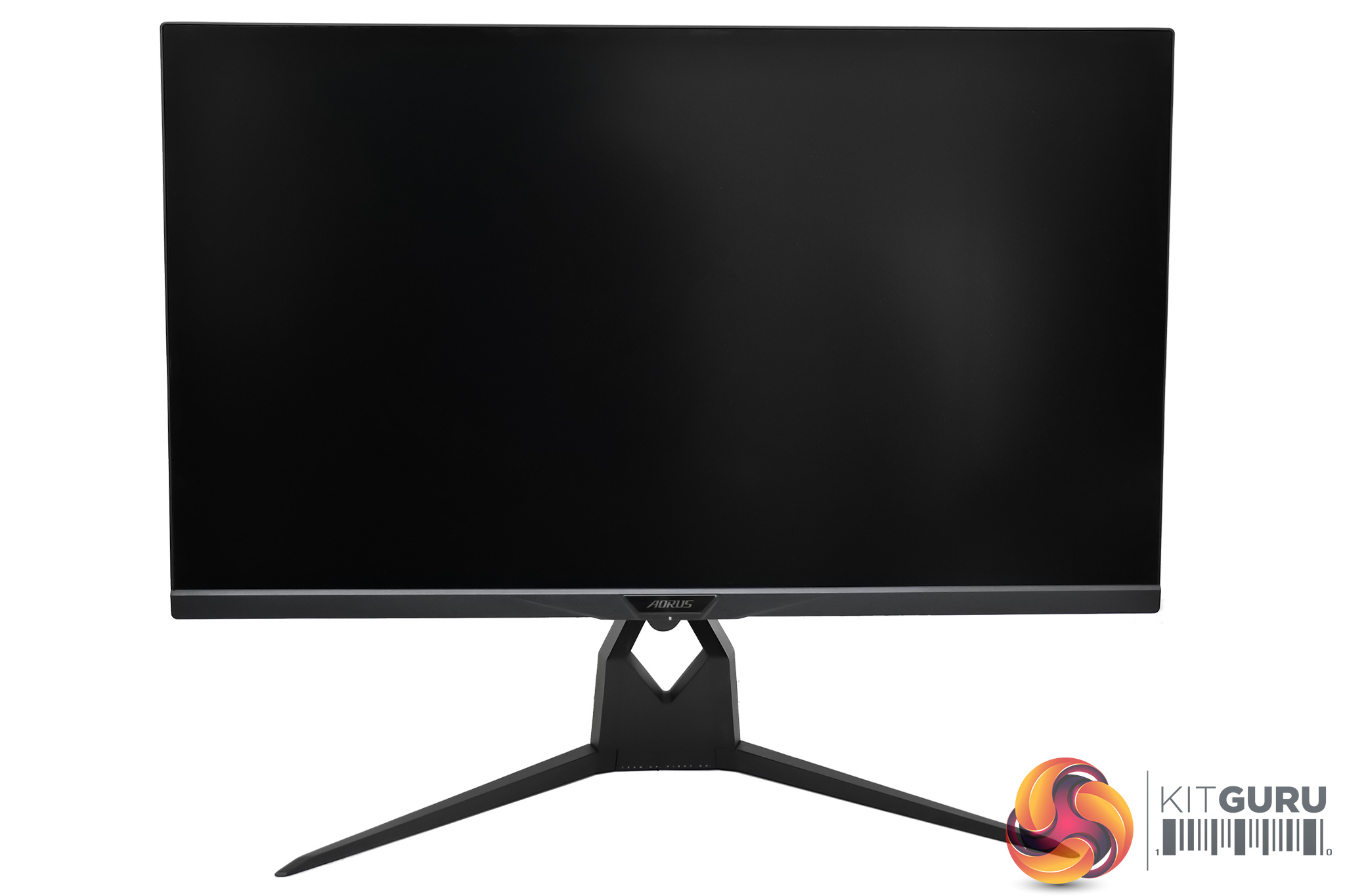
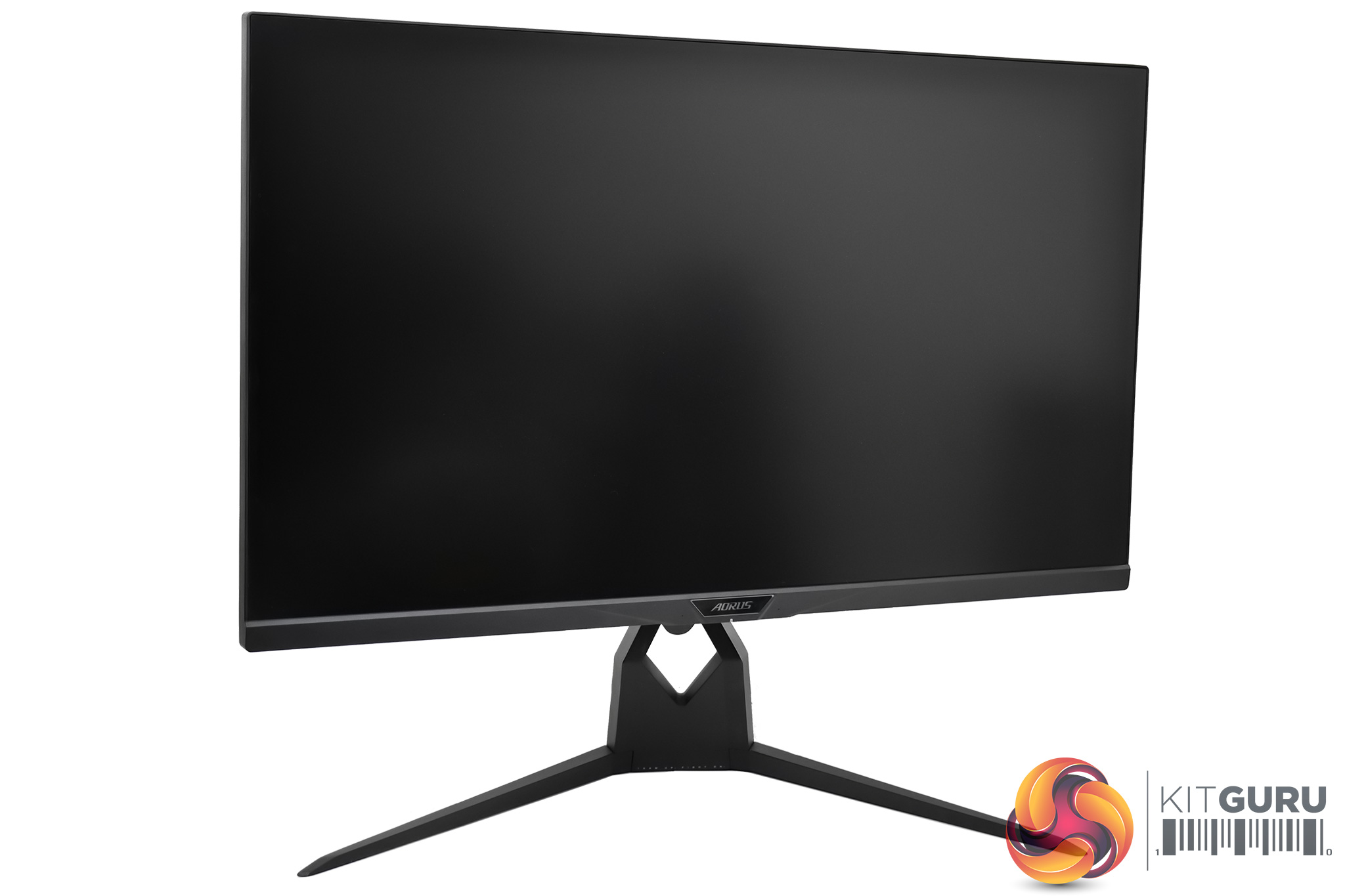
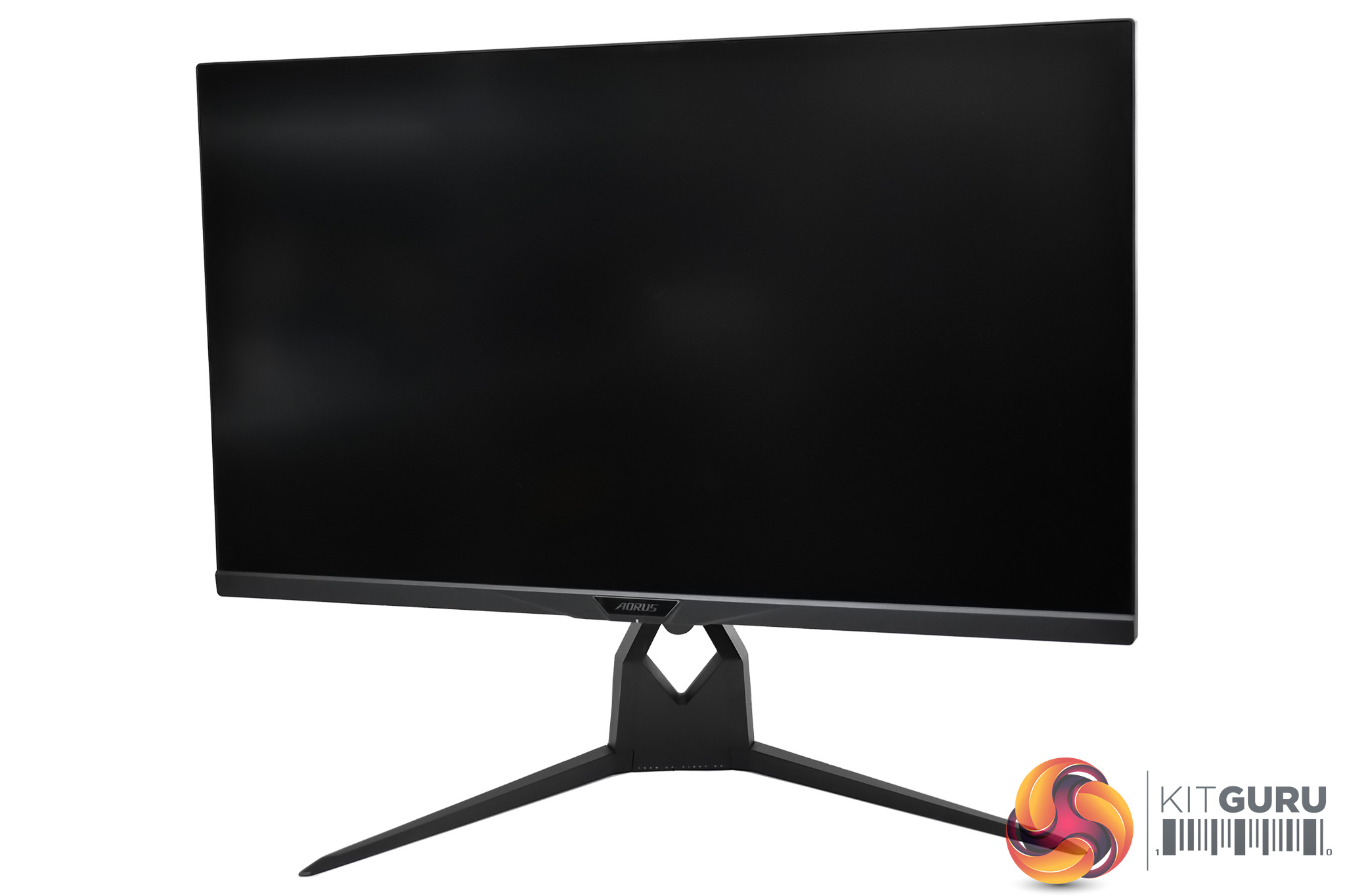
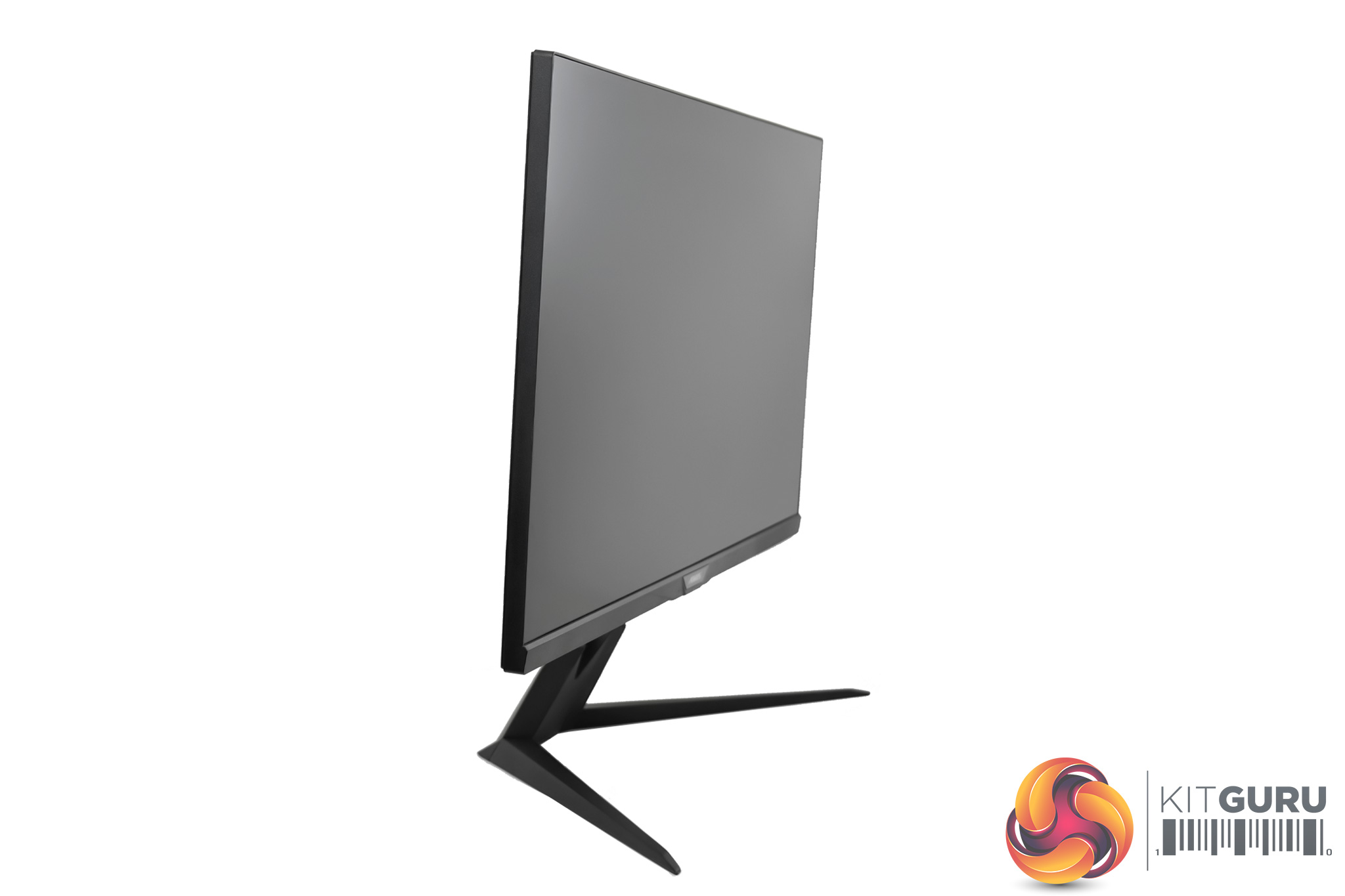
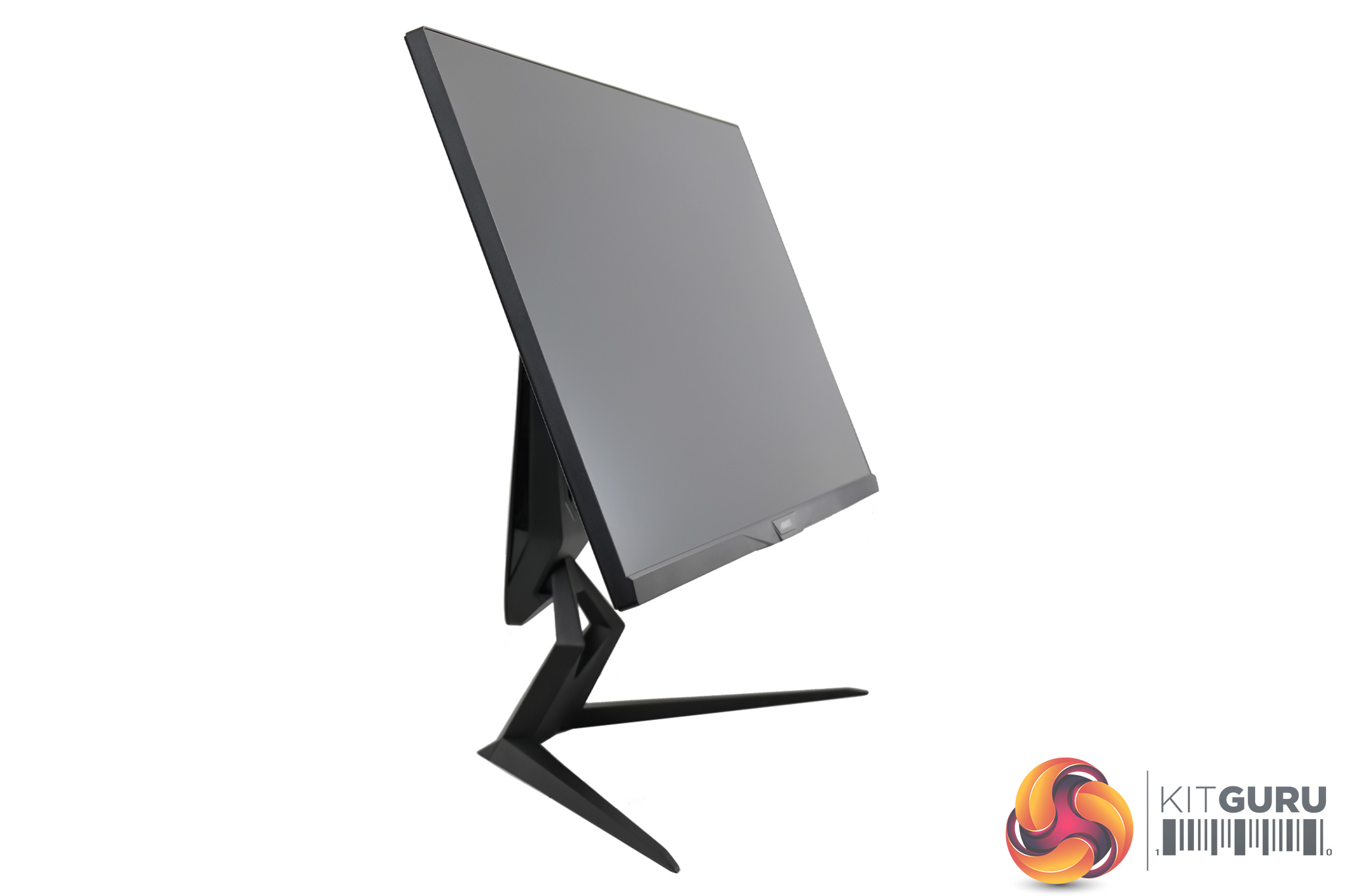
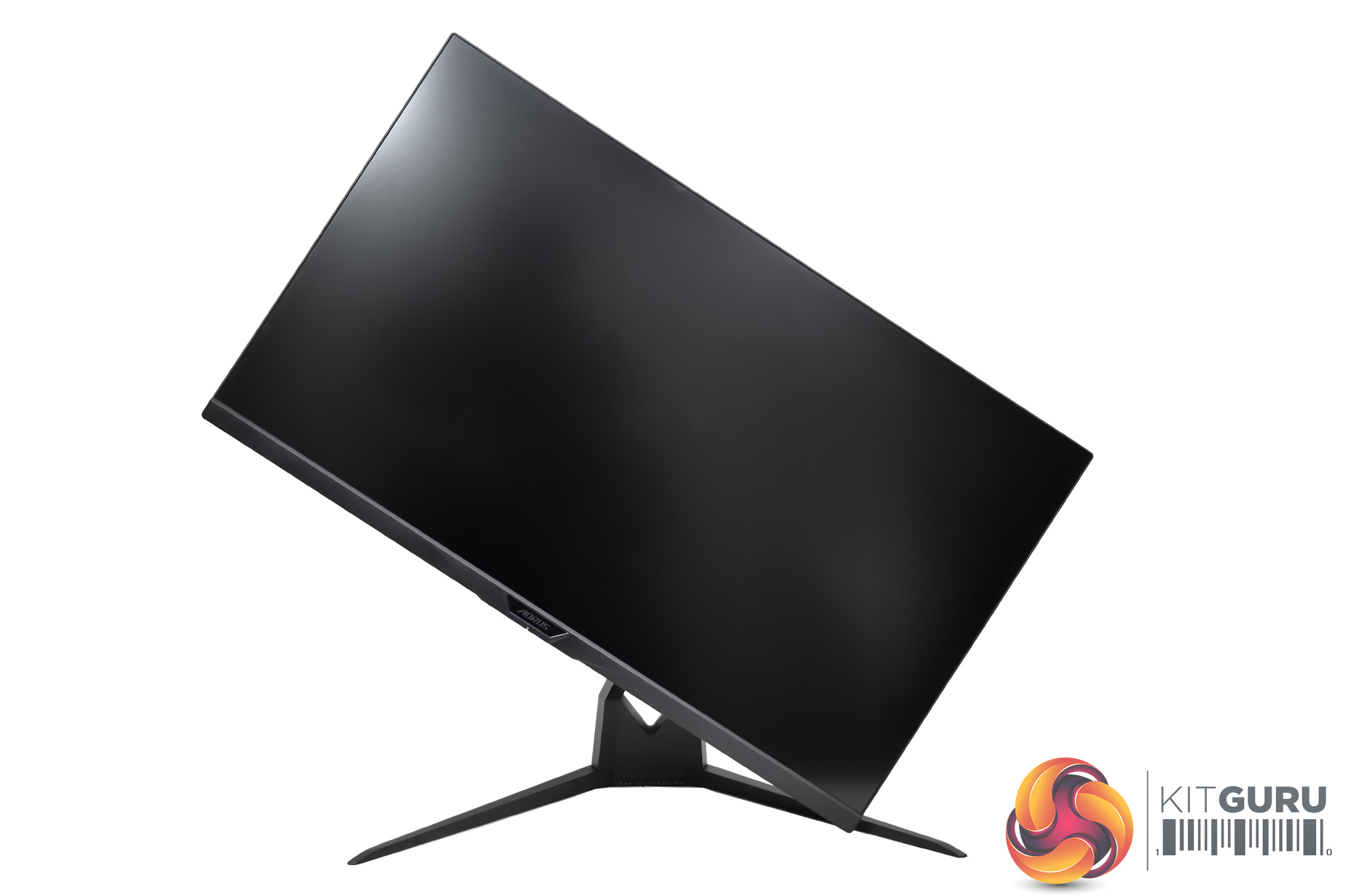
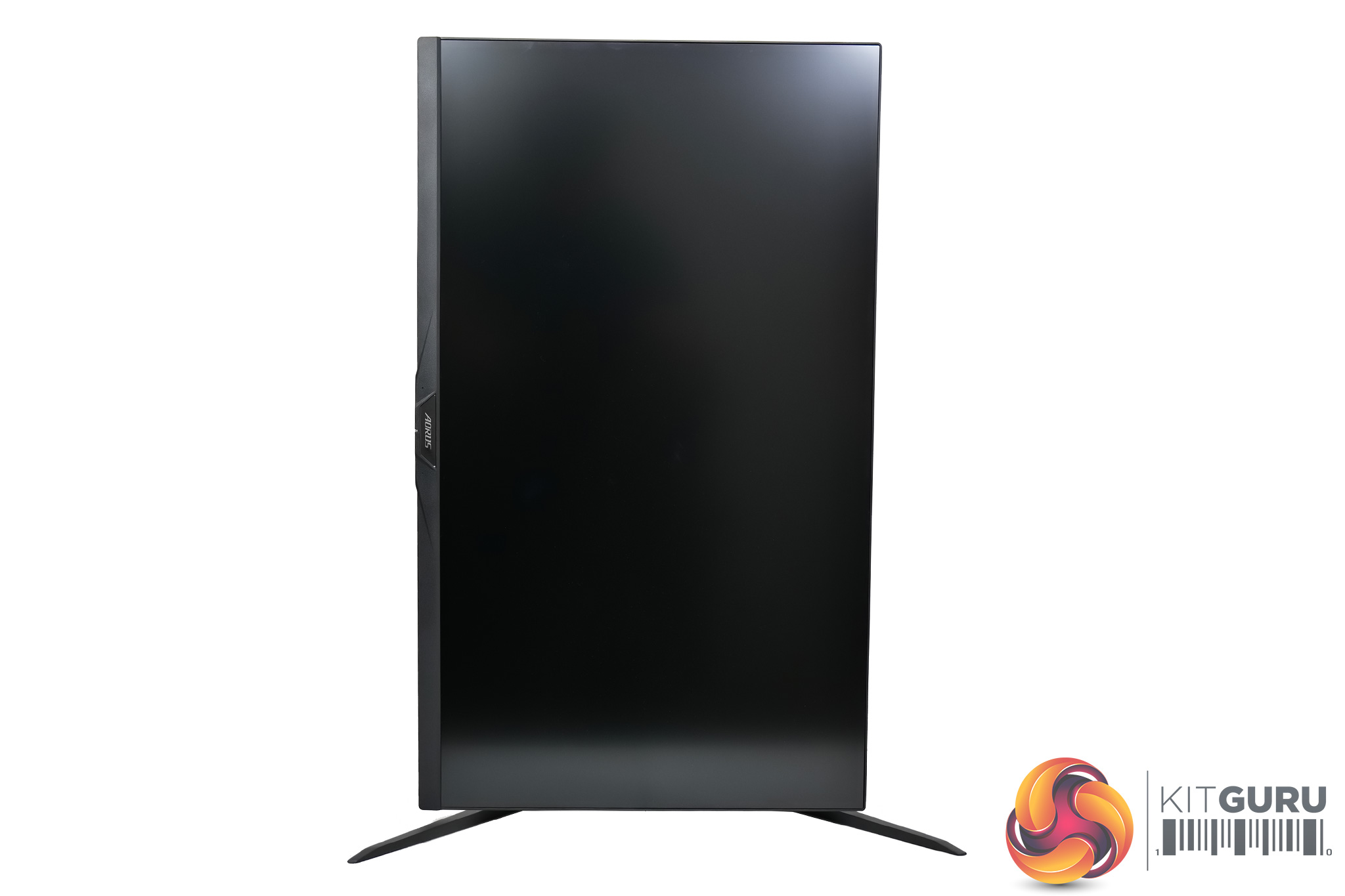
As for the stand, this is made of metal and offers a full array of ergonomic adjustments. We find up to 130mm of height adjustment, 20 degrees of swivel in both directions, tilt from -5 degrees to +21 degrees, and even full 90 degree pivot, so you can use this screen vertically if you want.
There's the added bonus that the FI32Q X supports VESA 100 mounting brackets too, so if you already have a third-party monitor arm or wall mount, that is supported. Additionally, as we show in the video, if you are not too happy with the large v-shaped base of the stand, Gigabyte actually includes a desk mount for the monitor in the box, and it takes up significantly less space on your desk, so that is definitely a welcome inclusion in my book – though no doubt it also contributes to the £900 asking price…
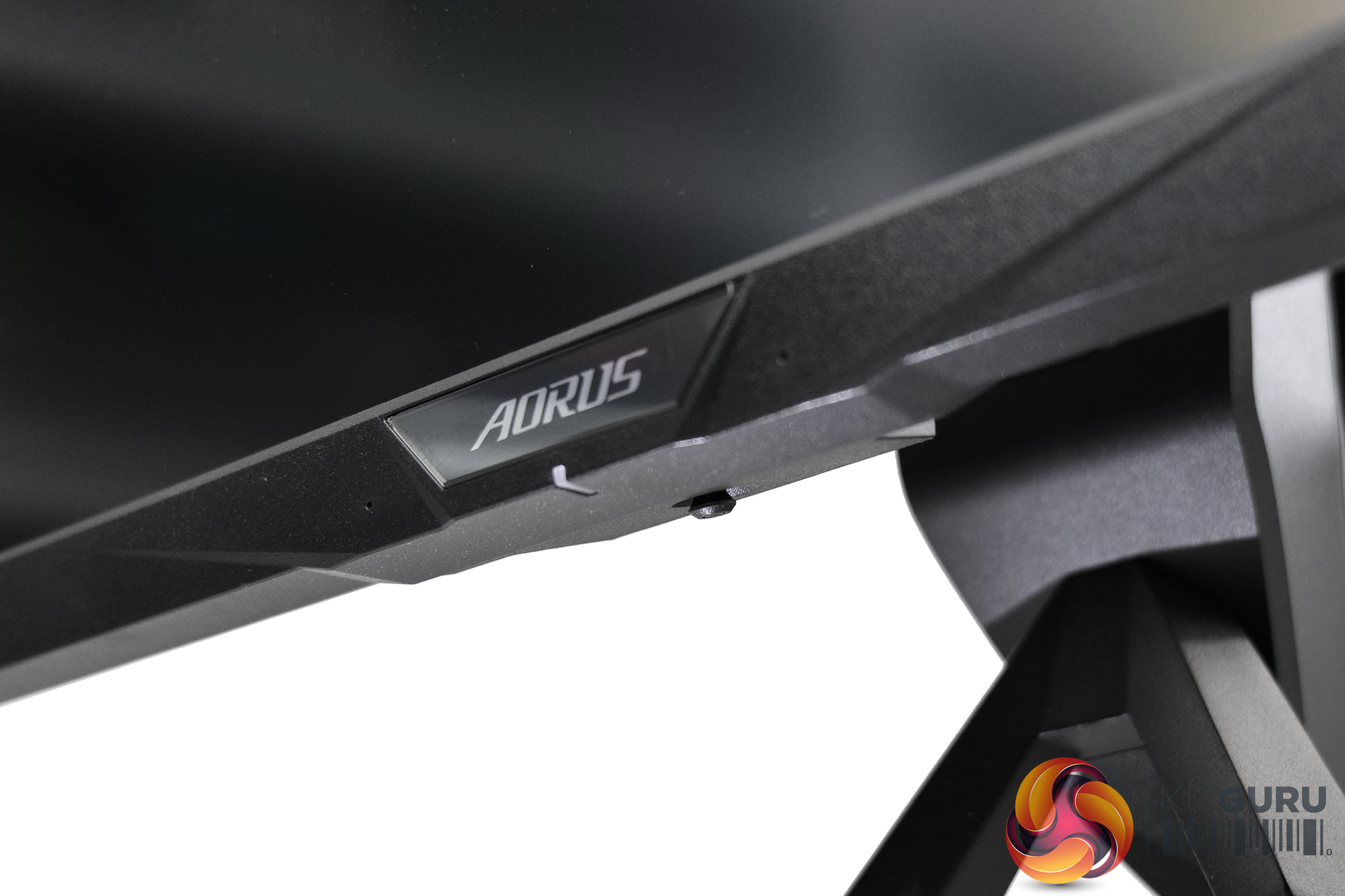
Other things to mention include the small joystick used to navigate the OSD, which is positioned on the underside of the bottom bezel.
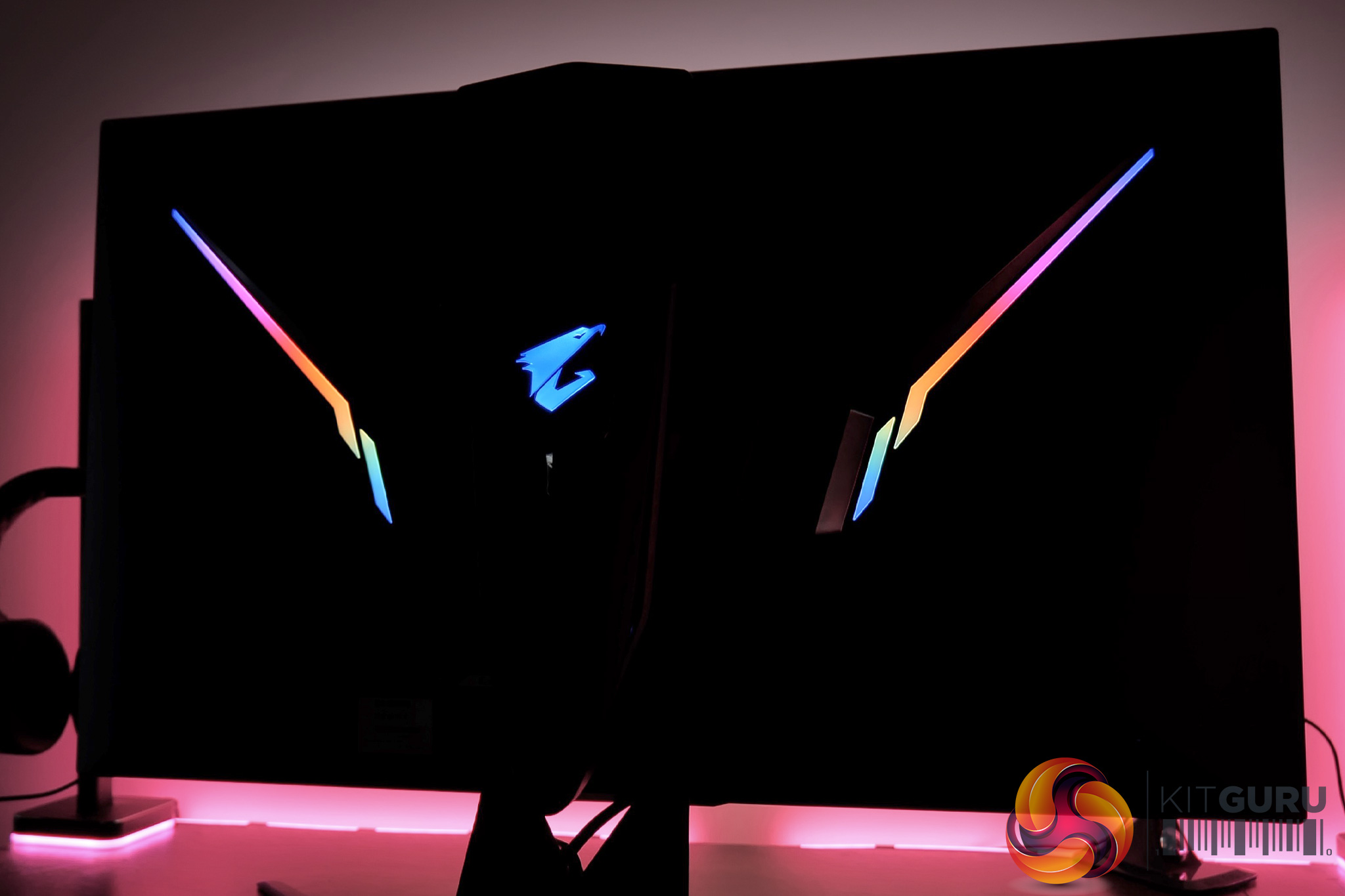
And how could we forget the monitor's RGB lighting? This is positioned on the rear of the display, and judging by the responses on Twitter, most people aren't fussed about this – but you can always turn it off.
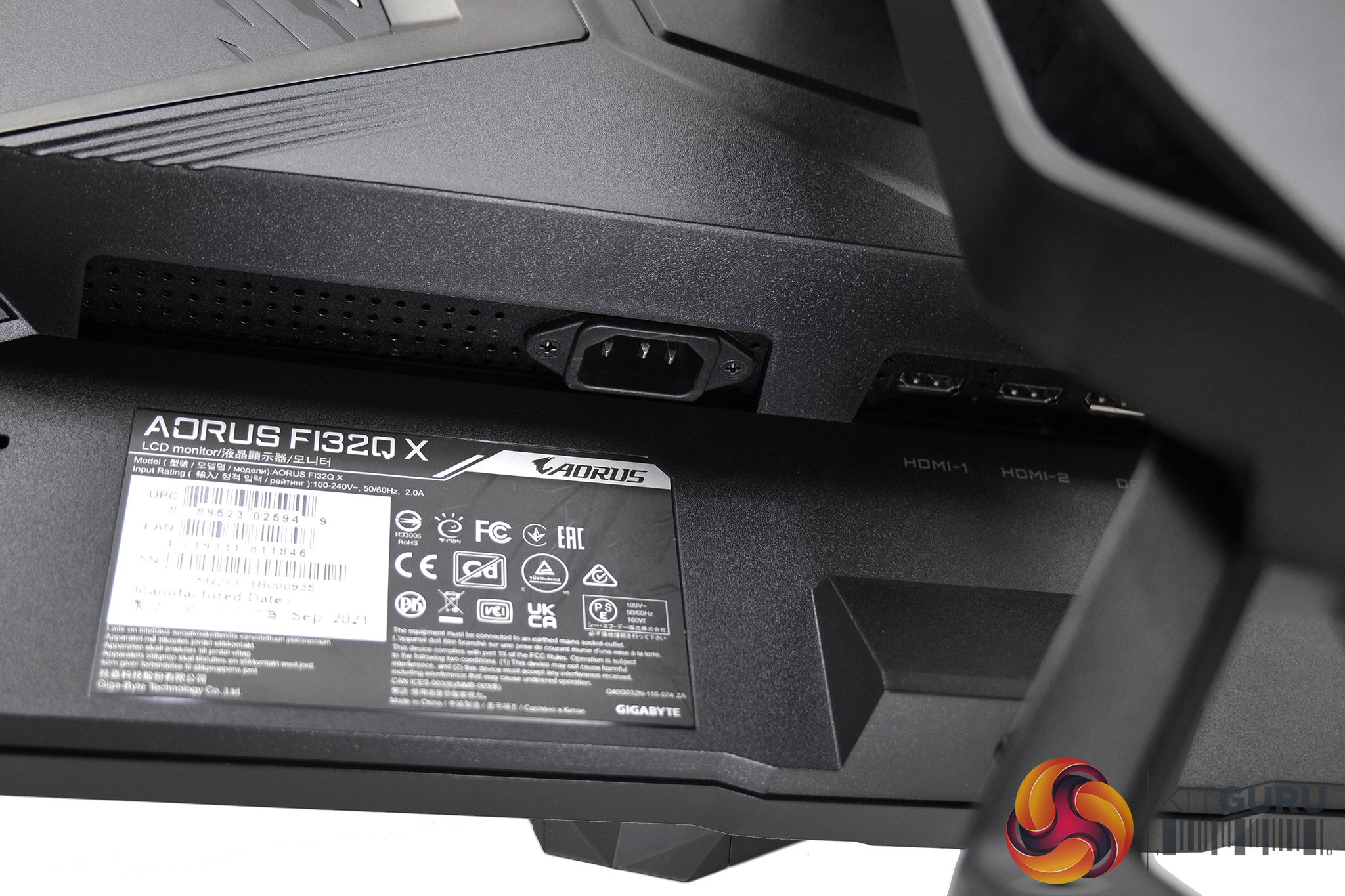
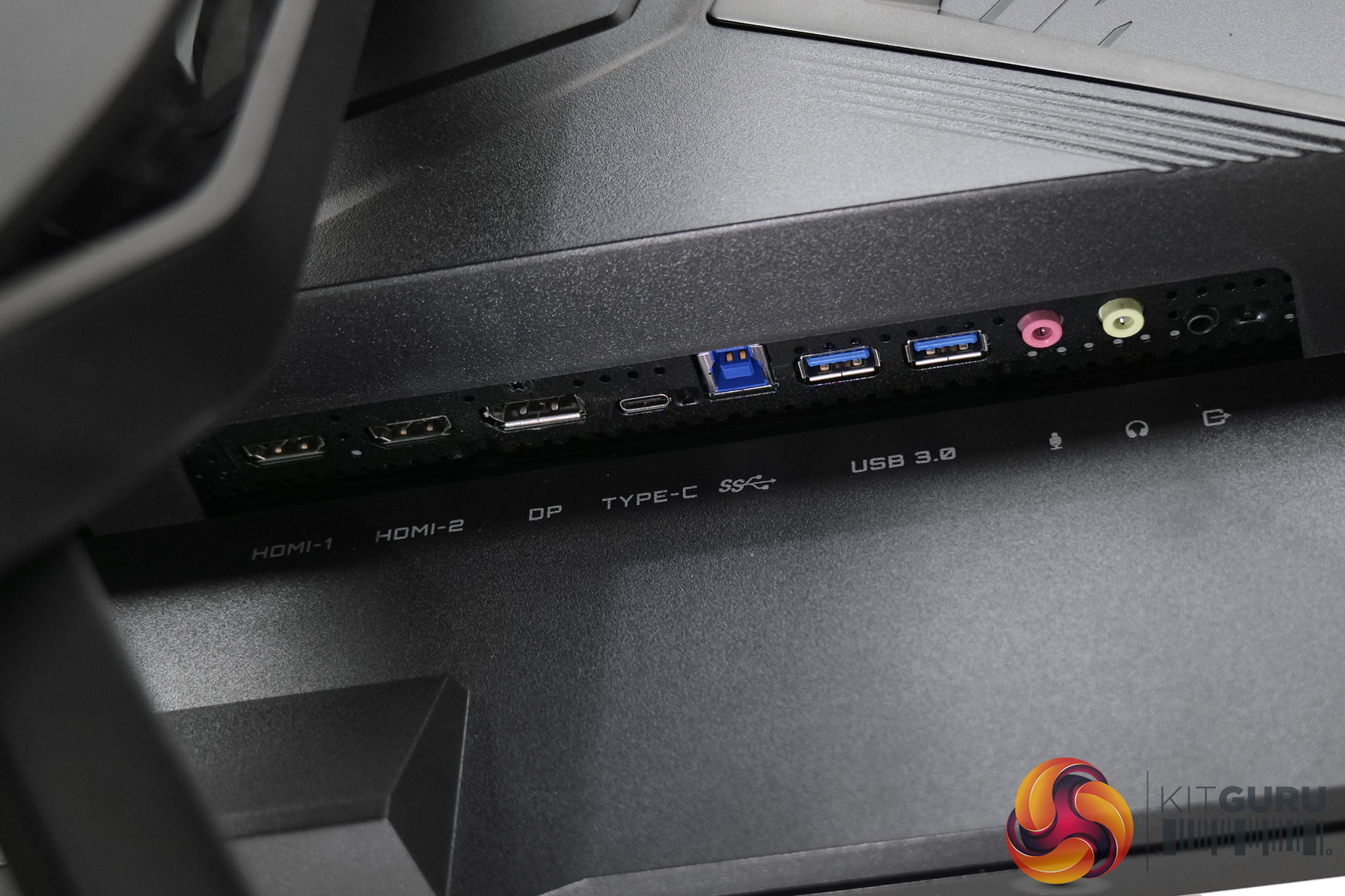
As for the I/O, the right side of the monitor is home to the power input. On the left, we find a full array of ports – 2x HDMI 2.1 and 1x DisplayPort 1.4 video outputs, plus 1x USB Type-C DP Alt. Next to those, there's a USB upstream input and its two corresponding USB 3.0 downstream ports, as well as both mic and line out options. The headphone jack is worth mentioning as it uses an ESS SABRE DAC. I personally have never plugged my headphones into my monitor so I am not sure how many will use this feature, but it is worth pointing out.
Lastly, it is worth confirming the state of play in terms of the HDMI 2.1 ports. There's been some ‘fun and games', shall we say, around the HDMI 2.1 standard in the last six month, and the last time we looked at an Aorus monitor, its HDMI 2.1 ports were limited to 24Gbps, instead of the full 48Gbps bandwidth. After speaking with Gigabyte, we can confirm the same is in place here with 24Gbps HDMI 2.1 ports being utilised.
That in itself shouldn't be a problem as the FI32Q X is a 1440p display, however I did encounter an issue where two Nvidia GPUs refused to run at 240Hz over HDMI – but an AMD RX 6900 XT hit 240Hz without a problem. All three GPUs worked perfectly over DisplayPort too so I am not quite sure what is going on here, but we've reached out to Gigabyte with our findings and will update this review as and when we hear back.
Update 28/04/22: Gigabyte got back to us on the issue and it seems it was a fault with the Nvidia driver. We no longer have the FI32Q X to verify this, but we have been informed by Gigabyte that the issue is no longer present with Nvidia GPUs when using the latest driver.
The OSD for the FI32Q X is identical to the FV43U, which is to say it is split into seven main tabs – Gaming, Picture, Display, PIP/PBP, System, Save Settings, Reset all:
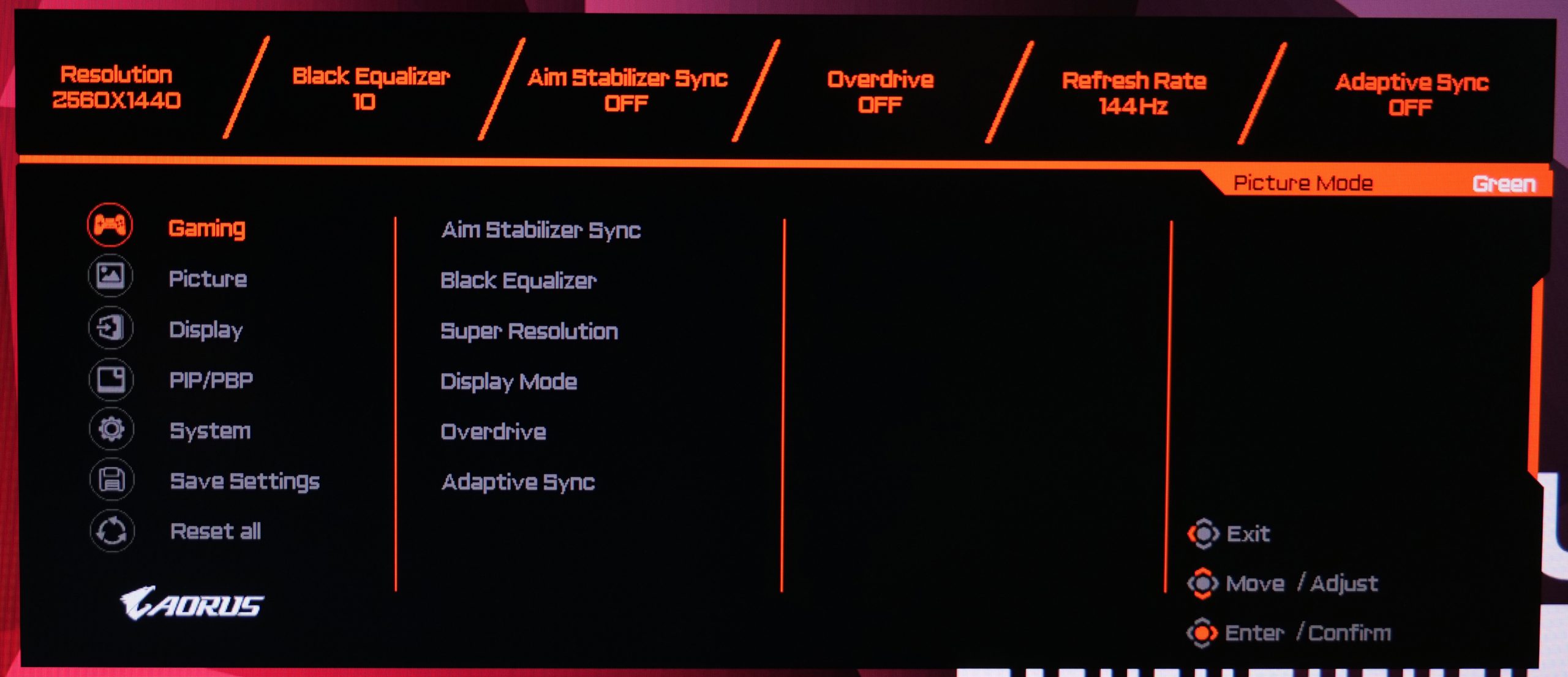
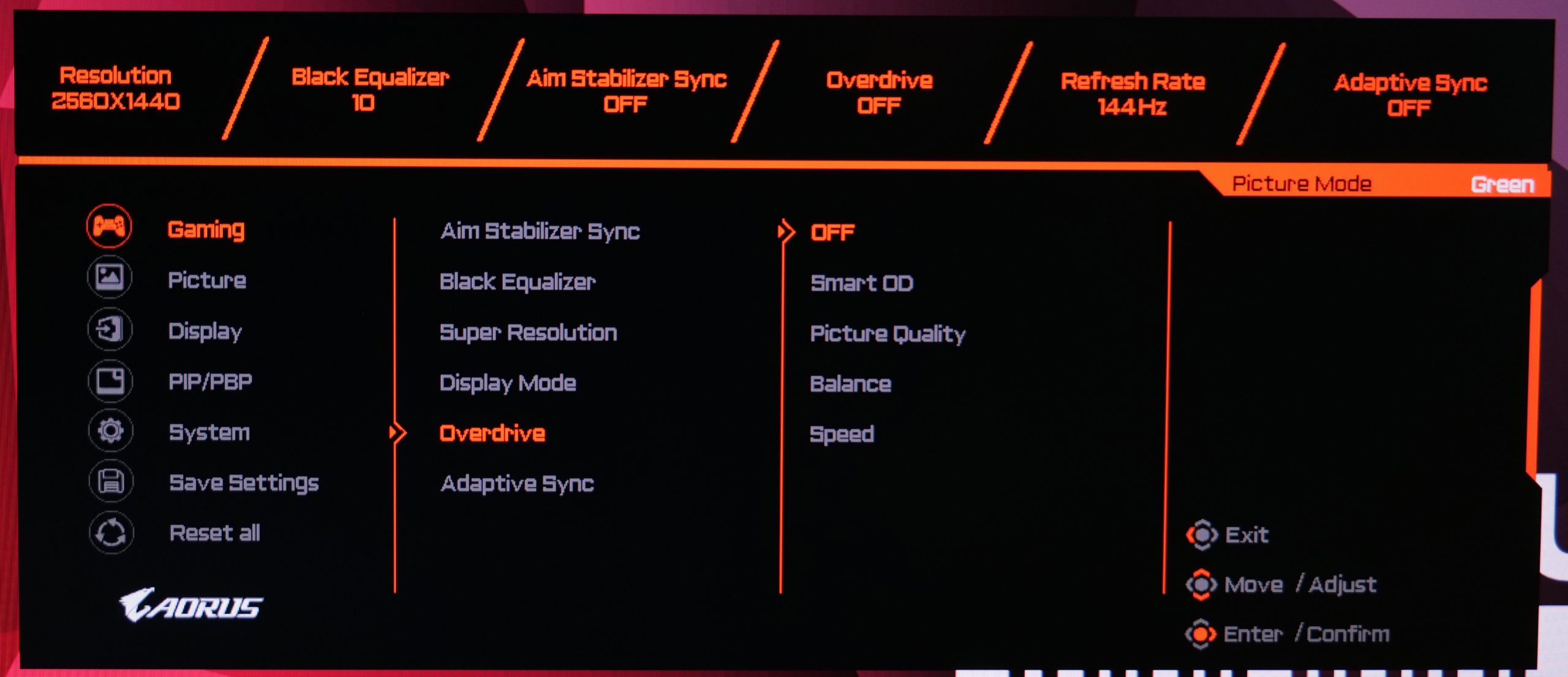
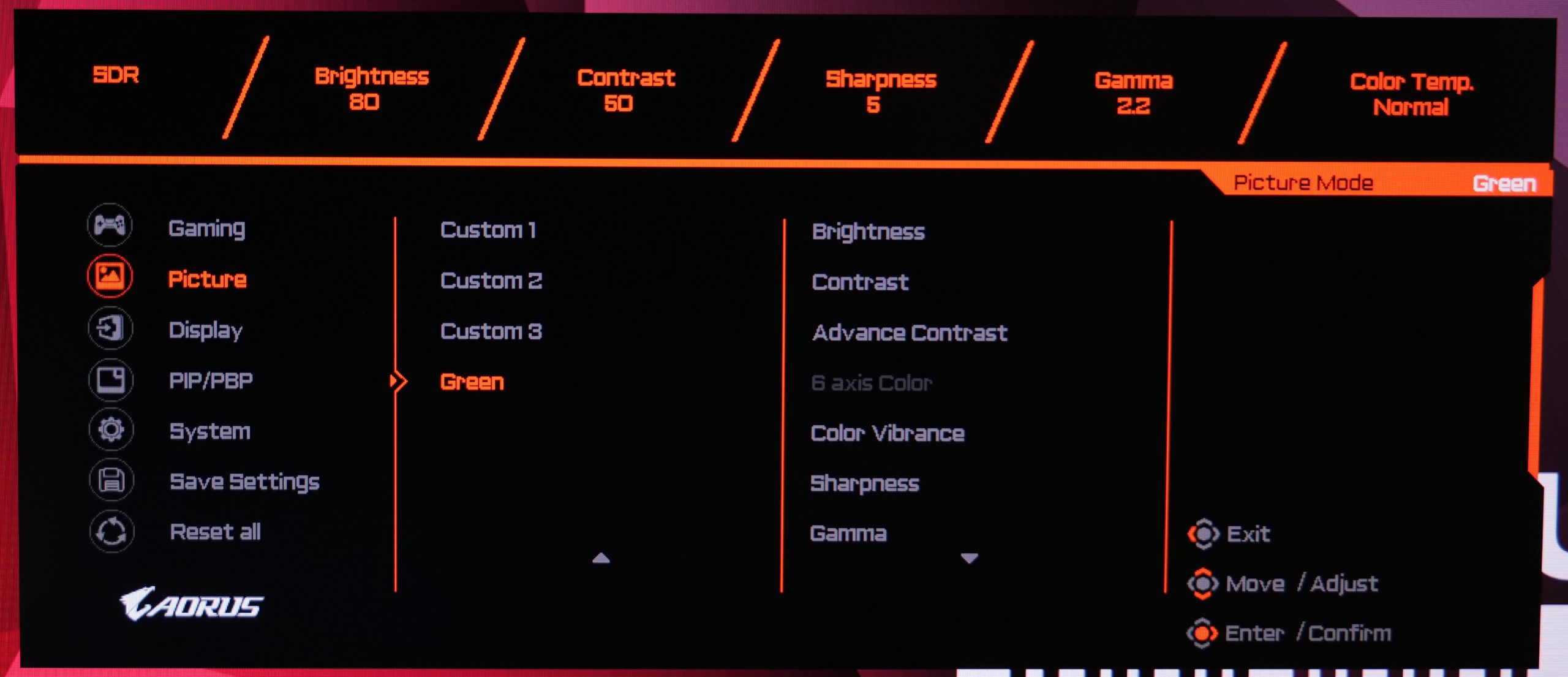

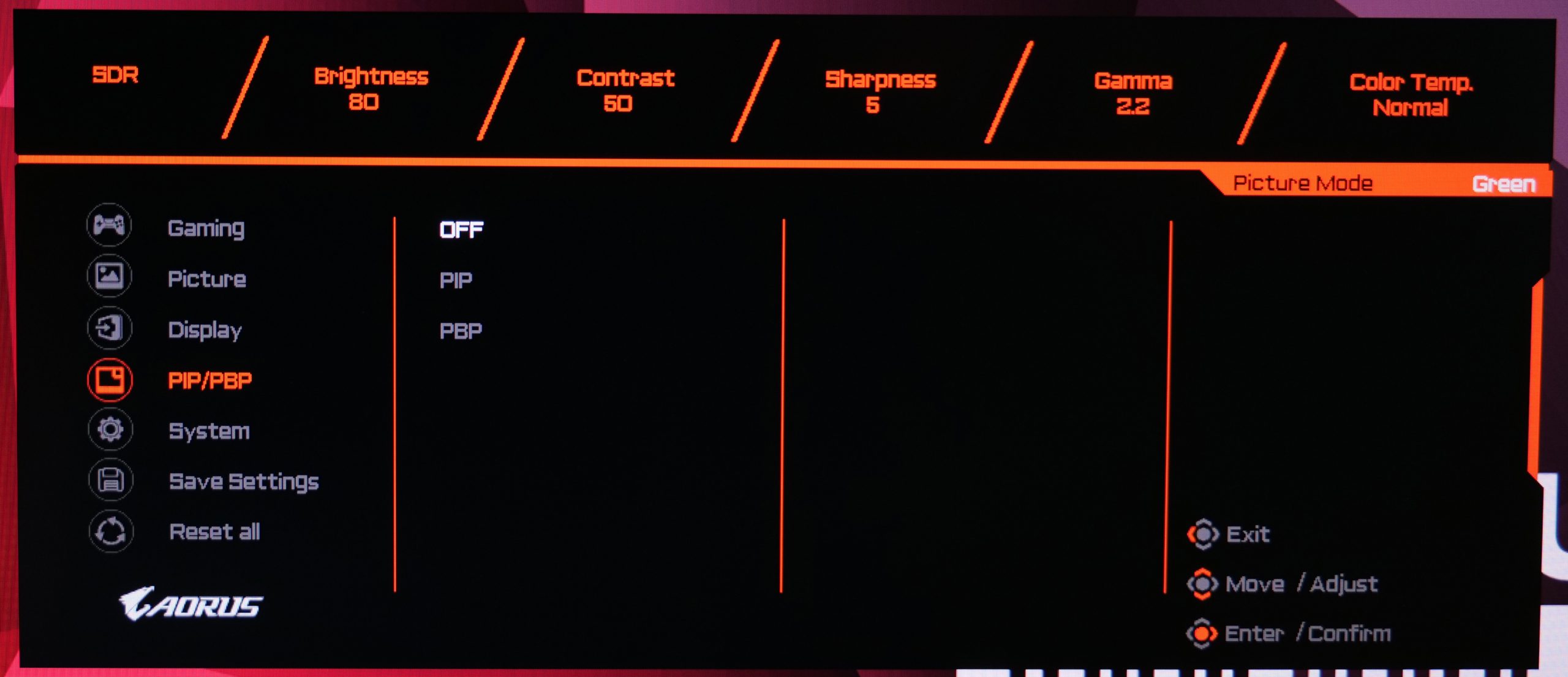
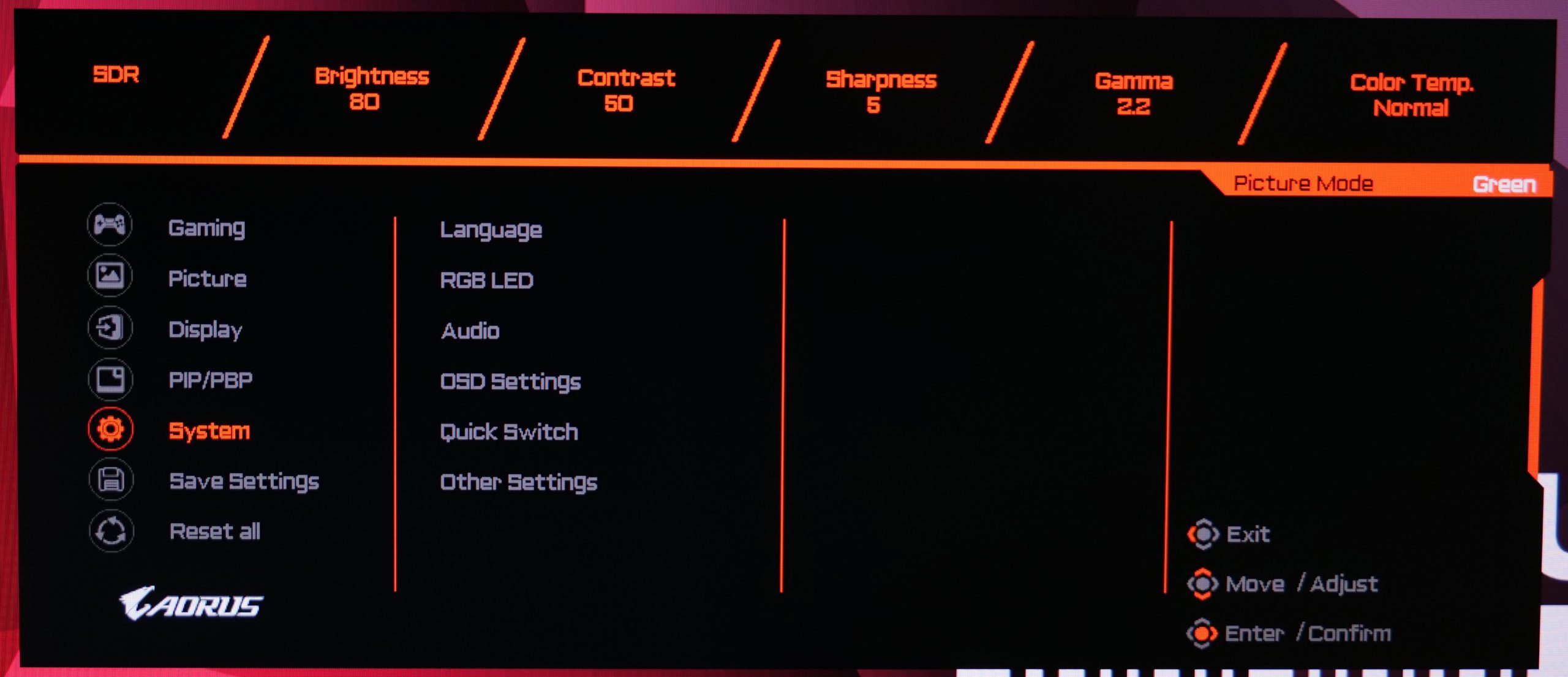

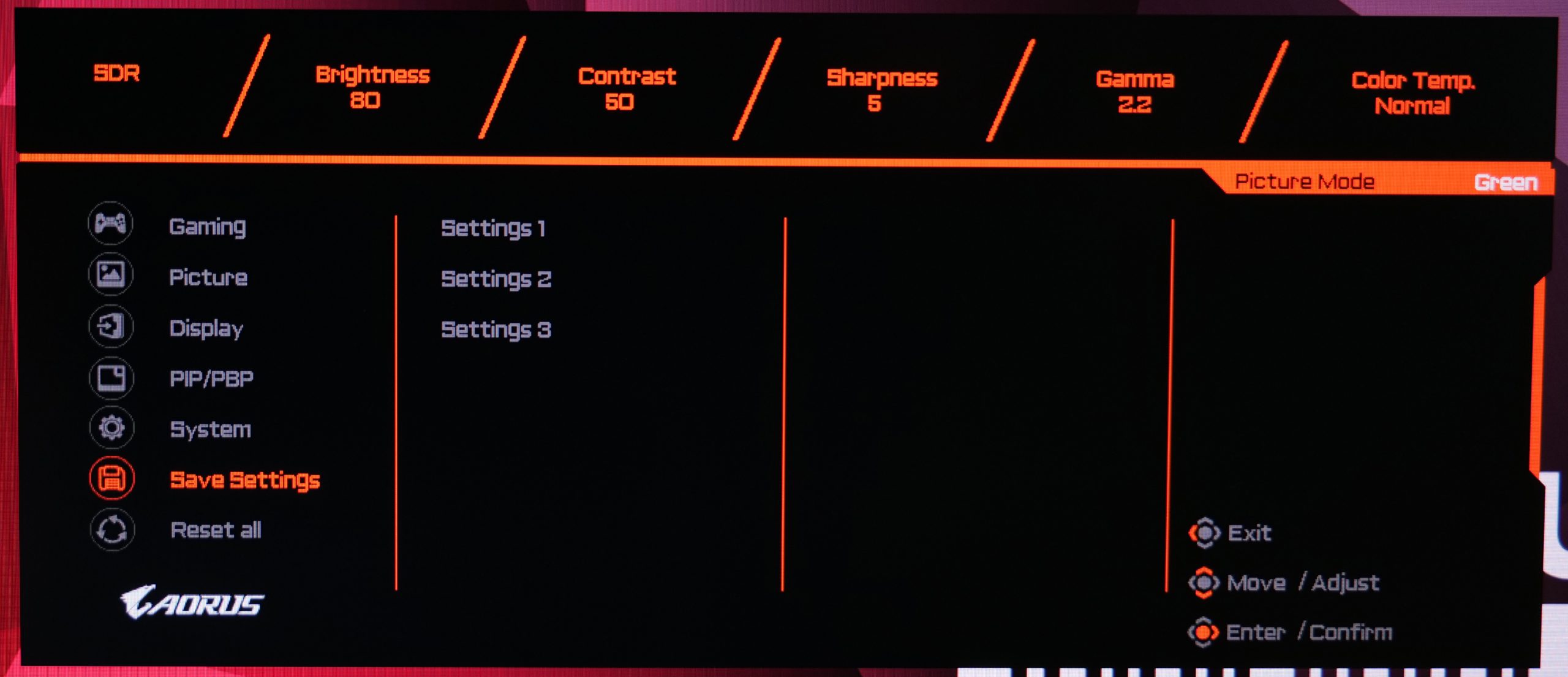
I find this OSD system is easy to use. The settings are sensibly laid out, with the gaming-centric features like overdrive and adaptive sync, found within the ‘Gaming' menu, so there are no oddities in that respect. You can also customise four quick-access settings, which are each mapped to a push of the joystick in its four different directions (up, down, left, right). This is handy if you find yourself wanting to quickly change inputs, or adjust contrast and brightness, without diving into all the different OSD menus.
Of course, everything is made easier by the fact the FI32Q X uses a joystick as well, so there's no fiddling around with individual buttons or anything like that, which really is a pet peeve of mine.
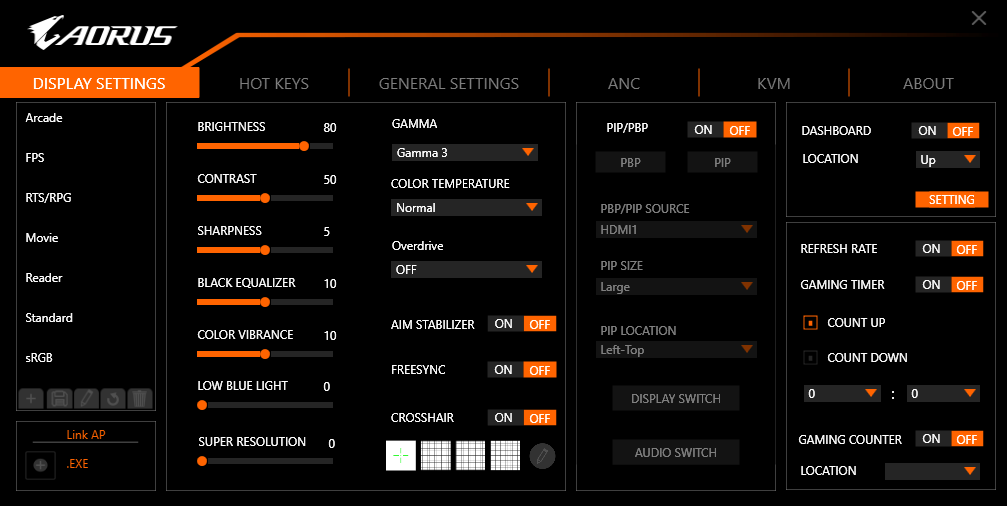
Lastly, Gigabyte provides a Windows-based app dubbed OSD Sidekick where users can tweak all of the same settings found in the OSD, but directly from the desktop. This requires the monitor to be connected to the PC via USB cable, but is another feature I like to see – it just gives another option for adjusting the display settings.
Our main test involves using a DataColor SpyderX Colorimeter to assess a display’s image quality. The device sits on top of the screen while the software generates colour tones and patterns, which it compares against predetermined values to work out how accurate the screen is.
The results show –
- A monitor’s maximum brightness in candelas or cd/m2 at various levels set in the OSD.
- A monitor’s contrast ratio at various brightness levels in the OSD.
- The brightness deviation across the panel.
- The black and white points.
- The colour accuracy, expressed as a Delta E ratio, with a result under 3 being fine for normal use, and under 2 being great for colour-accurate design work.
- The exact gamma levels, with a comparison against preset settings in the OSD.
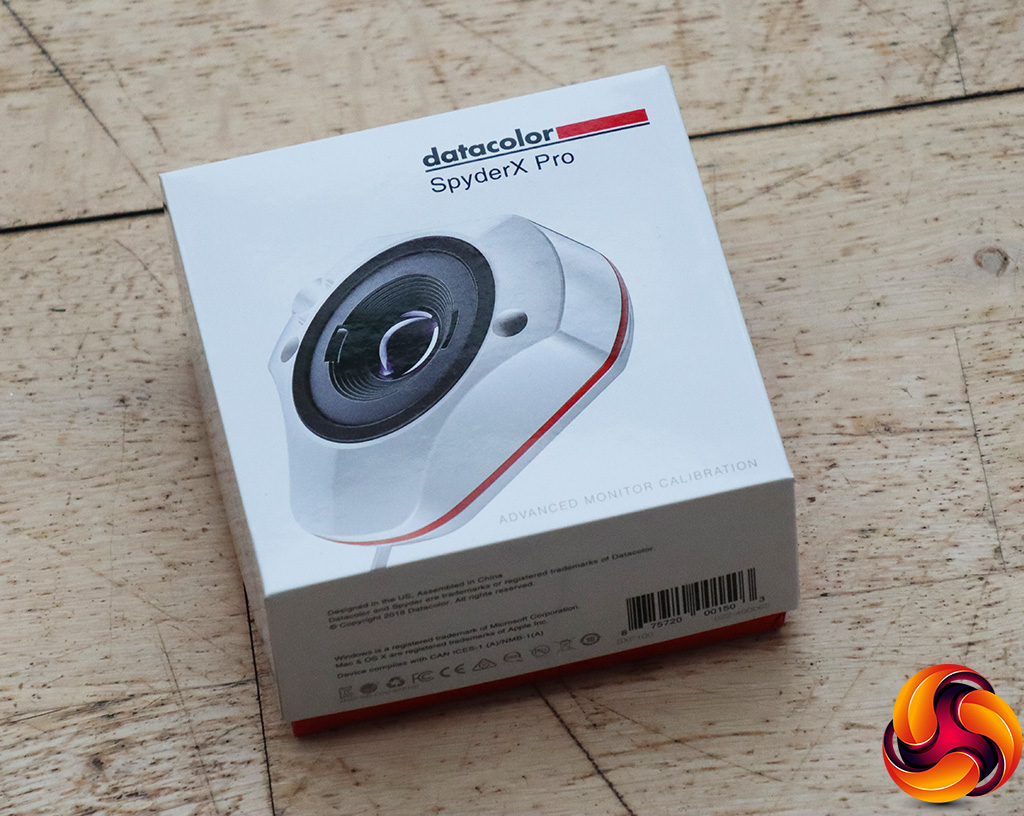
We first run this test with the display in its default, out-of-the-box state, with all settings on default. We then calibrate the screen using the Spyder software and run the test again.
Pre-calibration
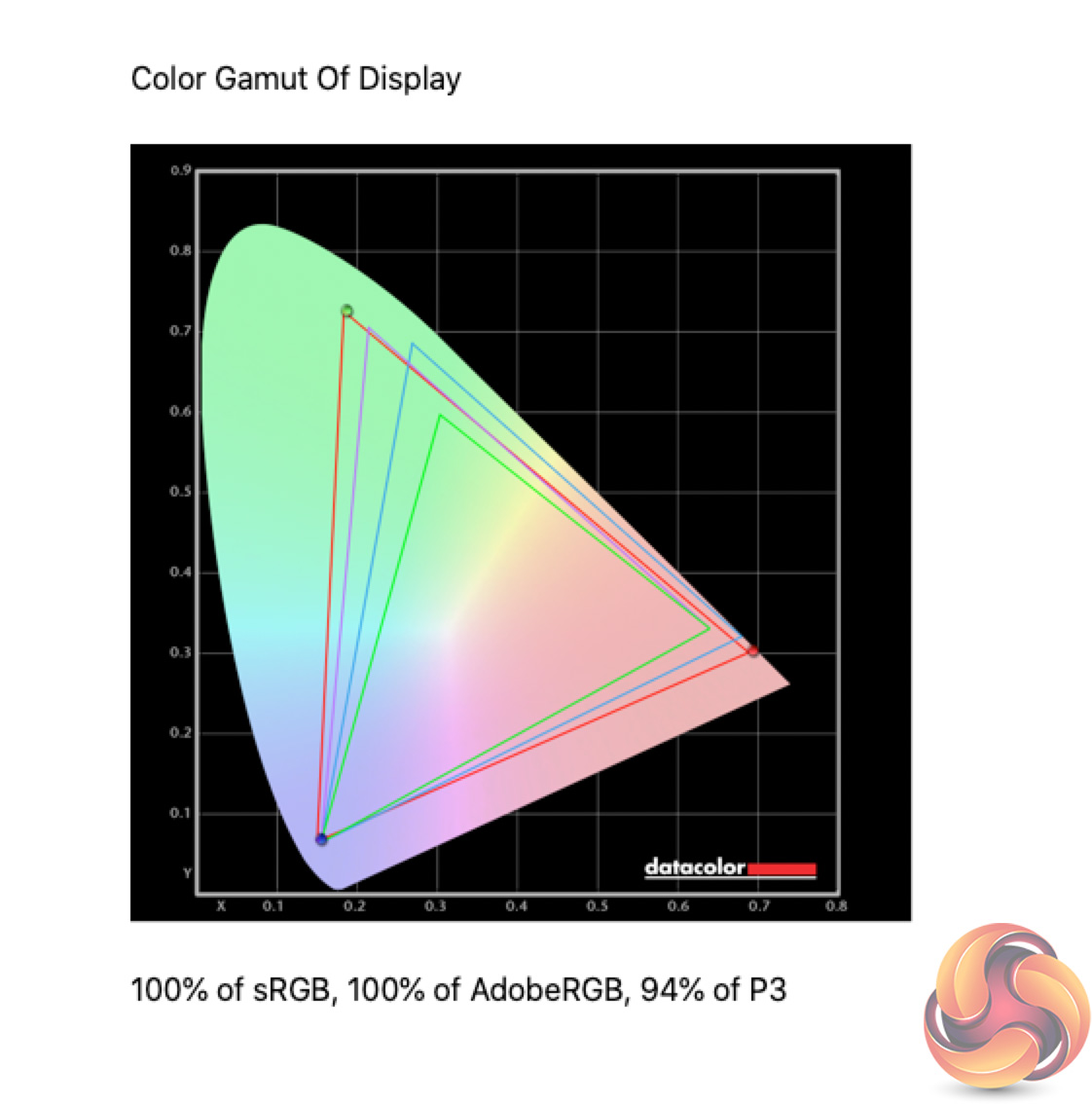
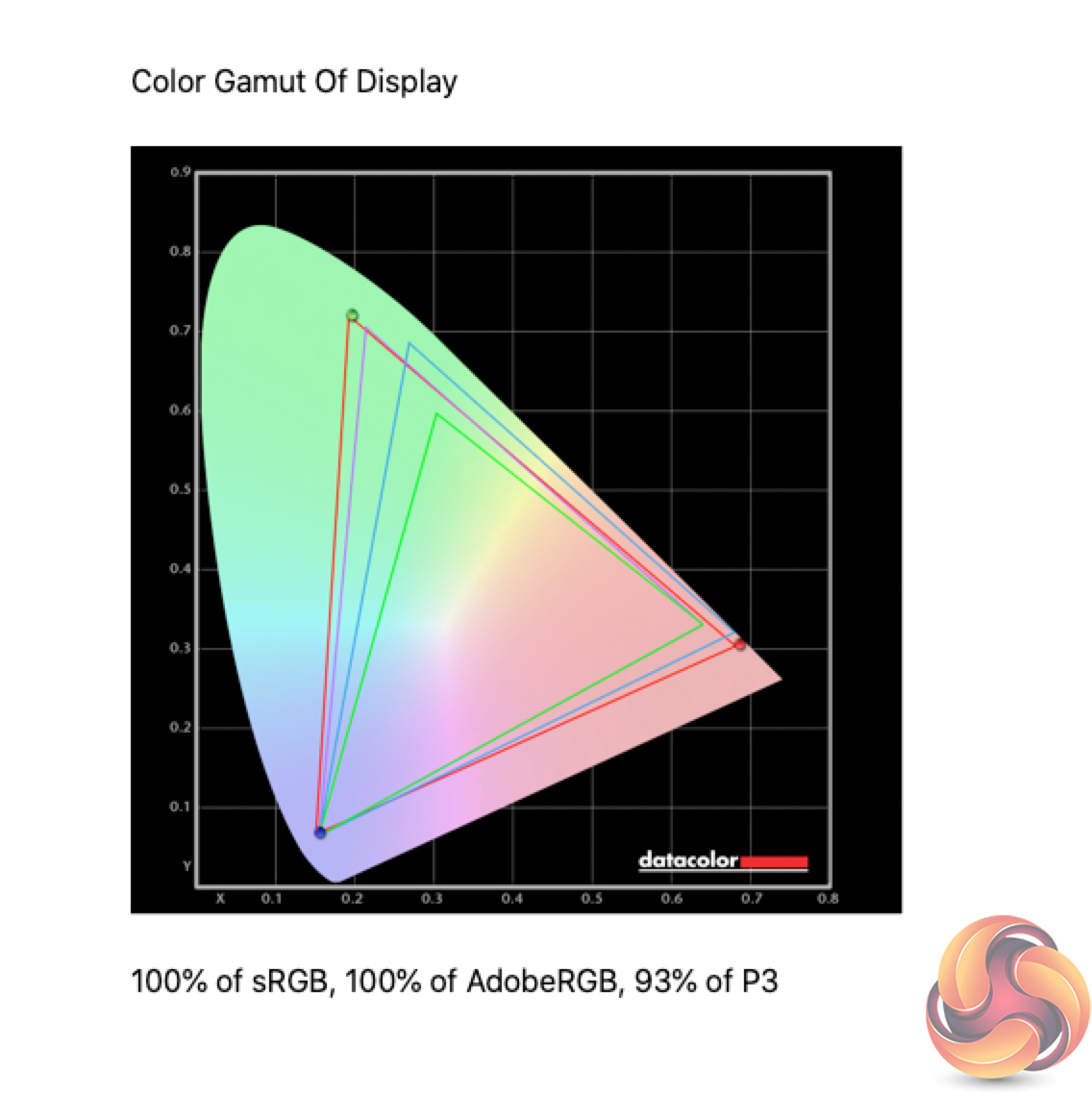
Kicking off our panel testing with a look at the display's gamut. Here we see 100% sRGB, 100% AdobeRGB and 94% DCI-P3 coverage – all excellent results for a gaming display, though arguably we would expect this considering the price point.
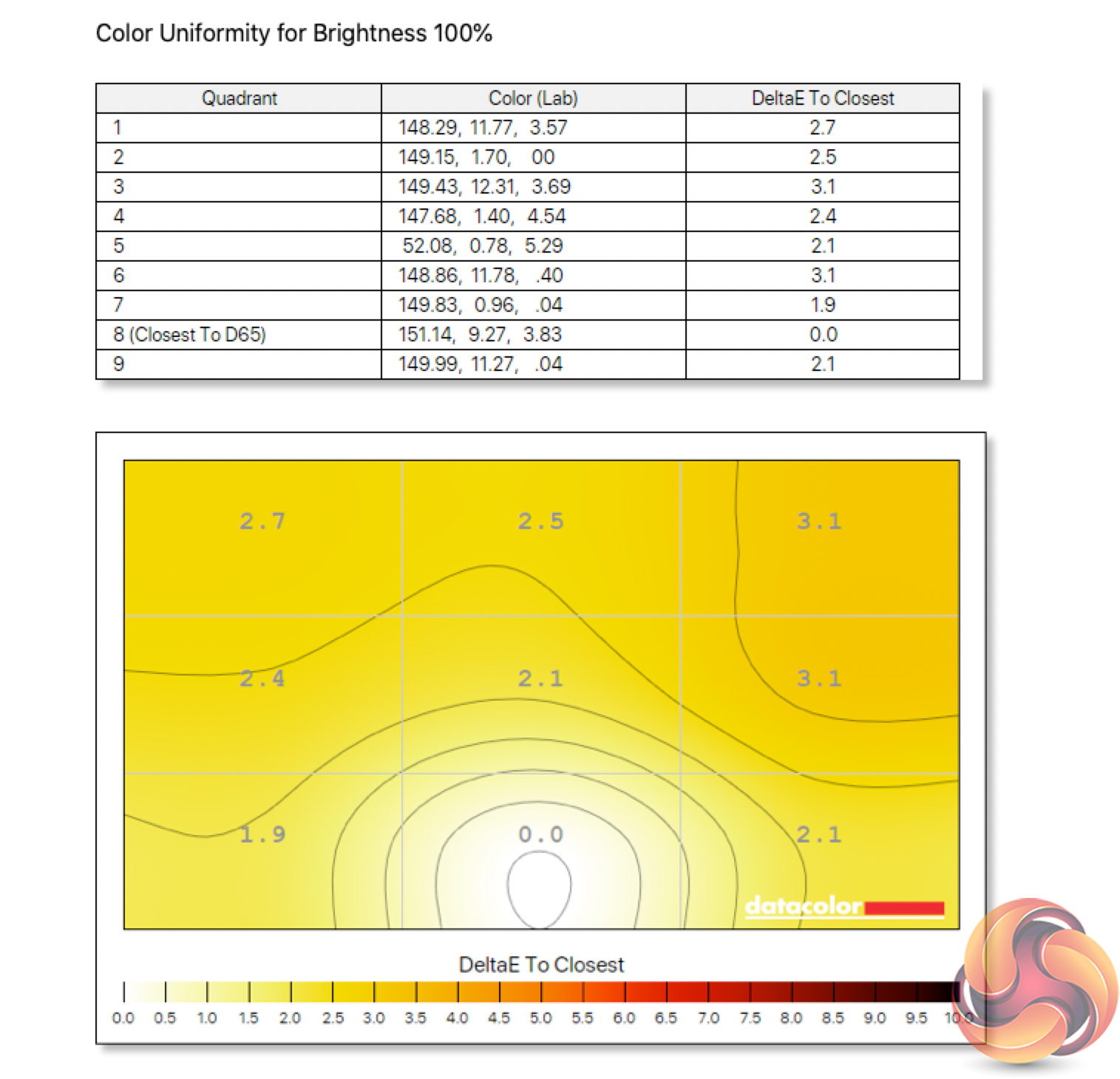
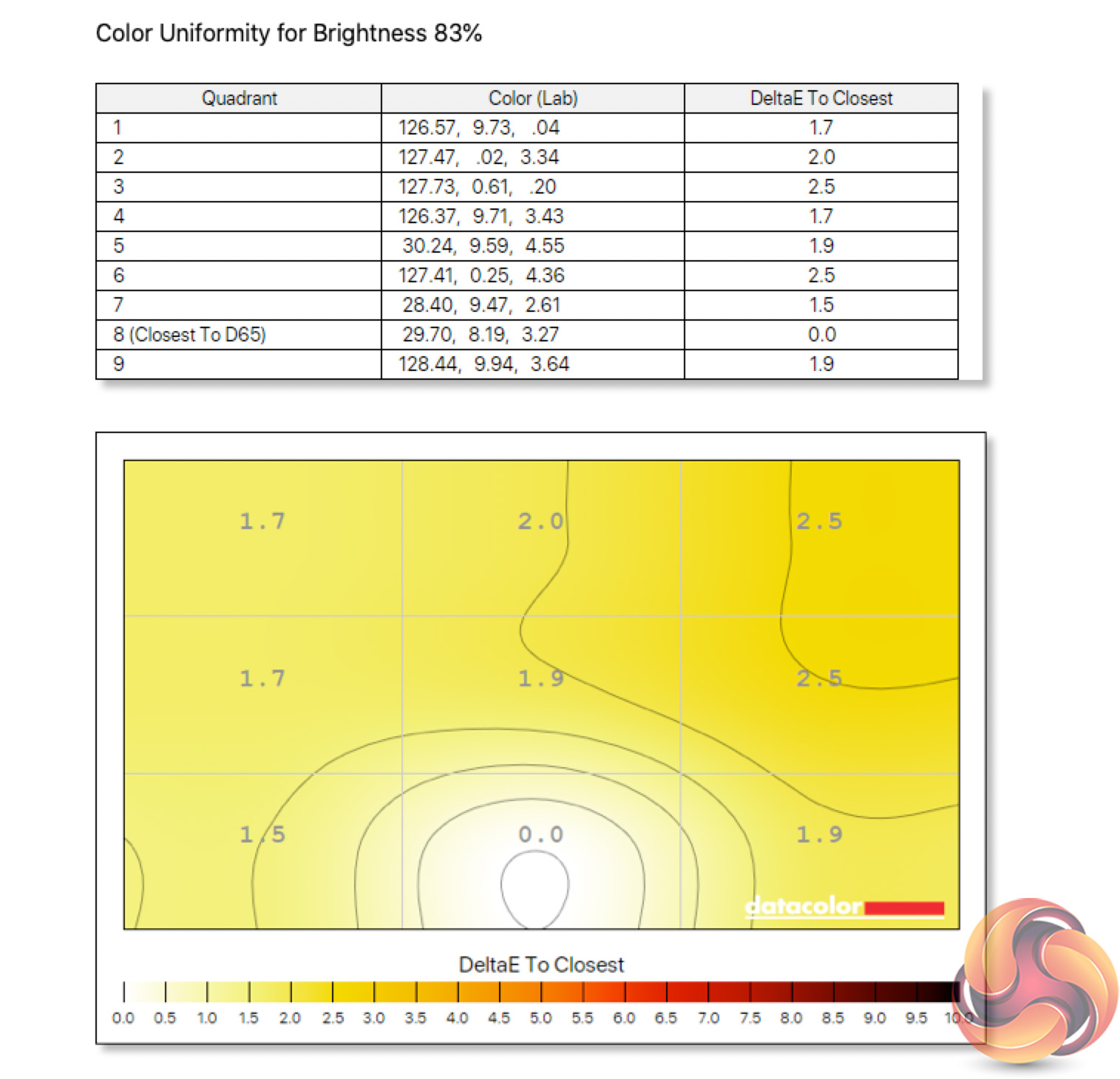
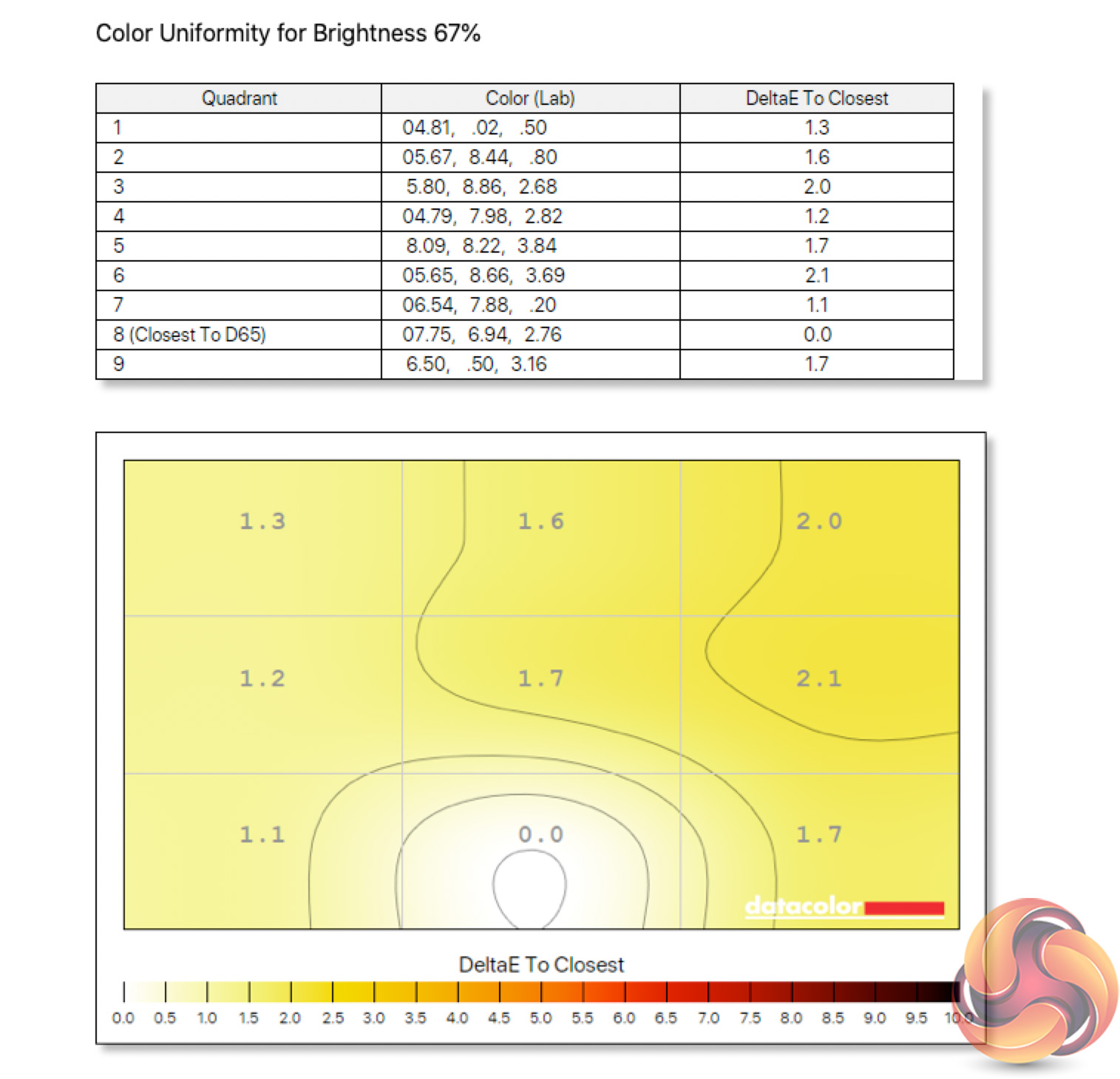
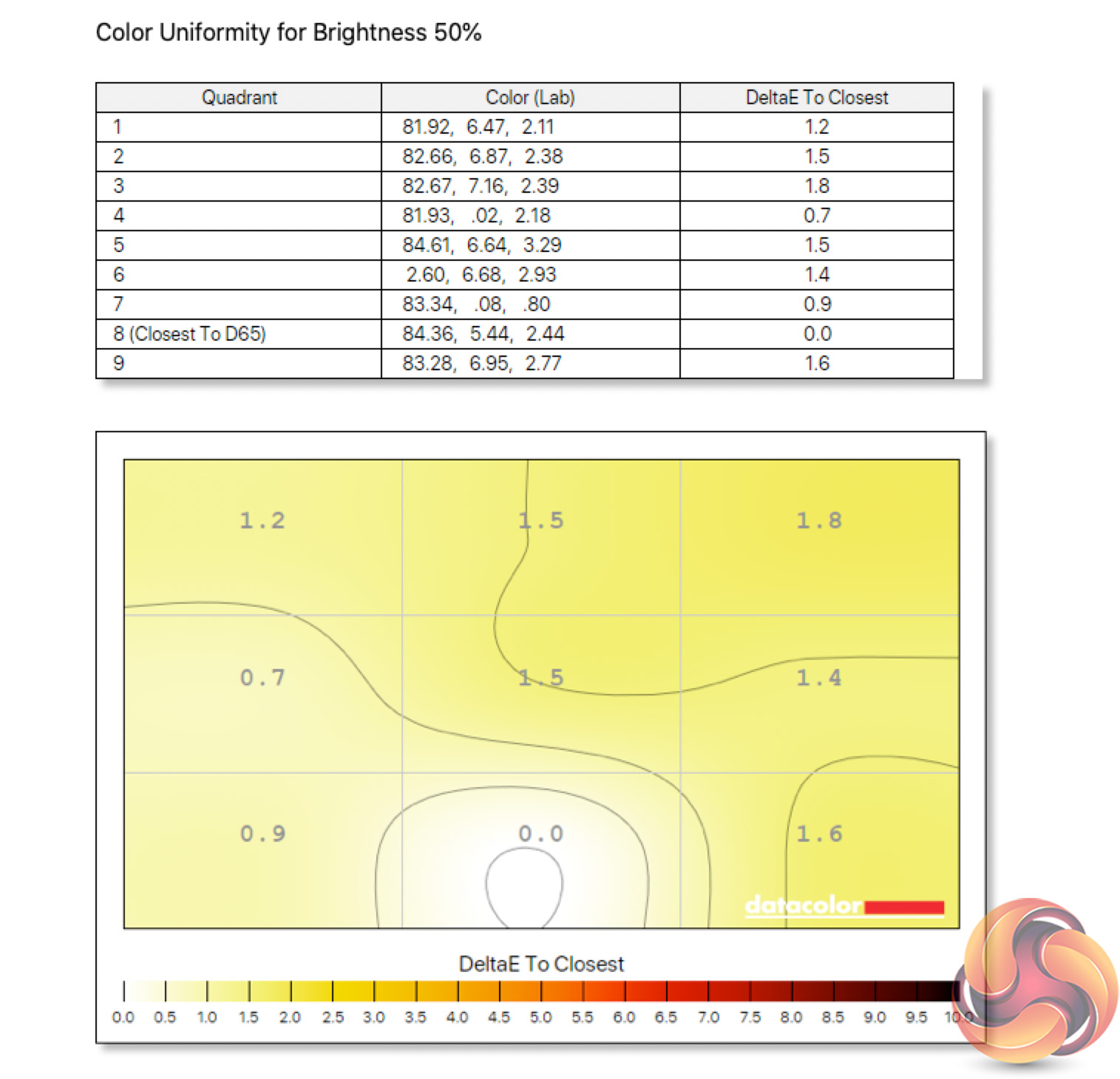
Colour uniformity is also very strong, particularly at lower brightness levels, though it is still good at 100% brightness too.
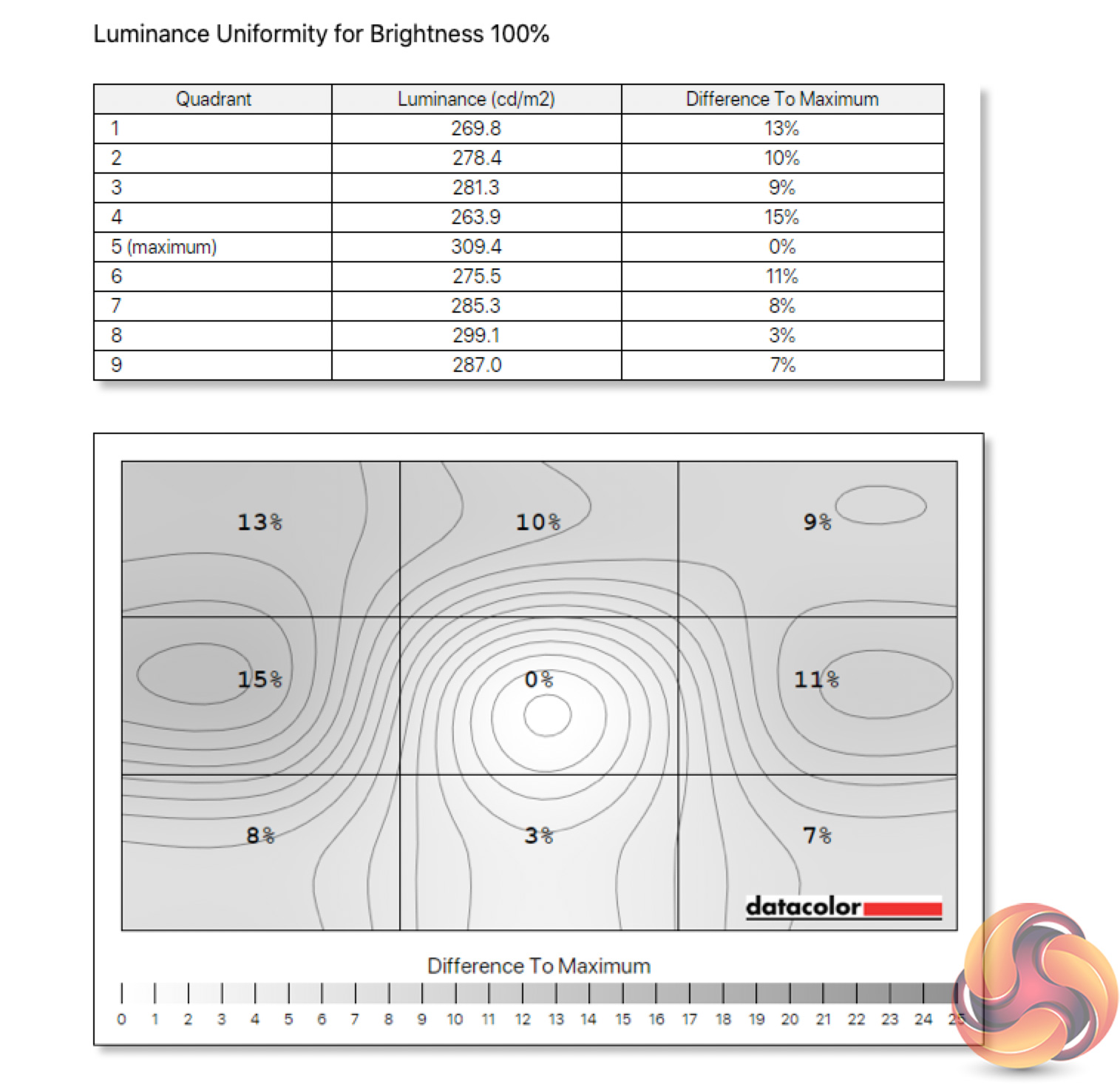
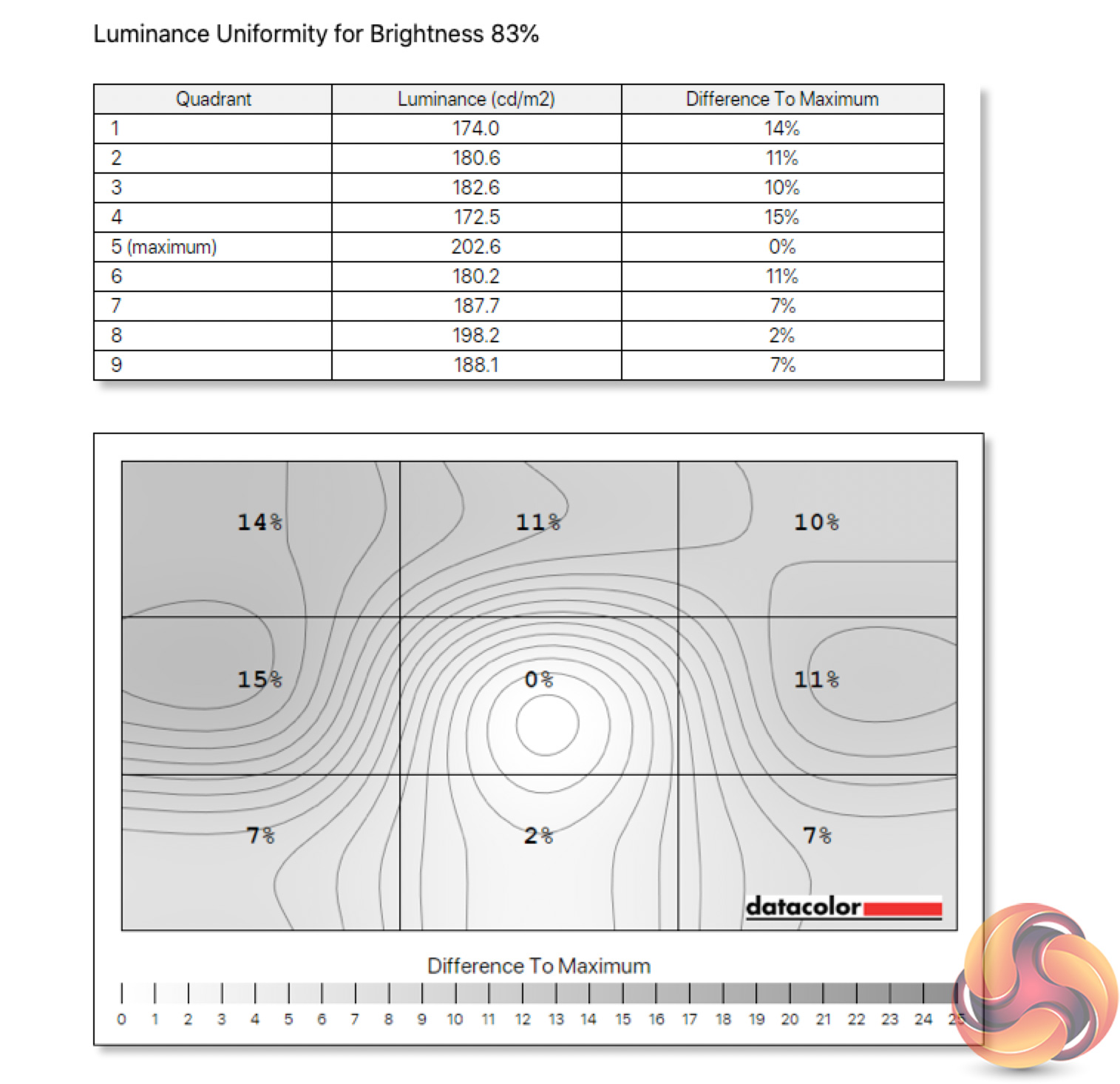
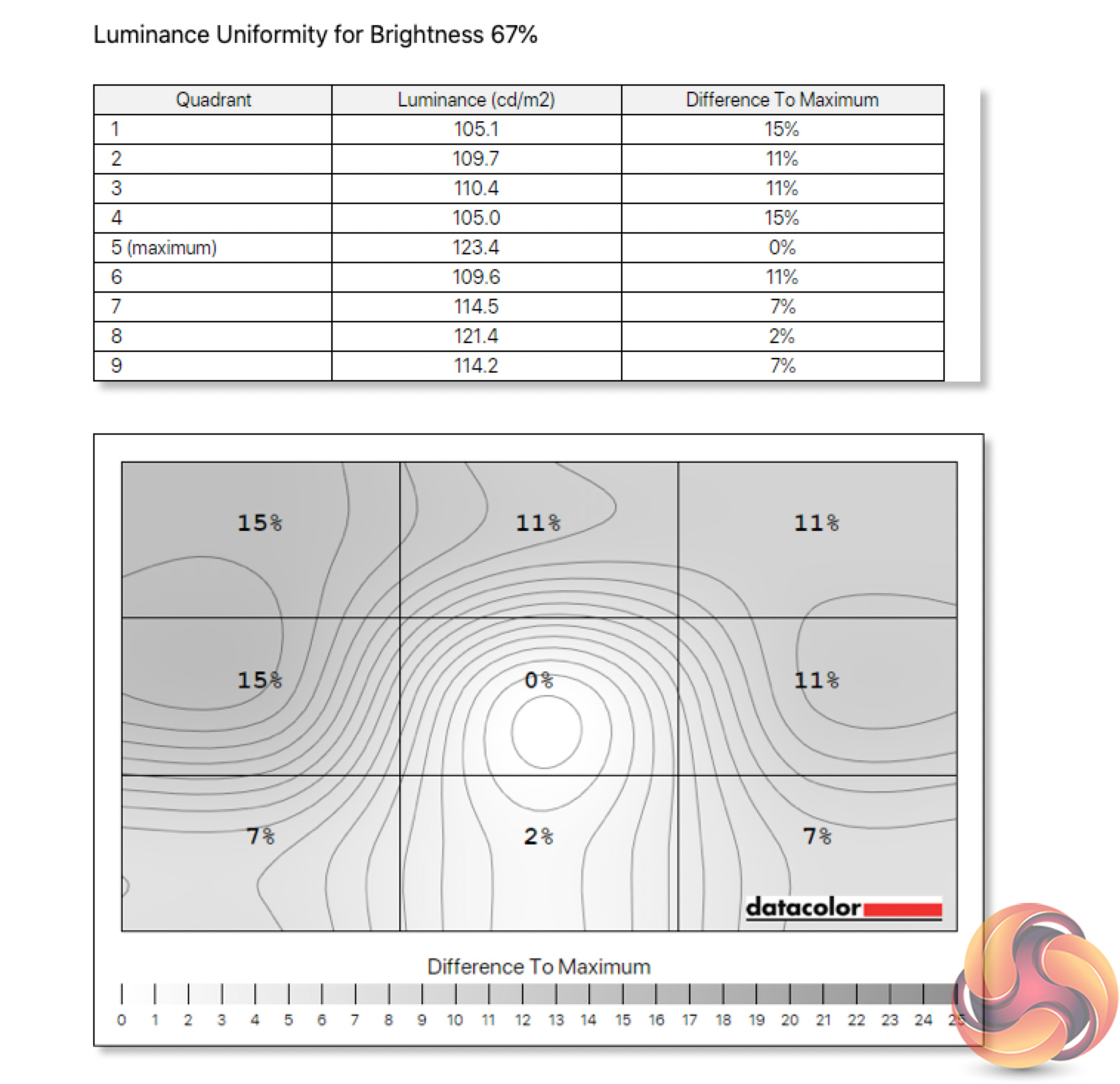
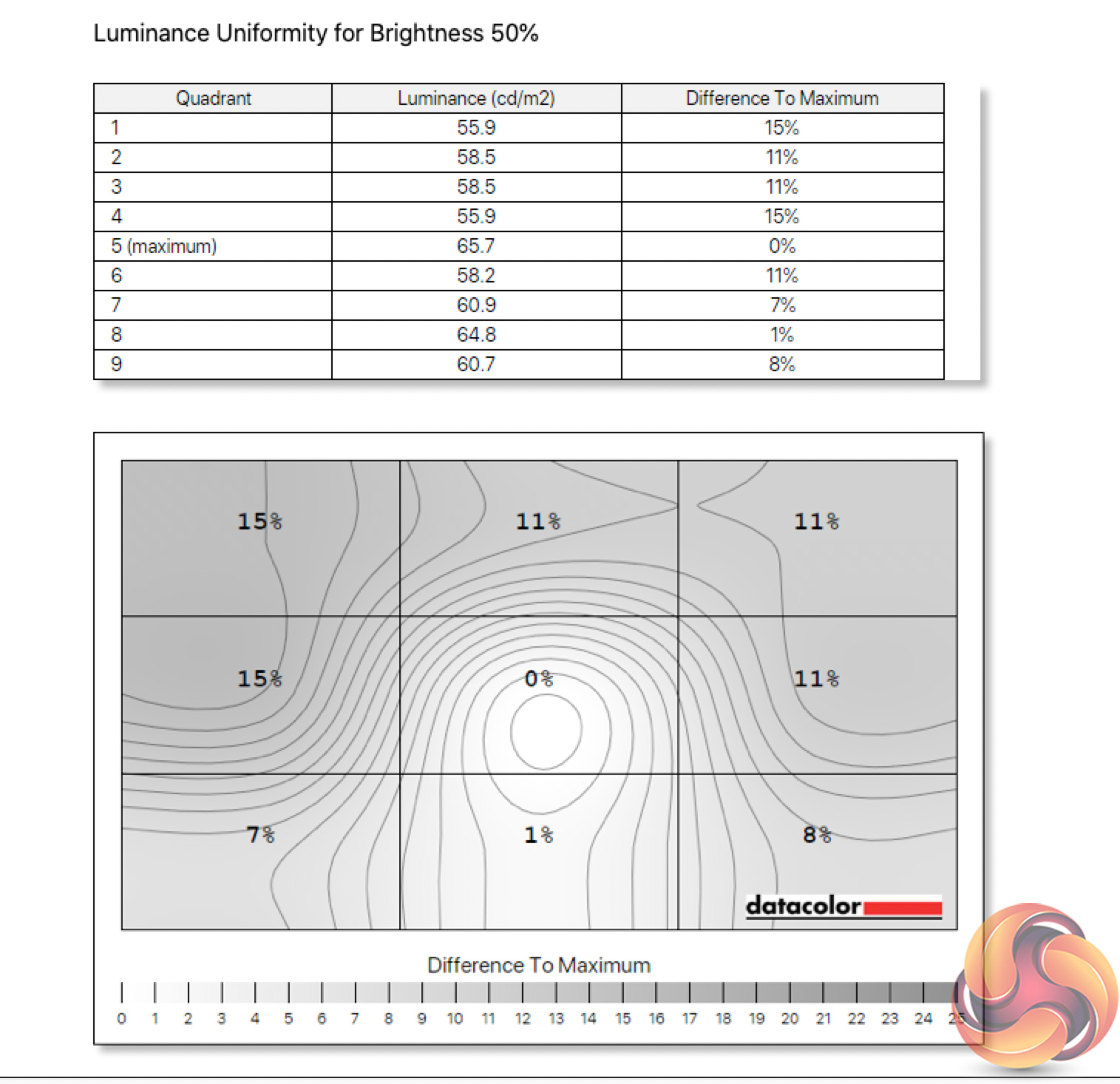
Luminance uniformity is more middling, with 15% deviation observed on the left side of the panel, though I wouldn't say this was particularly noticeable during use.
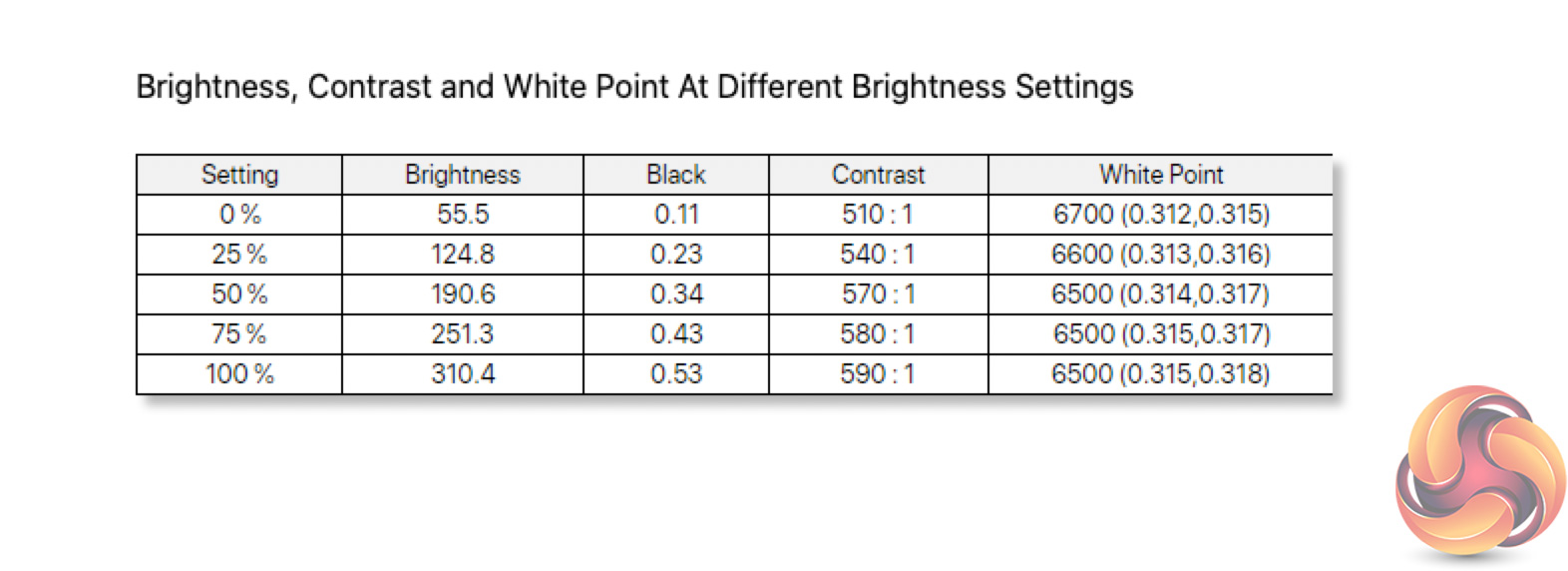
Speaking of brightness, despite Gigabyte claiming typical brightness of 400 nits, we topped out at 310 nits. That's still a respectable result, though it's not super bright – in practice, I found myself using the display at around 70% in a well-lit environment.
Contrast, however, is reported very low indeed, at just 590:1. Now, I have heard reports that these SpyderX units can under-report contrast in some situations, but no matter what settings I tweaked, I did not see above 610:1, which is well below Gigabyte's claimed 1000:1 ratio. That's not particularly impressive to begin with, so those looking for a contrasty display would likely be better served by a VA panel.
More positive however is the white point, which is bang on at 6500K when tested at 50-100% brightness, and only deviates from that target by 200K at 0% brightness.
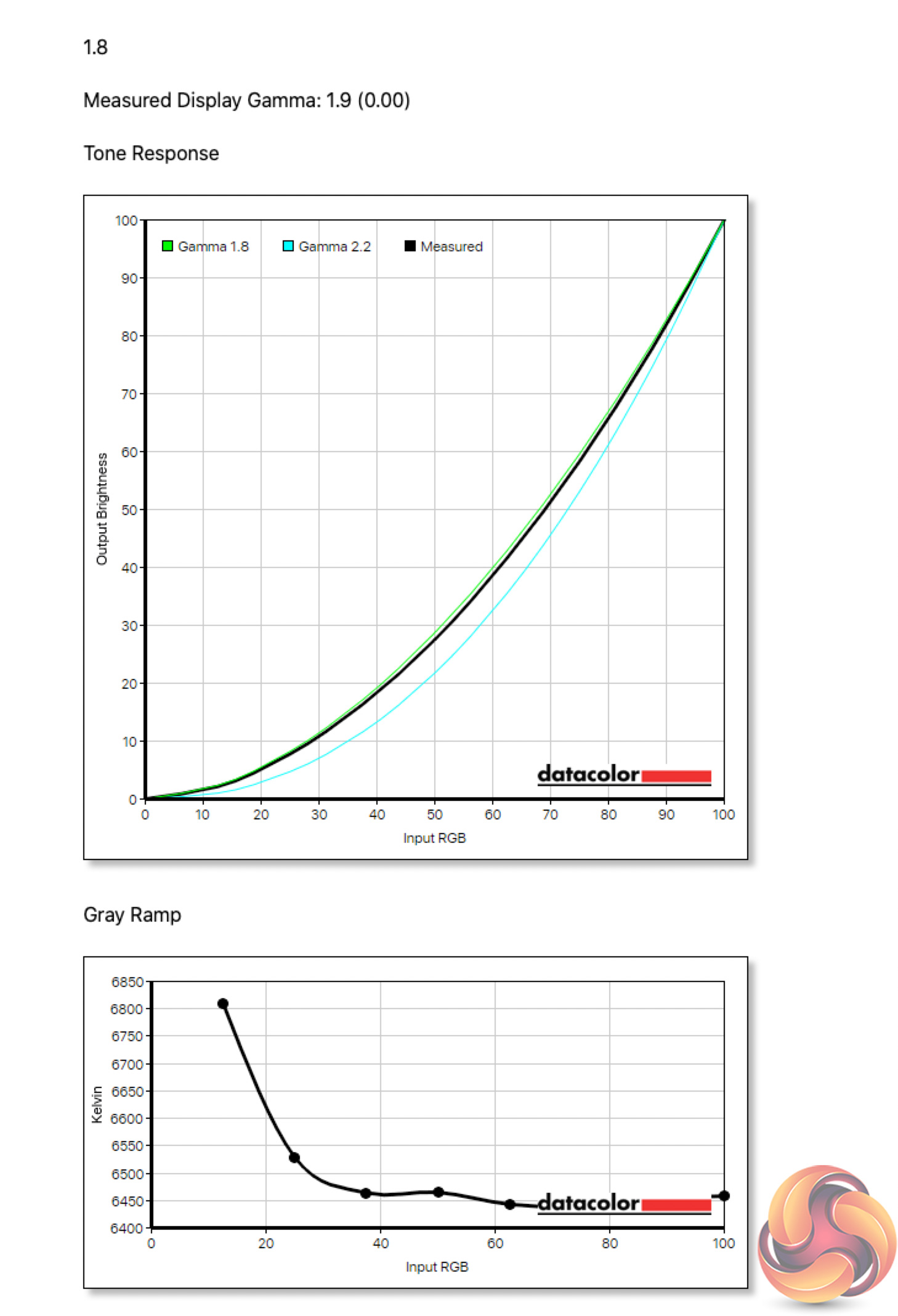
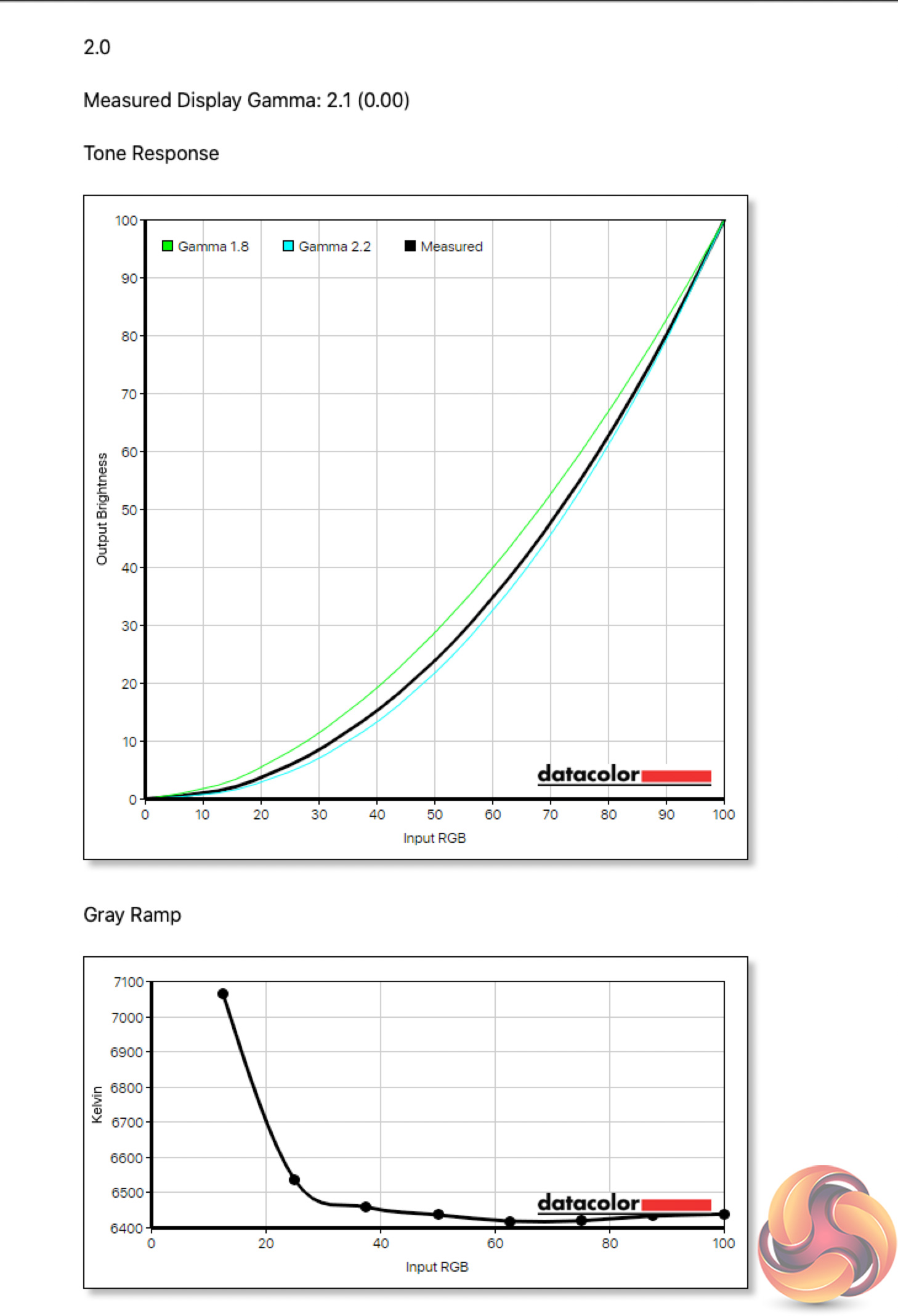
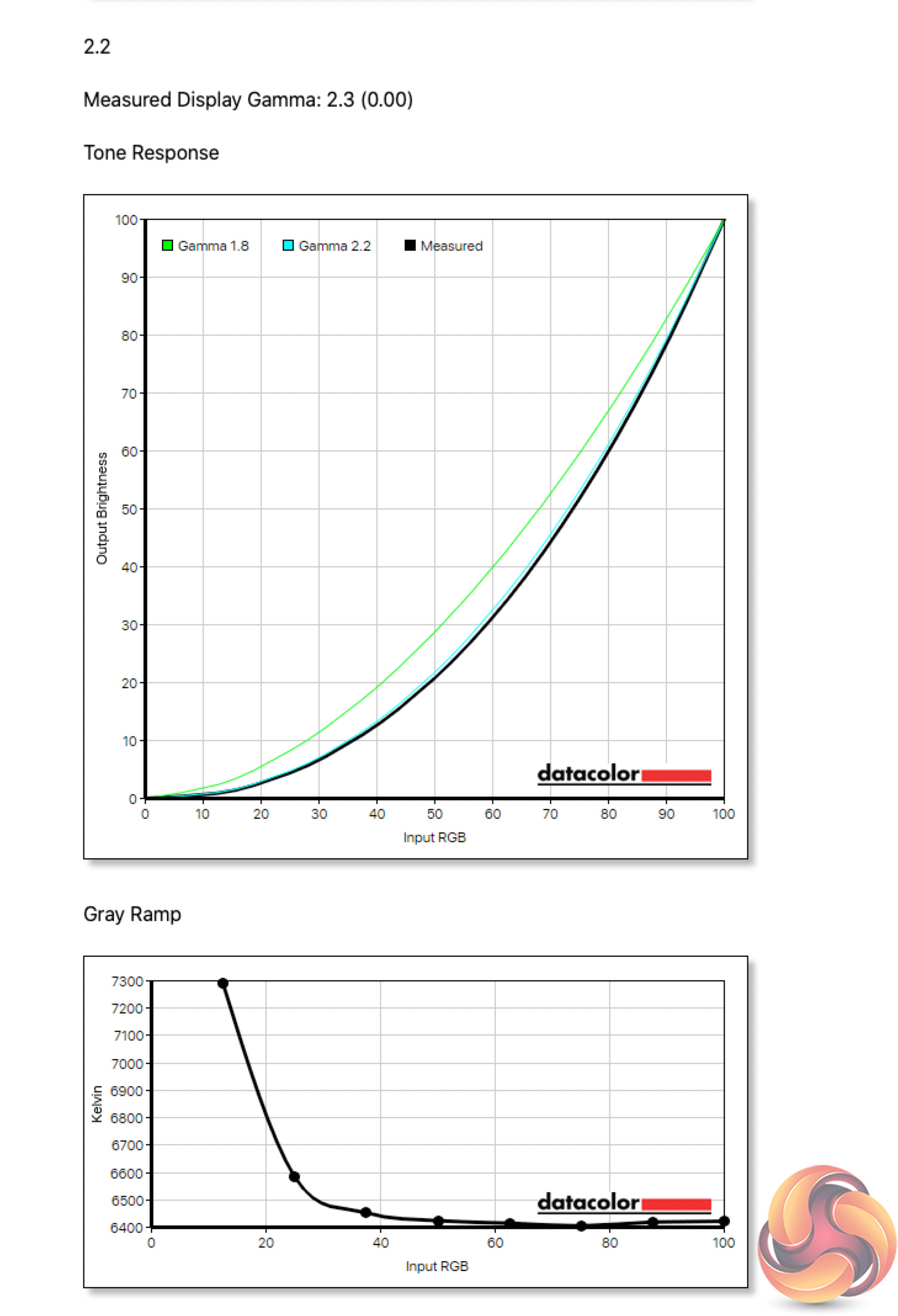
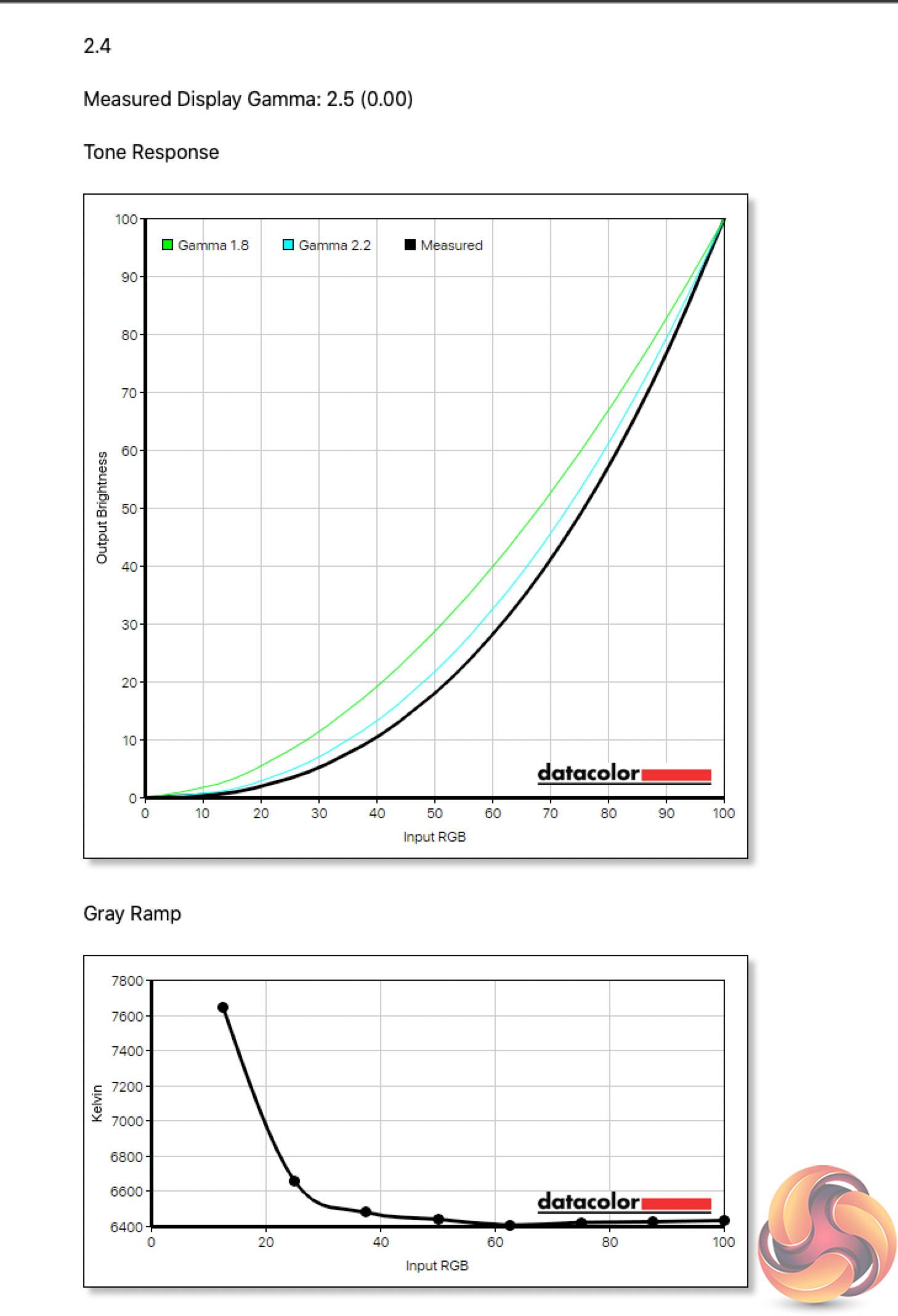
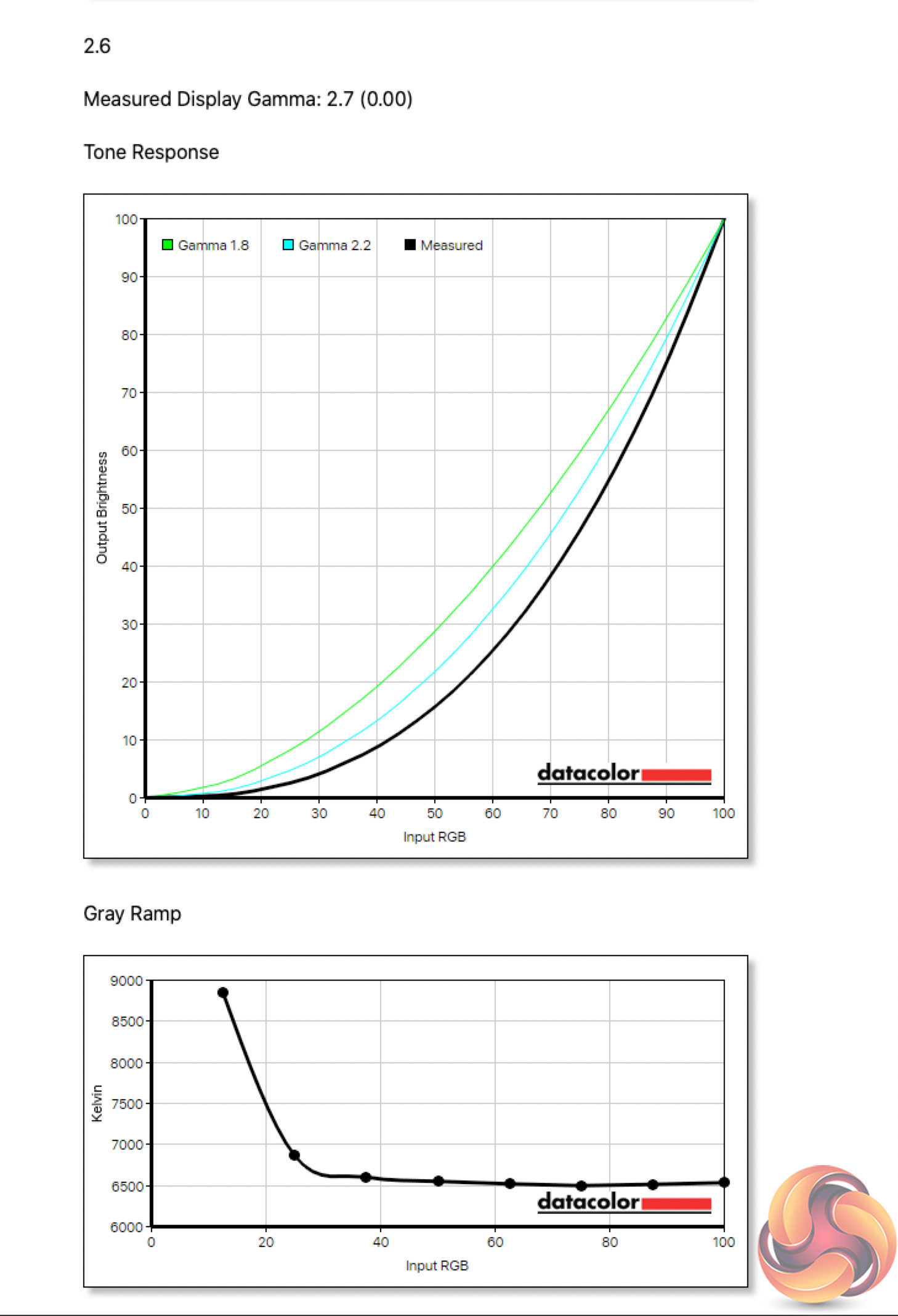
Meanwhile, there are five gamma options in the OSD, ranging from 1.8 to 2.6, in increments of 0.2. Our testing found each setting to report 0.1 below its actual value. So the Gamma 1.8 setting resulted in a gamma reading of 1.9, while Gamma 2.2 read as 2.3 and so on.
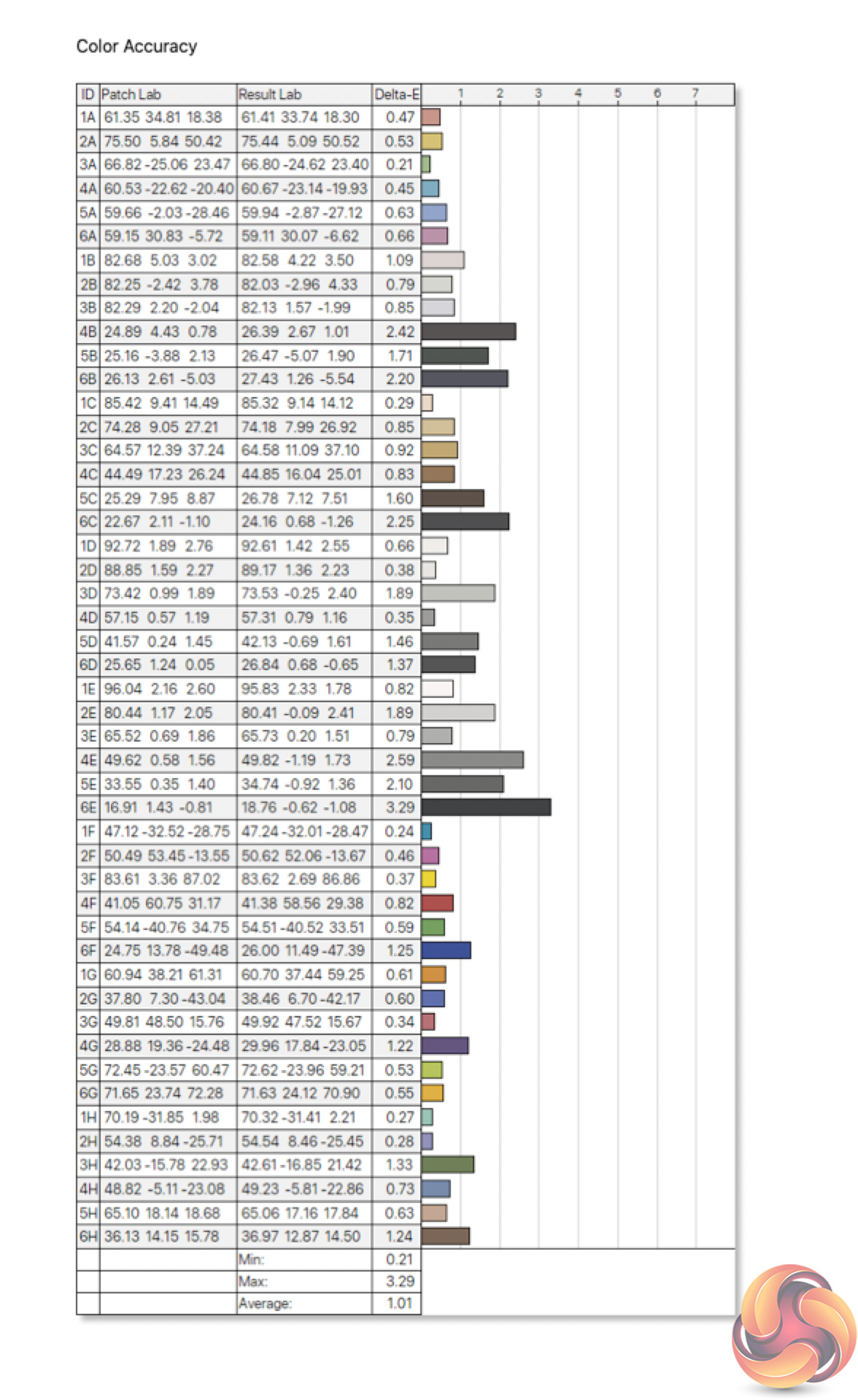
As for out of the box colour accuracy, the FI32Q X impresses. We see an average deltaE of just 1.01, with only one colour channel exceeding a deltaE of 3.
Post-calibration
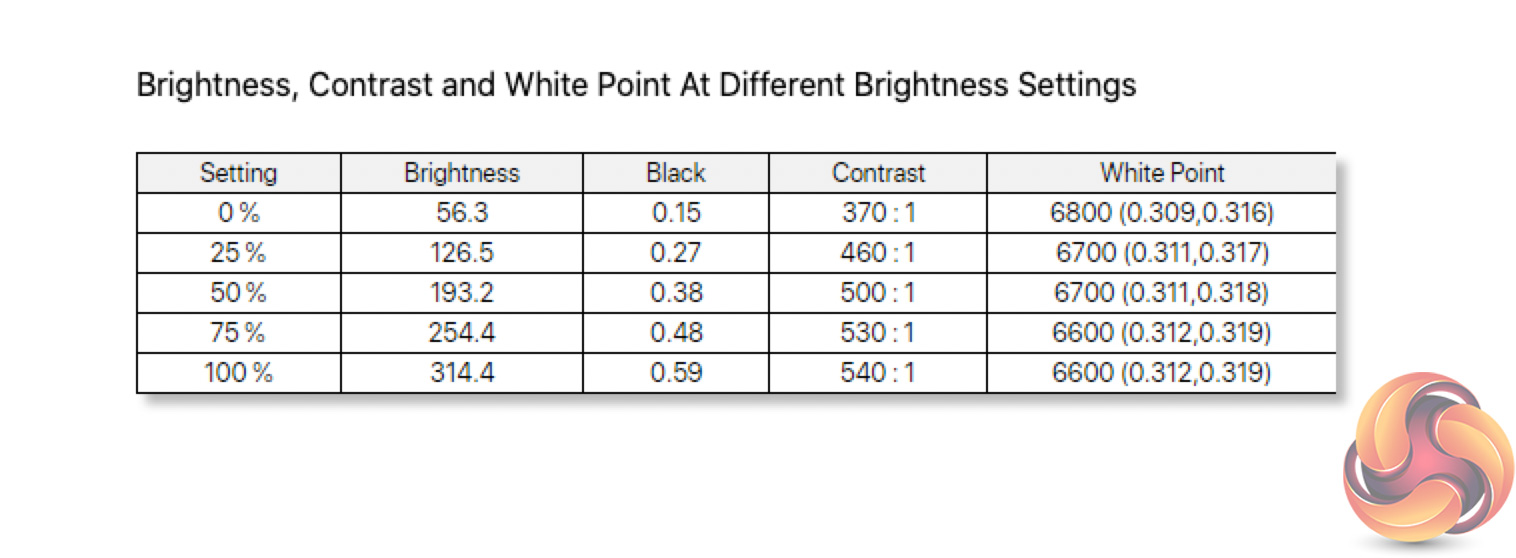
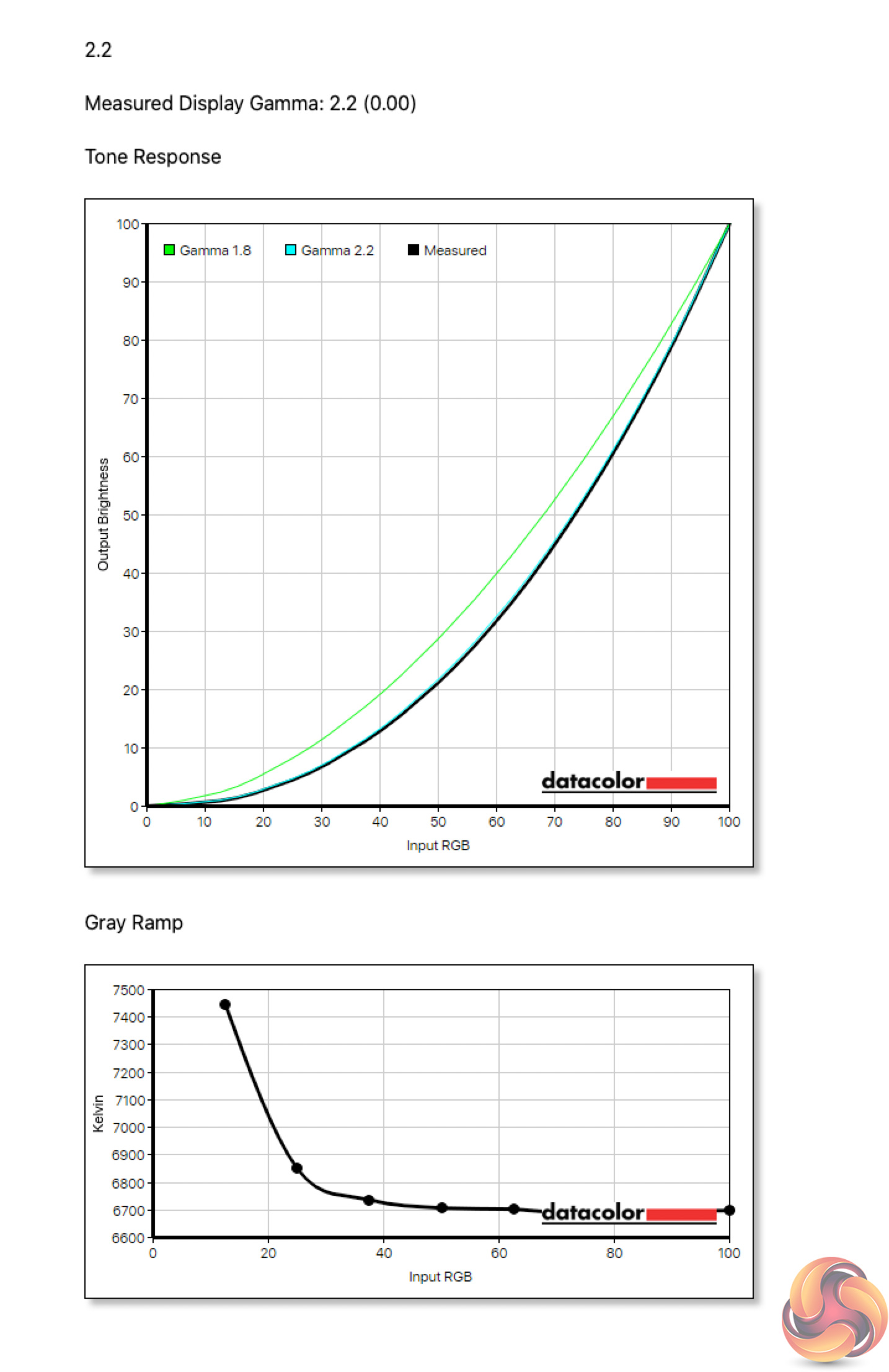
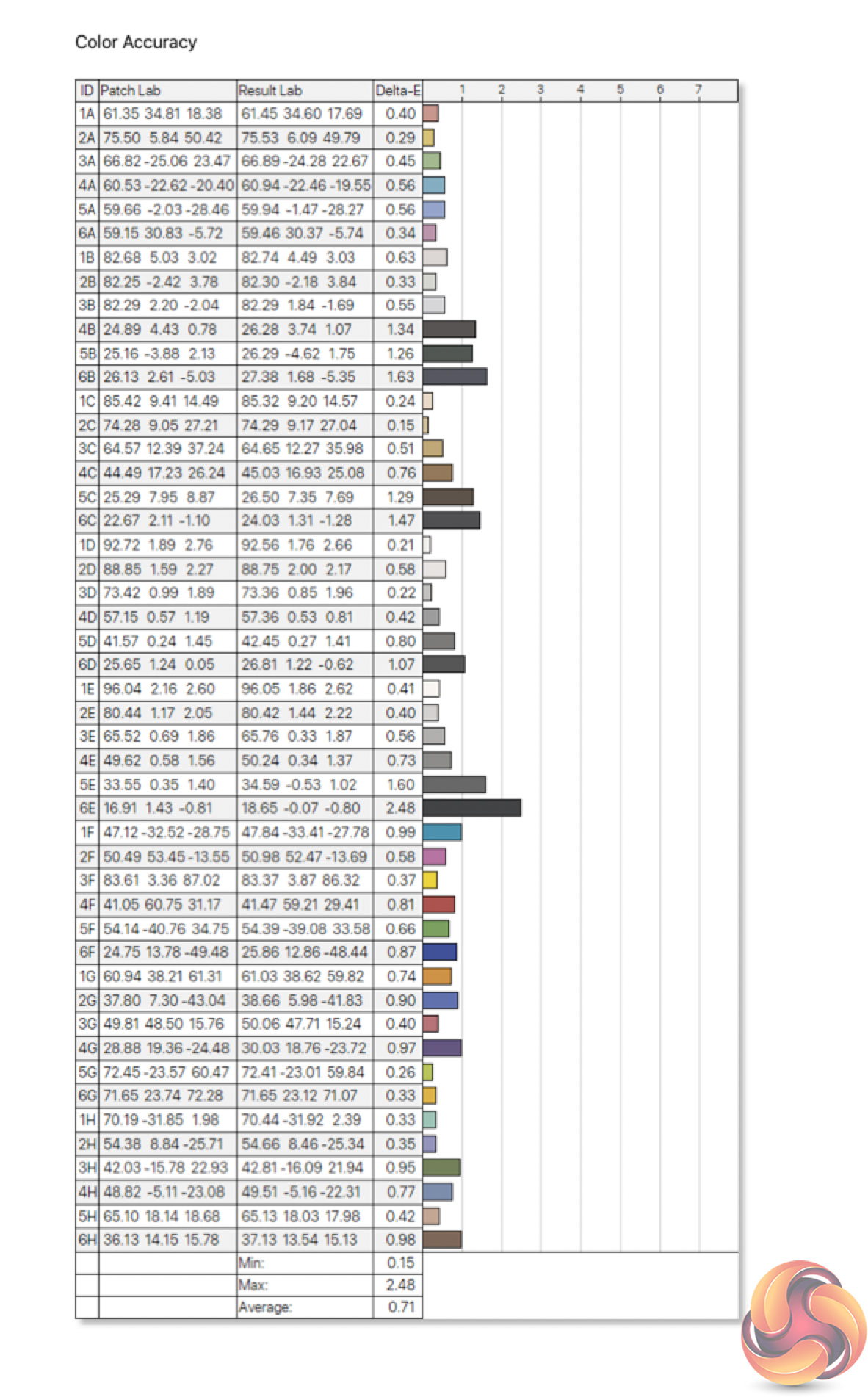
Not a whole lot changes after calibration, though the Gamma 2.2 setting does now report a gamma value of 2.2, so that is good news. Likewise, the overall colour accuracy of the display has improved further, now showing an average deltaE of just 0.71, which is superb.
Monitor response time testing is a new addition to our reviews, where we use the Open Source Response Time Tool (OSRTT), developed by TechTeamGB. This measures grey-to-grey response times and presents the results in a series of heatmaps, the style of which you may be familiar with from other reviews.
Perceived Response Time is the time taken for the panel to transition from one colour to another, where lower values are better. Unlike other forms of testing monitor response times, the perceived response time shown here also includes overshoot as part of the results, so if a monitor takes 5ms to complete a transition, but overshoots and takes another 5ms to stabilise at the correct colour, the perceived response time is reported as 10ms. We use a fixed RGB 5 tolerance for each transition. All results shown are gamma corrected.
Overshoot is the term given for when a monitor's transition exceeds or goes beyond its target value. So if a monitor was meant to transition from RGB 0 to RGB 55, but it hits RGB 60 before settling back down at RGB 55, that is overshoot. This is presented as RGB values in the heatmaps – i.e. how many RGB values past the intended target were measured. All results shown are gamma corrected.
Visual Response Rating is a metric designed to ‘score' a panel's visual performance, incorporating both response times and overdrive. Fast response times with little to no overshoot will score well, while slow response times or those with significant overshoot will score poorly.
We test the FI32Q X at 270Hz, using all three of the overdrive settings (plus ‘off') found within the OSD.
Different overdrive modes at 270Hz:
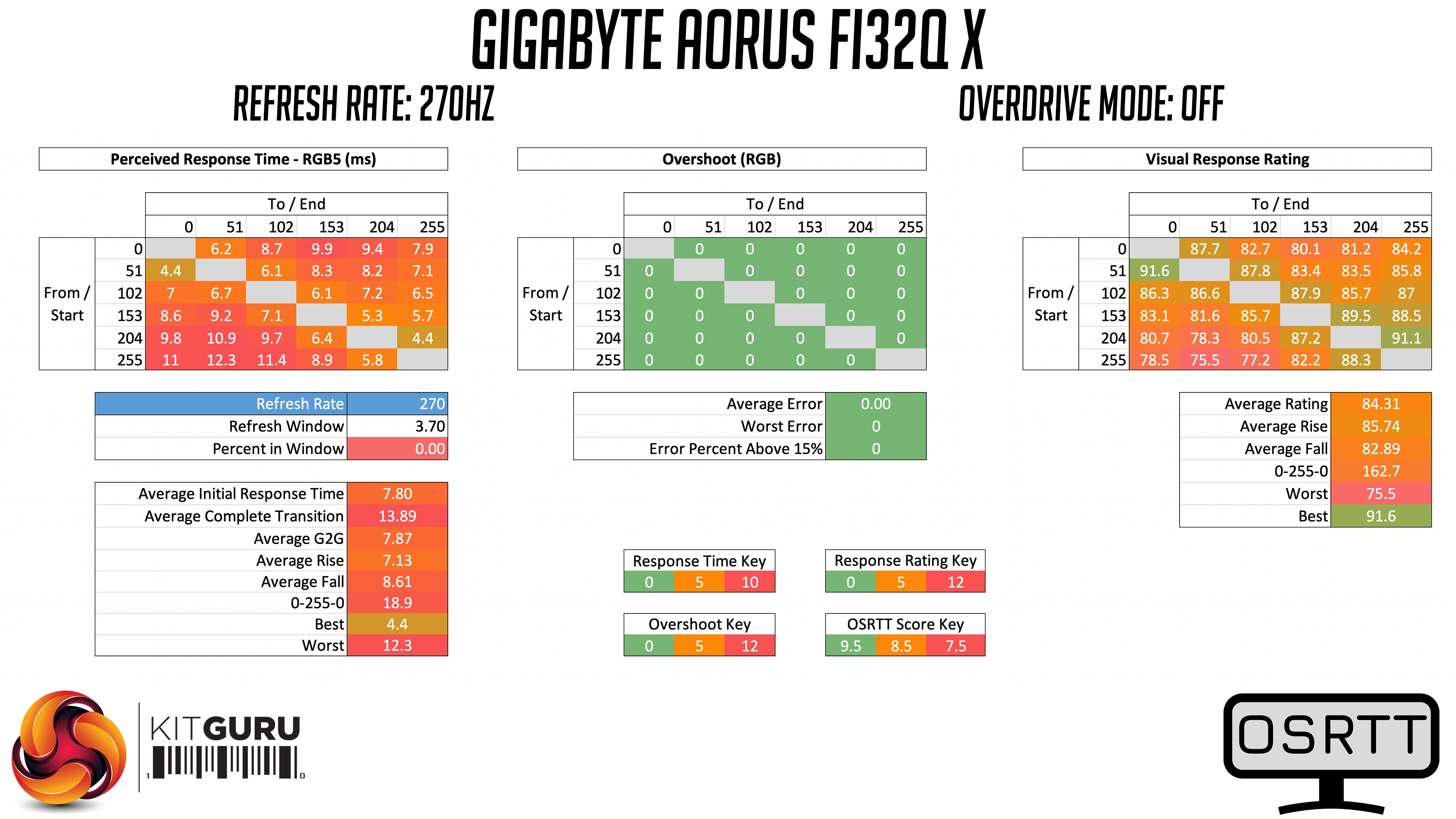
Starting with response times with no overdrive enabled, we can see the IPS panel used by Gigabyte is of good quality – an average GtG figure of 7.87ms before any overdrive is introduced is a decent result in my book.
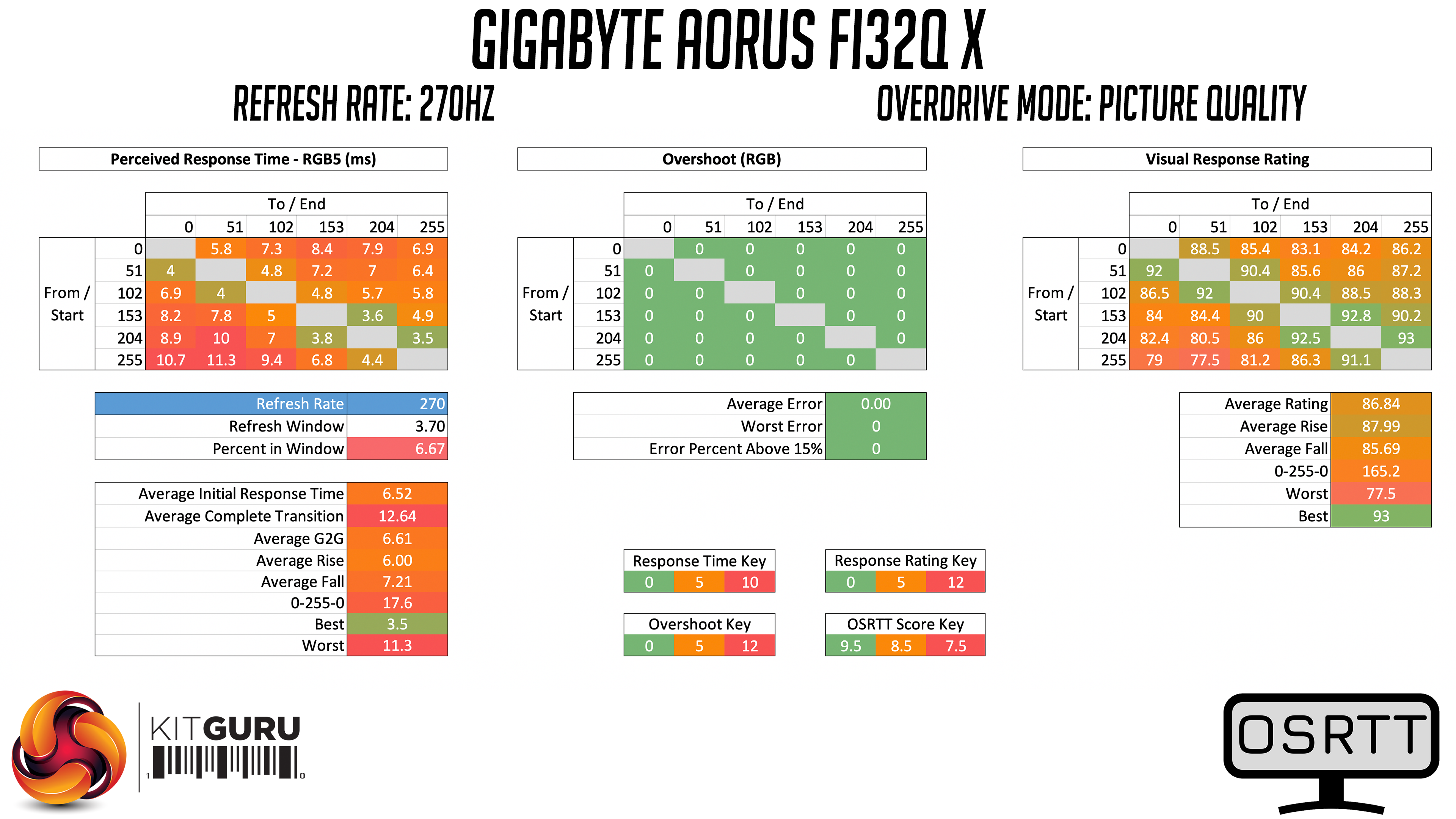
Bumping overdrive up to the Picture Quality mode improves things, as we still completely avoid overshoot, but response times are better still, averaging 6.61ms. The panel does seem to struggle most when transitioning from lighter shades (as seen in the bottom left of the heatmaps) but it's decent overall.
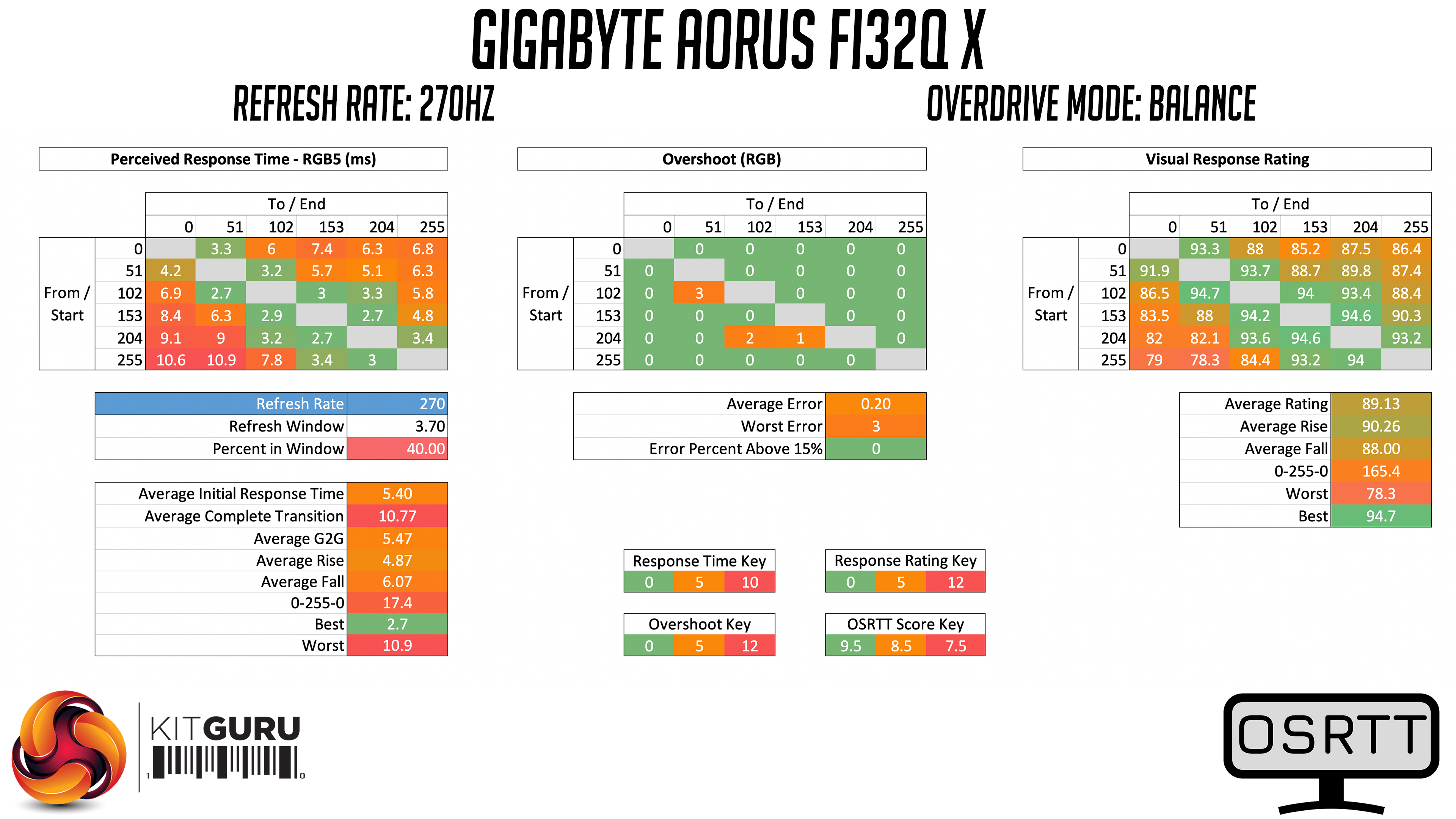
We get our best results when using the Balance overdrive mode. This still keep overshoot to a minimum, with the panel only marginally exceeding its targets on just three transitions, while GtG times are further improved, with a new average of 5.47ms. The transitions from the lighter colours are still the most problematic.
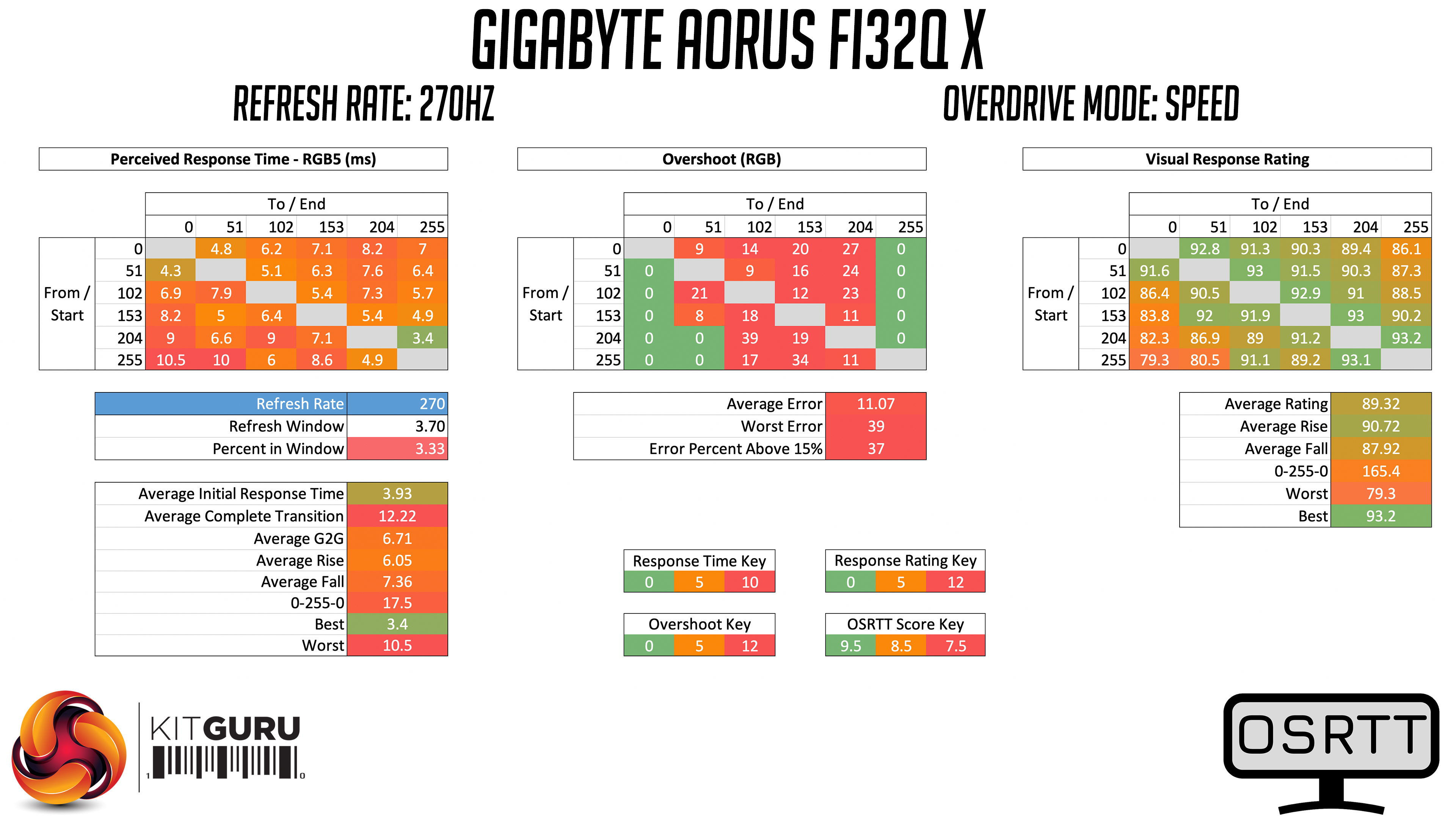
Lastly, we have the Speed overdrive mode. This does improve initial response times to 3.93ms, but as a result of the significant overshoot, the perceived response times have increased to 6.71ms. In practice I found the overshoot quite noticeable and wouldn't recommend using this mode.
Not so ‘Smart OD'
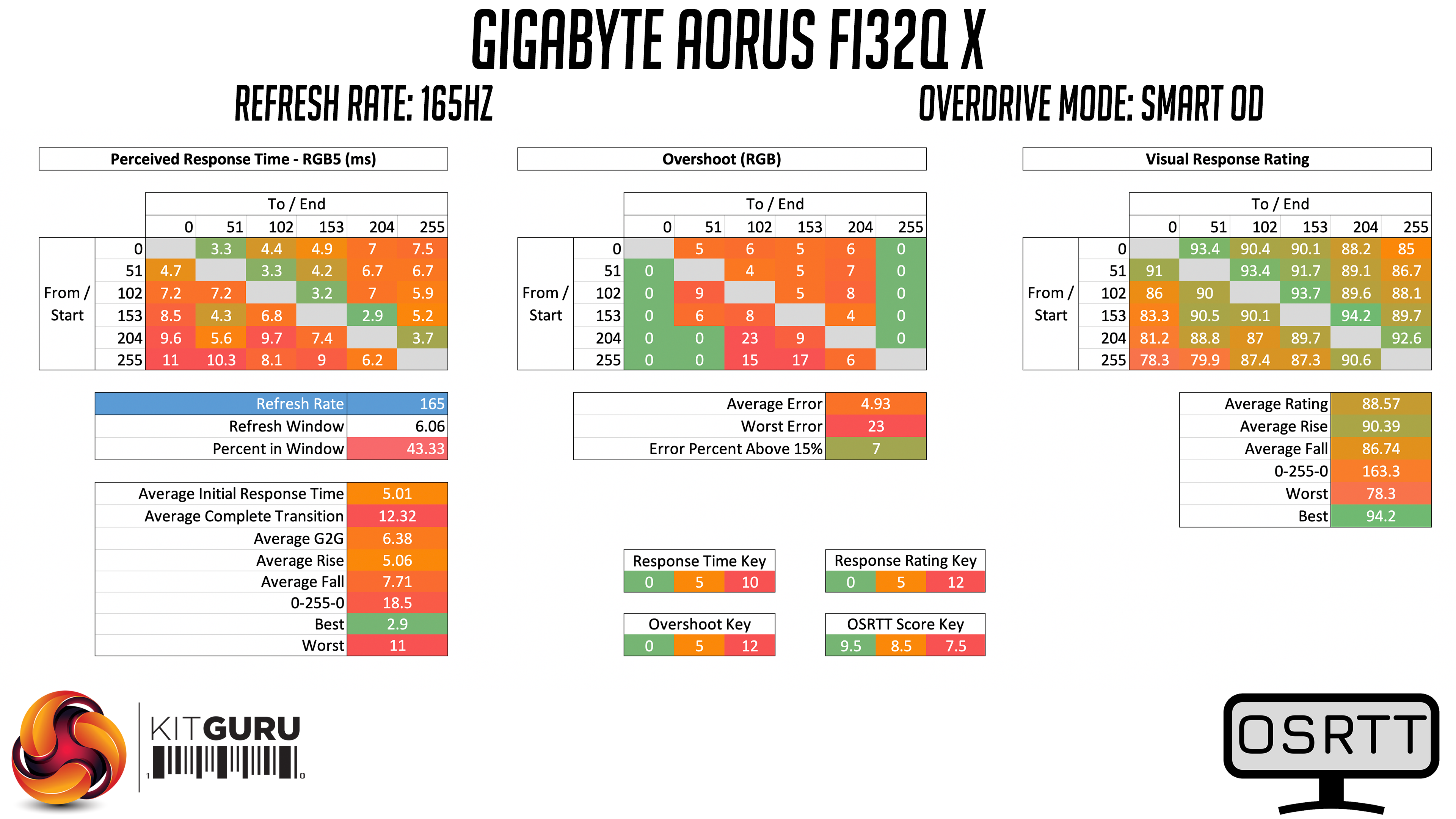
Now, you may be wondering why we have only mentioned the Picture Quality, Balance and Speed overdrive modes, when there is another option included – Smart OD. The reason for this is because Smart OD did not perform well in my testing. It's not a true variable overdrive mode, but rather it engages what it deems to be the best overdrive mode depending on the refresh rate selected.
At 165Hz, for instance, Smart OD uses the Balance overdrive mode, as seen above, which shows a fair amount of overshoot and average GtG times of 6.38ms…
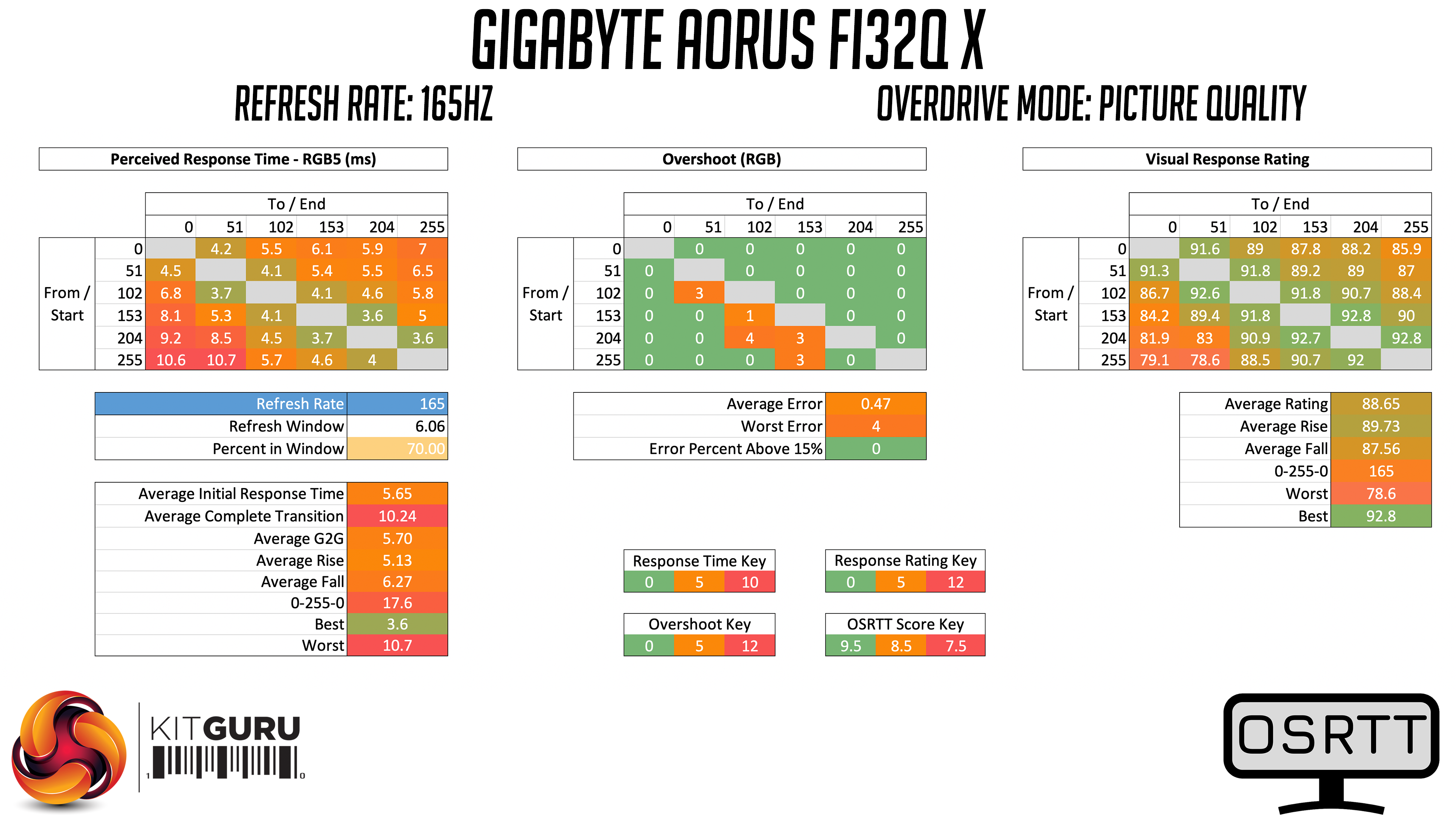
In my own testing however, using Picture Quality at 165Hz gives much better results. Overshoot is kept to a minimum, helping perceived response times improve to 5.70ms.
Overdrive recommendations
Based on that testing, I'd recommend using the Balance overdrive mode at 200Hz and above – it will offer the fastest response times, with little to no overshoot if your games can run at over 200FPS. Below that, Picture Quality is a better bet as Balance introduces too much overshoot at lower refresh rates.
Monitor comparisons
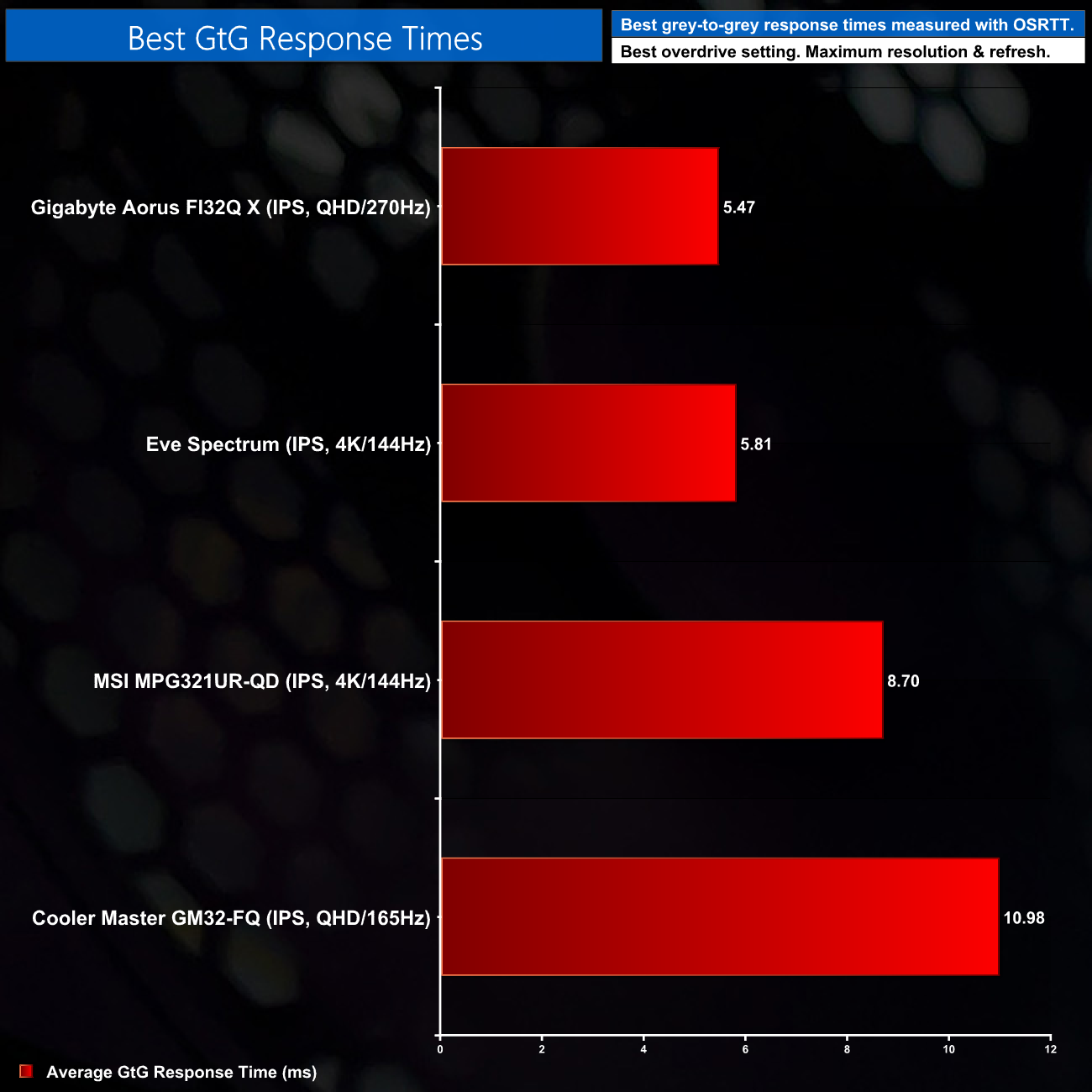
Rounding out our testing with a head-to-head comparison, looking at our screens' average GtG performance using their best respective overdrive modes, we can see the FI32Q X takes top spot with its result of 5.47ms. We've only just started using OSRTT in our reviews so there is clearly a lot of work to be done adding in other monitors, but right now the FI32Q X is heading up our chart.
System latency is another area of our testing, where we use Nvidia’s Latency and Display Analyzer Tool (LDAT) to measure end-to-end system latency. LDAT itself is a photosensor which is placed on the monitor. It has an integrated mouse button, allowing it to measure the total time taken from mouse click, to an action happening on screen, which is done by measuring a change in luminance. This data is logged to a CSV file over USB, allowing for close analysis of the data.
As this is end-to-end system latency, we are not measuring only the processing/input latency of each monitor we test. However, we can standardise the test process so the monitor is the only variable. It also gives an insight into how different refresh rates and resolutions can affect end-to-end latency, which is of course highly relevant to your purchasing decision.
We use Rainbow Six Siege for this testing.
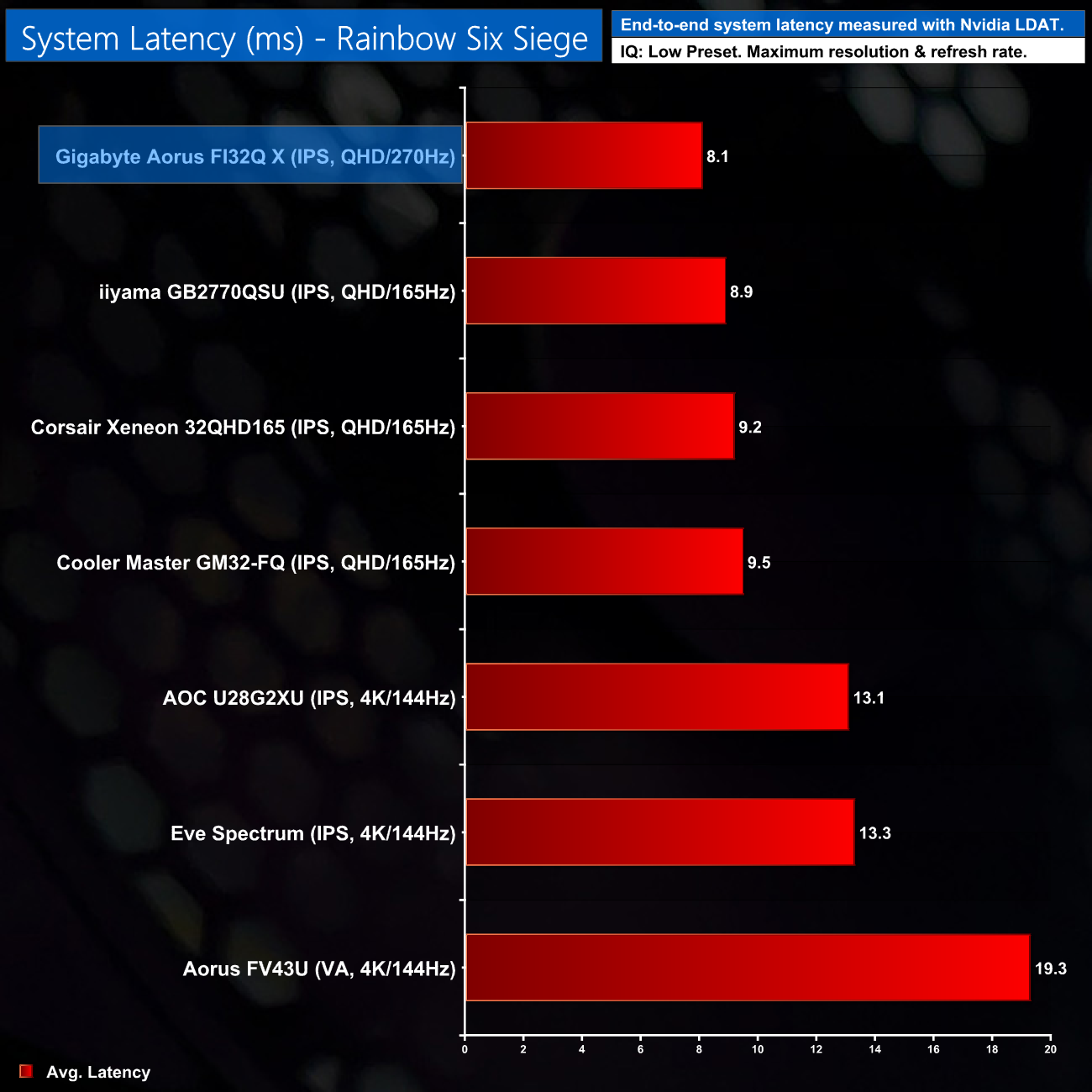
System latency is very impressive for the FI32Q X. It's not miles faster than the likes of the iiyama GB2770QSU, but the reduction in latency from 8.9ms to 8.1ms works out as a 9% difference, so it's definitely something. Then again, only the most competitive of gamers are likely to notice, but lower latency is always better.
There's a lot to like about the Gigabyte Aorus FI32Q X. We mentioned at the start of this review that it looks very strong on paper, and by and large those strengths do come through in the real world.
For starters, it might sound obvious but the 240Hz refresh rate (or 270Hz if you overclock), coupled with the 1440p resolution, makes for a very fluid but still sharp overall experience. That's complemented by the impressive response times of the panel, where I'd recommend using the Balance overdrive mode if you're pushing over 200FPS, but otherwise stick with the Picture Quality mode.
In general terms as well, I personally believe 240Hz 1440p displays are a great place to be if you're shopping for a new gaming monitor. 1440p is significantly easier to drive than 4K for instance, while the 240Hz refresh rate offers some ‘future proofing'. Most games won't be running at that sort of frame rate with today's GPUs, but there's plenty of headroom to hang onto this monitor through one or even two GPU upgrades.
General panel quality is very good too, no doubted aided by the use of Quantum Dot technology. We saw excellent gamut coverage, hitting 100% for both sRGB and AdobeRGB colour spaces, while the screen's average deltaE hit just 0.71 once calibrated. Contrast is a weakness however, as Gigabyte claims a 1000:1 ratio, but we didn't observe more than 610:1 with our SpyderX colorimeter.
We can't ignore pricing either, as you do end up paying a premium for the FI32Q X, given it currently retails for around £900 on Overclockers UK. Compared to other 1440p 240Hz displays, like the ASUS ROG Strix XG27AQM, it certainly seems pricey. Gigabyte is keen to point out the extra features on offer for that money, including KVM switch, DisplayHDR600 certification, and of course the fact that this is a 32in panel when most 1440p 240Hz screens are 27in.
Still, the fact remains that you are paying a pretty penny for this screen, and that price also puts the FI32Q X right in 4K/144Hz territory – so if you aren't absolutely set on 240Hz, you could get a number of capable displays offering a sharper resolution and a still-fast 144Hz refresh rate.
That said, if you do have your heart set on a 1440p 240Hz display, and as I said earlier, I do think it is a good place to be – then the Gigabyte Aorus FI32Q X has a lot going for it, with silky-smooth visuals and punchy colours. You do pay handsomely for the privilege, which will deter many, but there's no denying the quality on offer here.

You can buy the FI32Q X for £839.99 (currently discounted from £908.99) from Overclockers UK HERE.
Discuss on our Facebook page HERE.
Pros
- Punchy colours with Quantum Dot tech.
- 240Hz refresh rate that can be overclocked to 270Hz.
- Impressive response times mean minimal ghosting during gameplay.
- Excellent colour accuracy, especially once calibrated.
- Gigabyte includes a number of useful features, like desk mount and KVM switch.
Cons
- Pricey.
- Contrast isn't wonderful.
- Missing true variable overdrive.
KitGuru says: Gaming at 1440p 240Hz is an excellent experience, and the FI32Q X backs that up with impressive response times. There's no denying it is very expensive, but this screen could see you through multiple PC upgrades.