KitGuru KitGuru.net – Tech News | Hardware News | Hardware Reviews | IOS | Mobile | Gaming | Graphics Cards


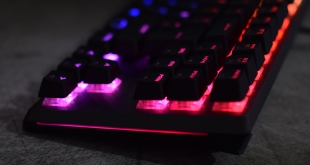
Cooler Master has released a whole stack of new peripherals over the last year, refreshing its lineup ready for 2019 and beyond. As part of this, today we are looking at the MK730 tenkeyless mechanical keyboard. As somewhat of a spiritual successor to the MasterKeys Pro S RGB, it features Cherry MX RGB mechanical switches, a brushed aluminium top plate and revamped RGB lighting. Is it worth the £115.99 asking price?
I've been using Cooler Master keyboards for years – including the likes of the MasterKeys Pro S, MasterKeys L and more recently the SK630 low-profile board. Mechanical keyboards is also a big hobby of mine, so you can bet I was excited to get my hands on the new MK730. It is effectively the tenkeyless (TKL, or 80%) version of the MK750 that was announced towards the end of 2017.
With plenty of features to boot, including Cooler Master's signature on-board controls system, detachable USB-C cable as well as an included wrist rest, can the MK730 justify its £115.99 price tag?
Specification
- Switch Type: CHERRY MX
- Material: Plastic / Aluminium / PU Leather
- Colour: Smoky Gunmetal Aluminium Brush
- LED Colour: RGB, 16.7 million colors
- Polling Rate: 1000Hz
- Response Rate: 1ms / 1000Hz
- MCU: 32bit ARM Cortex M3
- On board Memory: 512KB
- On-the-fly system: Yes, for Multimedia, Macro Recording and Lighting Control
- Multi-media Keys: Through Function (FN) Key
- Smart cable manager: Yes, 3 Ways
- Wrist rest: Removable magnetic with soft PU Leather
- Cable: Detachable braided USB Type-C
- Software: Support Yes, Portal
- Connector Cable: USB 2.0
- Cable: Length 1.8m
- Dimensions: 360 x 192 x 41.5 mm, 360 x 183.5 x 41.5 mm (Without Wrist Rest)
- Product Weight: (without cable) 698g
- Warranty: 2 years
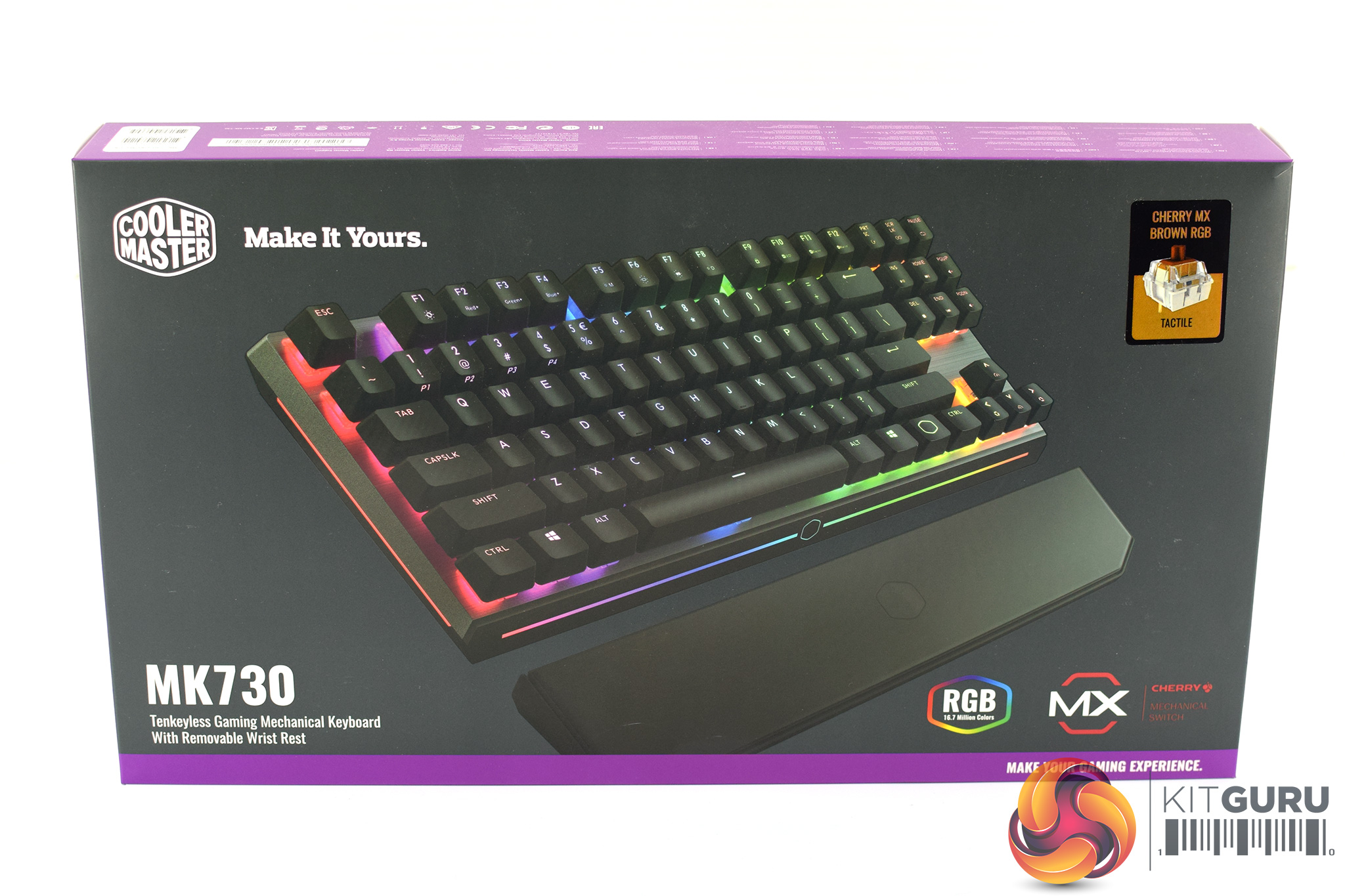
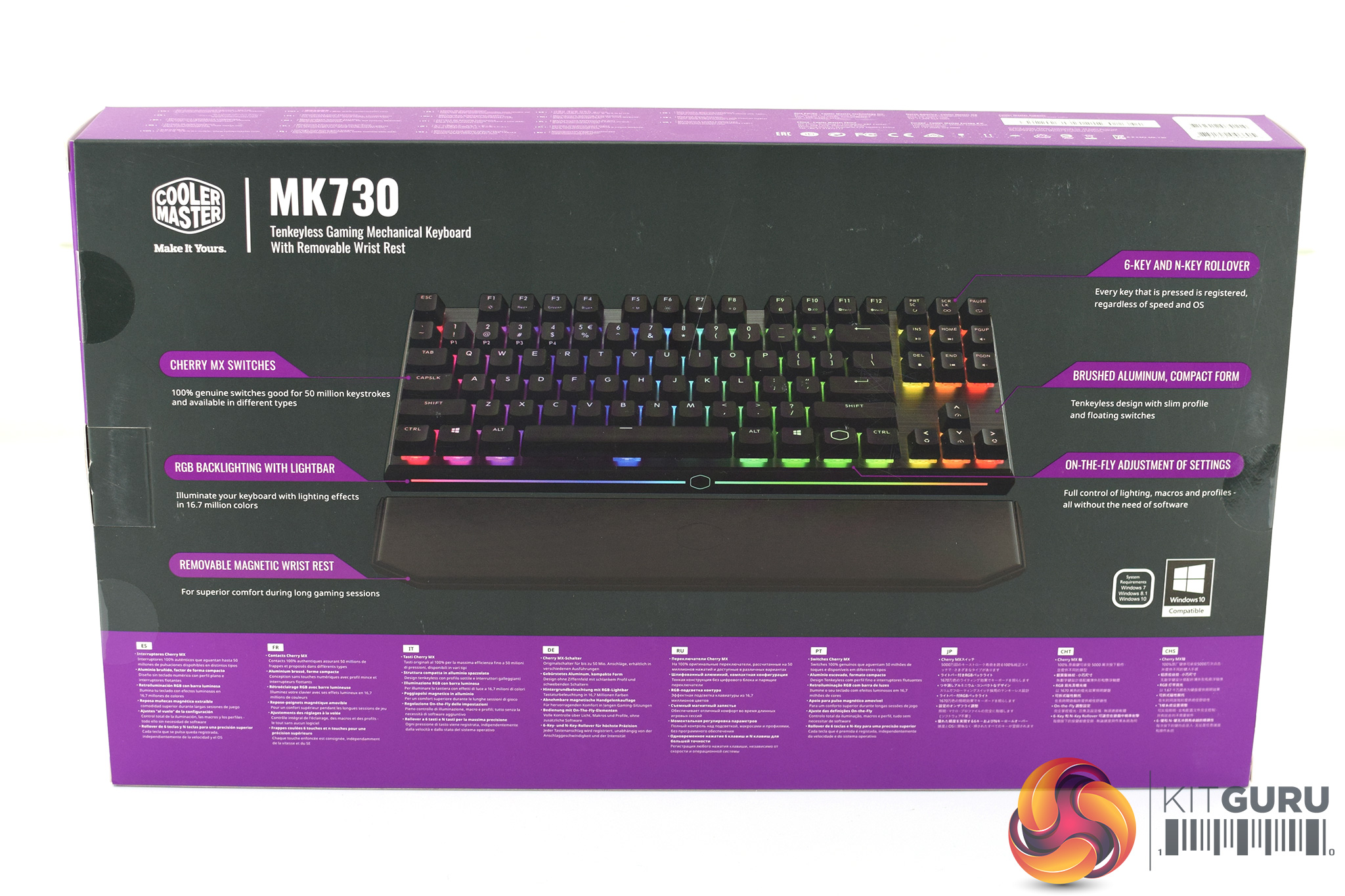
The Cooler Master MK730 ships in a dark box that sports Cooler Master's signature purple accents. A photo of the keyboard itself is visible on the front, while some key features of the board are highlighted on the back of the box.
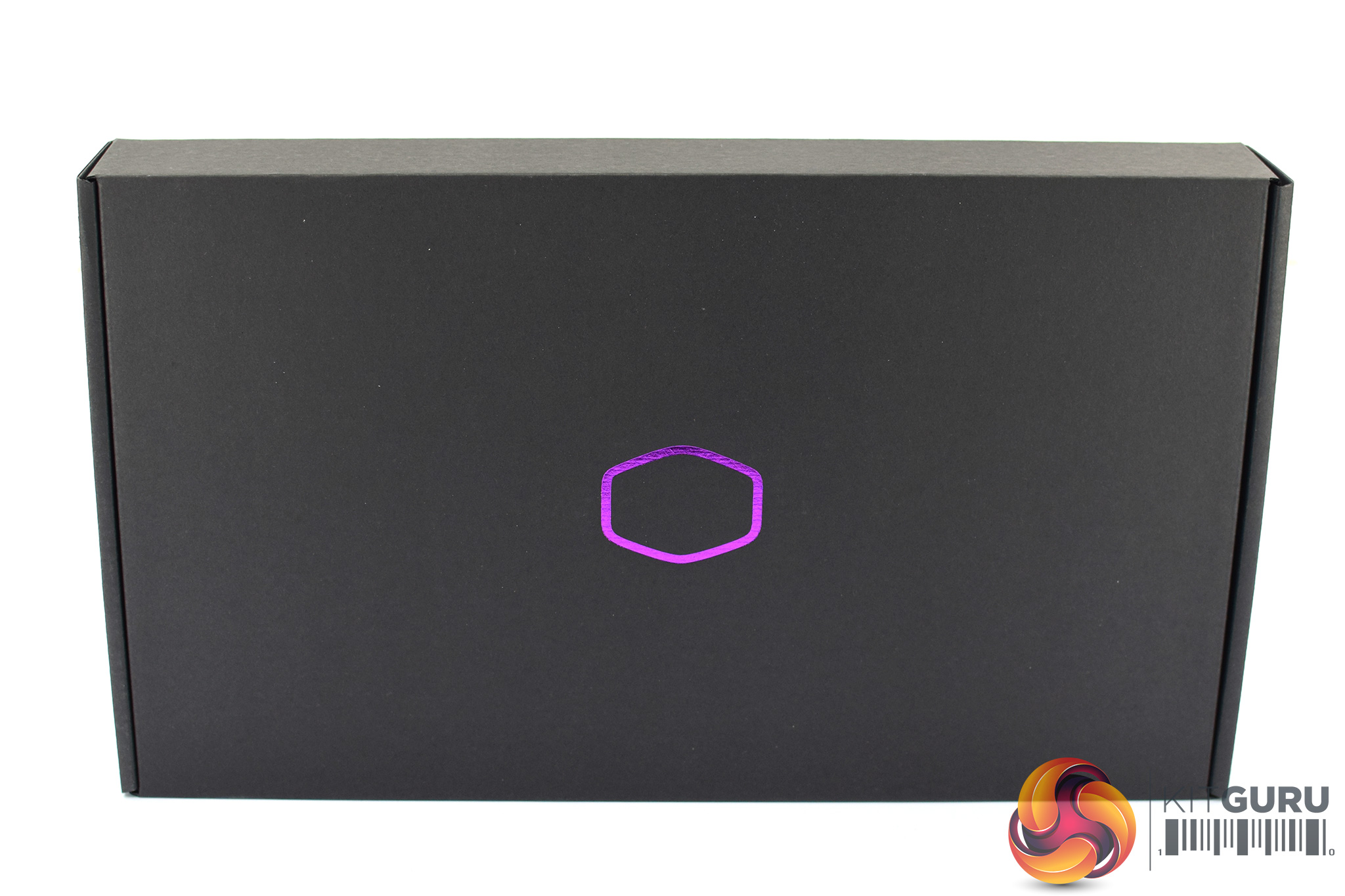
The outer box gives way to an inner box, which is plain black apart from the Cooler Master hexagon logo printed in purple.
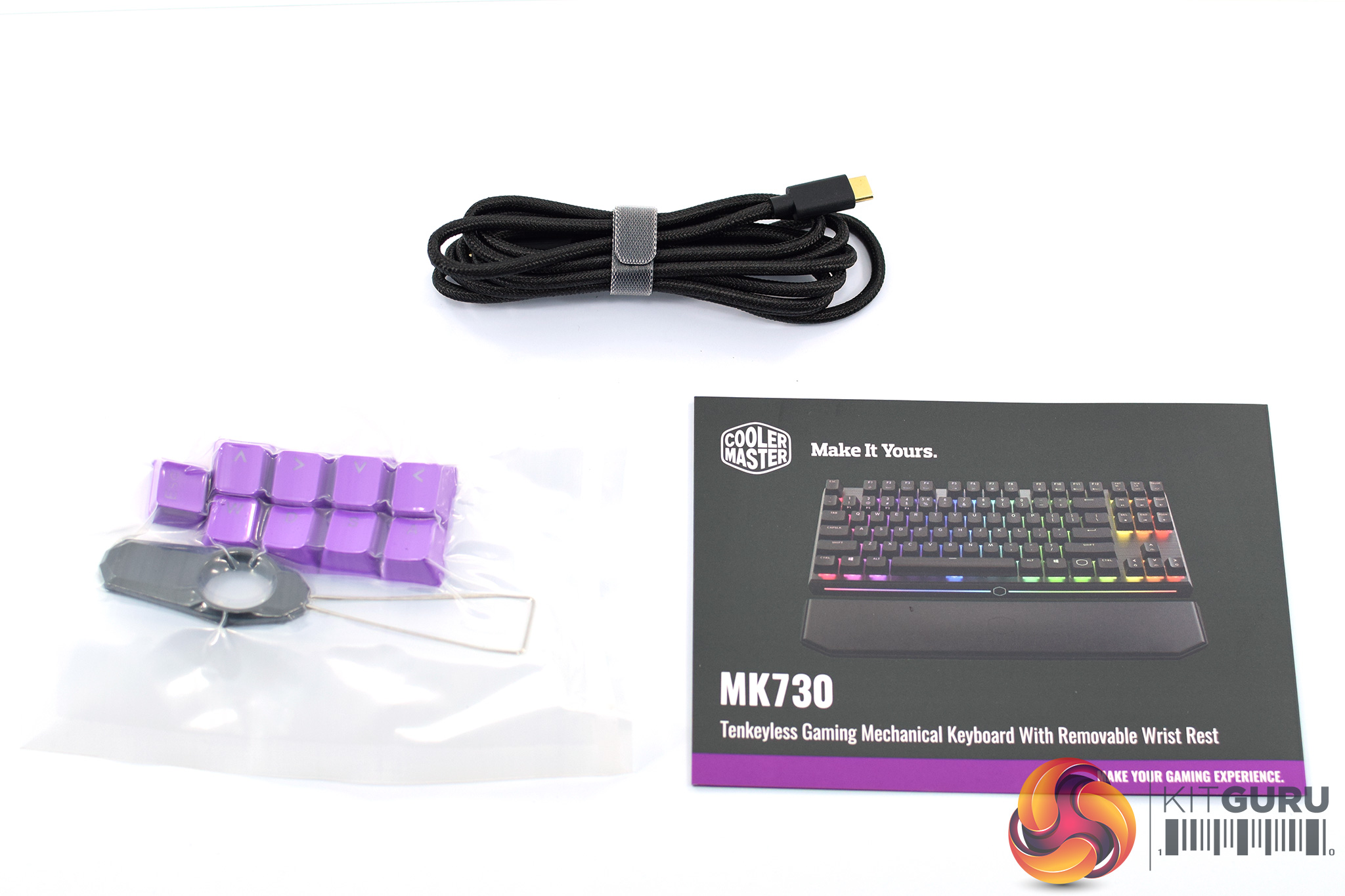
Inside that, we find some accessories – namely, the 1.8m USB-C cable, a quick start guide, and then a total of 9 spare keycaps with a keycap puller also included. These keycaps are purple PBT caps for the WASD, arrow and ESC keys.
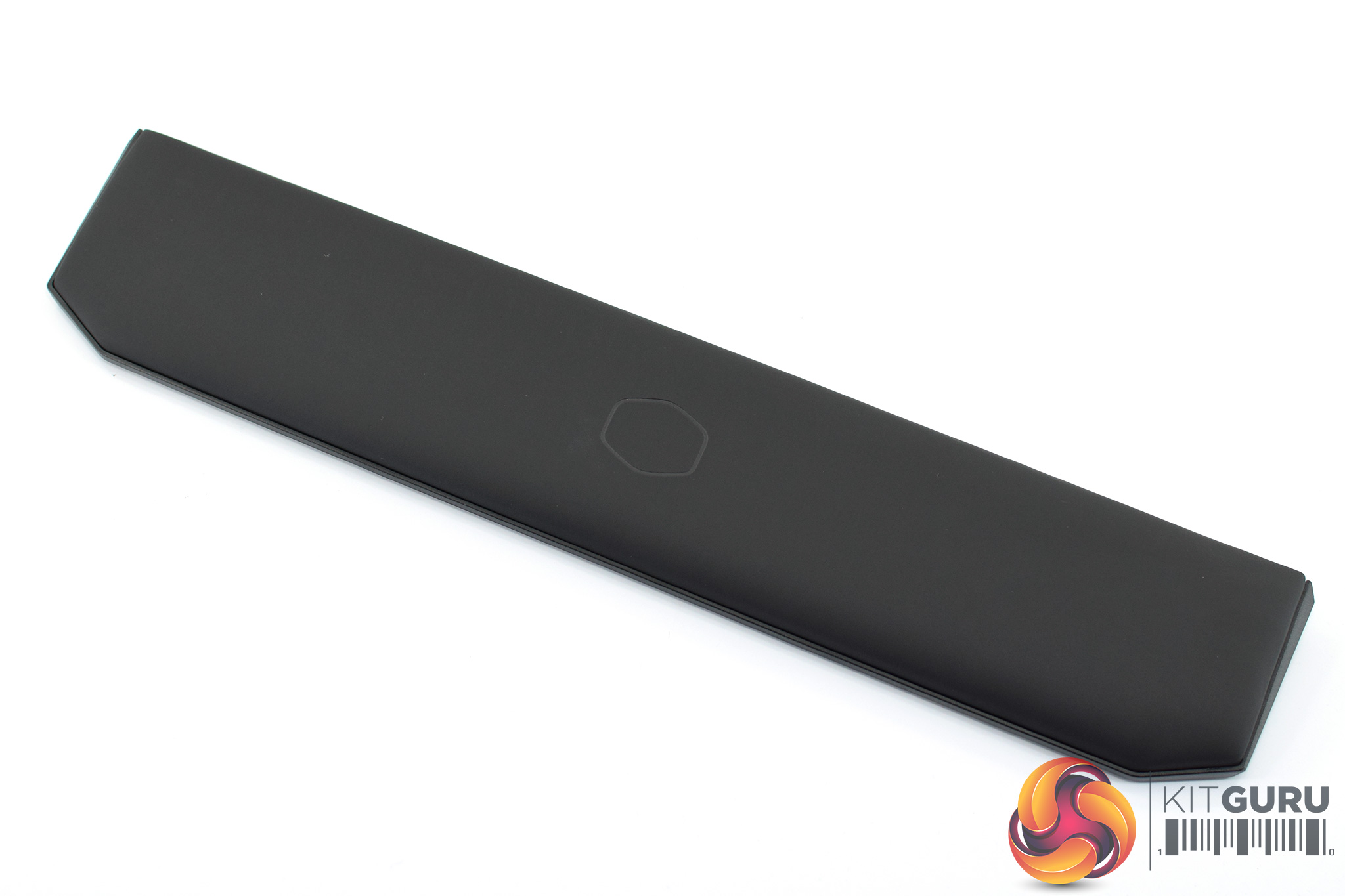
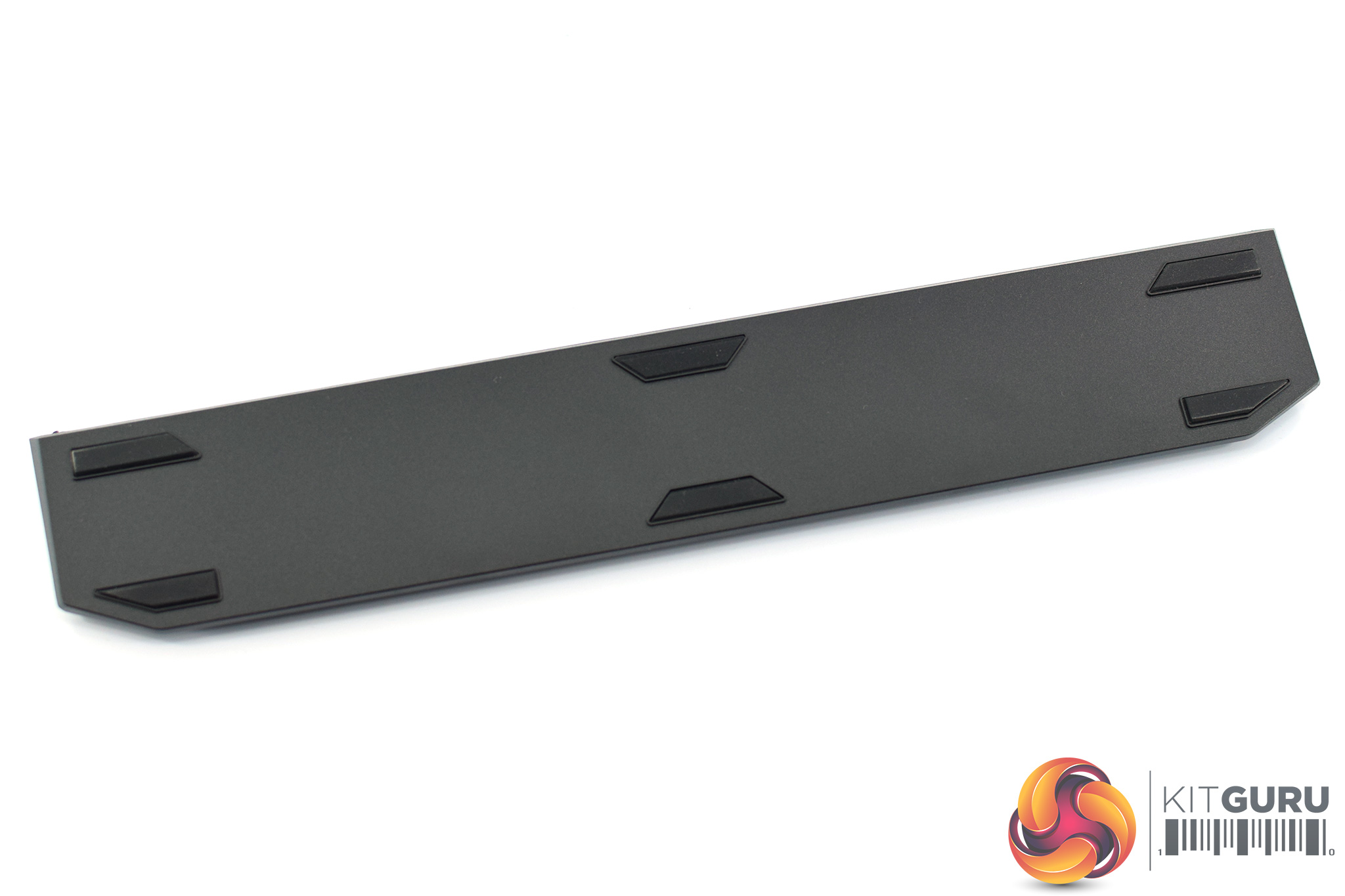
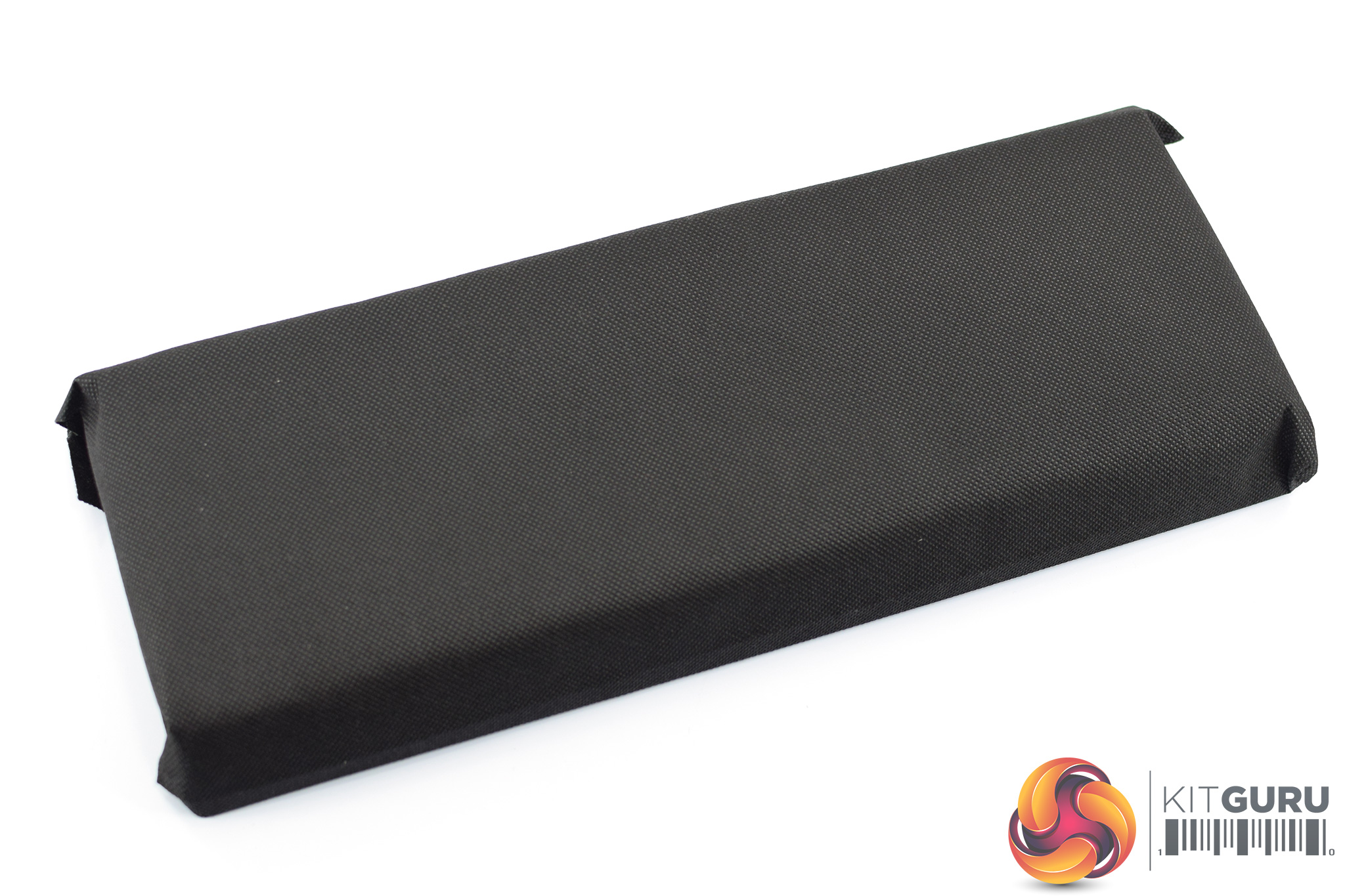
Before getting to the keyboard itself, there is also the detachable wrist rest included in the box. This is a cushioned rest with a faux-leather covering, while the underside is made from plastic and sports six anti-slip rubber pads.
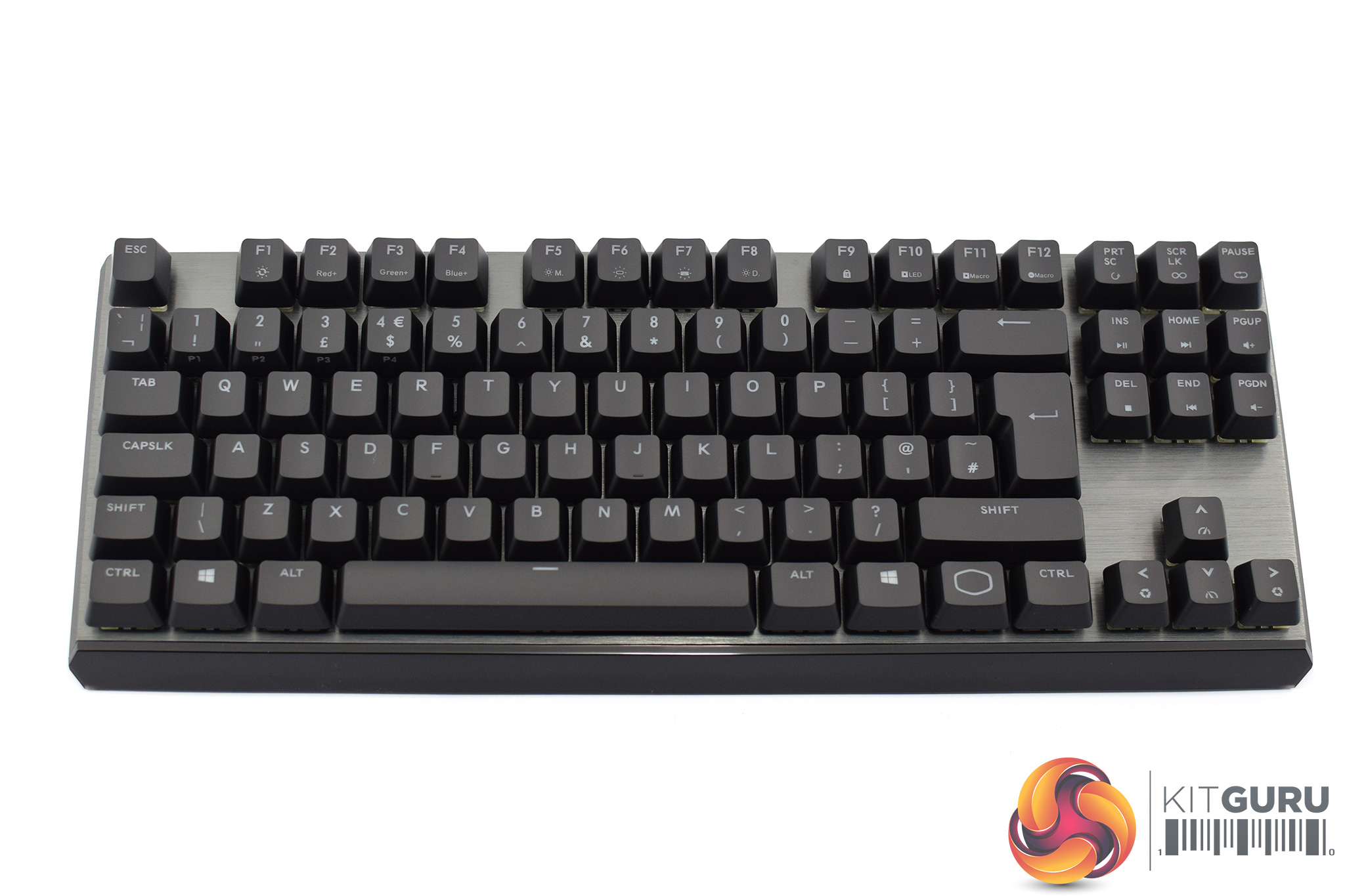
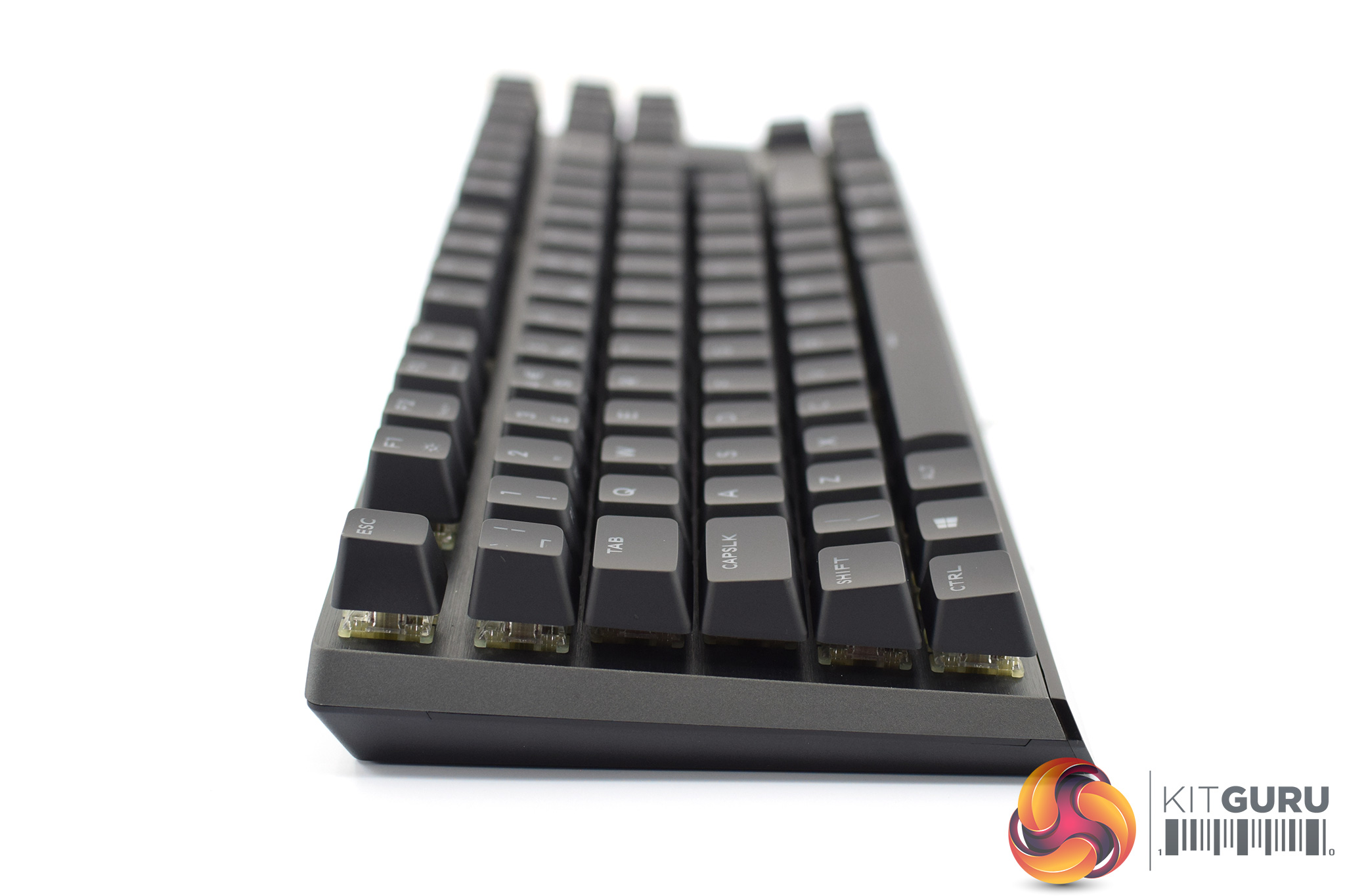
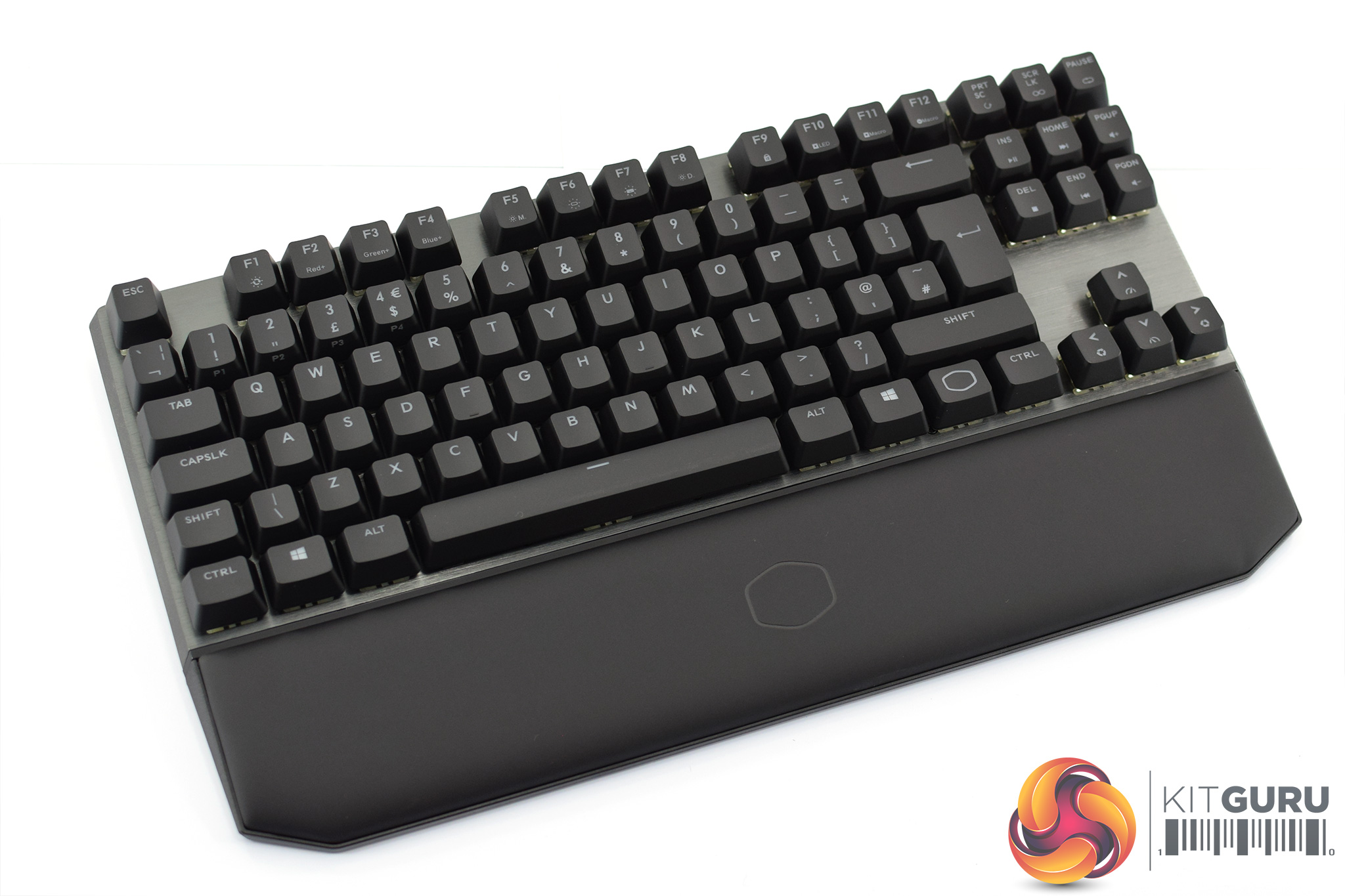
Finally we get to the MK730, and first impressions are positive thanks to Cooler Master shipping the board in a soft fabric sleeve – no chance of any scuffing happening while the MK730 is in transit.
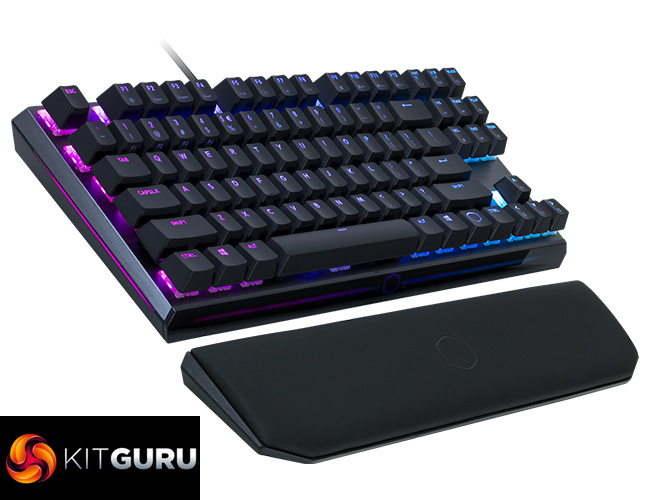
Once that is off, we get a good look at the board itself. We've already mentioned it is a TKL, or 80%, form factor, so no numpad here. It's also fairly low profile for a desktop mechanical keyboard, with the official dimensions listed as 360 x 192 x 41.5 mm.
The wrist rest is also very easy to attach as it just lightly snaps into place via magnets. It's not a super-strong hold – if you move the keyboard forward on your desk, the wrist rest won't move with the board – but it won't fall out of place if you're just typing or gaming.
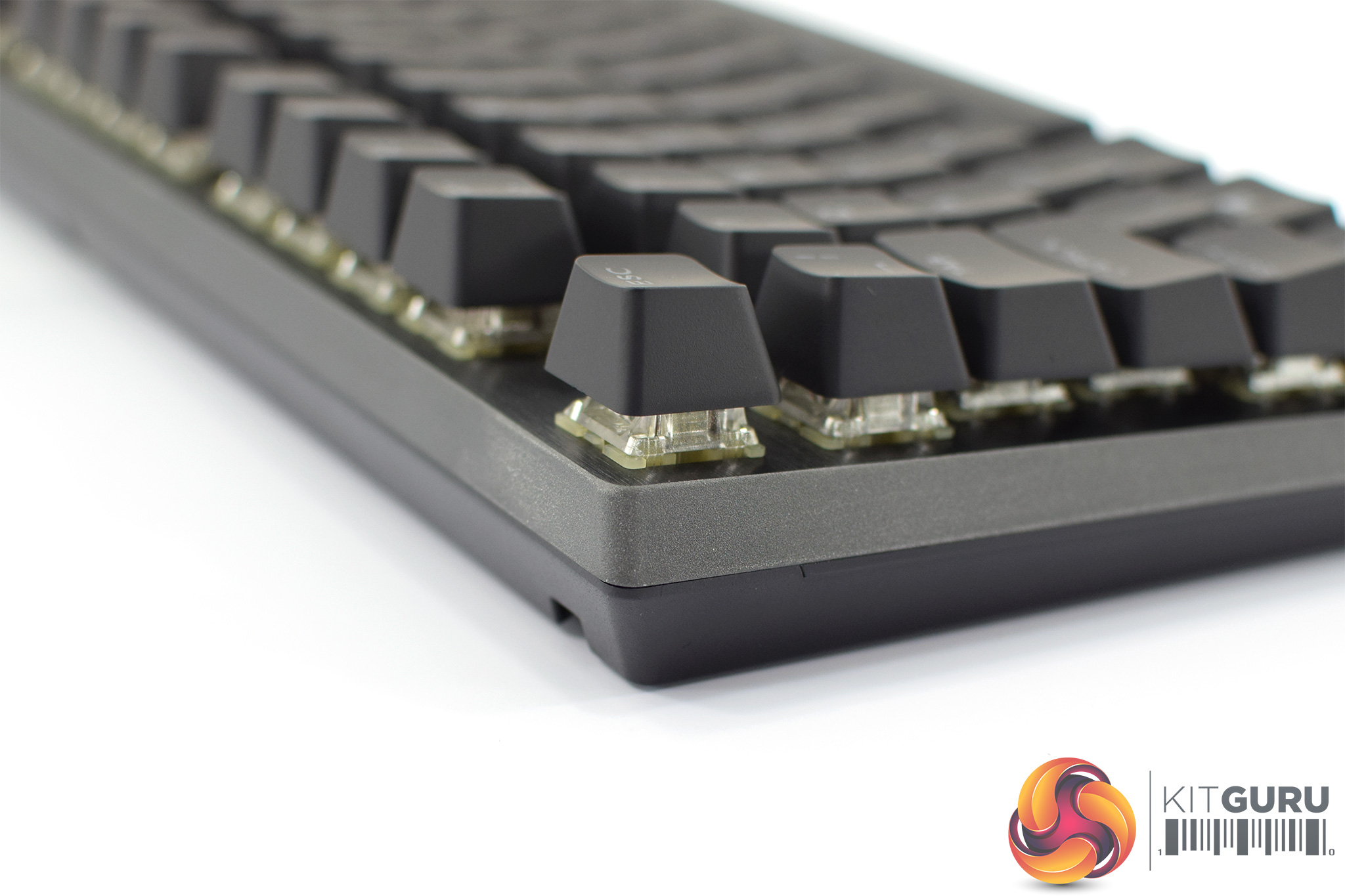
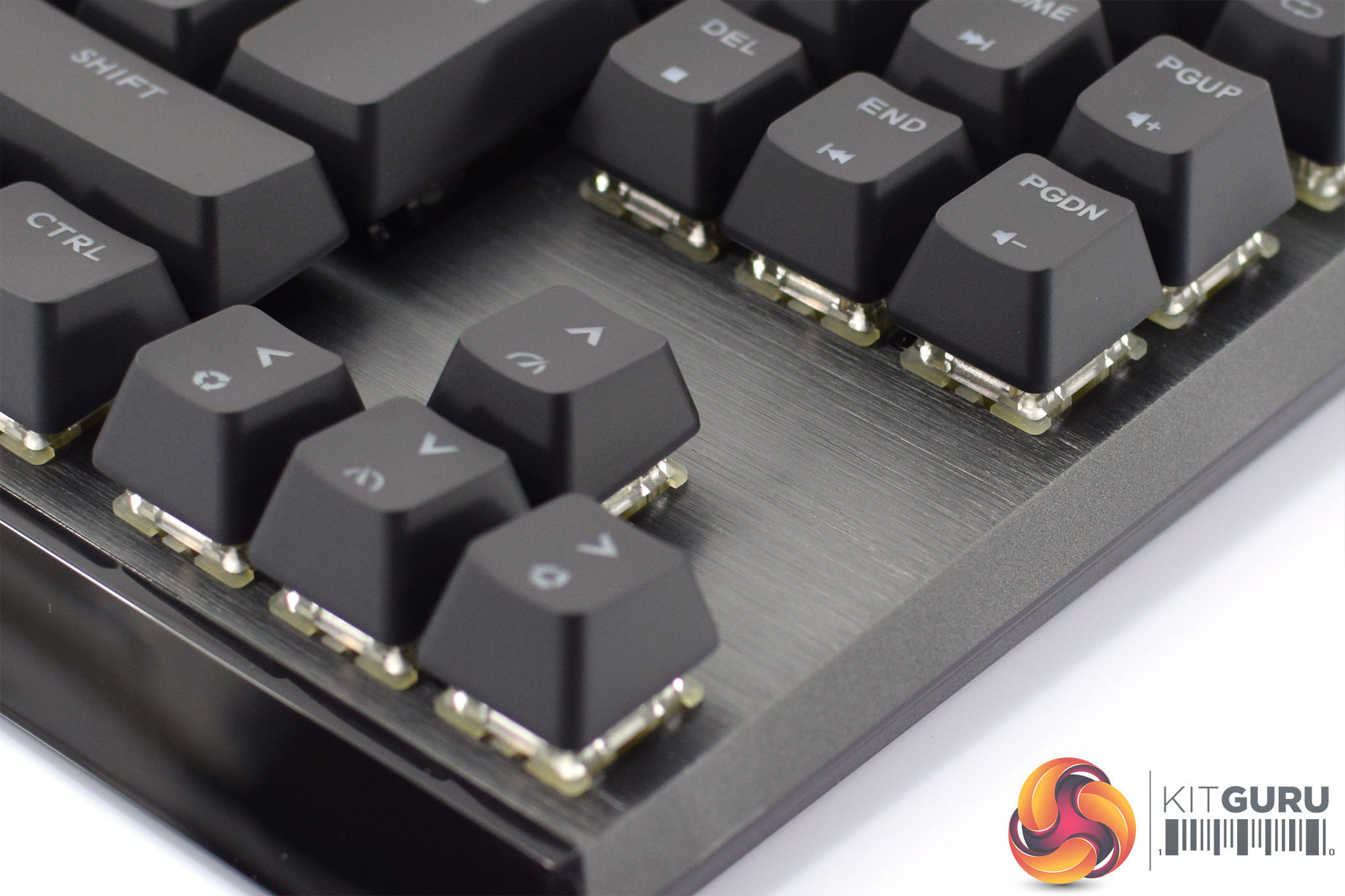
In terms of build materials, the MK730 is pleasingly premium. The bottom half of the casing is made of black plastic, but the upper section of the case is made from sandblasted aluminium which has a lovely texture to it. On top of that, the MK730 also sports a dark grey brushed aluminium top plate – similar to Corsair's top plate implementation on the likes of the K70.
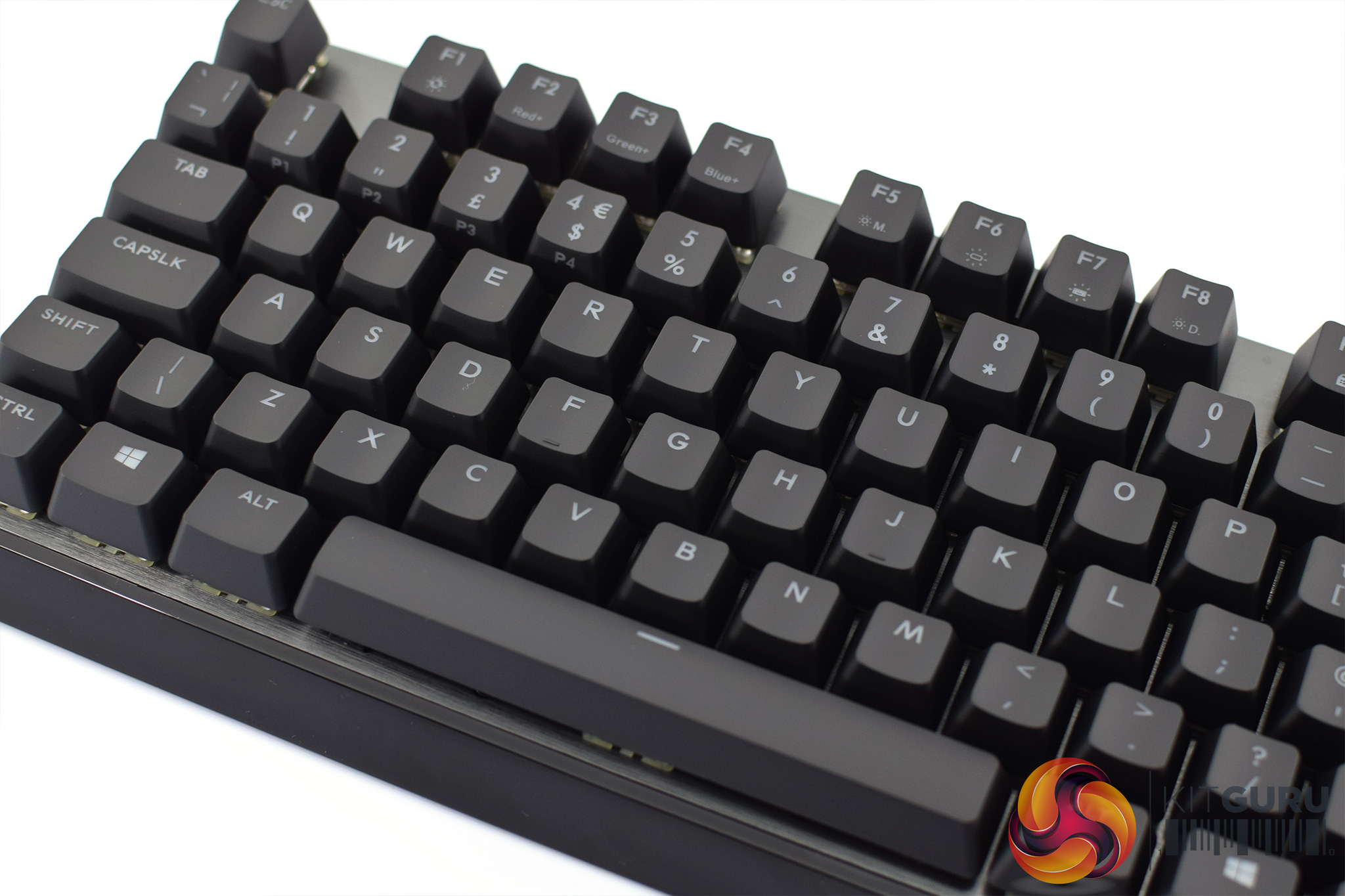
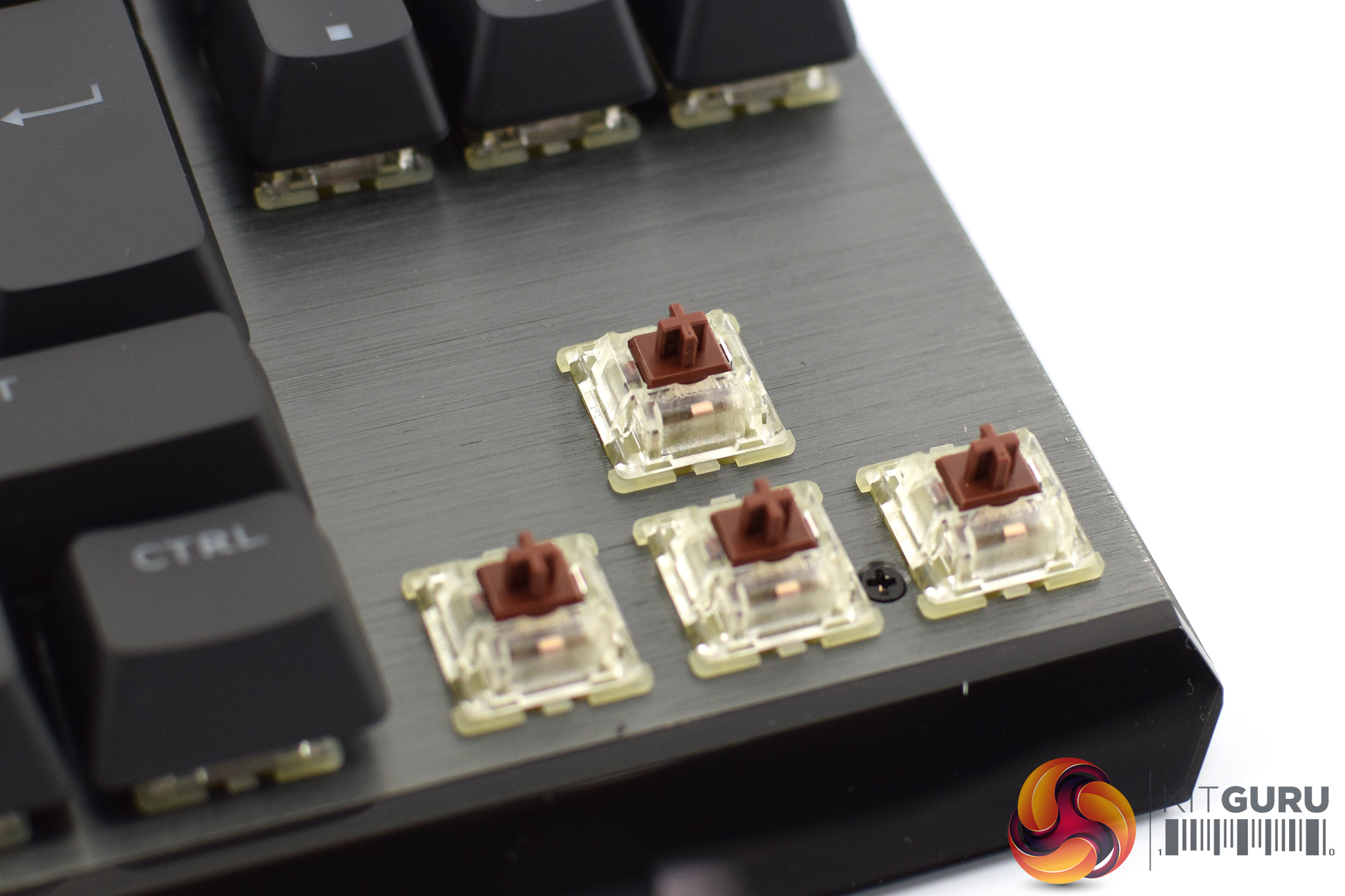
The keycaps used are fairly standard black ABS caps with semi-transparent legends to allow the RGB lighting to shine through. Removing these keycaps reveals the Cherry MX Brown switches used here – these are again MX RGB switches with the clear housings.
On the topic of mechanical switches, it is also worth making clear that while the MK730 is available with Red, Blue and Brown switches, this is very much region dependent. UK customers, for instance, can only buy the MK730 with MX Browns.
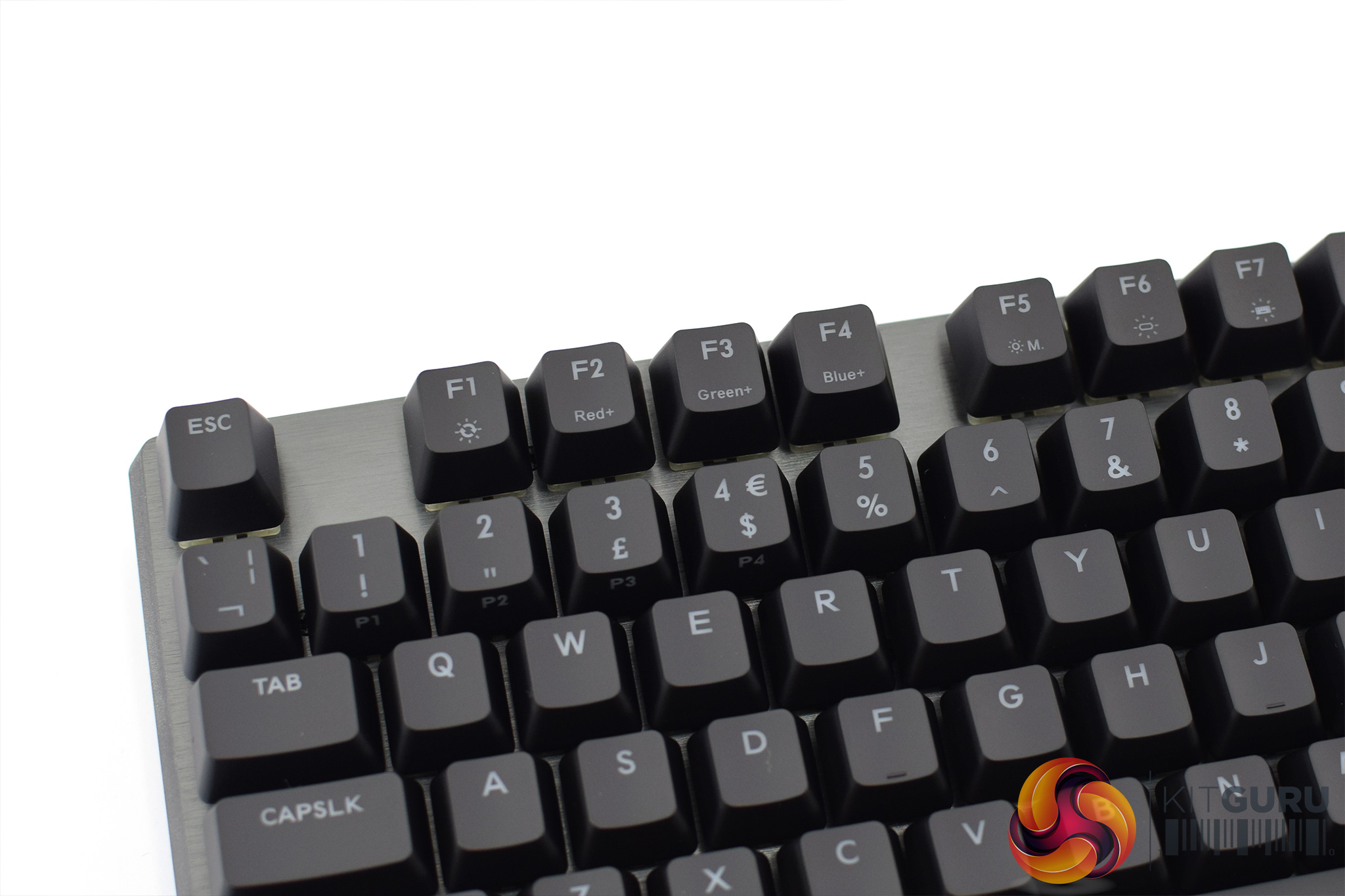
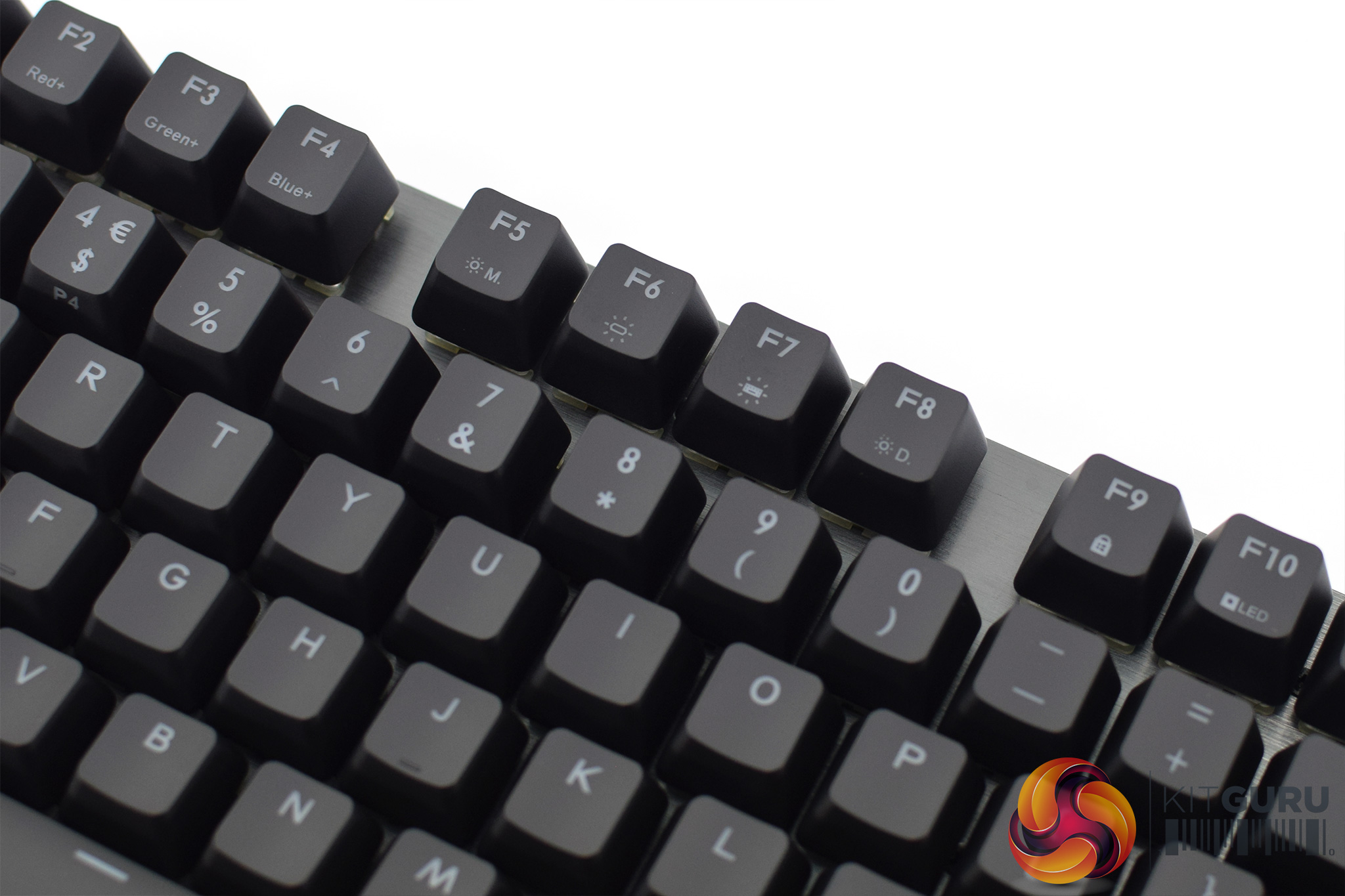
Elsewhere, we can see a lot of on-board functionality is programmed to the F-keys. F1-F4 keys, as well as F5-F8, can be used to customise the RGB lighting, while there are also secondary media keys on the INS/HOME/PGUP keys. We talk about this further on the next page.
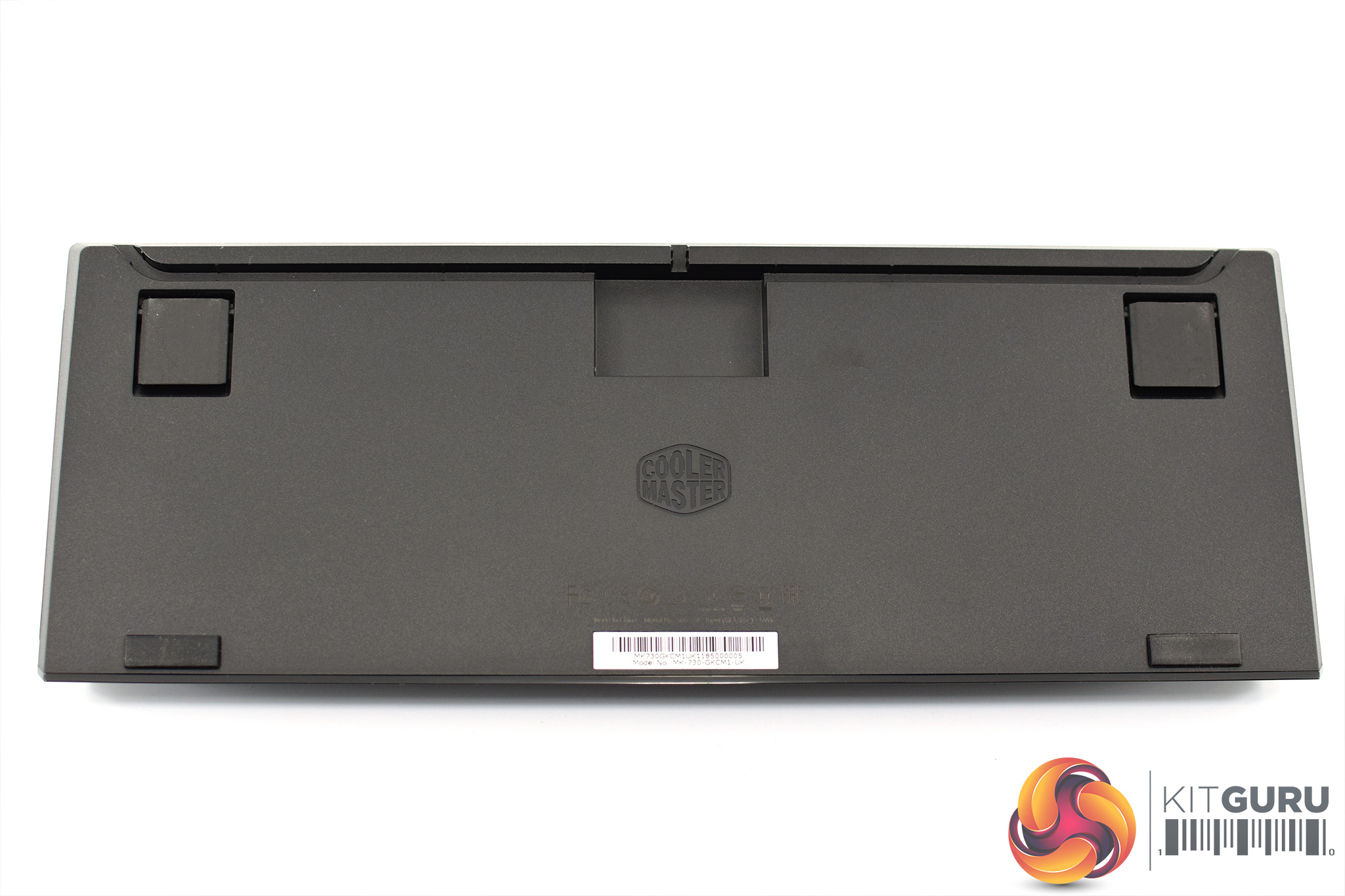
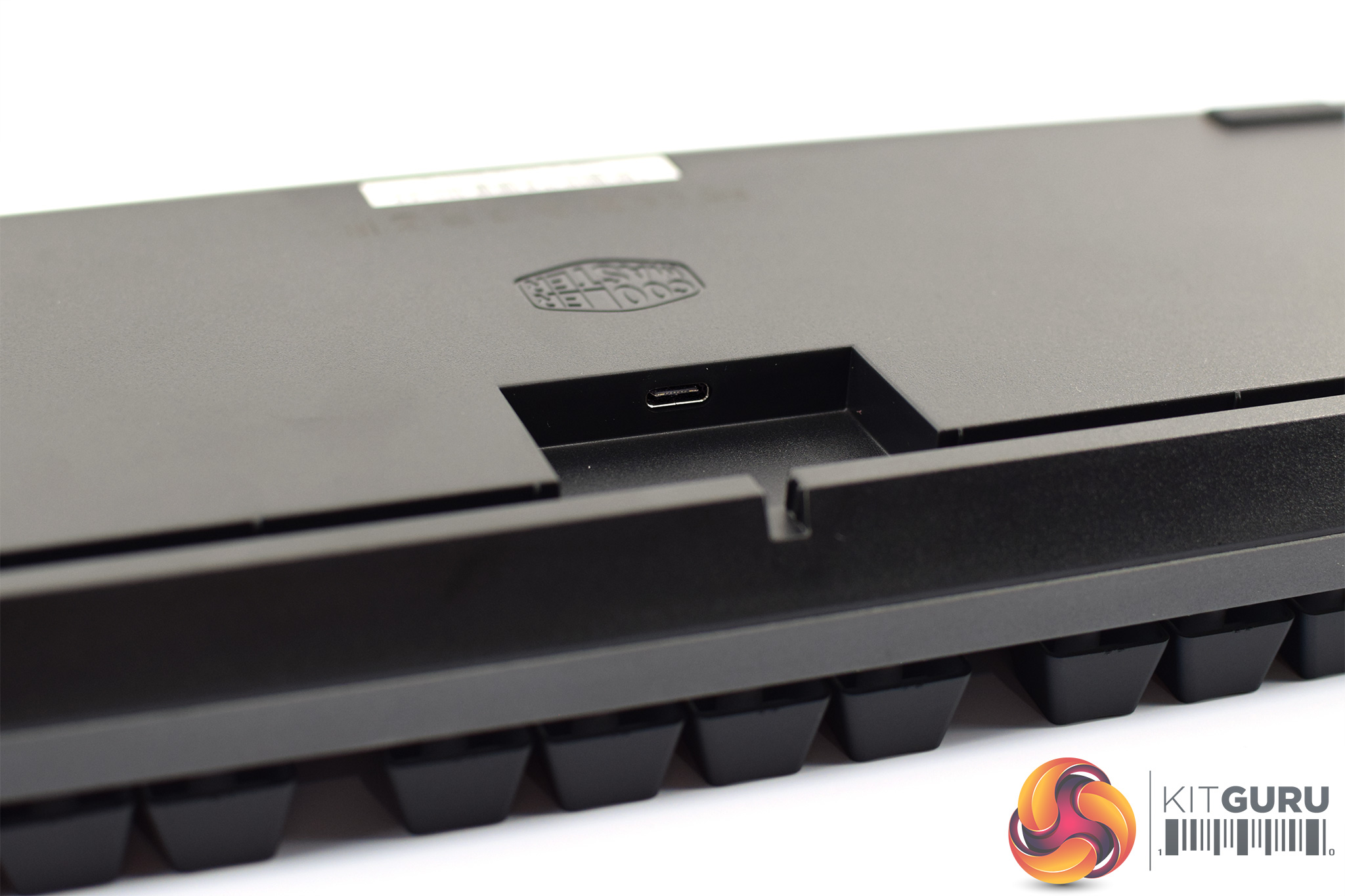
Flipping the keyboard over reveals the black plastic casing, with the Cooler Master logo in the middle. There are two feet for adjusting the height of the keyboard in both of the top corners, and also two rubber pads in the bottom corners to help prevent the keyboard from slipping.
The USB-C connector is positioned centrally in a small cut-out, while there is also a dedicated cable channelling area just above this so you can route the cable to either the left or right side of the keyboard.To test the MK730, I used it as my daily driver for about two weeks – using it for both general typing as well as some gaming.
We break our testing up into four sections: software, lighting, build quality, and performance.
Software
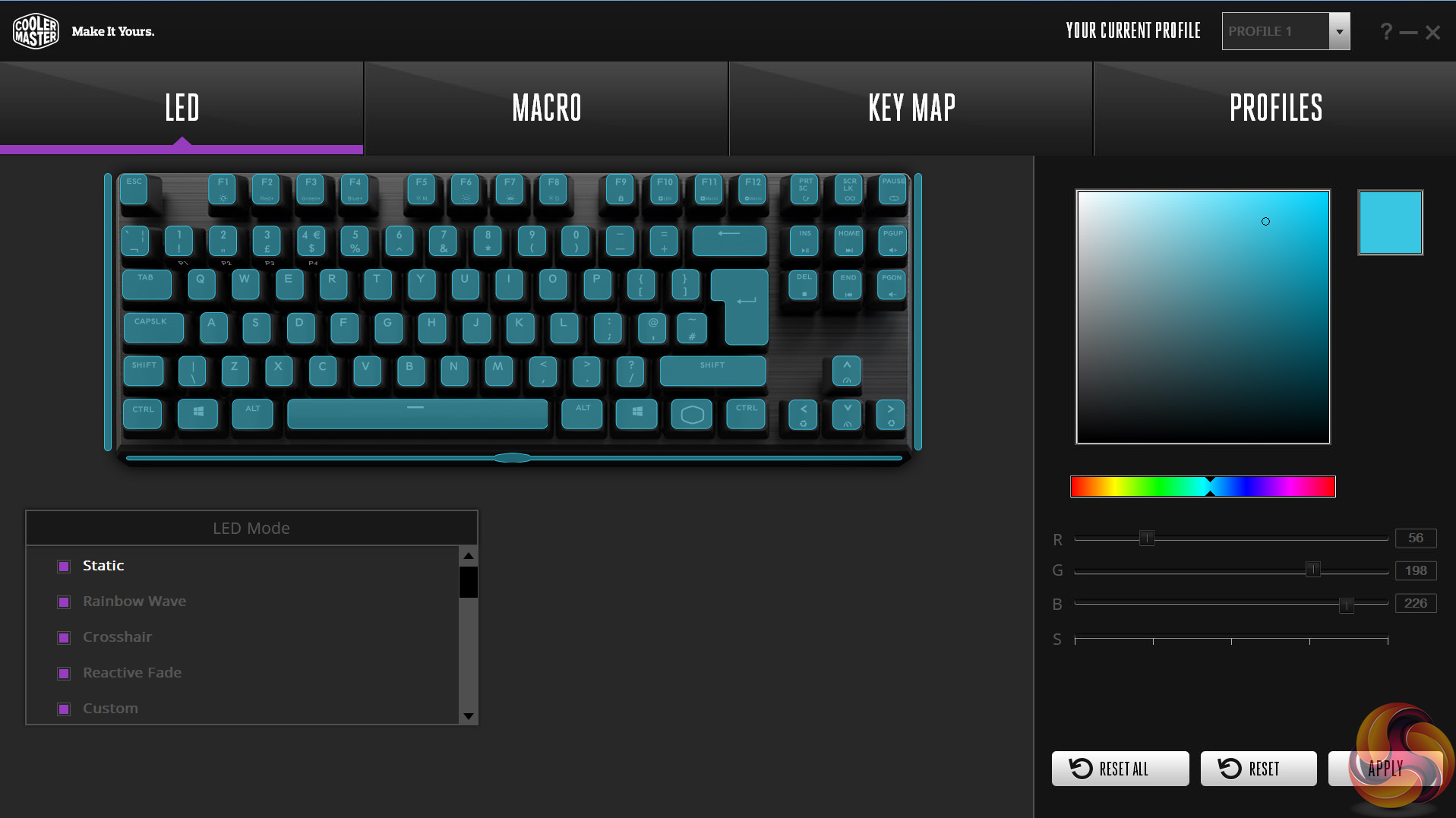
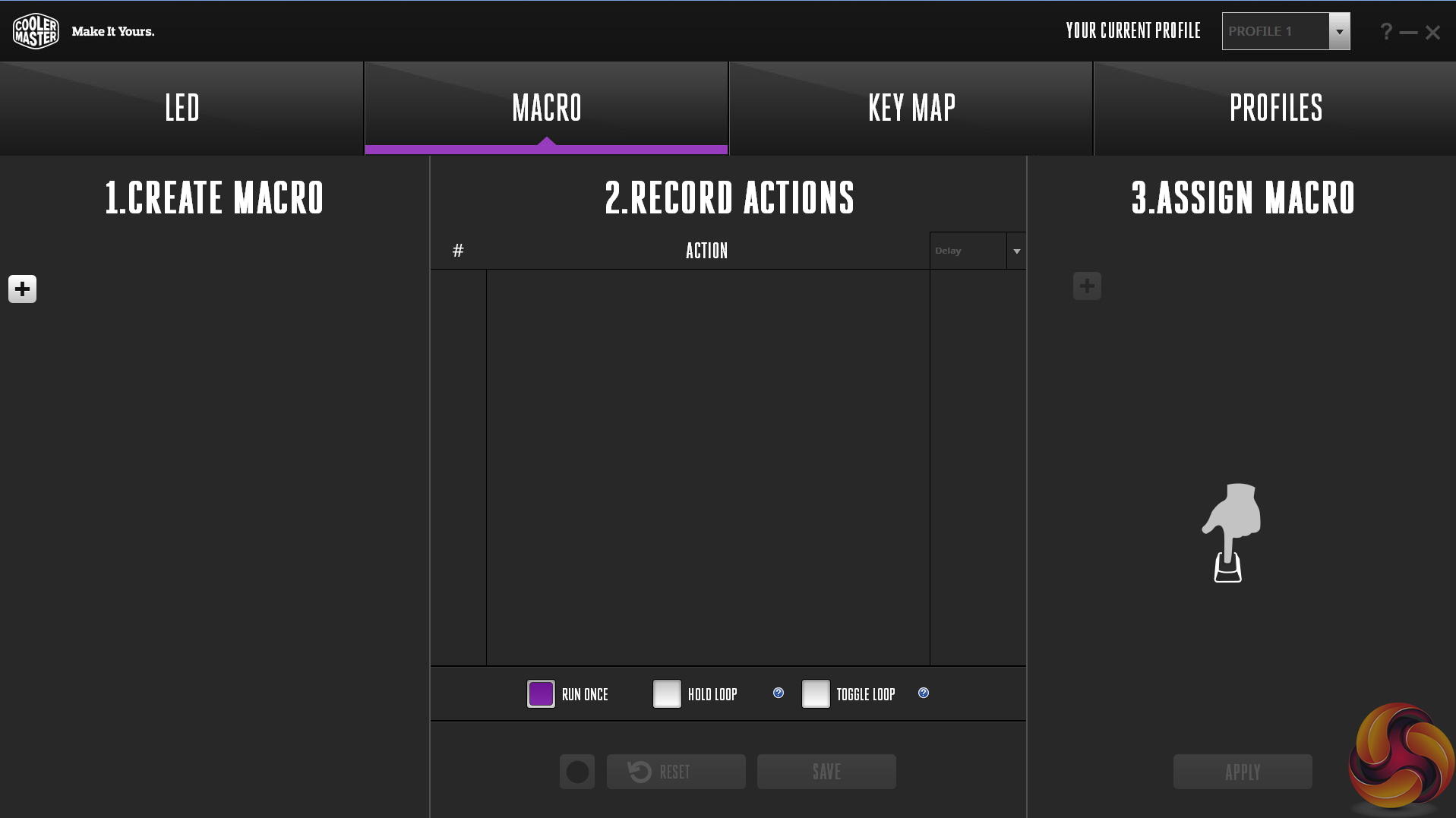
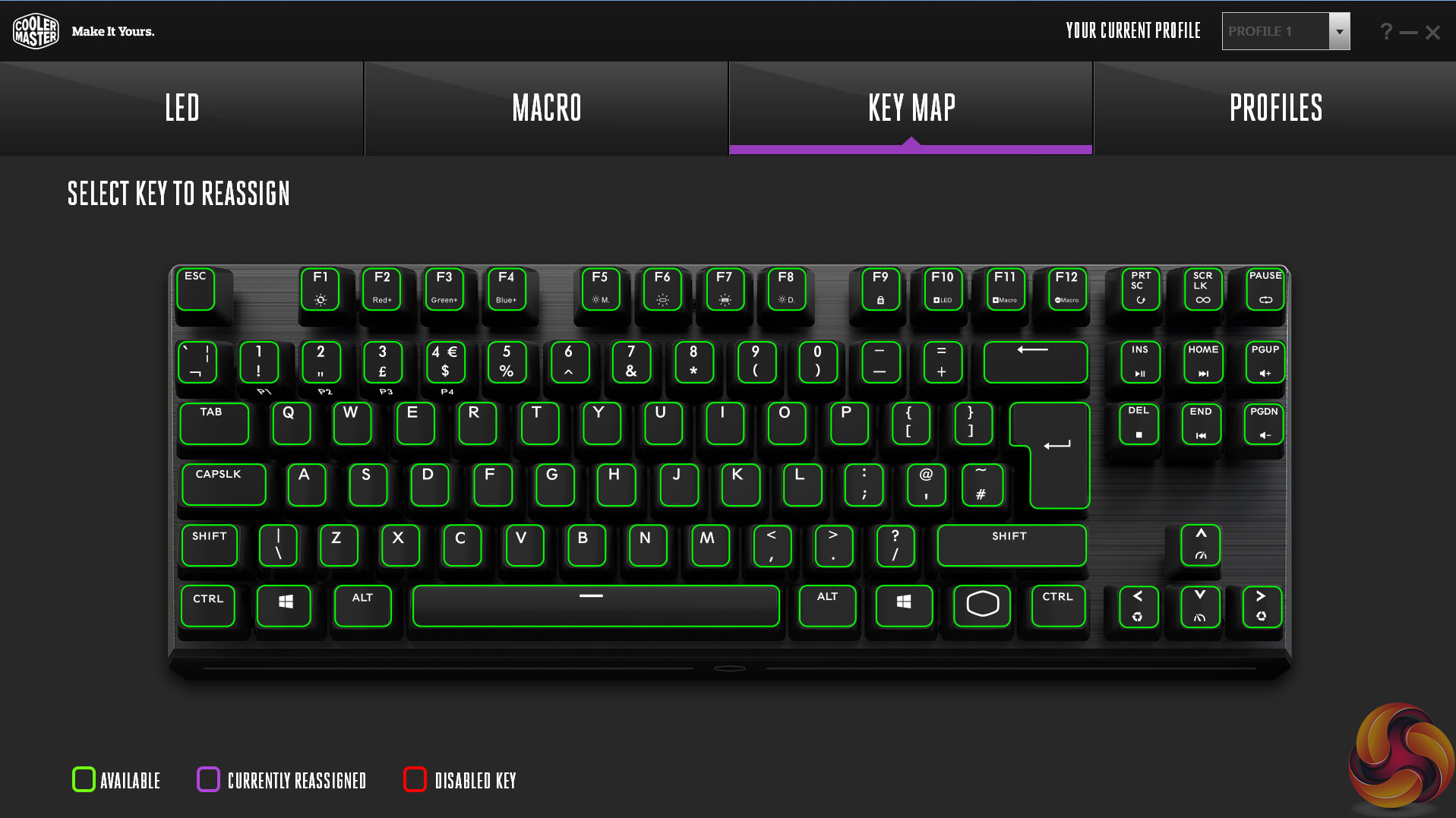
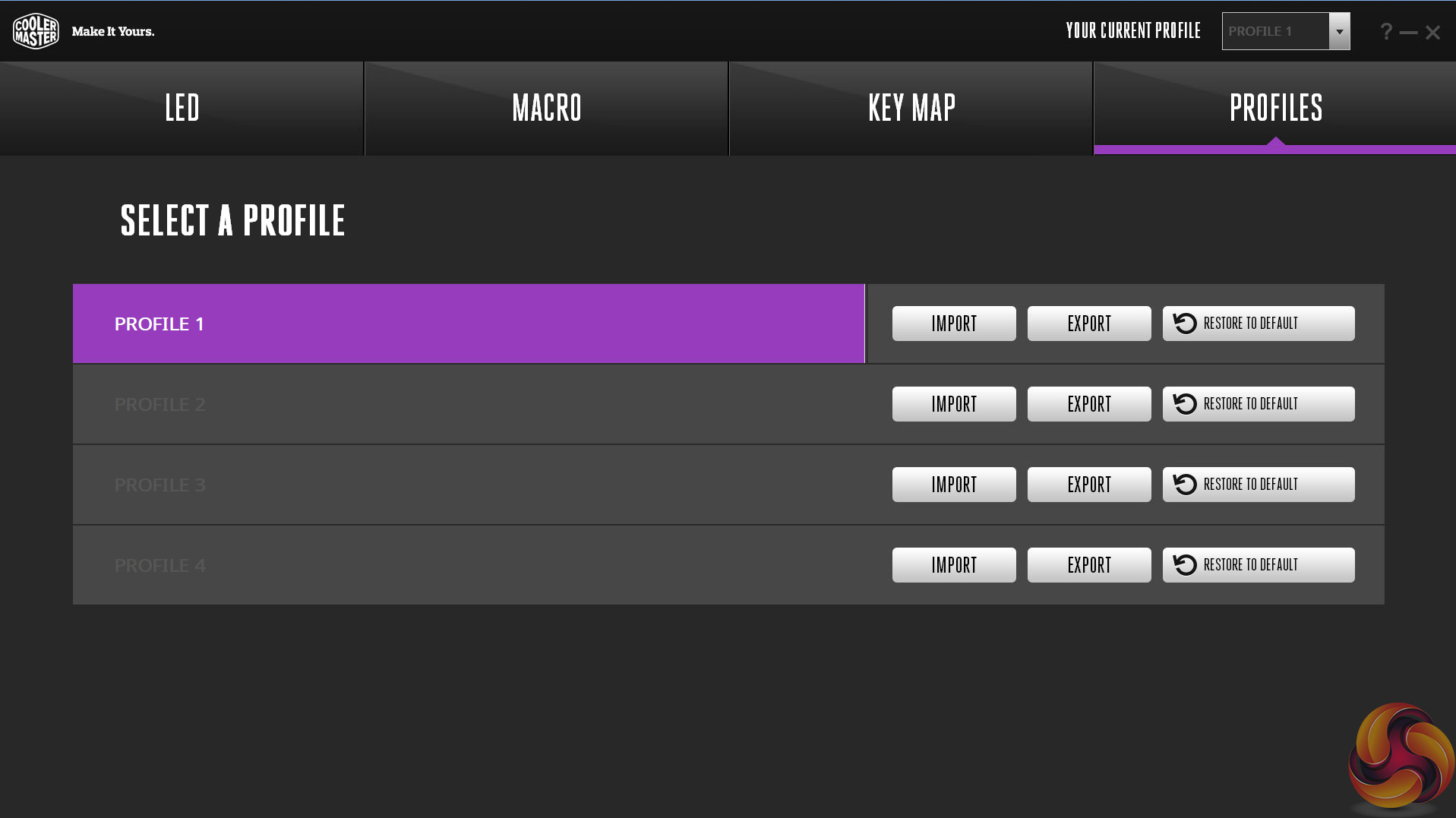
If you read my recent SK630 review, you will be familiar with the control offered by Cooler Master's Portal software as it is essentially the same for the MK730.
That means the control is split into four tabs, and each is pretty much self-explanatory. The first tab is for the LED lighting where you can choose from various preset effects or pick a single static colour. Next up is the macro tab where you can record custom macros and decide if they are single-use macros or if you want them to loop. There is also a Key Map tab to remap any of the keys should you feel so inclined, and lastly Profiles lets you save, import or export up to four different profiles.
Cooler Master's software has never really amazed me, but then it's not bad either. I mainly use it to fine-tune the lighting just how I like it, but there is extra functionality there if you want it. I think one of the main things about the software is also that you actually don't need to install it in the first place, too, as so much can be done via the on-board controls. Cooler Master's own website says ‘you don’t need it, but we have it.' In any case, it works fine and I had no problems with it, so I can't really complain.
Lighting
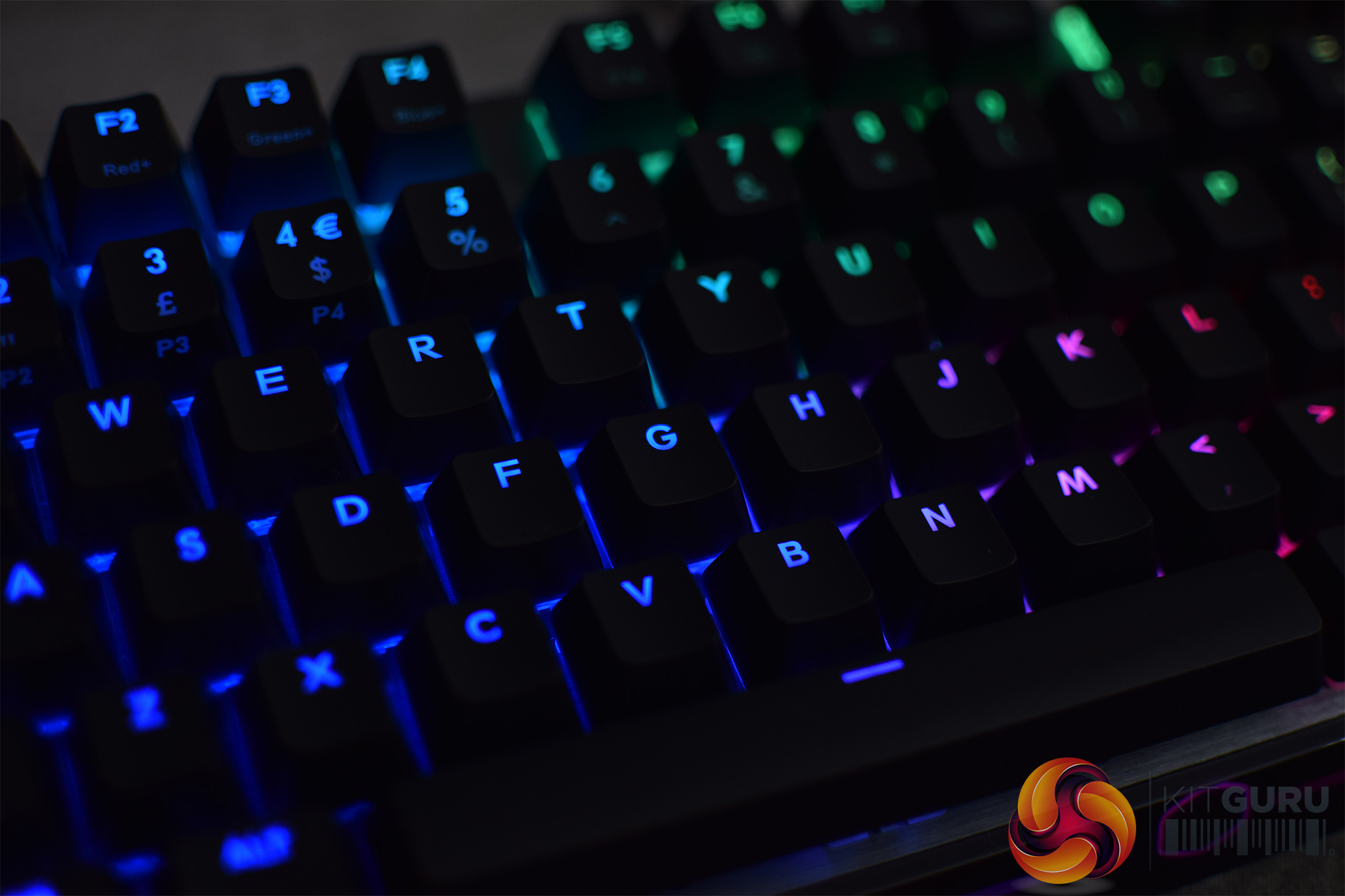
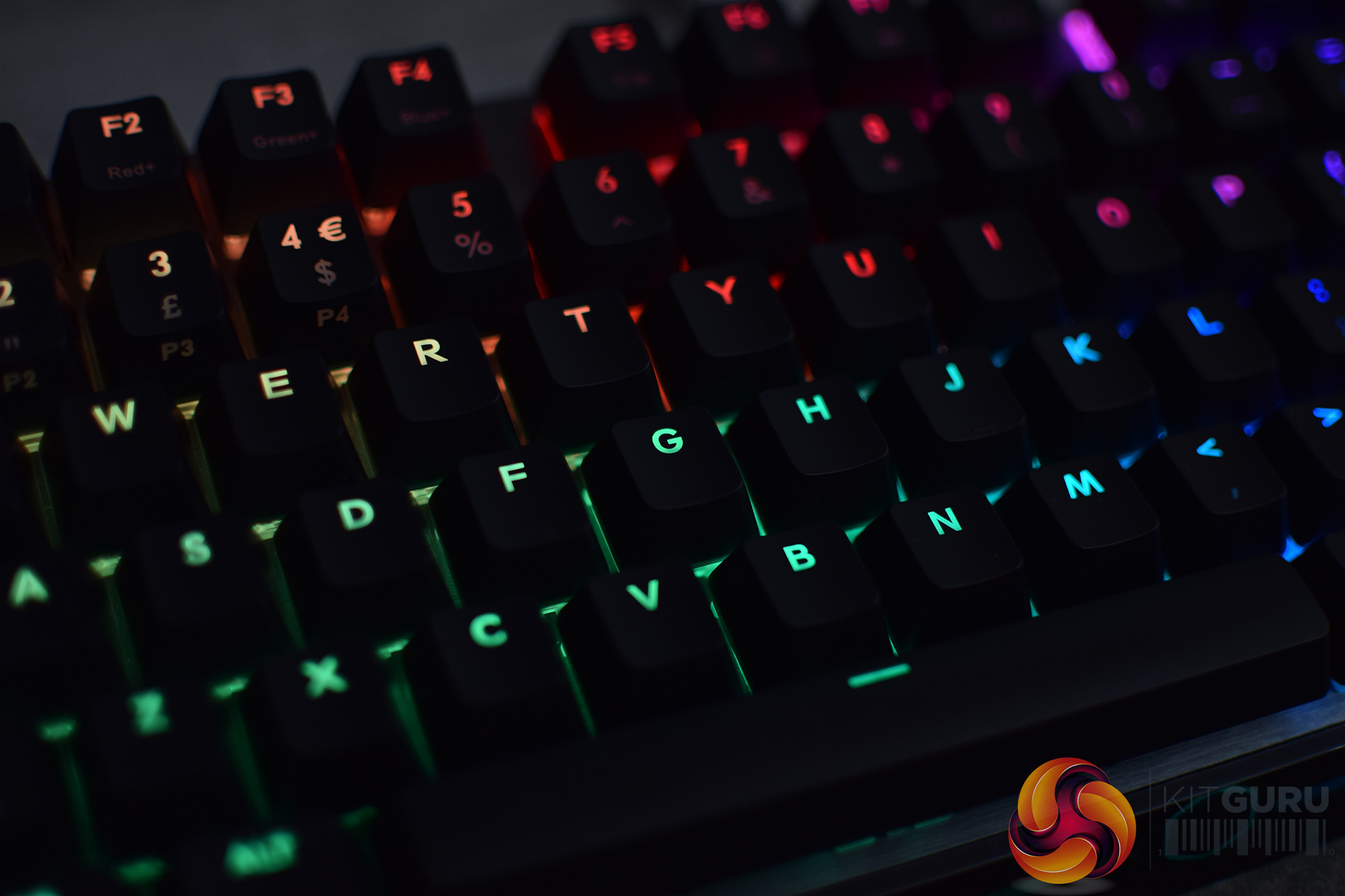
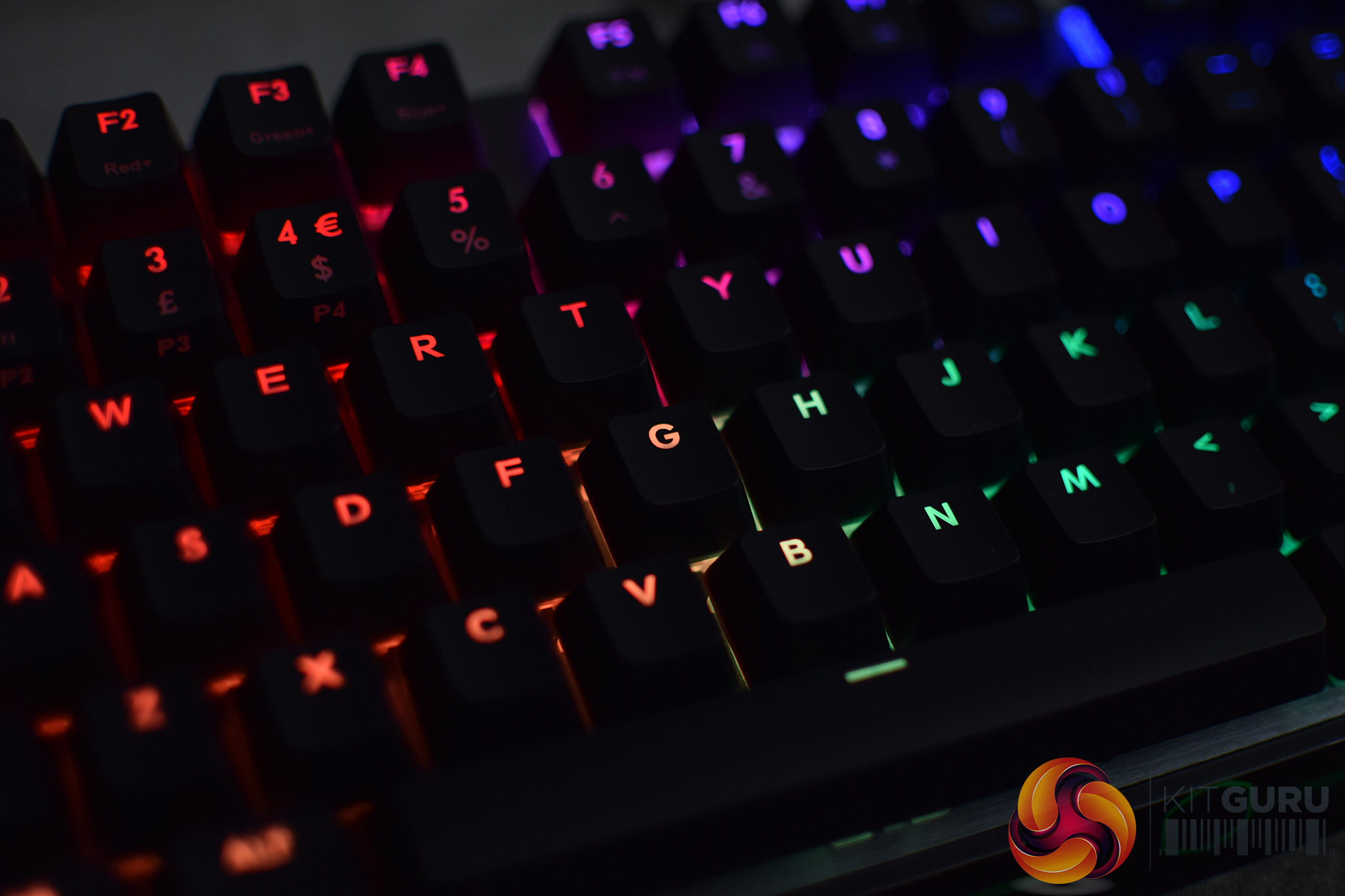
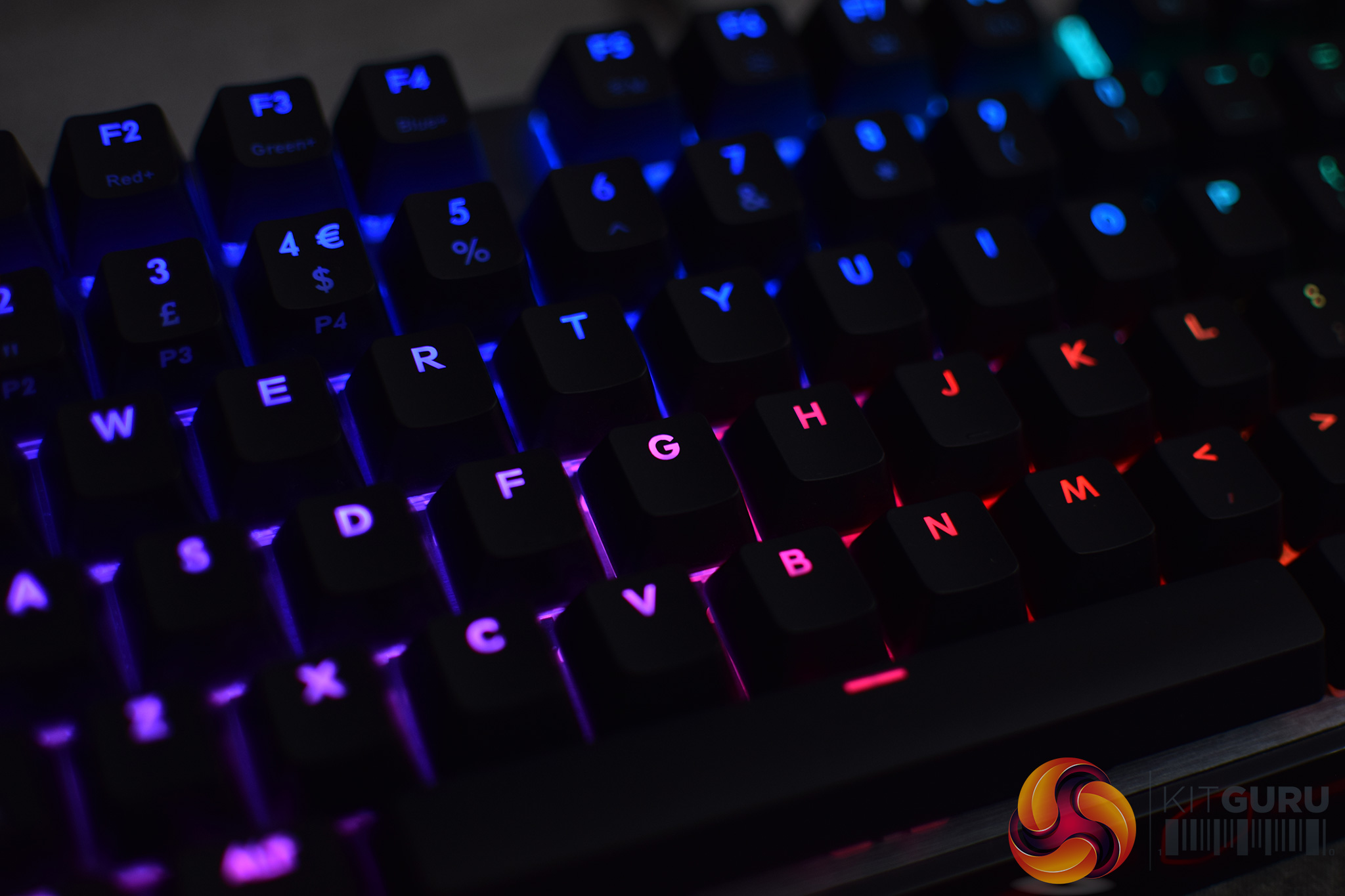
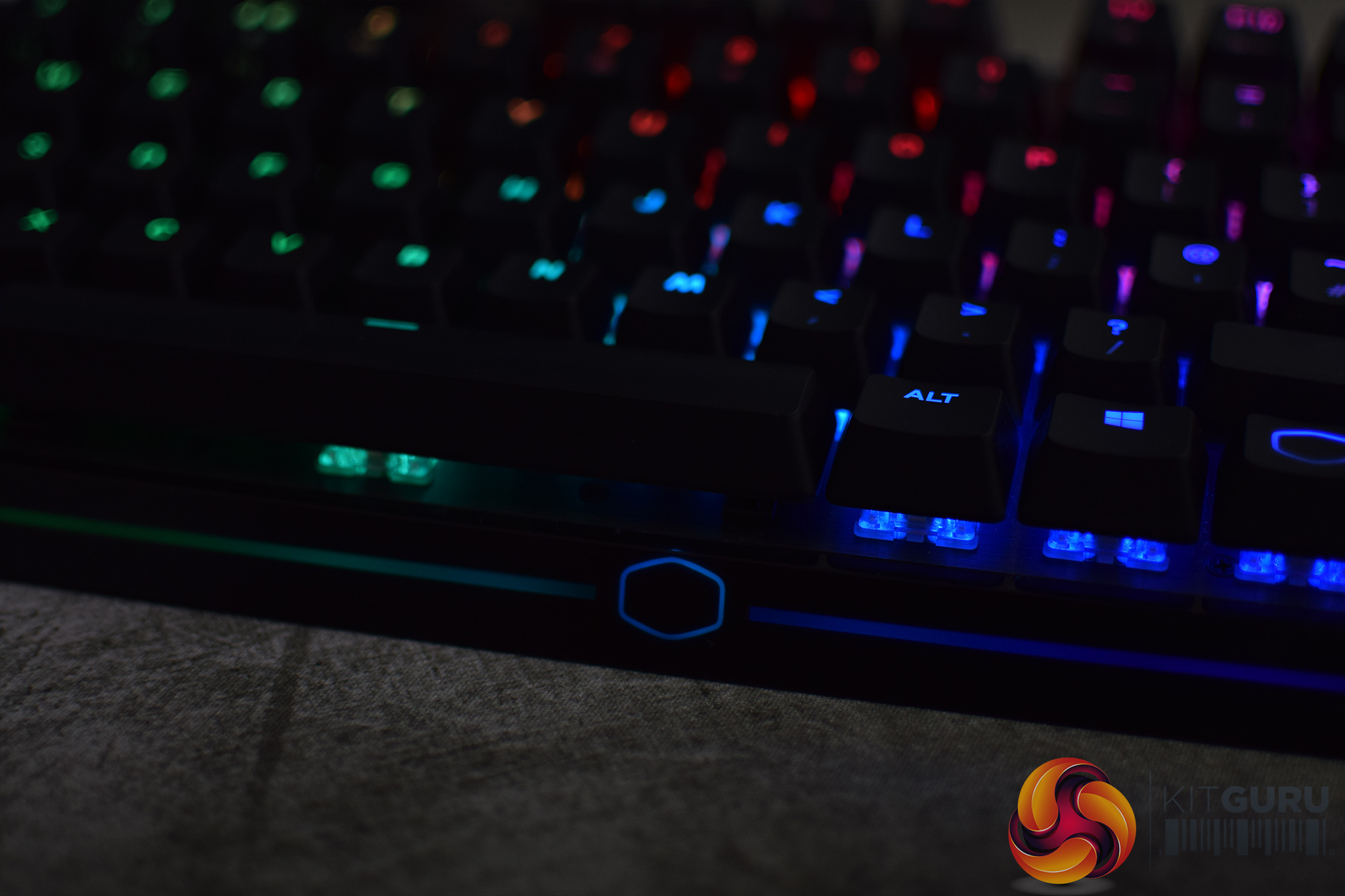
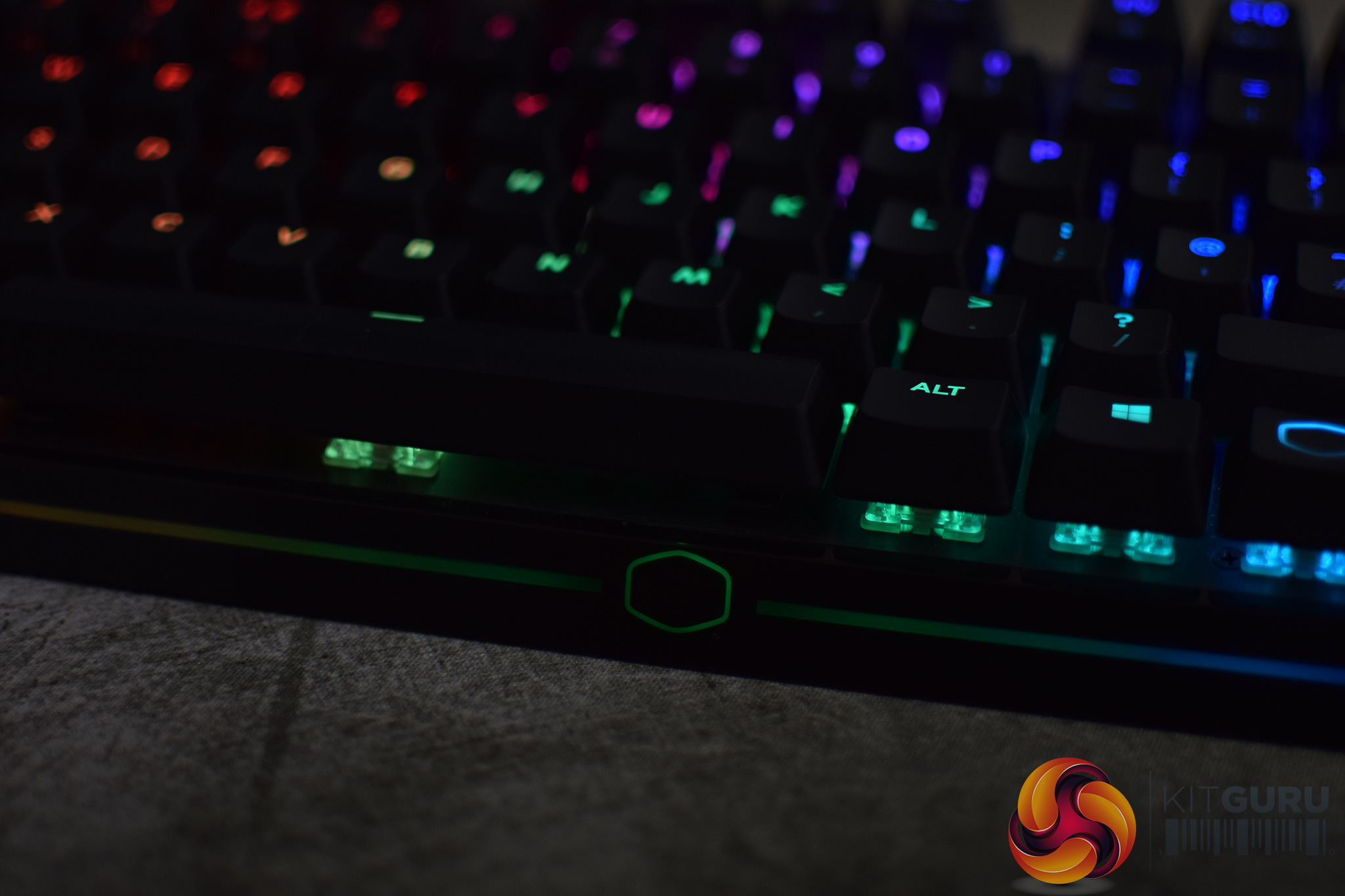
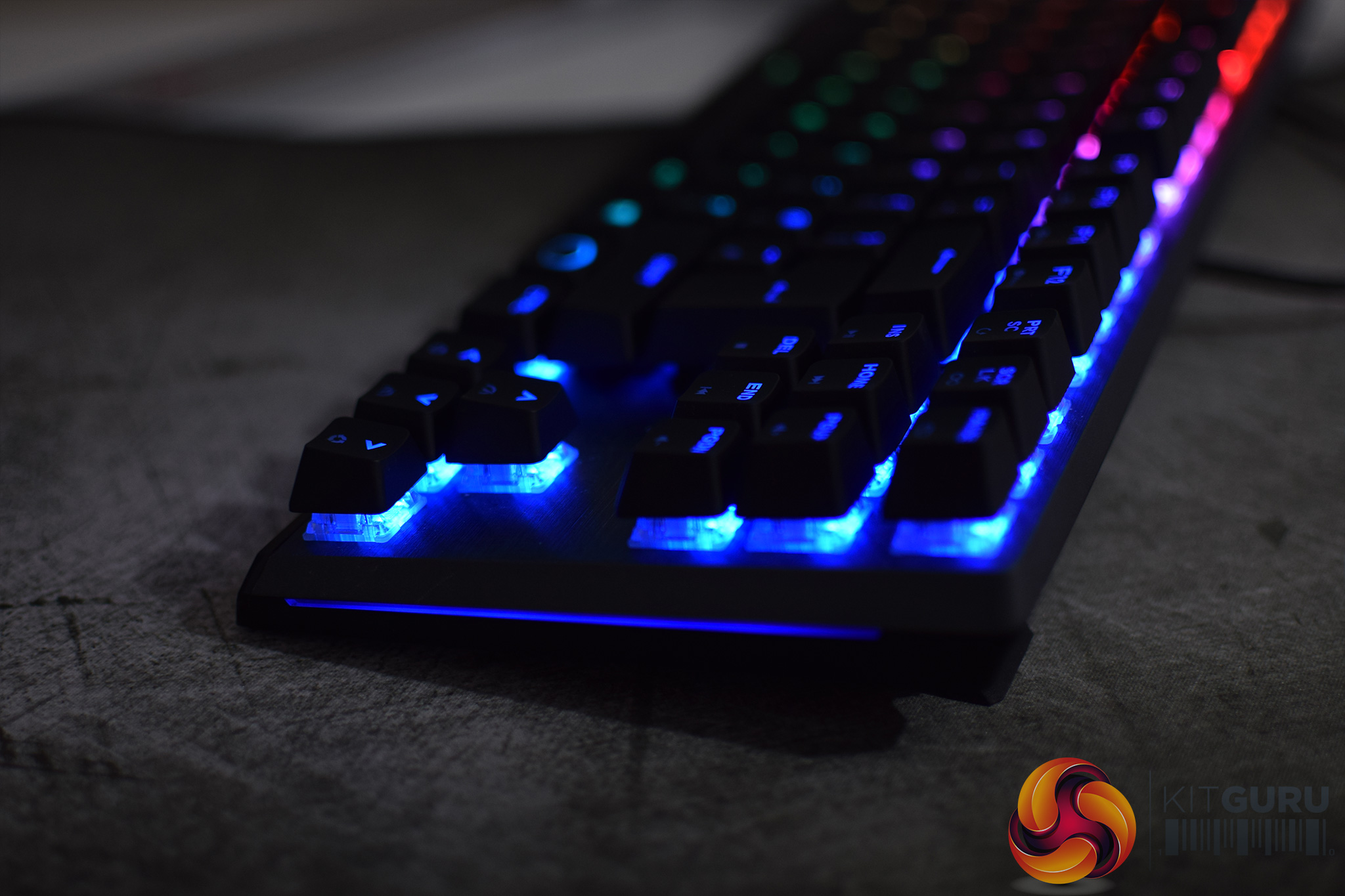
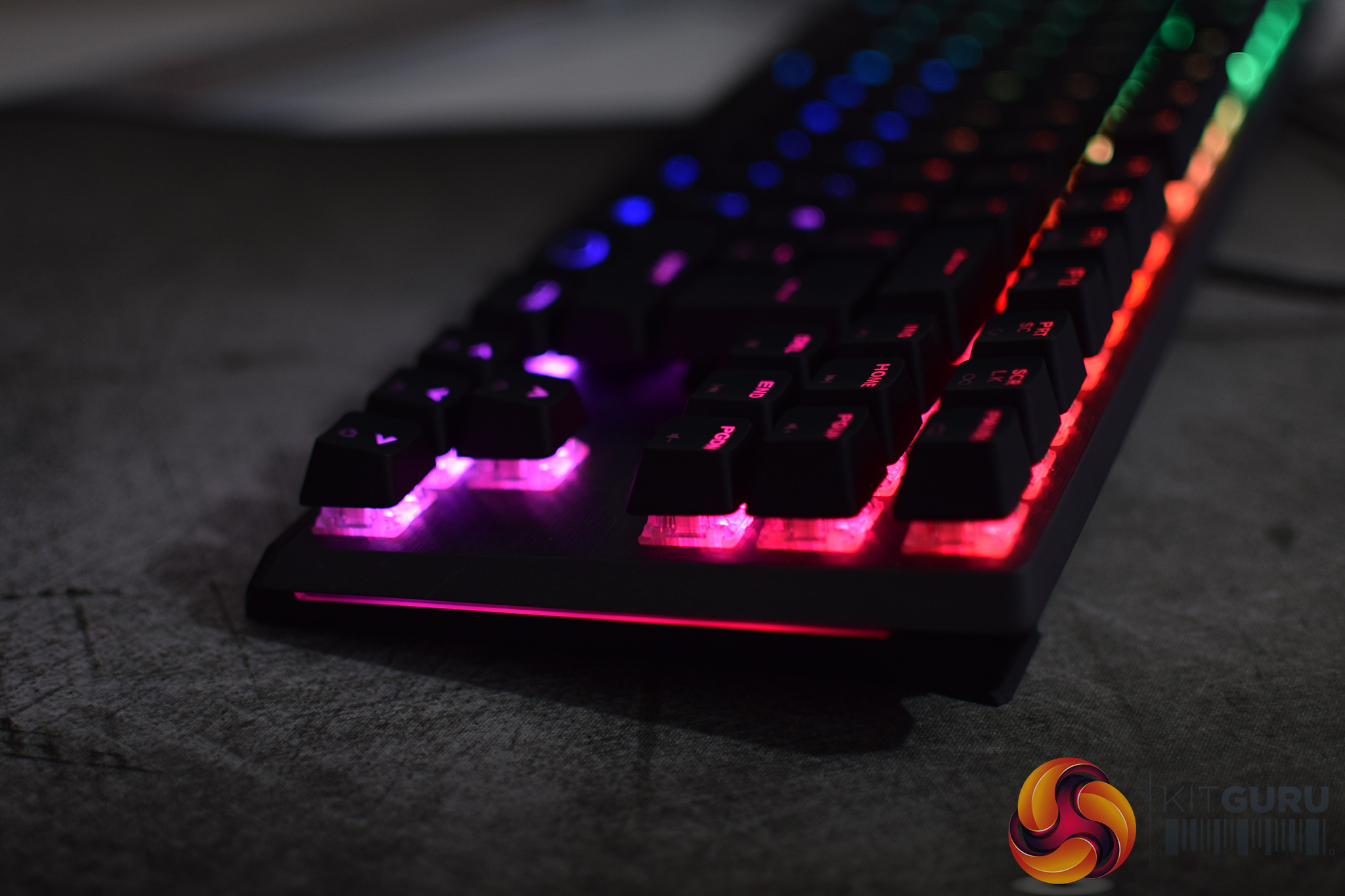
The RGB lighting on the MK730 is split across four main zones. You have the regular per-key illumination from each of the individual switches, and then one LED strip across the bottom of the keyboard, with two more smaller strips on both the left and right-hand edges.
The per-key switch illumination looks best. The lighting gets decently bright and each colour of the spectrum is well represented. There are also plenty of effects to choose from, with my favourites including ‘rainbow wave', ‘reactive tornado', and ‘fireball'.
Unfortunately, the LED strips along the front and sides of the board are quite lacklustre as they are just very dim. The side light bars are a little bit brighter than the front strip – which is likely a lot dimmer due to the near-black plastic frame at the front of the board. Either way, though, I have to say I think the MK730 would actually look better without these strips as their lack of brightness makes them look like more of an afterthought. I'm not opposed to strips like this in general – Corsair's K95 RGB Platinum does it very well – but the effect here is quite underwhelming.
Build quality
As has become a staple feature of Cooler Master's keyboards, the MK730 is very well built for a gaming board of its class. This is primarily thanks to both the sandblasted aluminium section of the casing, as well as the brushed aluminium top plate – not only do both parts looks very classy, but they also add some heft and rigidity to the board. Picking it up and twisting it, for instance, results in minimal flex to the body of the keyboard – it's certainly impressive.
I am less keen on the basic ABS keycaps, though. These are pretty standard for almost all of the ‘gaming oriented' mechanical keyboards on the market, but to me they just feel a bit cheap – the plastic feels quite thin and even brittle, like it wouldn't take much to snap them. Considering Cooler Master has, in the past, shipped its MasterKeys S and L boards with thick-walled doubleshot PBT keycaps installed by default, I think doing that with its high-end gaming boards is only going to increase their appeal.
In fairness, you do get some spare PBT caps in the box, but there are only 9 of these – for the WASD, arrow and ESC keys. These might be good for playing FPS games with, but when typing you get a slightly inconsistent feel across the different keys. So keycaps could definitely be one area to be improved for the next generation of this board.
Performance
How well a mechanical keyboard feels and performs really comes down to the choice of switch – mine uses MX Brown switches, with a 45cN actuation force and 2mm actuation distance. It is also a tactile switch, but is not clicky. I get on reasonably well with MX Browns, but I do prefer MX Blues as they are heavier and I quite enjoy the noise produced.
Considering that Cooler Master only brings the MK730 to the UK retail market with MX Brown switches, then, I think is a definite shame, and it's something I've been saying for a while. Limiting the MK730 to just MX Browns can only reduce the overall appeal of the product – regardless of how good the board is otherwise, if you want MX Reds, Blues, or even Speeds, then you won't want to buy the MK730.
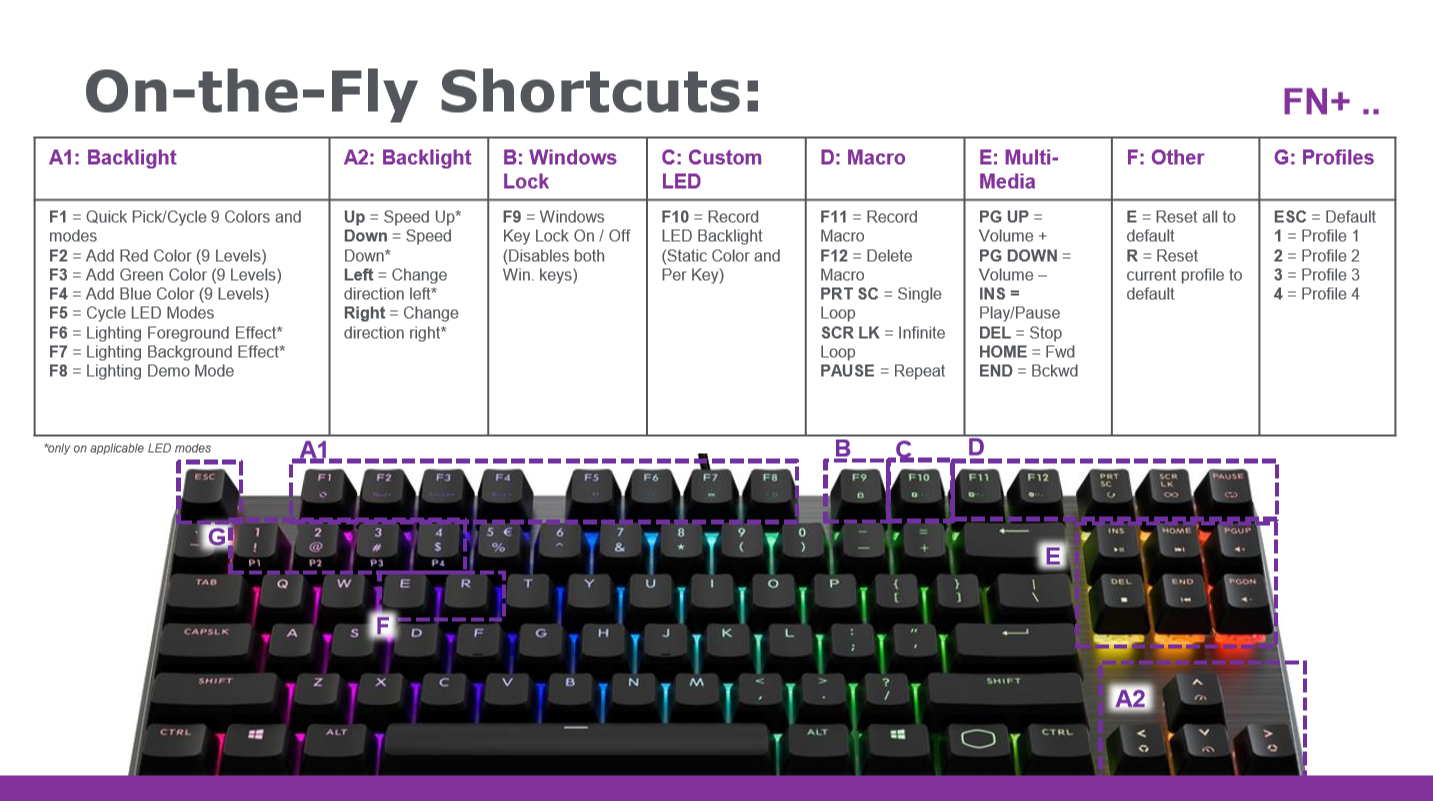
Moving on, a big part of the MK730 is its on-board controls. Essentially Cooler Master has baked pretty much all of the functionality you get from the software, into secondary controls on the keyboard itself. For instance, FN+F1 lets you cycle between a few lighting presets and effects, while you can even manually pick a single colour using F2, F3 and F4 – each of which controls the red, green and blue channels respectively.
On top of that, media functionality – like play, pause and skip, is housed on the INS/HOME/PGUP keys, while users can also change between the four different on-board profiles using the 1-4 number keys.
It's overall a very handy way of doing things that I have liked for a long time. Yes, there is a lot going on so having a guide of what does what is useful – the little secondary icons printed on certain keys aren't always that helpful! But just by taking pretty much all the control you'd get from software, and letting you do it all from the keyboard itself, is certainly impressive and overall it is arguably the best on-board control system from any keyboard I've used.
One thing I have been saying for what feels like ages, however, is the lack of master brightness control. As it stands, you can only adjust the LED brightness levels via software. You can manually adjust the different red, green and blue brightness levels, thus creating your own custom colour as we mentioned above. But once you have found a colour you are happy with, there is just no way to turn the brightness down. Thus, if you want to turn down the brightness, you are forced to use software, or go back and manually adjust each of the red, green and blue channels to get a lower brightness.
It may not sound like much, but it is very annoying, and I can't say I've ever used other mechanical keyboards from the likes of Razer or Corsair which don't give you a quick and easy way of turning the brightness down.The Cooler Master MK730 is undoubtedly a very solid keyboard from the Taiwanese manufacturer. Having used a MasterKeys Pro S on a personal level for the last couple of years, the MK730 is a definite upgrade across the board.
A lot of this comes from the re-designed keyboard body, which benefits from both a sandblasted aluminium section of the casing, as well as a brushed aluminium top plate. Both of these parts look great in an understated kind of way, yet also add to the impressive build quality and overall sturdiness of the MK730.
The move to a 1.8m USB-C cable is also welcome, while the MK730 also ships with a cushioned wrist rest in the box – something that was entirely lacking from the MasterKeys Pro S series.
Cooler Master's software has continued to improve, and while it's not exactly mind blowing, it does offer good levels of customisation in an easy to use package. The on-board controls, however, are also very in-depth so you could forgo the software entirely if you didn't want the hassle of downloading and installing another peripheral suite.
The keyboard itself continues to use Cherry MX switches which is definitely a good thing – however, the MK730 is only available in the UK with MX Brown switches, which definitely limits the appeal of the board. I myself prefer MX Blues, but a lot of gamers like MX Reds or Speed switches – none of which are catered for by the MK730.
Other minor gripes include the lack of master brightness control for the LEDs, while the new light bars at the front and side of the board are also quite underwhelming. Neither are major issues, but they are a little annoying.
Overall though, the Cooler Master MK730 is a very good keyboard. It does limit itself by only being made available to the UK market with MX Brown switches – but if you don't mind that, it is a well built, good-looking and feature-rich TKL mechanical keyboard. With a couple of minor tweaks, I think it would be perfect.
You can buy the MK730 for £115.99 from Box HERE.
Pros
- Looks great.
- Small footprint.
- Impressive build quality.
- RGB lighting looks good across the keys.
- Lots on on-board controls.
- Included cushioned wrist rest.
- USB-C connector.
Cons
- No switch variety – only available with MX Browns.
- No master brightness control for the LEDs.
- Included ABS keycaps aren't the best.
KitGuru says: The MK730 is another impressive addition to Cooler Master's peripheral family. The keyboard itself is excellent, but it is just held back by the lack of switch variety in the UK.