 KitGuru KitGuru.net – Tech News | Hardware News | Hardware Reviews | IOS | Mobile | Gaming | Graphics Cards


The latest release from Synology's enormous range of NAS is the DS415play. This 4-bay NAS looks pretty much identical to the DS414 (review) however it includes the features we saw in the DS214play (review). In essence this means the dual core ARM processor in the DS414 has been replaced with a dual core Intel Atom to ensure the DS415play has enough grunt to stream HD media across a network.
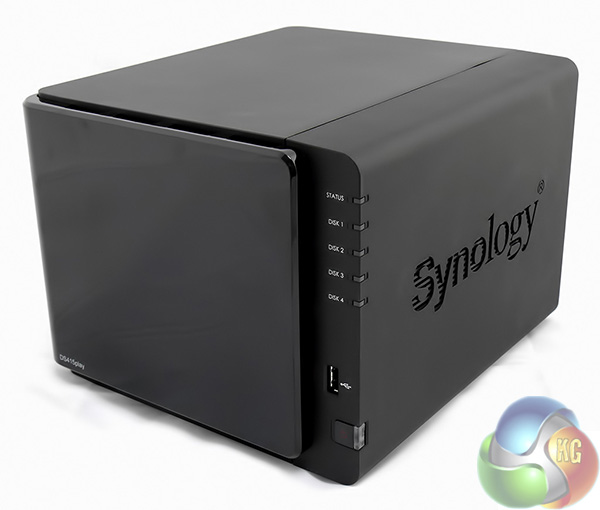
Synology DS415play highlighted features:
- Up to 24TB personal Multimedia Bank
- Four drive bays
- 1080p Full HD Video Transcoding on the fly
- Concurrent multi-channel streaming
- DLNA certified media server
- 1.6GHz dual core CPU with floating point
- Over 112.45MBps reading
- Over 101.21MBps writing
- Synology DSM 5.0 software
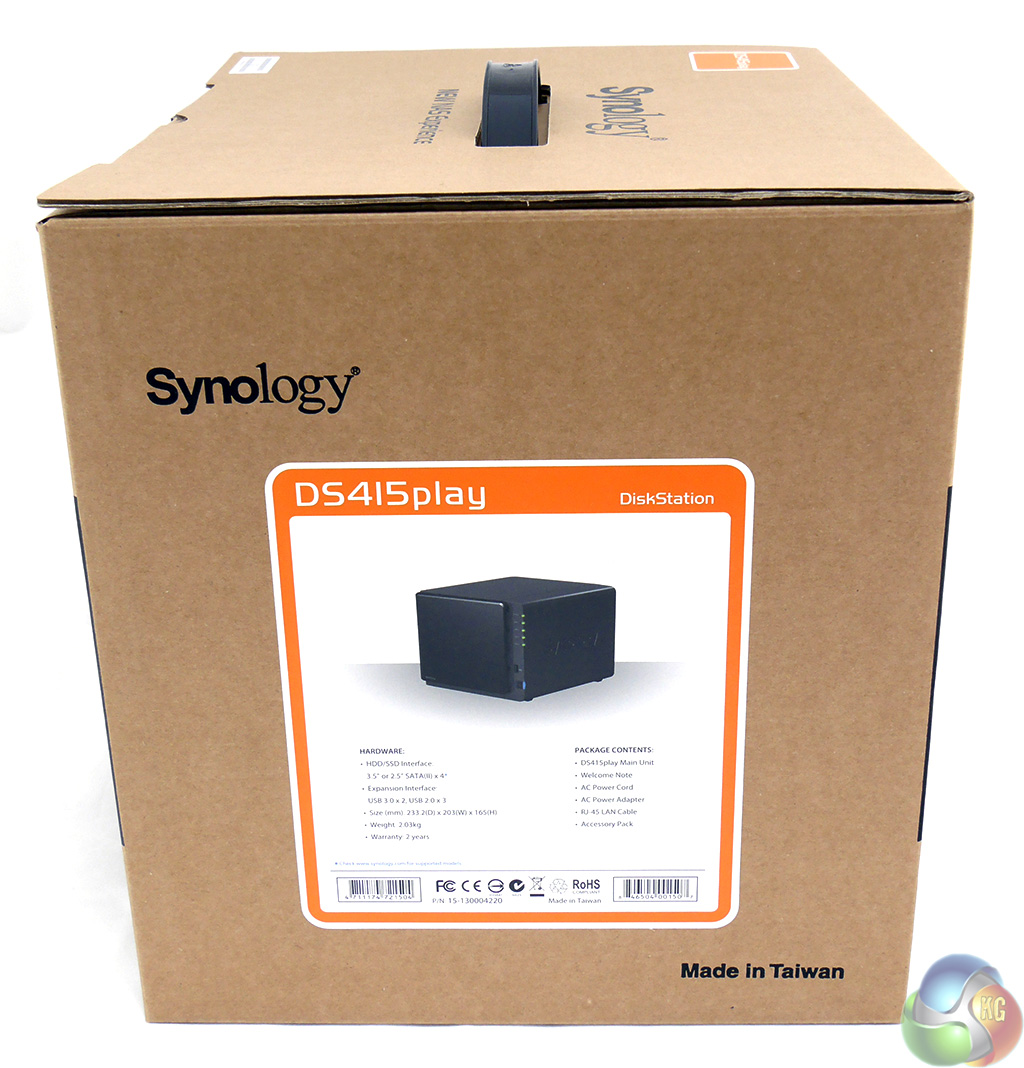
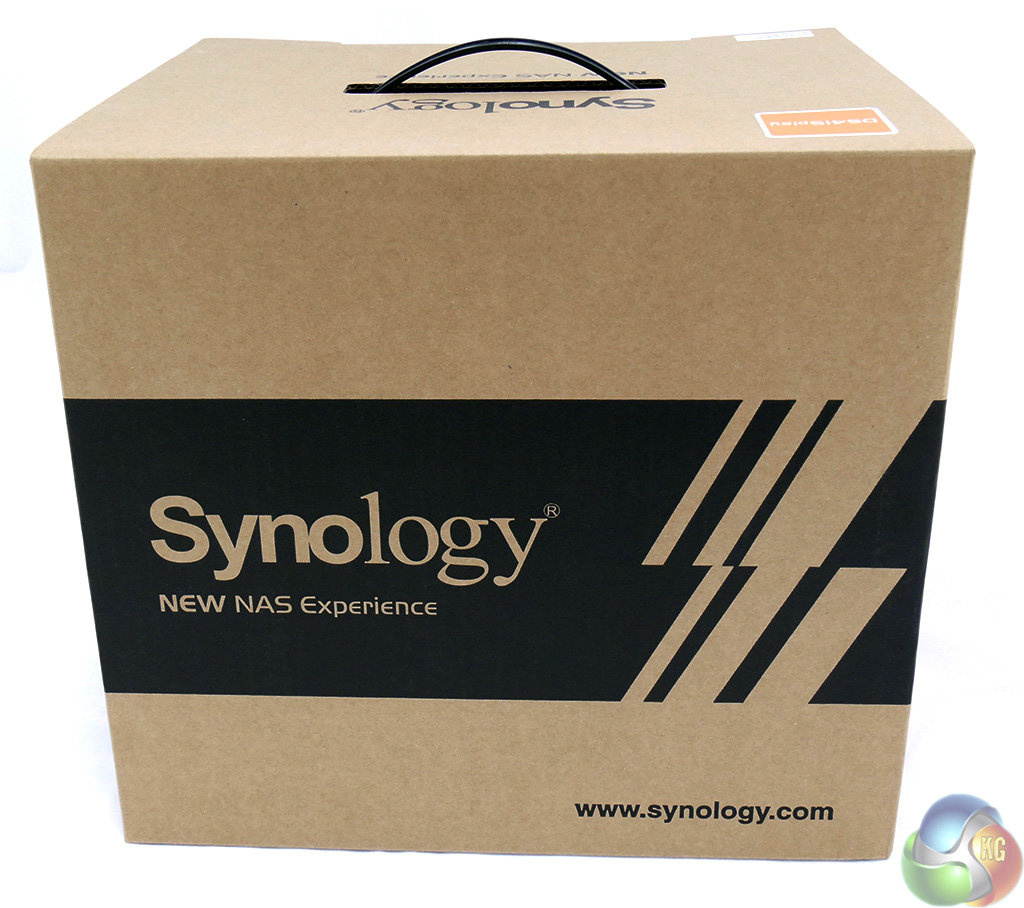
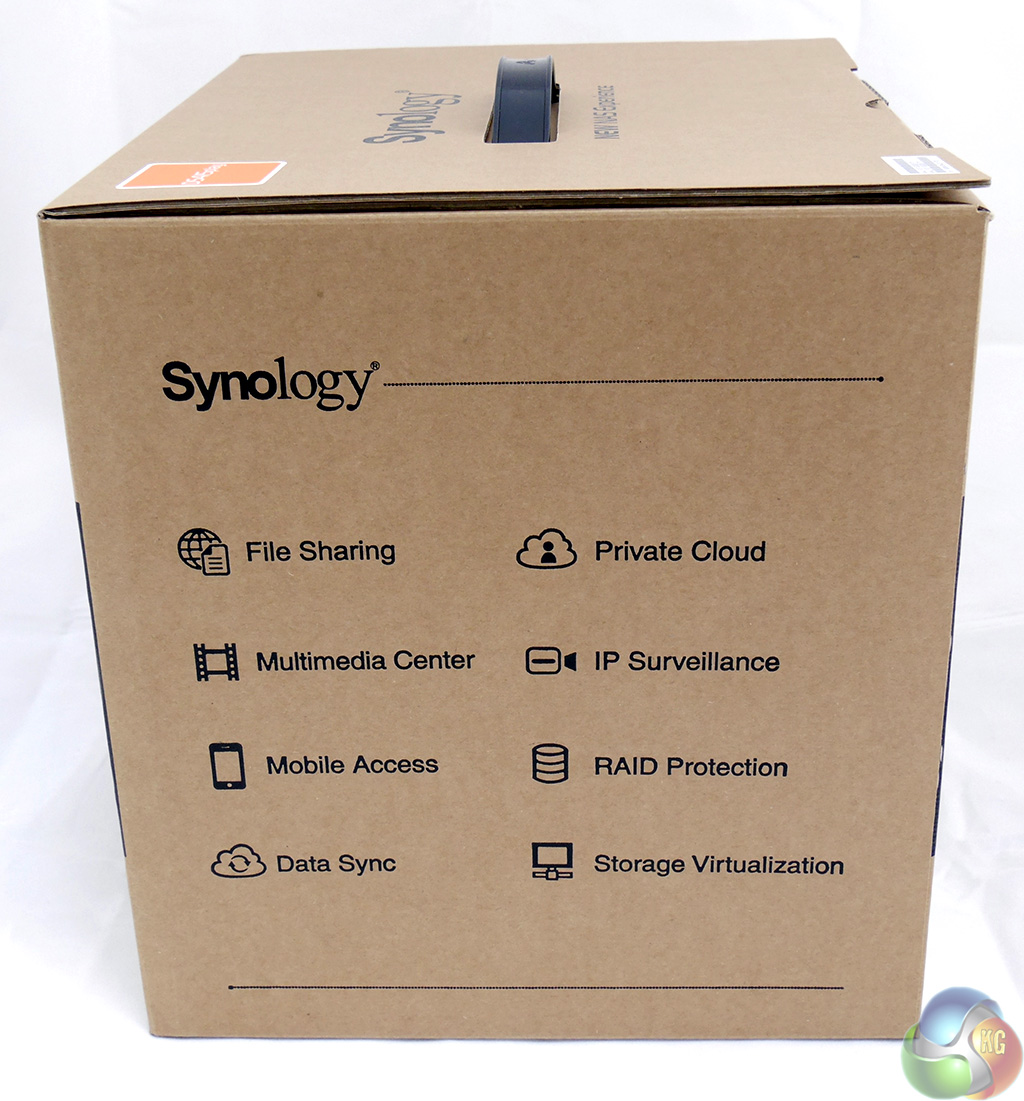
The plain brown cardboard case has a label on one end that shows you have just spent the best part of £400 on a DS415play.
It takes a special type of geek to wonder why the model code is DS415play, rather than DS414play, as we are still very much in 2014. The answer to that question is simply that Synology skips on to the next year once they have passed the middle of the current year.
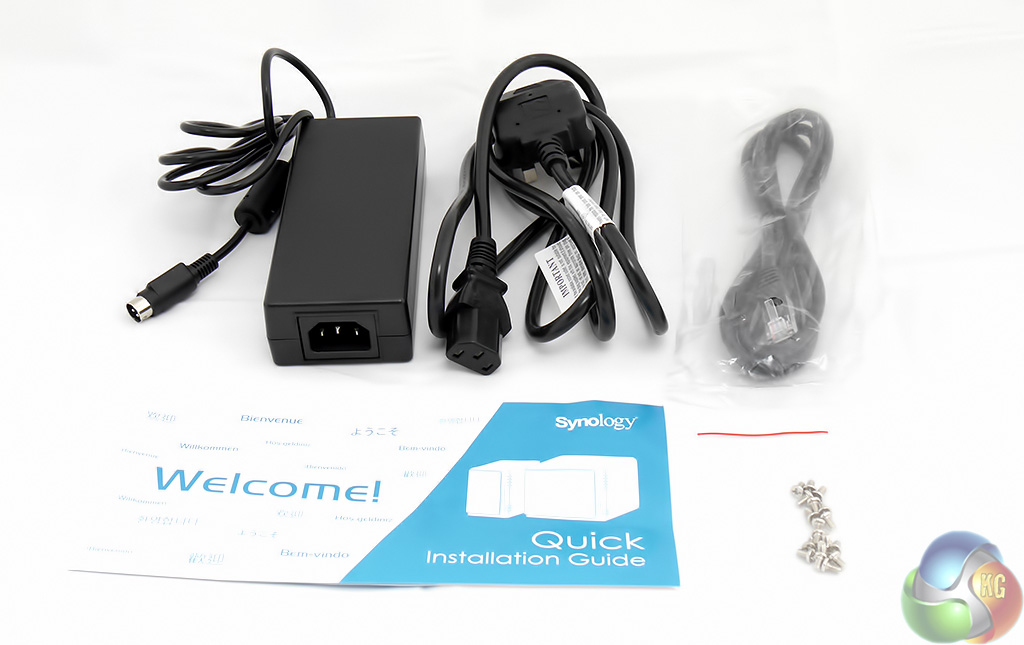
Inside the box you get the usual external power brick, an Ethernet cable and a bag of screws, however these are only necessary for 2.5-inch HDD/SSD as 3.5-inch HDDs use a tool-free mounting system.
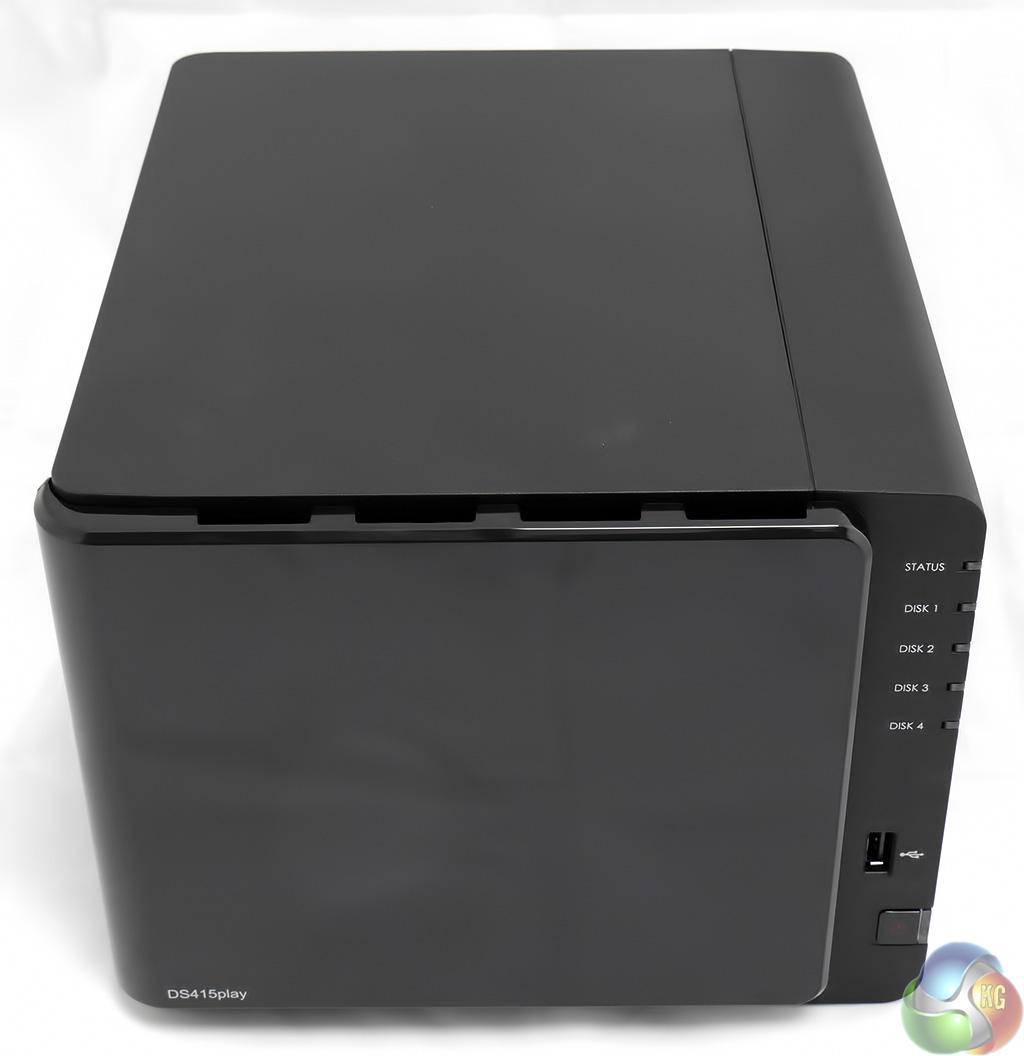
The bare Synology DS415play front cover is very shiny. It probably helps if you imagine the glossiest laptop screen you have ever seen and then transplant a section of that screen to the front of the DS415play.
Actually that's not such a bad idea as one of my gripes about Synology is that they don't include an LCD display on their NAS and instead force you to rely on an array of status LEDs and the browser based configuration screen.
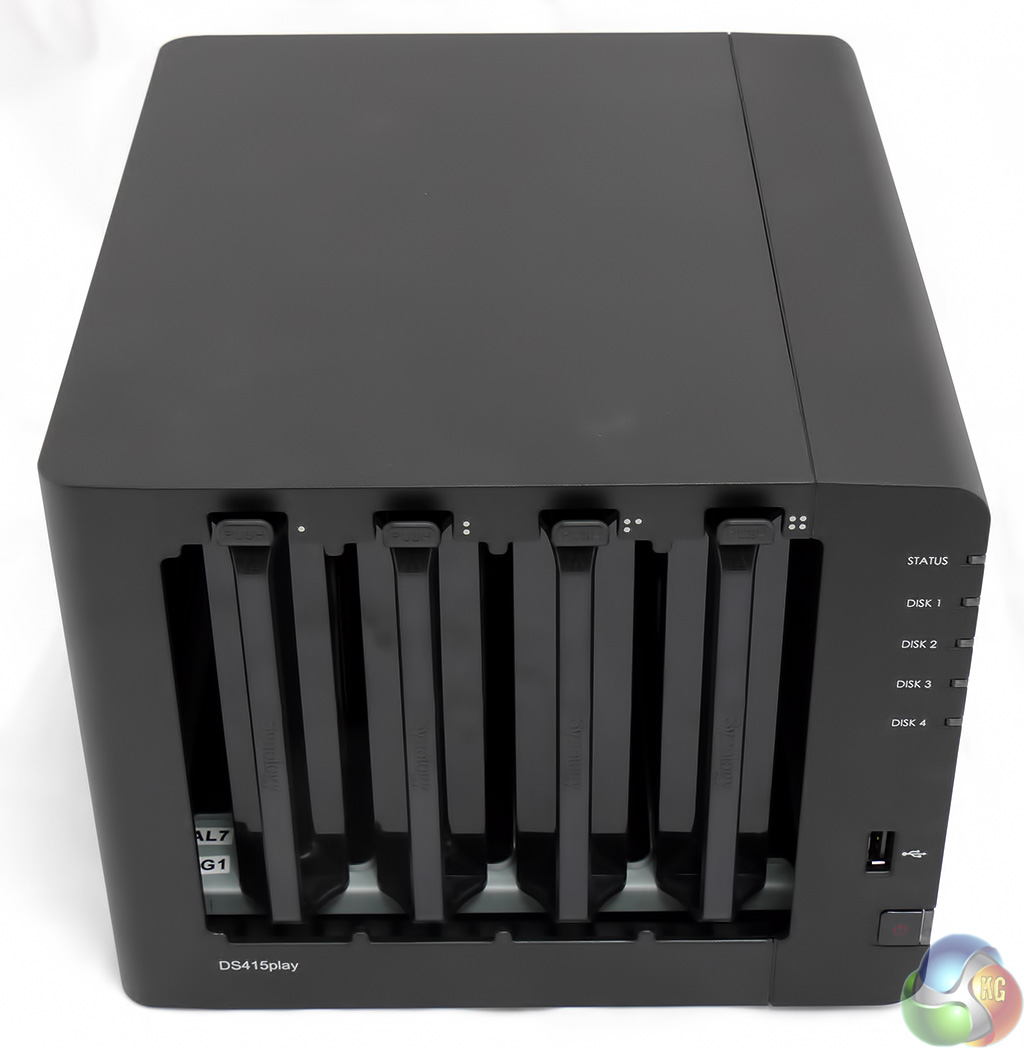
Your first job is to pop the front panel off to reveal the four drive bays. These are retained by a plastic latch that you push with your thumb as you pull on the handle of the drive caddy.
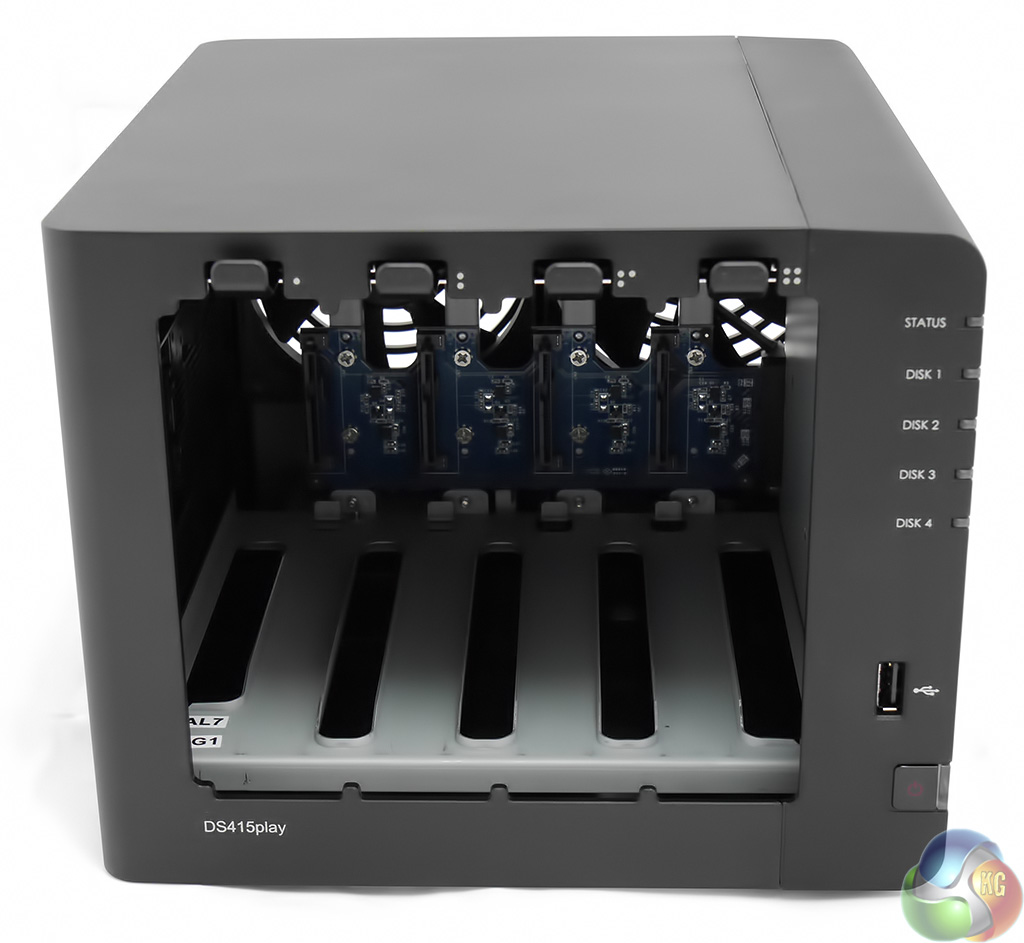
With the four caddies removed you are left with an expensive box. At the back of the NAS you can see the SATA riser card and the motherboard is just about visible through the slots at the bottom of the case. I would have loved to pull the DS415play to pieces to photograph the Atom processor however the pieces fit together very snugly and I got the distinct impression I would break something if I started pulling at the panels.
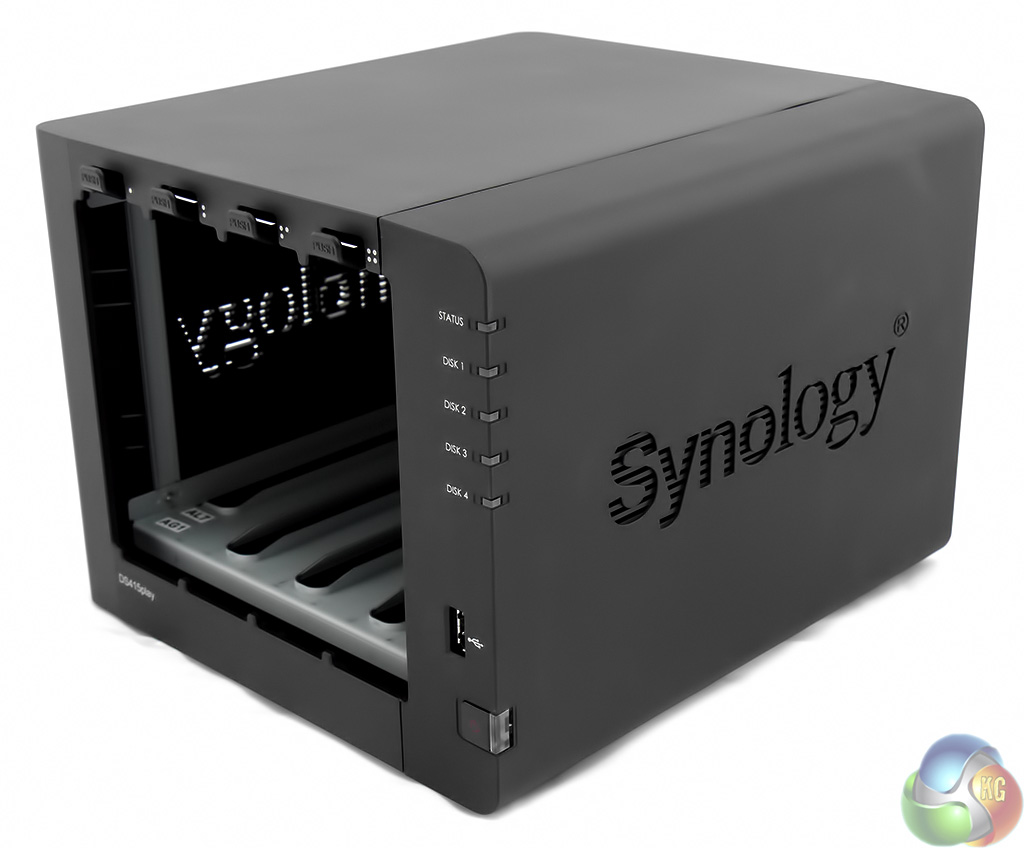
On the front right corner of the NAS there is an illuminated power button and five LEDs (one per disk plus a status light). Above the power button there is a USB 2.0 port so you can connect a flash drive or external HDD.
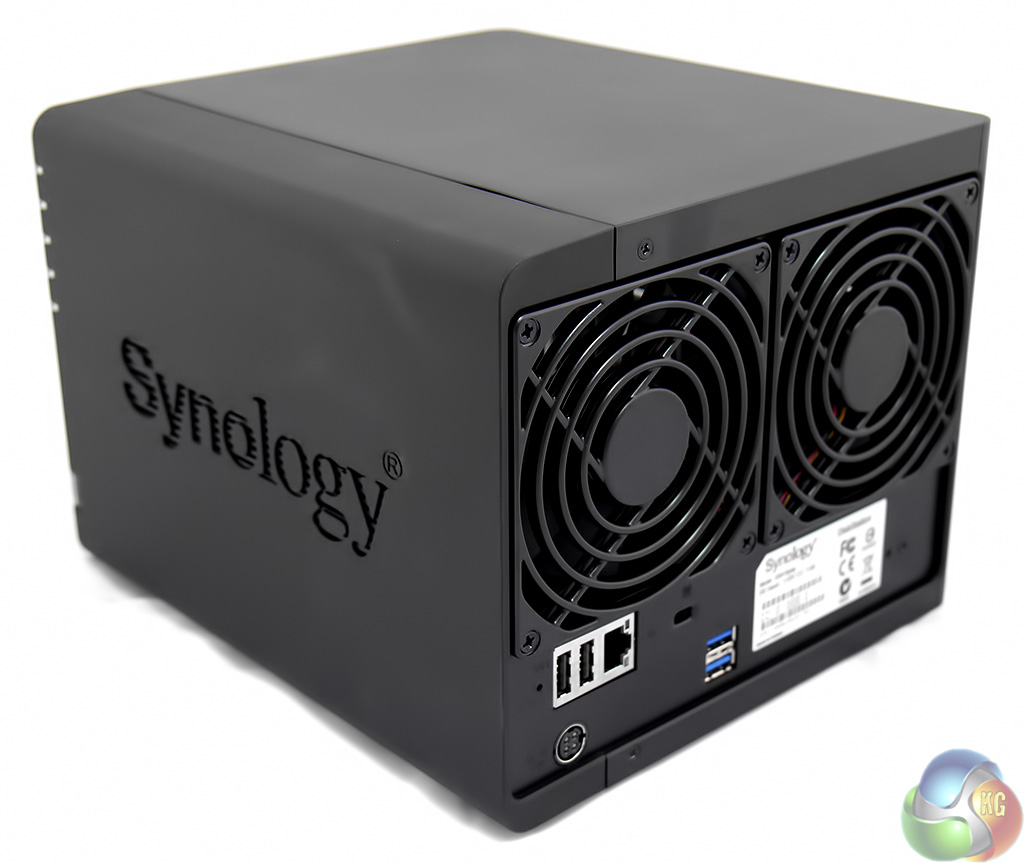
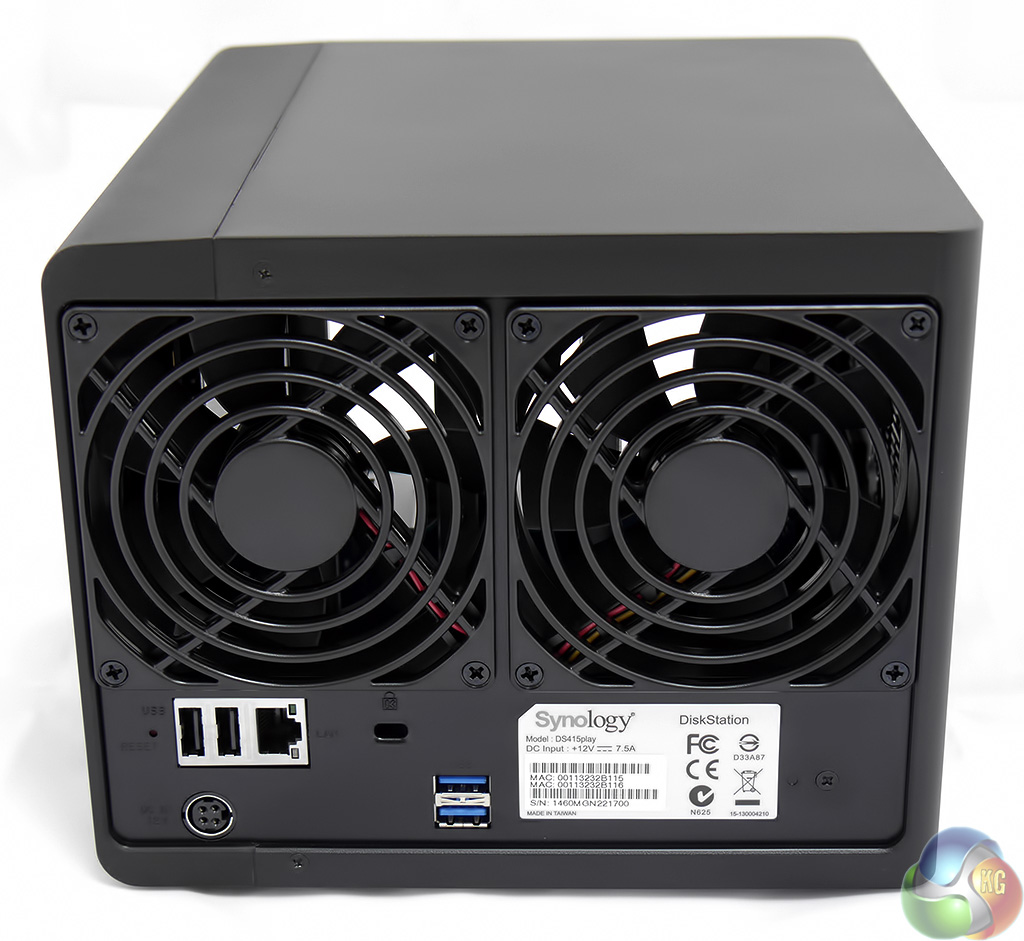
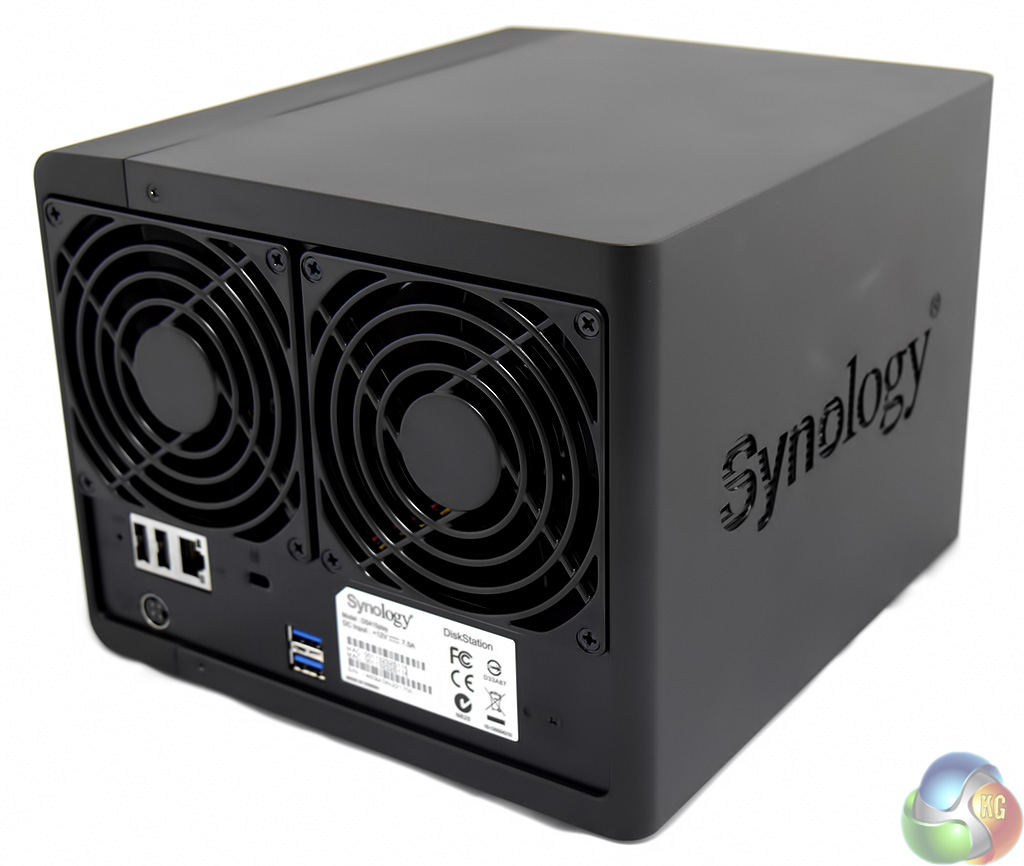
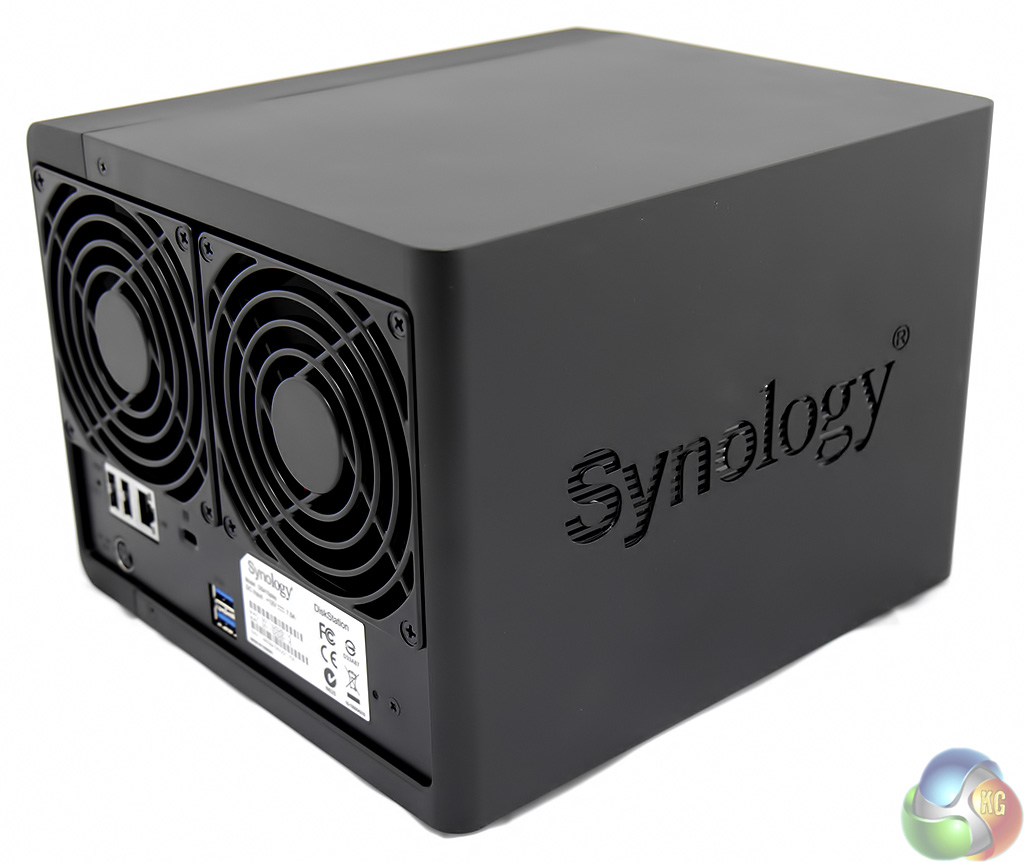
Around the back of the NAS we see two more USB 2.0 ports as well as the headline feature of two USB 3.0 ports and the Gigabit Ethernet port. You'll note there is only one Ethernet port so you can forget about link aggregation.
I am unimpressed by the fact that you only get two USB 3.0 ports, even though this is good going by NAS standards. At the very least one of these ports should have been placed at the front in a convenient location.
Most of the back of the DS415play is dominated by the pair of 92mm cooling fans.
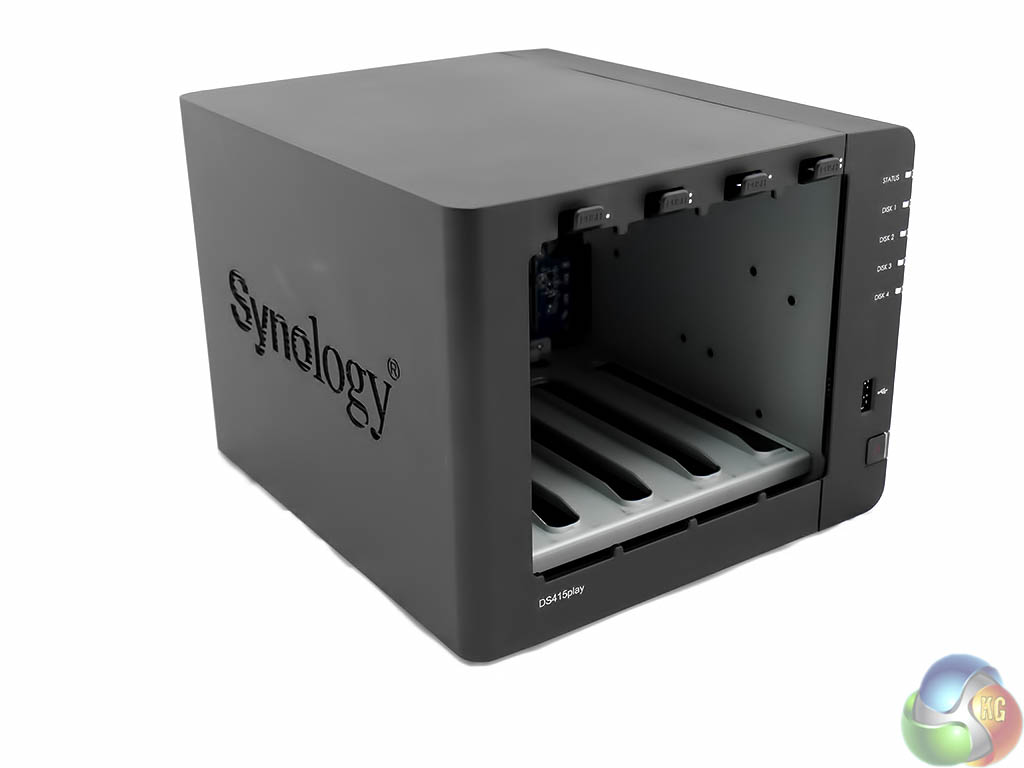
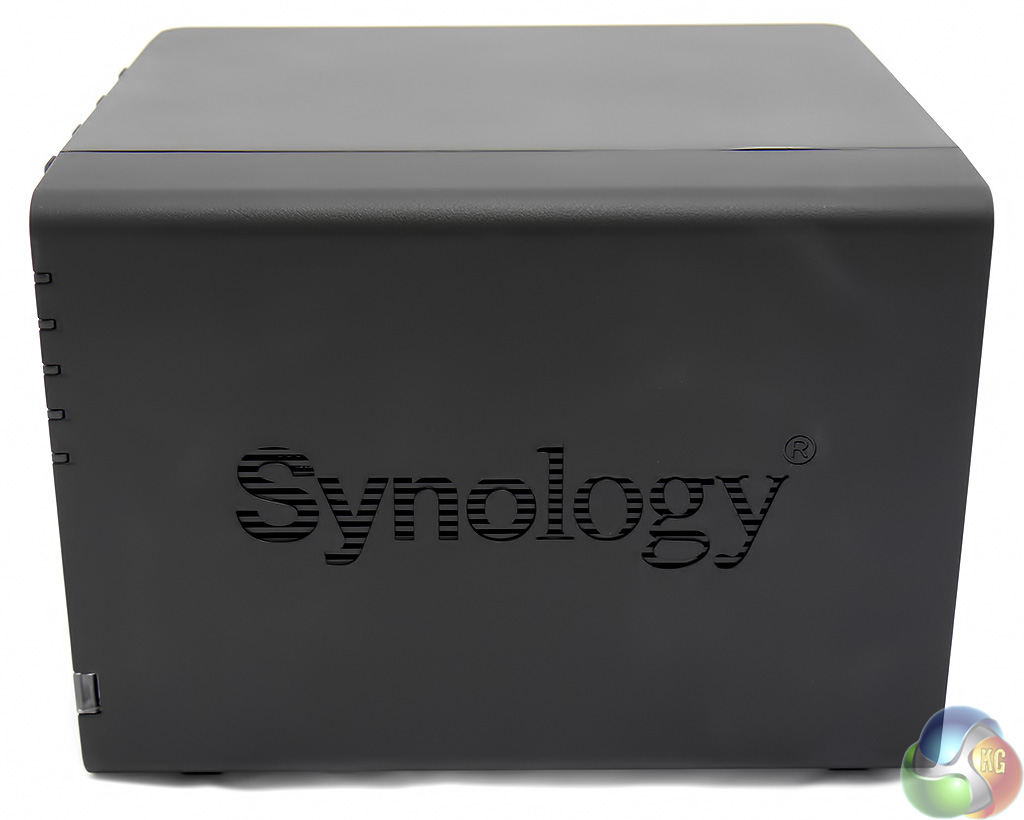
It is worth mentioning that the Synology logo on either side of the NAS is perforated and works as part of the cooling system to allow air to flow around the drives.
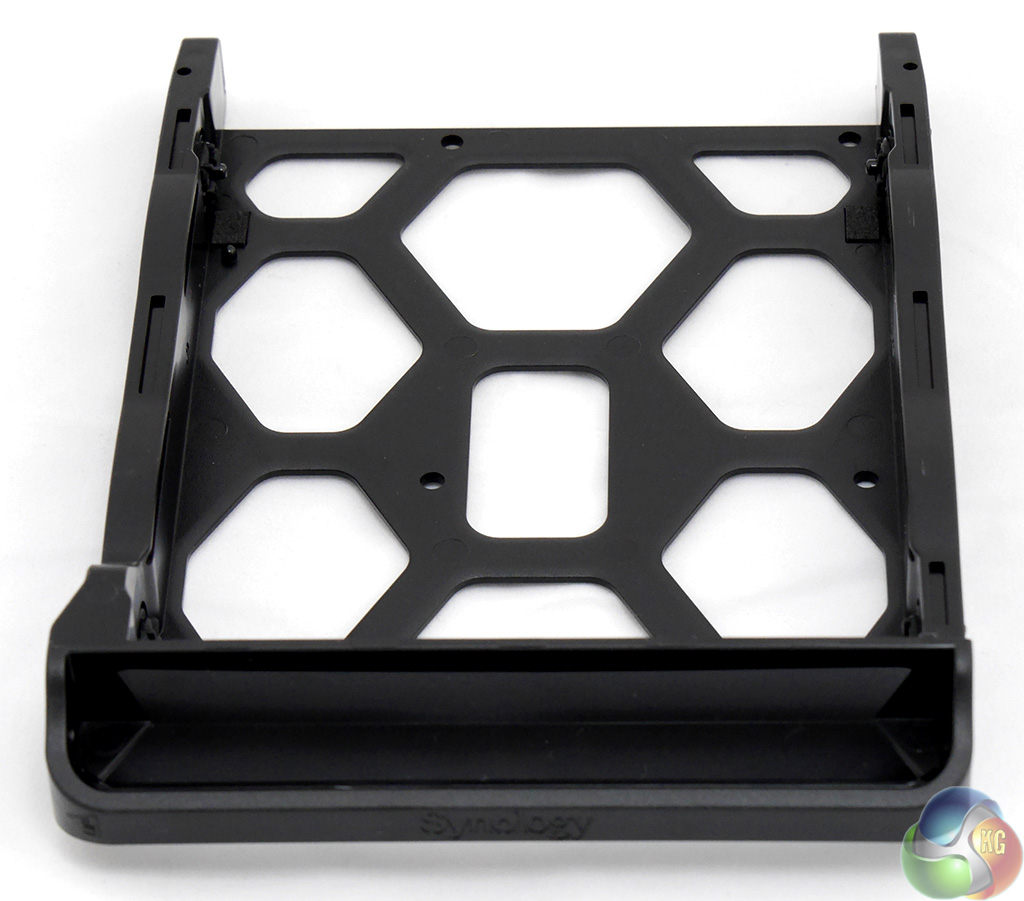
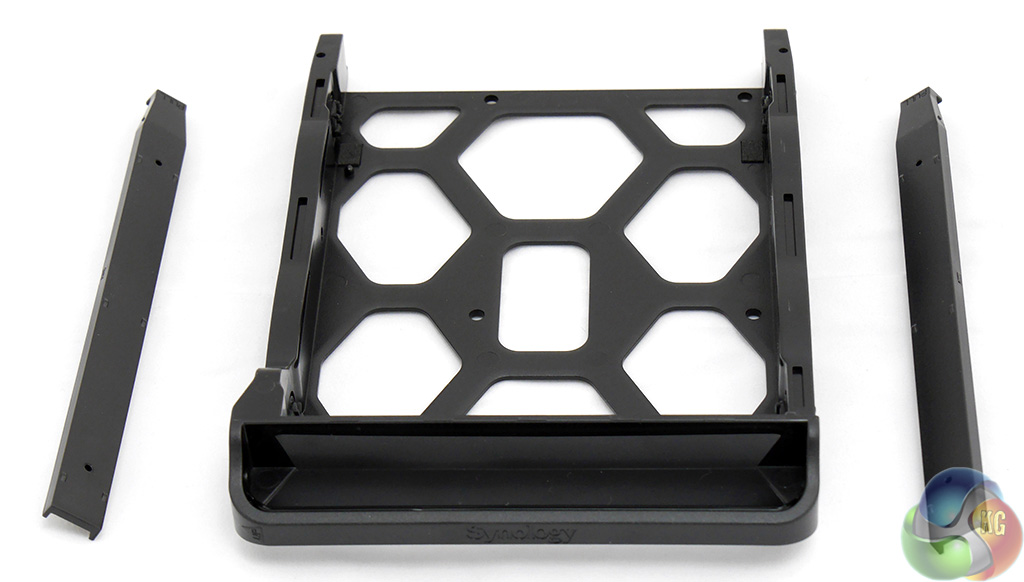
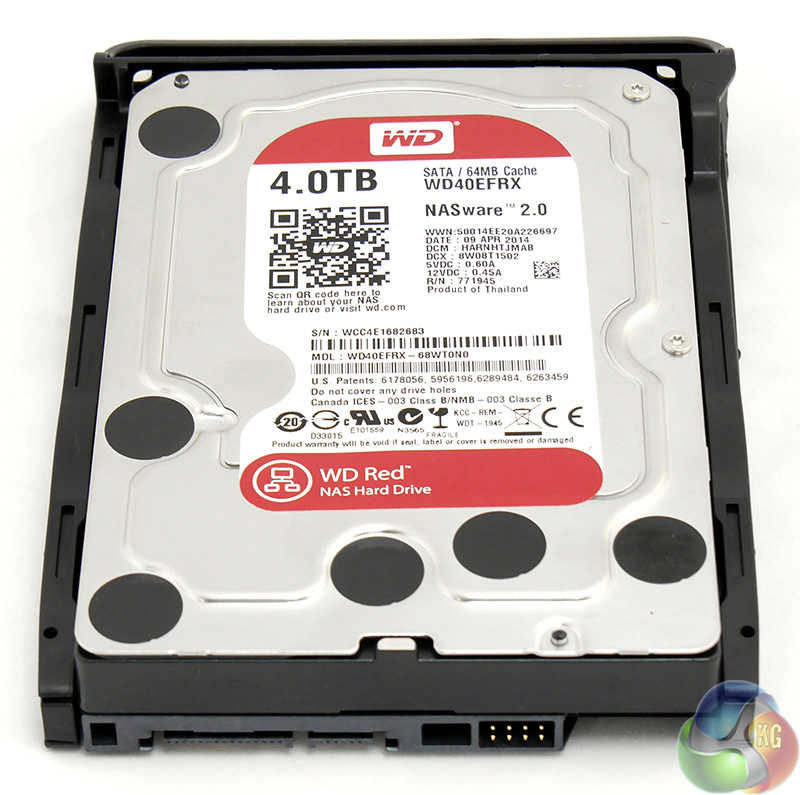
The drive caddies are tool-free. Simply unclip the side rails, sit the drive in place and clip the sides back on.
As you can see I used four 4TB WD Red drives which are fully supported by Synology.

With the DS415play up and running you open a browser, connect to the NAS and install Synology DSM5.0 (DiskStation Manager) software which takes about ten minutes.
This is a simple process that requires the bare minimum of user input. We have discussed Synology DSM on a number of occasions and continue to be impressed by the extensive list of features and appealing GUI.
I like the configuration screen but am keen to see Synology use a status LCD display to show how the NAS is using its capacity and to give details about the drives and current workload.
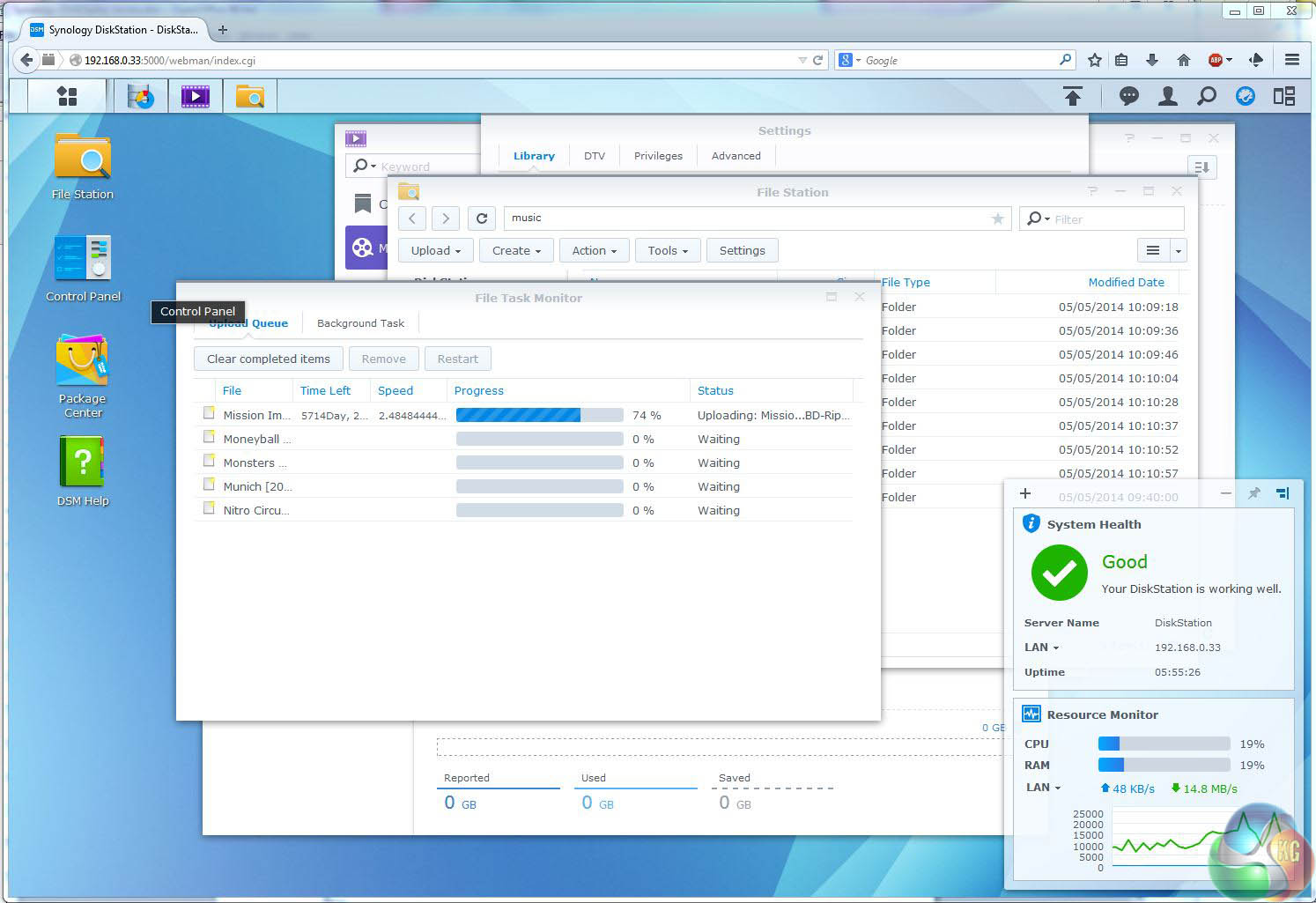
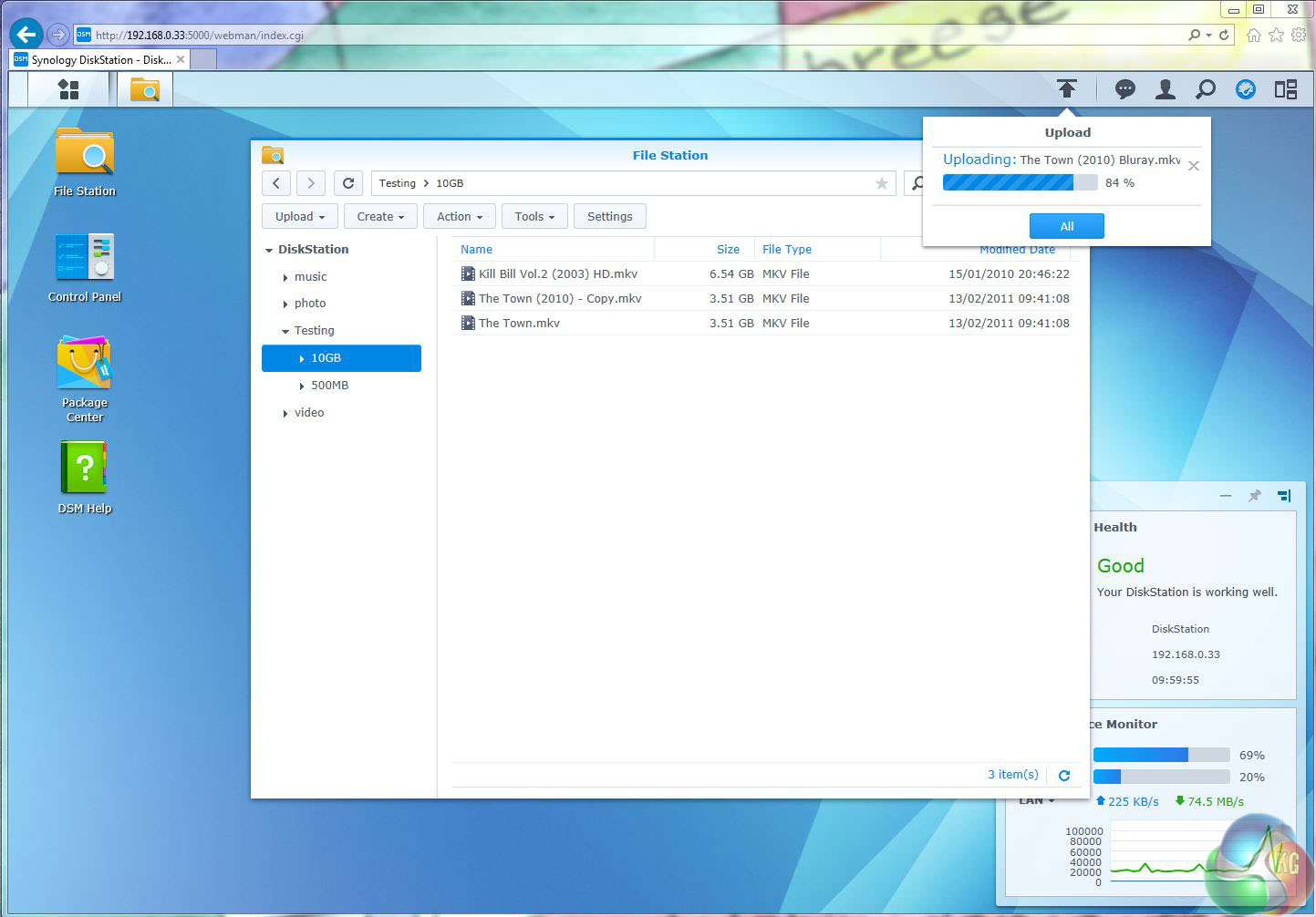
Uploading files to the new NAS is a straightforward matter of marking a load of files in a digital library and clicking ‘upload'. The process is simple however the performance caused me a few headaches.
I was timing the upload of 10GB of files which was an arbitrary number that I picked to make the maths easy. The two files I was using were 6.5GB and 3.5GB in size and the upload took 411 seconds which worked out to 24.3MBps. That is absurdly slow and it was clear the larger file was taking much, much longer than the smaller file.
I wondered whether Firefox 30 might be to blame and re-ran the test using Internet Explorer 11 which did indeed work faster at 359 seconds however it was still very slow.
I couldn't let this go so I uploaded three 3.5GB movies (which works out to 10.5GB so slightly larger) using Firefox 30 and that took 2 mins 17 secs which is the equivalent of 137.2MBps. Uploading those three files with Internet Explorer 11 took slightly longer at 2 mins 21.3 secs however that difference is negligible. It is clear to me that transferring huge files (6.5GB in this case) really slows the process compared a number of large files (3.5GB).
Downloading a batch of files from the DS415play delivers a single zipped file. My 500MB test batch of MP3 files whistled through in 4.3 seconds which works out to 112.MBps. That seems outrageously fast to me and I was amazed to see that Synology claims a write speed ‘in excess of 112.45MBps' which is the first time I have ever achieved a manufacturer's claimed speed for anything, ever.
The second run of this test took 5.1 seconds which is 95.1MBps and still impressively fast.
Uploading small files was the most painful task I performed with the DS415play as the speed dropped to 9.1MBps. It is worth pointing out this is considerably faster than the DS414j which had limped along at 4.4MBps and I see from my notes that the DS214se (single core Marvell processor) could only manage 2.9MBps uploading small files.
In terms of usability the DS415play opened files just as smoothly and rapidly as you could wish. I didn't get to use the DS214play myself as that was bagged by the Editor however I am confident the DS415play is pretty much the same NAS with the addition of two more drive bays.
The key feature that makes the ‘play' different is the Intel Atom processor. If you wish to stream HD movies to all manner of devices including iPhones and iPod Touch you will find a non ‘play' Synology models can transcode 720p whereas the ‘play' can handle 1080p.
It is a fine distinction that Synology covers in detail in an FAQ about playing HD media.
http://www.synology.com/en-uk/support/faq/577
The message here is that a ‘play' model will play any file on any device.
During my testing I could clearly hear the Synology DS415play working, however it was resting on the test bench next to me whereas most NAS are parked on a shelf out of the way. The two cooling fans are very quiet, the four WD Red drives are near-silent and the Synology chassis is superb. It ducts cooling air to the drives while keeping noise and heat levels at a minimum.
There have been subtle changes from the DS214play to the DS415play such as the ditching of the copy button and the addition of a second USB 3.0 port, plus a number of USB 2.0 ports – however these are minor points.
It seems unlikely that many companies will want to push the video streaming element of NAS so we are talking about a consumer NAS that costs £372 and requires three or four hard drives that will cost £400 or £500. That is a total spend of £800 or £900 which strikes me as an epic amount of cash for watching videos on your tablet or phone.
In the event that you are considering a 4-bay DS414 NAS for your home then I strongly recommend you spend the extra £20 for the Atom upgrade that comes with the DS415play compared to the basic DS414, although the much cheaper DS414j is also a contender.
There is no doubt the DS415play excels at its task of serving up media files but it strikes me as a sledgehammer to crack a relatively small nut. Perhaps you need 20TB+ of storage and require a 4-bay NAS but if you can cope with a ‘mere' 12TB then a 2-bay DS214play will save you a fortune.
Discuss on our Facebook page, over HERE.
Pros:
- Good performance.
- Synology DSM5 software.
- Tool-free drive bays.
- Decent array of software.
- Two USB 3.0 ports.
- Quiet operation.
Cons:
- High price.
- No digital display.
- Both USB 3.0 are at the rear.
- No HDMI.
KitGuru says: The ultimate 4-bay NAS for serving HD movies to your mobile device but you will pay a very high price for the privilege of owning the latest model from Synology.


No HDMI on a nas as a con? and using the web interface to upload and download files instead of samba? I get the feeling the reviewer doesnt fully understand using a nas as a nas.
Using your web browser to test the transfer speed seems pretty strange…
You also seem to forgotten about a little invention called TV. Who cares about transcoding video for your phone?
I want a Plex server that can transcode and send 1080p to any streaming device in the house…Roku, Android TV box, WDTV, etc.
Confirm in the plex forum with the compatability with the 415play, i read somewhere (but unsure about it) that plex doesnt yet support the hardware transcoding on this model .